🎯 Goal of This Note
Create the HTML templates that will later be filled in with dynamic data from the JSON file — one template for the product detail page, and one for the overview page.
🏗️ Project Overview
The website will be dynamic: it reads product data from the
data.jsonfile.If the JSON file changes (e.g., a product is removed or renamed), the website should automatically reflect that change when reloaded.
Two main pages will be built:
🏠 Overview page — lists all products.
📦 Product detail page — shows details for a single product.
🎨 Why Everything Is Internal (CSS & Images)
All CSS styling is written directly inside the HTML files (inline
<style>), instead of linking external stylesheet files.Instead of using real images, emojis are used to represent products.
🧐 Why?
Every separate file (CSS file, image file, etc.) triggers its own HTTP request to the server (just like the earlier example with
favicon.ico).To avoid handling many extra requests for assets, everything is kept self-contained within the HTML file itself.
🛠️ Step 1: Building the Product Detail Template
📁 Starting Point
Based on:
templates/product.html(a static sample page)
This file already contains the HTML and CSS needed to get us up and running. Right now it's filled with dummy data, which we'll swap out for live data from the JSON file. Since this isn't an HTML/CSS course, we won't be going over how that markup and styling works.
🧮 Data Fields Available (from JSON)
Each product in data.json has fields such as:
🏷️
productName😀
image🌍
from🥗
nutrients⚖️
quantity💲
price🌱
organic(true/false)📝
description
🔄 Swapping Static Content for Placeholders
For any data that should be dynamic, delete the static text and replace it with a placeholder like %PRODUCTNAME%.
🏷️ The
%...%format is used because it's unlikely to clash with other text on the page.💡 Any format works, as long as it's distinct and easy to spot.
Dummy Product Name
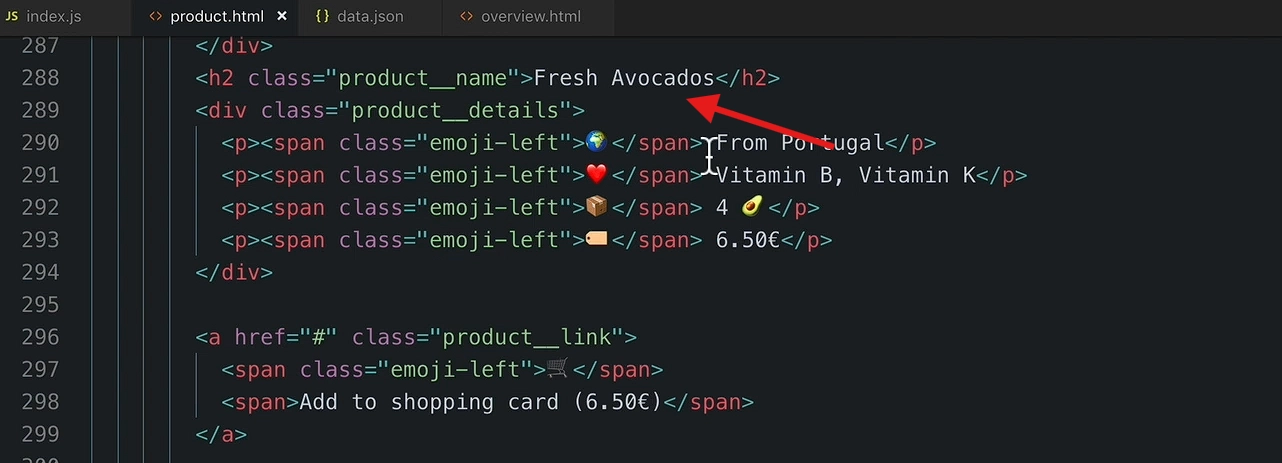
Placeholder
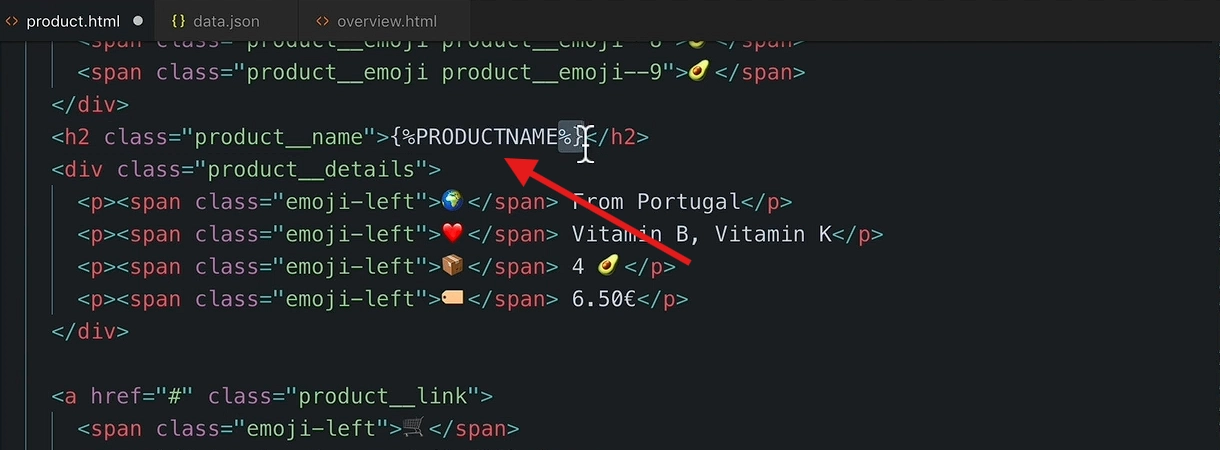
📋 Placeholders Used in product.html
Now let's replace all the static data that needs to be dynamic.
The price in the JSON is just a number (e.g.,
6.50) — the currency symbol (€) stays hardcoded in the HTML template since it doesn't change.
🌱 Special Case: Organic Badge
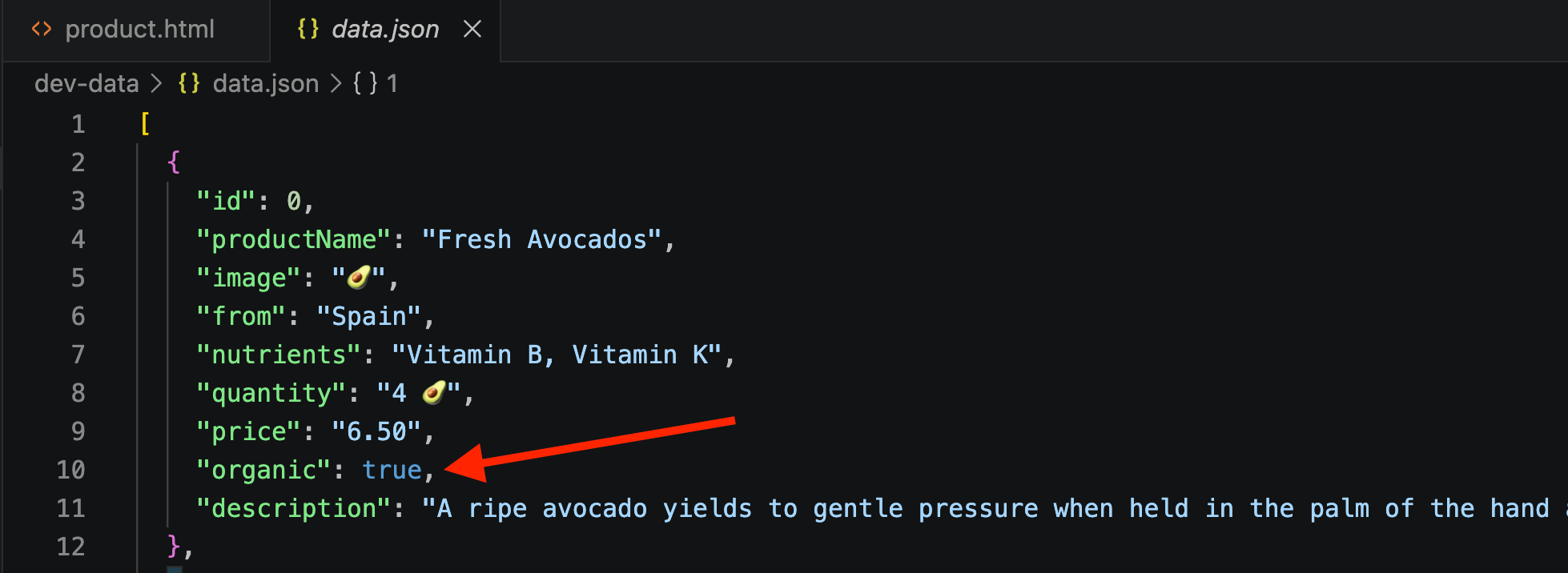
🌿 Products are marked
organic: trueorfalsein the JSON.
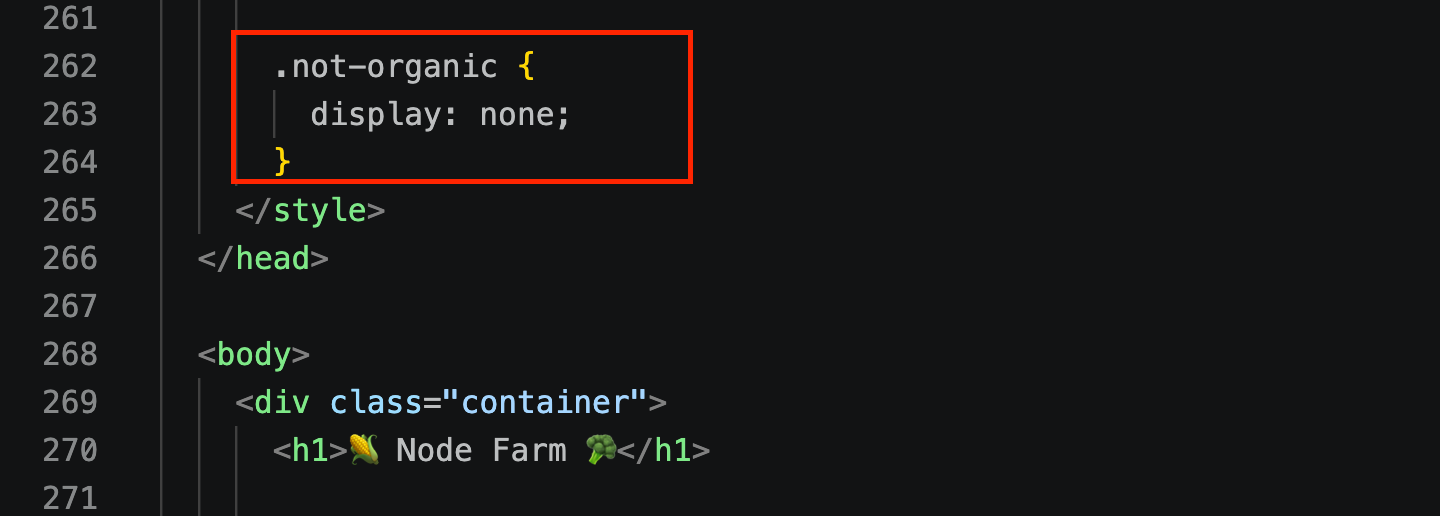
👀 A CSS class hides the "organic" badge when a product isn't organic.
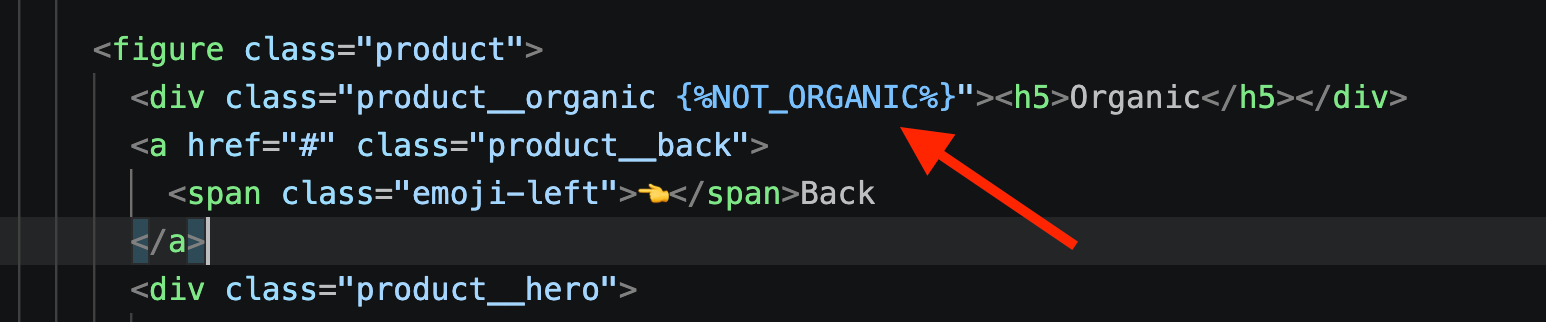
🏷️ To handle this dynamically, add a placeholder inside the class attribute:
class="... %NOT_ORGANIC%"🔄 Later, this gets replaced, covered in an upcoming lecture.
💾 Final Step
📁 Save this completed file as the product template (referred to as
template-product).
🏗️ Step 2: Building the Overview Template
🎯 The Challenge
📦 Unlike the detail page, the overview page needs to show one "card" per product — but the number of products can vary (could be 2, 5, 10, etc.).
🚫 We can't hardcode a fixed number of cards in the template.
💡 The Solution: Two Separate Templates
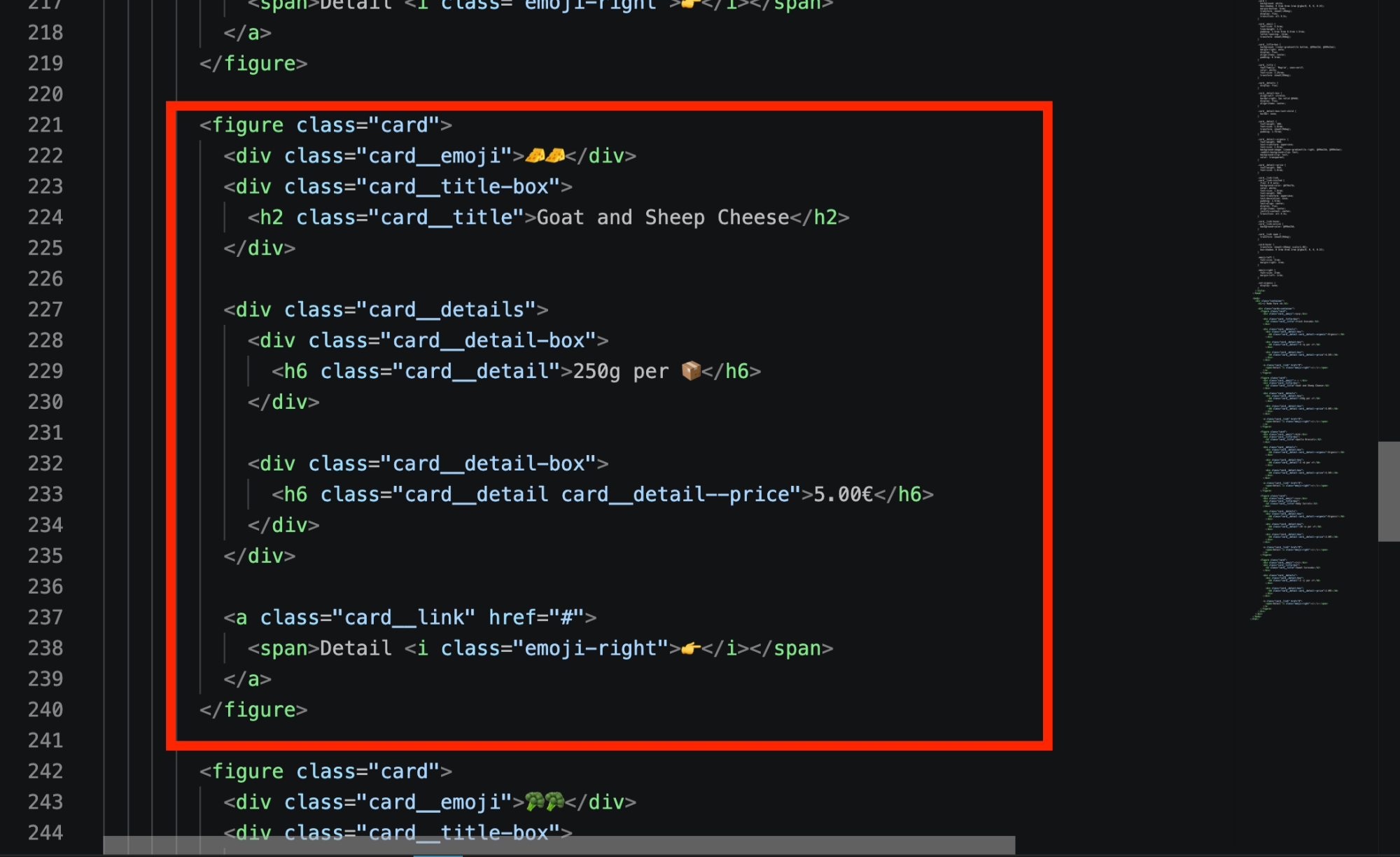
overview.htmlcurrently has dummy/hardcoded code showing 5 fixed cards. This needs to be made dynamic — the cards should be generated from JSON data instead of being hardcoded.
Each
<figure></figure>represent a product card
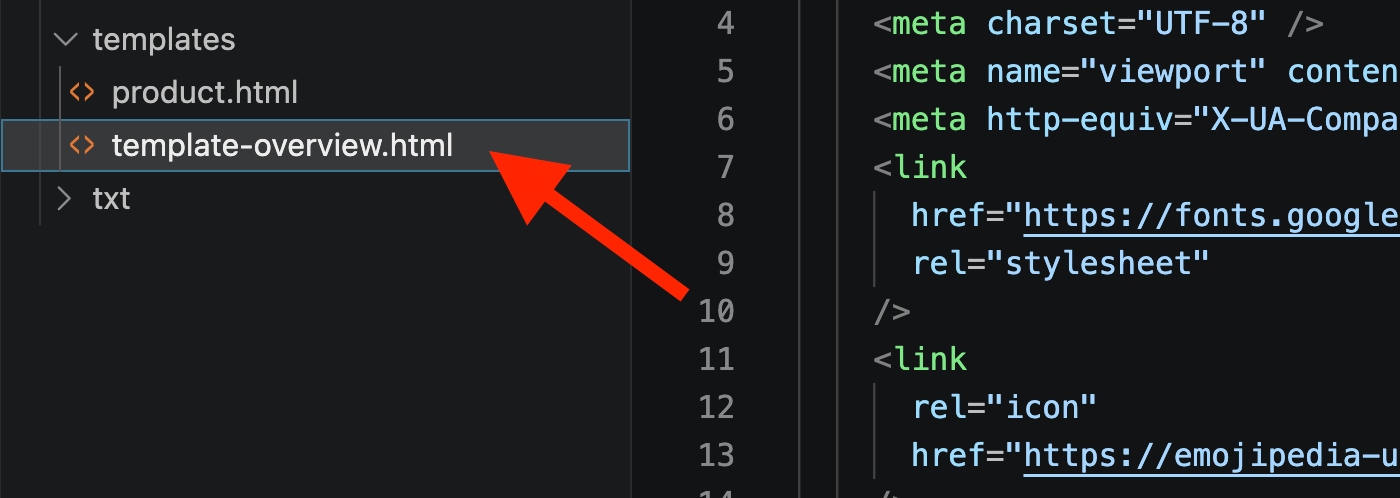
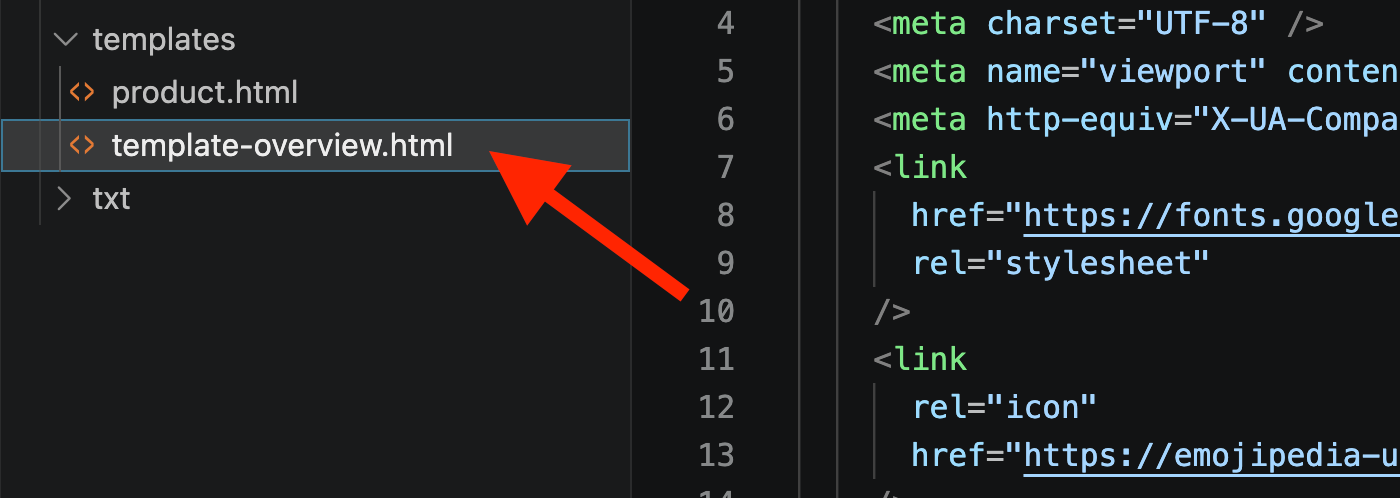
Lets change
overviewtotemplate-overview
Create a new file
template-card— a template for just one single product card, which will be reused/repeated for every product.
Now let's copy the
<figure>section fromtemplate-overview.htmland paste it intotemplate-card.html
Now lets clean
template-overviewand add a placeholder :%PRODUCT_CARDS%
Later in the code, one "card" will be generated for each product in the JSON, all combined into one string, and inserted here.
🛠️ Step 3: Modifying template-card
Now lets replace static data with placeholder here
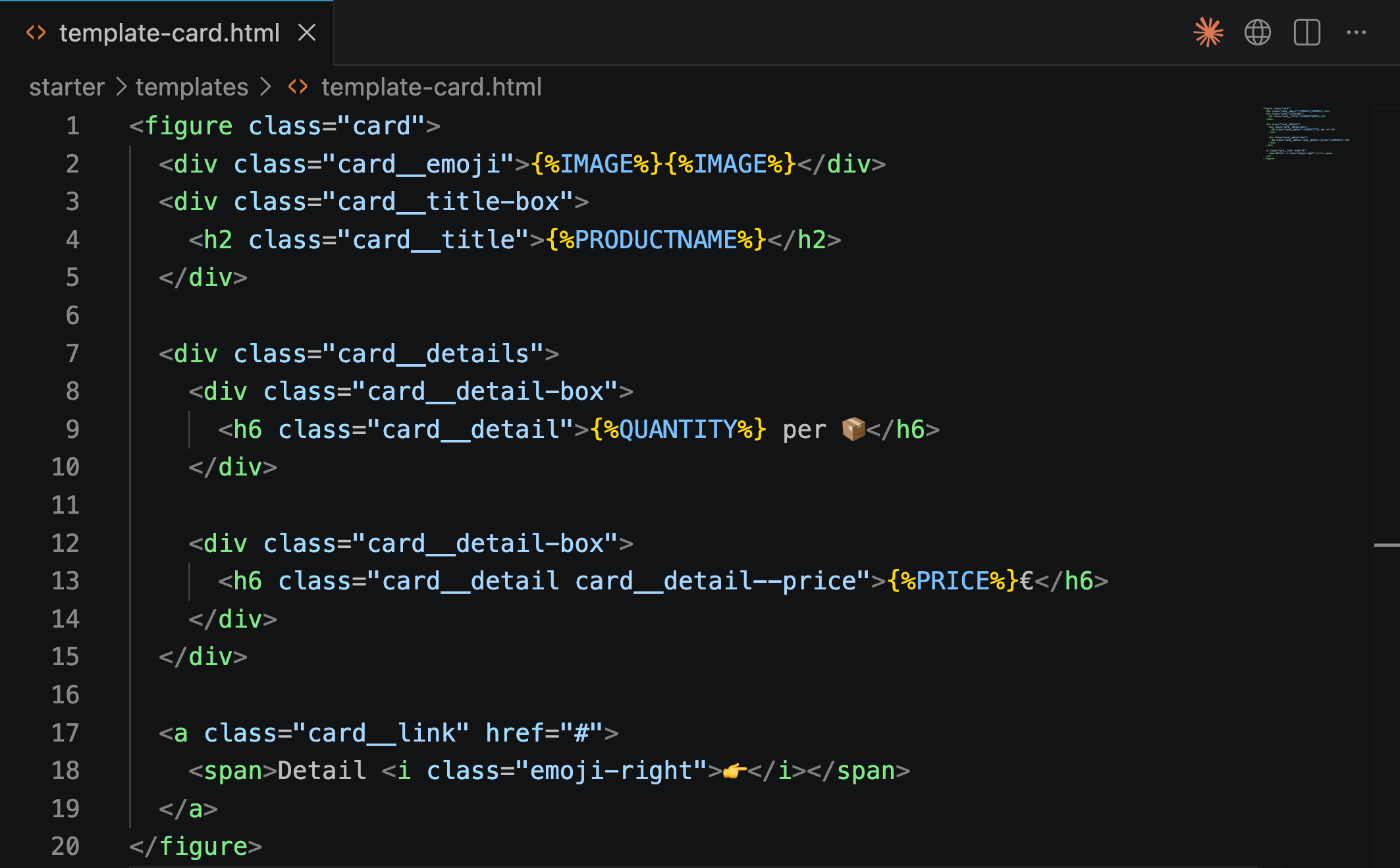
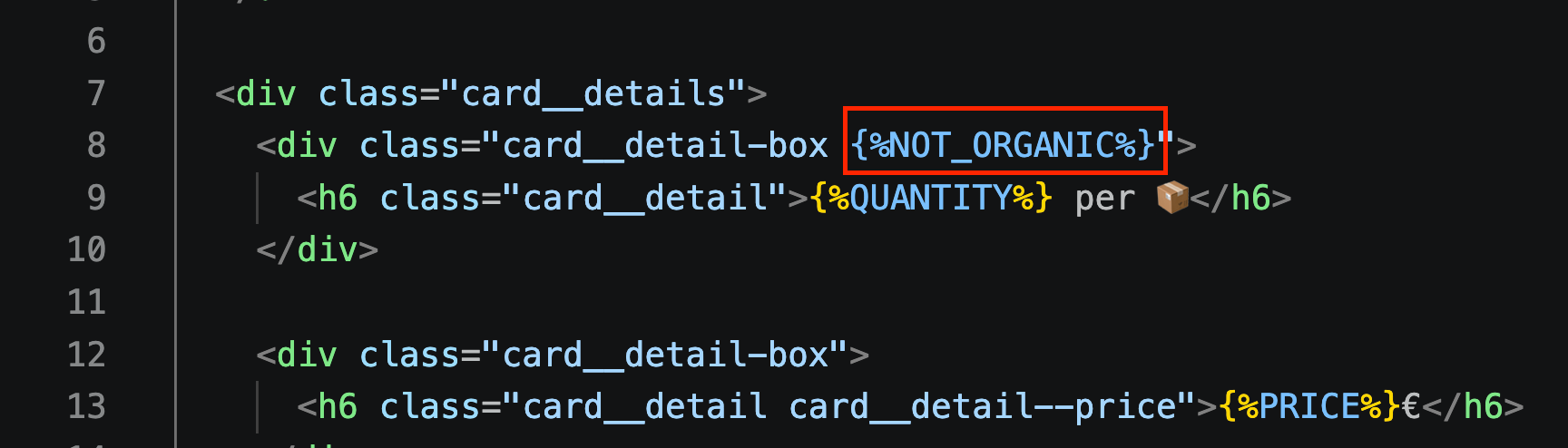
Add
%NOT_ORGANIC%as classname in%QUANITY%parent<div>which will be used for styling later
🔗 Building the Product Link (Detail Page Navigation)
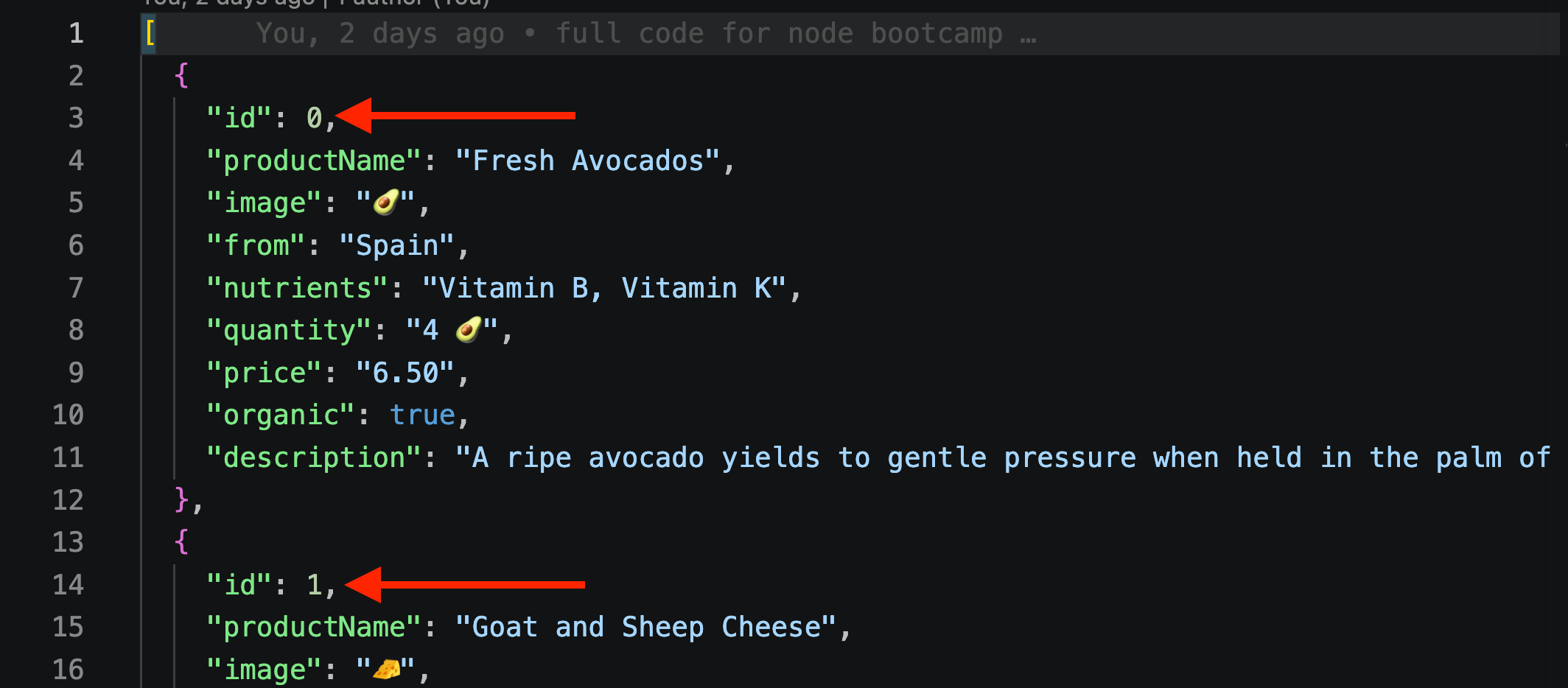
Each card contains a link (<a> element) to that product's detail page. Example real link format:
/product?id=0👷♂️ Demo from the final project
The
idin the URL matches the product'sidfield in the JSON
(e.g., avocado =id: 0, goat cheese =id: 1, broccoli =id: 2, etc.).
In the template, this becomes:
/product?id=%ID%
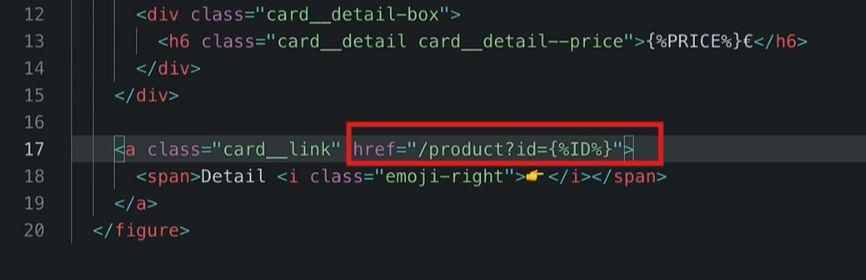
Later,
%ID%will be replaced with the actual product ID for each card.
💡 Note: This routing logic (handling
/product?id=Xrequests) is not yet implemented — that will be covered in an upcoming lecture.
✅ Updated placeholder in template-card.html
🏷️ Field | 📝 Placeholder Example |
|---|---|
Image (appears twice in the card) |
|
Product name |
|
Organic badge |
|
Quantity |
|
Price |
|
Link |
|
🗂️ Summary of Templates Created
📄 Template Name | 🎯 Purpose |
|---|---|
| Full detail page for a single product |
| Overall overview page layout, with one placeholder ( |
| A single reusable "card" — repeated once per product to build the full list on the overview page |
<div class="infographic-vscodeterm" id="vt">
<style>
.infographic-vscodeterm {
--ink: #1a1a1a;
--ink-soft: #5c5c5c;
--paper: #ffffff;
--paper-alt: #f0ece4;
--accent: #2563eb;
--accent-deep: #1942a8;
--accent-soft: #e3ebfd;
--line: #ddd6c9;
--radius: 8px;
--display-font: 'Fraunces', Georgia, serif;
--body-font: 'Inter', system-ui, sans-serif;
--mono-font: 'IBM Plex Mono', monospace;
max-width: 880px;
margin: 0 auto;
box-sizing: border-box;
background: transparent;
color: var(--ink);
font-family: var(--body-font);
}
.infographic-vscodeterm[data-theme="dark"] {
--ink: #e8e6e1;
--ink-soft: #9a968c;
--paper: #13171f;
--paper-alt: #1c212b;
--accent: #5b8def;
--accent-deep: #8fb4ff;
--accent-soft: #20293f;
--line: #2c313d;
}
.infographic-vscodeterm * { box-sizing: border-box; min-width: 0; }
.vt-eyebrow {
font-family: var(--mono-font); font-size: 0.72rem; letter-spacing: 0.1em;
text-transform: uppercase; color: var(--accent); margin: 0 0 0.45rem;
display: flex; align-items: center; justify-content: center; gap: 0.4rem;
}
.vt-eyebrow::before { content: ""; width: 14px; height: 2px; background: var(--accent); display: inline-block; }
.vt-title {
font-family: var(--display-font); font-size: clamp(1.5rem, 4vw, 2.3rem); text-align: center;
margin: 0 0 0.5rem; line-height: 1.14; letter-spacing: -0.01em;
}
.vt-sub { color: var(--ink-soft); font-size: 0.95rem; text-align: center; margin: 0 0 1.7rem; }
/* ===== VS Code window — fixed dark theme regardless of page mode ===== */
.vt-window { border-radius: 8px; overflow: hidden; box-shadow: 0 16px 40px -14px rgba(0,0,0,0.45); border: 1px solid #1e1e1e; font-family: var(--mono-font); }
.vt-titlebar { background: #323233; display: flex; align-items: center; padding: 0.5rem 0.8rem; position: relative; }
.vt-dots { display: flex; gap: 0.4rem; }
.vt-dots span { width: 10px; height: 10px; border-radius: 50%; display: block; }
.vt-dots span:nth-child(1) { background: #ff5f56; }
.vt-dots span:nth-child(2) { background: #ffbd2e; }
.vt-dots span:nth-child(3) { background: #27c93f; }
.vt-titlebar-text { position: absolute; left: 50%; transform: translateX(-50%); font-size: 0.72rem; color: #cccccc; }
.vt-body { display: flex; height: 300px; }
.vt-resize-h { width: 5px; cursor: col-resize; background: transparent; flex-shrink: 0; transition: background 0.15s; touch-action: none; }
.vt-resize-h:hover, .vt-resize-h.is-dragging { background: #0078d4; }
.vt-resize-v { height: 5px; cursor: row-resize; background: transparent; flex-shrink: 0; transition: background 0.15s; touch-action: none; }
.vt-resize-v:hover, .vt-resize-v.is-dragging { background: #0078d4; }
.vt-window-resize {
height: 9px; background: #252526; cursor: row-resize; display: flex; align-items: center;
justify-content: center; border-top: 1px solid #1e1e1e; touch-action: none;
}
.vt-window-resize span { width: 30px; height: 3px; border-radius: 2px; background: #4a4a52; }
.vt-window-resize:hover span, .vt-window-resize.is-dragging span { background: #0078d4; }
.vt-toggle-btn {
background: none; border: none; color: #9a9a9a; cursor: pointer; display: flex; align-items: center;
padding: 0.3rem; border-radius: 3px; flex-shrink: 0;
}
.vt-toggle-btn:hover { background: #2a2d2e; color: #fff; }
.vt-toggle-btn svg { width: 13px; height: 13px; }
.vt-sidebar.is-hidden { width: 0 !important; overflow: hidden; border-right: none; }
.vt-terminal.is-collapsed { height: auto !important; }
.vt-terminal.is-collapsed .vt-term-body { display: none; }
.vt-terminal.is-collapsed .vt-term-toggle svg { transform: rotate(-90deg); }
.vt-activitybar { width: 40px; background: #333333; display: flex; flex-direction: column; align-items: center; padding-top: 0.7rem; gap: 1.1rem; flex-shrink: 0; }
.vt-activitybar svg { width: 18px; height: 18px; opacity: 0.55; }
.vt-activitybar svg.is-on { opacity: 1; }
.vt-sidebar { width: 170px; background: #252526; flex-shrink: 0; overflow-y: auto; border-right: 1px solid #1e1e1e; }
.vt-sidebar-head { font-size: 0.65rem; font-weight: 700; letter-spacing: 0.06em; color: #bbbbbb; padding: 0.6rem 0.8rem 0.3rem; }
.vt-sidebar-root { font-size: 0.74rem; color: #cccccc; padding: 0.2rem 0.7rem; display: flex; align-items: center; gap: 0.3rem; }
.vt-sidebar-folder { font-size: 0.74rem; color: #cccccc; padding: 0.2rem 0.7rem 0.2rem 1.4rem; display: flex; align-items: center; gap: 0.3rem; }
.vt-sidebar-folder.lvl2 { padding-left: 2.6rem; }
.vt-row {
display: flex; align-items: center; gap: 0.35rem; width: 100%; background: none; border: none;
color: #cccccc; font: inherit; font-size: 0.74rem; padding: 0.24rem 0.7rem 0.24rem 2.1rem;
cursor: pointer; text-align: left; border-left: 2px solid transparent;
}
.vt-row.lvl1 { padding-left: 1.4rem; }
.vt-row.lvl2 { padding-left: 3.4rem; }
.vt-row:hover { background: #2a2d2e; }
.vt-row.is-selected { background: #37373d; border-left-color: #0078d4; }
.vt-badge { width: 15px; height: 15px; border-radius: 3px; flex-shrink: 0; display: flex; align-items: center; justify-content: center; font-size: 0.46rem; font-weight: 700; color: #1a1a1a; background: #29b6f6; }
.vt-main { flex: 1; display: flex; flex-direction: column; min-width: 0; }
.vt-tabbar { display: flex; background: #252526; border-bottom: 1px solid #1e1e1e; overflow-x: auto; }
.vt-tab {
display: flex; align-items: center; gap: 0.35rem; background: #1e1e1e; color: #808080; font: inherit;
font-size: 0.72rem; padding: 0.45rem 0.8rem; border: none; border-right: 1px solid #1e1e1e;
border-top: 2px solid transparent; cursor: pointer; white-space: nowrap;
}
.vt-tab.is-active { color: #d4d4d4; border-top-color: #0078d4; background: #1e1e1e; }
.vt-tab .vt-badge { width: 13px; height: 13px; font-size: 0.42rem; }
.vt-code-wrap { flex: 1; background: #1e1e1e; overflow: auto; padding: 0.85rem 1rem; }
.vt-code-wrap pre { margin: 0; }
.vt-code-wrap code { font-family: var(--mono-font); font-size: 0.72rem; line-height: 1.7; color: #d4d4d8; white-space: pre; }
.tok-kw { color: #c678dd; }
.tok-tag { color: #e06c75; }
.tok-type { color: #61afef; }
.tok-attr { color: #d19a66; }
.tok-str { color: #98c379; }
.tok-expr { color: #56b6c2; }
.tok-punc { color: #6b7280; }
.vt-flash { background: rgba(220,38,38,0.22); }
/* ===== terminal ===== */
.vt-terminal { background: #181818; border-top: 1px solid #2c2c2c; display: flex; flex-direction: column; height: 150px; flex-shrink: 0; }
.vt-term-head { display: flex; align-items: center; gap: 0.4rem; font-size: 0.62rem; letter-spacing: 0.05em; color: #9a9a9a; padding: 0.35rem 0.8rem; border-bottom: 1px solid #262626; text-transform: uppercase; }
.vt-term-body { flex: 1; overflow-y: auto; padding: 0.5rem 0.9rem; font-size: 0.72rem; line-height: 1.65; }
.vt-term-line { color: #d4d4d4; white-space: pre; opacity: 0; transform: translateY(2px); animation: vt-line-in 0.25s ease forwards; }
@keyframes vt-line-in { to { opacity: 1; transform: none; } }
.vt-term-line.is-cmd { color: #7ee787; }
.vt-term-line.is-ok { color: #7ee787; font-weight: 600; }
.vt-term-prompt { color: #7ee787; }
.vt-run-row { display: flex; align-items: center; gap: 0.5rem; margin-top: 0.2rem; }
.vt-run-btn {
font: inherit; font-size: 0.68rem; font-weight: 600; color: #1a1a1a; background: #7ee787;
border: none; border-radius: 4px; padding: 0.3rem 0.7rem; cursor: pointer; display: flex; align-items: center; gap: 0.3rem;
}
.vt-run-btn:disabled { opacity: 0.5; cursor: default; }
.vt-run-btn svg { width: 9px; height: 9px; }
.vt-run-hint { color: #6b7280; font-size: 0.68rem; }
@media (max-width: 620px) {
.vt-sidebar { width: 130px; }
.vt-body { height: 320px; }
}
@media (max-width: 480px) { .vt-activitybar { display: none; } }
/* ===== browser output ===== */
.vt-output-label {
font-family: var(--mono-font); font-size: 0.68rem; letter-spacing: 0.1em; text-transform: uppercase;
color: var(--ink-soft); text-align: center; margin: 1.5rem 0 0.7rem;
}
.vt-browser {
border: 1px solid var(--line); border-radius: var(--radius); overflow: hidden; max-width: 380px; margin: 0 auto;
box-shadow: 0 10px 24px -12px rgba(26,26,26,0.18);
opacity: 0; transform: translateY(8px); transition: opacity 0.4s ease, transform 0.4s ease; pointer-events: none;
}
.vt-browser.is-shown { opacity: 1; transform: none; pointer-events: auto; }
.vt-browser-bar { background: #e9e9e9; padding: 0.5rem 0.7rem; display: flex; align-items: center; gap: 0.5rem; }
.vt-browser-bar .vt-dots span { width: 8px; height: 8px; }
.vt-browser-url { font-family: var(--mono-font); font-size: 0.65rem; color: #555; background: #fff; border-radius: 4px; padding: 0.2rem 0.5rem; flex: 1; }
.vt-browser-page { background: #fff; padding: 1.2rem 1.2rem 1.6rem; text-align: center; }
.vt-output-placeholder { text-align: center; font-size: 0.82rem; color: var(--ink-soft); }
.vt-route-row { display: flex; gap: 0.35rem; justify-content: center; margin-bottom: 1rem; flex-wrap: wrap; }
.vt-route-btn {
font-family: var(--mono-font); font-size: 0.66rem; font-weight: 600; color: #555;
background: #f0f0f0; border: 1px solid #ddd; border-radius: 999px; padding: 0.25rem 0.6rem; cursor: pointer;
}
.vt-route-btn.is-on { background: #2563eb; border-color: #2563eb; color: #fff; }
.vt-route-body { font-family: var(--mono-font); font-size: 0.88rem; color: #000; margin: 0; }
.vt-route-status {
display: inline-block; font-family: var(--mono-font); font-size: 0.66rem; font-weight: 700;
color: #b3261e; background: #fbe6e6; border: 1px solid #b3261e; border-radius: 999px;
padding: 0.15rem 0.55rem; margin-bottom: 0.5rem;
}
.vt-route-status.is-ok { color: #1f9d55; background: #e5f6ec; border-color: #1f9d55; }
.vt-json-preview {
text-align: left; font-family: var(--mono-font); font-size: 0.6rem; line-height: 1.5; color: #333;
background: #f7f7f5; border: 1px solid #e2e2de; border-radius: 6px; padding: 0.5rem 0.65rem;
max-height: 140px; overflow: auto; margin: 0; white-space: pre-wrap;
}
.vt-route-headers {
font-family: var(--mono-font); font-size: 0.62rem; color: #777; margin-top: 0.5rem; line-height: 1.6;
}
.vt-route-headers b { color: #333; }
.vt-takeaway {
margin-top: 1.7rem; padding: 0.95rem 1.2rem; background: var(--accent-soft); border-left: 3px solid var(--accent);
border-radius: 4px; font-size: 0.9rem; color: var(--ink); line-height: 1.5; max-width: 620px; margin-left: auto; margin-right: auto;
}
.vt-takeaway b { color: var(--accent-deep); }
@media (prefers-reduced-motion: reduce) {
.infographic-vscodeterm *, .infographic-vscodeterm *::before, .infographic-vscodeterm *::after {
transition-duration: 0.001ms !important; animation-duration: 0.001ms !important;
}
}
</style>
<div class="vt-window">
<div class="vt-titlebar">
<div class="vt-dots"><span></span><span></span><span></span></div>
<div class="vt-titlebar-text">node-server — Visual Studio Code</div>
</div>
<div class="vt-body">
<div class="vt-activitybar">
<svg class="is-on" viewBox="0 0 24 24" fill="none" aria-hidden="true"><rect x="3" y="4" width="7" height="7" rx="1" stroke="#fff" stroke-width="1.6"/><rect x="14" y="4" width="7" height="7" rx="1" stroke="#fff" stroke-width="1.6"/><rect x="3" y="15" width="7" height="7" rx="1" stroke="#fff" stroke-width="1.6"/><rect x="14" y="15" width="7" height="7" rx="1" stroke="#fff" stroke-width="1.6"/></svg>
<svg viewBox="0 0 24 24" fill="none" aria-hidden="true"><circle cx="10" cy="10" r="6.5" stroke="#fff" stroke-width="1.6"/><line x1="15" y1="15" x2="20" y2="20" stroke="#fff" stroke-width="1.6" stroke-linecap="round"/></svg>
</div>
<div class="vt-sidebar">
<div class="vt-sidebar-head">EXPLORER</div>
<div class="vt-sidebar-root">▾ NODE-SERVER</div>
<button class="vt-row lvl1 is-selected" data-file="index" type="button"><span class="vt-badge">JS</span><span>index.js</span></button>
<div class="vt-sidebar-folder">▾ dev-data</div>
<button class="vt-row lvl2" data-file="data" type="button"><span class="vt-badge" style="background:#dcb67a;">{}</span><span>data.json</span></button>
<div class="vt-sidebar-folder">▾ templates</div>
<button class="vt-row lvl2" data-file="card" type="button"><span class="vt-badge" style="background:#e37933;">H</span><span>template-card.html</span></button>
<button class="vt-row lvl2" data-file="overview" type="button"><span class="vt-badge" style="background:#e37933;">H</span><span>template-overview.html</span></button>
<button class="vt-row lvl2" data-file="product" type="button"><span class="vt-badge" style="background:#e37933;">H</span><span>template-product.html</span></button>
</div>
<div class="vt-resize-h" id="vtSidebarHandle" title="Drag to resize sidebar"></div>
<div class="vt-main">
<div class="vt-tabbar">
<button class="vt-toggle-btn" id="vtToggleSidebar" type="button" aria-label="Toggle sidebar" title="Toggle sidebar">
<svg viewBox="0 0 16 16" fill="none" aria-hidden="true"><rect x="1.5" y="2" width="13" height="12" rx="1.5" stroke="currentColor" stroke-width="1.3"/><line x1="6" y1="2" x2="6" y2="14" stroke="currentColor" stroke-width="1.3"/></svg>
</button>
<button class="vt-tab is-active" data-file="index" type="button"><span class="vt-badge">JS</span><span>index.js</span></button>
<button class="vt-tab" data-file="data" type="button"><span class="vt-badge" style="background:#dcb67a;">{}</span><span>data.json</span></button>
<button class="vt-tab" data-file="card" type="button"><span class="vt-badge" style="background:#e37933;">H</span><span>template-card.html</span></button>
<button class="vt-tab" data-file="overview" type="button"><span class="vt-badge" style="background:#e37933;">H</span><span>template-overview.html</span></button>
<button class="vt-tab" data-file="product" type="button"><span class="vt-badge" style="background:#e37933;">H</span><span>template-product.html</span></button>
</div>
<div class="vt-code-wrap">
<pre><code id="vtCode"></code></pre>
</div>
<div class="vt-resize-v" id="vtTerminalHandle" title="Drag to resize terminal"></div>
<div class="vt-terminal">
<div class="vt-term-head">
<button class="vt-toggle-btn vt-term-toggle" id="vtToggleTerminal" type="button" aria-label="Toggle terminal" title="Toggle terminal">
<svg viewBox="0 0 16 16" fill="none" aria-hidden="true"><path d="M4 6l4 4 4-4" stroke="currentColor" stroke-width="1.6" stroke-linecap="round" stroke-linejoin="round"/></svg>
</button>
<span>Terminal</span>
</div>
<div class="vt-term-body">
<div id="vtTermLines"><div class="vt-term-line" style="animation-delay:0s;"><span class="vt-term-prompt">$</span> </div></div>
<div class="vt-run-row">
<button class="vt-run-btn" id="vtRunBtn" type="button">
<svg viewBox="0 0 12 12" aria-hidden="true"><path d="M2.5 1.5v9l7-4.5z" fill="currentColor"/></svg>
<span id="vtRunLabel">node index.js</span>
</button>
<span class="vt-run-hint" id="vtRunHint">starts the server</span>
</div>
</div>
</div>
</div>
</div>
<div class="vt-window-resize" id="vtWindowHandle" title="Drag to resize window"><span></span></div>
</div>
<div class="vt-output-label">Output</div>
<div id="vtOutputArea">
<p class="vt-output-placeholder">Run <code style="font-family:var(--mono-font)">node index.js</code> above, then visit the server to see it here.</p>
<div class="vt-browser" id="vtBrowser">
<div class="vt-browser-bar">
<div class="vt-dots"><span></span><span></span><span></span></div>
<div class="vt-browser-url" id="vtUrl">127.0.0.1:8000</div>
</div>
<div class="vt-browser-page">
<div class="vt-route-row" id="vtRouteRow">
<button class="vt-route-btn is-on" data-path="/" type="button">/</button>
<button class="vt-route-btn" data-path="/product" type="button">/product</button>
<button class="vt-route-btn" data-path="/api" type="button">/api</button>
<button class="vt-route-btn" data-path="/random" type="button">/random</button>
</div>
<div id="vtRouteResult">
<p class="vt-route-body">This is the OVERVIEW</p>
</div>
</div>
</div>
</div>
</div>
<link rel="preconnect" href="https://fonts.googleapis.com">
<link href="https://fonts.googleapis.com/css2?family=Fraunces:wght@500;600&family=Inter:wght@400;500;600;700&family=IBM+Plex+Mono:wght@400;500&display=swap" rel="stylesheet">
<script>
(function () {
var root = document.getElementById('vt');
if (!root) return;
/* --- dark mode detection: body attribute > cookie > postMessage > light --- */
function applyDark(dark) {
if (dark) root.setAttribute('data-theme', 'dark');
else root.removeAttribute('data-theme');
}
var bodyAttr = document.body.getAttribute('data-darkmode');
var dark;
if (bodyAttr === 'true') dark = true;
else if (bodyAttr === 'false') dark = false;
else {
var match = document.cookie.match(/(?:^|;\s*)darkMode=([^;]+)/);
dark = match ? match[1] === 'true' : false;
}
applyDark(dark);
window.addEventListener('message', function (e) {
if (e.data && e.data.type === 'darkMode') applyDark(!!e.data.value);
});
/* --- file switching (single file here, kept for template consistency) --- */
var files = {
index:
'<span class="tok-kw">const</span> fs <span class="tok-punc">=</span> require<span class="tok-punc">(</span><span class="tok-str">\'fs\'</span><span class="tok-punc">);</span>\n' +
'<span class="tok-kw">const</span> http <span class="tok-punc">=</span> require<span class="tok-punc">(</span><span class="tok-str">\'http\'</span><span class="tok-punc">);</span>\n' +
'<span class="tok-kw">const</span> url <span class="tok-punc">=</span> require<span class="tok-punc">(</span><span class="tok-str">\'url\'</span><span class="tok-punc">);</span>\n' +
'<span class="tok-punc">////////////////////////////</span>\n' +
'<span class="tok-punc">//FILES</span>\n\n' +
'<span class="tok-punc">//Blocking, Synchronous way</span>\n' +
'<span class="tok-punc">//const textIn = fs.readFileSync(\'./txt/input.txt\', \'utf-8\');</span>\n' +
'<span class="tok-punc">//console.log(textIn);</span>\n\n' +
'<span class="tok-punc">//const textOut = `This is what we know about the avocado: ${textIn}.\\nCreated on ${Date.now()}`;</span>\n' +
'<span class="tok-punc">//fs.writeFileSync(\'./txt/output.txt\', textOut);</span>\n\n' +
'<span class="tok-punc">//console.log(\'File written!\');</span>\n\n' +
'<span class="tok-punc">//Non-blocking, Asynchronous way</span>\n' +
'<span class="tok-punc">// fs.readFile(\'./txt/start.txt\', \'utf8\', (err, data1) => {</span>\n' +
'<span class="tok-punc">// fs.readFile(`./txt/${data1}.txt`, \'utf8\', (err, data2) => {</span>\n' +
'<span class="tok-punc">// console.log(data2);</span>\n\n' +
'<span class="tok-punc">// fs.readFile(\'./txt/append.txt\', \'utf8\', (err, data3) => {</span>\n' +
'<span class="tok-punc">// console.log(data2, data3);</span>\n\n' +
'<span class="tok-punc">// fs.writeFile(\'./txt/final.txt\', `${data2}\\n${data3}`, \'utf8\', (err) => {</span>\n' +
'<span class="tok-punc">// console.log(\'Your file has been written \uD83C\uDF89\');</span>\n' +
'<span class="tok-punc">// });</span>\n' +
'<span class="tok-punc">// });</span>\n' +
'<span class="tok-punc">// });</span>\n' +
'<span class="tok-punc">// });</span>\n' +
'<span class="tok-punc">/////////////////////////////</span>\n' +
'<span class="tok-punc">//SERVER</span>\n' +
'<span class="tok-kw">const</span> data <span class="tok-punc">=</span> fs<span class="tok-punc">.</span><span class="tok-type">readFileSync</span><span class="tok-punc">(`</span><span class="tok-expr">${__dirname}</span><span class="tok-punc">/dev-data/data.json`,</span> <span class="tok-str">\'utf-8\'</span><span class="tok-punc">);</span>\n' +
'<span class="tok-kw">const</span> dataObj <span class="tok-punc">=</span> <span class="tok-type">JSON</span><span class="tok-punc">.</span><span class="tok-type">parse</span><span class="tok-punc">(</span>data<span class="tok-punc">);</span>\n\n' +
'<span class="tok-kw">const</span> server <span class="tok-punc">=</span> http<span class="tok-punc">.</span><span class="tok-type">createServer</span><span class="tok-punc">((</span>req<span class="tok-punc">,</span> res<span class="tok-punc">) => {</span>\n' +
' <span class="tok-kw">const</span> pathName <span class="tok-punc">=</span> req<span class="tok-punc">.</span>url<span class="tok-punc">;</span>\n\n' +
' <span class="tok-kw">if</span> <span class="tok-punc">(</span>pathName <span class="tok-punc">===</span> <span class="tok-str">\'/overview\'</span> <span class="tok-punc">||</span> pathName <span class="tok-punc">===</span> <span class="tok-str">\'/\'</span><span class="tok-punc">) {</span>\n' +
' res<span class="tok-punc">.</span><span class="tok-type">end</span><span class="tok-punc">(</span><span class="tok-str">\'This is the OVERVIEW\'</span><span class="tok-punc">);</span>\n' +
' <span class="tok-punc">}</span> <span class="tok-kw">else if</span> <span class="tok-punc">(</span>pathName <span class="tok-punc">===</span> <span class="tok-str">\'/product\'</span><span class="tok-punc">) {</span>\n' +
' res<span class="tok-punc">.</span><span class="tok-type">end</span><span class="tok-punc">(</span><span class="tok-str">\'This is the PRODUCT\'</span><span class="tok-punc">);</span>\n' +
' <span class="tok-punc">}</span> <span class="vt-flash"><span class="tok-kw">else if</span> <span class="tok-punc">(</span>pathName <span class="tok-punc">===</span> <span class="tok-str">\'/api\'</span><span class="tok-punc">) {</span>\n' +
' res<span class="tok-punc">.</span><span class="tok-type">writeHead</span><span class="tok-punc">(</span><span class="tok-expr">200</span><span class="tok-punc">, {</span> <span class="tok-attr">\'Content-Type\'</span><span class="tok-punc">:</span> <span class="tok-str">\'application/json\'</span> <span class="tok-punc">});</span>\n' +
' res<span class="tok-punc">.</span><span class="tok-type">end</span><span class="tok-punc">(</span>data<span class="tok-punc">);</span>\n' +
' <span class="tok-punc">}</span></span> <span class="tok-kw">else</span> <span class="tok-punc">{</span>\n' +
' res<span class="tok-punc">.</span><span class="tok-type">writeHead</span><span class="tok-punc">(</span><span class="tok-expr">404</span><span class="tok-punc">, {</span> <span class="tok-attr">\'Content-Type\'</span><span class="tok-punc">:</span> <span class="tok-str">\'text/html\'</span> <span class="tok-punc">});</span>\n' +
' res<span class="tok-punc">.</span><span class="tok-type">end</span><span class="tok-punc">(</span><span class="tok-str">\'<h1>Page not found!</h1>\'</span><span class="tok-punc">);</span>\n' +
' <span class="tok-punc">}</span>\n' +
'<span class="tok-punc">});</span>\n\n' +
'server<span class="tok-punc">.</span><span class="tok-type">listen</span><span class="tok-punc">(</span><span class="tok-expr">8000</span><span class="tok-punc">,</span> <span class="tok-str">\'127.0.0.1\'</span><span class="tok-punc">, () => {</span>\n' +
' console<span class="tok-punc">.</span><span class="tok-type">log</span><span class="tok-punc">(</span><span class="tok-str">\'Listening to requests on port 8000\'</span><span class="tok-punc">);</span>\n' +
'<span class="tok-punc">});</span>'
,
data:
'<span class="tok-punc">[</span>\n' +
' <span class="tok-punc">{</span>\n' +
' <span class="tok-punc">"</span><span class="tok-attr">id</span><span class="tok-punc">": </span><span class="tok-expr">0</span><span class="tok-punc">,</span>\n' +
' <span class="tok-punc">"</span><span class="tok-attr">productName</span><span class="tok-punc">": </span><span class="tok-str">"Fresh Avocados"</span><span class="tok-punc">,</span>\n' +
' <span class="tok-punc">"</span><span class="tok-attr">image</span><span class="tok-punc">": </span><span class="tok-str">"🥑"</span><span class="tok-punc">,</span>\n' +
' <span class="tok-punc">"</span><span class="tok-attr">from</span><span class="tok-punc">": </span><span class="tok-str">"Spain"</span><span class="tok-punc">,</span>\n' +
' <span class="tok-punc">"</span><span class="tok-attr">nutrients</span><span class="tok-punc">": </span><span class="tok-str">"Vitamin B, Vitamin K"</span><span class="tok-punc">,</span>\n' +
' <span class="tok-punc">"</span><span class="tok-attr">quantity</span><span class="tok-punc">": </span><span class="tok-str">"4 🥑"</span><span class="tok-punc">,</span>\n' +
' <span class="tok-punc">"</span><span class="tok-attr">price</span><span class="tok-punc">": </span><span class="tok-str">"6.50"</span><span class="tok-punc">,</span>\n' +
' <span class="tok-punc">"</span><span class="tok-attr">organic</span><span class="tok-punc">": </span><span class="tok-kw">true</span><span class="tok-punc">,</span>\n' +
' <span class="tok-punc">"</span><span class="tok-attr">description</span><span class="tok-punc">": </span><span class="tok-str">"A ripe avocado yields to gentle pressure when held in the palm of the hand and squeezed. The fruit is not sweet, but distinctly and subtly flavored, with smooth texture. The avocado is popular in vegetarian cuisine as a substitute for meats in sandwiches and salads because of its high fat content. Generally, avocado is served raw, though some cultivars, including the common \'Hass\', can be cooked for a short time without becoming bitter. It is used as the base for the Mexican dip known as guacamole, as well as a spread on corn tortillas or toast, served with spices."</span><span class="tok-punc"></span>\n' +
' <span class="tok-punc">}</span><span class="tok-punc">,</span>\n' +
' <span class="tok-punc">{</span>\n' +
' <span class="tok-punc">"</span><span class="tok-attr">id</span><span class="tok-punc">": </span><span class="tok-expr">1</span><span class="tok-punc">,</span>\n' +
' <span class="tok-punc">"</span><span class="tok-attr">productName</span><span class="tok-punc">": </span><span class="tok-str">"Goat and Sheep Cheese"</span><span class="tok-punc">,</span>\n' +
' <span class="tok-punc">"</span><span class="tok-attr">image</span><span class="tok-punc">": </span><span class="tok-str">"🧀"</span><span class="tok-punc">,</span>\n' +
' <span class="tok-punc">"</span><span class="tok-attr">from</span><span class="tok-punc">": </span><span class="tok-str">"Portugal"</span><span class="tok-punc">,</span>\n' +
' <span class="tok-punc">"</span><span class="tok-attr">nutrients</span><span class="tok-punc">": </span><span class="tok-str">"Vitamin A, Calcium"</span><span class="tok-punc">,</span>\n' +
' <span class="tok-punc">"</span><span class="tok-attr">quantity</span><span class="tok-punc">": </span><span class="tok-str">"250g"</span><span class="tok-punc">,</span>\n' +
' <span class="tok-punc">"</span><span class="tok-attr">price</span><span class="tok-punc">": </span><span class="tok-str">"5.00"</span><span class="tok-punc">,</span>\n' +
' <span class="tok-punc">"</span><span class="tok-attr">organic</span><span class="tok-punc">": </span><span class="tok-kw">false</span><span class="tok-punc">,</span>\n' +
' <span class="tok-punc">"</span><span class="tok-attr">description</span><span class="tok-punc">": </span><span class="tok-str">"Creamy and distinct in flavor, goat cheese is a dairy product enjoyed around the world. Goat cheese comes in a wide variety of flavors and textures, from soft and spreadable fresh cheese to salty, crumbly aged cheese. Although it\'s made using the same coagulation and separation process as cheese made from cow\'s milk, goat cheese differs in nutrient content."</span><span class="tok-punc"></span>\n' +
' <span class="tok-punc">}</span><span class="tok-punc">,</span>\n' +
' <span class="tok-punc">{</span>\n' +
' <span class="tok-punc">"</span><span class="tok-attr">id</span><span class="tok-punc">": </span><span class="tok-expr">2</span><span class="tok-punc">,</span>\n' +
' <span class="tok-punc">"</span><span class="tok-attr">productName</span><span class="tok-punc">": </span><span class="tok-str">"Apollo Broccoli"</span><span class="tok-punc">,</span>\n' +
' <span class="tok-punc">"</span><span class="tok-attr">image</span><span class="tok-punc">": </span><span class="tok-str">"🥦"</span><span class="tok-punc">,</span>\n' +
' <span class="tok-punc">"</span><span class="tok-attr">from</span><span class="tok-punc">": </span><span class="tok-str">"Portugal"</span><span class="tok-punc">,</span>\n' +
' <span class="tok-punc">"</span><span class="tok-attr">nutrients</span><span class="tok-punc">": </span><span class="tok-str">"Vitamin C, Vitamin K"</span><span class="tok-punc">,</span>\n' +
' <span class="tok-punc">"</span><span class="tok-attr">quantity</span><span class="tok-punc">": </span><span class="tok-str">"3 🥦"</span><span class="tok-punc">,</span>\n' +
' <span class="tok-punc">"</span><span class="tok-attr">price</span><span class="tok-punc">": </span><span class="tok-str">"5.50"</span><span class="tok-punc">,</span>\n' +
' <span class="tok-punc">"</span><span class="tok-attr">organic</span><span class="tok-punc">": </span><span class="tok-kw">true</span><span class="tok-punc">,</span>\n' +
' <span class="tok-punc">"</span><span class="tok-attr">description</span><span class="tok-punc">": </span><span class="tok-str">"Broccoli is known to be a hearty and tasty vegetable which is rich in dozens of nutrients. It is said to pack the most nutritional punch of any vegetable. When we think about green vegetables to include in our diet, broccoli is one of the foremost veggies to come to our mind. Broccoli is a cruciferous vegetable and part of the cabbage family, which includes vegetables such as Brussel sprouts and kale. Although the tastes are different, broccoli and these other vegetables are from the same family."</span><span class="tok-punc"></span>\n' +
' <span class="tok-punc">}</span><span class="tok-punc">,</span>\n' +
' <span class="tok-punc">{</span>\n' +
' <span class="tok-punc">"</span><span class="tok-attr">id</span><span class="tok-punc">": </span><span class="tok-expr">3</span><span class="tok-punc">,</span>\n' +
' <span class="tok-punc">"</span><span class="tok-attr">productName</span><span class="tok-punc">": </span><span class="tok-str">"Baby Carrots"</span><span class="tok-punc">,</span>\n' +
' <span class="tok-punc">"</span><span class="tok-attr">image</span><span class="tok-punc">": </span><span class="tok-str">"🥕"</span><span class="tok-punc">,</span>\n' +
' <span class="tok-punc">"</span><span class="tok-attr">from</span><span class="tok-punc">": </span><span class="tok-str">"France"</span><span class="tok-punc">,</span>\n' +
' <span class="tok-punc">"</span><span class="tok-attr">nutrients</span><span class="tok-punc">": </span><span class="tok-str">"Vitamin A, Vitamin K"</span><span class="tok-punc">,</span>\n' +
' <span class="tok-punc">"</span><span class="tok-attr">quantity</span><span class="tok-punc">": </span><span class="tok-str">"20 🥕"</span><span class="tok-punc">,</span>\n' +
' <span class="tok-punc">"</span><span class="tok-attr">price</span><span class="tok-punc">": </span><span class="tok-str">"3.00"</span><span class="tok-punc">,</span>\n' +
' <span class="tok-punc">"</span><span class="tok-attr">organic</span><span class="tok-punc">": </span><span class="tok-kw">true</span><span class="tok-punc">,</span>\n' +
' <span class="tok-punc">"</span><span class="tok-attr">description</span><span class="tok-punc">": </span><span class="tok-str">"The carrot is a root vegetable that is often claimed to be the perfect health food. It is crunchy, tasty and highly nutritious. Carrots are a particularly good source of beta-carotene, fiber, vitamin K, potassium and antioxidants. Carrots have a number of health benefits. They are a weight loss friendly food and have been linked to lower cholesterol levels and improved eye health."</span><span class="tok-punc"></span>\n' +
' <span class="tok-punc">}</span><span class="tok-punc">,</span>\n' +
' <span class="tok-punc">{</span>\n' +
' <span class="tok-punc">"</span><span class="tok-attr">id</span><span class="tok-punc">": </span><span class="tok-expr">4</span><span class="tok-punc">,</span>\n' +
' <span class="tok-punc">"</span><span class="tok-attr">productName</span><span class="tok-punc">": </span><span class="tok-str">"Sweet Corncobs"</span><span class="tok-punc">,</span>\n' +
' <span class="tok-punc">"</span><span class="tok-attr">image</span><span class="tok-punc">": </span><span class="tok-str">"🌽"</span><span class="tok-punc">,</span>\n' +
' <span class="tok-punc">"</span><span class="tok-attr">from</span><span class="tok-punc">": </span><span class="tok-str">"Germany"</span><span class="tok-punc">,</span>\n' +
' <span class="tok-punc">"</span><span class="tok-attr">nutrients</span><span class="tok-punc">": </span><span class="tok-str">"Vitamin C, Magnesium"</span><span class="tok-punc">,</span>\n' +
' <span class="tok-punc">"</span><span class="tok-attr">quantity</span><span class="tok-punc">": </span><span class="tok-str">"2 🌽"</span><span class="tok-punc">,</span>\n' +
' <span class="tok-punc">"</span><span class="tok-attr">price</span><span class="tok-punc">": </span><span class="tok-str">"2.00"</span><span class="tok-punc">,</span>\n' +
' <span class="tok-punc">"</span><span class="tok-attr">organic</span><span class="tok-punc">": </span><span class="tok-kw">false</span><span class="tok-punc">,</span>\n' +
' <span class="tok-punc">"</span><span class="tok-attr">description</span><span class="tok-punc">": </span><span class="tok-str">"Also known as maize, corn is one of the most popular cereal grains in the world. Popcorn and sweet corn are commonly eaten varieties, but refined corn products are also widely consumed, frequently as ingredients in foods. These include tortillas, tortilla chips, polenta, cornmeal, corn flour, corn syrup, and corn oil. Whole-grain corn is as healthy as any cereal grain, rich in fiber and many vitamins, minerals, and antioxidants."</span><span class="tok-punc"></span>\n' +
' <span class="tok-punc">}</span>\n' +
'<span class="tok-punc">]</span>\n'
,
card:
' <span class="tok-punc"><</span><span class="tok-tag">figure</span> <span class="tok-attr">class</span><span class="tok-punc">=</span><span class="tok-str">"card"</span><span class="tok-punc">></span>\n' +
' <span class="tok-punc"><</span><span class="tok-tag">div</span> <span class="tok-attr">class</span><span class="tok-punc">=</span><span class="tok-str">"card__emoji"</span><span class="tok-punc">></span><span class="tok-expr">{%IMAGE%}</span><span class="tok-expr">{%IMAGE%}</span><span class="tok-punc"></</span><span class="tok-tag">div</span><span class="tok-punc">></span>\n' +
' <span class="tok-punc"><</span><span class="tok-tag">div</span> <span class="tok-attr">class</span><span class="tok-punc">=</span><span class="tok-str">"card__title-box"</span><span class="tok-punc">></span>\n' +
' <span class="tok-punc"><</span><span class="tok-tag">h2</span> <span class="tok-attr">class</span><span class="tok-punc">=</span><span class="tok-str">"card__title"</span><span class="tok-punc">></span><span class="tok-expr">{%PRODUCTNAME%}</span><span class="tok-punc"></</span><span class="tok-tag">h2</span><span class="tok-punc">></span>\n' +
' <span class="tok-punc"></</span><span class="tok-tag">div</span><span class="tok-punc">></span>\n' +
'\n' +
' <span class="tok-punc"><</span><span class="tok-tag">div</span> <span class="tok-attr">class</span><span class="tok-punc">=</span><span class="tok-str">"card__details"</span><span class="tok-punc">></span>\n' +
' <span class="tok-punc"><</span><span class="tok-tag">div</span> <span class="tok-attr">class</span><span class="tok-punc">=</span><span class="tok-str">"card__detail-box {%NOT_ORGANIC%}"</span><span class="tok-punc">></span>\n' +
' <span class="tok-punc"><</span><span class="tok-tag">h6</span> <span class="tok-attr">class</span><span class="tok-punc">=</span><span class="tok-str">"card__detail card__detail--organic"</span><span class="tok-punc">></span>Organic!<span class="tok-punc"></</span><span class="tok-tag">h6</span><span class="tok-punc">></span>\n' +
' <span class="tok-punc"></</span><span class="tok-tag">div</span><span class="tok-punc">></span>\n' +
'\n' +
' <span class="tok-punc"><</span><span class="tok-tag">div</span> <span class="tok-attr">class</span><span class="tok-punc">=</span><span class="tok-str">"card__detail-box"</span><span class="tok-punc">></span>\n' +
' <span class="tok-punc"><</span><span class="tok-tag">h6</span> <span class="tok-attr">class</span><span class="tok-punc">=</span><span class="tok-str">"card__detail"</span><span class="tok-punc">></span><span class="tok-expr">{%QUANTITY%}</span> per 📦<span class="tok-punc"></</span><span class="tok-tag">h6</span><span class="tok-punc">></span>\n' +
' <span class="tok-punc"></</span><span class="tok-tag">div</span><span class="tok-punc">></span>\n' +
' \n' +
' <span class="tok-punc"><</span><span class="tok-tag">div</span> <span class="tok-attr">class</span><span class="tok-punc">=</span><span class="tok-str">"card__detail-box"</span><span class="tok-punc">></span>\n' +
' <span class="tok-punc"><</span><span class="tok-tag">h6</span> <span class="tok-attr">class</span><span class="tok-punc">=</span><span class="tok-str">"card__detail card__detail--price"</span><span class="tok-punc">></span><span class="tok-expr">{%PRICE%}</span>€<span class="tok-punc"></</span><span class="tok-tag">h6</span><span class="tok-punc">></span>\n' +
' <span class="tok-punc"></</span><span class="tok-tag">div</span><span class="tok-punc">></span>\n' +
' <span class="tok-punc"></</span><span class="tok-tag">div</span><span class="tok-punc">></span>\n' +
'\n' +
' <span class="tok-punc"><</span><span class="tok-tag">a</span> <span class="tok-attr">class</span><span class="tok-punc">=</span><span class="tok-str">"card__link"</span> <span class="tok-attr">href</span><span class="tok-punc">=</span><span class="tok-str">"/product?id={%ID%}"</span><span class="tok-punc">></span>\n' +
' <span class="tok-punc"><</span><span class="tok-tag">span</span><span class="tok-punc">></span>Detail <span class="tok-punc"><</span><span class="tok-tag">i</span> <span class="tok-attr">class</span><span class="tok-punc">=</span><span class="tok-str">"emoji-right"</span><span class="tok-punc">></span>👉<span class="tok-punc"></</span><span class="tok-tag">i</span><span class="tok-punc">></span><span class="tok-punc"></</span><span class="tok-tag">span</span><span class="tok-punc">></span>\n' +
' <span class="tok-punc"></</span><span class="tok-tag">a</span><span class="tok-punc">></span>\n' +
' <span class="tok-punc"></</span><span class="tok-tag">figure</span><span class="tok-punc">></span> \n' +
'\n',
overview:
'<span class="tok-punc"><!DOCTYPE html></span>\n' +
'<span class="tok-punc"><</span><span class="tok-tag">html</span> <span class="tok-attr">lang</span><span class="tok-punc">=</span><span class="tok-str">"en"</span><span class="tok-punc">></span>\n' +
' <span class="tok-punc"><</span><span class="tok-tag">head</span><span class="tok-punc">></span>\n' +
' <span class="tok-punc"><</span><span class="tok-tag">meta</span> <span class="tok-attr">charset</span><span class="tok-punc">=</span><span class="tok-str">"UTF-8"</span> <span class="tok-punc">/></span>\n' +
' <span class="tok-punc"><</span><span class="tok-tag">meta</span> <span class="tok-attr">name</span><span class="tok-punc">=</span><span class="tok-str">"viewport"</span> <span class="tok-attr">content</span><span class="tok-punc">=</span><span class="tok-str">"width=device-width, initial-scale=1.0"</span> <span class="tok-punc">/></span>\n' +
' <span class="tok-punc"><</span><span class="tok-tag">meta</span> <span class="tok-attr">http-equiv</span><span class="tok-punc">=</span><span class="tok-str">"X-UA-Compatible"</span> <span class="tok-attr">content</span><span class="tok-punc">=</span><span class="tok-str">"ie=edge"</span> <span class="tok-punc">/></span>\n' +
' <span class="tok-punc"><</span><span class="tok-tag">link</span>\n' +
' <span class="tok-attr">href</span><span class="tok-punc">=</span><span class="tok-str">"https://fonts.googleapis.com/css?family=Megrim|Nunito+Sans:400,900"</span>\n' +
' <span class="tok-attr">rel</span><span class="tok-punc">=</span><span class="tok-str">"stylesheet"</span>\n' +
' <span class="tok-punc">/></span>\n' +
' <span class="tok-punc"><</span><span class="tok-tag">link</span>\n' +
' <span class="tok-attr">rel</span><span class="tok-punc">=</span><span class="tok-str">"icon"</span>\n' +
' <span class="tok-attr">href</span><span class="tok-punc">=</span><span class="tok-str">"https://emojipedia-us.s3.dualstack.us-west-1.amazonaws.com/thumbs/240/apple/155/ear-of-maize_1f33d.png"</span>\n' +
' <span class="tok-punc">/></span>\n' +
'\n' +
' <span class="tok-punc"><</span><span class="tok-tag">title</span><span class="tok-punc">></span>NODE FARM<span class="tok-punc"></</span><span class="tok-tag">title</span><span class="tok-punc">></span>\n' +
'\n' +
' <span class="tok-punc"><style></span>\n' +
' <span class="tok-tag">*,</span>\n' +
' <span class="tok-tag">*::before,</span>\n' +
' <span class="tok-tag">*::after</span> <span class="tok-punc">{</span>\n' +
' <span class="tok-attr">margin</span><span class="tok-punc">:</span> <span class="tok-str">0</span><span class="tok-punc">;</span>\n' +
' <span class="tok-attr">padding</span><span class="tok-punc">:</span> <span class="tok-str">0</span><span class="tok-punc">;</span>\n' +
' <span class="tok-attr">box-sizing</span><span class="tok-punc">:</span> <span class="tok-str">inherit</span><span class="tok-punc">;</span>\n' +
' <span class="tok-punc">}</span>\n' +
'\n' +
' <span class="tok-tag">html</span> <span class="tok-punc">{</span>\n' +
' <span class="tok-attr">font-size</span><span class="tok-punc">:</span> <span class="tok-str">62.5%</span><span class="tok-punc">;</span>\n' +
' <span class="tok-attr">box-sizing</span><span class="tok-punc">:</span> <span class="tok-str">border-box</span><span class="tok-punc">;</span>\n' +
' <span class="tok-punc">}</span>\n' +
'\n' +
' <span class="tok-tag">body</span> <span class="tok-punc">{</span>\n' +
' <span class="tok-attr">padding</span><span class="tok-punc">:</span> <span class="tok-str">5rem 5rem 10rem</span><span class="tok-punc">;</span>\n' +
' <span class="tok-attr">line-height</span><span class="tok-punc">:</span> <span class="tok-str">1.7</span><span class="tok-punc">;</span>\n' +
' <span class="tok-attr">font-family</span><span class="tok-punc">:</span> <span class="tok-str">\'Nunito Sans\', sans-serif</span><span class="tok-punc">;</span>\n' +
' <span class="tok-attr">color</span><span class="tok-punc">:</span> <span class="tok-str">#555</span><span class="tok-punc">;</span>\n' +
' <span class="tok-attr">min-height</span><span class="tok-punc">:</span> <span class="tok-str">100vh</span><span class="tok-punc">;</span>\n' +
' <span class="tok-attr">background</span><span class="tok-punc">:</span> <span class="tok-str">linear-gradient(to bottom right, #9be15d, #00e3ae)</span><span class="tok-punc">;</span>\n' +
' <span class="tok-punc">}</span>\n' +
'\n' +
' <span class="tok-tag">h1</span> <span class="tok-punc">{</span>\n' +
' <span class="tok-attr">font-family</span><span class="tok-punc">:</span> <span class="tok-str">\'Megrim\', sans-serif</span><span class="tok-punc">;</span>\n' +
' <span class="tok-attr">font-size</span><span class="tok-punc">:</span> <span class="tok-str">6rem</span><span class="tok-punc">;</span>\n' +
' <span class="tok-attr">color</span><span class="tok-punc">:</span> <span class="tok-str">white</span><span class="tok-punc">;</span>\n' +
' <span class="tok-attr">transform</span><span class="tok-punc">:</span> <span class="tok-str">skewY(-5deg)</span><span class="tok-punc">;</span>\n' +
' <span class="tok-attr">text-align</span><span class="tok-punc">:</span> <span class="tok-str">center</span><span class="tok-punc">;</span>\n' +
' <span class="tok-attr">position</span><span class="tok-punc">:</span> <span class="tok-str">relative</span><span class="tok-punc">;</span>\n' +
' <span class="tok-attr">word-spacing</span><span class="tok-punc">:</span> <span class="tok-str">3px</span><span class="tok-punc">;</span>\n' +
' <span class="tok-punc">}</span>\n' +
'\n' +
' <span class="tok-tag">h1::before</span> <span class="tok-punc">{</span>\n' +
' <span class="tok-attr">content</span><span class="tok-punc">:</span> <span class="tok-str">\'\'</span><span class="tok-punc">;</span>\n' +
' <span class="tok-attr">display</span><span class="tok-punc">:</span> <span class="tok-str">block</span><span class="tok-punc">;</span>\n' +
' <span class="tok-attr">height</span><span class="tok-punc">:</span> <span class="tok-str">65%</span><span class="tok-punc">;</span>\n' +
' <span class="tok-attr">width</span><span class="tok-punc">:</span> <span class="tok-str">49%</span><span class="tok-punc">;</span>\n' +
' <span class="tok-attr">position</span><span class="tok-punc">:</span> <span class="tok-str">absolute</span><span class="tok-punc">;</span>\n' +
' <span class="tok-attr">top</span><span class="tok-punc">:</span> <span class="tok-str">105%</span><span class="tok-punc">;</span>\n' +
' <span class="tok-attr">left</span><span class="tok-punc">:</span> <span class="tok-str">50%</span><span class="tok-punc">;</span>\n' +
' <span class="tok-attr">background</span><span class="tok-punc">:</span> <span class="tok-str">linear-gradient(to bottom, #9be15d, #00e3ae)</span><span class="tok-punc">;</span>\n' +
' <span class="tok-attr">opacity</span><span class="tok-punc">:</span> <span class="tok-str">0.8</span><span class="tok-punc">;</span>\n' +
' <span class="tok-attr">z-index</span><span class="tok-punc">:</span> <span class="tok-str">-1</span><span class="tok-punc">;</span>\n' +
' <span class="tok-attr">transform</span><span class="tok-punc">:</span> <span class="tok-str">skewY(370deg) translate(-50%, -50%)</span><span class="tok-punc">;</span>\n' +
' <span class="tok-punc">}</span>\n' +
'\n' +
' <span class="tok-tag">.container</span> <span class="tok-punc">{</span>\n' +
' <span class="tok-attr">width</span><span class="tok-punc">:</span> <span class="tok-str">95rem</span><span class="tok-punc">;</span>\n' +
' <span class="tok-attr">margin</span><span class="tok-punc">:</span> <span class="tok-str">0 auto</span><span class="tok-punc">;</span>\n' +
' <span class="tok-punc">}</span>\n' +
'\n' +
' <span class="tok-tag">.cards-container</span> <span class="tok-punc">{</span>\n' +
' <span class="tok-attr">margin-top</span><span class="tok-punc">:</span> <span class="tok-str">8rem</span><span class="tok-punc">;</span>\n' +
' <span class="tok-punc">}</span>\n' +
'\n' +
' <span class="tok-tag">.card</span> <span class="tok-punc">{</span>\n' +
' <span class="tok-attr">background</span><span class="tok-punc">:</span> <span class="tok-str">white</span><span class="tok-punc">;</span>\n' +
' <span class="tok-attr">box-shadow</span><span class="tok-punc">:</span> <span class="tok-str">0 2rem 6rem 1rem rgba(0, 0, 0, 0.15)</span><span class="tok-punc">;</span>\n' +
' <span class="tok-attr">margin-bottom</span><span class="tok-punc">:</span> <span class="tok-str">5rem</span><span class="tok-punc">;</span>\n' +
' <span class="tok-attr">transform</span><span class="tok-punc">:</span> <span class="tok-str">skewX(-20deg)</span><span class="tok-punc">;</span>\n' +
' <span class="tok-attr">display</span><span class="tok-punc">:</span> <span class="tok-str">flex</span><span class="tok-punc">;</span>\n' +
' <span class="tok-attr">transition</span><span class="tok-punc">:</span> <span class="tok-str">all 0.5s</span><span class="tok-punc">;</span>\n' +
' <span class="tok-punc">}</span>\n' +
'\n' +
' <span class="tok-tag">.card__emoji</span> <span class="tok-punc">{</span>\n' +
' <span class="tok-attr">font-size</span><span class="tok-punc">:</span> <span class="tok-str">5.5rem</span><span class="tok-punc">;</span>\n' +
' <span class="tok-attr">line-height</span><span class="tok-punc">:</span> <span class="tok-str">1.2</span><span class="tok-punc">;</span>\n' +
' <span class="tok-attr">padding</span><span class="tok-punc">:</span> <span class="tok-str">1.5rem 6rem 0.5rem 1.5rem</span><span class="tok-punc">;</span>\n' +
' <span class="tok-attr">letter-spacing</span><span class="tok-punc">:</span> <span class="tok-str">-4rem</span><span class="tok-punc">;</span>\n' +
' <span class="tok-attr">transform</span><span class="tok-punc">:</span> <span class="tok-str">skewX(20deg)</span><span class="tok-punc">;</span>\n' +
' <span class="tok-punc">}</span>\n' +
'\n' +
' <span class="tok-tag">.card__title-box</span> <span class="tok-punc">{</span>\n' +
' <span class="tok-attr">background</span><span class="tok-punc">:</span> <span class="tok-str">linear-gradient(to bottom, #9be15d, #00e3ae)</span><span class="tok-punc">;</span>\n' +
' <span class="tok-attr">margin-right</span><span class="tok-punc">:</span> <span class="tok-str">auto</span><span class="tok-punc">;</span>\n' +
' <span class="tok-attr">display</span><span class="tok-punc">:</span> <span class="tok-str">flex</span><span class="tok-punc">;</span>\n' +
' <span class="tok-attr">align-items</span><span class="tok-punc">:</span> <span class="tok-str">center</span><span class="tok-punc">;</span>\n' +
' <span class="tok-attr">padding</span><span class="tok-punc">:</span> <span class="tok-str">0 3rem</span><span class="tok-punc">;</span>\n' +
' <span class="tok-punc">}</span>\n' +
'\n' +
' <span class="tok-tag">.card__title</span> <span class="tok-punc">{</span>\n' +
' <span class="tok-attr">font-family</span><span class="tok-punc">:</span> <span class="tok-str">\'Megrim\', sans-serif</span><span class="tok-punc">;</span>\n' +
' <span class="tok-attr">color</span><span class="tok-punc">:</span> <span class="tok-str">white</span><span class="tok-punc">;</span>\n' +
' <span class="tok-attr">font-size</span><span class="tok-punc">:</span> <span class="tok-str">3.25rem</span><span class="tok-punc">;</span>\n' +
' <span class="tok-attr">transform</span><span class="tok-punc">:</span> <span class="tok-str">skewX(20deg)</span><span class="tok-punc">;</span>\n' +
' <span class="tok-punc">}</span>\n' +
'\n' +
' <span class="tok-tag">.card__details</span> <span class="tok-punc">{</span>\n' +
' <span class="tok-attr">display</span><span class="tok-punc">:</span> <span class="tok-str">flex</span><span class="tok-punc">;</span>\n' +
' <span class="tok-punc">}</span>\n' +
'\n' +
' <span class="tok-tag">.card__detail-box</span> <span class="tok-punc">{</span>\n' +
' <span class="tok-attr">align-self</span><span class="tok-punc">:</span> <span class="tok-str">stretch</span><span class="tok-punc">;</span>\n' +
' <span class="tok-attr">border-right</span><span class="tok-punc">:</span> <span class="tok-str">1px solid #ddd</span><span class="tok-punc">;</span>\n' +
' <span class="tok-attr">display</span><span class="tok-punc">:</span> <span class="tok-str">flex</span><span class="tok-punc">;</span>\n' +
' <span class="tok-attr">align-items</span><span class="tok-punc">:</span> <span class="tok-str">center</span><span class="tok-punc">;</span>\n' +
' <span class="tok-punc">}</span>\n' +
'\n' +
' <span class="tok-tag">.card__detail-box:last-child</span> <span class="tok-punc">{</span>\n' +
' <span class="tok-attr">border</span><span class="tok-punc">:</span> <span class="tok-str">none</span><span class="tok-punc">;</span>\n' +
' <span class="tok-punc">}</span>\n' +
'\n' +
' <span class="tok-tag">.card__detail</span> <span class="tok-punc">{</span>\n' +
' <span class="tok-attr">font-weight</span><span class="tok-punc">:</span> <span class="tok-str">400</span><span class="tok-punc">;</span>\n' +
' <span class="tok-attr">font-size</span><span class="tok-punc">:</span> <span class="tok-str">1.8rem</span><span class="tok-punc">;</span>\n' +
' <span class="tok-attr">transform</span><span class="tok-punc">:</span> <span class="tok-str">skewX(20deg)</span><span class="tok-punc">;</span>\n' +
' <span class="tok-attr">padding</span><span class="tok-punc">:</span> <span class="tok-str">1.75rem</span><span class="tok-punc">;</span>\n' +
' <span class="tok-punc">}</span>\n' +
'\n' +
' <span class="tok-tag">.card__detail--organic</span> <span class="tok-punc">{</span>\n' +
' <span class="tok-attr">font-weight</span><span class="tok-punc">:</span> <span class="tok-str">900</span><span class="tok-punc">;</span>\n' +
' <span class="tok-attr">text-transform</span><span class="tok-punc">:</span> <span class="tok-str">uppercase</span><span class="tok-punc">;</span>\n' +
' <span class="tok-attr">font-size</span><span class="tok-punc">:</span> <span class="tok-str">1.9rem</span><span class="tok-punc">;</span>\n' +
' <span class="tok-attr">background-image</span><span class="tok-punc">:</span> <span class="tok-str">linear-gradient(to right, #9be15d, #00e3ae)</span><span class="tok-punc">;</span>\n' +
' <span class="tok-attr">-webkit-background-clip</span><span class="tok-punc">:</span> <span class="tok-str">text</span><span class="tok-punc">;</span>\n' +
' <span class="tok-attr">background-clip</span><span class="tok-punc">:</span> <span class="tok-str">text</span><span class="tok-punc">;</span>\n' +
' <span class="tok-attr">color</span><span class="tok-punc">:</span> <span class="tok-str">transparent</span><span class="tok-punc">;</span>\n' +
' <span class="tok-punc">}</span>\n' +
'\n' +
' <span class="tok-tag">.card__detail--price</span> <span class="tok-punc">{</span>\n' +
' <span class="tok-attr">font-weight</span><span class="tok-punc">:</span> <span class="tok-str">900</span><span class="tok-punc">;</span>\n' +
' <span class="tok-attr">font-size</span><span class="tok-punc">:</span> <span class="tok-str">1.9rem</span><span class="tok-punc">;</span>\n' +
' <span class="tok-punc">}</span>\n' +
'\n' +
' <span class="tok-tag">.card__link:link,</span>\n' +
' <span class="tok-tag">.card__link:visited</span> <span class="tok-punc">{</span>\n' +
' <span class="tok-attr">flex</span><span class="tok-punc">:</span> <span class="tok-str">0 0 auto</span><span class="tok-punc">;</span>\n' +
' <span class="tok-attr">background-color</span><span class="tok-punc">:</span> <span class="tok-str">#79e17b</span><span class="tok-punc">;</span>\n' +
' <span class="tok-attr">color</span><span class="tok-punc">:</span> <span class="tok-str">white</span><span class="tok-punc">;</span>\n' +
' <span class="tok-attr">font-size</span><span class="tok-punc">:</span> <span class="tok-str">1.6rem</span><span class="tok-punc">;</span>\n' +
' <span class="tok-attr">font-weight</span><span class="tok-punc">:</span> <span class="tok-str">900</span><span class="tok-punc">;</span>\n' +
' <span class="tok-attr">text-transform</span><span class="tok-punc">:</span> <span class="tok-str">uppercase</span><span class="tok-punc">;</span>\n' +
' <span class="tok-attr">text-decoration</span><span class="tok-punc">:</span> <span class="tok-str">none</span><span class="tok-punc">;</span>\n' +
' <span class="tok-attr">padding</span><span class="tok-punc">:</span> <span class="tok-str">2.5rem</span><span class="tok-punc">;</span>\n' +
' <span class="tok-attr">text-align</span><span class="tok-punc">:</span> <span class="tok-str">center</span><span class="tok-punc">;</span>\n' +
' <span class="tok-attr">display</span><span class="tok-punc">:</span> <span class="tok-str">flex</span><span class="tok-punc">;</span>\n' +
' <span class="tok-attr">align-items</span><span class="tok-punc">:</span> <span class="tok-str">center</span><span class="tok-punc">;</span>\n' +
' <span class="tok-attr">justify-content</span><span class="tok-punc">:</span> <span class="tok-str">center</span><span class="tok-punc">;</span>\n' +
' <span class="tok-attr">transition</span><span class="tok-punc">:</span> <span class="tok-str">all 0.3s</span><span class="tok-punc">;</span>\n' +
' <span class="tok-punc">}</span>\n' +
'\n' +
' <span class="tok-tag">.card__link:hover,</span>\n' +
' <span class="tok-tag">.card__link:active</span> <span class="tok-punc">{</span>\n' +
' <span class="tok-attr">background-color</span><span class="tok-punc">:</span> <span class="tok-str">#9be15d</span><span class="tok-punc">;</span>\n' +
' <span class="tok-punc">}</span>\n' +
'\n' +
' <span class="tok-tag">.card__link span</span> <span class="tok-punc">{</span>\n' +
' <span class="tok-attr">transform</span><span class="tok-punc">:</span> <span class="tok-str">skewX(20deg)</span><span class="tok-punc">;</span>\n' +
' <span class="tok-punc">}</span>\n' +
'\n' +
' <span class="tok-tag">.card:hover</span> <span class="tok-punc">{</span>\n' +
' <span class="tok-attr">transform</span><span class="tok-punc">:</span> <span class="tok-str">skewX(-20deg) scale(1.08)</span><span class="tok-punc">;</span>\n' +
' <span class="tok-attr">box-shadow</span><span class="tok-punc">:</span> <span class="tok-str">0 3rem 8rem 2rem rgba(0, 0, 0, 0.15)</span><span class="tok-punc">;</span>\n' +
' <span class="tok-punc">}</span>\n' +
'\n' +
' <span class="tok-tag">.emoji-left</span> <span class="tok-punc">{</span>\n' +
' <span class="tok-attr">font-size</span><span class="tok-punc">:</span> <span class="tok-str">2rem</span><span class="tok-punc">;</span>\n' +
' <span class="tok-attr">margin-right</span><span class="tok-punc">:</span> <span class="tok-str">1rem</span><span class="tok-punc">;</span>\n' +
' <span class="tok-punc">}</span>\n' +
'\n' +
' <span class="tok-tag">.emoji-right</span> <span class="tok-punc">{</span>\n' +
' <span class="tok-attr">font-size</span><span class="tok-punc">:</span> <span class="tok-str">2rem</span><span class="tok-punc">;</span>\n' +
' <span class="tok-attr">margin-left</span><span class="tok-punc">:</span> <span class="tok-str">1rem</span><span class="tok-punc">;</span>\n' +
' <span class="tok-punc">}</span>\n' +
'\n' +
' <span class="tok-tag">.not-organic</span> <span class="tok-punc">{</span>\n' +
' <span class="tok-attr">display</span><span class="tok-punc">:</span> <span class="tok-str">none</span><span class="tok-punc">;</span>\n' +
' <span class="tok-punc">}</span>\n' +
' <span class="tok-punc"></style></span>\n' +
' <span class="tok-punc"></</span><span class="tok-tag">head</span><span class="tok-punc">></span>\n' +
'\n' +
' <span class="tok-punc"><</span><span class="tok-tag">body</span><span class="tok-punc">></span>\n' +
' <span class="tok-punc"><</span><span class="tok-tag">div</span> <span class="tok-attr">class</span><span class="tok-punc">=</span><span class="tok-str">"container"</span><span class="tok-punc">></span>\n' +
' <span class="tok-punc"><</span><span class="tok-tag">h1</span><span class="tok-punc">></span>🌽 Node Farm 🥦<span class="tok-punc"></</span><span class="tok-tag">h1</span><span class="tok-punc">></span>\n' +
'\n' +
' <span class="tok-punc"><</span><span class="tok-tag">div</span> <span class="tok-attr">class</span><span class="tok-punc">=</span><span class="tok-str">"cards-container"</span><span class="tok-punc">></span>\n' +
' <span class="tok-expr">{%PRODUCT_CARDS%}</span>\n' +
' <span class="tok-punc"></</span><span class="tok-tag">div</span><span class="tok-punc">></span>\n' +
' <span class="tok-punc"></</span><span class="tok-tag">div</span><span class="tok-punc">></span>\n' +
' <span class="tok-punc"></</span><span class="tok-tag">body</span><span class="tok-punc">></span>\n' +
'<span class="tok-punc"></</span><span class="tok-tag">html</span><span class="tok-punc">></span>\n' +
'\n',
product:
'<span class="tok-punc"><!DOCTYPE html></span>\n' +
'<span class="tok-punc"><</span><span class="tok-tag">html</span> <span class="tok-attr">lang</span><span class="tok-punc">=</span><span class="tok-str">"en"</span><span class="tok-punc">></span>\n' +
' <span class="tok-punc"><</span><span class="tok-tag">head</span><span class="tok-punc">></span>\n' +
' <span class="tok-punc"><</span><span class="tok-tag">meta</span> <span class="tok-attr">charset</span><span class="tok-punc">=</span><span class="tok-str">"UTF-8"</span> <span class="tok-punc">/></span>\n' +
' <span class="tok-punc"><</span><span class="tok-tag">meta</span> <span class="tok-attr">name</span><span class="tok-punc">=</span><span class="tok-str">"viewport"</span> <span class="tok-attr">content</span><span class="tok-punc">=</span><span class="tok-str">"width=device-width, initial-scale=1.0"</span> <span class="tok-punc">/></span>\n' +
' <span class="tok-punc"><</span><span class="tok-tag">meta</span> <span class="tok-attr">http-equiv</span><span class="tok-punc">=</span><span class="tok-str">"X-UA-Compatible"</span> <span class="tok-attr">content</span><span class="tok-punc">=</span><span class="tok-str">"ie=edge"</span> <span class="tok-punc">/></span>\n' +
' <span class="tok-punc"><</span><span class="tok-tag">link</span>\n' +
' <span class="tok-attr">href</span><span class="tok-punc">=</span><span class="tok-str">"https://fonts.googleapis.com/css?family=Megrim|Nunito+Sans:400,900"</span>\n' +
' <span class="tok-attr">rel</span><span class="tok-punc">=</span><span class="tok-str">"stylesheet"</span>\n' +
' <span class="tok-punc">/></span>\n' +
' <span class="tok-punc"><</span><span class="tok-tag">link</span>\n' +
' <span class="tok-attr">rel</span><span class="tok-punc">=</span><span class="tok-str">"icon"</span>\n' +
' <span class="tok-attr">href</span><span class="tok-punc">=</span><span class="tok-str">"https://emojipedia-us.s3.dualstack.us-west-1.amazonaws.com/thumbs/240/apple/155/ear-of-maize_1f33d.png"</span>\n' +
' <span class="tok-punc">/></span>\n' +
'\n' +
' <span class="tok-punc"><</span><span class="tok-tag">title</span><span class="tok-punc">></span><span class="tok-expr">{%PRODUCTNAME%}</span> <span class="tok-expr">{%IMAGE%}</span> /// NODE FARM<span class="tok-punc"></</span><span class="tok-tag">title</span><span class="tok-punc">></span>\n' +
'\n' +
' <span class="tok-punc"><style></span>\n' +
' <span class="tok-tag">*,</span>\n' +
' <span class="tok-tag">*::before,</span>\n' +
' <span class="tok-tag">*::after</span> <span class="tok-punc">{</span>\n' +
' <span class="tok-attr">margin</span><span class="tok-punc">:</span> <span class="tok-str">0</span><span class="tok-punc">;</span>\n' +
' <span class="tok-attr">padding</span><span class="tok-punc">:</span> <span class="tok-str">0</span><span class="tok-punc">;</span>\n' +
' <span class="tok-attr">box-sizing</span><span class="tok-punc">:</span> <span class="tok-str">inherit</span><span class="tok-punc">;</span>\n' +
' <span class="tok-punc">}</span>\n' +
'\n' +
' <span class="tok-tag">html</span> <span class="tok-punc">{</span>\n' +
' <span class="tok-attr">font-size</span><span class="tok-punc">:</span> <span class="tok-str">62.5%</span><span class="tok-punc">;</span>\n' +
' <span class="tok-attr">box-sizing</span><span class="tok-punc">:</span> <span class="tok-str">border-box</span><span class="tok-punc">;</span>\n' +
' <span class="tok-punc">}</span>\n' +
'\n' +
' <span class="tok-tag">body</span> <span class="tok-punc">{</span>\n' +
' <span class="tok-attr">padding</span><span class="tok-punc">:</span> <span class="tok-str">5rem 5rem 10rem</span><span class="tok-punc">;</span>\n' +
' <span class="tok-attr">line-height</span><span class="tok-punc">:</span> <span class="tok-str">1.7</span><span class="tok-punc">;</span>\n' +
' <span class="tok-attr">font-family</span><span class="tok-punc">:</span> <span class="tok-str">\'Nunito Sans\', sans-serif</span><span class="tok-punc">;</span>\n' +
' <span class="tok-attr">color</span><span class="tok-punc">:</span> <span class="tok-str">#555</span><span class="tok-punc">;</span>\n' +
' <span class="tok-attr">min-height</span><span class="tok-punc">:</span> <span class="tok-str">100vh</span><span class="tok-punc">;</span>\n' +
' <span class="tok-attr">background</span><span class="tok-punc">:</span> <span class="tok-str">linear-gradient(to bottom right, #9be15d, #00e3ae)</span><span class="tok-punc">;</span>\n' +
' <span class="tok-punc">}</span>\n' +
'\n' +
' <span class="tok-tag">h1</span> <span class="tok-punc">{</span>\n' +
' <span class="tok-attr">font-family</span><span class="tok-punc">:</span> <span class="tok-str">\'Megrim\', sans-serif</span><span class="tok-punc">;</span>\n' +
' <span class="tok-attr">font-size</span><span class="tok-punc">:</span> <span class="tok-str">6rem</span><span class="tok-punc">;</span>\n' +
' <span class="tok-attr">color</span><span class="tok-punc">:</span> <span class="tok-str">white</span><span class="tok-punc">;</span>\n' +
' <span class="tok-attr">transform</span><span class="tok-punc">:</span> <span class="tok-str">skewY(-5deg)</span><span class="tok-punc">;</span>\n' +
' <span class="tok-attr">text-align</span><span class="tok-punc">:</span> <span class="tok-str">center</span><span class="tok-punc">;</span>\n' +
' <span class="tok-attr">position</span><span class="tok-punc">:</span> <span class="tok-str">relative</span><span class="tok-punc">;</span>\n' +
' <span class="tok-attr">word-spacing</span><span class="tok-punc">:</span> <span class="tok-str">3px</span><span class="tok-punc">;</span>\n' +
' <span class="tok-punc">}</span>\n' +
'\n' +
' <span class="tok-tag">h1::before</span> <span class="tok-punc">{</span>\n' +
' <span class="tok-attr">content</span><span class="tok-punc">:</span> <span class="tok-str">\'\'</span><span class="tok-punc">;</span>\n' +
' <span class="tok-attr">display</span><span class="tok-punc">:</span> <span class="tok-str">block</span><span class="tok-punc">;</span>\n' +
' <span class="tok-attr">height</span><span class="tok-punc">:</span> <span class="tok-str">65%</span><span class="tok-punc">;</span>\n' +
' <span class="tok-attr">width</span><span class="tok-punc">:</span> <span class="tok-str">49%</span><span class="tok-punc">;</span>\n' +
' <span class="tok-attr">position</span><span class="tok-punc">:</span> <span class="tok-str">absolute</span><span class="tok-punc">;</span>\n' +
' <span class="tok-attr">top</span><span class="tok-punc">:</span> <span class="tok-str">105%</span><span class="tok-punc">;</span>\n' +
' <span class="tok-attr">left</span><span class="tok-punc">:</span> <span class="tok-str">50%</span><span class="tok-punc">;</span>\n' +
' <span class="tok-attr">background</span><span class="tok-punc">:</span> <span class="tok-str">linear-gradient(to bottom, #9be15d, #00e3ae)</span><span class="tok-punc">;</span>\n' +
' <span class="tok-attr">opacity</span><span class="tok-punc">:</span> <span class="tok-str">0.8</span><span class="tok-punc">;</span>\n' +
' <span class="tok-attr">z-index</span><span class="tok-punc">:</span> <span class="tok-str">-1</span><span class="tok-punc">;</span>\n' +
' <span class="tok-attr">transform</span><span class="tok-punc">:</span> <span class="tok-str">skewY(370deg) translate(-50%, -50%)</span><span class="tok-punc">;</span>\n' +
' <span class="tok-punc">}</span>\n' +
'\n' +
' <span class="tok-tag">.container</span> <span class="tok-punc">{</span>\n' +
' <span class="tok-attr">width</span><span class="tok-punc">:</span> <span class="tok-str">95rem</span><span class="tok-punc">;</span>\n' +
' <span class="tok-attr">margin</span><span class="tok-punc">:</span> <span class="tok-str">0 auto</span><span class="tok-punc">;</span>\n' +
' <span class="tok-punc">}</span>\n' +
'\n' +
' <span class="tok-tag">.product</span> <span class="tok-punc">{</span>\n' +
' <span class="tok-attr">width</span><span class="tok-punc">:</span> <span class="tok-str">60rem</span><span class="tok-punc">;</span>\n' +
' <span class="tok-attr">margin</span><span class="tok-punc">:</span> <span class="tok-str">0 auto</span><span class="tok-punc">;</span>\n' +
' <span class="tok-attr">margin-top</span><span class="tok-punc">:</span> <span class="tok-str">9rem</span><span class="tok-punc">;</span>\n' +
' <span class="tok-attr">background</span><span class="tok-punc">:</span> <span class="tok-str">white</span><span class="tok-punc">;</span>\n' +
' <span class="tok-attr">box-shadow</span><span class="tok-punc">:</span> <span class="tok-str">0 3rem 6rem 1rem rgba(0, 0, 0, 0.2)</span><span class="tok-punc">;</span>\n' +
' <span class="tok-attr">position</span><span class="tok-punc">:</span> <span class="tok-str">relative</span><span class="tok-punc">;</span>\n' +
' <span class="tok-punc">}</span>\n' +
'\n' +
' <span class="tok-tag">.product__hero</span> <span class="tok-punc">{</span>\n' +
' <span class="tok-attr">position</span><span class="tok-punc">:</span> <span class="tok-str">relative</span><span class="tok-punc">;</span>\n' +
' <span class="tok-attr">height</span><span class="tok-punc">:</span> <span class="tok-str">22rem</span><span class="tok-punc">;</span>\n' +
' <span class="tok-attr">overflow</span><span class="tok-punc">:</span> <span class="tok-str">hidden</span><span class="tok-punc">;</span>\n' +
' <span class="tok-punc">}</span>\n' +
'\n' +
' <span class="tok-tag">.product__hero::before</span> <span class="tok-punc">{</span>\n' +
' <span class="tok-attr">content</span><span class="tok-punc">:</span> <span class="tok-str">\'\'</span><span class="tok-punc">;</span>\n' +
' <span class="tok-attr">display</span><span class="tok-punc">:</span> <span class="tok-str">block</span><span class="tok-punc">;</span>\n' +
' <span class="tok-attr">height</span><span class="tok-punc">:</span> <span class="tok-str">100%</span><span class="tok-punc">;</span>\n' +
' <span class="tok-attr">width</span><span class="tok-punc">:</span> <span class="tok-str">100%</span><span class="tok-punc">;</span>\n' +
' <span class="tok-attr">position</span><span class="tok-punc">:</span> <span class="tok-str">absolute</span><span class="tok-punc">;</span>\n' +
' <span class="tok-attr">top</span><span class="tok-punc">:</span> <span class="tok-str">0</span><span class="tok-punc">;</span>\n' +
' <span class="tok-attr">left</span><span class="tok-punc">:</span> <span class="tok-str">0</span><span class="tok-punc">;</span>\n' +
' <span class="tok-attr">background-image</span><span class="tok-punc">:</span> <span class="tok-str">linear-gradient(to left bottom, #9be15d, #00e3ae)</span><span class="tok-punc">;</span>\n' +
' <span class="tok-attr">opacity</span><span class="tok-punc">:</span> <span class="tok-str">0.5</span><span class="tok-punc">;</span>\n' +
' <span class="tok-attr">z-index</span><span class="tok-punc">:</span> <span class="tok-str">100</span><span class="tok-punc">;</span>\n' +
' <span class="tok-punc">}</span>\n' +
'\n' +
' <span class="tok-tag">.product__emoji</span> <span class="tok-punc">{</span>\n' +
' <span class="tok-attr">font-size</span><span class="tok-punc">:</span> <span class="tok-str">15rem</span><span class="tok-punc">;</span>\n' +
' <span class="tok-attr">position</span><span class="tok-punc">:</span> <span class="tok-str">absolute</span><span class="tok-punc">;</span>\n' +
' <span class="tok-punc">}</span>\n' +
'\n' +
' <span class="tok-tag">.product__emoji--1</span> <span class="tok-punc">{</span>\n' +
' <span class="tok-attr">top</span><span class="tok-punc">:</span> <span class="tok-str">-4rem</span><span class="tok-punc">;</span>\n' +
' <span class="tok-attr">left</span><span class="tok-punc">:</span> <span class="tok-str">-2rem</span><span class="tok-punc">;</span>\n' +
' <span class="tok-attr">z-index</span><span class="tok-punc">:</span> <span class="tok-str">10</span><span class="tok-punc">;</span>\n' +
' <span class="tok-punc">}</span>\n' +
'\n' +
' <span class="tok-tag">.product__emoji--2</span> <span class="tok-punc">{</span>\n' +
' <span class="tok-attr">top</span><span class="tok-punc">:</span> <span class="tok-str">-6rem</span><span class="tok-punc">;</span>\n' +
' <span class="tok-attr">left</span><span class="tok-punc">:</span> <span class="tok-str">9rem</span><span class="tok-punc">;</span>\n' +
' <span class="tok-punc">}</span>\n' +
'\n' +
' <span class="tok-tag">.product__emoji--3</span> <span class="tok-punc">{</span>\n' +
' <span class="tok-attr">top</span><span class="tok-punc">:</span> <span class="tok-str">-4rem</span><span class="tok-punc">;</span>\n' +
' <span class="tok-attr">right</span><span class="tok-punc">:</span> <span class="tok-str">15rem</span><span class="tok-punc">;</span>\n' +
' <span class="tok-punc">}</span>\n' +
'\n' +
' <span class="tok-tag">.product__emoji--4</span> <span class="tok-punc">{</span>\n' +
' <span class="tok-attr">top</span><span class="tok-punc">:</span> <span class="tok-str">-5rem</span><span class="tok-punc">;</span>\n' +
' <span class="tok-attr">right</span><span class="tok-punc">:</span> <span class="tok-str">2rem</span><span class="tok-punc">;</span>\n' +
' <span class="tok-attr">z-index</span><span class="tok-punc">:</span> <span class="tok-str">10</span><span class="tok-punc">;</span>\n' +
' <span class="tok-punc">}</span>\n' +
'\n' +
' <span class="tok-tag">.product__emoji--5</span> <span class="tok-punc">{</span>\n' +
' <span class="tok-attr">bottom</span><span class="tok-punc">:</span> <span class="tok-str">-9rem</span><span class="tok-punc">;</span>\n' +
' <span class="tok-attr">left</span><span class="tok-punc">:</span> <span class="tok-str">18rem</span><span class="tok-punc">;</span>\n' +
' <span class="tok-punc">}</span>\n' +
'\n' +
' <span class="tok-tag">.product__emoji--6</span> <span class="tok-punc">{</span>\n' +
' <span class="tok-attr">bottom</span><span class="tok-punc">:</span> <span class="tok-str">-8rem</span><span class="tok-punc">;</span>\n' +
' <span class="tok-attr">left</span><span class="tok-punc">:</span> <span class="tok-str">5rem</span><span class="tok-punc">;</span>\n' +
' <span class="tok-punc">}</span>\n' +
'\n' +
' <span class="tok-tag">.product__emoji--7</span> <span class="tok-punc">{</span>\n' +
' <span class="tok-attr">bottom</span><span class="tok-punc">:</span> <span class="tok-str">-12rem</span><span class="tok-punc">;</span>\n' +
' <span class="tok-attr">right</span><span class="tok-punc">:</span> <span class="tok-str">14rem</span><span class="tok-punc">;</span>\n' +
' <span class="tok-punc">}</span>\n' +
'\n' +
' <span class="tok-tag">.product__emoji--8</span> <span class="tok-punc">{</span>\n' +
' <span class="tok-attr">bottom</span><span class="tok-punc">:</span> <span class="tok-str">-8rem</span><span class="tok-punc">;</span>\n' +
' <span class="tok-attr">right</span><span class="tok-punc">:</span> <span class="tok-str">-2rem</span><span class="tok-punc">;</span>\n' +
' <span class="tok-punc">}</span>\n' +
'\n' +
' <span class="tok-tag">.product__emoji--9</span> <span class="tok-punc">{</span>\n' +
' <span class="tok-attr">top</span><span class="tok-punc">:</span> <span class="tok-str">-7rem</span><span class="tok-punc">;</span>\n' +
' <span class="tok-attr">left</span><span class="tok-punc">:</span> <span class="tok-str">19rem</span><span class="tok-punc">;</span>\n' +
' <span class="tok-punc">}</span>\n' +
'\n' +
' <span class="tok-tag">.product__organic</span> <span class="tok-punc">{</span>\n' +
' <span class="tok-attr">position</span><span class="tok-punc">:</span> <span class="tok-str">absolute</span><span class="tok-punc">;</span>\n' +
' <span class="tok-attr">top</span><span class="tok-punc">:</span> <span class="tok-str">-4rem</span><span class="tok-punc">;</span>\n' +
' <span class="tok-attr">right</span><span class="tok-punc">:</span> <span class="tok-str">-4rem</span><span class="tok-punc">;</span>\n' +
' <span class="tok-attr">z-index</span><span class="tok-punc">:</span> <span class="tok-str">1000</span><span class="tok-punc">;</span>\n' +
' <span class="tok-attr">height</span><span class="tok-punc">:</span> <span class="tok-str">11rem</span><span class="tok-punc">;</span>\n' +
' <span class="tok-attr">width</span><span class="tok-punc">:</span> <span class="tok-str">11rem</span><span class="tok-punc">;</span>\n' +
' <span class="tok-attr">background-image</span><span class="tok-punc">:</span> <span class="tok-str">linear-gradient(to bottom, #9be15d, #00e3ae)</span><span class="tok-punc">;</span>\n' +
' <span class="tok-attr">border-radius</span><span class="tok-punc">:</span> <span class="tok-str">50%</span><span class="tok-punc">;</span>\n' +
' <span class="tok-attr">transform</span><span class="tok-punc">:</span> <span class="tok-str">rotate(15deg)</span><span class="tok-punc">;</span>\n' +
' <span class="tok-attr">box-shadow</span><span class="tok-punc">:</span> <span class="tok-str">0 2rem 4rem rgba(0, 0, 0, 0.4)</span><span class="tok-punc">;</span>\n' +
' <span class="tok-attr">display</span><span class="tok-punc">:</span> <span class="tok-str">flex</span><span class="tok-punc">;</span>\n' +
' <span class="tok-attr">align-items</span><span class="tok-punc">:</span> <span class="tok-str">center</span><span class="tok-punc">;</span>\n' +
' <span class="tok-attr">justify-content</span><span class="tok-punc">:</span> <span class="tok-str">center</span><span class="tok-punc">;</span>\n' +
' <span class="tok-punc">}</span>\n' +
'\n' +
' <span class="tok-tag">.product__organic h5</span> <span class="tok-punc">{</span>\n' +
' <span class="tok-attr">font-weight</span><span class="tok-punc">:</span> <span class="tok-str">900</span><span class="tok-punc">;</span>\n' +
' <span class="tok-attr">text-transform</span><span class="tok-punc">:</span> <span class="tok-str">uppercase</span><span class="tok-punc">;</span>\n' +
' <span class="tok-attr">font-size</span><span class="tok-punc">:</span> <span class="tok-str">1.8rem</span><span class="tok-punc">;</span>\n' +
' <span class="tok-attr">color</span><span class="tok-punc">:</span> <span class="tok-str">white</span><span class="tok-punc">;</span>\n' +
' <span class="tok-punc">}</span>\n' +
'\n' +
' <span class="tok-tag">.product__back:link,</span>\n' +
' <span class="tok-tag">.product__back:visited</span> <span class="tok-punc">{</span>\n' +
' <span class="tok-attr">position</span><span class="tok-punc">:</span> <span class="tok-str">absolute</span><span class="tok-punc">;</span>\n' +
' <span class="tok-attr">top</span><span class="tok-punc">:</span> <span class="tok-str">2rem</span><span class="tok-punc">;</span>\n' +
' <span class="tok-attr">left</span><span class="tok-punc">:</span> <span class="tok-str">2rem</span><span class="tok-punc">;</span>\n' +
' <span class="tok-attr">font-size</span><span class="tok-punc">:</span> <span class="tok-str">1.5rem</span><span class="tok-punc">;</span>\n' +
' <span class="tok-attr">font-weight</span><span class="tok-punc">:</span> <span class="tok-str">700</span><span class="tok-punc">;</span>\n' +
' <span class="tok-attr">text-transform</span><span class="tok-punc">:</span> <span class="tok-str">uppercase</span><span class="tok-punc">;</span>\n' +
' <span class="tok-attr">text-decoration</span><span class="tok-punc">:</span> <span class="tok-str">none</span><span class="tok-punc">;</span>\n' +
' <span class="tok-attr">z-index</span><span class="tok-punc">:</span> <span class="tok-str">1000</span><span class="tok-punc">;</span>\n' +
' <span class="tok-attr">color</span><span class="tok-punc">:</span> <span class="tok-str">#555</span><span class="tok-punc">;</span>\n' +
' <span class="tok-attr">background-color</span><span class="tok-punc">:</span> <span class="tok-str">white</span><span class="tok-punc">;</span>\n' +
' <span class="tok-attr">box-shadow</span><span class="tok-punc">:</span> <span class="tok-str">0 1rem 3rem rgba(0, 0, 0, 0.3)</span><span class="tok-punc">;</span>\n' +
' <span class="tok-attr">border-radius</span><span class="tok-punc">:</span> <span class="tok-str">100rem</span><span class="tok-punc">;</span>\n' +
' <span class="tok-attr">padding</span><span class="tok-punc">:</span> <span class="tok-str">0 2rem</span><span class="tok-punc">;</span>\n' +
' <span class="tok-attr">transition</span><span class="tok-punc">:</span> <span class="tok-str">all 0.3s</span><span class="tok-punc">;</span>\n' +
' <span class="tok-attr">display</span><span class="tok-punc">:</span> <span class="tok-str">flex</span><span class="tok-punc">;</span>\n' +
' <span class="tok-attr">align-items</span><span class="tok-punc">:</span> <span class="tok-str">center</span><span class="tok-punc">;</span>\n' +
' <span class="tok-punc">}</span>\n' +
'\n' +
' <span class="tok-tag">.product__back:hover,</span>\n' +
' <span class="tok-tag">.product__back:active</span> <span class="tok-punc">{</span>\n' +
' <span class="tok-attr">background-color</span><span class="tok-punc">:</span> <span class="tok-str">#79e17b</span><span class="tok-punc">;</span>\n' +
' <span class="tok-punc">}</span>\n' +
'\n' +
' <span class="tok-tag">.product__name</span> <span class="tok-punc">{</span>\n' +
' <span class="tok-attr">background</span><span class="tok-punc">:</span> <span class="tok-str">linear-gradient(to bottom, #9be15d, #00e3ae)</span><span class="tok-punc">;</span>\n' +
' <span class="tok-attr">padding</span><span class="tok-punc">:</span> <span class="tok-str">1rem</span><span class="tok-punc">;</span>\n' +
' <span class="tok-attr">font-family</span><span class="tok-punc">:</span> <span class="tok-str">\'Megrim\', sans-serif</span><span class="tok-punc">;</span>\n' +
' <span class="tok-attr">font-size</span><span class="tok-punc">:</span> <span class="tok-str">4rem</span><span class="tok-punc">;</span>\n' +
' <span class="tok-attr">color</span><span class="tok-punc">:</span> <span class="tok-str">white</span><span class="tok-punc">;</span>\n' +
' <span class="tok-attr">text-align</span><span class="tok-punc">:</span> <span class="tok-str">center</span><span class="tok-punc">;</span>\n' +
' <span class="tok-attr">word-spacing</span><span class="tok-punc">:</span> <span class="tok-str">2px</span><span class="tok-punc">;</span>\n' +
' <span class="tok-punc">}</span>\n' +
'\n' +
' <span class="tok-tag">.product__details</span> <span class="tok-punc">{</span>\n' +
' <span class="tok-attr">background-color</span><span class="tok-punc">:</span> <span class="tok-str">#eee</span><span class="tok-punc">;</span>\n' +
' <span class="tok-attr">padding</span><span class="tok-punc">:</span> <span class="tok-str">4rem 6rem</span><span class="tok-punc">;</span>\n' +
' <span class="tok-attr">font-size</span><span class="tok-punc">:</span> <span class="tok-str">1.9rem</span><span class="tok-punc">;</span>\n' +
' <span class="tok-attr">display</span><span class="tok-punc">:</span> <span class="tok-str">grid</span><span class="tok-punc">;</span>\n' +
' <span class="tok-attr">grid-template-columns</span><span class="tok-punc">:</span> <span class="tok-str">1fr 1fr</span><span class="tok-punc">;</span>\n' +
' <span class="tok-attr">grid-gap</span><span class="tok-punc">:</span> <span class="tok-str">1.5rem</span><span class="tok-punc">;</span>\n' +
' <span class="tok-punc">}</span>\n' +
'\n' +
' <span class="tok-tag">.product__description</span> <span class="tok-punc">{</span>\n' +
' <span class="tok-attr">padding</span><span class="tok-punc">:</span> <span class="tok-str">5rem 6rem</span><span class="tok-punc">;</span>\n' +
' <span class="tok-attr">font-size</span><span class="tok-punc">:</span> <span class="tok-str">1.6rem</span><span class="tok-punc">;</span>\n' +
' <span class="tok-attr">line-height</span><span class="tok-punc">:</span> <span class="tok-str">1.8</span><span class="tok-punc">;</span>\n' +
' <span class="tok-punc">}</span>\n' +
'\n' +
' <span class="tok-tag">.product__link:link,</span>\n' +
' <span class="tok-tag">.product__link:visited</span> <span class="tok-punc">{</span>\n' +
' <span class="tok-attr">display</span><span class="tok-punc">:</span> <span class="tok-str">block</span><span class="tok-punc">;</span>\n' +
' <span class="tok-attr">background-color</span><span class="tok-punc">:</span> <span class="tok-str">#79e17b</span><span class="tok-punc">;</span>\n' +
' <span class="tok-attr">color</span><span class="tok-punc">:</span> <span class="tok-str">white</span><span class="tok-punc">;</span>\n' +
' <span class="tok-attr">font-size</span><span class="tok-punc">:</span> <span class="tok-str">1.6rem</span><span class="tok-punc">;</span>\n' +
' <span class="tok-attr">font-weight</span><span class="tok-punc">:</span> <span class="tok-str">700</span><span class="tok-punc">;</span>\n' +
' <span class="tok-attr">text-transform</span><span class="tok-punc">:</span> <span class="tok-str">uppercase</span><span class="tok-punc">;</span>\n' +
' <span class="tok-attr">text-decoration</span><span class="tok-punc">:</span> <span class="tok-str">none</span><span class="tok-punc">;</span>\n' +
' <span class="tok-attr">padding</span><span class="tok-punc">:</span> <span class="tok-str">1.5rem</span><span class="tok-punc">;</span>\n' +
' <span class="tok-attr">text-align</span><span class="tok-punc">:</span> <span class="tok-str">center</span><span class="tok-punc">;</span>\n' +
' <span class="tok-attr">transform</span><span class="tok-punc">:</span> <span class="tok-str">scale(1.07) skewX(-20deg)</span><span class="tok-punc">;</span>\n' +
' <span class="tok-attr">box-shadow</span><span class="tok-punc">:</span> <span class="tok-str">0 2rem 6rem rgba(0, 0, 0, 0.2)</span><span class="tok-punc">;</span>\n' +
' <span class="tok-attr">display</span><span class="tok-punc">:</span> <span class="tok-str">flex</span><span class="tok-punc">;</span>\n' +
' <span class="tok-attr">align-items</span><span class="tok-punc">:</span> <span class="tok-str">center</span><span class="tok-punc">;</span>\n' +
' <span class="tok-attr">justify-content</span><span class="tok-punc">:</span> <span class="tok-str">center</span><span class="tok-punc">;</span>\n' +
' <span class="tok-attr">transition</span><span class="tok-punc">:</span> <span class="tok-str">all 0.3s</span><span class="tok-punc">;</span>\n' +
' <span class="tok-punc">}</span>\n' +
'\n' +
' <span class="tok-tag">.product__link:hover,</span>\n' +
' <span class="tok-tag">.product__link:active</span> <span class="tok-punc">{</span>\n' +
' <span class="tok-attr">background-color</span><span class="tok-punc">:</span> <span class="tok-str">#9be15d</span><span class="tok-punc">;</span>\n' +
' <span class="tok-attr">transform</span><span class="tok-punc">:</span> <span class="tok-str">scale(1.1) skewX(-20deg)</span><span class="tok-punc">;</span>\n' +
' <span class="tok-punc">}</span>\n' +
'\n' +
' <span class="tok-tag">.product__link span</span> <span class="tok-punc">{</span>\n' +
' <span class="tok-attr">transform</span><span class="tok-punc">:</span> <span class="tok-str">skewX(20deg)</span><span class="tok-punc">;</span>\n' +
' <span class="tok-punc">}</span>\n' +
'\n' +
' <span class="tok-tag">.emoji-left</span> <span class="tok-punc">{</span>\n' +
' <span class="tok-attr">font-size</span><span class="tok-punc">:</span> <span class="tok-str">2rem</span><span class="tok-punc">;</span>\n' +
' <span class="tok-attr">margin-right</span><span class="tok-punc">:</span> <span class="tok-str">1rem</span><span class="tok-punc">;</span>\n' +
' <span class="tok-punc">}</span>\n' +
'\n' +
' <span class="tok-tag">.emoji-right</span> <span class="tok-punc">{</span>\n' +
' <span class="tok-attr">font-size</span><span class="tok-punc">:</span> <span class="tok-str">2rem</span><span class="tok-punc">;</span>\n' +
' <span class="tok-attr">margin-left</span><span class="tok-punc">:</span> <span class="tok-str">1rem</span><span class="tok-punc">;</span>\n' +
' <span class="tok-punc">}</span>\n' +
'\n' +
' <span class="tok-tag">.not-organic</span> <span class="tok-punc">{</span>\n' +
' <span class="tok-attr">display</span><span class="tok-punc">:</span> <span class="tok-str">none</span><span class="tok-punc">;</span>\n' +
' <span class="tok-punc">}</span>\n' +
' <span class="tok-punc"></style></span>\n' +
' <span class="tok-punc"></</span><span class="tok-tag">head</span><span class="tok-punc">></span>\n' +
'\n' +
' <span class="tok-punc"><</span><span class="tok-tag">body</span><span class="tok-punc">></span>\n' +
' <span class="tok-punc"><</span><span class="tok-tag">div</span> <span class="tok-attr">class</span><span class="tok-punc">=</span><span class="tok-str">"container"</span><span class="tok-punc">></span>\n' +
' <span class="tok-punc"><</span><span class="tok-tag">h1</span><span class="tok-punc">></span>🌽 Node Farm 🥦<span class="tok-punc"></</span><span class="tok-tag">h1</span><span class="tok-punc">></span>\n' +
'\n' +
' <span class="tok-punc"><</span><span class="tok-tag">figure</span> <span class="tok-attr">class</span><span class="tok-punc">=</span><span class="tok-str">"product"</span><span class="tok-punc">></span>\n' +
' <span class="tok-punc"><</span><span class="tok-tag">div</span> <span class="tok-attr">class</span><span class="tok-punc">=</span><span class="tok-str">"product__organic {%NOT_ORGANIC%}"</span><span class="tok-punc">></span><span class="tok-punc"><</span><span class="tok-tag">h5</span><span class="tok-punc">></span>Organic<span class="tok-punc"></</span><span class="tok-tag">h5</span><span class="tok-punc">></span><span class="tok-punc"></</span><span class="tok-tag">div</span><span class="tok-punc">></span>\n' +
' <span class="tok-punc"><</span><span class="tok-tag">a</span> <span class="tok-attr">href</span><span class="tok-punc">=</span><span class="tok-str">"/overview"</span> <span class="tok-attr">class</span><span class="tok-punc">=</span><span class="tok-str">"product__back"</span><span class="tok-punc">></span>\n' +
' <span class="tok-punc"><</span><span class="tok-tag">span</span> <span class="tok-attr">class</span><span class="tok-punc">=</span><span class="tok-str">"emoji-left"</span><span class="tok-punc">></span>👈<span class="tok-punc"></</span><span class="tok-tag">span</span><span class="tok-punc">></span>Back\n' +
' <span class="tok-punc"></</span><span class="tok-tag">a</span><span class="tok-punc">></span>\n' +
' <span class="tok-punc"><</span><span class="tok-tag">div</span> <span class="tok-attr">class</span><span class="tok-punc">=</span><span class="tok-str">"product__hero"</span><span class="tok-punc">></span>\n' +
' <span class="tok-punc"><</span><span class="tok-tag">span</span> <span class="tok-attr">class</span><span class="tok-punc">=</span><span class="tok-str">"product__emoji product__emoji--1"</span><span class="tok-punc">></span><span class="tok-expr">{%IMAGE%}</span><span class="tok-punc"></</span><span class="tok-tag">span</span><span class="tok-punc">></span>\n' +
' <span class="tok-punc"><</span><span class="tok-tag">span</span> <span class="tok-attr">class</span><span class="tok-punc">=</span><span class="tok-str">"product__emoji product__emoji--2"</span><span class="tok-punc">></span><span class="tok-expr">{%IMAGE%}</span><span class="tok-punc"></</span><span class="tok-tag">span</span><span class="tok-punc">></span>\n' +
' <span class="tok-punc"><</span><span class="tok-tag">span</span> <span class="tok-attr">class</span><span class="tok-punc">=</span><span class="tok-str">"product__emoji product__emoji--3"</span><span class="tok-punc">></span><span class="tok-expr">{%IMAGE%}</span><span class="tok-punc"></</span><span class="tok-tag">span</span><span class="tok-punc">></span>\n' +
' <span class="tok-punc"><</span><span class="tok-tag">span</span> <span class="tok-attr">class</span><span class="tok-punc">=</span><span class="tok-str">"product__emoji product__emoji--4"</span><span class="tok-punc">></span><span class="tok-expr">{%IMAGE%}</span><span class="tok-punc"></</span><span class="tok-tag">span</span><span class="tok-punc">></span>\n' +
' <span class="tok-punc"><</span><span class="tok-tag">span</span> <span class="tok-attr">class</span><span class="tok-punc">=</span><span class="tok-str">"product__emoji product__emoji--5"</span><span class="tok-punc">></span><span class="tok-expr">{%IMAGE%}</span><span class="tok-punc"></</span><span class="tok-tag">span</span><span class="tok-punc">></span>\n' +
' <span class="tok-punc"><</span><span class="tok-tag">span</span> <span class="tok-attr">class</span><span class="tok-punc">=</span><span class="tok-str">"product__emoji product__emoji--6"</span><span class="tok-punc">></span><span class="tok-expr">{%IMAGE%}</span><span class="tok-punc"></</span><span class="tok-tag">span</span><span class="tok-punc">></span>\n' +
' <span class="tok-punc"><</span><span class="tok-tag">span</span> <span class="tok-attr">class</span><span class="tok-punc">=</span><span class="tok-str">"product__emoji product__emoji--7"</span><span class="tok-punc">></span><span class="tok-expr">{%IMAGE%}</span><span class="tok-punc"></</span><span class="tok-tag">span</span><span class="tok-punc">></span>\n' +
' <span class="tok-punc"><</span><span class="tok-tag">span</span> <span class="tok-attr">class</span><span class="tok-punc">=</span><span class="tok-str">"product__emoji product__emoji--8"</span><span class="tok-punc">></span><span class="tok-expr">{%IMAGE%}</span><span class="tok-punc"></</span><span class="tok-tag">span</span><span class="tok-punc">></span>\n' +
' <span class="tok-punc"><</span><span class="tok-tag">span</span> <span class="tok-attr">class</span><span class="tok-punc">=</span><span class="tok-str">"product__emoji product__emoji--9"</span><span class="tok-punc">></span><span class="tok-expr">{%IMAGE%}</span><span class="tok-punc"></</span><span class="tok-tag">span</span><span class="tok-punc">></span>\n' +
' <span class="tok-punc"></</span><span class="tok-tag">div</span><span class="tok-punc">></span>\n' +
' <span class="tok-punc"><</span><span class="tok-tag">h2</span> <span class="tok-attr">class</span><span class="tok-punc">=</span><span class="tok-str">"product__name"</span><span class="tok-punc">></span><span class="tok-expr">{%PRODUCTNAME%}</span><span class="tok-punc"></</span><span class="tok-tag">h2</span><span class="tok-punc">></span>\n' +
' <span class="tok-punc"><</span><span class="tok-tag">div</span> <span class="tok-attr">class</span><span class="tok-punc">=</span><span class="tok-str">"product__details"</span><span class="tok-punc">></span>\n' +
' <span class="tok-punc"><</span><span class="tok-tag">p</span><span class="tok-punc">></span><span class="tok-punc"><</span><span class="tok-tag">span</span> <span class="tok-attr">class</span><span class="tok-punc">=</span><span class="tok-str">"emoji-left"</span><span class="tok-punc">></span>🌍<span class="tok-punc"></</span><span class="tok-tag">span</span><span class="tok-punc">></span>From <span class="tok-expr">{%FROM%}</span><span class="tok-punc"></</span><span class="tok-tag">p</span><span class="tok-punc">></span>\n' +
' <span class="tok-punc"><</span><span class="tok-tag">p</span><span class="tok-punc">></span><span class="tok-punc"><</span><span class="tok-tag">span</span> <span class="tok-attr">class</span><span class="tok-punc">=</span><span class="tok-str">"emoji-left"</span><span class="tok-punc">></span>❤️<span class="tok-punc"></</span><span class="tok-tag">span</span><span class="tok-punc">></span><span class="tok-expr">{%NUTRIENTS%}</span><span class="tok-punc"></</span><span class="tok-tag">p</span><span class="tok-punc">></span>\n' +
' <span class="tok-punc"><</span><span class="tok-tag">p</span><span class="tok-punc">></span><span class="tok-punc"><</span><span class="tok-tag">span</span> <span class="tok-attr">class</span><span class="tok-punc">=</span><span class="tok-str">"emoji-left"</span><span class="tok-punc">></span>📦<span class="tok-punc"></</span><span class="tok-tag">span</span><span class="tok-punc">></span><span class="tok-expr">{%QUANTITY%}</span><span class="tok-punc"></</span><span class="tok-tag">p</span><span class="tok-punc">></span>\n' +
' <span class="tok-punc"><</span><span class="tok-tag">p</span><span class="tok-punc">></span><span class="tok-punc"><</span><span class="tok-tag">span</span> <span class="tok-attr">class</span><span class="tok-punc">=</span><span class="tok-str">"emoji-left"</span><span class="tok-punc">></span>🏷<span class="tok-punc"></</span><span class="tok-tag">span</span><span class="tok-punc">></span><span class="tok-expr">{%PRICE%}</span>€<span class="tok-punc"></</span><span class="tok-tag">p</span><span class="tok-punc">></span>\n' +
' <span class="tok-punc"></</span><span class="tok-tag">div</span><span class="tok-punc">></span>\n' +
' \n' +
' <span class="tok-punc"><</span><span class="tok-tag">a</span> <span class="tok-attr">href</span><span class="tok-punc">=</span><span class="tok-str">"#"</span> <span class="tok-attr">class</span><span class="tok-punc">=</span><span class="tok-str">"product__link"</span><span class="tok-punc">></span>\n' +
' <span class="tok-punc"><</span><span class="tok-tag">span</span> <span class="tok-attr">class</span><span class="tok-punc">=</span><span class="tok-str">"emoji-left"</span><span class="tok-punc">></span>🛒<span class="tok-punc"></</span><span class="tok-tag">span</span><span class="tok-punc">></span>\n' +
' <span class="tok-punc"><</span><span class="tok-tag">span</span><span class="tok-punc">></span>Add to shopping card (<span class="tok-expr">{%PRICE%}</span>€)<span class="tok-punc"></</span><span class="tok-tag">span</span><span class="tok-punc">></span>\n' +
' <span class="tok-punc"></</span><span class="tok-tag">a</span><span class="tok-punc">></span>\n' +
' \n' +
' <span class="tok-punc"><</span><span class="tok-tag">p</span> <span class="tok-attr">class</span><span class="tok-punc">=</span><span class="tok-str">"product__description"</span><span class="tok-punc">></span>\n' +
' <span class="tok-expr">{%DESCRIPTION%}</span>\n' +
' <span class="tok-punc"></</span><span class="tok-tag">p</span><span class="tok-punc">></span>\n' +
' <span class="tok-punc"></</span><span class="tok-tag">figure</span><span class="tok-punc">></span>\n' +
' \n' +
' <span class="tok-punc"></</span><span class="tok-tag">div</span><span class="tok-punc">></span>\n' +
' <span class="tok-punc"></</span><span class="tok-tag">body</span><span class="tok-punc">></span>\n' +
'<span class="tok-punc"></</span><span class="tok-tag">html</span><span class="tok-punc">></span>\n' +
'\n'
};
var codeEl = root.querySelector('#vtCode');
var rows = root.querySelectorAll('.vt-row');
var tabs = root.querySelectorAll('.vt-tab');
function selectFile(id) {
codeEl.innerHTML = files[id];
rows.forEach(function (r) { r.classList.toggle('is-selected', r.getAttribute('data-file') === id); });
tabs.forEach(function (t) { t.classList.toggle('is-active', t.getAttribute('data-file') === id); });
}
rows.forEach(function (r) { r.addEventListener('click', function () { selectFile(r.getAttribute('data-file')); }); });
tabs.forEach(function (t) { t.addEventListener('click', function () { selectFile(t.getAttribute('data-file')); }); });
selectFile('index');
/* --- terminal run simulation --- */
var termLines = root.querySelector('#vtTermLines');
var runBtn = root.querySelector('#vtRunBtn');
var runLabel = root.querySelector('#vtRunLabel');
var runHint = root.querySelector('#vtRunHint');
var browser = root.querySelector('#vtBrowser');
var placeholder = root.querySelector('.vt-output-placeholder');
var running = false;
var lines = [
{ text: '$ node index.js', cls: 'is-cmd', delay: 0 },
{ text: 'Listening to requests on port 8000', cls: 'is-ok', delay: 700 }
];
runBtn.addEventListener('click', function () {
if (running) return;
running = true;
runBtn.disabled = true;
runLabel.textContent = 'running\u2026';
browser.classList.remove('is-shown');
placeholder.style.display = 'block';
termLines.innerHTML = '';
lines.forEach(function (line) {
setTimeout(function () {
var div = document.createElement('div');
div.className = 'vt-term-line ' + line.cls;
div.textContent = line.text;
termLines.appendChild(div);
}, line.delay);
});
setTimeout(function () {
placeholder.style.display = 'none';
browser.classList.add('is-shown');
runBtn.disabled = false;
runLabel.textContent = 'node index.js';
runHint.textContent = 'server running \u2014 rerun anytime';
running = false;
showRoute('/');
}, 1600);
});
/* --- route buttons: simulate visiting each path --- */
var vtUrl = root.querySelector('#vtUrl');
var routeResult = root.querySelector('#vtRouteResult');
var routeBtns = root.querySelectorAll('.vt-route-btn');
var routeData = {
'/': { body: 'This is the OVERVIEW' },
'/product': { body: 'This is the PRODUCT' }
};
function apiPreview() {
try {
var obj = JSON.parse(files.data.replace(/<[^>]+>/g, ''));
return JSON.stringify(obj, null, 2);
} catch (e) {
return '[ ...5 products... ]';
}
}
function showRoute(path) {
routeBtns.forEach(function (b) { b.classList.toggle('is-on', b.getAttribute('data-path') === path); });
vtUrl.textContent = '127.0.0.1:8000' + (path === '/' ? '' : path);
if (path === '/api') {
routeResult.innerHTML =
'<span class="vt-route-status is-ok">200 OK \u2014 application/json</span>' +
'<pre class="vt-json-preview">' + apiPreview().replace(/&/g, '&').replace(/</g, '<') + '</pre>';
return;
}
var match = routeData[path];
if (match) {
routeResult.innerHTML = '<p class="vt-route-body">' + match.body + '</p>';
} else {
routeResult.innerHTML =
'<span class="vt-route-status">404 Not Found</span>' +
'<p class="vt-route-body">Page not found!</p>' +
'<div class="vt-route-headers">Content-Type: <b>text/html</b></div>';
}
}
routeBtns.forEach(function (btn) {
btn.addEventListener('click', function () { showRoute(btn.getAttribute('data-path')); });
});
/* --- resize handles (pointer-capture drag) --- */
function makeResizable(handle, opts) {
var dragging = false, startPos = 0, startSize = 0;
handle.addEventListener('pointerdown', function (e) {
dragging = true;
handle.classList.add('is-dragging');
startPos = opts.axis === 'x' ? e.clientX : e.clientY;
startSize = opts.target.getBoundingClientRect()[opts.axis === 'x' ? 'width' : 'height'];
handle.setPointerCapture(e.pointerId);
e.preventDefault();
});
handle.addEventListener('pointermove', function (e) {
if (!dragging) return;
var pos = opts.axis === 'x' ? e.clientX : e.clientY;
var delta = pos - startPos;
if (opts.invert) delta = -delta;
var size = Math.min(opts.max, Math.max(opts.min, startSize + delta));
opts.target.style[opts.prop] = size + 'px';
if (opts.onResize) opts.onResize(size);
});
function stop() { dragging = false; handle.classList.remove('is-dragging'); }
handle.addEventListener('pointerup', stop);
handle.addEventListener('pointercancel', stop);
}
var sidebar = root.querySelector('.vt-sidebar');
var sidebarHandle = root.querySelector('#vtSidebarHandle');
var lastSidebarWidth = sidebar.getBoundingClientRect().width || 170;
makeResizable(sidebarHandle, {
axis: 'x', target: sidebar, prop: 'width', min: 100, max: 280, invert: false,
onResize: function (s) { lastSidebarWidth = s; }
});
var terminal = root.querySelector('.vt-terminal');
var terminalHandle = root.querySelector('#vtTerminalHandle');
var lastTerminalHeight = terminal.getBoundingClientRect().height || 150;
makeResizable(terminalHandle, {
axis: 'y', target: terminal, prop: 'height', min: 60, max: 280, invert: true,
onResize: function (s) { lastTerminalHeight = s; }
});
var vtBody = root.querySelector('.vt-body');
var windowHandle = root.querySelector('#vtWindowHandle');
makeResizable(windowHandle, {
axis: 'y', target: vtBody, prop: 'height', min: 300, max: 600, invert: false
});
/* --- show/hide toggles --- */
var toggleSidebarBtn = root.querySelector('#vtToggleSidebar');
var sidebarHidden = false;
toggleSidebarBtn.addEventListener('click', function () {
sidebarHidden = !sidebarHidden;
if (sidebarHidden) {
var w = sidebar.getBoundingClientRect().width;
if (w > 0) lastSidebarWidth = w;
sidebar.classList.add('is-hidden');
sidebarHandle.style.display = 'none';
} else {
sidebar.classList.remove('is-hidden');
sidebar.style.width = lastSidebarWidth + 'px';
sidebarHandle.style.display = '';
}
});
var toggleTerminalBtn = root.querySelector('#vtToggleTerminal');
var terminalCollapsed = false;
toggleTerminalBtn.addEventListener('click', function () {
terminalCollapsed = !terminalCollapsed;
if (terminalCollapsed) {
var h = terminal.getBoundingClientRect().height;
if (h > 30) lastTerminalHeight = h;
terminal.classList.add('is-collapsed');
terminalHandle.style.display = 'none';
} else {
terminal.classList.remove('is-collapsed');
terminal.style.height = lastTerminalHeight + 'px';
terminalHandle.style.display = '';
}
});
})();
</script>