📡 What Is an API?
In this context, an API (Application Programming Interface) is a service from which we can request data. Here, the goal is to let the client request product data for the "Node Farm" project.
(A deeper explanation of APIs comes in a later section of the course — this is a practical introduction.)
🗂️ Step 1: Understanding the Data Source (JSON)
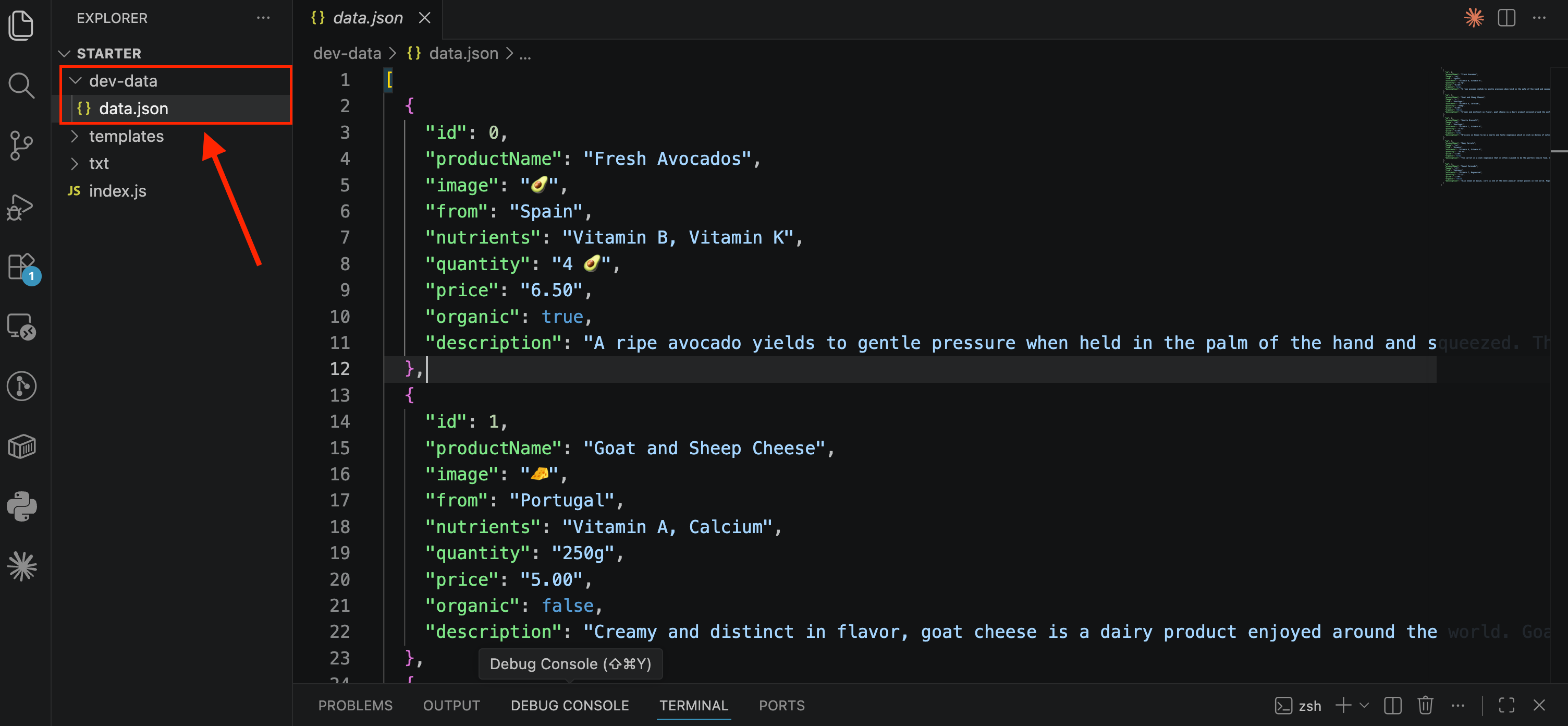
📁 There's a file called
data.jsoninside adev-datafolder.📝 JSON is a text format similar to JavaScript objects/arrays.
📦 It contains an array of five product objects, each with properties like
id,productName,image, etc.⚠️ JSON rule: all keys must be strings (in quotes).
This is the data the API will send back to the client when requested.
🛣️ Step 2: Adding a New Route (/api)
In the routing logic (from the previous note), add a new condition:
else if (pathName === '/api') {
  res.end('API');
}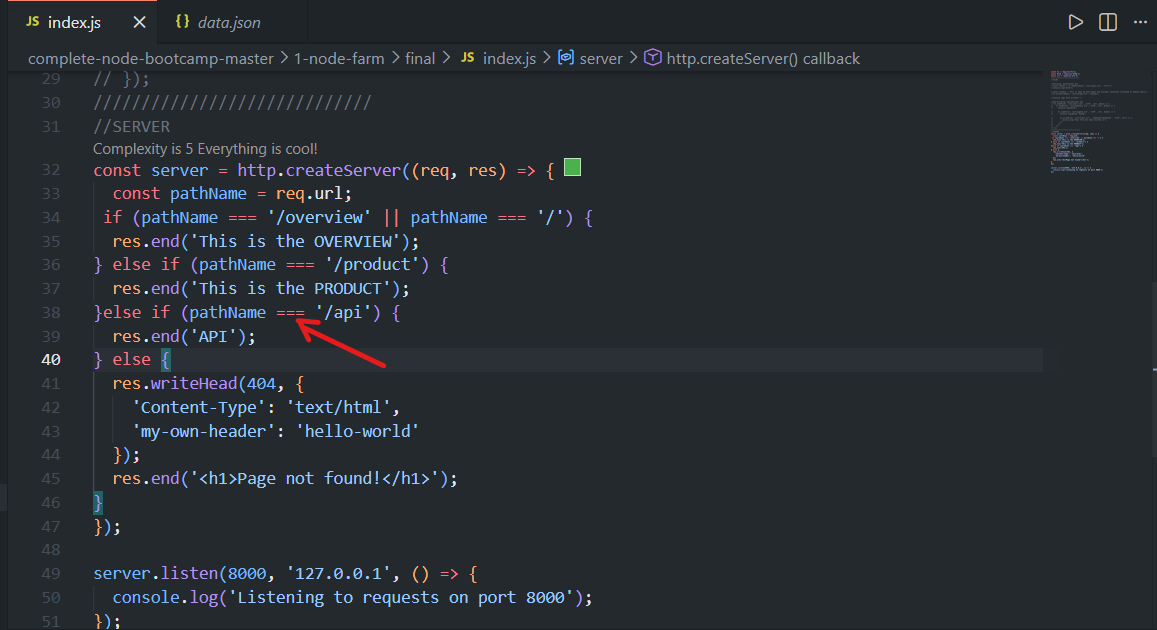
For now, this is just a placeholder response — it will be replaced with real data shortly.
📖 Step 3: Reading the JSON File
📍 Why Use __dirname Instead of .
Previously, we used . as shorthand for a folder path. But there's a catch:
📁
.means "the folder you rannodefrom" — and that can change depending on where you're standing in the terminal.📌
__dirnamealways means "the folder where this script file actually lives" — no matter where you ran the command from.
Example:
Say your project looks like this:
project/
 ├── index.js
 └── dev-data/
      └── data.json
If you run node index.js from inside the project folder, . and __dirname point to the same place — so both work fine.
But if you run the same command from outside that folder (say, from your Desktop):
node project/index.js.now refers to your Desktop, not theprojectfolder — so./dev-data/data.jsonwould look in the wrong place and fail.__dirnamestill correctly points to theprojectfolder, since that's whereindex.jsactually lives — so${__dirname}/dev-data/data.jsonworks no matter what.
That's why __dirname is the safer, more reliable choice.
✅ Best practice: Use __dirname instead of . for reliable file paths.
const data = fs.readFileSync(`${__dirname}/dev-data/data.json`, 'utf-8');💡 One exception: The require() function (used to import modules) still treats . as the current file's directory — we'll cover this later when building custom modules.
📦 Step 4: Parsing JSON into JavaScript
JSON data read from a file is just a string — to use it as an actual JavaScript object/array, use:
const dataObject = JSON.parse(data);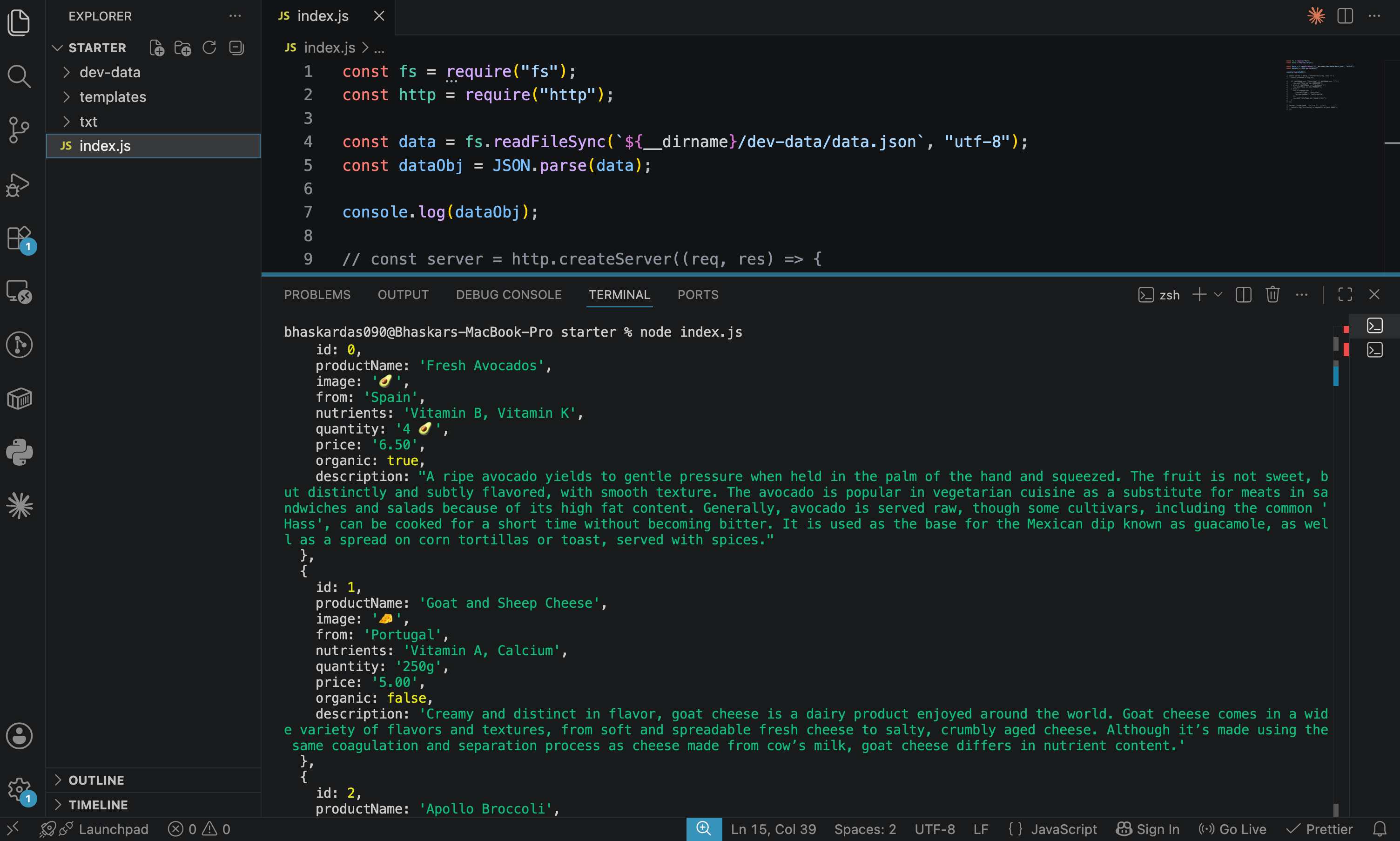
🔄
JSON.parse()converts a JSON string into a real JavaScript object or array.🔍 You can then
console.log(dataObject)to inspect it — it will show a proper JavaScript object matching the structure of the JSON file.
🌐 Step 5: Sending the Data as a Response
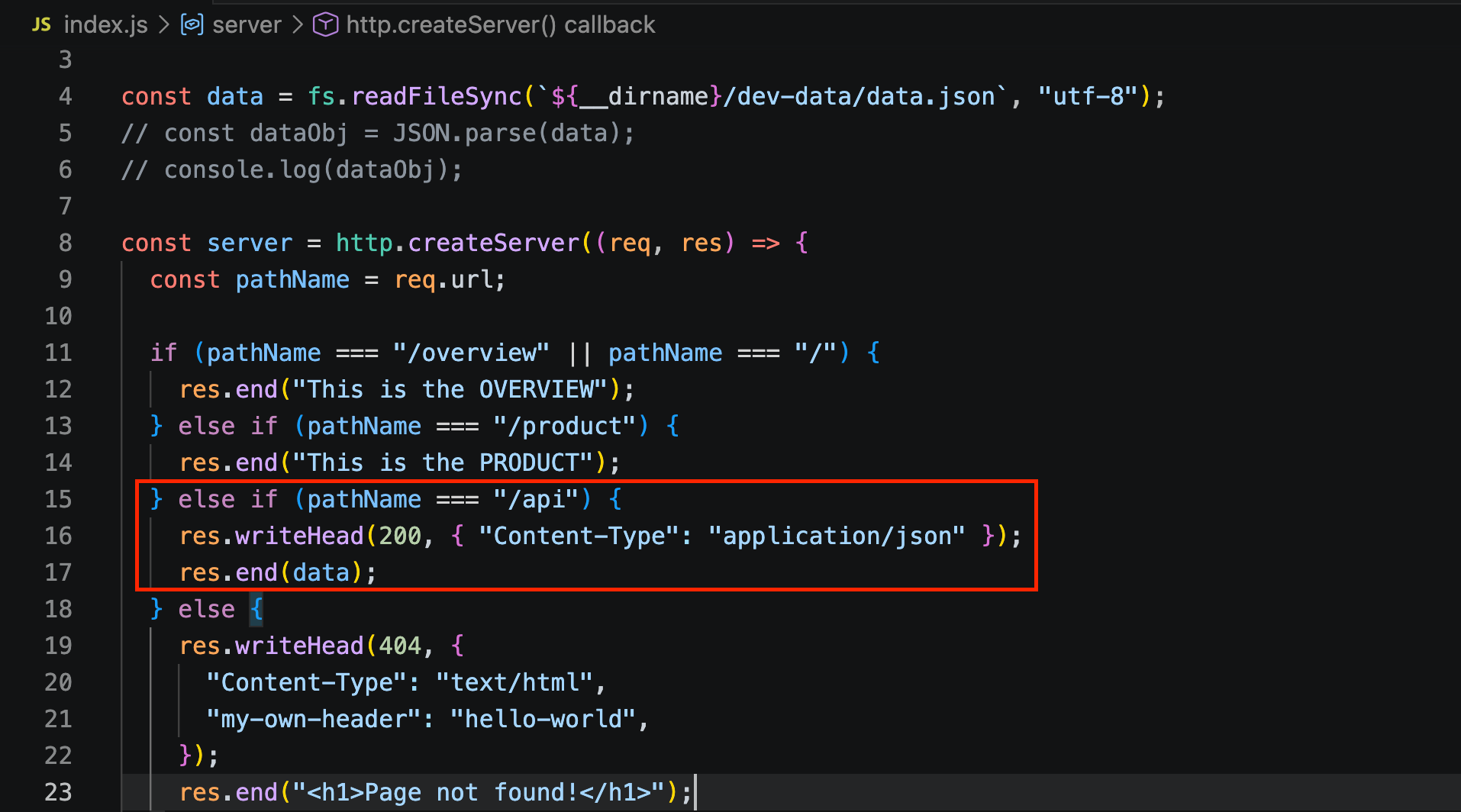
To send the API response with the correct headers:
const data = fs.readFileSync(`${__dirname}/dev-data/data.json`, "utf-8");
// const dataObj = JSON.parse(data);
// console.log(dataObj);

......

else if (pathName === '/api') {
  res.writeHead(200, { 'Content-Type': 'application/json' });
  res.end(data);
}
📌 Key Points
res.end()only accepts a string — so we send the rawdata(the original JSON text) as-is, notdataObj(the parsed JavaScript version).Set
Content-Typetoapplication/json(instead oftext/html) so the browser knows to treat the response as JSON.Status code
200means "OK" — a successful response.
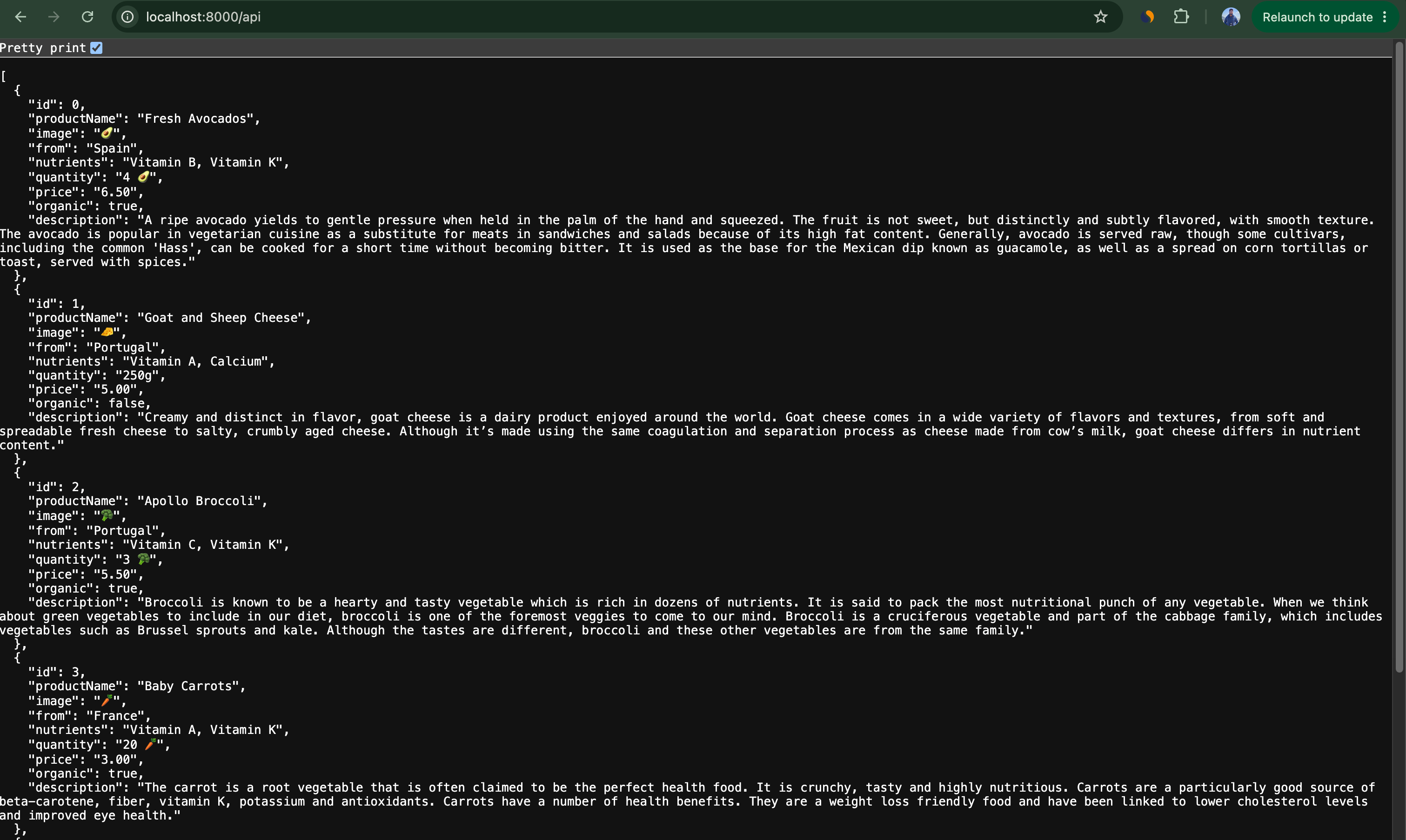
Test by restarting the server and visiting: localhost:8000/api
This will display all 5 products' data as JSON in the browser
⚡ Reading the File Only Once
Why the File-Reading Code Sits Outside the Server Callback
const data = fs.readFileSync(`${__dirname}/dev-data/data.json`, 'utf-8');
const dataObj = JSON.parse(data);

const server = http.createServer((req, res) => {
  const pathName = req.url;

  if (pathName === '/overview' || pathName === '/') {
    res.end('This is the OVERVIEW');
  } else if (pathName === '/product') {
    res.end('This is the PRODUCT');
  } else if (pathName === '/api') {
    res.writeHead(200, { 'Content-Type': 'application/json' });
    res.end(data);
  } else {
    res.writeHead(404, { 'Content-Type': 'text/html' });
    res.end('<h1>Page not found!</h1>');
  }
});

server.listen(8000, '127.0.0.1', () => {
  console.log('Listening to requests on port 8000');
});
📌
fs.readFileSync(...)sits outsidehttp.createServer(), at the top level.⚠️ If it were inside the callback, the file would be re-read on every
/apirequest — wasteful, since the data never changes.} else if (pathName === '/api') { const data = fs.readFileSync(`${__dirname}/dev-data/data.json`, 'utf-8'); const dataObj = JSON.parse(data); res.writeHead(200, { 'Content-Type': 'application/json' }); res.end(data); } else {✅ Kept at the top level, it's read just once, at startup. Every request after that reuses the same
dataalready in memory.
🤔 Why readFileSync Here?
This line runs only once, at startup — not per request — so a brief blocking pause causes no harm.
Could We Use Async Instead?
Technically yes, but it's trickier: since async doesn't wait,
server.listen()could run beforedatafinishes loading, causing errors on early requests.You'd need to nest
server.listen()inside the async callback to avoid that.Since blocking briefly at startup is harmless anyway, sync is simpler here.
<div class="infographic-vscodeterm" id="vt">
<style>
.infographic-vscodeterm {
--ink: #1a1a1a;
--ink-soft: #5c5c5c;
--paper: #ffffff;
--paper-alt: #f0ece4;
--accent: #2563eb;
--accent-deep: #1942a8;
--accent-soft: #e3ebfd;
--line: #ddd6c9;
--radius: 8px;
--display-font: 'Fraunces', Georgia, serif;
--body-font: 'Inter', system-ui, sans-serif;
--mono-font: 'IBM Plex Mono', monospace;
max-width: 880px;
margin: 0 auto;
box-sizing: border-box;
background: transparent;
color: var(--ink);
font-family: var(--body-font);
}
.infographic-vscodeterm[data-theme="dark"] {
--ink: #e8e6e1;
--ink-soft: #9a968c;
--paper: #13171f;
--paper-alt: #1c212b;
--accent: #5b8def;
--accent-deep: #8fb4ff;
--accent-soft: #20293f;
--line: #2c313d;
}
.infographic-vscodeterm * { box-sizing: border-box; min-width: 0; }
.vt-eyebrow {
font-family: var(--mono-font); font-size: 0.72rem; letter-spacing: 0.1em;
text-transform: uppercase; color: var(--accent); margin: 0 0 0.45rem;
display: flex; align-items: center; justify-content: center; gap: 0.4rem;
}
.vt-eyebrow::before { content: ""; width: 14px; height: 2px; background: var(--accent); display: inline-block; }
.vt-title {
font-family: var(--display-font); font-size: clamp(1.5rem, 4vw, 2.3rem); text-align: center;
margin: 0 0 0.5rem; line-height: 1.14; letter-spacing: -0.01em;
}
.vt-sub { color: var(--ink-soft); font-size: 0.95rem; text-align: center; margin: 0 0 1.7rem; }
/* ===== VS Code window — fixed dark theme regardless of page mode ===== */
.vt-window { border-radius: 8px; overflow: hidden; box-shadow: 0 16px 40px -14px rgba(0,0,0,0.45); border: 1px solid #1e1e1e; font-family: var(--mono-font); }
.vt-titlebar { background: #323233; display: flex; align-items: center; padding: 0.5rem 0.8rem; position: relative; }
.vt-dots { display: flex; gap: 0.4rem; }
.vt-dots span { width: 10px; height: 10px; border-radius: 50%; display: block; }
.vt-dots span:nth-child(1) { background: #ff5f56; }
.vt-dots span:nth-child(2) { background: #ffbd2e; }
.vt-dots span:nth-child(3) { background: #27c93f; }
.vt-titlebar-text { position: absolute; left: 50%; transform: translateX(-50%); font-size: 0.72rem; color: #cccccc; }
.vt-body { display: flex; height: 300px; }
.vt-resize-h { width: 5px; cursor: col-resize; background: transparent; flex-shrink: 0; transition: background 0.15s; touch-action: none; }
.vt-resize-h:hover, .vt-resize-h.is-dragging { background: #0078d4; }
.vt-resize-v { height: 5px; cursor: row-resize; background: transparent; flex-shrink: 0; transition: background 0.15s; touch-action: none; }
.vt-resize-v:hover, .vt-resize-v.is-dragging { background: #0078d4; }
.vt-window-resize {
height: 9px; background: #252526; cursor: row-resize; display: flex; align-items: center;
justify-content: center; border-top: 1px solid #1e1e1e; touch-action: none;
}
.vt-window-resize span { width: 30px; height: 3px; border-radius: 2px; background: #4a4a52; }
.vt-window-resize:hover span, .vt-window-resize.is-dragging span { background: #0078d4; }
.vt-toggle-btn {
background: none; border: none; color: #9a9a9a; cursor: pointer; display: flex; align-items: center;
padding: 0.3rem; border-radius: 3px; flex-shrink: 0;
}
.vt-toggle-btn:hover { background: #2a2d2e; color: #fff; }
.vt-toggle-btn svg { width: 13px; height: 13px; }
.vt-sidebar.is-hidden { width: 0 !important; overflow: hidden; border-right: none; }
.vt-terminal.is-collapsed { height: auto !important; }
.vt-terminal.is-collapsed .vt-term-body { display: none; }
.vt-terminal.is-collapsed .vt-term-toggle svg { transform: rotate(-90deg); }
.vt-activitybar { width: 40px; background: #333333; display: flex; flex-direction: column; align-items: center; padding-top: 0.7rem; gap: 1.1rem; flex-shrink: 0; }
.vt-activitybar svg { width: 18px; height: 18px; opacity: 0.55; }
.vt-activitybar svg.is-on { opacity: 1; }
.vt-sidebar { width: 170px; background: #252526; flex-shrink: 0; overflow-y: auto; border-right: 1px solid #1e1e1e; }
.vt-sidebar-head { font-size: 0.65rem; font-weight: 700; letter-spacing: 0.06em; color: #bbbbbb; padding: 0.6rem 0.8rem 0.3rem; }
.vt-sidebar-root { font-size: 0.74rem; color: #cccccc; padding: 0.2rem 0.7rem; display: flex; align-items: center; gap: 0.3rem; }
.vt-sidebar-folder { font-size: 0.74rem; color: #cccccc; padding: 0.2rem 0.7rem 0.2rem 1.4rem; display: flex; align-items: center; gap: 0.3rem; }
.vt-sidebar-folder.lvl2 { padding-left: 2.6rem; }
.vt-row {
display: flex; align-items: center; gap: 0.35rem; width: 100%; background: none; border: none;
color: #cccccc; font: inherit; font-size: 0.74rem; padding: 0.24rem 0.7rem 0.24rem 2.1rem;
cursor: pointer; text-align: left; border-left: 2px solid transparent;
}
.vt-row.lvl1 { padding-left: 1.4rem; }
.vt-row.lvl2 { padding-left: 3.4rem; }
.vt-row:hover { background: #2a2d2e; }
.vt-row.is-selected { background: #37373d; border-left-color: #0078d4; }
.vt-badge { width: 15px; height: 15px; border-radius: 3px; flex-shrink: 0; display: flex; align-items: center; justify-content: center; font-size: 0.46rem; font-weight: 700; color: #1a1a1a; background: #29b6f6; }
.vt-main { flex: 1; display: flex; flex-direction: column; min-width: 0; }
.vt-tabbar { display: flex; background: #252526; border-bottom: 1px solid #1e1e1e; overflow-x: auto; }
.vt-tab {
display: flex; align-items: center; gap: 0.35rem; background: #1e1e1e; color: #808080; font: inherit;
font-size: 0.72rem; padding: 0.45rem 0.8rem; border: none; border-right: 1px solid #1e1e1e;
border-top: 2px solid transparent; cursor: pointer; white-space: nowrap;
}
.vt-tab.is-active { color: #d4d4d4; border-top-color: #0078d4; background: #1e1e1e; }
.vt-tab .vt-badge { width: 13px; height: 13px; font-size: 0.42rem; }
.vt-code-wrap { flex: 1; background: #1e1e1e; overflow: auto; padding: 0.85rem 1rem; }
.vt-code-wrap pre { margin: 0; }
.vt-code-wrap code { font-family: var(--mono-font); font-size: 0.72rem; line-height: 1.7; color: #d4d4d8; white-space: pre; }
.tok-kw { color: #c678dd; }
.tok-tag { color: #e06c75; }
.tok-type { color: #61afef; }
.tok-attr { color: #d19a66; }
.tok-str { color: #98c379; }
.tok-expr { color: #56b6c2; }
.tok-punc { color: #6b7280; }
.vt-flash { background: rgba(220,38,38,0.22); }
/* ===== terminal ===== */
.vt-terminal { background: #181818; border-top: 1px solid #2c2c2c; display: flex; flex-direction: column; height: 150px; flex-shrink: 0; }
.vt-term-head { display: flex; align-items: center; gap: 0.4rem; font-size: 0.62rem; letter-spacing: 0.05em; color: #9a9a9a; padding: 0.35rem 0.8rem; border-bottom: 1px solid #262626; text-transform: uppercase; }
.vt-term-body { flex: 1; overflow-y: auto; padding: 0.5rem 0.9rem; font-size: 0.72rem; line-height: 1.65; }
.vt-term-line { color: #d4d4d4; white-space: pre; opacity: 0; transform: translateY(2px); animation: vt-line-in 0.25s ease forwards; }
@keyframes vt-line-in { to { opacity: 1; transform: none; } }
.vt-term-line.is-cmd { color: #7ee787; }
.vt-term-line.is-ok { color: #7ee787; font-weight: 600; }
.vt-term-prompt { color: #7ee787; }
.vt-run-row { display: flex; align-items: center; gap: 0.5rem; margin-top: 0.2rem; }
.vt-run-btn {
font: inherit; font-size: 0.68rem; font-weight: 600; color: #1a1a1a; background: #7ee787;
border: none; border-radius: 4px; padding: 0.3rem 0.7rem; cursor: pointer; display: flex; align-items: center; gap: 0.3rem;
}
.vt-run-btn:disabled { opacity: 0.5; cursor: default; }
.vt-run-btn svg { width: 9px; height: 9px; }
.vt-run-hint { color: #6b7280; font-size: 0.68rem; }
@media (max-width: 620px) {
.vt-sidebar { width: 130px; }
.vt-body { height: 320px; }
}
@media (max-width: 480px) { .vt-activitybar { display: none; } }
/* ===== browser output ===== */
.vt-output-label {
font-family: var(--mono-font); font-size: 0.68rem; letter-spacing: 0.1em; text-transform: uppercase;
color: var(--ink-soft); text-align: center; margin: 1.5rem 0 0.7rem;
}
.vt-browser {
border: 1px solid var(--line); border-radius: var(--radius); overflow: hidden; max-width: 380px; margin: 0 auto;
box-shadow: 0 10px 24px -12px rgba(26,26,26,0.18);
opacity: 0; transform: translateY(8px); transition: opacity 0.4s ease, transform 0.4s ease; pointer-events: none;
}
.vt-browser.is-shown { opacity: 1; transform: none; pointer-events: auto; }
.vt-browser-bar { background: #e9e9e9; padding: 0.5rem 0.7rem; display: flex; align-items: center; gap: 0.5rem; }
.vt-browser-bar .vt-dots span { width: 8px; height: 8px; }
.vt-browser-url { font-family: var(--mono-font); font-size: 0.65rem; color: #555; background: #fff; border-radius: 4px; padding: 0.2rem 0.5rem; flex: 1; }
.vt-browser-page { background: #fff; padding: 1.2rem 1.2rem 1.6rem; text-align: center; }
.vt-output-placeholder { text-align: center; font-size: 0.82rem; color: var(--ink-soft); }
.vt-route-row { display: flex; gap: 0.35rem; justify-content: center; margin-bottom: 1rem; flex-wrap: wrap; }
.vt-route-btn {
font-family: var(--mono-font); font-size: 0.66rem; font-weight: 600; color: #555;
background: #f0f0f0; border: 1px solid #ddd; border-radius: 999px; padding: 0.25rem 0.6rem; cursor: pointer;
}
.vt-route-btn.is-on { background: #2563eb; border-color: #2563eb; color: #fff; }
.vt-route-body { font-family: var(--mono-font); font-size: 0.88rem; color: #000; margin: 0; }
.vt-route-status {
display: inline-block; font-family: var(--mono-font); font-size: 0.66rem; font-weight: 700;
color: #b3261e; background: #fbe6e6; border: 1px solid #b3261e; border-radius: 999px;
padding: 0.15rem 0.55rem; margin-bottom: 0.5rem;
}
.vt-route-status.is-ok { color: #1f9d55; background: #e5f6ec; border-color: #1f9d55; }
.vt-json-preview {
text-align: left; font-family: var(--mono-font); font-size: 0.6rem; line-height: 1.5; color: #333;
background: #f7f7f5; border: 1px solid #e2e2de; border-radius: 6px; padding: 0.5rem 0.65rem;
max-height: 140px; overflow: auto; margin: 0; white-space: pre-wrap;
}
.vt-route-headers {
font-family: var(--mono-font); font-size: 0.62rem; color: #777; margin-top: 0.5rem; line-height: 1.6;
}
.vt-route-headers b { color: #333; }
.vt-takeaway {
margin-top: 1.7rem; padding: 0.95rem 1.2rem; background: var(--accent-soft); border-left: 3px solid var(--accent);
border-radius: 4px; font-size: 0.9rem; color: var(--ink); line-height: 1.5; max-width: 620px; margin-left: auto; margin-right: auto;
}
.vt-takeaway b { color: var(--accent-deep); }
@media (prefers-reduced-motion: reduce) {
.infographic-vscodeterm *, .infographic-vscodeterm *::before, .infographic-vscodeterm *::after {
transition-duration: 0.001ms !important; animation-duration: 0.001ms !important;
}
}
</style>
<div class="vt-window">
<div class="vt-titlebar">
<div class="vt-dots"><span></span><span></span><span></span></div>
<div class="vt-titlebar-text">node-server — Visual Studio Code</div>
</div>
<div class="vt-body">
<div class="vt-activitybar">
<svg class="is-on" viewBox="0 0 24 24" fill="none" aria-hidden="true"><rect x="3" y="4" width="7" height="7" rx="1" stroke="#fff" stroke-width="1.6"/><rect x="14" y="4" width="7" height="7" rx="1" stroke="#fff" stroke-width="1.6"/><rect x="3" y="15" width="7" height="7" rx="1" stroke="#fff" stroke-width="1.6"/><rect x="14" y="15" width="7" height="7" rx="1" stroke="#fff" stroke-width="1.6"/></svg>
<svg viewBox="0 0 24 24" fill="none" aria-hidden="true"><circle cx="10" cy="10" r="6.5" stroke="#fff" stroke-width="1.6"/><line x1="15" y1="15" x2="20" y2="20" stroke="#fff" stroke-width="1.6" stroke-linecap="round"/></svg>
</div>
<div class="vt-sidebar">
<div class="vt-sidebar-head">EXPLORER</div>
<div class="vt-sidebar-root">▾ NODE-SERVER</div>
<button class="vt-row lvl1 is-selected" data-file="index" type="button"><span class="vt-badge">JS</span><span>index.js</span></button>
<div class="vt-sidebar-folder">▾ dev-data</div>
<button class="vt-row lvl2" data-file="data" type="button"><span class="vt-badge" style="background:#dcb67a;">{}</span><span>data.json</span></button>
</div>
<div class="vt-resize-h" id="vtSidebarHandle" title="Drag to resize sidebar"></div>
<div class="vt-main">
<div class="vt-tabbar">
<button class="vt-toggle-btn" id="vtToggleSidebar" type="button" aria-label="Toggle sidebar" title="Toggle sidebar">
<svg viewBox="0 0 16 16" fill="none" aria-hidden="true"><rect x="1.5" y="2" width="13" height="12" rx="1.5" stroke="currentColor" stroke-width="1.3"/><line x1="6" y1="2" x2="6" y2="14" stroke="currentColor" stroke-width="1.3"/></svg>
</button>
<button class="vt-tab is-active" data-file="index" type="button"><span class="vt-badge">JS</span><span>index.js</span></button>
<button class="vt-tab" data-file="data" type="button"><span class="vt-badge" style="background:#dcb67a;">{}</span><span>data.json</span></button>
</div>
<div class="vt-code-wrap">
<pre><code id="vtCode"></code></pre>
</div>
<div class="vt-resize-v" id="vtTerminalHandle" title="Drag to resize terminal"></div>
<div class="vt-terminal">
<div class="vt-term-head">
<button class="vt-toggle-btn vt-term-toggle" id="vtToggleTerminal" type="button" aria-label="Toggle terminal" title="Toggle terminal">
<svg viewBox="0 0 16 16" fill="none" aria-hidden="true"><path d="M4 6l4 4 4-4" stroke="currentColor" stroke-width="1.6" stroke-linecap="round" stroke-linejoin="round"/></svg>
</button>
<span>Terminal</span>
</div>
<div class="vt-term-body">
<div id="vtTermLines"><div class="vt-term-line" style="animation-delay:0s;"><span class="vt-term-prompt">$</span> </div></div>
<div class="vt-run-row">
<button class="vt-run-btn" id="vtRunBtn" type="button">
<svg viewBox="0 0 12 12" aria-hidden="true"><path d="M2.5 1.5v9l7-4.5z" fill="currentColor"/></svg>
<span id="vtRunLabel">node index.js</span>
</button>
<span class="vt-run-hint" id="vtRunHint">starts the server</span>
</div>
</div>
</div>
</div>
</div>
<div class="vt-window-resize" id="vtWindowHandle" title="Drag to resize window"><span></span></div>
</div>
<div class="vt-output-label">Output</div>
<div id="vtOutputArea">
<p class="vt-output-placeholder">Run <code style="font-family:var(--mono-font)">node index.js</code> above, then visit the server to see it here.</p>
<div class="vt-browser" id="vtBrowser">
<div class="vt-browser-bar">
<div class="vt-dots"><span></span><span></span><span></span></div>
<div class="vt-browser-url" id="vtUrl">127.0.0.1:8000</div>
</div>
<div class="vt-browser-page">
<div class="vt-route-row" id="vtRouteRow">
<button class="vt-route-btn is-on" data-path="/" type="button">/</button>
<button class="vt-route-btn" data-path="/product" type="button">/product</button>
<button class="vt-route-btn" data-path="/api" type="button">/api</button>
<button class="vt-route-btn" data-path="/random" type="button">/random</button>
</div>
<div id="vtRouteResult">
<p class="vt-route-body">This is the OVERVIEW</p>
</div>
</div>
</div>
</div>
</div>
<link rel="preconnect" href="https://fonts.googleapis.com">
<link href="https://fonts.googleapis.com/css2?family=Fraunces:wght@500;600&family=Inter:wght@400;500;600;700&family=IBM+Plex+Mono:wght@400;500&display=swap" rel="stylesheet">
<script>
(function () {
var root = document.getElementById('vt');
if (!root) return;
/* --- dark mode detection: body attribute > cookie > postMessage > light --- */
function applyDark(dark) {
if (dark) root.setAttribute('data-theme', 'dark');
else root.removeAttribute('data-theme');
}
var bodyAttr = document.body.getAttribute('data-darkmode');
var dark;
if (bodyAttr === 'true') dark = true;
else if (bodyAttr === 'false') dark = false;
else {
var match = document.cookie.match(/(?:^|;\s*)darkMode=([^;]+)/);
dark = match ? match[1] === 'true' : false;
}
applyDark(dark);
window.addEventListener('message', function (e) {
if (e.data && e.data.type === 'darkMode') applyDark(!!e.data.value);
});
/* --- file switching (single file here, kept for template consistency) --- */
var files = {
index:
'<span class="tok-kw">const</span> fs <span class="tok-punc">=</span> require<span class="tok-punc">(</span><span class="tok-str">\'fs\'</span><span class="tok-punc">);</span>\n' +
'<span class="tok-kw">const</span> http <span class="tok-punc">=</span> require<span class="tok-punc">(</span><span class="tok-str">\'http\'</span><span class="tok-punc">);</span>\n' +
'<span class="tok-kw">const</span> url <span class="tok-punc">=</span> require<span class="tok-punc">(</span><span class="tok-str">\'url\'</span><span class="tok-punc">);</span>\n' +
'<span class="tok-punc">////////////////////////////</span>\n' +
'<span class="tok-punc">//FILES</span>\n\n' +
'<span class="tok-punc">//Blocking, Synchronous way</span>\n' +
'<span class="tok-punc">//const textIn = fs.readFileSync(\'./txt/input.txt\', \'utf-8\');</span>\n' +
'<span class="tok-punc">//console.log(textIn);</span>\n\n' +
'<span class="tok-punc">//const textOut = `This is what we know about the avocado: ${textIn}.\\nCreated on ${Date.now()}`;</span>\n' +
'<span class="tok-punc">//fs.writeFileSync(\'./txt/output.txt\', textOut);</span>\n\n' +
'<span class="tok-punc">//console.log(\'File written!\');</span>\n\n' +
'<span class="tok-punc">//Non-blocking, Asynchronous way</span>\n' +
'<span class="tok-punc">// fs.readFile(\'./txt/start.txt\', \'utf8\', (err, data1) => {</span>\n' +
'<span class="tok-punc">// fs.readFile(`./txt/${data1}.txt`, \'utf8\', (err, data2) => {</span>\n' +
'<span class="tok-punc">// console.log(data2);</span>\n\n' +
'<span class="tok-punc">// fs.readFile(\'./txt/append.txt\', \'utf8\', (err, data3) => {</span>\n' +
'<span class="tok-punc">// console.log(data2, data3);</span>\n\n' +
'<span class="tok-punc">// fs.writeFile(\'./txt/final.txt\', `${data2}\\n${data3}`, \'utf8\', (err) => {</span>\n' +
'<span class="tok-punc">// console.log(\'Your file has been written \uD83C\uDF89\');</span>\n' +
'<span class="tok-punc">// });</span>\n' +
'<span class="tok-punc">// });</span>\n' +
'<span class="tok-punc">// });</span>\n' +
'<span class="tok-punc">// });</span>\n' +
'<span class="tok-punc">/////////////////////////////</span>\n' +
'<span class="tok-punc">//SERVER</span>\n' +
'<span class="tok-kw">const</span> data <span class="tok-punc">=</span> fs<span class="tok-punc">.</span><span class="tok-type">readFileSync</span><span class="tok-punc">(`</span><span class="tok-expr">${__dirname}</span><span class="tok-punc">/dev-data/data.json`,</span> <span class="tok-str">\'utf-8\'</span><span class="tok-punc">);</span>\n' +
'<span class="tok-kw">const</span> dataObj <span class="tok-punc">=</span> <span class="tok-type">JSON</span><span class="tok-punc">.</span><span class="tok-type">parse</span><span class="tok-punc">(</span>data<span class="tok-punc">);</span>\n\n' +
'<span class="tok-kw">const</span> server <span class="tok-punc">=</span> http<span class="tok-punc">.</span><span class="tok-type">createServer</span><span class="tok-punc">((</span>req<span class="tok-punc">,</span> res<span class="tok-punc">) => {</span>\n' +
' <span class="tok-kw">const</span> pathName <span class="tok-punc">=</span> req<span class="tok-punc">.</span>url<span class="tok-punc">;</span>\n\n' +
' <span class="tok-kw">if</span> <span class="tok-punc">(</span>pathName <span class="tok-punc">===</span> <span class="tok-str">\'/overview\'</span> <span class="tok-punc">||</span> pathName <span class="tok-punc">===</span> <span class="tok-str">\'/\'</span><span class="tok-punc">) {</span>\n' +
' res<span class="tok-punc">.</span><span class="tok-type">end</span><span class="tok-punc">(</span><span class="tok-str">\'This is the OVERVIEW\'</span><span class="tok-punc">);</span>\n' +
' <span class="tok-punc">}</span> <span class="tok-kw">else if</span> <span class="tok-punc">(</span>pathName <span class="tok-punc">===</span> <span class="tok-str">\'/product\'</span><span class="tok-punc">) {</span>\n' +
' res<span class="tok-punc">.</span><span class="tok-type">end</span><span class="tok-punc">(</span><span class="tok-str">\'This is the PRODUCT\'</span><span class="tok-punc">);</span>\n' +
' <span class="tok-punc">}</span> <span class="vt-flash"><span class="tok-kw">else if</span> <span class="tok-punc">(</span>pathName <span class="tok-punc">===</span> <span class="tok-str">\'/api\'</span><span class="tok-punc">) {</span>\n' +
' res<span class="tok-punc">.</span><span class="tok-type">writeHead</span><span class="tok-punc">(</span><span class="tok-expr">200</span><span class="tok-punc">, {</span> <span class="tok-attr">\'Content-Type\'</span><span class="tok-punc">:</span> <span class="tok-str">\'application/json\'</span> <span class="tok-punc">});</span>\n' +
' res<span class="tok-punc">.</span><span class="tok-type">end</span><span class="tok-punc">(</span>data<span class="tok-punc">);</span>\n' +
' <span class="tok-punc">}</span></span> <span class="tok-kw">else</span> <span class="tok-punc">{</span>\n' +
' res<span class="tok-punc">.</span><span class="tok-type">writeHead</span><span class="tok-punc">(</span><span class="tok-expr">404</span><span class="tok-punc">, {</span> <span class="tok-attr">\'Content-Type\'</span><span class="tok-punc">:</span> <span class="tok-str">\'text/html\'</span> <span class="tok-punc">});</span>\n' +
' res<span class="tok-punc">.</span><span class="tok-type">end</span><span class="tok-punc">(</span><span class="tok-str">\'<h1>Page not found!</h1>\'</span><span class="tok-punc">);</span>\n' +
' <span class="tok-punc">}</span>\n' +
'<span class="tok-punc">});</span>\n\n' +
'server<span class="tok-punc">.</span><span class="tok-type">listen</span><span class="tok-punc">(</span><span class="tok-expr">8000</span><span class="tok-punc">,</span> <span class="tok-str">\'127.0.0.1\'</span><span class="tok-punc">, () => {</span>\n' +
' console<span class="tok-punc">.</span><span class="tok-type">log</span><span class="tok-punc">(</span><span class="tok-str">\'Listening to requests on port 8000\'</span><span class="tok-punc">);</span>\n' +
'<span class="tok-punc">});</span>'
,
data:
'<span class="tok-punc">[</span>\n' +
' <span class="tok-punc">{</span>\n' +
' <span class="tok-punc">"</span><span class="tok-attr">id</span><span class="tok-punc">": </span><span class="tok-expr">0</span><span class="tok-punc">,</span>\n' +
' <span class="tok-punc">"</span><span class="tok-attr">productName</span><span class="tok-punc">": </span><span class="tok-str">"Fresh Avocados"</span><span class="tok-punc">,</span>\n' +
' <span class="tok-punc">"</span><span class="tok-attr">image</span><span class="tok-punc">": </span><span class="tok-str">"🥑"</span><span class="tok-punc">,</span>\n' +
' <span class="tok-punc">"</span><span class="tok-attr">from</span><span class="tok-punc">": </span><span class="tok-str">"Spain"</span><span class="tok-punc">,</span>\n' +
' <span class="tok-punc">"</span><span class="tok-attr">nutrients</span><span class="tok-punc">": </span><span class="tok-str">"Vitamin B, Vitamin K"</span><span class="tok-punc">,</span>\n' +
' <span class="tok-punc">"</span><span class="tok-attr">quantity</span><span class="tok-punc">": </span><span class="tok-str">"4 🥑"</span><span class="tok-punc">,</span>\n' +
' <span class="tok-punc">"</span><span class="tok-attr">price</span><span class="tok-punc">": </span><span class="tok-str">"6.50"</span><span class="tok-punc">,</span>\n' +
' <span class="tok-punc">"</span><span class="tok-attr">organic</span><span class="tok-punc">": </span><span class="tok-kw">true</span><span class="tok-punc">,</span>\n' +
' <span class="tok-punc">"</span><span class="tok-attr">description</span><span class="tok-punc">": </span><span class="tok-str">"A ripe avocado yields to gentle pressure when held in the palm of the hand and squeezed. The fruit is not sweet, but distinctly and subtly flavored, with smooth texture. The avocado is popular in vegetarian cuisine as a substitute for meats in sandwiches and salads because of its high fat content. Generally, avocado is served raw, though some cultivars, including the common \'Hass\', can be cooked for a short time without becoming bitter. It is used as the base for the Mexican dip known as guacamole, as well as a spread on corn tortillas or toast, served with spices."</span><span class="tok-punc"></span>\n' +
' <span class="tok-punc">}</span><span class="tok-punc">,</span>\n' +
' <span class="tok-punc">{</span>\n' +
' <span class="tok-punc">"</span><span class="tok-attr">id</span><span class="tok-punc">": </span><span class="tok-expr">1</span><span class="tok-punc">,</span>\n' +
' <span class="tok-punc">"</span><span class="tok-attr">productName</span><span class="tok-punc">": </span><span class="tok-str">"Goat and Sheep Cheese"</span><span class="tok-punc">,</span>\n' +
' <span class="tok-punc">"</span><span class="tok-attr">image</span><span class="tok-punc">": </span><span class="tok-str">"🧀"</span><span class="tok-punc">,</span>\n' +
' <span class="tok-punc">"</span><span class="tok-attr">from</span><span class="tok-punc">": </span><span class="tok-str">"Portugal"</span><span class="tok-punc">,</span>\n' +
' <span class="tok-punc">"</span><span class="tok-attr">nutrients</span><span class="tok-punc">": </span><span class="tok-str">"Vitamin A, Calcium"</span><span class="tok-punc">,</span>\n' +
' <span class="tok-punc">"</span><span class="tok-attr">quantity</span><span class="tok-punc">": </span><span class="tok-str">"250g"</span><span class="tok-punc">,</span>\n' +
' <span class="tok-punc">"</span><span class="tok-attr">price</span><span class="tok-punc">": </span><span class="tok-str">"5.00"</span><span class="tok-punc">,</span>\n' +
' <span class="tok-punc">"</span><span class="tok-attr">organic</span><span class="tok-punc">": </span><span class="tok-kw">false</span><span class="tok-punc">,</span>\n' +
' <span class="tok-punc">"</span><span class="tok-attr">description</span><span class="tok-punc">": </span><span class="tok-str">"Creamy and distinct in flavor, goat cheese is a dairy product enjoyed around the world. Goat cheese comes in a wide variety of flavors and textures, from soft and spreadable fresh cheese to salty, crumbly aged cheese. Although it\'s made using the same coagulation and separation process as cheese made from cow\'s milk, goat cheese differs in nutrient content."</span><span class="tok-punc"></span>\n' +
' <span class="tok-punc">}</span><span class="tok-punc">,</span>\n' +
' <span class="tok-punc">{</span>\n' +
' <span class="tok-punc">"</span><span class="tok-attr">id</span><span class="tok-punc">": </span><span class="tok-expr">2</span><span class="tok-punc">,</span>\n' +
' <span class="tok-punc">"</span><span class="tok-attr">productName</span><span class="tok-punc">": </span><span class="tok-str">"Apollo Broccoli"</span><span class="tok-punc">,</span>\n' +
' <span class="tok-punc">"</span><span class="tok-attr">image</span><span class="tok-punc">": </span><span class="tok-str">"🥦"</span><span class="tok-punc">,</span>\n' +
' <span class="tok-punc">"</span><span class="tok-attr">from</span><span class="tok-punc">": </span><span class="tok-str">"Portugal"</span><span class="tok-punc">,</span>\n' +
' <span class="tok-punc">"</span><span class="tok-attr">nutrients</span><span class="tok-punc">": </span><span class="tok-str">"Vitamin C, Vitamin K"</span><span class="tok-punc">,</span>\n' +
' <span class="tok-punc">"</span><span class="tok-attr">quantity</span><span class="tok-punc">": </span><span class="tok-str">"3 🥦"</span><span class="tok-punc">,</span>\n' +
' <span class="tok-punc">"</span><span class="tok-attr">price</span><span class="tok-punc">": </span><span class="tok-str">"5.50"</span><span class="tok-punc">,</span>\n' +
' <span class="tok-punc">"</span><span class="tok-attr">organic</span><span class="tok-punc">": </span><span class="tok-kw">true</span><span class="tok-punc">,</span>\n' +
' <span class="tok-punc">"</span><span class="tok-attr">description</span><span class="tok-punc">": </span><span class="tok-str">"Broccoli is known to be a hearty and tasty vegetable which is rich in dozens of nutrients. It is said to pack the most nutritional punch of any vegetable. When we think about green vegetables to include in our diet, broccoli is one of the foremost veggies to come to our mind. Broccoli is a cruciferous vegetable and part of the cabbage family, which includes vegetables such as Brussel sprouts and kale. Although the tastes are different, broccoli and these other vegetables are from the same family."</span><span class="tok-punc"></span>\n' +
' <span class="tok-punc">}</span><span class="tok-punc">,</span>\n' +
' <span class="tok-punc">{</span>\n' +
' <span class="tok-punc">"</span><span class="tok-attr">id</span><span class="tok-punc">": </span><span class="tok-expr">3</span><span class="tok-punc">,</span>\n' +
' <span class="tok-punc">"</span><span class="tok-attr">productName</span><span class="tok-punc">": </span><span class="tok-str">"Baby Carrots"</span><span class="tok-punc">,</span>\n' +
' <span class="tok-punc">"</span><span class="tok-attr">image</span><span class="tok-punc">": </span><span class="tok-str">"🥕"</span><span class="tok-punc">,</span>\n' +
' <span class="tok-punc">"</span><span class="tok-attr">from</span><span class="tok-punc">": </span><span class="tok-str">"France"</span><span class="tok-punc">,</span>\n' +
' <span class="tok-punc">"</span><span class="tok-attr">nutrients</span><span class="tok-punc">": </span><span class="tok-str">"Vitamin A, Vitamin K"</span><span class="tok-punc">,</span>\n' +
' <span class="tok-punc">"</span><span class="tok-attr">quantity</span><span class="tok-punc">": </span><span class="tok-str">"20 🥕"</span><span class="tok-punc">,</span>\n' +
' <span class="tok-punc">"</span><span class="tok-attr">price</span><span class="tok-punc">": </span><span class="tok-str">"3.00"</span><span class="tok-punc">,</span>\n' +
' <span class="tok-punc">"</span><span class="tok-attr">organic</span><span class="tok-punc">": </span><span class="tok-kw">true</span><span class="tok-punc">,</span>\n' +
' <span class="tok-punc">"</span><span class="tok-attr">description</span><span class="tok-punc">": </span><span class="tok-str">"The carrot is a root vegetable that is often claimed to be the perfect health food. It is crunchy, tasty and highly nutritious. Carrots are a particularly good source of beta-carotene, fiber, vitamin K, potassium and antioxidants. Carrots have a number of health benefits. They are a weight loss friendly food and have been linked to lower cholesterol levels and improved eye health."</span><span class="tok-punc"></span>\n' +
' <span class="tok-punc">}</span><span class="tok-punc">,</span>\n' +
' <span class="tok-punc">{</span>\n' +
' <span class="tok-punc">"</span><span class="tok-attr">id</span><span class="tok-punc">": </span><span class="tok-expr">4</span><span class="tok-punc">,</span>\n' +
' <span class="tok-punc">"</span><span class="tok-attr">productName</span><span class="tok-punc">": </span><span class="tok-str">"Sweet Corncobs"</span><span class="tok-punc">,</span>\n' +
' <span class="tok-punc">"</span><span class="tok-attr">image</span><span class="tok-punc">": </span><span class="tok-str">"🌽"</span><span class="tok-punc">,</span>\n' +
' <span class="tok-punc">"</span><span class="tok-attr">from</span><span class="tok-punc">": </span><span class="tok-str">"Germany"</span><span class="tok-punc">,</span>\n' +
' <span class="tok-punc">"</span><span class="tok-attr">nutrients</span><span class="tok-punc">": </span><span class="tok-str">"Vitamin C, Magnesium"</span><span class="tok-punc">,</span>\n' +
' <span class="tok-punc">"</span><span class="tok-attr">quantity</span><span class="tok-punc">": </span><span class="tok-str">"2 🌽"</span><span class="tok-punc">,</span>\n' +
' <span class="tok-punc">"</span><span class="tok-attr">price</span><span class="tok-punc">": </span><span class="tok-str">"2.00"</span><span class="tok-punc">,</span>\n' +
' <span class="tok-punc">"</span><span class="tok-attr">organic</span><span class="tok-punc">": </span><span class="tok-kw">false</span><span class="tok-punc">,</span>\n' +
' <span class="tok-punc">"</span><span class="tok-attr">description</span><span class="tok-punc">": </span><span class="tok-str">"Also known as maize, corn is one of the most popular cereal grains in the world. Popcorn and sweet corn are commonly eaten varieties, but refined corn products are also widely consumed, frequently as ingredients in foods. These include tortillas, tortilla chips, polenta, cornmeal, corn flour, corn syrup, and corn oil. Whole-grain corn is as healthy as any cereal grain, rich in fiber and many vitamins, minerals, and antioxidants."</span><span class="tok-punc"></span>\n' +
' <span class="tok-punc">}</span>\n' +
'<span class="tok-punc">]</span>\n'
};
var codeEl = root.querySelector('#vtCode');
var rows = root.querySelectorAll('.vt-row');
var tabs = root.querySelectorAll('.vt-tab');
function selectFile(id) {
codeEl.innerHTML = files[id];
rows.forEach(function (r) { r.classList.toggle('is-selected', r.getAttribute('data-file') === id); });
tabs.forEach(function (t) { t.classList.toggle('is-active', t.getAttribute('data-file') === id); });
}
rows.forEach(function (r) { r.addEventListener('click', function () { selectFile(r.getAttribute('data-file')); }); });
tabs.forEach(function (t) { t.addEventListener('click', function () { selectFile(t.getAttribute('data-file')); }); });
selectFile('index');
/* --- terminal run simulation --- */
var termLines = root.querySelector('#vtTermLines');
var runBtn = root.querySelector('#vtRunBtn');
var runLabel = root.querySelector('#vtRunLabel');
var runHint = root.querySelector('#vtRunHint');
var browser = root.querySelector('#vtBrowser');
var placeholder = root.querySelector('.vt-output-placeholder');
var running = false;
var lines = [
{ text: '$ node index.js', cls: 'is-cmd', delay: 0 },
{ text: 'Listening to requests on port 8000', cls: 'is-ok', delay: 700 }
];
runBtn.addEventListener('click', function () {
if (running) return;
running = true;
runBtn.disabled = true;
runLabel.textContent = 'running\u2026';
browser.classList.remove('is-shown');
placeholder.style.display = 'block';
termLines.innerHTML = '';
lines.forEach(function (line) {
setTimeout(function () {
var div = document.createElement('div');
div.className = 'vt-term-line ' + line.cls;
div.textContent = line.text;
termLines.appendChild(div);
}, line.delay);
});
setTimeout(function () {
placeholder.style.display = 'none';
browser.classList.add('is-shown');
runBtn.disabled = false;
runLabel.textContent = 'node index.js';
runHint.textContent = 'server running \u2014 rerun anytime';
running = false;
showRoute('/');
}, 1600);
});
/* --- route buttons: simulate visiting each path --- */
var vtUrl = root.querySelector('#vtUrl');
var routeResult = root.querySelector('#vtRouteResult');
var routeBtns = root.querySelectorAll('.vt-route-btn');
var routeData = {
'/': { body: 'This is the OVERVIEW' },
'/product': { body: 'This is the PRODUCT' }
};
function apiPreview() {
try {
var obj = JSON.parse(files.data.replace(/<[^>]+>/g, ''));
return JSON.stringify(obj, null, 2);
} catch (e) {
return '[ ...5 products... ]';
}
}
function showRoute(path) {
routeBtns.forEach(function (b) { b.classList.toggle('is-on', b.getAttribute('data-path') === path); });
vtUrl.textContent = '127.0.0.1:8000' + (path === '/' ? '' : path);
if (path === '/api') {
routeResult.innerHTML =
'<span class="vt-route-status is-ok">200 OK \u2014 application/json</span>' +
'<pre class="vt-json-preview">' + apiPreview().replace(/&/g, '&').replace(/</g, '<') + '</pre>';
return;
}
var match = routeData[path];
if (match) {
routeResult.innerHTML = '<p class="vt-route-body">' + match.body + '</p>';
} else {
routeResult.innerHTML =
'<span class="vt-route-status">404 Not Found</span>' +
'<p class="vt-route-body">Page not found!</p>' +
'<div class="vt-route-headers">Content-Type: <b>text/html</b></div>';
}
}
routeBtns.forEach(function (btn) {
btn.addEventListener('click', function () { showRoute(btn.getAttribute('data-path')); });
});
/* --- resize handles (pointer-capture drag) --- */
function makeResizable(handle, opts) {
var dragging = false, startPos = 0, startSize = 0;
handle.addEventListener('pointerdown', function (e) {
dragging = true;
handle.classList.add('is-dragging');
startPos = opts.axis === 'x' ? e.clientX : e.clientY;
startSize = opts.target.getBoundingClientRect()[opts.axis === 'x' ? 'width' : 'height'];
handle.setPointerCapture(e.pointerId);
e.preventDefault();
});
handle.addEventListener('pointermove', function (e) {
if (!dragging) return;
var pos = opts.axis === 'x' ? e.clientX : e.clientY;
var delta = pos - startPos;
if (opts.invert) delta = -delta;
var size = Math.min(opts.max, Math.max(opts.min, startSize + delta));
opts.target.style[opts.prop] = size + 'px';
if (opts.onResize) opts.onResize(size);
});
function stop() { dragging = false; handle.classList.remove('is-dragging'); }
handle.addEventListener('pointerup', stop);
handle.addEventListener('pointercancel', stop);
}
var sidebar = root.querySelector('.vt-sidebar');
var sidebarHandle = root.querySelector('#vtSidebarHandle');
var lastSidebarWidth = sidebar.getBoundingClientRect().width || 170;
makeResizable(sidebarHandle, {
axis: 'x', target: sidebar, prop: 'width', min: 100, max: 280, invert: false,
onResize: function (s) { lastSidebarWidth = s; }
});
var terminal = root.querySelector('.vt-terminal');
var terminalHandle = root.querySelector('#vtTerminalHandle');
var lastTerminalHeight = terminal.getBoundingClientRect().height || 150;
makeResizable(terminalHandle, {
axis: 'y', target: terminal, prop: 'height', min: 60, max: 280, invert: true,
onResize: function (s) { lastTerminalHeight = s; }
});
var vtBody = root.querySelector('.vt-body');
var windowHandle = root.querySelector('#vtWindowHandle');
makeResizable(windowHandle, {
axis: 'y', target: vtBody, prop: 'height', min: 300, max: 600, invert: false
});
/* --- show/hide toggles --- */
var toggleSidebarBtn = root.querySelector('#vtToggleSidebar');
var sidebarHidden = false;
toggleSidebarBtn.addEventListener('click', function () {
sidebarHidden = !sidebarHidden;
if (sidebarHidden) {
var w = sidebar.getBoundingClientRect().width;
if (w > 0) lastSidebarWidth = w;
sidebar.classList.add('is-hidden');
sidebarHandle.style.display = 'none';
} else {
sidebar.classList.remove('is-hidden');
sidebar.style.width = lastSidebarWidth + 'px';
sidebarHandle.style.display = '';
}
});
var toggleTerminalBtn = root.querySelector('#vtToggleTerminal');
var terminalCollapsed = false;
toggleTerminalBtn.addEventListener('click', function () {
terminalCollapsed = !terminalCollapsed;
if (terminalCollapsed) {
var h = terminal.getBoundingClientRect().height;
if (h > 30) lastTerminalHeight = h;
terminal.classList.add('is-collapsed');
terminalHandle.style.display = 'none';
} else {
terminal.classList.remove('is-collapsed');
terminal.style.height = lastTerminalHeight + 'px';
terminalHandle.style.display = '';
}
});
})();
</script>