🪟 What is Swing in Java?
Swing is a GUI (Graphical User Interface) toolkit in Java that allows you to create windows, buttons, text boxes, menus, etc., for desktop applications.
It is part of the Java Foundation Classes (JFC) and provides a rich set of components to build modern UIs.
🧱 Swing = GUI Builder for Java
Feature | Description |
|---|---|
🧩 Platform Independent | Works on Windows, Mac, Linux—anywhere Java runs |
🎨 Customizable | Supports styling and look-and-feel themes |
🧠 Event-Driven | Reacts to user actions like button clicks or typing |
💡 Lightweight | Built using Java itself (not native OS components) |
🧰 Rich Components | Buttons, text fields, labels, tables, trees, etc. |
📦 Swing Comes From:
Package:
javax.swingYou import it like:
import javax.swing.*;
🧊 Common Swing Components
Component | Class | Use |
|---|---|---|
Window |
| Main application window |
Label |
| To display text |
Button |
| Clickable button |
Text Box |
| Input field |
Text Area |
| Multi-line text input |
Popup |
| Show messages or alerts |
Panel |
| Container to group other components |
🧠 Example Flow:
Create a
JFrame– acts like a windowAdd components like
JLabel,JButtonSet layout and size
Add event listeners (like button clicks)
Display it using
setVisible(true)
🧪 Why Use Swing?
To build desktop apps
Easy to learn and good for beginners
Still used in enterprise/internal tools (even though newer frameworks like JavaFX exist)
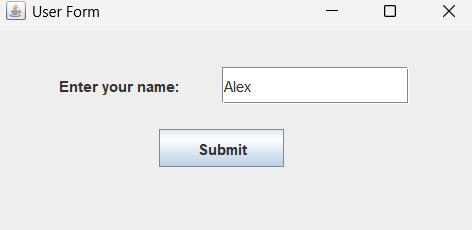
✅ Let’s build a simple Form with:
A window (
JFrame)A label (
JLabel)A text field (
JTextField)A button (
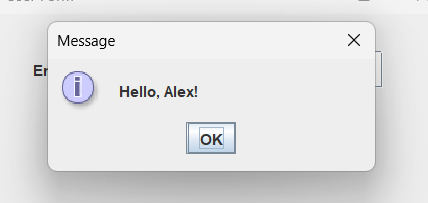
JButton)A popup that shows what the user typed
🧑💻 Code: SimpleForm.java
import javax.swing.*;
import java.awt.event.*;

public class SimpleForm {
    public static void main(String[] args) {
        // Create the main frame
        JFrame frame = new JFrame("User Form");

        // Create label
        JLabel label = new JLabel("Enter your name:");
        label.setBounds(50, 30, 150, 30);

        // Create text field
        JTextField textField = new JTextField();
        textField.setBounds(180, 30, 150, 30);

        // Create button
        JButton button = new JButton("Submit");
        button.setBounds(130, 80, 100, 30);

        // Add button action
        button.addActionListener(new ActionListener() {
            public void actionPerformed(ActionEvent e) {
                String name = textField.getText();
                JOptionPane.showMessageDialog(frame, "Hello, " + name + "!");
            }
        });

        // Add components to frame
        frame.add(label);
        frame.add(textField);
        frame.add(button);

        // Frame settings
        frame.setSize(400, 200);
        frame.setLayout(null);
        frame.setDefaultCloseOperation(JFrame.EXIT_ON_CLOSE);
        frame.setVisible(true);
    }
}
▶️ How to Run It
Save it as
SimpleForm.javaOpen terminal in the same folder
Compile:
javac SimpleForm.javaRun:
java SimpleForm
🧠 Explanation of the code:
🔧 Basic Setup
JFrame frame = new JFrame("User Form");➤ Creates the main window titled "User Form".
🏷️ UI Components
JLabel label = new JLabel("Enter your name:");➤ Displays a label prompting the user to enter their name.
JTextField textField = new JTextField();➤ A text field where users can type their name.
JButton button = new JButton("Submit");➤ A button labeled "Submit".
🎯 Positioning
setBounds(x, y, width, height)➤ Manually positions and sizes each component on the frame.
🖱️ Button Action
button.addActionListener(...)➤ Adds functionality to the button.
Inside the action:
textField.getText()gets the entered name.JOptionPane.showMessageDialog(...)shows a popup saying "Hello, <name>!".
🖼️ Final Frame Settings
frame.setSize(400, 200);➤ Sets window size.frame.setLayout(null);➤ Uses no layout manager (manual positioning).frame.setDefaultCloseOperation(JFrame.EXIT_ON_CLOSE);➤ Closes app on exit.frame.setVisible(true);➤ Makes the window visible.