✅ What is Swing?
Swing is a part of Java Foundation Classes (JFC) used to create Graphical User Interfaces (GUIs).
It is platform-independent, lightweight, and more flexible than the older AWT.
🧩 Commonly Used Swing Components
Component | Description | Example |
|---|---|---|
| Top-level window | Main application window |
| Displays text (non-editable) |
|
| A push button |
|
| Single-line text input |
|
| Text field for password (hidden input) |
|
| Multi-line text area |
|
| Checkbox (true/false option) |
|
| Single-select radio button |
|
| Groups radio buttons (1 selection only) |
|
| Drop-down list (combo box) |
|
| List of selectable items |
|
| Container to group components |
|
| Popup dialog boxes |
|
| Adds scrollbars to components like JTextArea |
|
🧠 Note
All Swing components are part of the
javax.swingpackage.They are lightweight and written entirely in Java.
You can customize components using colors, fonts, tooltips, icons, etc.
🧪 Example: Simple Registration Form
import javax.swing.*;
import java.awt.event.*;

public class RegistrationForm {
    public static void main(String[] args) {
        // Create the frame
        JFrame frame = new JFrame("Registration Form");

        // Create components
        JLabel nameLabel = new JLabel("Name:");
        nameLabel.setBounds(30, 30, 80, 25);
        JTextField nameField = new JTextField();
        nameField.setBounds(120, 30, 150, 25);

        JLabel genderLabel = new JLabel("Gender:");
        genderLabel.setBounds(30, 70, 80, 25);
        JRadioButton male = new JRadioButton("Male");
        male.setBounds(120, 70, 60, 25);
        JRadioButton female = new JRadioButton("Female");
        female.setBounds(180, 70, 80, 25);
        ButtonGroup genderGroup = new ButtonGroup();
        genderGroup.add(male);
        genderGroup.add(female);

        JCheckBox agreeBox = new JCheckBox("I agree to the terms.");
        agreeBox.setBounds(30, 110, 200, 25);

        JButton submitButton = new JButton("Submit");
        submitButton.setBounds(100, 150, 100, 30);

        // Add action to button
        submitButton.addActionListener(new ActionListener() {
            public void actionPerformed(ActionEvent e) {
                if (agreeBox.isSelected()) {
                    String name = nameField.getText();
                    String gender = male.isSelected() ? "Male" : female.isSelected() ? "Female" : "Not selected";
                    JOptionPane.showMessageDialog(frame,
                        "Name: " + name + "\\nGender: " + gender,
                        "Registration Successful",
                        JOptionPane.INFORMATION_MESSAGE);
                } else {
                    JOptionPane.showMessageDialog(frame, "Please agree to the terms.");
                }
            }
        });

        // Add components to frame
        frame.add(nameLabel);
        frame.add(nameField);
        frame.add(genderLabel);
        frame.add(male);
        frame.add(female);
        frame.add(agreeBox);
        frame.add(submitButton);

        // Frame settings
        frame.setSize(350, 250);
        frame.setLayout(null);
        frame.setDefaultCloseOperation(JFrame.EXIT_ON_CLOSE);
        frame.setVisible(true);
    }
}
🧠Explanation of the code:
📥 Import Statements
import java.awt.event.*;import javax.swing.*;➤ Imports all the Swing classes like
JFrame,JLabel,JTextField,JRadioButton,JCheckBox,JButton,JOptionPane.
➤ Imports event-handling classes such as
ActionEventandActionListenerused to respond to user actions like button clicks.
🔧 Basic Setup
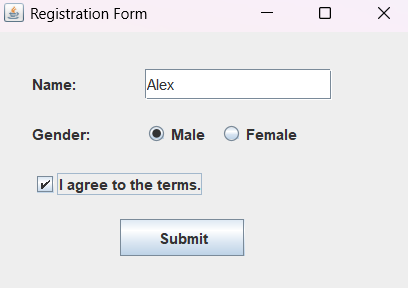
JFrame frame = new JFrame("Registration Form");➤ Creates the main window titled "Registration Form", which serves as the container for all UI components.
🏷️ UI Components
JLabel nameLabel = new JLabel("Name:");➤ Displays a label prompting the user to enter their name.
JTextField nameField = new JTextField();➤ Allows the user to enter a single-line text input (their name).
JLabel genderLabel = new JLabel("Gender:");➤ Displays a label for gender selection.
JRadioButton male = new JRadioButton("Male");➤ Radio button option to select Male as gender.
JRadioButton female = new JRadioButton("Female");➤ Radio button option to select Female as gender.
ButtonGroup genderGroup = new ButtonGroup();➤ Groups the gender radio buttons to ensure only one can be selected at a time.
JCheckBox agreeBox = new JCheckBox("I agree to the terms.");➤ Checkbox that the user must check to agree to the terms and conditions.
JButton submitButton = new JButton("Submit");➤ Button that, when clicked, performs input validation and displays results.
🎯 Positioning Components
setBounds(x, y, width, height);➤ Manually positions and sizes each component on the frame using absolute pixel-based layout.
🖱️ Button Click Logic
submitButton.addActionListener(...)➤ Adds an event listener to handle the click event on the Submit button.
Inside the ActionListener:
agreeBox.isSelected()➤ Checks if the user has agreed to the terms.
nameField.getText()➤ Retrieves the name entered by the user.
male.isSelected()/female.isSelected()➤ Checks which gender option is selected.
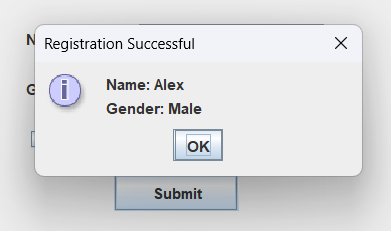
JOptionPane.showMessageDialog(...)➤ Displays a popup showing the entered name and selected gender if terms are accepted.
➤ If the terms are not accepted, it shows a warning popup.
🖼️ Final Frame Configuration
frame.setSize(350, 250);➤ Sets the overall width and height of the frame.
frame.setLayout(null);➤ Disables layout managers; components are manually positioned.
frame.setDefaultCloseOperation(JFrame.EXIT_ON_CLOSE);➤ Exits the application when the window is closed.
frame.setVisible(true);➤ Makes the frame and its contents visible to the user.