✅ What is GUI?
A GUI (Graphical User Interface) is a visual interface that allows users to interact with programs using graphical components like:
Buttons
Text fields
Windows
Menus
Dialogs
Instead of typing commands (as in Command Line Interfaces), users interact using a mouse, keyboard, or touch.
🧠 Why use GUI?
Easier and more intuitive for users.
Great for real-world applications (calculator, forms, games).
Modern applications rely heavily on GUI for better usability.
GUI programs are event-driven — they respond to user actions like clicks, typing, etc.
🆚 GUI vs CLI
Feature | CLI (Command Line Interface) | GUI (Graphical User Interface) |
|---|---|---|
Interaction | Text-based commands | Visual elements (buttons, windows) |
User-friendly | Less | More |
Speed | Faster for experts | Slower due to visuals |
Learning Curve | Steep | Easy for beginners |
Example | Terminal, cmd | Calculator, Paint, Web Browser |
🧰 Java GUI Toolkits
Java provides three main libraries for GUI development:
Toolkit | Description |
|---|---|
AWT | Abstract Window Toolkit — uses native system components (heavyweight, older). |
Swing | Built on AWT — lightweight, platform-independent, rich set of GUI components. |
JavaFX | Modern toolkit — supports styling with CSS, animations, and modern UI elements. |
🟢 In this module, we’ll focus mainly on Swing, as it’s widely used and beginner-friendly.
📘 GUI Terms Glossary
Term | Description |
|---|---|
Component | A UI element like a button, label, or text field. |
Container | A component that can hold other components (like |
Event | A user action like a click or keystroke. |
Listener | A piece of code that waits and responds to events (like |
🧪 Java GUI Program Example
This is a basic program that creates a GUI window with a button. When the button is clicked, a message is displayed.
Line of Code | What it Does |
|---|---|
| Creates the main application window |
| Creates a button with label "Click Me" |
| Sets position and size of the button |
| Defines what happens when the button is clicked |
| Shows a popup dialog box |
| No layout manager used (absolute positioning) |
| Makes the GUI window appear on screen |
✅ Code: Let’s create a button
import javax.swing.*;  // Import Swing package
import java.awt.event.*;  // For event handling

public class SimpleGUI {
    public static void main(String[] args) {
        // Create a window (frame)
        JFrame frame = new JFrame("My First GUI");

        // Create a button
        JButton button = new JButton("Click Me");

        // Set button position and size
        button.setBounds(100, 100, 120, 40);

        // Add action listener to button
        button.addActionListener(new ActionListener() {
            public void actionPerformed(ActionEvent e) {
                JOptionPane.showMessageDialog(frame, "Hello! You clicked the button.");
            }
        });

        // Add button to frame
        frame.add(button);

        // Frame settings
        frame.setSize(350, 300); // Set window size
        frame.setLayout(null); // Use absolute layout
        frame.setDefaultCloseOperation(JFrame.EXIT_ON_CLOSE); // Close app when window closes
        frame.setVisible(true); // Show the window
    }
}
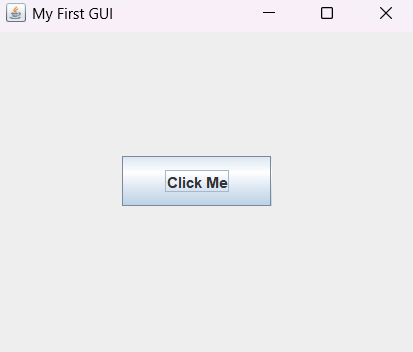
A window titled “My First GUI” appears.
It contains a button labeled “Click Me”.
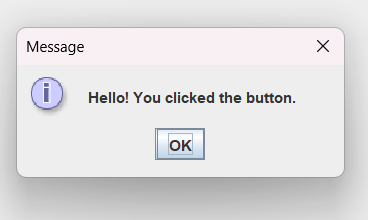
When clicked, it shows a popup message: