🗄️ Creating the Todo Application Database (MySQL)
Now that our backend logic is coming together, it's time to set up the database layer for our Todo application.
Since you’re learning backend development, this is where everything starts becoming real — we’re designing the structure that will store our users and their todos.
📌 Step 1: Open MySQL and Review Existing Schemas
On the left-hand side in MySQL Workbench, you’ll see several schemas that come pre-installed.
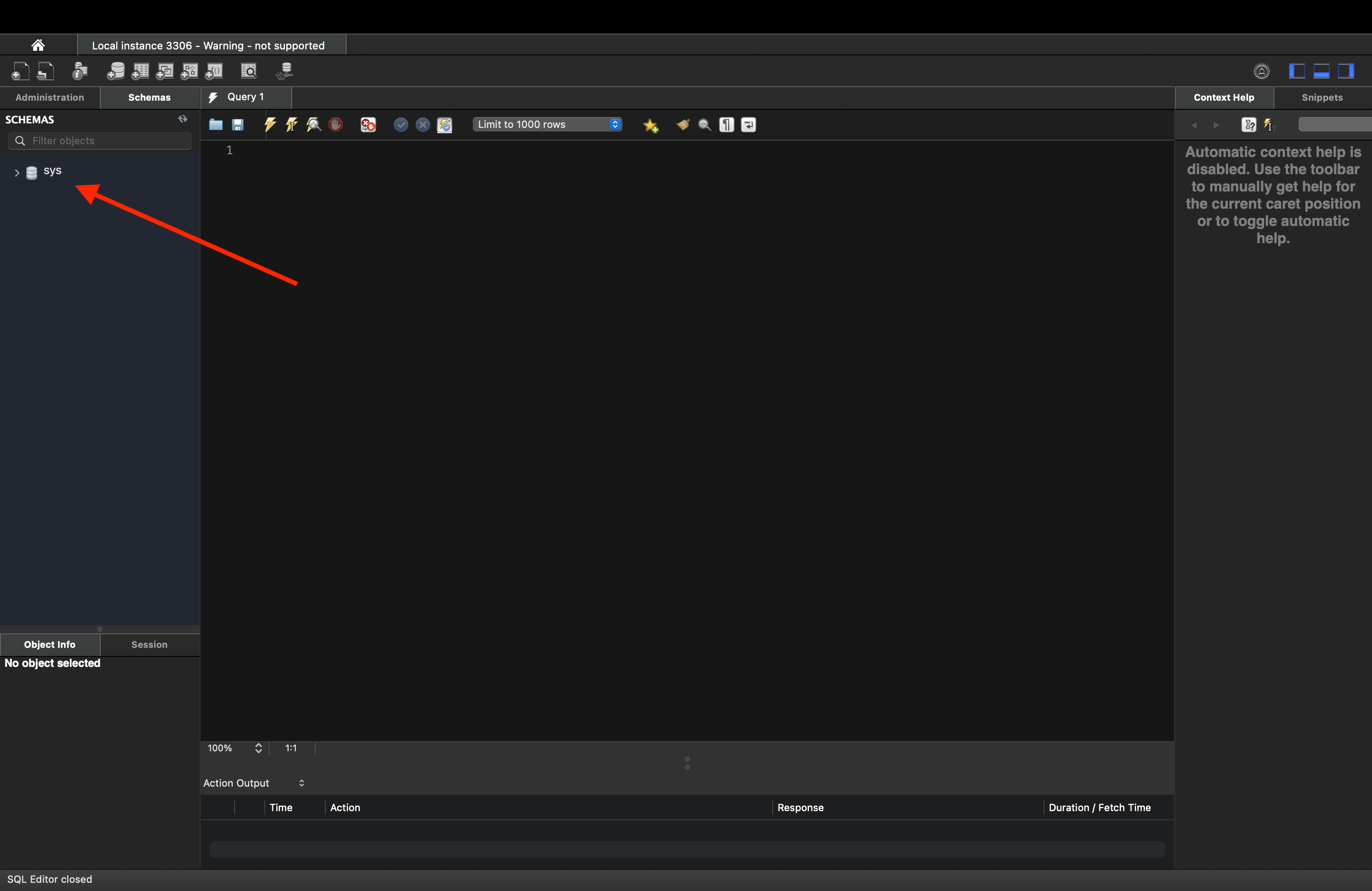
These are system databases that ship with MySQL. We are not modifying those.
Instead, we will create our own database specifically for this project.
🏗️ Step 2: Create a New Schema
Right-click inside the Schemas section
Click Create Schema
Name it:
TodoApplicationClick Apply
Click Apply again to confirm
Click Close
Once complete, you’ll see your new schema appear on the left-hand side.
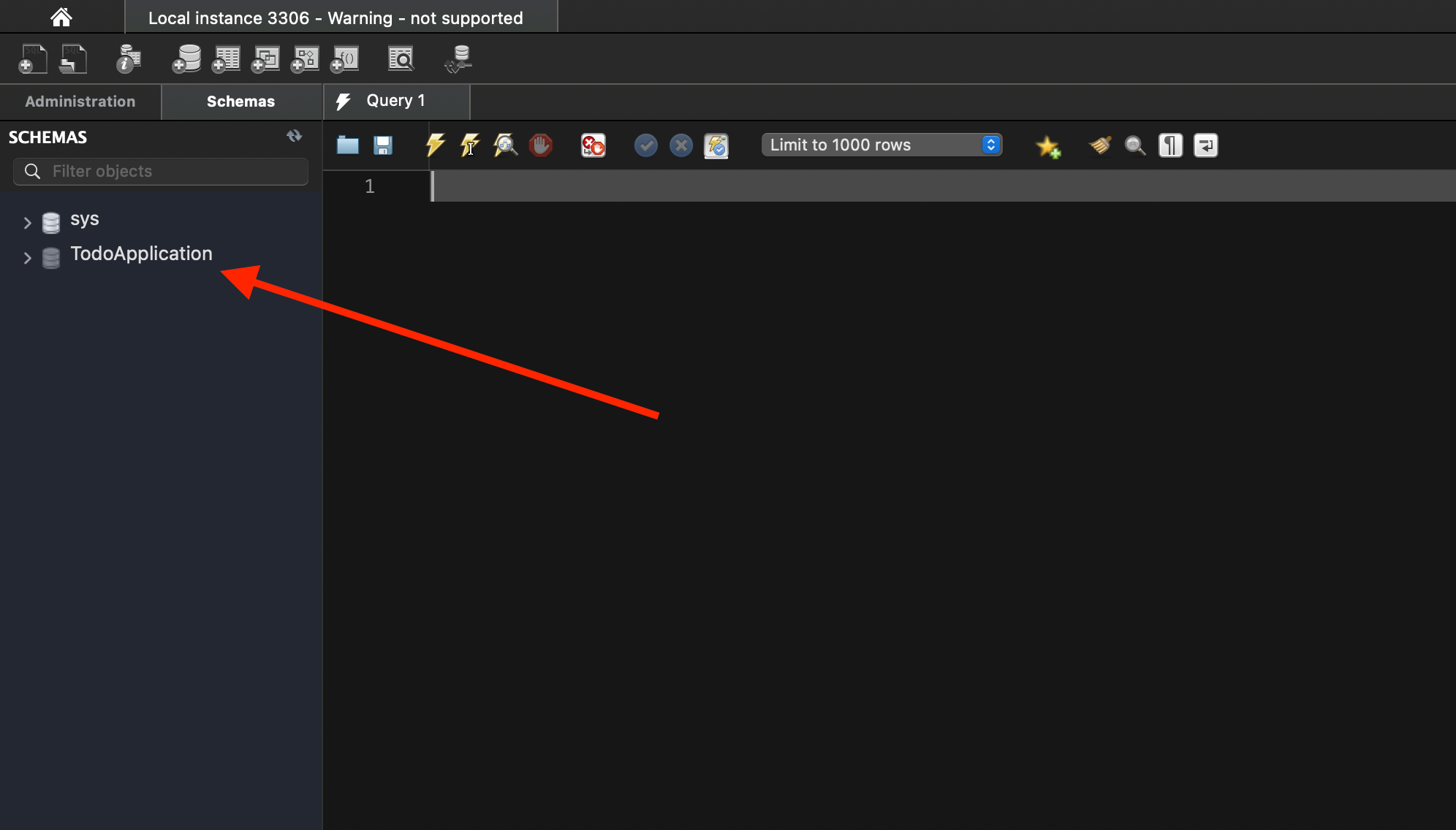
Double-click TodoApplication so it becomes highlighted.
✅ When highlighted, it means MySQL is now connected to your project database.
📜 Step 3: Run the Database Script
Now we’ll create our tables.
Copy and paste the following SQL script into a new SQL tab:
DROP TABLE IF EXISTS `users`;

CREATE TABLE `users` (
  `id` int(11) NOT NULL AUTO_INCREMENT,
  `email` varchar(200) DEFAULT NULL,
  `username` varchar(45) DEFAULT NULL,
  `first_name` varchar(45) DEFAULT NULL,
  `last_name` varchar(45) DEFAULT NULL,
  `hashed_password` varchar(200) DEFAULT NULL,
  `is_active` int(1) DEFAULT NULL,
  `role` varchar(45) DEFAULT NULL,
  PRIMARY KEY (`id`)
) ENGINE=InnoDB AUTO_INCREMENT=1 DEFAULT CHARSET=latin1;

DROP TABLE IF EXISTS `todos`;

CREATE TABLE `todos` (
  `id` int(11) NOT NULL AUTO_INCREMENT,
  `title` varchar(200) DEFAULT NULL,
  `description` varchar(200) DEFAULT NULL,
  `priority` int(1) DEFAULT NULL,
  `complete` int(1) DEFAULT NULL,
  `owner_id` int(11) DEFAULT NULL,
  PRIMARY KEY (`id`),
  FOREIGN KEY (`owner_id`) REFERENCES users(`id`)
) ENGINE=InnoDB AUTO_INCREMENT=1 DEFAULT CHARSET=latin1;
⚡ Step 4: Execute the Script
Click the ⚡ lightning bolt icon to execute the script.
Then:
Right-click Tables
Click Refresh All
You should now see:
userstodos
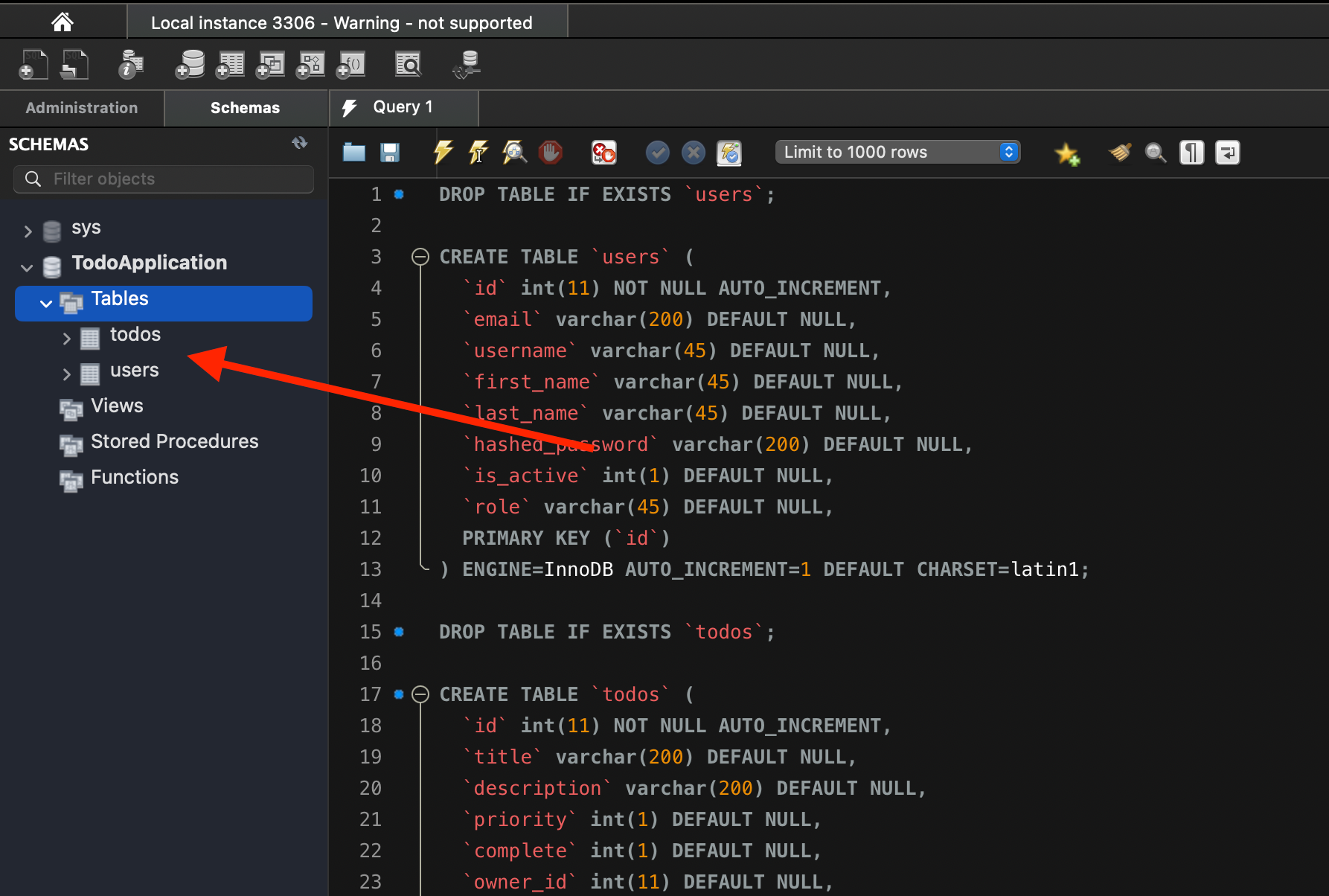
🎉 Your tables are successfully created.
🧪 Step 5: Test the Tables
Run:
SELECT * FROM todos;You’ll see the structure, but no records yet.
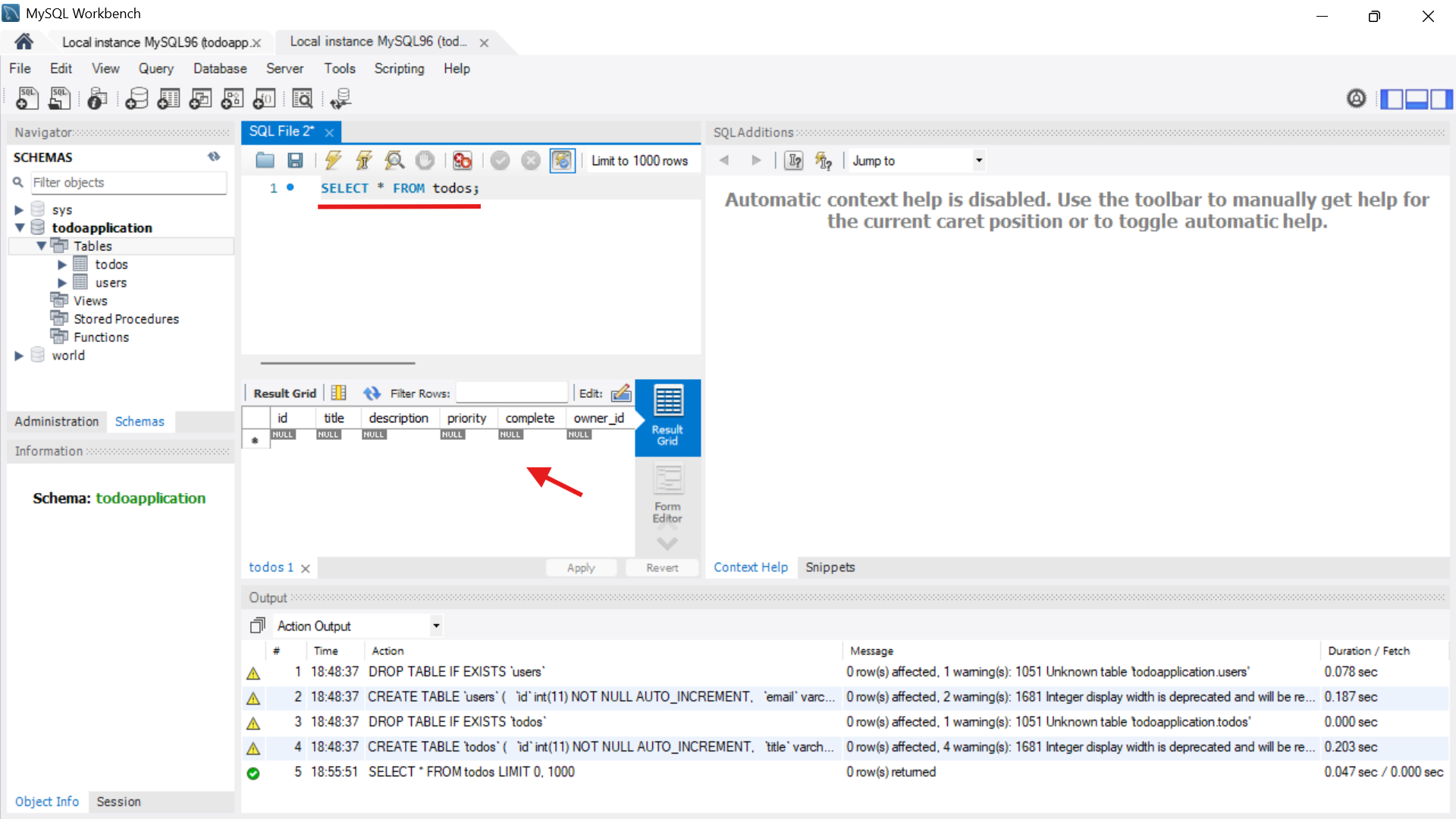
Now try:
SELECT * FROM users;Same result — table structure exists, but no data.
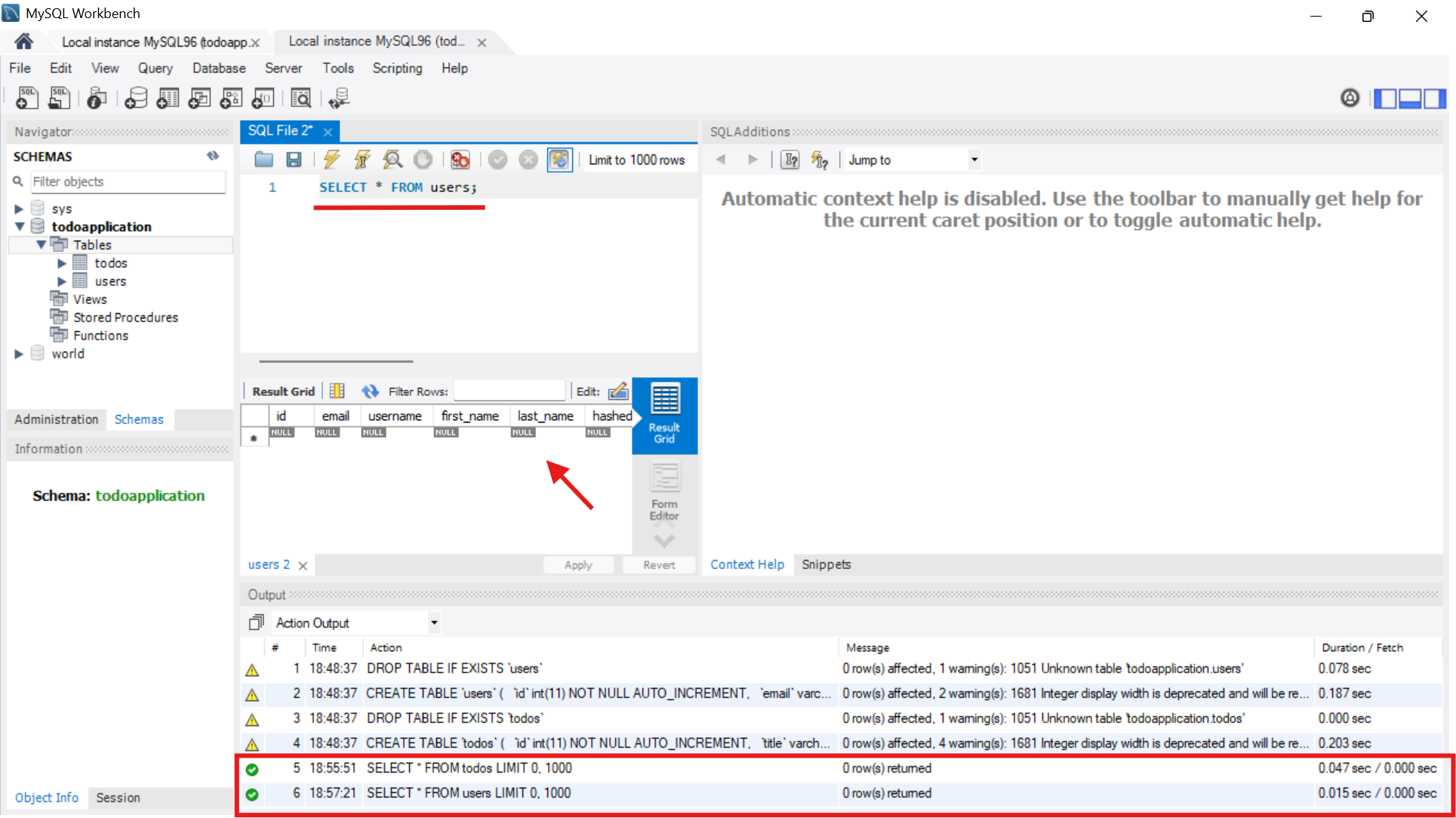
✅ That’s correct.