1️⃣ Creating a Bucket
👉 Select a Region
Search for S3 in the search bar and click S3.
Select your preferred AWS Region (e.g.,
Asia Pacific (Mumbai) – ap-south-1).S3 buckets are region-specific, but you can view buckets from all regions.
👉 Choose Bucket Type
General Purpose → default for most use cases
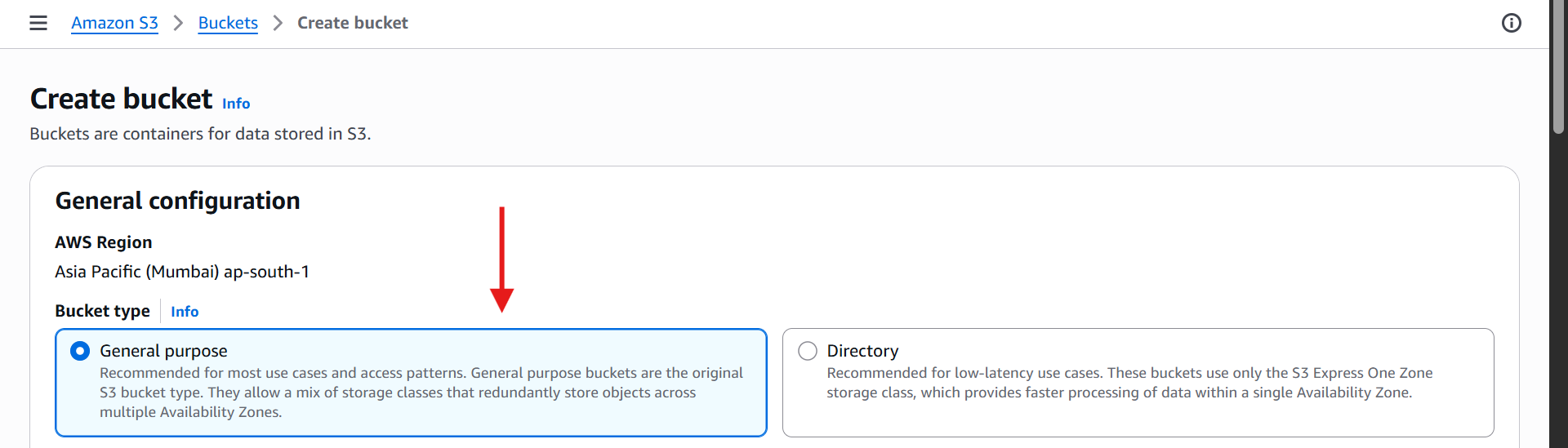
Directory Buckets → special use cases (not exam-relevant - more on this later)
👉 Enter a Unique Bucket Name
Must be globally unique across all AWS accounts.
Example:
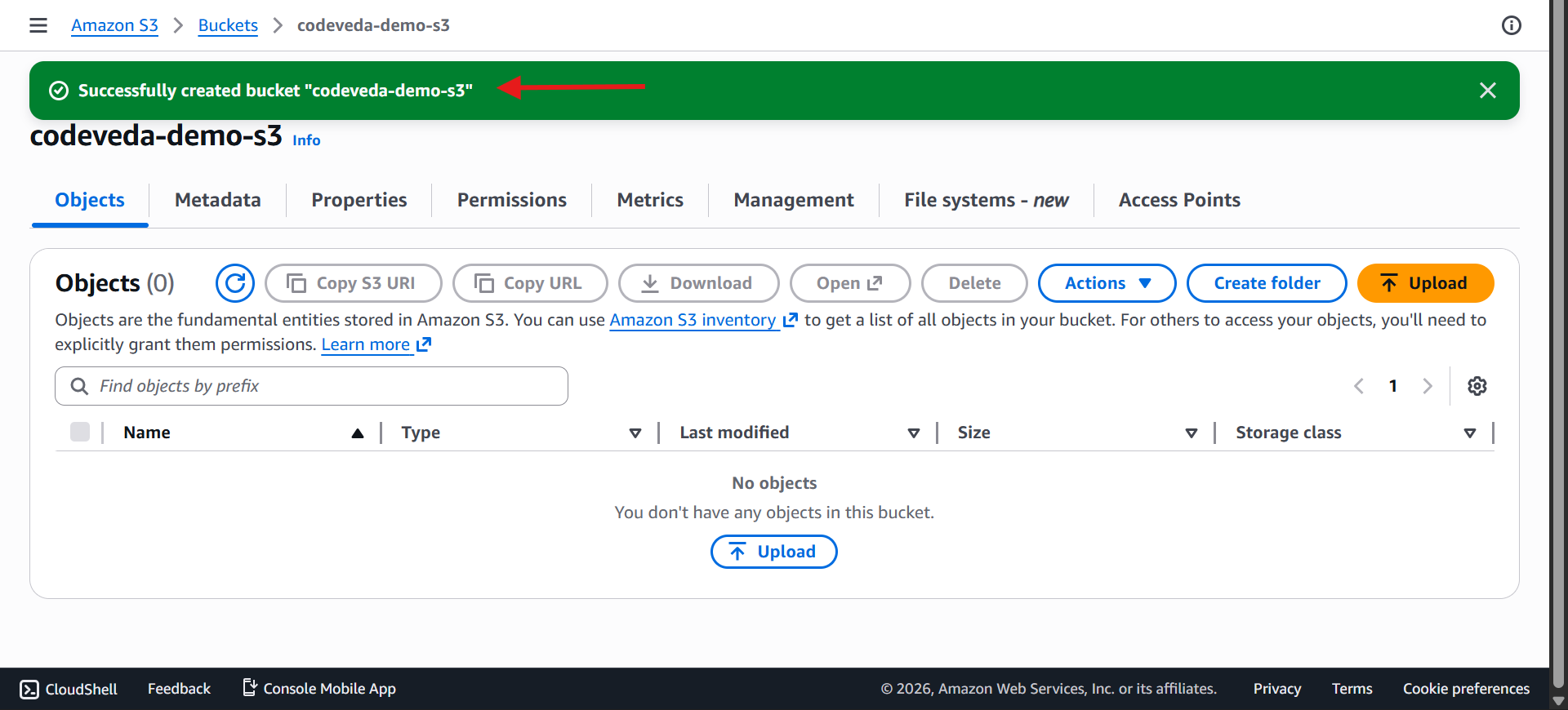
codeveda-demo-s3If the name exists → choose another
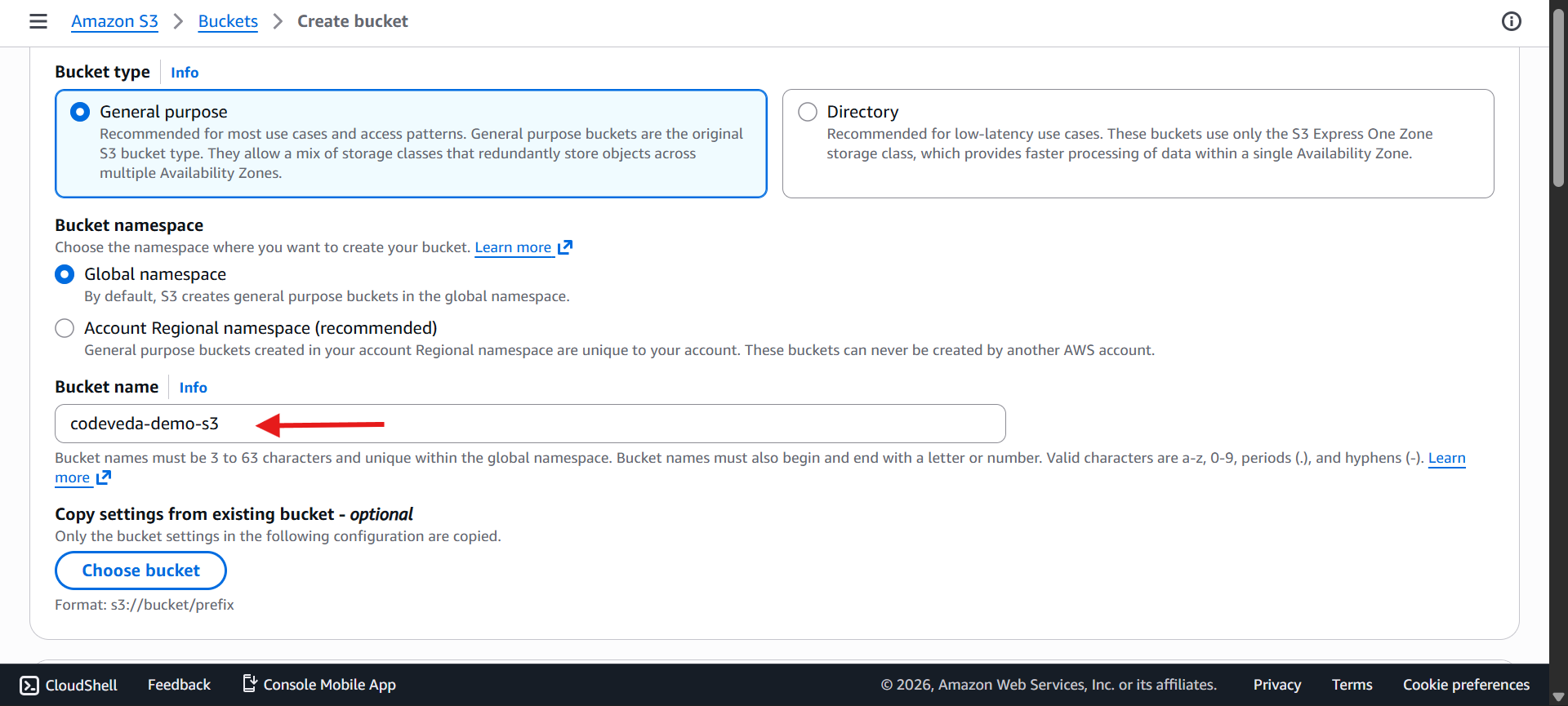

🔒 Account Regional Namespace
Bucket names are unique within your AWS account and Region, so different AWS accounts can use the same name.
Example:
demo-37647346-ap-south-1
demo→ Bucket name
37647346→ Account ID
ap-south-1→ AWS Region
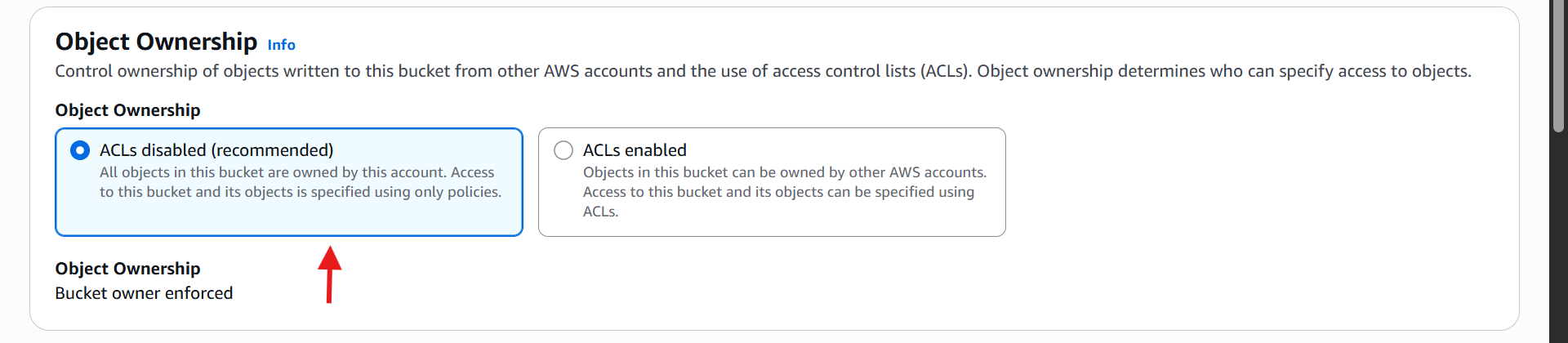
👉 Object Ownership & Access
Leave ACL disabled (recommended)
Block all public access → maximum security
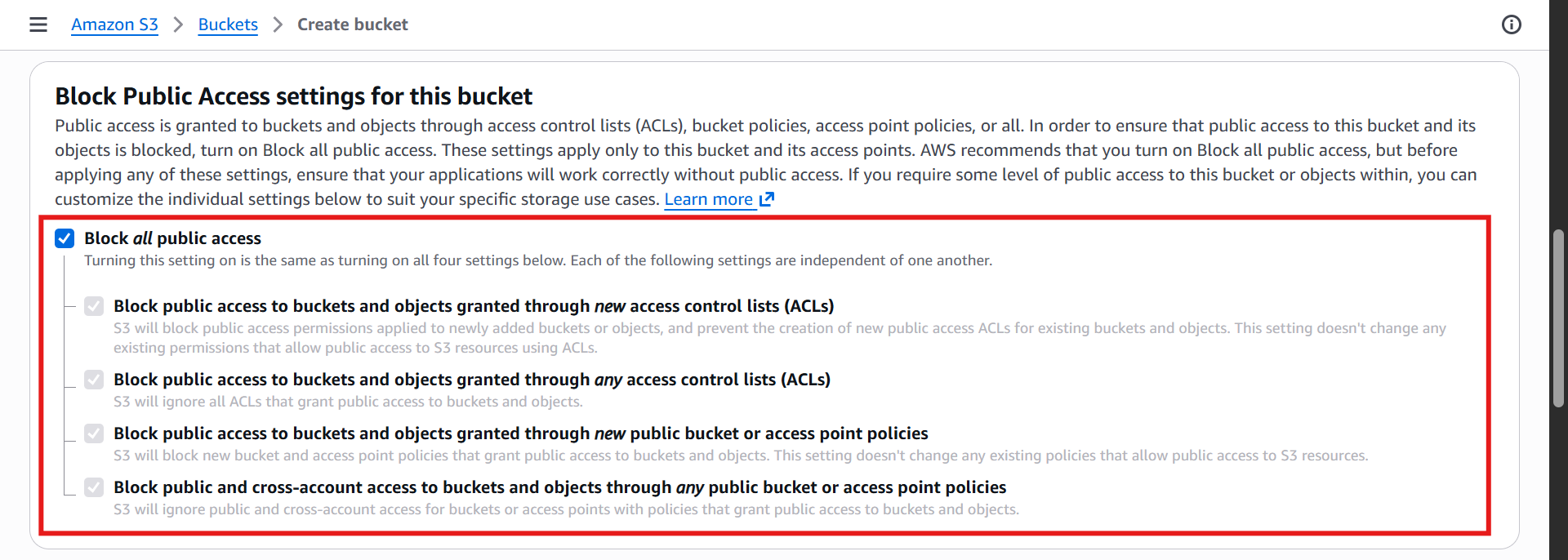
Only you can upload/view objects initially
👉 Optional Settings
Versioning: disabled (can enable later)

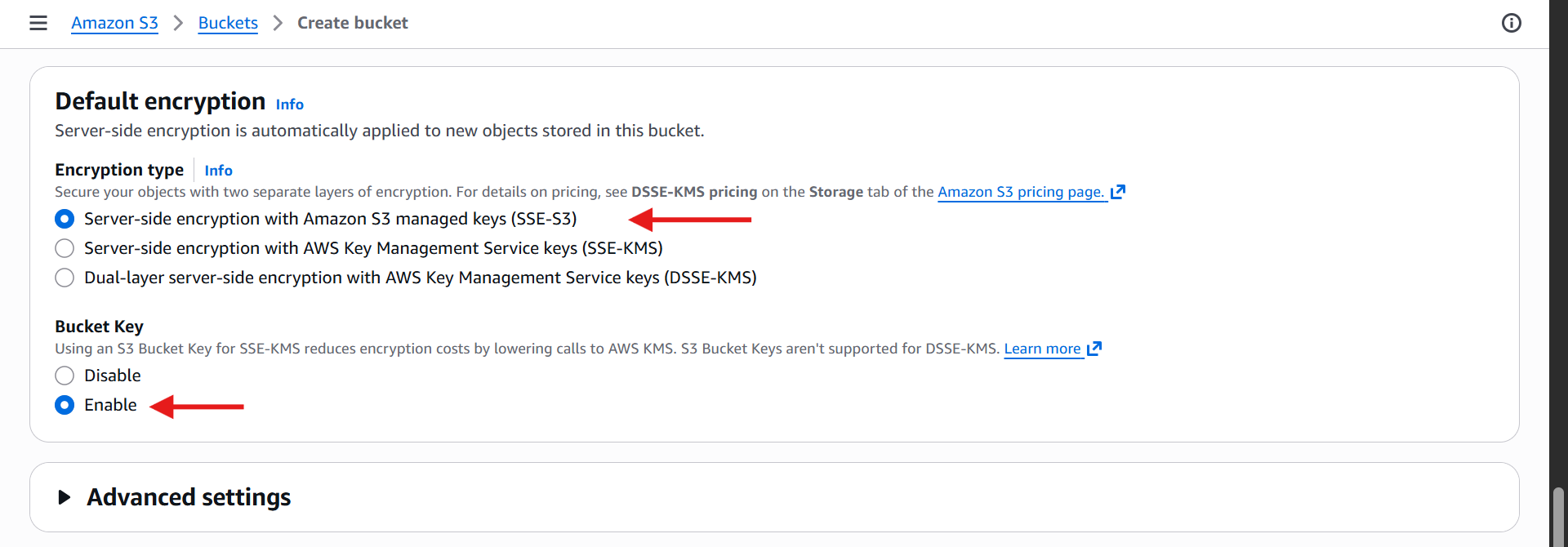
Default Encryption: enable server-side encryption (S3 managed key)
Bucket Key: enabled
👉 Create Bucket
Click Create → bucket is now available
2️⃣ Uploading Objects
Go to your bucket → click Upload
Add files (example:
coffee.jpg, 100 KB) or any other image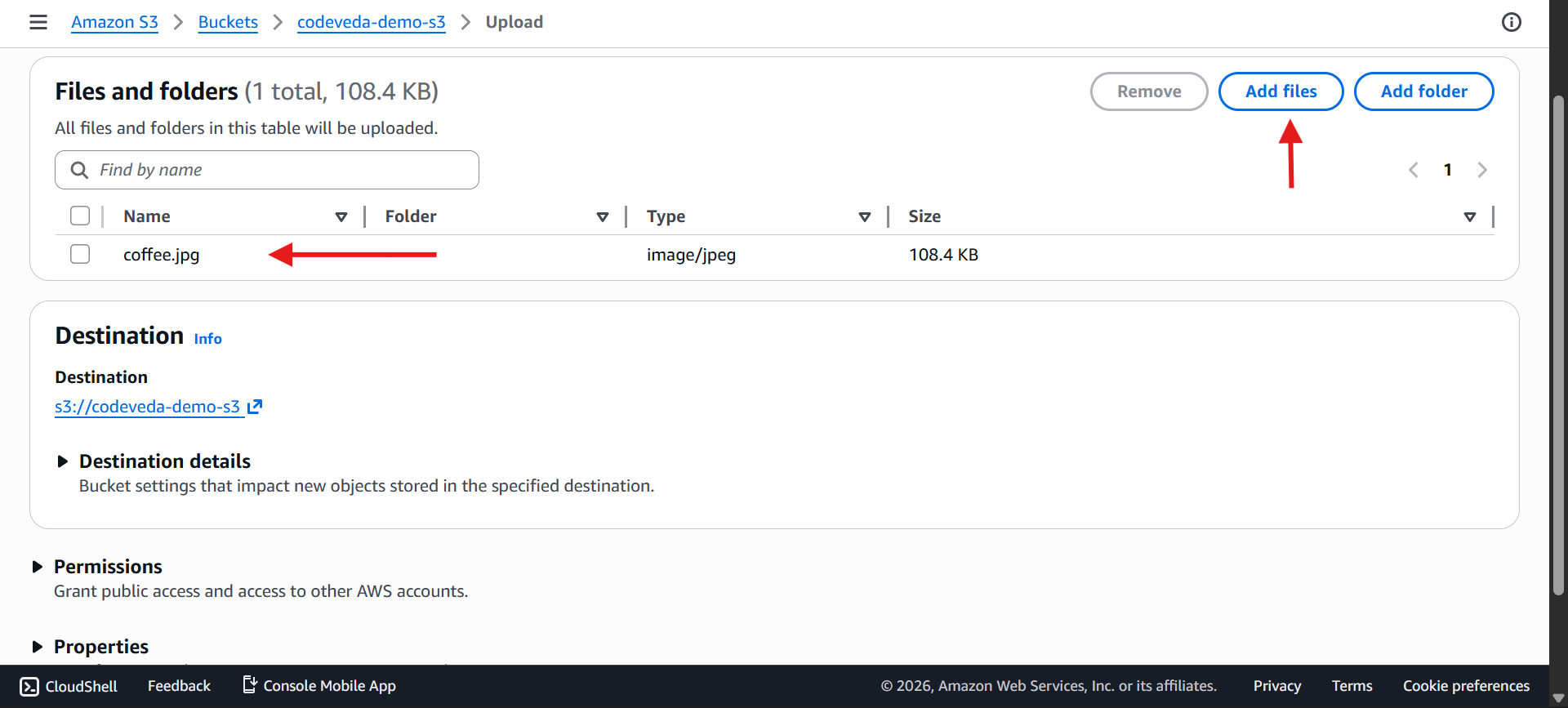
Destination → your bucket
Click Upload
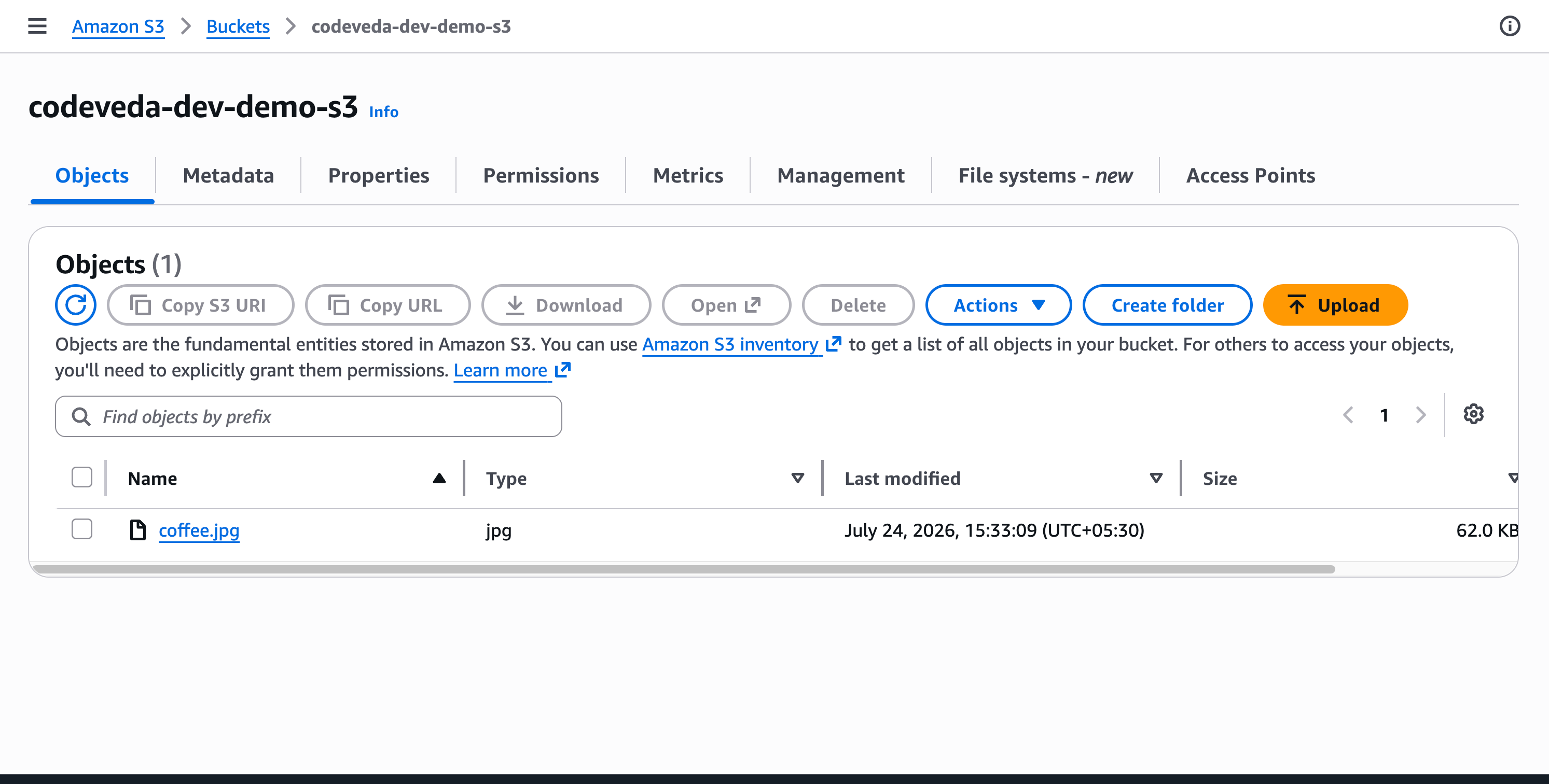
Object now appears under Objects in the bucket
You can all see all the buckets in
s3 → Buckets → General purpose buckets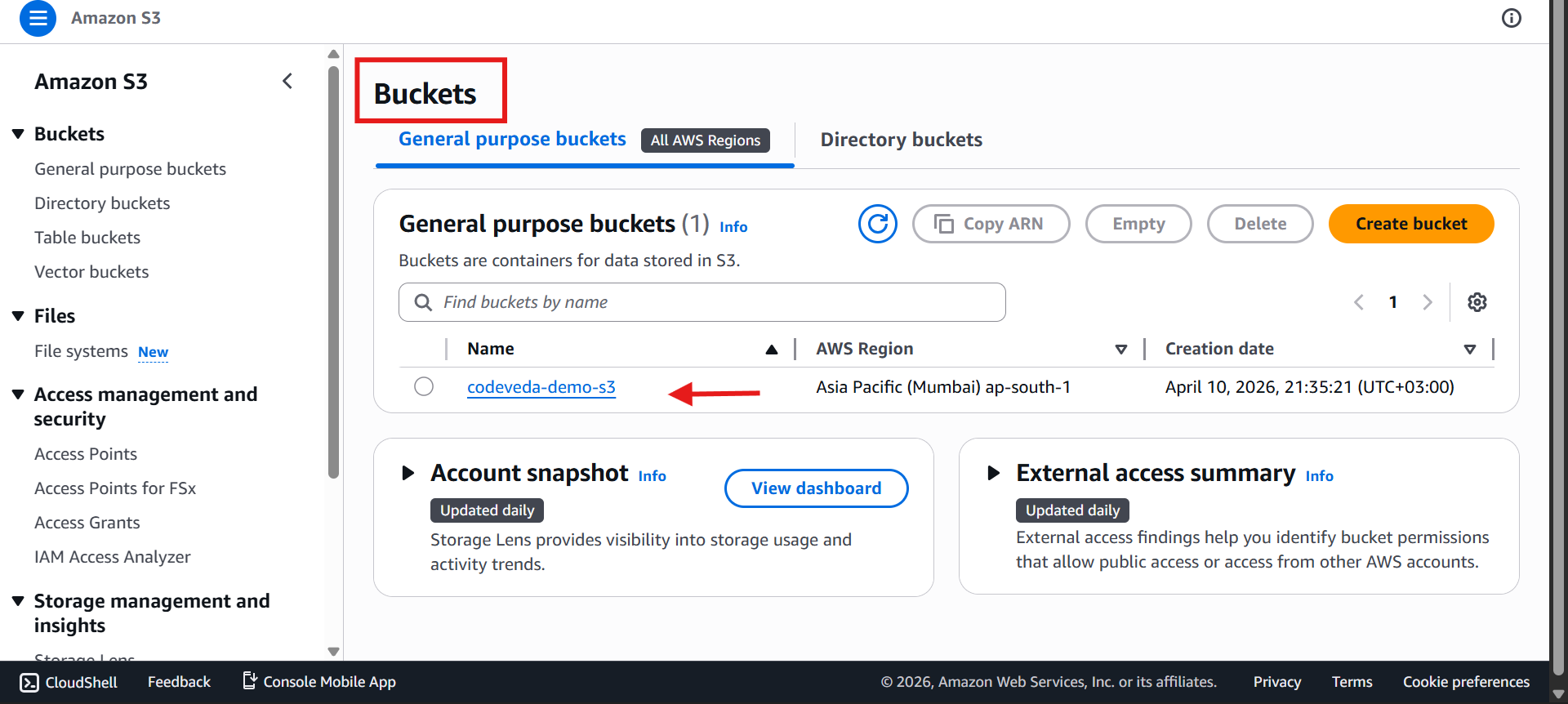
3️⃣ Viewing Objects
Click on the object
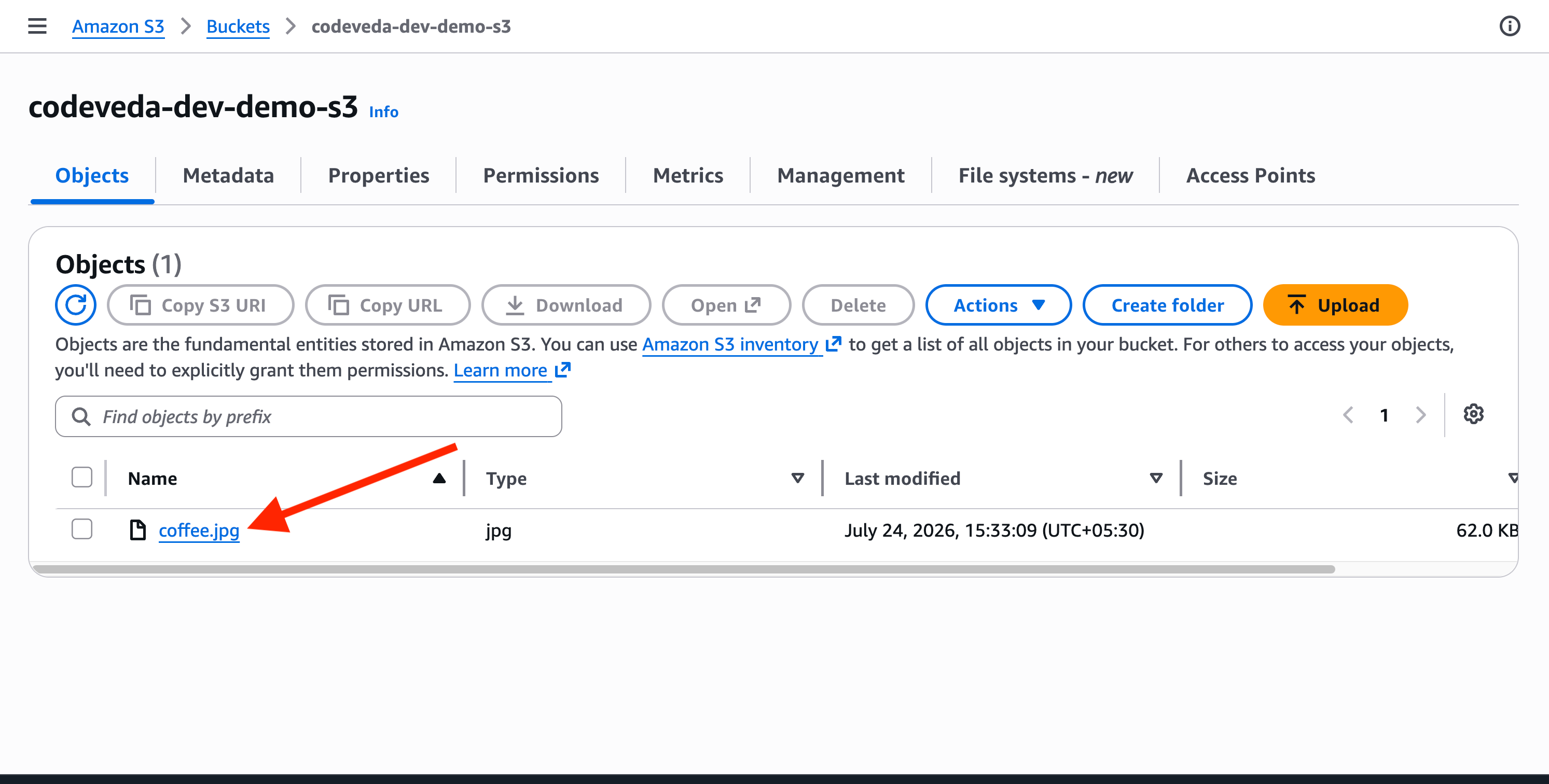
See all these details:
File size, type, uploaded time
Object URL
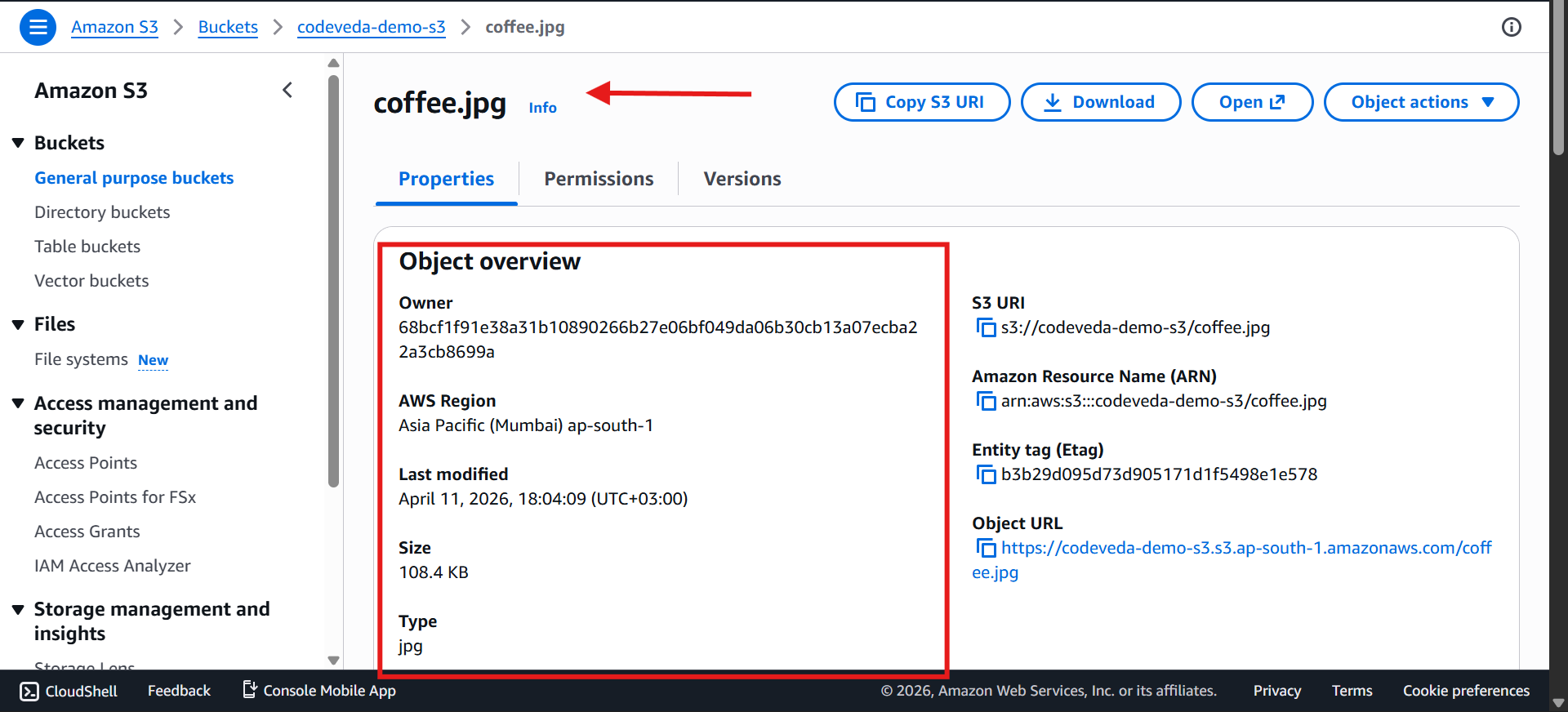
Opening the object
Default view → works for you
Public URL(Object URL) → Access Denied (object is private)


Pre-signed URL → works, contains credentials for temporary access


A Pre-Signed URL provides temporary access to a private S3 object without requiring AWS credentials.
Example:
<https://my-bucket.s3.ap-south-1.amazonaws.com/report.pdf>
?X-Amz-Algorithm=AWS4-HMAC-SHA256
&X-Amz-Credential=AKIA.../20260724/ap-south-1/s3/aws4_request
&X-Amz-Date=20260724T120000Z
&X-Amz-Expires=3600
&X-Amz-Security-Token=IQoJb3Jp...
&X-Amz-Signature=8f7c3a9d...
💡 Key parts:
⏱️
X-Amz-Expires→ URL validity (e.g., 3600 seconds)🔐
X-Amz-Signature→ Verifies the request🎫
X-Amz-Security-Token→ Temporary credentials (when using IAM roles/STS)
💡 We'll learn how to create a public S3 URL later. For now, the Open URL works only for your AWS account.
4️⃣ Working with Folders
Click Create Folder → example:
imagesUpload files inside the folder → example:
beach.jpg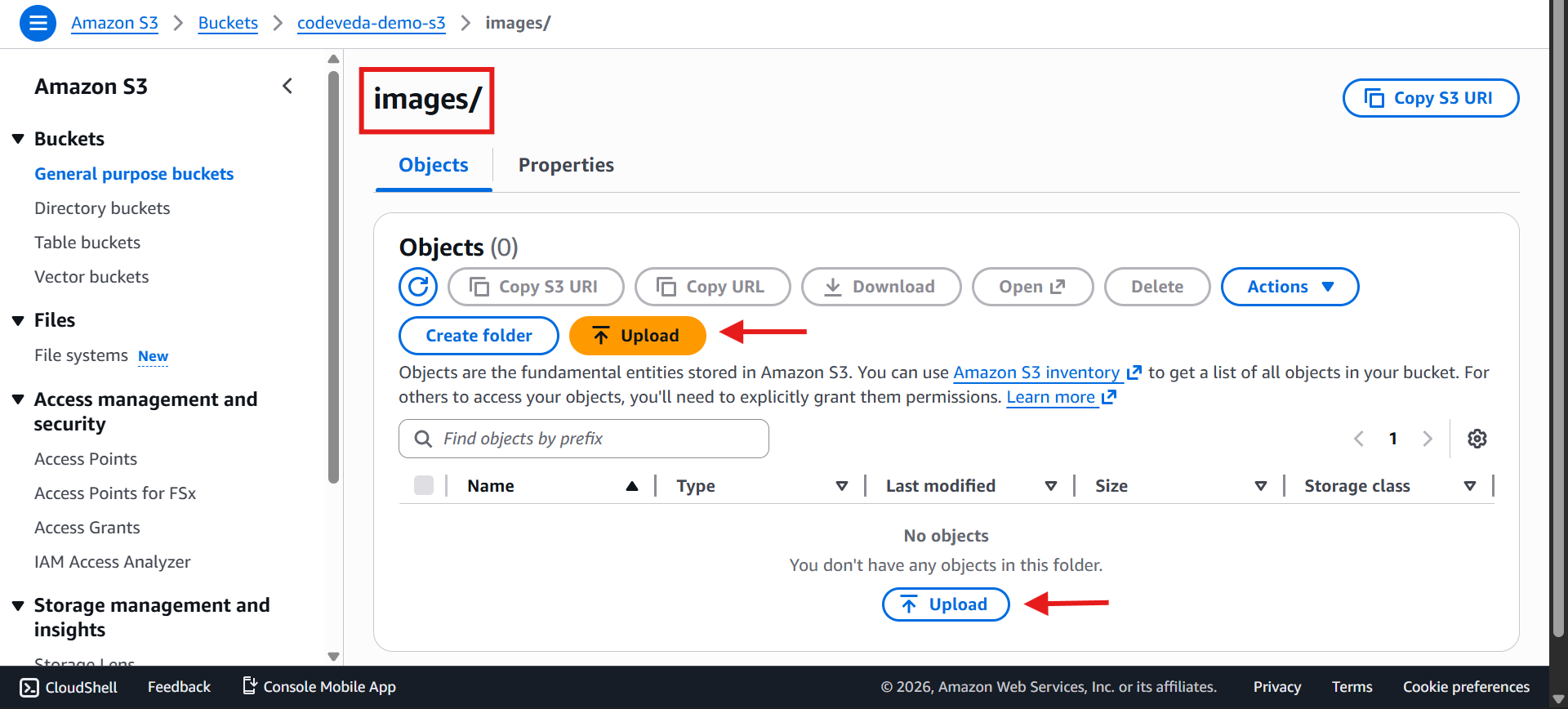
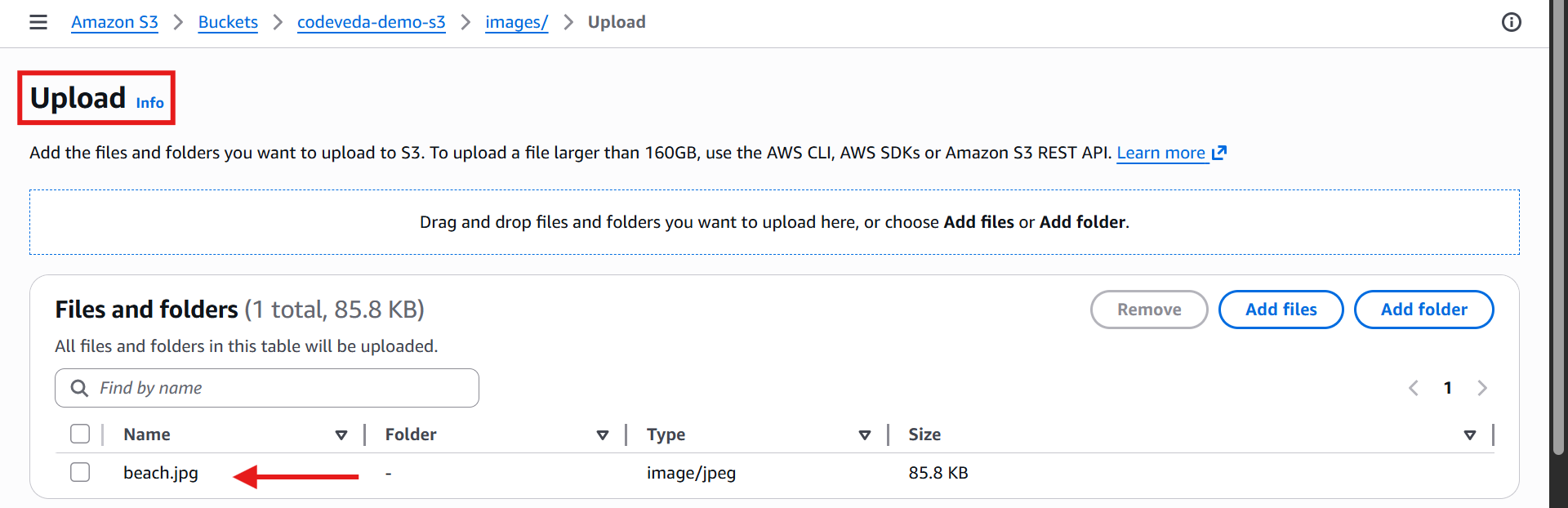
Folders are UI constructs; internally, everything is just object keys
💡 You might notice that Amazon S3 looks similar to Google Drive or Dropbox—and in some ways, that's true.
5️⃣ Deleting Objects or Folders
Select folder or object
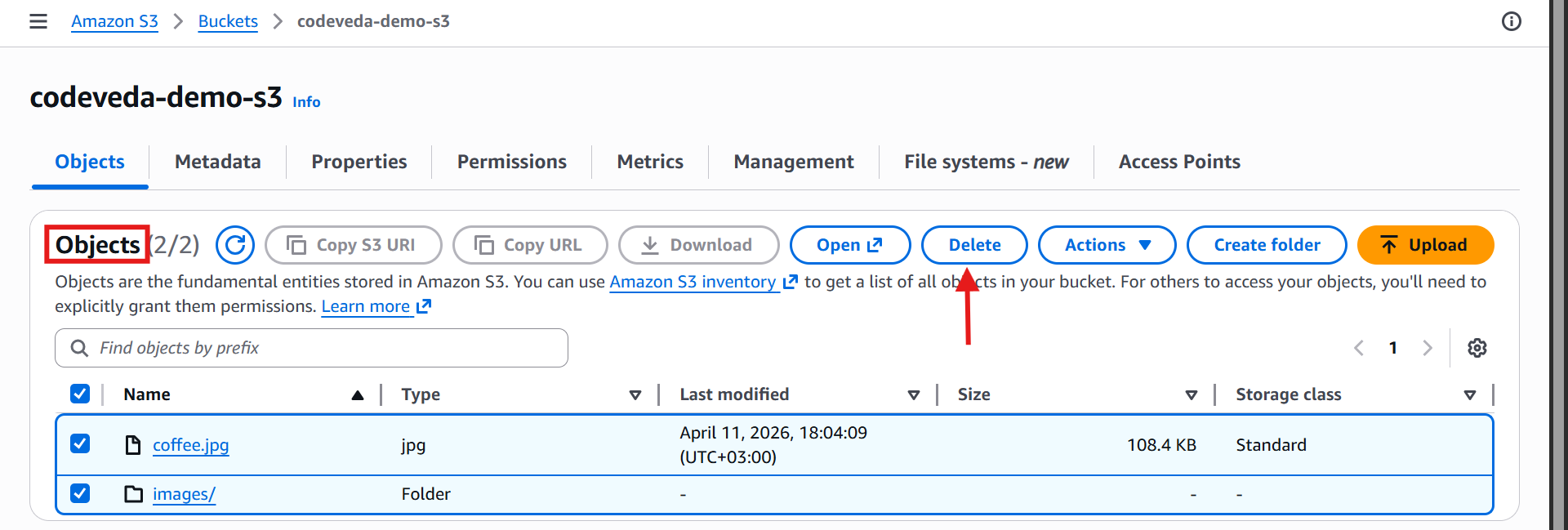
Click Delete
Confirm by typing
permanently delete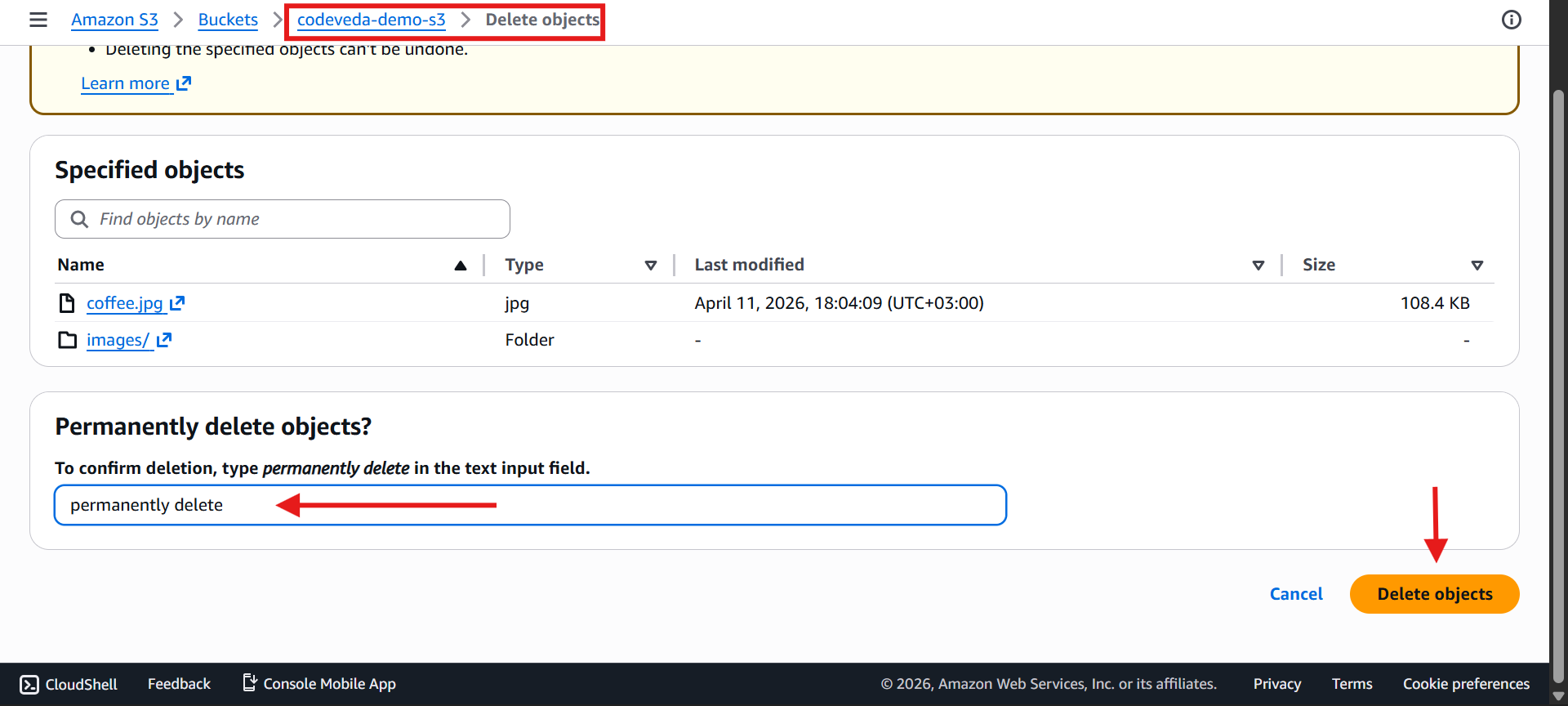
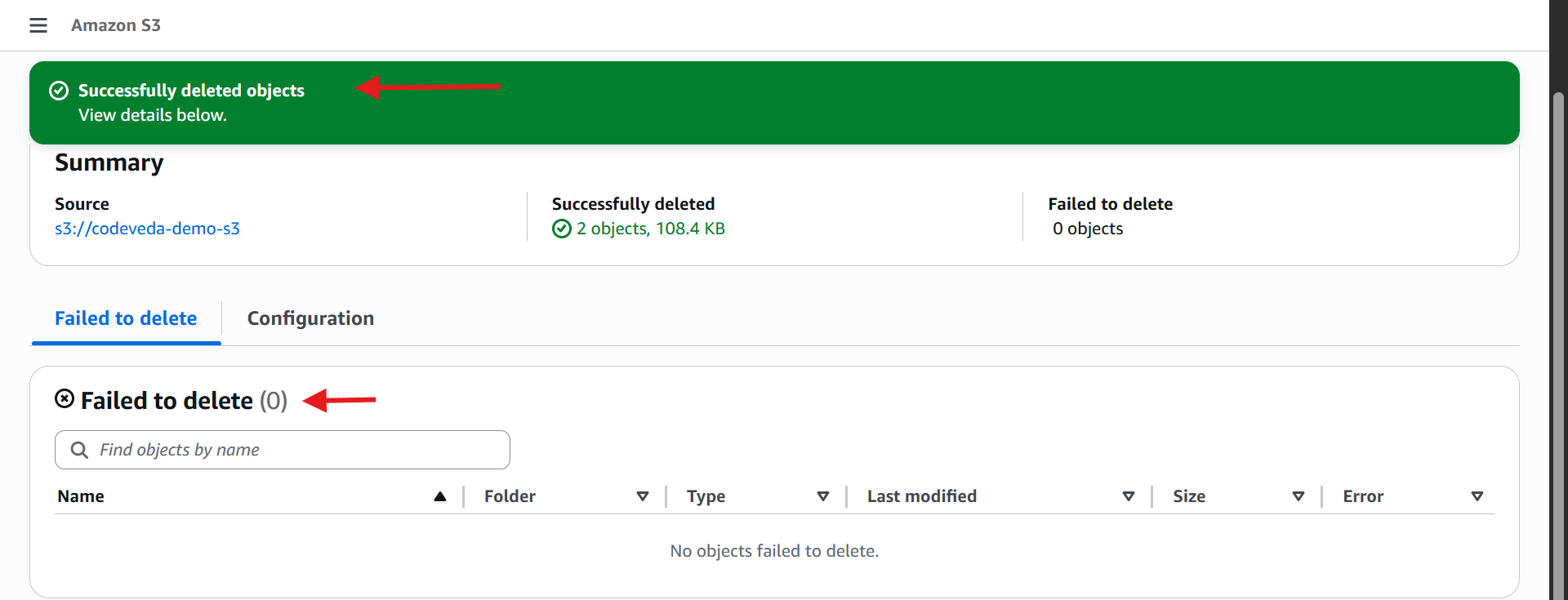
All objects inside a folder are deleted if folder is removed
6️⃣ Important Takeaways
Buckets = containers
Objects = files inside buckets
Folders = optional UI for organization
Pre-signed URLs = temporary access with credentials
Public URLs = only work if bucket/object is public
All objects can be encrypted and secured
💡 Pro Tips
Use descriptive, personal bucket names to avoid conflicts
Always enable encryption by default for security
Remember that S3 folders are just part of object keys, not real directories
Pre-signed URLs are great for secure sharing without making objects public