🔢 Understanding Semantic Versioning (SemVer)
📌 Most npm packages follow Semantic Versioning (SemVer), expressed as three numbers:
MAJOR.MINOR.PATCHExample: 1.18.11
🔍 What Each Number Means
🔢 Position | 🏷️ Name | 💡 Meaning |
|---|---|---|
1️⃣ First | Major | Big changes — can include breaking changes that may stop your existing code from working |
2️⃣ Second | Minor | New features added — should be backward-compatible (won't break existing code) |
3️⃣ Third | Patch | Bug fixes only — smallest, safest kind of update |
📝 Examples of Version Changes
🐞
1.18.1→1.18.2→1.18.11: These are all patch updates — just bug fixes, safe to accept.✨
1.18.x→1.19.x: A minor update — new features added, but your existing code should still work fine.⚠️
1.x.x→2.0.0: A major update — could include breaking changes (e.g., a function gets renamed, or its parameters change), meaning your existing code might stop working.
⚠️ Be cautious with major version updates — always check the package's changelog/documentation before upgrading across a major version.
⚙️ Controlling Which Updates You Accept
📄 In package.json, each dependency has a version number prefixed with a symbol that controls what future updates are acceptable:
🔖 Symbol | 💡 Meaning | ✅ Accepts |
|---|---|---|
| Default in npm | Minor and patch updates (no major updates) |
| More restrictive | Only patch updates |
(no symbol) | Exact version only | No automatic updates at all |
📝 Example in package.json
"slugify": "^1.3.4"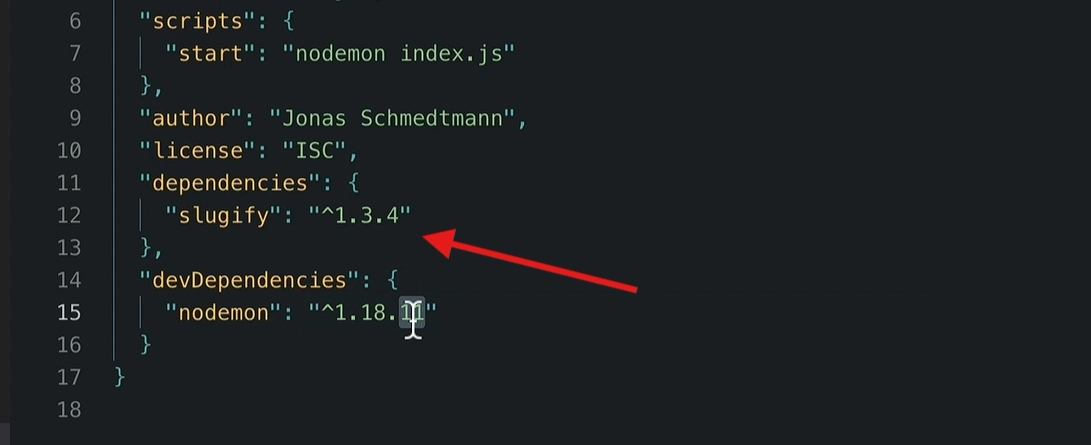
This means: accept any version from 1.3.4 up to (but not including) 2.0.0.
🔍 Step 1: Checking for Outdated Packages
npm outdatedDisplays a table of packages that have newer versions available than what's currently installed.
Shows columns like:
📌 Current — the version you have installed.
🎯 Wanted — the highest version allowed based on your
package.jsonsymbol (^or~).🚀 Latest — the absolute latest version available on npm (regardless of what you've configured to accept).
📥 Step 2: Installing a Specific Version
🎯 You can install an exact version of a package using
@:
npm install slugify@1.0.0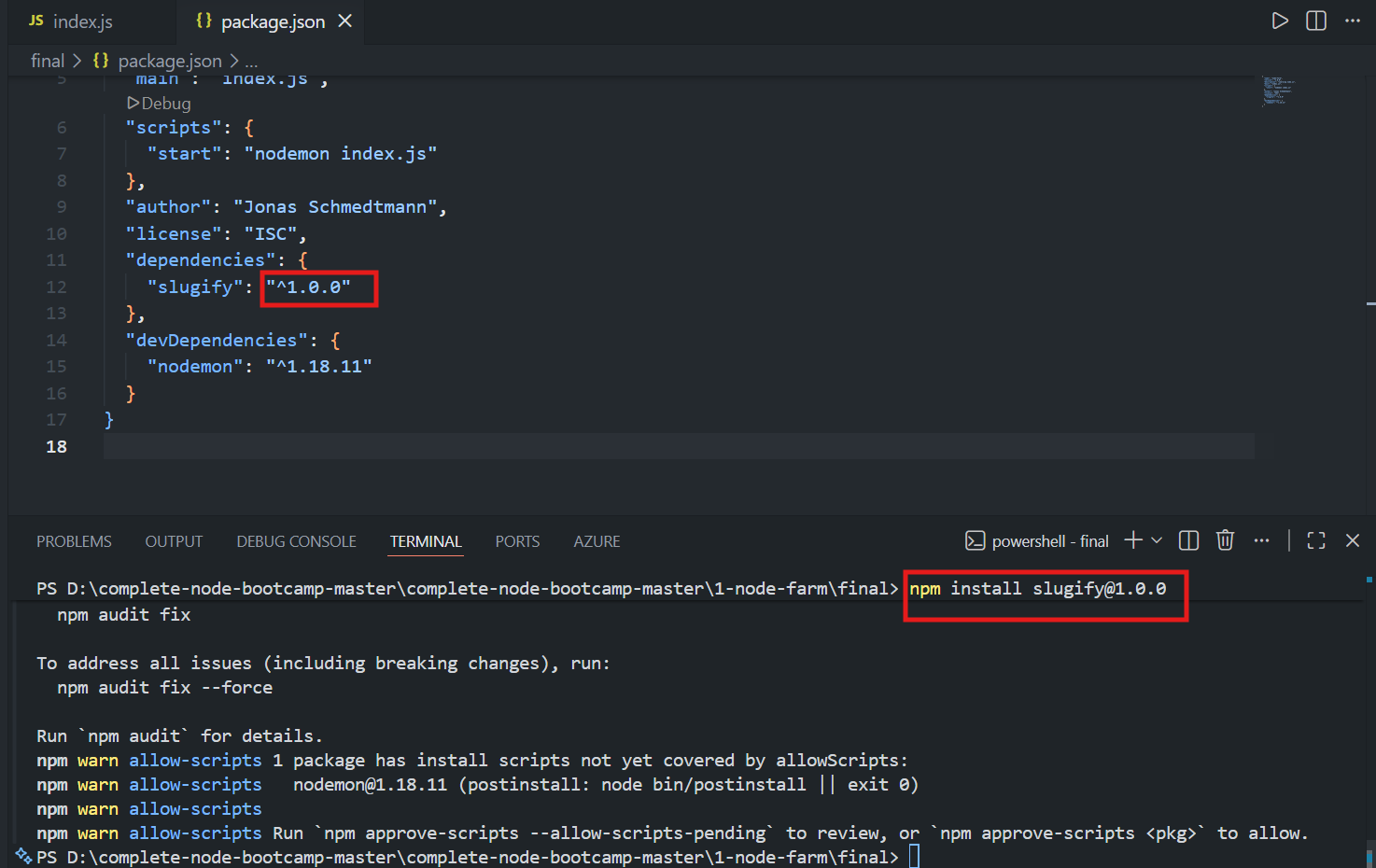
📦 This installs version
1.0.0specifically, even if a newer version exists.📊 Running
npm outdatedafterward will now show:
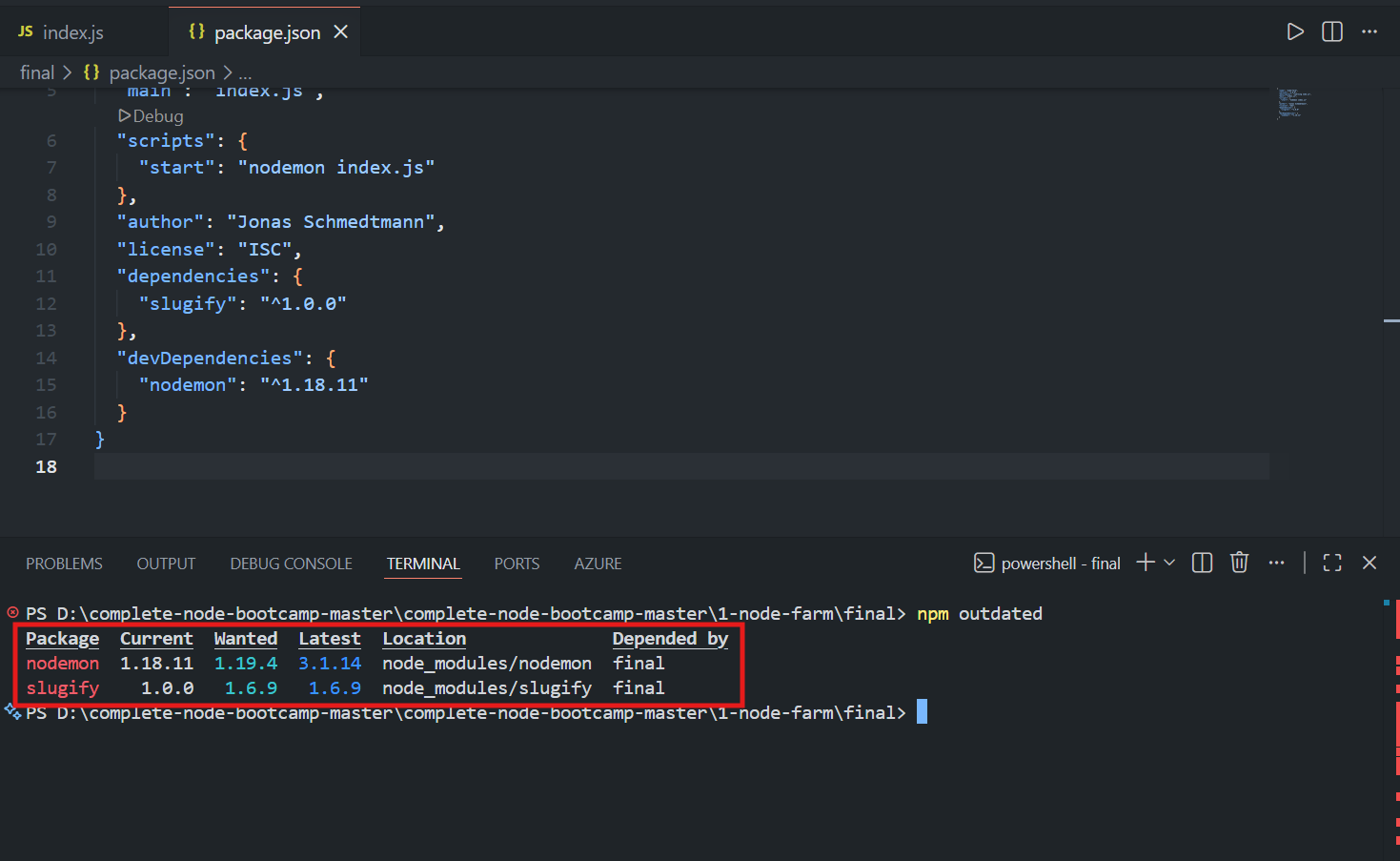
📌 Current:
1.0.0🎯 Wanted: depends on your version symbol setting (e.g.,
1.3.4if using^, or a lower patch-only version if using~).
🔄 Example: Changing the Version Symbol
✅ With
^1.0.0→ wanted version becomes1.3.4(accepts minor + patch updates).🛡️ With
~1.0.0→ wanted version becomes something like1.0.2(only patch updates accepted, since1.3.4is a minor version bump).
🔄 Step 3: Updating Packages
npm update slugify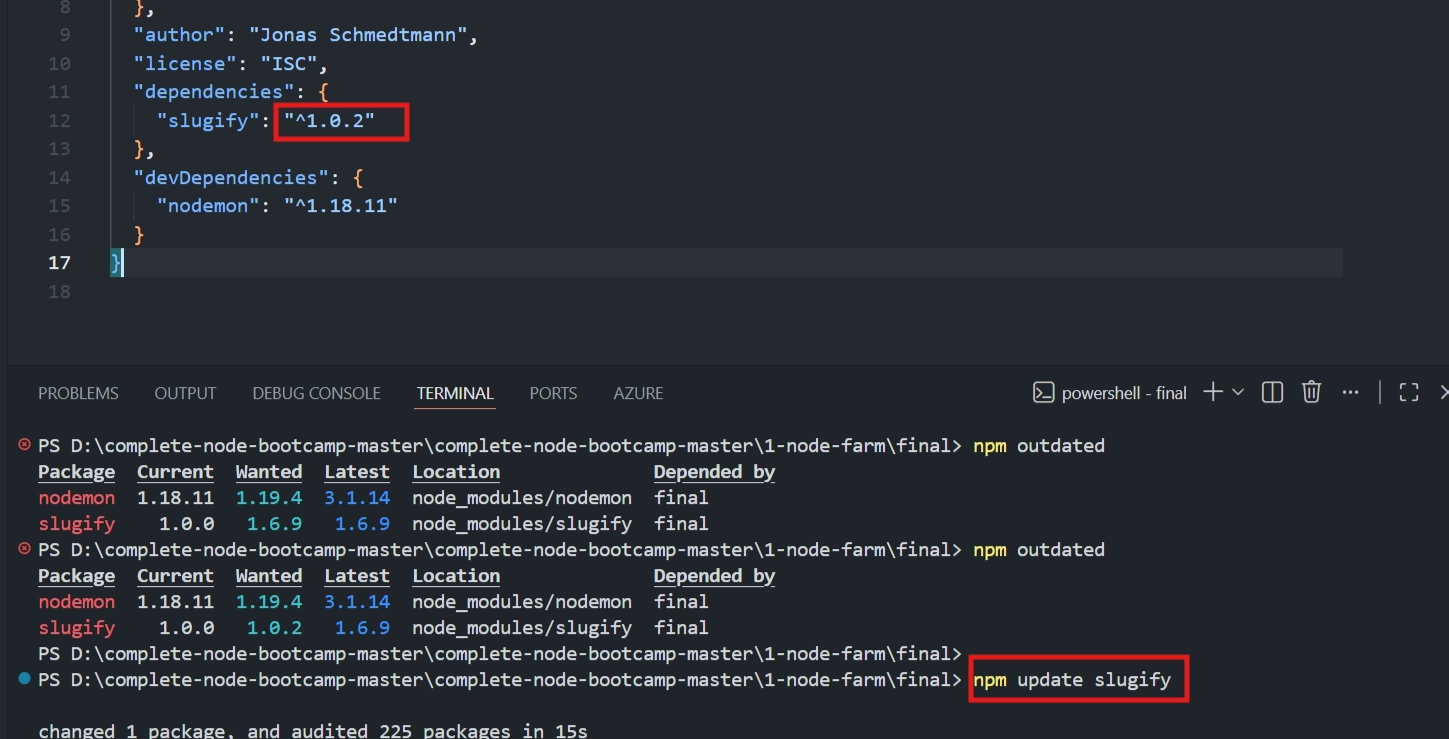
This updates the package to the highest version allowed by the symbol in
package.json.Example: If set to
~1.0.0, runningupdatemight bring it to1.0.2(patch-only).If you then change the symbol back to
^1.0.0and runupdateagain, it can jump further — e.g., to1.3.4(now allowing minor updates too).
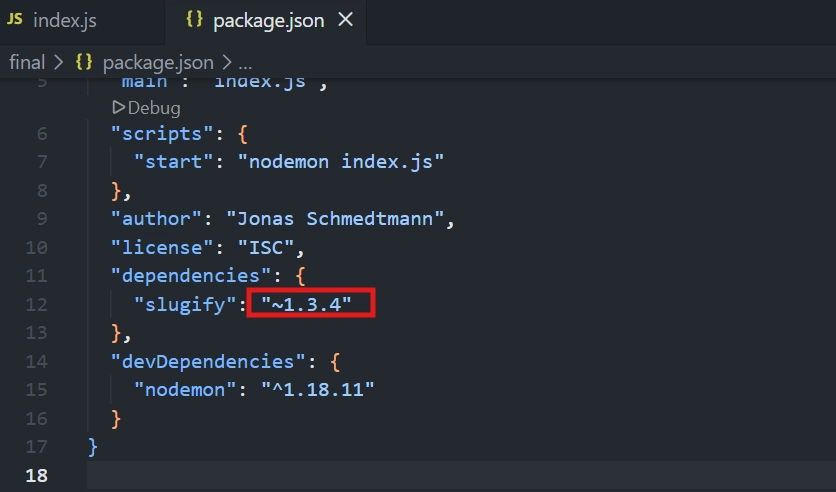
⚠️ Even minor updates (new features, no intended breaking changes) can sometimes introduce undiscovered bugs. For maximum safety, some developers prefer sticking to
~(patch-only updates).
🗑️ Step 4: Uninstalling (Deleting) Packages
❌ To remove a package you no longer need:
npm uninstall express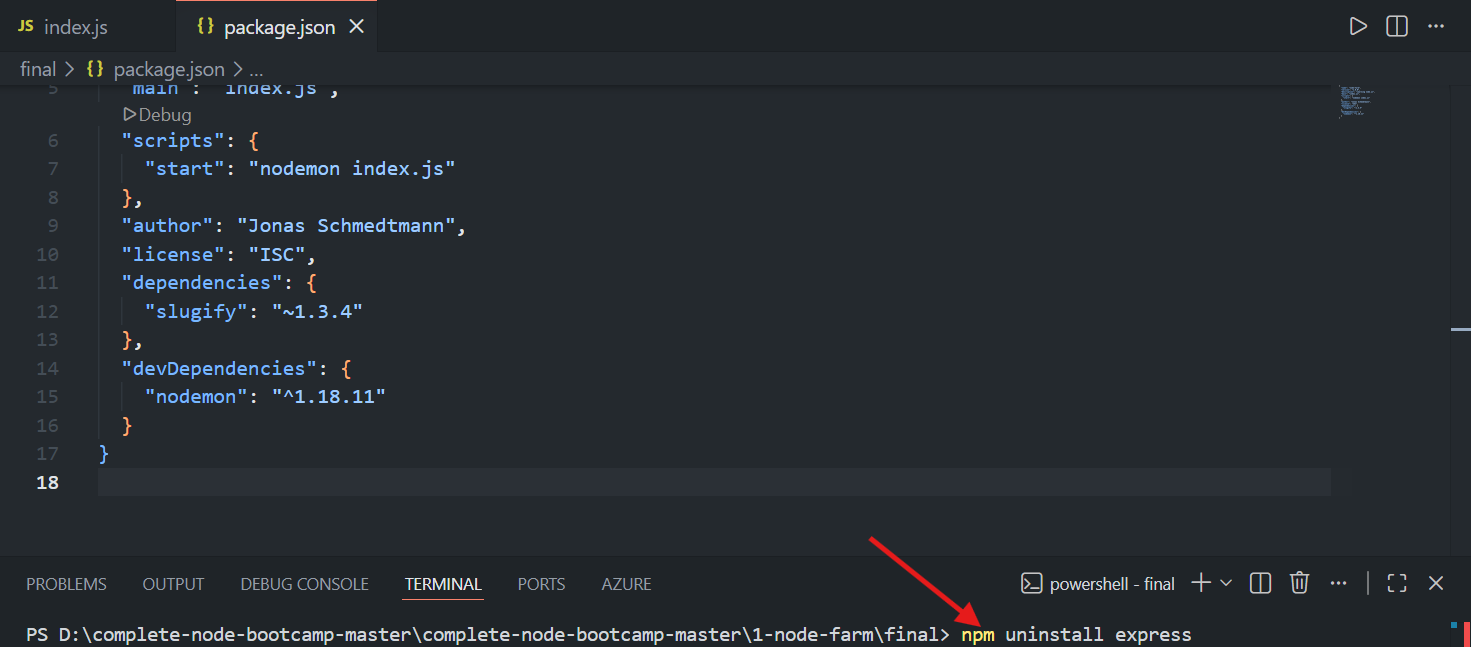
✅ What This Does
🗂️ Removes the package's files from the
node_modulesfolder.📝 Removes its entry from
"dependencies"(or"devDependencies") inpackage.json.
💡 Best practice: Whenever you stop using a package in your code, uninstall it to keep your project clean and avoid unnecessary bloat.
📁 Step 5: Understanding node_modules and Sharing Code
🚫 Never Share the node_modules Folder
📂
node_modulescan contain tens or even hundreds of thousands of files (since it includes not just your direct dependencies, but all of their dependencies too).🚫 Never upload this folder to GitHub, Dropbox, or anywhere else when sharing your code.
🔄 How to Restore node_modules on a New Machine
💻 If you download/clone a project without its
node_modulesfolder:
npm install📥 This command reads
package.json, looks at the listed dependencies, and downloads and rebuilds the entirenode_modulesfolder automatically.
🔒 The Role of package-lock.json
📄 This file records the exact version numbers of every package installed — including all the nested dependencies of your dependencies.
🎯 Example: it will specify precisely that
slugifyis at version1.3.4, not just "some version starting with 1.3."
💡 Why package-lock.json Matters
🤝 Ensures that every developer working on the project (or even yourself on a different computer) ends up with the exact same package versions — preventing "it works on my machine but not on yours" problems.
📤 What to Always Share
When sharing your project (via GitHub, Dropbox, etc.), always include:
📄
package.json— lists your direct dependencies and their accepted version ranges.🔒
package-lock.json— locks in the exact versions used, for consistent reinstallation.
✅ These two files are enough for anyone (including future-you) to run
npm installand perfectly reconstruct thenode_modulesfolder.
🎯 Key Takeaways
📌 Concept | 💻 Command / Detail |
|---|---|
🔢 Semantic versioning format |
|
🐞 Patch version | Bug fixes only — safest updates |
✨ Minor version | New features, no breaking changes (in theory) |
⚠️ Major version | Can include breaking changes |
🔼 | Accepts minor + patch updates |
🔹 | Accepts patch updates only (safer) |
🔍 Check outdated packages |
|
📥 Install specific version |
|
🔄 Update a package |
|
🗑️ Uninstall a package |
|
📦 Restore all dependencies |
|
🚫 Never share |
|
📤 Always share |
|
<div class="infographic-vscodeterm" id="vt">
<style>
.infographic-vscodeterm {
--ink: #1a1a1a;
--ink-soft: #5c5c5c;
--paper: #ffffff;
--paper-alt: #f0ece4;
--accent: #2563eb;
--accent-deep: #1942a8;
--accent-soft: #e3ebfd;
--line: #ddd6c9;
--radius: 8px;
--display-font: 'Fraunces', Georgia, serif;
--body-font: 'Inter', system-ui, sans-serif;
--mono-font: 'IBM Plex Mono', monospace;
max-width: 880px;
margin: 0 auto;
box-sizing: border-box;
background: transparent;
color: var(--ink);
font-family: var(--body-font);
}
.infographic-vscodeterm[data-theme="dark"] {
--ink: #e8e6e1;
--ink-soft: #9a968c;
--paper: #13171f;
--paper-alt: #1c212b;
--accent: #5b8def;
--accent-deep: #8fb4ff;
--accent-soft: #20293f;
--line: #2c313d;
}
.infographic-vscodeterm * { box-sizing: border-box; min-width: 0; }
.vt-eyebrow {
font-family: var(--mono-font); font-size: 0.72rem; letter-spacing: 0.1em;
text-transform: uppercase; color: var(--accent); margin: 0 0 0.45rem;
display: flex; align-items: center; justify-content: center; gap: 0.4rem;
}
.vt-eyebrow::before { content: ""; width: 14px; height: 2px; background: var(--accent); display: inline-block; }
.vt-title {
font-family: var(--display-font); font-size: clamp(1.5rem, 4vw, 2.3rem); text-align: center;
margin: 0 0 0.5rem; line-height: 1.14; letter-spacing: -0.01em;
}
.vt-sub { color: var(--ink-soft); font-size: 0.95rem; text-align: center; margin: 0 0 1.7rem; }
/* ===== VS Code window — fixed dark theme regardless of page mode ===== */
.vt-window { border-radius: 8px; overflow: hidden; box-shadow: 0 16px 40px -14px rgba(0,0,0,0.45); border: 1px solid #1e1e1e; font-family: var(--mono-font); }
.vt-titlebar { background: #323233; display: flex; align-items: center; padding: 0.5rem 0.8rem; position: relative; }
.vt-dots { display: flex; gap: 0.4rem; }
.vt-dots span { width: 10px; height: 10px; border-radius: 50%; display: block; }
.vt-dots span:nth-child(1) { background: #ff5f56; }
.vt-dots span:nth-child(2) { background: #ffbd2e; }
.vt-dots span:nth-child(3) { background: #27c93f; }
.vt-titlebar-text { position: absolute; left: 50%; transform: translateX(-50%); font-size: 0.72rem; color: #cccccc; }
.vt-body { display: flex; height: 300px; }
.vt-resize-h { width: 5px; cursor: col-resize; background: transparent; flex-shrink: 0; transition: background 0.15s; touch-action: none; }
.vt-resize-h:hover, .vt-resize-h.is-dragging { background: #0078d4; }
.vt-resize-v { height: 5px; cursor: row-resize; background: transparent; flex-shrink: 0; transition: background 0.15s; touch-action: none; }
.vt-resize-v:hover, .vt-resize-v.is-dragging { background: #0078d4; }
.vt-window-resize {
height: 9px; background: #252526; cursor: row-resize; display: flex; align-items: center;
justify-content: center; border-top: 1px solid #1e1e1e; touch-action: none;
}
.vt-window-resize span { width: 30px; height: 3px; border-radius: 2px; background: #4a4a52; }
.vt-window-resize:hover span, .vt-window-resize.is-dragging span { background: #0078d4; }
.vt-toggle-btn {
background: none; border: none; color: #9a9a9a; cursor: pointer; display: flex; align-items: center;
padding: 0.3rem; border-radius: 3px; flex-shrink: 0;
}
.vt-toggle-btn:hover { background: #2a2d2e; color: #fff; }
.vt-toggle-btn svg { width: 13px; height: 13px; }
.vt-sidebar.is-hidden { width: 0 !important; overflow: hidden; border-right: none; }
.vt-terminal.is-collapsed { height: auto !important; }
.vt-terminal.is-collapsed .vt-term-body { display: none; }
.vt-terminal.is-collapsed .vt-term-toggle svg { transform: rotate(-90deg); }
.vt-activitybar { width: 40px; background: #333333; display: flex; flex-direction: column; align-items: center; padding-top: 0.7rem; gap: 1.1rem; flex-shrink: 0; }
.vt-activitybar svg { width: 18px; height: 18px; opacity: 0.55; }
.vt-activitybar svg.is-on { opacity: 1; }
.vt-sidebar { width: 170px; background: #252526; flex-shrink: 0; overflow-y: auto; border-right: 1px solid #1e1e1e; }
.vt-sidebar-head { font-size: 0.65rem; font-weight: 700; letter-spacing: 0.06em; color: #bbbbbb; padding: 0.6rem 0.8rem 0.3rem; }
.vt-sidebar-root { font-size: 0.74rem; color: #cccccc; padding: 0.2rem 0.7rem; display: flex; align-items: center; gap: 0.3rem; }
.vt-sidebar-folder { font-size: 0.74rem; color: #cccccc; padding: 0.2rem 0.7rem 0.2rem 1.4rem; display: flex; align-items: center; gap: 0.3rem; }
.vt-sidebar-folder.lvl2 { padding-left: 2.6rem; }
.vt-row {
display: flex; align-items: center; gap: 0.35rem; width: 100%; background: none; border: none;
color: #cccccc; font: inherit; font-size: 0.74rem; padding: 0.24rem 0.7rem 0.24rem 2.1rem;
cursor: pointer; text-align: left; border-left: 2px solid transparent;
}
.vt-row.lvl1 { padding-left: 1.4rem; }
.vt-row.lvl2 { padding-left: 3.4rem; }
.vt-row:hover { background: #2a2d2e; }
.vt-row.is-selected { background: #37373d; border-left-color: #0078d4; }
.vt-badge { width: 15px; height: 15px; border-radius: 3px; flex-shrink: 0; display: flex; align-items: center; justify-content: center; font-size: 0.46rem; font-weight: 700; color: #1a1a1a; background: #29b6f6; }
.vt-main { flex: 1; display: flex; flex-direction: column; min-width: 0; }
.vt-tabbar { display: flex; background: #252526; border-bottom: 1px solid #1e1e1e; overflow-x: auto; }
.vt-tab {
display: flex; align-items: center; gap: 0.35rem; background: #1e1e1e; color: #808080; font: inherit;
font-size: 0.72rem; padding: 0.45rem 0.8rem; border: none; border-right: 1px solid #1e1e1e;
border-top: 2px solid transparent; cursor: pointer; white-space: nowrap;
}
.vt-tab.is-active { color: #d4d4d4; border-top-color: #0078d4; background: #1e1e1e; }
.vt-tab .vt-badge { width: 13px; height: 13px; font-size: 0.42rem; }
.vt-code-wrap { flex: 1; background: #1e1e1e; overflow: auto; padding: 0.85rem 1rem; }
.vt-code-wrap pre { margin: 0; }
.vt-code-wrap code { font-family: var(--mono-font); font-size: 0.72rem; line-height: 1.7; color: #d4d4d8; white-space: pre; }
.tok-kw { color: #c678dd; }
.tok-tag { color: #e06c75; }
.tok-type { color: #61afef; }
.tok-attr { color: #d19a66; }
.tok-str { color: #98c379; }
.tok-expr { color: #56b6c2; }
.tok-punc { color: #6b7280; }
.vt-flash { background: rgba(220,38,38,0.22); }
/* ===== terminal ===== */
.vt-terminal { background: #181818; border-top: 1px solid #2c2c2c; display: flex; flex-direction: column; height: 150px; flex-shrink: 0; }
.vt-term-head { display: flex; align-items: center; gap: 0.4rem; font-size: 0.62rem; letter-spacing: 0.05em; color: #9a9a9a; padding: 0.35rem 0.8rem; border-bottom: 1px solid #262626; text-transform: uppercase; }
.vt-term-body { flex: 1; overflow-y: auto; padding: 0.5rem 0.9rem; font-size: 0.72rem; line-height: 1.65; }
.vt-term-line { color: #d4d4d4; white-space: pre; opacity: 0; transform: translateY(2px); animation: vt-line-in 0.25s ease forwards; }
@keyframes vt-line-in { to { opacity: 1; transform: none; } }
.vt-term-line.is-cmd { color: #7ee787; }
.vt-term-line.is-ok { color: #7ee787; font-weight: 600; }
.vt-term-prompt { color: #7ee787; }
.vt-run-row { display: flex; align-items: center; gap: 0.5rem; margin-top: 0.2rem; }
.vt-run-btn {
font: inherit; font-size: 0.68rem; font-weight: 600; color: #1a1a1a; background: #7ee787;
border: none; border-radius: 4px; padding: 0.3rem 0.7rem; cursor: pointer; display: flex; align-items: center; gap: 0.3rem;
}
.vt-run-btn:disabled { opacity: 0.5; cursor: default; }
.vt-run-btn svg { width: 9px; height: 9px; }
.vt-run-hint { color: #6b7280; font-size: 0.68rem; }
@media (max-width: 620px) {
.vt-sidebar { width: 130px; }
.vt-body { height: 320px; }
}
@media (max-width: 480px) { .vt-activitybar { display: none; } }
/* ===== browser output ===== */
.vt-output-label {
font-family: var(--mono-font); font-size: 0.68rem; letter-spacing: 0.1em; text-transform: uppercase;
color: var(--ink-soft); text-align: center; margin: 1.5rem 0 0.7rem;
}
.vt-browser {
border: 1px solid var(--line); border-radius: var(--radius); overflow: hidden; max-width: 560px; margin: 0 auto;
box-shadow: 0 10px 24px -12px rgba(26,26,26,0.18);
opacity: 0; transform: translateY(8px); transition: opacity 0.4s ease, transform 0.4s ease; pointer-events: none;
}
.vt-browser.is-shown { opacity: 1; transform: none; pointer-events: auto; }
.vt-browser-bar { background: #e9e9e9; padding: 0.5rem 0.7rem; display: flex; align-items: center; gap: 0.5rem; }
.vt-browser-bar .vt-dots span { width: 8px; height: 8px; }
.vt-browser-url { font-family: var(--mono-font); font-size: 0.65rem; color: #555; background: #fff; border-radius: 4px; padding: 0.2rem 0.5rem; flex: 1; }
.vt-browser-page { background: #fff; padding: 1.2rem 1.2rem 1.6rem; text-align: center; }
.vt-output-placeholder { text-align: center; font-size: 0.82rem; color: var(--ink-soft); }
.vt-route-row { display: flex; gap: 0.35rem; justify-content: center; margin-bottom: 1rem; flex-wrap: wrap; }
.vt-route-btn {
font-family: var(--mono-font); font-size: 0.66rem; font-weight: 600; color: #555;
background: #f0f0f0; border: 1px solid #ddd; border-radius: 999px; padding: 0.25rem 0.6rem; cursor: pointer;
}
.vt-route-btn.is-on { background: #2563eb; border-color: #2563eb; color: #fff; }
.vt-route-body { font-family: var(--mono-font); font-size: 0.88rem; color: #000; margin: 0; }
.vt-route-status {
display: inline-block; font-family: var(--mono-font); font-size: 0.66rem; font-weight: 700;
color: #b3261e; background: #fbe6e6; border: 1px solid #b3261e; border-radius: 999px;
padding: 0.15rem 0.55rem; margin-bottom: 0.5rem;
}
.vt-route-status.is-ok { color: #1f9d55; background: #e5f6ec; border-color: #1f9d55; }
.vt-json-preview {
text-align: left; font-family: var(--mono-font); font-size: 0.6rem; line-height: 1.5; color: #333;
background: #f7f7f5; border: 1px solid #e2e2de; border-radius: 6px; padding: 0.5rem 0.65rem;
max-height: 140px; overflow: auto; margin: 0; white-space: pre-wrap;
}
.vt-overview-wrap {
width: 520px; height: 400px; overflow: hidden; border-radius: 6px; border: 1px solid #e2e2de;
margin: 0 auto; background: #fff;
}
.vt-overview-frame {
width: 950px; height: 1900px; border: none; display: block;
transform: scale(0.5474); transform-origin: top left;
}
.vt-route-headers {
font-family: var(--mono-font); font-size: 0.62rem; color: #777; margin-top: 0.5rem; line-height: 1.6;
}
.vt-route-headers b { color: #333; }
.vt-takeaway {
margin-top: 1.7rem; padding: 0.95rem 1.2rem; background: var(--accent-soft); border-left: 3px solid var(--accent);
border-radius: 4px; font-size: 0.9rem; color: var(--ink); line-height: 1.5; max-width: 620px; margin-left: auto; margin-right: auto;
}
.vt-takeaway b { color: var(--accent-deep); }
@media (prefers-reduced-motion: reduce) {
.infographic-vscodeterm *, .infographic-vscodeterm *::before, .infographic-vscodeterm *::after {
transition-duration: 0.001ms !important; animation-duration: 0.001ms !important;
}
}
</style>
<div class="vt-window">
<div class="vt-titlebar">
<div class="vt-dots"><span></span><span></span><span></span></div>
<div class="vt-titlebar-text">node-server — Visual Studio Code</div>
</div>
<div class="vt-body">
<div class="vt-activitybar">
<svg class="is-on" viewBox="0 0 24 24" fill="none" aria-hidden="true"><rect x="3" y="4" width="7" height="7" rx="1" stroke="#fff" stroke-width="1.6"/><rect x="14" y="4" width="7" height="7" rx="1" stroke="#fff" stroke-width="1.6"/><rect x="3" y="15" width="7" height="7" rx="1" stroke="#fff" stroke-width="1.6"/><rect x="14" y="15" width="7" height="7" rx="1" stroke="#fff" stroke-width="1.6"/></svg>
<svg viewBox="0 0 24 24" fill="none" aria-hidden="true"><circle cx="10" cy="10" r="6.5" stroke="#fff" stroke-width="1.6"/><line x1="15" y1="15" x2="20" y2="20" stroke="#fff" stroke-width="1.6" stroke-linecap="round"/></svg>
</div>
<div class="vt-sidebar">
<div class="vt-sidebar-head">EXPLORER</div>
<div class="vt-sidebar-root">▾ NODE-SERVER</div>
<button class="vt-row lvl1 is-selected" data-file="index" type="button"><span class="vt-badge">JS</span><span>index.js</span></button>
<button class="vt-row lvl1" data-file="packageJson" type="button"><span class="vt-badge" style="background:#dcb67a;">{}</span><span>package.json</span></button>
<div class="vt-sidebar-folder">▾ modules</div>
<button class="vt-row lvl2" data-file="replaceTemplate" type="button"><span class="vt-badge">JS</span><span>replaceTemplate.js</span></button>
<div class="vt-sidebar-folder">▾ dev-data</div>
<button class="vt-row lvl2" data-file="data" type="button"><span class="vt-badge" style="background:#dcb67a;">{}</span><span>data.json</span></button>
<div class="vt-sidebar-folder">▾ templates</div>
<button class="vt-row lvl2" data-file="card" type="button"><span class="vt-badge" style="background:#e37933;">H</span><span>template-card.html</span></button>
<button class="vt-row lvl2" data-file="overview" type="button"><span class="vt-badge" style="background:#e37933;">H</span><span>template-overview.html</span></button>
<button class="vt-row lvl2" data-file="product" type="button"><span class="vt-badge" style="background:#e37933;">H</span><span>template-product.html</span></button>
</div>
<div class="vt-resize-h" id="vtSidebarHandle" title="Drag to resize sidebar"></div>
<div class="vt-main">
<div class="vt-tabbar">
<button class="vt-toggle-btn" id="vtToggleSidebar" type="button" aria-label="Toggle sidebar" title="Toggle sidebar">
<svg viewBox="0 0 16 16" fill="none" aria-hidden="true"><rect x="1.5" y="2" width="13" height="12" rx="1.5" stroke="currentColor" stroke-width="1.3"/><line x1="6" y1="2" x2="6" y2="14" stroke="currentColor" stroke-width="1.3"/></svg>
</button>
<button class="vt-tab is-active" data-file="index" type="button"><span class="vt-badge">JS</span><span>index.js</span></button>
<button class="vt-tab" data-file="replaceTemplate" type="button"><span class="vt-badge">JS</span><span>replaceTemplate.js</span></button>
<button class="vt-tab" data-file="packageJson" type="button"><span class="vt-badge" style="background:#dcb67a;">{}</span><span>package.json</span></button>
<button class="vt-tab" data-file="data" type="button"><span class="vt-badge" style="background:#dcb67a;">{}</span><span>data.json</span></button>
<button class="vt-tab" data-file="card" type="button"><span class="vt-badge" style="background:#e37933;">H</span><span>template-card.html</span></button>
<button class="vt-tab" data-file="overview" type="button"><span class="vt-badge" style="background:#e37933;">H</span><span>template-overview.html</span></button>
<button class="vt-tab" data-file="product" type="button"><span class="vt-badge" style="background:#e37933;">H</span><span>template-product.html</span></button>
</div>
<div class="vt-code-wrap">
<pre><code id="vtCode"></code></pre>
</div>
<div class="vt-resize-v" id="vtTerminalHandle" title="Drag to resize terminal"></div>
<div class="vt-terminal">
<div class="vt-term-head">
<button class="vt-toggle-btn vt-term-toggle" id="vtToggleTerminal" type="button" aria-label="Toggle terminal" title="Toggle terminal">
<svg viewBox="0 0 16 16" fill="none" aria-hidden="true"><path d="M4 6l4 4 4-4" stroke="currentColor" stroke-width="1.6" stroke-linecap="round" stroke-linejoin="round"/></svg>
</button>
<span>Terminal</span>
</div>
<div class="vt-term-body">
<div id="vtTermLines"><div class="vt-term-line" style="animation-delay:0s;"><span class="vt-term-prompt">$</span> </div></div>
<div class="vt-run-row">
<button class="vt-run-btn" id="vtRunBtn" type="button">
<svg viewBox="0 0 12 12" aria-hidden="true"><path d="M2.5 1.5v9l7-4.5z" fill="currentColor"/></svg>
<span id="vtRunLabel">node index.js</span>
</button>
<span class="vt-run-hint" id="vtRunHint">starts the server</span>
</div>
</div>
</div>
</div>
</div>
<div class="vt-window-resize" id="vtWindowHandle" title="Drag to resize window"><span></span></div>
</div>
<div class="vt-output-label">Output</div>
<div id="vtOutputArea">
<p class="vt-output-placeholder">Run <code style="font-family:var(--mono-font)">node index.js</code> above, then visit the server to see it here.</p>
<div class="vt-browser" id="vtBrowser">
<div class="vt-browser-bar">
<div class="vt-dots"><span></span><span></span><span></span></div>
<div class="vt-browser-url" id="vtUrl">127.0.0.1:8000</div>
</div>
<div class="vt-browser-page">
<div class="vt-route-row" id="vtRouteRow">
<button class="vt-route-btn is-on" data-path="/" type="button">/</button>
<button class="vt-route-btn" data-path="/product/fresh-avocados" type="button">/product/fresh-avocados</button>
<button class="vt-route-btn" data-path="/product/carrot" type="button">/product/carrot</button>
<button class="vt-route-btn" data-path="/api" type="button">/api</button>
</div>
<div id="vtRouteResult">
<p class="vt-route-body">This is the OVERVIEW</p>
</div>
</div>
</div>
</div>
</div>
<link rel="preconnect" href="https://fonts.googleapis.com">
<link href="https://fonts.googleapis.com/css2?family=Fraunces:wght@500;600&family=Inter:wght@400;500;600;700&family=IBM+Plex+Mono:wght@400;500&display=swap" rel="stylesheet">
<script>
(function () {
var root = document.getElementById('vt');
if (!root) return;
/* --- dark mode detection: body attribute > cookie > postMessage > light --- */
function applyDark(dark) {
if (dark) root.setAttribute('data-theme', 'dark');
else root.removeAttribute('data-theme');
}
var bodyAttr = document.body.getAttribute('data-darkmode');
var dark;
if (bodyAttr === 'true') dark = true;
else if (bodyAttr === 'false') dark = false;
else {
var match = document.cookie.match(/(?:^|;\s*)darkMode=([^;]+)/);
dark = match ? match[1] === 'true' : false;
}
applyDark(dark);
window.addEventListener('message', function (e) {
if (e.data && e.data.type === 'darkMode') applyDark(!!e.data.value);
});
/* --- file switching (single file here, kept for template consistency) --- */
var files = {
index:
'<span class="tok-kw">const</span> fs <span class="tok-punc">=</span> require<span class="tok-punc">(</span><span class="tok-str">\'fs\'</span><span class="tok-punc">);</span>\n' +
'<span class="tok-kw">const</span> http <span class="tok-punc">=</span> require<span class="tok-punc">(</span><span class="tok-str">\'http\'</span><span class="tok-punc">);</span>\n' +
'<span class="tok-kw">const</span> url <span class="tok-punc">=</span> require<span class="tok-punc">(</span><span class="tok-str">\'url\'</span><span class="tok-punc">);</span>\n\n' +
'<span class="tok-kw">const</span> slugify <span class="tok-punc">=</span> require<span class="tok-punc">(</span><span class="tok-str">\'slugify\'</span><span class="tok-punc">);</span>\n\n' +
'<span class="tok-kw">const</span> replaceTemplate <span class="tok-punc">=</span> require<span class="tok-punc">(</span><span class="tok-str">\'./modules/replaceTemplate\'</span><span class="tok-punc">);</span>\n' +
'<span class="tok-punc">////////////////////////////</span>\n' +
'<span class="tok-punc">//FILES</span>\n\n' +
'<span class="tok-punc">//Blocking, Synchronous way</span>\n' +
'<span class="tok-punc">//const textIn = fs.readFileSync(\'./txt/input.txt\', \'utf-8\');</span>\n' +
'<span class="tok-punc">//console.log(textIn);</span>\n\n' +
'<span class="tok-punc">//const textOut = `This is what we know about the avocado: ${textIn}.\\nCreated on ${Date.now()}`;</span>\n' +
'<span class="tok-punc">//fs.writeFileSync(\'./txt/output.txt\', textOut);</span>\n\n' +
'<span class="tok-punc">//console.log(\'File written!\');</span>\n\n' +
'<span class="tok-punc">//Non-blocking, Asynchronous way</span>\n' +
'<span class="tok-punc">// fs.readFile(\'./txt/start.txt\', \'utf8\', (err, data1) => {</span>\n' +
'<span class="tok-punc">// fs.readFile(`./txt/${data1}.txt`, \'utf8\', (err, data2) => {</span>\n' +
'<span class="tok-punc">// console.log(data2);</span>\n\n' +
'<span class="tok-punc">// fs.readFile(\'./txt/append.txt\', \'utf8\', (err, data3) => {</span>\n' +
'<span class="tok-punc">// console.log(data2, data3);</span>\n\n' +
'<span class="tok-punc">// fs.writeFile(\'./txt/final.txt\', `${data2}\\n${data3}`, \'utf8\', (err) => {</span>\n' +
'<span class="tok-punc">// console.log(\'Your file has been written \uD83C\uDF89\');</span>\n' +
'<span class="tok-punc">// });</span>\n' +
'<span class="tok-punc">// });</span>\n' +
'<span class="tok-punc">// });</span>\n' +
'<span class="tok-punc">// });</span>\n' +
'<span class="tok-punc">/////////////////////////////</span>\n' +
'<span class="tok-punc">//SERVER</span>\n' +
'<span class="tok-kw">const</span> tempOverview <span class="tok-punc">=</span> fs<span class="tok-punc">.</span><span class="tok-type">readFileSync</span><span class="tok-punc">(`</span><span class="tok-expr">${__dirname}</span><span class="tok-punc">/templates/template-overview.html`,</span> <span class="tok-str">\'utf-8\'</span><span class="tok-punc">);</span>\n' +
'<span class="tok-kw">const</span> tempCard <span class="tok-punc">=</span> fs<span class="tok-punc">.</span><span class="tok-type">readFileSync</span><span class="tok-punc">(`</span><span class="tok-expr">${__dirname}</span><span class="tok-punc">/templates/template-card.html`,</span> <span class="tok-str">\'utf-8\'</span><span class="tok-punc">);</span>\n' +
'<span class="tok-kw">const</span> tempProduct <span class="tok-punc">=</span> fs<span class="tok-punc">.</span><span class="tok-type">readFileSync</span><span class="tok-punc">(`</span><span class="tok-expr">${__dirname}</span><span class="tok-punc">/templates/template-product.html`,</span> <span class="tok-str">\'utf-8\'</span><span class="tok-punc">);</span>\n\n' +
'<span class="tok-kw">const</span> data <span class="tok-punc">=</span> fs<span class="tok-punc">.</span><span class="tok-type">readFileSync</span><span class="tok-punc">(`</span><span class="tok-expr">${__dirname}</span><span class="tok-punc">/dev-data/data.json`,</span> <span class="tok-str">\'utf-8\'</span><span class="tok-punc">);</span>\n' +
'<span class="tok-kw">const</span> dataObj <span class="tok-punc">=</span> <span class="tok-type">JSON</span><span class="tok-punc">.</span><span class="tok-type">parse</span><span class="tok-punc">(</span>data<span class="tok-punc">);</span>\n\n' +
'<span class="tok-kw">const</span> slugs <span class="tok-punc">=</span> dataObj<span class="tok-punc">.</span><span class="tok-type">map</span><span class="tok-punc">(</span>el <span class="tok-punc">=></span> slugify<span class="tok-punc">(</span>el<span class="tok-punc">.</span>productName<span class="tok-punc">, {</span> <span class="tok-attr">lower</span><span class="tok-punc">:</span> <span class="tok-kw">true</span> <span class="tok-punc">}));</span>\n' +
'console<span class="tok-punc">.</span><span class="tok-type">log</span><span class="tok-punc">(</span>slugs<span class="tok-punc">);</span>\n\n' +
'<span class="tok-kw">const</span> server <span class="tok-punc">=</span> http<span class="tok-punc">.</span><span class="tok-type">createServer</span><span class="tok-punc">((</span>req<span class="tok-punc">,</span> res<span class="tok-punc">) => {</span>\n\n' +
' <span class="tok-kw">const</span> <span class="tok-punc">{</span> query<span class="tok-punc">,</span> pathname <span class="tok-punc">}</span> <span class="tok-punc">=</span> url<span class="tok-punc">.</span><span class="tok-type">parse</span><span class="tok-punc">(</span>req<span class="tok-punc">.</span>url<span class="tok-punc">,</span> <span class="tok-kw">true</span><span class="tok-punc">);</span>\n\n' +
'<span class="tok-punc">// Overview page</span>\n' +
'<span class="tok-kw">if</span> <span class="tok-punc">(</span>pathname <span class="tok-punc">===</span> <span class="tok-str">\'/\'</span> <span class="tok-punc">||</span> pathname <span class="tok-punc">===</span> <span class="tok-str">\'/overview\'</span><span class="tok-punc">) {</span>\n' +
' res<span class="tok-punc">.</span><span class="tok-type">writeHead</span><span class="tok-punc">(</span><span class="tok-expr">200</span><span class="tok-punc">, {</span> <span class="tok-attr">\'Content-Type\'</span><span class="tok-punc">:</span> <span class="tok-str">\'text/html\'</span> <span class="tok-punc">});</span>\n\n' +
'const cardsHtml <span class="tok-punc">=</span> dataObj<span class="tok-punc">.</span><span class="tok-type">map</span><span class="tok-punc">((</span>el<span class="tok-punc">,</span> i<span class="tok-punc">) =></span> replaceTemplate<span class="tok-punc">(</span>tempCard<span class="tok-punc">,</span> el<span class="tok-punc">,</span> slugs<span class="tok-punc">[</span>i<span class="tok-punc">])).</span><span class="tok-type">join</span><span class="tok-punc">(</span><span class="tok-str">\'\'</span><span class="tok-punc">);</span>\n' +
'const output <span class="tok-punc">=</span> tempOverview<span class="tok-punc">.</span><span class="tok-type">replace</span><span class="tok-punc">(</span><span class="tok-str">\'{%PRODUCT_CARDS%}\'</span><span class="tok-punc">,</span> cardsHtml<span class="tok-punc">);</span>\n' +
'res<span class="tok-punc">.</span><span class="tok-type">end</span><span class="tok-punc">(</span>output<span class="tok-punc">);</span>\n\n' +
' <span class="tok-punc">// Product page</span>\n' +
'<span class="tok-punc">}</span> <span class="tok-kw">else if</span> <span class="tok-punc">(</span>pathname<span class="tok-punc">.</span><span class="tok-type">startsWith</span><span class="tok-punc">(</span><span class="tok-str">\'/product/\'</span><span class="tok-punc">)) {</span>\n' +
' res<span class="tok-punc">.</span><span class="tok-type">writeHead</span><span class="tok-punc">(</span><span class="tok-expr">200</span><span class="tok-punc">, {</span> <span class="tok-attr">\'Content-type\'</span><span class="tok-punc">:</span> <span class="tok-str">\'text/html\'</span> <span class="tok-punc">});</span>\n\n' +
' <span class="tok-kw">const</span> slug <span class="tok-punc">=</span> pathname<span class="tok-punc">.</span><span class="tok-type">replace</span><span class="tok-punc">(</span><span class="tok-str">\'/product/\'</span><span class="tok-punc">,</span> <span class="tok-str">\'\'</span><span class="tok-punc">);</span>\n' +
' <span class="tok-kw">const</span> id <span class="tok-punc">=</span> slugs<span class="tok-punc">.</span><span class="tok-type">indexOf</span><span class="tok-punc">(</span>slug<span class="tok-punc">);</span>\n' +
' <span class="tok-kw">const</span> product <span class="tok-punc">=</span> dataObj<span class="tok-punc">[</span>id<span class="tok-punc">];</span>\n' +
' <span class="tok-kw">const</span> output <span class="tok-punc">=</span> replaceTemplate<span class="tok-punc">(</span>tempProduct<span class="tok-punc">,</span> product<span class="tok-punc">);</span>\n\n' +
' res<span class="tok-punc">.</span><span class="tok-type">end</span><span class="tok-punc">(</span>output<span class="tok-punc">);</span>\n\n' +
' <span class="tok-punc">// API</span>\n' +
' <span class="tok-punc">}</span> <span class="tok-kw">else if</span> <span class="tok-punc">(</span>pathname <span class="tok-punc">===</span> <span class="tok-str">\'/api\'</span><span class="tok-punc">) {</span>\n' +
' res<span class="tok-punc">.</span><span class="tok-type">writeHead</span><span class="tok-punc">(</span><span class="tok-expr">200</span><span class="tok-punc">, {</span> <span class="tok-attr">\'Content-Type\'</span><span class="tok-punc">:</span> <span class="tok-str">\'application/json\'</span> <span class="tok-punc">});</span>\n' +
' res<span class="tok-punc">.</span><span class="tok-type">end</span><span class="tok-punc">(</span>data<span class="tok-punc">);</span>\n\n' +
' <span class="tok-punc">// Not found</span>\n' +
' <span class="tok-punc">}</span> <span class="tok-kw">else</span> <span class="tok-punc">{</span>\n' +
' res<span class="tok-punc">.</span><span class="tok-type">writeHead</span><span class="tok-punc">(</span><span class="tok-expr">404</span><span class="tok-punc">, {</span> <span class="tok-attr">\'Content-Type\'</span><span class="tok-punc">:</span> <span class="tok-str">\'text/html\'</span> <span class="tok-punc">});</span>\n' +
' res<span class="tok-punc">.</span><span class="tok-type">end</span><span class="tok-punc">(</span><span class="tok-str">\'<h1>Page not found!</h1>\'</span><span class="tok-punc">);</span>\n' +
' <span class="tok-punc">}</span>\n' +
'<span class="tok-punc">});</span>\n\n' +
'server<span class="tok-punc">.</span><span class="tok-type">listen</span><span class="tok-punc">(</span><span class="tok-expr">8000</span><span class="tok-punc">,</span> <span class="tok-str">\'127.0.0.1\'</span><span class="tok-punc">, () => {</span>\n' +
' console<span class="tok-punc">.</span><span class="tok-type">log</span><span class="tok-punc">(</span><span class="tok-str">\'Listening to requests on port 8000\'</span><span class="tok-punc">);</span>\n' +
'<span class="tok-punc">});</span>'
,
replaceTemplate:
'<span class="tok-type">module</span><span class="tok-punc">.</span>exports <span class="tok-punc">=</span> <span class="tok-punc">(</span>temp<span class="tok-punc">,</span> product<span class="tok-punc">,</span> slug<span class="tok-punc">) => {</span>\n' +
' <span class="tok-kw">let</span> output <span class="tok-punc">=</span> temp<span class="tok-punc">.</span><span class="tok-type">replace</span><span class="tok-punc">(</span><span class="tok-str">/{%PRODUCTNAME%}/g</span><span class="tok-punc">,</span> product<span class="tok-punc">.</span>productName<span class="tok-punc">);</span>\n' +
' output <span class="tok-punc">=</span> output<span class="tok-punc">.</span><span class="tok-type">replace</span><span class="tok-punc">(</span><span class="tok-str">/{%IMAGE%}/g</span><span class="tok-punc">,</span> product<span class="tok-punc">.</span>image<span class="tok-punc">);</span>\n' +
' output <span class="tok-punc">=</span> output<span class="tok-punc">.</span><span class="tok-type">replace</span><span class="tok-punc">(</span><span class="tok-str">/{%PRICE%}/g</span><span class="tok-punc">,</span> product<span class="tok-punc">.</span>price<span class="tok-punc">);</span>\n' +
' output <span class="tok-punc">=</span> output<span class="tok-punc">.</span><span class="tok-type">replace</span><span class="tok-punc">(</span><span class="tok-str">/{%FROM%}/g</span><span class="tok-punc">,</span> product<span class="tok-punc">.</span>from<span class="tok-punc">);</span>\n' +
' output <span class="tok-punc">=</span> output<span class="tok-punc">.</span><span class="tok-type">replace</span><span class="tok-punc">(</span><span class="tok-str">/{%NUTRIENTS%}/g</span><span class="tok-punc">,</span> product<span class="tok-punc">.</span>nutrients<span class="tok-punc">);</span>\n' +
' output <span class="tok-punc">=</span> output<span class="tok-punc">.</span><span class="tok-type">replace</span><span class="tok-punc">(</span><span class="tok-str">/{%QUANTITY%}/g</span><span class="tok-punc">,</span> product<span class="tok-punc">.</span>quantity<span class="tok-punc">);</span>\n' +
' output <span class="tok-punc">=</span> output<span class="tok-punc">.</span><span class="tok-type">replace</span><span class="tok-punc">(</span><span class="tok-str">/{%DESCRIPTION%}/g</span><span class="tok-punc">,</span> product<span class="tok-punc">.</span>description<span class="tok-punc">);</span>\n' +
' output <span class="tok-punc">=</span> output<span class="tok-punc">.</span><span class="tok-type">replace</span><span class="tok-punc">(</span><span class="tok-str">/{%ID%}/g</span><span class="tok-punc">,</span> slug <span class="tok-punc">||</span> product<span class="tok-punc">.</span>id<span class="tok-punc">);</span>\n\n' +
' <span class="tok-kw">if</span> <span class="tok-punc">(!</span>product<span class="tok-punc">.</span>organic<span class="tok-punc">)</span>\n' +
' output <span class="tok-punc">=</span> output<span class="tok-punc">.</span><span class="tok-type">replace</span><span class="tok-punc">(</span><span class="tok-str">/{%NOT_ORGANIC%}/g</span><span class="tok-punc">,</span> <span class="tok-str">\'not-organic\'</span><span class="tok-punc">);</span>\n\n' +
' <span class="tok-kw">return</span> output<span class="tok-punc">;</span>\n' +
'<span class="tok-punc">};</span>'
,
packageJson:
'<span class="tok-punc">{</span>\n' +
' <span class="tok-punc">"</span><span class="tok-attr">name</span><span class="tok-punc">": </span><span class="tok-str">"node-farm"</span><span class="tok-punc">,</span>\n' +
' <span class="tok-punc">"</span><span class="tok-attr">version</span><span class="tok-punc">": </span><span class="tok-str">"1.0.0"</span><span class="tok-punc">,</span>\n' +
' <span class="tok-punc">"</span><span class="tok-attr">description</span><span class="tok-punc">": </span><span class="tok-str">"Learning node.js"</span><span class="tok-punc">,</span>\n' +
' <span class="tok-punc">"</span><span class="tok-attr">main</span><span class="tok-punc">": </span><span class="tok-str">"index.js"</span><span class="tok-punc">,</span>\n' +
' <span class="tok-punc">"</span><span class="tok-attr">scripts</span><span class="tok-punc">": {</span>\n' +
' <span class="tok-punc">"</span><span class="tok-attr">start</span><span class="tok-punc">": </span><span class="tok-str">"nodemon index.js"</span>\n' +
' <span class="tok-punc">},</span>\n' +
' <span class="tok-punc">"</span><span class="tok-attr">author</span><span class="tok-punc">": </span><span class="tok-str">"Jonas Schmedtmann"</span><span class="tok-punc">,</span>\n' +
' <span class="tok-punc">"</span><span class="tok-attr">license</span><span class="tok-punc">": </span><span class="tok-str">"ISC"</span><span class="tok-punc">,</span>\n' +
' <span class="tok-punc">"</span><span class="tok-attr">dependencies</span><span class="tok-punc">": {</span>\n' +
' <span class="tok-punc">"</span><span class="tok-attr">slugify</span><span class="tok-punc">": </span><span class="tok-str">"~1.3.4"</span>\n' +
' <span class="tok-punc">},</span>\n' +
' <span class="tok-punc">"</span><span class="tok-attr">devDependencies</span><span class="tok-punc">": {</span>\n' +
' <span class="tok-punc">"</span><span class="tok-attr">nodemon</span><span class="tok-punc">": </span><span class="tok-str">"^1.18.11"</span>\n' +
' <span class="tok-punc">}</span>\n' +
'<span class="tok-punc">}</span>\n'
,
data:
'<span class="tok-punc">[</span>\n' +
' <span class="tok-punc">{</span>\n' +
' <span class="tok-punc">"</span><span class="tok-attr">id</span><span class="tok-punc">": </span><span class="tok-expr">0</span><span class="tok-punc">,</span>\n' +
' <span class="tok-punc">"</span><span class="tok-attr">productName</span><span class="tok-punc">": </span><span class="tok-str">"Fresh Avocados"</span><span class="tok-punc">,</span>\n' +
' <span class="tok-punc">"</span><span class="tok-attr">image</span><span class="tok-punc">": </span><span class="tok-str">"🥑"</span><span class="tok-punc">,</span>\n' +
' <span class="tok-punc">"</span><span class="tok-attr">from</span><span class="tok-punc">": </span><span class="tok-str">"Spain"</span><span class="tok-punc">,</span>\n' +
' <span class="tok-punc">"</span><span class="tok-attr">nutrients</span><span class="tok-punc">": </span><span class="tok-str">"Vitamin B, Vitamin K"</span><span class="tok-punc">,</span>\n' +
' <span class="tok-punc">"</span><span class="tok-attr">quantity</span><span class="tok-punc">": </span><span class="tok-str">"4 🥑"</span><span class="tok-punc">,</span>\n' +
' <span class="tok-punc">"</span><span class="tok-attr">price</span><span class="tok-punc">": </span><span class="tok-str">"6.50"</span><span class="tok-punc">,</span>\n' +
' <span class="tok-punc">"</span><span class="tok-attr">organic</span><span class="tok-punc">": </span><span class="tok-kw">true</span><span class="tok-punc">,</span>\n' +
' <span class="tok-punc">"</span><span class="tok-attr">description</span><span class="tok-punc">": </span><span class="tok-str">"A ripe avocado yields to gentle pressure when held in the palm of the hand and squeezed. The fruit is not sweet, but distinctly and subtly flavored, with smooth texture. The avocado is popular in vegetarian cuisine as a substitute for meats in sandwiches and salads because of its high fat content. Generally, avocado is served raw, though some cultivars, including the common \'Hass\', can be cooked for a short time without becoming bitter. It is used as the base for the Mexican dip known as guacamole, as well as a spread on corn tortillas or toast, served with spices."</span><span class="tok-punc"></span>\n' +
' <span class="tok-punc">}</span><span class="tok-punc">,</span>\n' +
' <span class="tok-punc">{</span>\n' +
' <span class="tok-punc">"</span><span class="tok-attr">id</span><span class="tok-punc">": </span><span class="tok-expr">1</span><span class="tok-punc">,</span>\n' +
' <span class="tok-punc">"</span><span class="tok-attr">productName</span><span class="tok-punc">": </span><span class="tok-str">"Goat and Sheep Cheese"</span><span class="tok-punc">,</span>\n' +
' <span class="tok-punc">"</span><span class="tok-attr">image</span><span class="tok-punc">": </span><span class="tok-str">"🧀"</span><span class="tok-punc">,</span>\n' +
' <span class="tok-punc">"</span><span class="tok-attr">from</span><span class="tok-punc">": </span><span class="tok-str">"Portugal"</span><span class="tok-punc">,</span>\n' +
' <span class="tok-punc">"</span><span class="tok-attr">nutrients</span><span class="tok-punc">": </span><span class="tok-str">"Vitamin A, Calcium"</span><span class="tok-punc">,</span>\n' +
' <span class="tok-punc">"</span><span class="tok-attr">quantity</span><span class="tok-punc">": </span><span class="tok-str">"250g"</span><span class="tok-punc">,</span>\n' +
' <span class="tok-punc">"</span><span class="tok-attr">price</span><span class="tok-punc">": </span><span class="tok-str">"5.00"</span><span class="tok-punc">,</span>\n' +
' <span class="tok-punc">"</span><span class="tok-attr">organic</span><span class="tok-punc">": </span><span class="tok-kw">false</span><span class="tok-punc">,</span>\n' +
' <span class="tok-punc">"</span><span class="tok-attr">description</span><span class="tok-punc">": </span><span class="tok-str">"Creamy and distinct in flavor, goat cheese is a dairy product enjoyed around the world. Goat cheese comes in a wide variety of flavors and textures, from soft and spreadable fresh cheese to salty, crumbly aged cheese. Although it\'s made using the same coagulation and separation process as cheese made from cow\'s milk, goat cheese differs in nutrient content."</span><span class="tok-punc"></span>\n' +
' <span class="tok-punc">}</span><span class="tok-punc">,</span>\n' +
' <span class="tok-punc">{</span>\n' +
' <span class="tok-punc">"</span><span class="tok-attr">id</span><span class="tok-punc">": </span><span class="tok-expr">2</span><span class="tok-punc">,</span>\n' +
' <span class="tok-punc">"</span><span class="tok-attr">productName</span><span class="tok-punc">": </span><span class="tok-str">"Apollo Broccoli"</span><span class="tok-punc">,</span>\n' +
' <span class="tok-punc">"</span><span class="tok-attr">image</span><span class="tok-punc">": </span><span class="tok-str">"🥦"</span><span class="tok-punc">,</span>\n' +
' <span class="tok-punc">"</span><span class="tok-attr">from</span><span class="tok-punc">": </span><span class="tok-str">"Portugal"</span><span class="tok-punc">,</span>\n' +
' <span class="tok-punc">"</span><span class="tok-attr">nutrients</span><span class="tok-punc">": </span><span class="tok-str">"Vitamin C, Vitamin K"</span><span class="tok-punc">,</span>\n' +
' <span class="tok-punc">"</span><span class="tok-attr">quantity</span><span class="tok-punc">": </span><span class="tok-str">"3 🥦"</span><span class="tok-punc">,</span>\n' +
' <span class="tok-punc">"</span><span class="tok-attr">price</span><span class="tok-punc">": </span><span class="tok-str">"5.50"</span><span class="tok-punc">,</span>\n' +
' <span class="tok-punc">"</span><span class="tok-attr">organic</span><span class="tok-punc">": </span><span class="tok-kw">true</span><span class="tok-punc">,</span>\n' +
' <span class="tok-punc">"</span><span class="tok-attr">description</span><span class="tok-punc">": </span><span class="tok-str">"Broccoli is known to be a hearty and tasty vegetable which is rich in dozens of nutrients. It is said to pack the most nutritional punch of any vegetable. When we think about green vegetables to include in our diet, broccoli is one of the foremost veggies to come to our mind. Broccoli is a cruciferous vegetable and part of the cabbage family, which includes vegetables such as Brussel sprouts and kale. Although the tastes are different, broccoli and these other vegetables are from the same family."</span><span class="tok-punc"></span>\n' +
' <span class="tok-punc">}</span><span class="tok-punc">,</span>\n' +
' <span class="tok-punc">{</span>\n' +
' <span class="tok-punc">"</span><span class="tok-attr">id</span><span class="tok-punc">": </span><span class="tok-expr">3</span><span class="tok-punc">,</span>\n' +
' <span class="tok-punc">"</span><span class="tok-attr">productName</span><span class="tok-punc">": </span><span class="tok-str">"Baby Carrots"</span><span class="tok-punc">,</span>\n' +
' <span class="tok-punc">"</span><span class="tok-attr">image</span><span class="tok-punc">": </span><span class="tok-str">"🥕"</span><span class="tok-punc">,</span>\n' +
' <span class="tok-punc">"</span><span class="tok-attr">from</span><span class="tok-punc">": </span><span class="tok-str">"France"</span><span class="tok-punc">,</span>\n' +
' <span class="tok-punc">"</span><span class="tok-attr">nutrients</span><span class="tok-punc">": </span><span class="tok-str">"Vitamin A, Vitamin K"</span><span class="tok-punc">,</span>\n' +
' <span class="tok-punc">"</span><span class="tok-attr">quantity</span><span class="tok-punc">": </span><span class="tok-str">"20 🥕"</span><span class="tok-punc">,</span>\n' +
' <span class="tok-punc">"</span><span class="tok-attr">price</span><span class="tok-punc">": </span><span class="tok-str">"3.00"</span><span class="tok-punc">,</span>\n' +
' <span class="tok-punc">"</span><span class="tok-attr">organic</span><span class="tok-punc">": </span><span class="tok-kw">true</span><span class="tok-punc">,</span>\n' +
' <span class="tok-punc">"</span><span class="tok-attr">description</span><span class="tok-punc">": </span><span class="tok-str">"The carrot is a root vegetable that is often claimed to be the perfect health food. It is crunchy, tasty and highly nutritious. Carrots are a particularly good source of beta-carotene, fiber, vitamin K, potassium and antioxidants. Carrots have a number of health benefits. They are a weight loss friendly food and have been linked to lower cholesterol levels and improved eye health."</span><span class="tok-punc"></span>\n' +
' <span class="tok-punc">}</span><span class="tok-punc">,</span>\n' +
' <span class="tok-punc">{</span>\n' +
' <span class="tok-punc">"</span><span class="tok-attr">id</span><span class="tok-punc">": </span><span class="tok-expr">4</span><span class="tok-punc">,</span>\n' +
' <span class="tok-punc">"</span><span class="tok-attr">productName</span><span class="tok-punc">": </span><span class="tok-str">"Sweet Corncobs"</span><span class="tok-punc">,</span>\n' +
' <span class="tok-punc">"</span><span class="tok-attr">image</span><span class="tok-punc">": </span><span class="tok-str">"🌽"</span><span class="tok-punc">,</span>\n' +
' <span class="tok-punc">"</span><span class="tok-attr">from</span><span class="tok-punc">": </span><span class="tok-str">"Germany"</span><span class="tok-punc">,</span>\n' +
' <span class="tok-punc">"</span><span class="tok-attr">nutrients</span><span class="tok-punc">": </span><span class="tok-str">"Vitamin C, Magnesium"</span><span class="tok-punc">,</span>\n' +
' <span class="tok-punc">"</span><span class="tok-attr">quantity</span><span class="tok-punc">": </span><span class="tok-str">"2 🌽"</span><span class="tok-punc">,</span>\n' +
' <span class="tok-punc">"</span><span class="tok-attr">price</span><span class="tok-punc">": </span><span class="tok-str">"2.00"</span><span class="tok-punc">,</span>\n' +
' <span class="tok-punc">"</span><span class="tok-attr">organic</span><span class="tok-punc">": </span><span class="tok-kw">false</span><span class="tok-punc">,</span>\n' +
' <span class="tok-punc">"</span><span class="tok-attr">description</span><span class="tok-punc">": </span><span class="tok-str">"Also known as maize, corn is one of the most popular cereal grains in the world. Popcorn and sweet corn are commonly eaten varieties, but refined corn products are also widely consumed, frequently as ingredients in foods. These include tortillas, tortilla chips, polenta, cornmeal, corn flour, corn syrup, and corn oil. Whole-grain corn is as healthy as any cereal grain, rich in fiber and many vitamins, minerals, and antioxidants."</span><span class="tok-punc"></span>\n' +
' <span class="tok-punc">}</span>\n' +
'<span class="tok-punc">]</span>\n'
,
card:
' <span class="tok-punc"><</span><span class="tok-tag">figure</span> <span class="tok-attr">class</span><span class="tok-punc">=</span><span class="tok-str">"card"</span><span class="tok-punc">></span>\n' +
' <span class="tok-punc"><</span><span class="tok-tag">div</span> <span class="tok-attr">class</span><span class="tok-punc">=</span><span class="tok-str">"card__emoji"</span><span class="tok-punc">></span><span class="tok-expr">{%IMAGE%}</span><span class="tok-expr">{%IMAGE%}</span><span class="tok-punc"></</span><span class="tok-tag">div</span><span class="tok-punc">></span>\n' +
' <span class="tok-punc"><</span><span class="tok-tag">div</span> <span class="tok-attr">class</span><span class="tok-punc">=</span><span class="tok-str">"card__title-box"</span><span class="tok-punc">></span>\n' +
' <span class="tok-punc"><</span><span class="tok-tag">h2</span> <span class="tok-attr">class</span><span class="tok-punc">=</span><span class="tok-str">"card__title"</span><span class="tok-punc">></span><span class="tok-expr">{%PRODUCTNAME%}</span><span class="tok-punc"></</span><span class="tok-tag">h2</span><span class="tok-punc">></span>\n' +
' <span class="tok-punc"></</span><span class="tok-tag">div</span><span class="tok-punc">></span>\n' +
'\n' +
' <span class="tok-punc"><</span><span class="tok-tag">div</span> <span class="tok-attr">class</span><span class="tok-punc">=</span><span class="tok-str">"card__details"</span><span class="tok-punc">></span>\n' +
' <span class="tok-punc"><</span><span class="tok-tag">div</span> <span class="tok-attr">class</span><span class="tok-punc">=</span><span class="tok-str">"card__detail-box {%NOT_ORGANIC%}"</span><span class="tok-punc">></span>\n' +
' <span class="tok-punc"><</span><span class="tok-tag">h6</span> <span class="tok-attr">class</span><span class="tok-punc">=</span><span class="tok-str">"card__detail card__detail--organic"</span><span class="tok-punc">></span>Organic!<span class="tok-punc"></</span><span class="tok-tag">h6</span><span class="tok-punc">></span>\n' +
' <span class="tok-punc"></</span><span class="tok-tag">div</span><span class="tok-punc">></span>\n' +
'\n' +
' <span class="tok-punc"><</span><span class="tok-tag">div</span> <span class="tok-attr">class</span><span class="tok-punc">=</span><span class="tok-str">"card__detail-box"</span><span class="tok-punc">></span>\n' +
' <span class="tok-punc"><</span><span class="tok-tag">h6</span> <span class="tok-attr">class</span><span class="tok-punc">=</span><span class="tok-str">"card__detail"</span><span class="tok-punc">></span><span class="tok-expr">{%QUANTITY%}</span> per 📦<span class="tok-punc"></</span><span class="tok-tag">h6</span><span class="tok-punc">></span>\n' +
' <span class="tok-punc"></</span><span class="tok-tag">div</span><span class="tok-punc">></span>\n' +
' \n' +
' <span class="tok-punc"><</span><span class="tok-tag">div</span> <span class="tok-attr">class</span><span class="tok-punc">=</span><span class="tok-str">"card__detail-box"</span><span class="tok-punc">></span>\n' +
' <span class="tok-punc"><</span><span class="tok-tag">h6</span> <span class="tok-attr">class</span><span class="tok-punc">=</span><span class="tok-str">"card__detail card__detail--price"</span><span class="tok-punc">></span><span class="tok-expr">{%PRICE%}</span>€<span class="tok-punc"></</span><span class="tok-tag">h6</span><span class="tok-punc">></span>\n' +
' <span class="tok-punc"></</span><span class="tok-tag">div</span><span class="tok-punc">></span>\n' +
' <span class="tok-punc"></</span><span class="tok-tag">div</span><span class="tok-punc">></span>\n' +
'\n' +
' <span class="tok-punc"><</span><span class="tok-tag">a</span> <span class="tok-attr">class</span><span class="tok-punc">=</span><span class="tok-str">"card__link"</span> <span class="tok-attr">href</span><span class="tok-punc">=</span><span class="tok-str">"/product/{%ID%}"</span><span class="tok-punc">></span>\n' +
' <span class="tok-punc"><</span><span class="tok-tag">span</span><span class="tok-punc">></span>Detail <span class="tok-punc"><</span><span class="tok-tag">i</span> <span class="tok-attr">class</span><span class="tok-punc">=</span><span class="tok-str">"emoji-right"</span><span class="tok-punc">></span>👉<span class="tok-punc"></</span><span class="tok-tag">i</span><span class="tok-punc">></span><span class="tok-punc"></</span><span class="tok-tag">span</span><span class="tok-punc">></span>\n' +
' <span class="tok-punc"></</span><span class="tok-tag">a</span><span class="tok-punc">></span>\n' +
' <span class="tok-punc"></</span><span class="tok-tag">figure</span><span class="tok-punc">></span> \n' +
'\n',
overview:
'<span class="tok-punc"><!DOCTYPE html></span>\n' +
'<span class="tok-punc"><</span><span class="tok-tag">html</span> <span class="tok-attr">lang</span><span class="tok-punc">=</span><span class="tok-str">"en"</span><span class="tok-punc">></span>\n' +
' <span class="tok-punc"><</span><span class="tok-tag">head</span><span class="tok-punc">></span>\n' +
' <span class="tok-punc"><</span><span class="tok-tag">meta</span> <span class="tok-attr">charset</span><span class="tok-punc">=</span><span class="tok-str">"UTF-8"</span> <span class="tok-punc">/></span>\n' +
' <span class="tok-punc"><</span><span class="tok-tag">meta</span> <span class="tok-attr">name</span><span class="tok-punc">=</span><span class="tok-str">"viewport"</span> <span class="tok-attr">content</span><span class="tok-punc">=</span><span class="tok-str">"width=device-width, initial-scale=1.0"</span> <span class="tok-punc">/></span>\n' +
' <span class="tok-punc"><</span><span class="tok-tag">meta</span> <span class="tok-attr">http-equiv</span><span class="tok-punc">=</span><span class="tok-str">"X-UA-Compatible"</span> <span class="tok-attr">content</span><span class="tok-punc">=</span><span class="tok-str">"ie=edge"</span> <span class="tok-punc">/></span>\n' +
' <span class="tok-punc"><</span><span class="tok-tag">link</span>\n' +
' <span class="tok-attr">href</span><span class="tok-punc">=</span><span class="tok-str">"https://fonts.googleapis.com/css?family=Megrim|Nunito+Sans:400,900"</span>\n' +
' <span class="tok-attr">rel</span><span class="tok-punc">=</span><span class="tok-str">"stylesheet"</span>\n' +
' <span class="tok-punc">/></span>\n' +
' <span class="tok-punc"><</span><span class="tok-tag">link</span>\n' +
' <span class="tok-attr">rel</span><span class="tok-punc">=</span><span class="tok-str">"icon"</span>\n' +
' <span class="tok-attr">href</span><span class="tok-punc">=</span><span class="tok-str">"https://emojipedia-us.s3.dualstack.us-west-1.amazonaws.com/thumbs/240/apple/155/ear-of-maize_1f33d.png"</span>\n' +
' <span class="tok-punc">/></span>\n' +
'\n' +
' <span class="tok-punc"><</span><span class="tok-tag">title</span><span class="tok-punc">></span>NODE FARM<span class="tok-punc"></</span><span class="tok-tag">title</span><span class="tok-punc">></span>\n' +
'\n' +
' <span class="tok-punc"><style></span>\n' +
' <span class="tok-tag">*,</span>\n' +
' <span class="tok-tag">*::before,</span>\n' +
' <span class="tok-tag">*::after</span> <span class="tok-punc">{</span>\n' +
' <span class="tok-attr">margin</span><span class="tok-punc">:</span> <span class="tok-str">0</span><span class="tok-punc">;</span>\n' +
' <span class="tok-attr">padding</span><span class="tok-punc">:</span> <span class="tok-str">0</span><span class="tok-punc">;</span>\n' +
' <span class="tok-attr">box-sizing</span><span class="tok-punc">:</span> <span class="tok-str">inherit</span><span class="tok-punc">;</span>\n' +
' <span class="tok-punc">}</span>\n' +
'\n' +
' <span class="tok-tag">html</span> <span class="tok-punc">{</span>\n' +
' <span class="tok-attr">font-size</span><span class="tok-punc">:</span> <span class="tok-str">62.5%</span><span class="tok-punc">;</span>\n' +
' <span class="tok-attr">box-sizing</span><span class="tok-punc">:</span> <span class="tok-str">border-box</span><span class="tok-punc">;</span>\n' +
' <span class="tok-punc">}</span>\n' +
'\n' +
' <span class="tok-tag">body</span> <span class="tok-punc">{</span>\n' +
' <span class="tok-attr">padding</span><span class="tok-punc">:</span> <span class="tok-str">5rem 5rem 10rem</span><span class="tok-punc">;</span>\n' +
' <span class="tok-attr">line-height</span><span class="tok-punc">:</span> <span class="tok-str">1.7</span><span class="tok-punc">;</span>\n' +
' <span class="tok-attr">font-family</span><span class="tok-punc">:</span> <span class="tok-str">\'Nunito Sans\', sans-serif</span><span class="tok-punc">;</span>\n' +
' <span class="tok-attr">color</span><span class="tok-punc">:</span> <span class="tok-str">#555</span><span class="tok-punc">;</span>\n' +
' <span class="tok-attr">min-height</span><span class="tok-punc">:</span> <span class="tok-str">100vh</span><span class="tok-punc">;</span>\n' +
' <span class="tok-attr">background</span><span class="tok-punc">:</span> <span class="tok-str">linear-gradient(to bottom right, #9be15d, #00e3ae)</span><span class="tok-punc">;</span>\n' +
' <span class="tok-punc">}</span>\n' +
'\n' +
' <span class="tok-tag">h1</span> <span class="tok-punc">{</span>\n' +
' <span class="tok-attr">font-family</span><span class="tok-punc">:</span> <span class="tok-str">\'Megrim\', sans-serif</span><span class="tok-punc">;</span>\n' +
' <span class="tok-attr">font-size</span><span class="tok-punc">:</span> <span class="tok-str">6rem</span><span class="tok-punc">;</span>\n' +
' <span class="tok-attr">color</span><span class="tok-punc">:</span> <span class="tok-str">white</span><span class="tok-punc">;</span>\n' +
' <span class="tok-attr">transform</span><span class="tok-punc">:</span> <span class="tok-str">skewY(-5deg)</span><span class="tok-punc">;</span>\n' +
' <span class="tok-attr">text-align</span><span class="tok-punc">:</span> <span class="tok-str">center</span><span class="tok-punc">;</span>\n' +
' <span class="tok-attr">position</span><span class="tok-punc">:</span> <span class="tok-str">relative</span><span class="tok-punc">;</span>\n' +
' <span class="tok-attr">word-spacing</span><span class="tok-punc">:</span> <span class="tok-str">3px</span><span class="tok-punc">;</span>\n' +
' <span class="tok-punc">}</span>\n' +
'\n' +
' <span class="tok-tag">h1::before</span> <span class="tok-punc">{</span>\n' +
' <span class="tok-attr">content</span><span class="tok-punc">:</span> <span class="tok-str">\'\'</span><span class="tok-punc">;</span>\n' +
' <span class="tok-attr">display</span><span class="tok-punc">:</span> <span class="tok-str">block</span><span class="tok-punc">;</span>\n' +
' <span class="tok-attr">height</span><span class="tok-punc">:</span> <span class="tok-str">65%</span><span class="tok-punc">;</span>\n' +
' <span class="tok-attr">width</span><span class="tok-punc">:</span> <span class="tok-str">49%</span><span class="tok-punc">;</span>\n' +
' <span class="tok-attr">position</span><span class="tok-punc">:</span> <span class="tok-str">absolute</span><span class="tok-punc">;</span>\n' +
' <span class="tok-attr">top</span><span class="tok-punc">:</span> <span class="tok-str">105%</span><span class="tok-punc">;</span>\n' +
' <span class="tok-attr">left</span><span class="tok-punc">:</span> <span class="tok-str">50%</span><span class="tok-punc">;</span>\n' +
' <span class="tok-attr">background</span><span class="tok-punc">:</span> <span class="tok-str">linear-gradient(to bottom, #9be15d, #00e3ae)</span><span class="tok-punc">;</span>\n' +
' <span class="tok-attr">opacity</span><span class="tok-punc">:</span> <span class="tok-str">0.8</span><span class="tok-punc">;</span>\n' +
' <span class="tok-attr">z-index</span><span class="tok-punc">:</span> <span class="tok-str">-1</span><span class="tok-punc">;</span>\n' +
' <span class="tok-attr">transform</span><span class="tok-punc">:</span> <span class="tok-str">skewY(370deg) translate(-50%, -50%)</span><span class="tok-punc">;</span>\n' +
' <span class="tok-punc">}</span>\n' +
'\n' +
' <span class="tok-tag">.container</span> <span class="tok-punc">{</span>\n' +
' <span class="tok-attr">width</span><span class="tok-punc">:</span> <span class="tok-str">95rem</span><span class="tok-punc">;</span>\n' +
' <span class="tok-attr">margin</span><span class="tok-punc">:</span> <span class="tok-str">0 auto</span><span class="tok-punc">;</span>\n' +
' <span class="tok-punc">}</span>\n' +
'\n' +
' <span class="tok-tag">.cards-container</span> <span class="tok-punc">{</span>\n' +
' <span class="tok-attr">margin-top</span><span class="tok-punc">:</span> <span class="tok-str">8rem</span><span class="tok-punc">;</span>\n' +
' <span class="tok-punc">}</span>\n' +
'\n' +
' <span class="tok-tag">.card</span> <span class="tok-punc">{</span>\n' +
' <span class="tok-attr">background</span><span class="tok-punc">:</span> <span class="tok-str">white</span><span class="tok-punc">;</span>\n' +
' <span class="tok-attr">box-shadow</span><span class="tok-punc">:</span> <span class="tok-str">0 2rem 6rem 1rem rgba(0, 0, 0, 0.15)</span><span class="tok-punc">;</span>\n' +
' <span class="tok-attr">margin-bottom</span><span class="tok-punc">:</span> <span class="tok-str">5rem</span><span class="tok-punc">;</span>\n' +
' <span class="tok-attr">transform</span><span class="tok-punc">:</span> <span class="tok-str">skewX(-20deg)</span><span class="tok-punc">;</span>\n' +
' <span class="tok-attr">display</span><span class="tok-punc">:</span> <span class="tok-str">flex</span><span class="tok-punc">;</span>\n' +
' <span class="tok-attr">transition</span><span class="tok-punc">:</span> <span class="tok-str">all 0.5s</span><span class="tok-punc">;</span>\n' +
' <span class="tok-punc">}</span>\n' +
'\n' +
' <span class="tok-tag">.card__emoji</span> <span class="tok-punc">{</span>\n' +
' <span class="tok-attr">font-size</span><span class="tok-punc">:</span> <span class="tok-str">5.5rem</span><span class="tok-punc">;</span>\n' +
' <span class="tok-attr">line-height</span><span class="tok-punc">:</span> <span class="tok-str">1.2</span><span class="tok-punc">;</span>\n' +
' <span class="tok-attr">padding</span><span class="tok-punc">:</span> <span class="tok-str">1.5rem 6rem 0.5rem 1.5rem</span><span class="tok-punc">;</span>\n' +
' <span class="tok-attr">letter-spacing</span><span class="tok-punc">:</span> <span class="tok-str">-4rem</span><span class="tok-punc">;</span>\n' +
' <span class="tok-attr">transform</span><span class="tok-punc">:</span> <span class="tok-str">skewX(20deg)</span><span class="tok-punc">;</span>\n' +
' <span class="tok-punc">}</span>\n' +
'\n' +
' <span class="tok-tag">.card__title-box</span> <span class="tok-punc">{</span>\n' +
' <span class="tok-attr">background</span><span class="tok-punc">:</span> <span class="tok-str">linear-gradient(to bottom, #9be15d, #00e3ae)</span><span class="tok-punc">;</span>\n' +
' <span class="tok-attr">margin-right</span><span class="tok-punc">:</span> <span class="tok-str">auto</span><span class="tok-punc">;</span>\n' +
' <span class="tok-attr">display</span><span class="tok-punc">:</span> <span class="tok-str">flex</span><span class="tok-punc">;</span>\n' +
' <span class="tok-attr">align-items</span><span class="tok-punc">:</span> <span class="tok-str">center</span><span class="tok-punc">;</span>\n' +
' <span class="tok-attr">padding</span><span class="tok-punc">:</span> <span class="tok-str">0 3rem</span><span class="tok-punc">;</span>\n' +
' <span class="tok-punc">}</span>\n' +
'\n' +
' <span class="tok-tag">.card__title</span> <span class="tok-punc">{</span>\n' +
' <span class="tok-attr">font-family</span><span class="tok-punc">:</span> <span class="tok-str">\'Megrim\', sans-serif</span><span class="tok-punc">;</span>\n' +
' <span class="tok-attr">color</span><span class="tok-punc">:</span> <span class="tok-str">white</span><span class="tok-punc">;</span>\n' +
' <span class="tok-attr">font-size</span><span class="tok-punc">:</span> <span class="tok-str">3.25rem</span><span class="tok-punc">;</span>\n' +
' <span class="tok-attr">transform</span><span class="tok-punc">:</span> <span class="tok-str">skewX(20deg)</span><span class="tok-punc">;</span>\n' +
' <span class="tok-punc">}</span>\n' +
'\n' +
' <span class="tok-tag">.card__details</span> <span class="tok-punc">{</span>\n' +
' <span class="tok-attr">display</span><span class="tok-punc">:</span> <span class="tok-str">flex</span><span class="tok-punc">;</span>\n' +
' <span class="tok-punc">}</span>\n' +
'\n' +
' <span class="tok-tag">.card__detail-box</span> <span class="tok-punc">{</span>\n' +
' <span class="tok-attr">align-self</span><span class="tok-punc">:</span> <span class="tok-str">stretch</span><span class="tok-punc">;</span>\n' +
' <span class="tok-attr">border-right</span><span class="tok-punc">:</span> <span class="tok-str">1px solid #ddd</span><span class="tok-punc">;</span>\n' +
' <span class="tok-attr">display</span><span class="tok-punc">:</span> <span class="tok-str">flex</span><span class="tok-punc">;</span>\n' +
' <span class="tok-attr">align-items</span><span class="tok-punc">:</span> <span class="tok-str">center</span><span class="tok-punc">;</span>\n' +
' <span class="tok-punc">}</span>\n' +
'\n' +
' <span class="tok-tag">.card__detail-box:last-child</span> <span class="tok-punc">{</span>\n' +
' <span class="tok-attr">border</span><span class="tok-punc">:</span> <span class="tok-str">none</span><span class="tok-punc">;</span>\n' +
' <span class="tok-punc">}</span>\n' +
'\n' +
' <span class="tok-tag">.card__detail</span> <span class="tok-punc">{</span>\n' +
' <span class="tok-attr">font-weight</span><span class="tok-punc">:</span> <span class="tok-str">400</span><span class="tok-punc">;</span>\n' +
' <span class="tok-attr">font-size</span><span class="tok-punc">:</span> <span class="tok-str">1.8rem</span><span class="tok-punc">;</span>\n' +
' <span class="tok-attr">transform</span><span class="tok-punc">:</span> <span class="tok-str">skewX(20deg)</span><span class="tok-punc">;</span>\n' +
' <span class="tok-attr">padding</span><span class="tok-punc">:</span> <span class="tok-str">1.75rem</span><span class="tok-punc">;</span>\n' +
' <span class="tok-punc">}</span>\n' +
'\n' +
' <span class="tok-tag">.card__detail--organic</span> <span class="tok-punc">{</span>\n' +
' <span class="tok-attr">font-weight</span><span class="tok-punc">:</span> <span class="tok-str">900</span><span class="tok-punc">;</span>\n' +
' <span class="tok-attr">text-transform</span><span class="tok-punc">:</span> <span class="tok-str">uppercase</span><span class="tok-punc">;</span>\n' +
' <span class="tok-attr">font-size</span><span class="tok-punc">:</span> <span class="tok-str">1.9rem</span><span class="tok-punc">;</span>\n' +
' <span class="tok-attr">background-image</span><span class="tok-punc">:</span> <span class="tok-str">linear-gradient(to right, #9be15d, #00e3ae)</span><span class="tok-punc">;</span>\n' +
' <span class="tok-attr">-webkit-background-clip</span><span class="tok-punc">:</span> <span class="tok-str">text</span><span class="tok-punc">;</span>\n' +
' <span class="tok-attr">background-clip</span><span class="tok-punc">:</span> <span class="tok-str">text</span><span class="tok-punc">;</span>\n' +
' <span class="tok-attr">color</span><span class="tok-punc">:</span> <span class="tok-str">transparent</span><span class="tok-punc">;</span>\n' +
' <span class="tok-punc">}</span>\n' +
'\n' +
' <span class="tok-tag">.card__detail--price</span> <span class="tok-punc">{</span>\n' +
' <span class="tok-attr">font-weight</span><span class="tok-punc">:</span> <span class="tok-str">900</span><span class="tok-punc">;</span>\n' +
' <span class="tok-attr">font-size</span><span class="tok-punc">:</span> <span class="tok-str">1.9rem</span><span class="tok-punc">;</span>\n' +
' <span class="tok-punc">}</span>\n' +
'\n' +
' <span class="tok-tag">.card__link:link,</span>\n' +
' <span class="tok-tag">.card__link:visited</span> <span class="tok-punc">{</span>\n' +
' <span class="tok-attr">flex</span><span class="tok-punc">:</span> <span class="tok-str">0 0 auto</span><span class="tok-punc">;</span>\n' +
' <span class="tok-attr">background-color</span><span class="tok-punc">:</span> <span class="tok-str">#79e17b</span><span class="tok-punc">;</span>\n' +
' <span class="tok-attr">color</span><span class="tok-punc">:</span> <span class="tok-str">white</span><span class="tok-punc">;</span>\n' +
' <span class="tok-attr">font-size</span><span class="tok-punc">:</span> <span class="tok-str">1.6rem</span><span class="tok-punc">;</span>\n' +
' <span class="tok-attr">font-weight</span><span class="tok-punc">:</span> <span class="tok-str">900</span><span class="tok-punc">;</span>\n' +
' <span class="tok-attr">text-transform</span><span class="tok-punc">:</span> <span class="tok-str">uppercase</span><span class="tok-punc">;</span>\n' +
' <span class="tok-attr">text-decoration</span><span class="tok-punc">:</span> <span class="tok-str">none</span><span class="tok-punc">;</span>\n' +
' <span class="tok-attr">padding</span><span class="tok-punc">:</span> <span class="tok-str">2.5rem</span><span class="tok-punc">;</span>\n' +
' <span class="tok-attr">text-align</span><span class="tok-punc">:</span> <span class="tok-str">center</span><span class="tok-punc">;</span>\n' +
' <span class="tok-attr">display</span><span class="tok-punc">:</span> <span class="tok-str">flex</span><span class="tok-punc">;</span>\n' +
' <span class="tok-attr">align-items</span><span class="tok-punc">:</span> <span class="tok-str">center</span><span class="tok-punc">;</span>\n' +
' <span class="tok-attr">justify-content</span><span class="tok-punc">:</span> <span class="tok-str">center</span><span class="tok-punc">;</span>\n' +
' <span class="tok-attr">transition</span><span class="tok-punc">:</span> <span class="tok-str">all 0.3s</span><span class="tok-punc">;</span>\n' +
' <span class="tok-punc">}</span>\n' +
'\n' +
' <span class="tok-tag">.card__link:hover,</span>\n' +
' <span class="tok-tag">.card__link:active</span> <span class="tok-punc">{</span>\n' +
' <span class="tok-attr">background-color</span><span class="tok-punc">:</span> <span class="tok-str">#9be15d</span><span class="tok-punc">;</span>\n' +
' <span class="tok-punc">}</span>\n' +
'\n' +
' <span class="tok-tag">.card__link span</span> <span class="tok-punc">{</span>\n' +
' <span class="tok-attr">transform</span><span class="tok-punc">:</span> <span class="tok-str">skewX(20deg)</span><span class="tok-punc">;</span>\n' +
' <span class="tok-punc">}</span>\n' +
'\n' +
' <span class="tok-tag">.card:hover</span> <span class="tok-punc">{</span>\n' +
' <span class="tok-attr">transform</span><span class="tok-punc">:</span> <span class="tok-str">skewX(-20deg) scale(1.08)</span><span class="tok-punc">;</span>\n' +
' <span class="tok-attr">box-shadow</span><span class="tok-punc">:</span> <span class="tok-str">0 3rem 8rem 2rem rgba(0, 0, 0, 0.15)</span><span class="tok-punc">;</span>\n' +
' <span class="tok-punc">}</span>\n' +
'\n' +
' <span class="tok-tag">.emoji-left</span> <span class="tok-punc">{</span>\n' +
' <span class="tok-attr">font-size</span><span class="tok-punc">:</span> <span class="tok-str">2rem</span><span class="tok-punc">;</span>\n' +
' <span class="tok-attr">margin-right</span><span class="tok-punc">:</span> <span class="tok-str">1rem</span><span class="tok-punc">;</span>\n' +
' <span class="tok-punc">}</span>\n' +
'\n' +
' <span class="tok-tag">.emoji-right</span> <span class="tok-punc">{</span>\n' +
' <span class="tok-attr">font-size</span><span class="tok-punc">:</span> <span class="tok-str">2rem</span><span class="tok-punc">;</span>\n' +
' <span class="tok-attr">margin-left</span><span class="tok-punc">:</span> <span class="tok-str">1rem</span><span class="tok-punc">;</span>\n' +
' <span class="tok-punc">}</span>\n' +
'\n' +
' <span class="tok-tag">.not-organic</span> <span class="tok-punc">{</span>\n' +
' <span class="tok-attr">display</span><span class="tok-punc">:</span> <span class="tok-str">none</span><span class="tok-punc">;</span>\n' +
' <span class="tok-punc">}</span>\n' +
' <span class="tok-punc"></style></span>\n' +
' <span class="tok-punc"></</span><span class="tok-tag">head</span><span class="tok-punc">></span>\n' +
'\n' +
' <span class="tok-punc"><</span><span class="tok-tag">body</span><span class="tok-punc">></span>\n' +
' <span class="tok-punc"><</span><span class="tok-tag">div</span> <span class="tok-attr">class</span><span class="tok-punc">=</span><span class="tok-str">"container"</span><span class="tok-punc">></span>\n' +
' <span class="tok-punc"><</span><span class="tok-tag">h1</span><span class="tok-punc">></span>🌽 Node Farm 🥦<span class="tok-punc"></</span><span class="tok-tag">h1</span><span class="tok-punc">></span>\n' +
'\n' +
' <span class="tok-punc"><</span><span class="tok-tag">div</span> <span class="tok-attr">class</span><span class="tok-punc">=</span><span class="tok-str">"cards-container"</span><span class="tok-punc">></span>\n' +
' <span class="tok-expr">{%PRODUCT_CARDS%}</span>\n' +
' <span class="tok-punc"></</span><span class="tok-tag">div</span><span class="tok-punc">></span>\n' +
' <span class="tok-punc"></</span><span class="tok-tag">div</span><span class="tok-punc">></span>\n' +
' <span class="tok-punc"></</span><span class="tok-tag">body</span><span class="tok-punc">></span>\n' +
'<span class="tok-punc"></</span><span class="tok-tag">html</span><span class="tok-punc">></span>\n' +
'\n',
product:
'<span class="tok-punc"><!DOCTYPE html></span>\n' +
'<span class="tok-punc"><</span><span class="tok-tag">html</span> <span class="tok-attr">lang</span><span class="tok-punc">=</span><span class="tok-str">"en"</span><span class="tok-punc">></span>\n' +
' <span class="tok-punc"><</span><span class="tok-tag">head</span><span class="tok-punc">></span>\n' +
' <span class="tok-punc"><</span><span class="tok-tag">meta</span> <span class="tok-attr">charset</span><span class="tok-punc">=</span><span class="tok-str">"UTF-8"</span> <span class="tok-punc">/></span>\n' +
' <span class="tok-punc"><</span><span class="tok-tag">meta</span> <span class="tok-attr">name</span><span class="tok-punc">=</span><span class="tok-str">"viewport"</span> <span class="tok-attr">content</span><span class="tok-punc">=</span><span class="tok-str">"width=device-width, initial-scale=1.0"</span> <span class="tok-punc">/></span>\n' +
' <span class="tok-punc"><</span><span class="tok-tag">meta</span> <span class="tok-attr">http-equiv</span><span class="tok-punc">=</span><span class="tok-str">"X-UA-Compatible"</span> <span class="tok-attr">content</span><span class="tok-punc">=</span><span class="tok-str">"ie=edge"</span> <span class="tok-punc">/></span>\n' +
' <span class="tok-punc"><</span><span class="tok-tag">link</span>\n' +
' <span class="tok-attr">href</span><span class="tok-punc">=</span><span class="tok-str">"https://fonts.googleapis.com/css?family=Megrim|Nunito+Sans:400,900"</span>\n' +
' <span class="tok-attr">rel</span><span class="tok-punc">=</span><span class="tok-str">"stylesheet"</span>\n' +
' <span class="tok-punc">/></span>\n' +
' <span class="tok-punc"><</span><span class="tok-tag">link</span>\n' +
' <span class="tok-attr">rel</span><span class="tok-punc">=</span><span class="tok-str">"icon"</span>\n' +
' <span class="tok-attr">href</span><span class="tok-punc">=</span><span class="tok-str">"https://emojipedia-us.s3.dualstack.us-west-1.amazonaws.com/thumbs/240/apple/155/ear-of-maize_1f33d.png"</span>\n' +
' <span class="tok-punc">/></span>\n' +
'\n' +
' <span class="tok-punc"><</span><span class="tok-tag">title</span><span class="tok-punc">></span><span class="tok-expr">{%PRODUCTNAME%}</span> <span class="tok-expr">{%IMAGE%}</span> /// NODE FARM<span class="tok-punc"></</span><span class="tok-tag">title</span><span class="tok-punc">></span>\n' +
'\n' +
' <span class="tok-punc"><style></span>\n' +
' <span class="tok-tag">*,</span>\n' +
' <span class="tok-tag">*::before,</span>\n' +
' <span class="tok-tag">*::after</span> <span class="tok-punc">{</span>\n' +
' <span class="tok-attr">margin</span><span class="tok-punc">:</span> <span class="tok-str">0</span><span class="tok-punc">;</span>\n' +
' <span class="tok-attr">padding</span><span class="tok-punc">:</span> <span class="tok-str">0</span><span class="tok-punc">;</span>\n' +
' <span class="tok-attr">box-sizing</span><span class="tok-punc">:</span> <span class="tok-str">inherit</span><span class="tok-punc">;</span>\n' +
' <span class="tok-punc">}</span>\n' +
'\n' +
' <span class="tok-tag">html</span> <span class="tok-punc">{</span>\n' +
' <span class="tok-attr">font-size</span><span class="tok-punc">:</span> <span class="tok-str">62.5%</span><span class="tok-punc">;</span>\n' +
' <span class="tok-attr">box-sizing</span><span class="tok-punc">:</span> <span class="tok-str">border-box</span><span class="tok-punc">;</span>\n' +
' <span class="tok-punc">}</span>\n' +
'\n' +
' <span class="tok-tag">body</span> <span class="tok-punc">{</span>\n' +
' <span class="tok-attr">padding</span><span class="tok-punc">:</span> <span class="tok-str">5rem 5rem 10rem</span><span class="tok-punc">;</span>\n' +
' <span class="tok-attr">line-height</span><span class="tok-punc">:</span> <span class="tok-str">1.7</span><span class="tok-punc">;</span>\n' +
' <span class="tok-attr">font-family</span><span class="tok-punc">:</span> <span class="tok-str">\'Nunito Sans\', sans-serif</span><span class="tok-punc">;</span>\n' +
' <span class="tok-attr">color</span><span class="tok-punc">:</span> <span class="tok-str">#555</span><span class="tok-punc">;</span>\n' +
' <span class="tok-attr">min-height</span><span class="tok-punc">:</span> <span class="tok-str">100vh</span><span class="tok-punc">;</span>\n' +
' <span class="tok-attr">background</span><span class="tok-punc">:</span> <span class="tok-str">linear-gradient(to bottom right, #9be15d, #00e3ae)</span><span class="tok-punc">;</span>\n' +
' <span class="tok-punc">}</span>\n' +
'\n' +
' <span class="tok-tag">h1</span> <span class="tok-punc">{</span>\n' +
' <span class="tok-attr">font-family</span><span class="tok-punc">:</span> <span class="tok-str">\'Megrim\', sans-serif</span><span class="tok-punc">;</span>\n' +
' <span class="tok-attr">font-size</span><span class="tok-punc">:</span> <span class="tok-str">6rem</span><span class="tok-punc">;</span>\n' +
' <span class="tok-attr">color</span><span class="tok-punc">:</span> <span class="tok-str">white</span><span class="tok-punc">;</span>\n' +
' <span class="tok-attr">transform</span><span class="tok-punc">:</span> <span class="tok-str">skewY(-5deg)</span><span class="tok-punc">;</span>\n' +
' <span class="tok-attr">text-align</span><span class="tok-punc">:</span> <span class="tok-str">center</span><span class="tok-punc">;</span>\n' +
' <span class="tok-attr">position</span><span class="tok-punc">:</span> <span class="tok-str">relative</span><span class="tok-punc">;</span>\n' +
' <span class="tok-attr">word-spacing</span><span class="tok-punc">:</span> <span class="tok-str">3px</span><span class="tok-punc">;</span>\n' +
' <span class="tok-punc">}</span>\n' +
'\n' +
' <span class="tok-tag">h1::before</span> <span class="tok-punc">{</span>\n' +
' <span class="tok-attr">content</span><span class="tok-punc">:</span> <span class="tok-str">\'\'</span><span class="tok-punc">;</span>\n' +
' <span class="tok-attr">display</span><span class="tok-punc">:</span> <span class="tok-str">block</span><span class="tok-punc">;</span>\n' +
' <span class="tok-attr">height</span><span class="tok-punc">:</span> <span class="tok-str">65%</span><span class="tok-punc">;</span>\n' +
' <span class="tok-attr">width</span><span class="tok-punc">:</span> <span class="tok-str">49%</span><span class="tok-punc">;</span>\n' +
' <span class="tok-attr">position</span><span class="tok-punc">:</span> <span class="tok-str">absolute</span><span class="tok-punc">;</span>\n' +
' <span class="tok-attr">top</span><span class="tok-punc">:</span> <span class="tok-str">105%</span><span class="tok-punc">;</span>\n' +
' <span class="tok-attr">left</span><span class="tok-punc">:</span> <span class="tok-str">50%</span><span class="tok-punc">;</span>\n' +
' <span class="tok-attr">background</span><span class="tok-punc">:</span> <span class="tok-str">linear-gradient(to bottom, #9be15d, #00e3ae)</span><span class="tok-punc">;</span>\n' +
' <span class="tok-attr">opacity</span><span class="tok-punc">:</span> <span class="tok-str">0.8</span><span class="tok-punc">;</span>\n' +
' <span class="tok-attr">z-index</span><span class="tok-punc">:</span> <span class="tok-str">-1</span><span class="tok-punc">;</span>\n' +
' <span class="tok-attr">transform</span><span class="tok-punc">:</span> <span class="tok-str">skewY(370deg) translate(-50%, -50%)</span><span class="tok-punc">;</span>\n' +
' <span class="tok-punc">}</span>\n' +
'\n' +
' <span class="tok-tag">.container</span> <span class="tok-punc">{</span>\n' +
' <span class="tok-attr">width</span><span class="tok-punc">:</span> <span class="tok-str">95rem</span><span class="tok-punc">;</span>\n' +
' <span class="tok-attr">margin</span><span class="tok-punc">:</span> <span class="tok-str">0 auto</span><span class="tok-punc">;</span>\n' +
' <span class="tok-punc">}</span>\n' +
'\n' +
' <span class="tok-tag">.product</span> <span class="tok-punc">{</span>\n' +
' <span class="tok-attr">width</span><span class="tok-punc">:</span> <span class="tok-str">60rem</span><span class="tok-punc">;</span>\n' +
' <span class="tok-attr">margin</span><span class="tok-punc">:</span> <span class="tok-str">0 auto</span><span class="tok-punc">;</span>\n' +
' <span class="tok-attr">margin-top</span><span class="tok-punc">:</span> <span class="tok-str">9rem</span><span class="tok-punc">;</span>\n' +
' <span class="tok-attr">background</span><span class="tok-punc">:</span> <span class="tok-str">white</span><span class="tok-punc">;</span>\n' +
' <span class="tok-attr">box-shadow</span><span class="tok-punc">:</span> <span class="tok-str">0 3rem 6rem 1rem rgba(0, 0, 0, 0.2)</span><span class="tok-punc">;</span>\n' +
' <span class="tok-attr">position</span><span class="tok-punc">:</span> <span class="tok-str">relative</span><span class="tok-punc">;</span>\n' +
' <span class="tok-punc">}</span>\n' +
'\n' +
' <span class="tok-tag">.product__hero</span> <span class="tok-punc">{</span>\n' +
' <span class="tok-attr">position</span><span class="tok-punc">:</span> <span class="tok-str">relative</span><span class="tok-punc">;</span>\n' +
' <span class="tok-attr">height</span><span class="tok-punc">:</span> <span class="tok-str">22rem</span><span class="tok-punc">;</span>\n' +
' <span class="tok-attr">overflow</span><span class="tok-punc">:</span> <span class="tok-str">hidden</span><span class="tok-punc">;</span>\n' +
' <span class="tok-punc">}</span>\n' +
'\n' +
' <span class="tok-tag">.product__hero::before</span> <span class="tok-punc">{</span>\n' +
' <span class="tok-attr">content</span><span class="tok-punc">:</span> <span class="tok-str">\'\'</span><span class="tok-punc">;</span>\n' +
' <span class="tok-attr">display</span><span class="tok-punc">:</span> <span class="tok-str">block</span><span class="tok-punc">;</span>\n' +
' <span class="tok-attr">height</span><span class="tok-punc">:</span> <span class="tok-str">100%</span><span class="tok-punc">;</span>\n' +
' <span class="tok-attr">width</span><span class="tok-punc">:</span> <span class="tok-str">100%</span><span class="tok-punc">;</span>\n' +
' <span class="tok-attr">position</span><span class="tok-punc">:</span> <span class="tok-str">absolute</span><span class="tok-punc">;</span>\n' +
' <span class="tok-attr">top</span><span class="tok-punc">:</span> <span class="tok-str">0</span><span class="tok-punc">;</span>\n' +
' <span class="tok-attr">left</span><span class="tok-punc">:</span> <span class="tok-str">0</span><span class="tok-punc">;</span>\n' +
' <span class="tok-attr">background-image</span><span class="tok-punc">:</span> <span class="tok-str">linear-gradient(to left bottom, #9be15d, #00e3ae)</span><span class="tok-punc">;</span>\n' +
' <span class="tok-attr">opacity</span><span class="tok-punc">:</span> <span class="tok-str">0.5</span><span class="tok-punc">;</span>\n' +
' <span class="tok-attr">z-index</span><span class="tok-punc">:</span> <span class="tok-str">100</span><span class="tok-punc">;</span>\n' +
' <span class="tok-punc">}</span>\n' +
'\n' +
' <span class="tok-tag">.product__emoji</span> <span class="tok-punc">{</span>\n' +
' <span class="tok-attr">font-size</span><span class="tok-punc">:</span> <span class="tok-str">15rem</span><span class="tok-punc">;</span>\n' +
' <span class="tok-attr">position</span><span class="tok-punc">:</span> <span class="tok-str">absolute</span><span class="tok-punc">;</span>\n' +
' <span class="tok-punc">}</span>\n' +
'\n' +
' <span class="tok-tag">.product__emoji--1</span> <span class="tok-punc">{</span>\n' +
' <span class="tok-attr">top</span><span class="tok-punc">:</span> <span class="tok-str">-4rem</span><span class="tok-punc">;</span>\n' +
' <span class="tok-attr">left</span><span class="tok-punc">:</span> <span class="tok-str">-2rem</span><span class="tok-punc">;</span>\n' +
' <span class="tok-attr">z-index</span><span class="tok-punc">:</span> <span class="tok-str">10</span><span class="tok-punc">;</span>\n' +
' <span class="tok-punc">}</span>\n' +
'\n' +
' <span class="tok-tag">.product__emoji--2</span> <span class="tok-punc">{</span>\n' +
' <span class="tok-attr">top</span><span class="tok-punc">:</span> <span class="tok-str">-6rem</span><span class="tok-punc">;</span>\n' +
' <span class="tok-attr">left</span><span class="tok-punc">:</span> <span class="tok-str">9rem</span><span class="tok-punc">;</span>\n' +
' <span class="tok-punc">}</span>\n' +
'\n' +
' <span class="tok-tag">.product__emoji--3</span> <span class="tok-punc">{</span>\n' +
' <span class="tok-attr">top</span><span class="tok-punc">:</span> <span class="tok-str">-4rem</span><span class="tok-punc">;</span>\n' +
' <span class="tok-attr">right</span><span class="tok-punc">:</span> <span class="tok-str">15rem</span><span class="tok-punc">;</span>\n' +
' <span class="tok-punc">}</span>\n' +
'\n' +
' <span class="tok-tag">.product__emoji--4</span> <span class="tok-punc">{</span>\n' +
' <span class="tok-attr">top</span><span class="tok-punc">:</span> <span class="tok-str">-5rem</span><span class="tok-punc">;</span>\n' +
' <span class="tok-attr">right</span><span class="tok-punc">:</span> <span class="tok-str">2rem</span><span class="tok-punc">;</span>\n' +
' <span class="tok-attr">z-index</span><span class="tok-punc">:</span> <span class="tok-str">10</span><span class="tok-punc">;</span>\n' +
' <span class="tok-punc">}</span>\n' +
'\n' +
' <span class="tok-tag">.product__emoji--5</span> <span class="tok-punc">{</span>\n' +
' <span class="tok-attr">bottom</span><span class="tok-punc">:</span> <span class="tok-str">-9rem</span><span class="tok-punc">;</span>\n' +
' <span class="tok-attr">left</span><span class="tok-punc">:</span> <span class="tok-str">18rem</span><span class="tok-punc">;</span>\n' +
' <span class="tok-punc">}</span>\n' +
'\n' +
' <span class="tok-tag">.product__emoji--6</span> <span class="tok-punc">{</span>\n' +
' <span class="tok-attr">bottom</span><span class="tok-punc">:</span> <span class="tok-str">-8rem</span><span class="tok-punc">;</span>\n' +
' <span class="tok-attr">left</span><span class="tok-punc">:</span> <span class="tok-str">5rem</span><span class="tok-punc">;</span>\n' +
' <span class="tok-punc">}</span>\n' +
'\n' +
' <span class="tok-tag">.product__emoji--7</span> <span class="tok-punc">{</span>\n' +
' <span class="tok-attr">bottom</span><span class="tok-punc">:</span> <span class="tok-str">-12rem</span><span class="tok-punc">;</span>\n' +
' <span class="tok-attr">right</span><span class="tok-punc">:</span> <span class="tok-str">14rem</span><span class="tok-punc">;</span>\n' +
' <span class="tok-punc">}</span>\n' +
'\n' +
' <span class="tok-tag">.product__emoji--8</span> <span class="tok-punc">{</span>\n' +
' <span class="tok-attr">bottom</span><span class="tok-punc">:</span> <span class="tok-str">-8rem</span><span class="tok-punc">;</span>\n' +
' <span class="tok-attr">right</span><span class="tok-punc">:</span> <span class="tok-str">-2rem</span><span class="tok-punc">;</span>\n' +
' <span class="tok-punc">}</span>\n' +
'\n' +
' <span class="tok-tag">.product__emoji--9</span> <span class="tok-punc">{</span>\n' +
' <span class="tok-attr">top</span><span class="tok-punc">:</span> <span class="tok-str">-7rem</span><span class="tok-punc">;</span>\n' +
' <span class="tok-attr">left</span><span class="tok-punc">:</span> <span class="tok-str">19rem</span><span class="tok-punc">;</span>\n' +
' <span class="tok-punc">}</span>\n' +
'\n' +
' <span class="tok-tag">.product__organic</span> <span class="tok-punc">{</span>\n' +
' <span class="tok-attr">position</span><span class="tok-punc">:</span> <span class="tok-str">absolute</span><span class="tok-punc">;</span>\n' +
' <span class="tok-attr">top</span><span class="tok-punc">:</span> <span class="tok-str">-4rem</span><span class="tok-punc">;</span>\n' +
' <span class="tok-attr">right</span><span class="tok-punc">:</span> <span class="tok-str">-4rem</span><span class="tok-punc">;</span>\n' +
' <span class="tok-attr">z-index</span><span class="tok-punc">:</span> <span class="tok-str">1000</span><span class="tok-punc">;</span>\n' +
' <span class="tok-attr">height</span><span class="tok-punc">:</span> <span class="tok-str">11rem</span><span class="tok-punc">;</span>\n' +
' <span class="tok-attr">width</span><span class="tok-punc">:</span> <span class="tok-str">11rem</span><span class="tok-punc">;</span>\n' +
' <span class="tok-attr">background-image</span><span class="tok-punc">:</span> <span class="tok-str">linear-gradient(to bottom, #9be15d, #00e3ae)</span><span class="tok-punc">;</span>\n' +
' <span class="tok-attr">border-radius</span><span class="tok-punc">:</span> <span class="tok-str">50%</span><span class="tok-punc">;</span>\n' +
' <span class="tok-attr">transform</span><span class="tok-punc">:</span> <span class="tok-str">rotate(15deg)</span><span class="tok-punc">;</span>\n' +
' <span class="tok-attr">box-shadow</span><span class="tok-punc">:</span> <span class="tok-str">0 2rem 4rem rgba(0, 0, 0, 0.4)</span><span class="tok-punc">;</span>\n' +
' <span class="tok-attr">display</span><span class="tok-punc">:</span> <span class="tok-str">flex</span><span class="tok-punc">;</span>\n' +
' <span class="tok-attr">align-items</span><span class="tok-punc">:</span> <span class="tok-str">center</span><span class="tok-punc">;</span>\n' +
' <span class="tok-attr">justify-content</span><span class="tok-punc">:</span> <span class="tok-str">center</span><span class="tok-punc">;</span>\n' +
' <span class="tok-punc">}</span>\n' +
'\n' +
' <span class="tok-tag">.product__organic h5</span> <span class="tok-punc">{</span>\n' +
' <span class="tok-attr">font-weight</span><span class="tok-punc">:</span> <span class="tok-str">900</span><span class="tok-punc">;</span>\n' +
' <span class="tok-attr">text-transform</span><span class="tok-punc">:</span> <span class="tok-str">uppercase</span><span class="tok-punc">;</span>\n' +
' <span class="tok-attr">font-size</span><span class="tok-punc">:</span> <span class="tok-str">1.8rem</span><span class="tok-punc">;</span>\n' +
' <span class="tok-attr">color</span><span class="tok-punc">:</span> <span class="tok-str">white</span><span class="tok-punc">;</span>\n' +
' <span class="tok-punc">}</span>\n' +
'\n' +
' <span class="tok-tag">.product__back:link,</span>\n' +
' <span class="tok-tag">.product__back:visited</span> <span class="tok-punc">{</span>\n' +
' <span class="tok-attr">position</span><span class="tok-punc">:</span> <span class="tok-str">absolute</span><span class="tok-punc">;</span>\n' +
' <span class="tok-attr">top</span><span class="tok-punc">:</span> <span class="tok-str">2rem</span><span class="tok-punc">;</span>\n' +
' <span class="tok-attr">left</span><span class="tok-punc">:</span> <span class="tok-str">2rem</span><span class="tok-punc">;</span>\n' +
' <span class="tok-attr">font-size</span><span class="tok-punc">:</span> <span class="tok-str">1.5rem</span><span class="tok-punc">;</span>\n' +
' <span class="tok-attr">font-weight</span><span class="tok-punc">:</span> <span class="tok-str">700</span><span class="tok-punc">;</span>\n' +
' <span class="tok-attr">text-transform</span><span class="tok-punc">:</span> <span class="tok-str">uppercase</span><span class="tok-punc">;</span>\n' +
' <span class="tok-attr">text-decoration</span><span class="tok-punc">:</span> <span class="tok-str">none</span><span class="tok-punc">;</span>\n' +
' <span class="tok-attr">z-index</span><span class="tok-punc">:</span> <span class="tok-str">1000</span><span class="tok-punc">;</span>\n' +
' <span class="tok-attr">color</span><span class="tok-punc">:</span> <span class="tok-str">#555</span><span class="tok-punc">;</span>\n' +
' <span class="tok-attr">background-color</span><span class="tok-punc">:</span> <span class="tok-str">white</span><span class="tok-punc">;</span>\n' +
' <span class="tok-attr">box-shadow</span><span class="tok-punc">:</span> <span class="tok-str">0 1rem 3rem rgba(0, 0, 0, 0.3)</span><span class="tok-punc">;</span>\n' +
' <span class="tok-attr">border-radius</span><span class="tok-punc">:</span> <span class="tok-str">100rem</span><span class="tok-punc">;</span>\n' +
' <span class="tok-attr">padding</span><span class="tok-punc">:</span> <span class="tok-str">0 2rem</span><span class="tok-punc">;</span>\n' +
' <span class="tok-attr">transition</span><span class="tok-punc">:</span> <span class="tok-str">all 0.3s</span><span class="tok-punc">;</span>\n' +
' <span class="tok-attr">display</span><span class="tok-punc">:</span> <span class="tok-str">flex</span><span class="tok-punc">;</span>\n' +
' <span class="tok-attr">align-items</span><span class="tok-punc">:</span> <span class="tok-str">center</span><span class="tok-punc">;</span>\n' +
' <span class="tok-punc">}</span>\n' +
'\n' +
' <span class="tok-tag">.product__back:hover,</span>\n' +
' <span class="tok-tag">.product__back:active</span> <span class="tok-punc">{</span>\n' +
' <span class="tok-attr">background-color</span><span class="tok-punc">:</span> <span class="tok-str">#79e17b</span><span class="tok-punc">;</span>\n' +
' <span class="tok-punc">}</span>\n' +
'\n' +
' <span class="tok-tag">.product__name</span> <span class="tok-punc">{</span>\n' +
' <span class="tok-attr">background</span><span class="tok-punc">:</span> <span class="tok-str">linear-gradient(to bottom, #9be15d, #00e3ae)</span><span class="tok-punc">;</span>\n' +
' <span class="tok-attr">padding</span><span class="tok-punc">:</span> <span class="tok-str">1rem</span><span class="tok-punc">;</span>\n' +
' <span class="tok-attr">font-family</span><span class="tok-punc">:</span> <span class="tok-str">\'Megrim\', sans-serif</span><span class="tok-punc">;</span>\n' +
' <span class="tok-attr">font-size</span><span class="tok-punc">:</span> <span class="tok-str">4rem</span><span class="tok-punc">;</span>\n' +
' <span class="tok-attr">color</span><span class="tok-punc">:</span> <span class="tok-str">white</span><span class="tok-punc">;</span>\n' +
' <span class="tok-attr">text-align</span><span class="tok-punc">:</span> <span class="tok-str">center</span><span class="tok-punc">;</span>\n' +
' <span class="tok-attr">word-spacing</span><span class="tok-punc">:</span> <span class="tok-str">2px</span><span class="tok-punc">;</span>\n' +
' <span class="tok-punc">}</span>\n' +
'\n' +
' <span class="tok-tag">.product__details</span> <span class="tok-punc">{</span>\n' +
' <span class="tok-attr">background-color</span><span class="tok-punc">:</span> <span class="tok-str">#eee</span><span class="tok-punc">;</span>\n' +
' <span class="tok-attr">padding</span><span class="tok-punc">:</span> <span class="tok-str">4rem 6rem</span><span class="tok-punc">;</span>\n' +
' <span class="tok-attr">font-size</span><span class="tok-punc">:</span> <span class="tok-str">1.9rem</span><span class="tok-punc">;</span>\n' +
' <span class="tok-attr">display</span><span class="tok-punc">:</span> <span class="tok-str">grid</span><span class="tok-punc">;</span>\n' +
' <span class="tok-attr">grid-template-columns</span><span class="tok-punc">:</span> <span class="tok-str">1fr 1fr</span><span class="tok-punc">;</span>\n' +
' <span class="tok-attr">grid-gap</span><span class="tok-punc">:</span> <span class="tok-str">1.5rem</span><span class="tok-punc">;</span>\n' +
' <span class="tok-punc">}</span>\n' +
'\n' +
' <span class="tok-tag">.product__description</span> <span class="tok-punc">{</span>\n' +
' <span class="tok-attr">padding</span><span class="tok-punc">:</span> <span class="tok-str">5rem 6rem</span><span class="tok-punc">;</span>\n' +
' <span class="tok-attr">font-size</span><span class="tok-punc">:</span> <span class="tok-str">1.6rem</span><span class="tok-punc">;</span>\n' +
' <span class="tok-attr">line-height</span><span class="tok-punc">:</span> <span class="tok-str">1.8</span><span class="tok-punc">;</span>\n' +
' <span class="tok-punc">}</span>\n' +
'\n' +
' <span class="tok-tag">.product__link:link,</span>\n' +
' <span class="tok-tag">.product__link:visited</span> <span class="tok-punc">{</span>\n' +
' <span class="tok-attr">display</span><span class="tok-punc">:</span> <span class="tok-str">block</span><span class="tok-punc">;</span>\n' +
' <span class="tok-attr">background-color</span><span class="tok-punc">:</span> <span class="tok-str">#79e17b</span><span class="tok-punc">;</span>\n' +
' <span class="tok-attr">color</span><span class="tok-punc">:</span> <span class="tok-str">white</span><span class="tok-punc">;</span>\n' +
' <span class="tok-attr">font-size</span><span class="tok-punc">:</span> <span class="tok-str">1.6rem</span><span class="tok-punc">;</span>\n' +
' <span class="tok-attr">font-weight</span><span class="tok-punc">:</span> <span class="tok-str">700</span><span class="tok-punc">;</span>\n' +
' <span class="tok-attr">text-transform</span><span class="tok-punc">:</span> <span class="tok-str">uppercase</span><span class="tok-punc">;</span>\n' +
' <span class="tok-attr">text-decoration</span><span class="tok-punc">:</span> <span class="tok-str">none</span><span class="tok-punc">;</span>\n' +
' <span class="tok-attr">padding</span><span class="tok-punc">:</span> <span class="tok-str">1.5rem</span><span class="tok-punc">;</span>\n' +
' <span class="tok-attr">text-align</span><span class="tok-punc">:</span> <span class="tok-str">center</span><span class="tok-punc">;</span>\n' +
' <span class="tok-attr">transform</span><span class="tok-punc">:</span> <span class="tok-str">scale(1.07) skewX(-20deg)</span><span class="tok-punc">;</span>\n' +
' <span class="tok-attr">box-shadow</span><span class="tok-punc">:</span> <span class="tok-str">0 2rem 6rem rgba(0, 0, 0, 0.2)</span><span class="tok-punc">;</span>\n' +
' <span class="tok-attr">display</span><span class="tok-punc">:</span> <span class="tok-str">flex</span><span class="tok-punc">;</span>\n' +
' <span class="tok-attr">align-items</span><span class="tok-punc">:</span> <span class="tok-str">center</span><span class="tok-punc">;</span>\n' +
' <span class="tok-attr">justify-content</span><span class="tok-punc">:</span> <span class="tok-str">center</span><span class="tok-punc">;</span>\n' +
' <span class="tok-attr">transition</span><span class="tok-punc">:</span> <span class="tok-str">all 0.3s</span><span class="tok-punc">;</span>\n' +
' <span class="tok-punc">}</span>\n' +
'\n' +
' <span class="tok-tag">.product__link:hover,</span>\n' +
' <span class="tok-tag">.product__link:active</span> <span class="tok-punc">{</span>\n' +
' <span class="tok-attr">background-color</span><span class="tok-punc">:</span> <span class="tok-str">#9be15d</span><span class="tok-punc">;</span>\n' +
' <span class="tok-attr">transform</span><span class="tok-punc">:</span> <span class="tok-str">scale(1.1) skewX(-20deg)</span><span class="tok-punc">;</span>\n' +
' <span class="tok-punc">}</span>\n' +
'\n' +
' <span class="tok-tag">.product__link span</span> <span class="tok-punc">{</span>\n' +
' <span class="tok-attr">transform</span><span class="tok-punc">:</span> <span class="tok-str">skewX(20deg)</span><span class="tok-punc">;</span>\n' +
' <span class="tok-punc">}</span>\n' +
'\n' +
' <span class="tok-tag">.emoji-left</span> <span class="tok-punc">{</span>\n' +
' <span class="tok-attr">font-size</span><span class="tok-punc">:</span> <span class="tok-str">2rem</span><span class="tok-punc">;</span>\n' +
' <span class="tok-attr">margin-right</span><span class="tok-punc">:</span> <span class="tok-str">1rem</span><span class="tok-punc">;</span>\n' +
' <span class="tok-punc">}</span>\n' +
'\n' +
' <span class="tok-tag">.emoji-right</span> <span class="tok-punc">{</span>\n' +
' <span class="tok-attr">font-size</span><span class="tok-punc">:</span> <span class="tok-str">2rem</span><span class="tok-punc">;</span>\n' +
' <span class="tok-attr">margin-left</span><span class="tok-punc">:</span> <span class="tok-str">1rem</span><span class="tok-punc">;</span>\n' +
' <span class="tok-punc">}</span>\n' +
'\n' +
' <span class="tok-tag">.not-organic</span> <span class="tok-punc">{</span>\n' +
' <span class="tok-attr">display</span><span class="tok-punc">:</span> <span class="tok-str">none</span><span class="tok-punc">;</span>\n' +
' <span class="tok-punc">}</span>\n' +
' <span class="tok-punc"></style></span>\n' +
' <span class="tok-punc"></</span><span class="tok-tag">head</span><span class="tok-punc">></span>\n' +
'\n' +
' <span class="tok-punc"><</span><span class="tok-tag">body</span><span class="tok-punc">></span>\n' +
' <span class="tok-punc"><</span><span class="tok-tag">div</span> <span class="tok-attr">class</span><span class="tok-punc">=</span><span class="tok-str">"container"</span><span class="tok-punc">></span>\n' +
' <span class="tok-punc"><</span><span class="tok-tag">h1</span><span class="tok-punc">></span>🌽 Node Farm 🥦<span class="tok-punc"></</span><span class="tok-tag">h1</span><span class="tok-punc">></span>\n' +
'\n' +
' <span class="tok-punc"><</span><span class="tok-tag">figure</span> <span class="tok-attr">class</span><span class="tok-punc">=</span><span class="tok-str">"product"</span><span class="tok-punc">></span>\n' +
' <span class="tok-punc"><</span><span class="tok-tag">div</span> <span class="tok-attr">class</span><span class="tok-punc">=</span><span class="tok-str">"product__organic {%NOT_ORGANIC%}"</span><span class="tok-punc">></span><span class="tok-punc"><</span><span class="tok-tag">h5</span><span class="tok-punc">></span>Organic<span class="tok-punc"></</span><span class="tok-tag">h5</span><span class="tok-punc">></span><span class="tok-punc"></</span><span class="tok-tag">div</span><span class="tok-punc">></span>\n' +
' <span class="tok-punc"><</span><span class="tok-tag">a</span> <span class="tok-attr">href</span><span class="tok-punc">=</span><span class="tok-str">"/overview"</span> <span class="tok-attr">class</span><span class="tok-punc">=</span><span class="tok-str">"product__back"</span><span class="tok-punc">></span>\n' +
' <span class="tok-punc"><</span><span class="tok-tag">span</span> <span class="tok-attr">class</span><span class="tok-punc">=</span><span class="tok-str">"emoji-left"</span><span class="tok-punc">></span>👈<span class="tok-punc"></</span><span class="tok-tag">span</span><span class="tok-punc">></span>Back\n' +
' <span class="tok-punc"></</span><span class="tok-tag">a</span><span class="tok-punc">></span>\n' +
' <span class="tok-punc"><</span><span class="tok-tag">div</span> <span class="tok-attr">class</span><span class="tok-punc">=</span><span class="tok-str">"product__hero"</span><span class="tok-punc">></span>\n' +
' <span class="tok-punc"><</span><span class="tok-tag">span</span> <span class="tok-attr">class</span><span class="tok-punc">=</span><span class="tok-str">"product__emoji product__emoji--1"</span><span class="tok-punc">></span><span class="tok-expr">{%IMAGE%}</span><span class="tok-punc"></</span><span class="tok-tag">span</span><span class="tok-punc">></span>\n' +
' <span class="tok-punc"><</span><span class="tok-tag">span</span> <span class="tok-attr">class</span><span class="tok-punc">=</span><span class="tok-str">"product__emoji product__emoji--2"</span><span class="tok-punc">></span><span class="tok-expr">{%IMAGE%}</span><span class="tok-punc"></</span><span class="tok-tag">span</span><span class="tok-punc">></span>\n' +
' <span class="tok-punc"><</span><span class="tok-tag">span</span> <span class="tok-attr">class</span><span class="tok-punc">=</span><span class="tok-str">"product__emoji product__emoji--3"</span><span class="tok-punc">></span><span class="tok-expr">{%IMAGE%}</span><span class="tok-punc"></</span><span class="tok-tag">span</span><span class="tok-punc">></span>\n' +
' <span class="tok-punc"><</span><span class="tok-tag">span</span> <span class="tok-attr">class</span><span class="tok-punc">=</span><span class="tok-str">"product__emoji product__emoji--4"</span><span class="tok-punc">></span><span class="tok-expr">{%IMAGE%}</span><span class="tok-punc"></</span><span class="tok-tag">span</span><span class="tok-punc">></span>\n' +
' <span class="tok-punc"><</span><span class="tok-tag">span</span> <span class="tok-attr">class</span><span class="tok-punc">=</span><span class="tok-str">"product__emoji product__emoji--5"</span><span class="tok-punc">></span><span class="tok-expr">{%IMAGE%}</span><span class="tok-punc"></</span><span class="tok-tag">span</span><span class="tok-punc">></span>\n' +
' <span class="tok-punc"><</span><span class="tok-tag">span</span> <span class="tok-attr">class</span><span class="tok-punc">=</span><span class="tok-str">"product__emoji product__emoji--6"</span><span class="tok-punc">></span><span class="tok-expr">{%IMAGE%}</span><span class="tok-punc"></</span><span class="tok-tag">span</span><span class="tok-punc">></span>\n' +
' <span class="tok-punc"><</span><span class="tok-tag">span</span> <span class="tok-attr">class</span><span class="tok-punc">=</span><span class="tok-str">"product__emoji product__emoji--7"</span><span class="tok-punc">></span><span class="tok-expr">{%IMAGE%}</span><span class="tok-punc"></</span><span class="tok-tag">span</span><span class="tok-punc">></span>\n' +
' <span class="tok-punc"><</span><span class="tok-tag">span</span> <span class="tok-attr">class</span><span class="tok-punc">=</span><span class="tok-str">"product__emoji product__emoji--8"</span><span class="tok-punc">></span><span class="tok-expr">{%IMAGE%}</span><span class="tok-punc"></</span><span class="tok-tag">span</span><span class="tok-punc">></span>\n' +
' <span class="tok-punc"><</span><span class="tok-tag">span</span> <span class="tok-attr">class</span><span class="tok-punc">=</span><span class="tok-str">"product__emoji product__emoji--9"</span><span class="tok-punc">></span><span class="tok-expr">{%IMAGE%}</span><span class="tok-punc"></</span><span class="tok-tag">span</span><span class="tok-punc">></span>\n' +
' <span class="tok-punc"></</span><span class="tok-tag">div</span><span class="tok-punc">></span>\n' +
' <span class="tok-punc"><</span><span class="tok-tag">h2</span> <span class="tok-attr">class</span><span class="tok-punc">=</span><span class="tok-str">"product__name"</span><span class="tok-punc">></span><span class="tok-expr">{%PRODUCTNAME%}</span><span class="tok-punc"></</span><span class="tok-tag">h2</span><span class="tok-punc">></span>\n' +
' <span class="tok-punc"><</span><span class="tok-tag">div</span> <span class="tok-attr">class</span><span class="tok-punc">=</span><span class="tok-str">"product__details"</span><span class="tok-punc">></span>\n' +
' <span class="tok-punc"><</span><span class="tok-tag">p</span><span class="tok-punc">></span><span class="tok-punc"><</span><span class="tok-tag">span</span> <span class="tok-attr">class</span><span class="tok-punc">=</span><span class="tok-str">"emoji-left"</span><span class="tok-punc">></span>🌍<span class="tok-punc"></</span><span class="tok-tag">span</span><span class="tok-punc">></span>From <span class="tok-expr">{%FROM%}</span><span class="tok-punc"></</span><span class="tok-tag">p</span><span class="tok-punc">></span>\n' +
' <span class="tok-punc"><</span><span class="tok-tag">p</span><span class="tok-punc">></span><span class="tok-punc"><</span><span class="tok-tag">span</span> <span class="tok-attr">class</span><span class="tok-punc">=</span><span class="tok-str">"emoji-left"</span><span class="tok-punc">></span>❤️<span class="tok-punc"></</span><span class="tok-tag">span</span><span class="tok-punc">></span><span class="tok-expr">{%NUTRIENTS%}</span><span class="tok-punc"></</span><span class="tok-tag">p</span><span class="tok-punc">></span>\n' +
' <span class="tok-punc"><</span><span class="tok-tag">p</span><span class="tok-punc">></span><span class="tok-punc"><</span><span class="tok-tag">span</span> <span class="tok-attr">class</span><span class="tok-punc">=</span><span class="tok-str">"emoji-left"</span><span class="tok-punc">></span>📦<span class="tok-punc"></</span><span class="tok-tag">span</span><span class="tok-punc">></span><span class="tok-expr">{%QUANTITY%}</span><span class="tok-punc"></</span><span class="tok-tag">p</span><span class="tok-punc">></span>\n' +
' <span class="tok-punc"><</span><span class="tok-tag">p</span><span class="tok-punc">></span><span class="tok-punc"><</span><span class="tok-tag">span</span> <span class="tok-attr">class</span><span class="tok-punc">=</span><span class="tok-str">"emoji-left"</span><span class="tok-punc">></span>🏷<span class="tok-punc"></</span><span class="tok-tag">span</span><span class="tok-punc">></span><span class="tok-expr">{%PRICE%}</span>€<span class="tok-punc"></</span><span class="tok-tag">p</span><span class="tok-punc">></span>\n' +
' <span class="tok-punc"></</span><span class="tok-tag">div</span><span class="tok-punc">></span>\n' +
' \n' +
' <span class="tok-punc"><</span><span class="tok-tag">a</span> <span class="tok-attr">href</span><span class="tok-punc">=</span><span class="tok-str">"#"</span> <span class="tok-attr">class</span><span class="tok-punc">=</span><span class="tok-str">"product__link"</span><span class="tok-punc">></span>\n' +
' <span class="tok-punc"><</span><span class="tok-tag">span</span> <span class="tok-attr">class</span><span class="tok-punc">=</span><span class="tok-str">"emoji-left"</span><span class="tok-punc">></span>🛒<span class="tok-punc"></</span><span class="tok-tag">span</span><span class="tok-punc">></span>\n' +
' <span class="tok-punc"><</span><span class="tok-tag">span</span><span class="tok-punc">></span>Add to shopping card (<span class="tok-expr">{%PRICE%}</span>€)<span class="tok-punc"></</span><span class="tok-tag">span</span><span class="tok-punc">></span>\n' +
' <span class="tok-punc"></</span><span class="tok-tag">a</span><span class="tok-punc">></span>\n' +
' \n' +
' <span class="tok-punc"><</span><span class="tok-tag">p</span> <span class="tok-attr">class</span><span class="tok-punc">=</span><span class="tok-str">"product__description"</span><span class="tok-punc">></span>\n' +
' <span class="tok-expr">{%DESCRIPTION%}</span>\n' +
' <span class="tok-punc"></</span><span class="tok-tag">p</span><span class="tok-punc">></span>\n' +
' <span class="tok-punc"></</span><span class="tok-tag">figure</span><span class="tok-punc">></span>\n' +
' \n' +
' <span class="tok-punc"></</span><span class="tok-tag">div</span><span class="tok-punc">></span>\n' +
' <span class="tok-punc"></</span><span class="tok-tag">body</span><span class="tok-punc">></span>\n' +
'<span class="tok-punc"></</span><span class="tok-tag">html</span><span class="tok-punc">></span>\n' +
'\n'
};
var codeEl = root.querySelector('#vtCode');
var rows = root.querySelectorAll('.vt-row');
var tabs = root.querySelectorAll('.vt-tab');
function selectFile(id) {
codeEl.innerHTML = files[id];
rows.forEach(function (r) { r.classList.toggle('is-selected', r.getAttribute('data-file') === id); });
tabs.forEach(function (t) { t.classList.toggle('is-active', t.getAttribute('data-file') === id); });
}
rows.forEach(function (r) { r.addEventListener('click', function () { selectFile(r.getAttribute('data-file')); }); });
tabs.forEach(function (t) { t.addEventListener('click', function () { selectFile(t.getAttribute('data-file')); }); });
selectFile('index');
/* --- terminal run simulation --- */
var termLines = root.querySelector('#vtTermLines');
var runBtn = root.querySelector('#vtRunBtn');
var runLabel = root.querySelector('#vtRunLabel');
var runHint = root.querySelector('#vtRunHint');
var browser = root.querySelector('#vtBrowser');
var placeholder = root.querySelector('.vt-output-placeholder');
var running = false;
var lines = [
{ text: '$ node index.js', cls: 'is-cmd', delay: 0 },
{ text: 'Listening to requests on port 8000', cls: 'is-ok', delay: 700 }
];
runBtn.addEventListener('click', function () {
if (running) return;
running = true;
runBtn.disabled = true;
runLabel.textContent = 'running\u2026';
browser.classList.remove('is-shown');
placeholder.style.display = 'block';
termLines.innerHTML = '';
lines.forEach(function (line) {
setTimeout(function () {
var div = document.createElement('div');
div.className = 'vt-term-line ' + line.cls;
div.textContent = line.text;
termLines.appendChild(div);
}, line.delay);
});
setTimeout(function () {
placeholder.style.display = 'none';
browser.classList.add('is-shown');
runBtn.disabled = false;
runLabel.textContent = 'node index.js';
runHint.textContent = 'server running \u2014 rerun anytime';
running = false;
showRoute('/');
}, 1600);
});
/* --- route buttons: simulate visiting each path --- */
var vtUrl = root.querySelector('#vtUrl');
var routeResult = root.querySelector('#vtRouteResult');
var routeBtns = root.querySelectorAll('.vt-route-btn');
function detok(html) {
return html.replace(/<[^>]+>/g, '')
.replace(/</g, '<').replace(/>/g, '>').replace(/&/g, '&');
}
function apiPreview() {
try {
var obj = JSON.parse(detok(files.data));
return JSON.stringify(obj, null, 2);
} catch (e) {
return '[ ...5 products... ]';
}
}
function replaceTemplate(temp, product, slug) {
var output = temp.replace(/\{%PRODUCTNAME%\}/g, product.productName);
output = output.replace(/\{%IMAGE%\}/g, product.image);
output = output.replace(/\{%PRICE%\}/g, product.price);
output = output.replace(/\{%FROM%\}/g, product.from);
output = output.replace(/\{%NUTRIENTS%\}/g, product.nutrients);
output = output.replace(/\{%QUANTITY%\}/g, product.quantity);
output = output.replace(/\{%DESCRIPTION%\}/g, product.description);
output = output.replace(/\{%ID%\}/g, slug || product.id);
if (!product.organic) output = output.replace(/\{%NOT_ORGANIC%\}/g, 'not-organic');
return output;
}
function slugify(str) {
return String(str)
.toLowerCase()
.trim()
.replace(/[^a-z0-9]+/g, '-')
.replace(/^-+|-+$/g, '');
}
function buildOverviewHtml() {
try {
var dataObj = JSON.parse(detok(files.data));
var tempCardPlain = detok(files.card);
var tempOverviewPlain = detok(files.overview);
var cardsHtml = dataObj.map(function (el) { return replaceTemplate(tempCardPlain, el, slugify(el.productName)); }).join('');
return tempOverviewPlain.replace('{%PRODUCT_CARDS%}', cardsHtml);
} catch (e) {
return '<p style="font-family:sans-serif;padding:2rem;">Preview failed to render.</p>';
}
}
// mirrors url.parse(req.url, true): splits pathname from a parsed query object
function parseUrl(fullPath) {
var qIndex = fullPath.indexOf('?');
var pathname = qIndex === -1 ? fullPath : fullPath.slice(0, qIndex);
var query = {};
if (qIndex !== -1) {
fullPath.slice(qIndex + 1).split('&').forEach(function (pair) {
if (!pair) return;
var kv = pair.split('=');
query[decodeURIComponent(kv[0])] = decodeURIComponent(kv[1] || '');
});
}
return { pathname: pathname, query: query };
}
function renderIntoBrowser(html, onLoadWire) {
routeResult.innerHTML = '<div class="vt-overview-wrap" id="vtOverviewWrap"></div>';
var wrap = routeResult.querySelector('#vtOverviewWrap');
var iframe = document.createElement('iframe');
iframe.className = 'vt-overview-frame';
iframe.setAttribute('scrolling', 'no');
iframe.srcdoc = html;
if (onLoadWire) iframe.addEventListener('load', function () { onLoadWire(iframe); });
wrap.appendChild(iframe);
}
function showRoute(fullPath) {
var parsed = parseUrl(fullPath);
var pathname = parsed.pathname, query = parsed.query;
routeBtns.forEach(function (b) { b.classList.toggle('is-on', b.getAttribute('data-path') === pathname); });
vtUrl.textContent = '127.0.0.1:8000' + (fullPath === '/' ? '' : fullPath);
if (pathname === '/' || pathname === '/overview') {
renderIntoBrowser(buildOverviewHtml(), function (iframe) {
try {
iframe.contentDocument.querySelectorAll('.card__link').forEach(function (link) {
link.addEventListener('click', function (e) {
e.preventDefault();
showRoute(link.getAttribute('href') || '/product');
});
});
} catch (e) { /* ignore */ }
});
return;
}
if (pathname.indexOf('/product/') === 0) {
var dataObj;
try { dataObj = JSON.parse(detok(files.data)); } catch (e) { dataObj = []; }
var slug = pathname.replace('/product/', '');
var id = dataObj.map(function (el) { return slugify(el.productName); }).indexOf(slug);
var product = dataObj[id];
if (!product) {
routeResult.innerHTML =
'<span class="vt-route-status">500</span>' +
'<p class="vt-route-body">TypeError: Cannot read properties of undefined</p>' +
'<div class="vt-route-headers">dataObj[' + id + '] is undefined \u2014 slug “' + slug +
'” did not match any product \u2014 replaceTemplate() crashes reading product.productName</div>';
return;
}
renderIntoBrowser(replaceTemplate(detok(files.product), product), function (iframe) {
try {
var back = iframe.contentDocument.querySelector('.product__back');
if (back) back.addEventListener('click', function (e) { e.preventDefault(); showRoute('/'); });
} catch (e) { /* ignore */ }
});
return;
}
if (pathname === '/api') {
routeResult.innerHTML =
'<span class="vt-route-status is-ok">200 OK \u2014 application/json</span>' +
'<pre class="vt-json-preview">' + apiPreview().replace(/&/g, '&').replace(/</g, '<') + '</pre>';
return;
}
routeResult.innerHTML =
'<span class="vt-route-status">404 Not Found</span>' +
'<p class="vt-route-body">Page not found!</p>' +
'<div class="vt-route-headers">Content-Type: <b>text/html</b></div>';
}
routeBtns.forEach(function (btn) {
btn.addEventListener('click', function () { showRoute(btn.getAttribute('data-path')); });
});
/* --- resize handles (pointer-capture drag) --- */
function makeResizable(handle, opts) {
var dragging = false, startPos = 0, startSize = 0;
handle.addEventListener('pointerdown', function (e) {
dragging = true;
handle.classList.add('is-dragging');
startPos = opts.axis === 'x' ? e.clientX : e.clientY;
startSize = opts.target.getBoundingClientRect()[opts.axis === 'x' ? 'width' : 'height'];
handle.setPointerCapture(e.pointerId);
e.preventDefault();
});
handle.addEventListener('pointermove', function (e) {
if (!dragging) return;
var pos = opts.axis === 'x' ? e.clientX : e.clientY;
var delta = pos - startPos;
if (opts.invert) delta = -delta;
var size = Math.min(opts.max, Math.max(opts.min, startSize + delta));
opts.target.style[opts.prop] = size + 'px';
if (opts.onResize) opts.onResize(size);
});
function stop() { dragging = false; handle.classList.remove('is-dragging'); }
handle.addEventListener('pointerup', stop);
handle.addEventListener('pointercancel', stop);
}
var sidebar = root.querySelector('.vt-sidebar');
var sidebarHandle = root.querySelector('#vtSidebarHandle');
var lastSidebarWidth = sidebar.getBoundingClientRect().width || 170;
makeResizable(sidebarHandle, {
axis: 'x', target: sidebar, prop: 'width', min: 100, max: 280, invert: false,
onResize: function (s) { lastSidebarWidth = s; }
});
var terminal = root.querySelector('.vt-terminal');
var terminalHandle = root.querySelector('#vtTerminalHandle');
var lastTerminalHeight = terminal.getBoundingClientRect().height || 150;
makeResizable(terminalHandle, {
axis: 'y', target: terminal, prop: 'height', min: 60, max: 280, invert: true,
onResize: function (s) { lastTerminalHeight = s; }
});
var vtBody = root.querySelector('.vt-body');
var windowHandle = root.querySelector('#vtWindowHandle');
makeResizable(windowHandle, {
axis: 'y', target: vtBody, prop: 'height', min: 300, max: 600, invert: false
});
/* --- show/hide toggles --- */
var toggleSidebarBtn = root.querySelector('#vtToggleSidebar');
var sidebarHidden = false;
toggleSidebarBtn.addEventListener('click', function () {
sidebarHidden = !sidebarHidden;
if (sidebarHidden) {
var w = sidebar.getBoundingClientRect().width;
if (w > 0) lastSidebarWidth = w;
sidebar.classList.add('is-hidden');
sidebarHandle.style.display = 'none';
} else {
sidebar.classList.remove('is-hidden');
sidebar.style.width = lastSidebarWidth + 'px';
sidebarHandle.style.display = '';
}
});
var toggleTerminalBtn = root.querySelector('#vtToggleTerminal');
var terminalCollapsed = false;
toggleTerminalBtn.addEventListener('click', function () {
terminalCollapsed = !terminalCollapsed;
if (terminalCollapsed) {
var h = terminal.getBoundingClientRect().height;
if (h > 30) lastTerminalHeight = h;
terminal.classList.add('is-collapsed');
terminalHandle.style.display = 'none';
} else {
terminal.classList.remove('is-collapsed');
terminal.style.height = lastTerminalHeight + 'px';
terminalHandle.style.display = '';
}
});
})();
</script>