🧠 What is a Layout Manager?
A Layout Manager in Java Swing is an object that controls the size, positioning, and alignment of components (like buttons, labels, etc.) within a container (like a JFrame, JPanel, etc.).
Without a layout manager (i.e., when using setLayout(null)), you must manually place each component using setBounds().
With layout managers, component positioning is automatic and adaptive, especially useful for resizable UIs.
🔧 Types of Layout Managers
Layout Manager | Description |
|---|---|
| Arranges components horizontally in a row, and moves to next line when out of space. |
| Divides the container into five regions: |
| Divides container into equal-sized rows and columns. |
| Advanced layout with flexible grid, allows varying cell sizes. |
| Arranges components either vertically (Y_AXIS) or horizontally (X_AXIS). |
| Displays one component at a time like a card stack (used in wizards, tab-like UIs). |
🧪 FlowLayout (Default for JPanel)
frame.setLayout(new FlowLayout());Aligns components left to right in the order they are added.
Automatically wraps to the next line when space runs out.
🧭 BorderLayout (Default for JFrame)
frame.setLayout(new BorderLayout());
frame.add(button1, BorderLayout.NORTH);
frame.add(button2, BorderLayout.SOUTH);
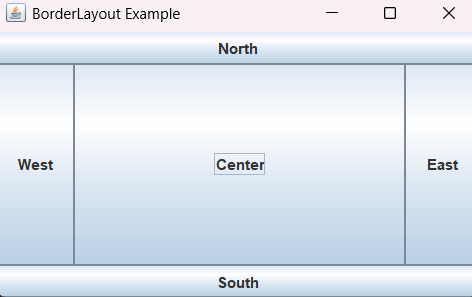
Divides space into 5 regions:
NORTH– TopSOUTH– BottomEAST– RightWEST– LeftCENTER– Middle area
🧱 GridLayout
frame.setLayout(new GridLayout(2, 2)); // 2 rows, 2 columnsAll cells are the same size.
Good for uniform component arrangements like calculators.
🎛️ GridBagLayout
Highly flexible but complex.
Allows custom sizes, padding, and positioning using constraints like
gridx,gridy,weightx, etc.
📦 BoxLayout
panel.setLayout(new BoxLayout(panel, BoxLayout.Y_AXIS)); // Vertical stackingStacks components horizontally or vertically.
Often used with
BoxorBox.Fillerfor spacing.
🃏 CardLayout
CardLayout cl = new CardLayout();
JPanel cards = new JPanel(cl);
Only one component (or panel) is visible at a time.
Ideal for creating form wizards, tab pages, etc.
✅ Java Code: BorderLayout Example
import javax.swing.*;
import java.awt.*;

public class BorderLayoutExample {
    public static void main(String[] args) {
        // Create the main frame
        JFrame frame = new JFrame("BorderLayout Example");

        // Set layout to BorderLayout
        frame.setLayout(new BorderLayout());

        // Add buttons to different regions
        frame.add(new JButton("North"), BorderLayout.NORTH);
        frame.add(new JButton("South"), BorderLayout.SOUTH);
        frame.add(new JButton("East"), BorderLayout.EAST);
        frame.add(new JButton("West"), BorderLayout.WEST);
        frame.add(new JButton("Center"), BorderLayout.CENTER);

        // Frame settings
        frame.setSize(400, 250);
        frame.setDefaultCloseOperation(JFrame.EXIT_ON_CLOSE);
        frame.setVisible(true);
    }
}
🧠 Explanation of the Code:
📥 Import Statements
import javax.swing.*;➤ Imports all Swing components like
JFrame,JButton, etc.import java.awt.*;➤ Imports AWT classes, especially layout managers like
BorderLayout.
🔧 Basic Setup
JFrame frame = new JFrame("BorderLayout Example");➤ Creates the main application window titled "BorderLayout Example" that serves as the primary container for UI components.
🧩 Layout Configuration
frame.setLayout(new BorderLayout());➤ Sets the layout manager of the frame to
BorderLayout.➤ This layout divides the frame into five predefined regions:
NORTH(Top)SOUTH(Bottom)EAST(Right)WEST(Left)CENTER(Middle)
🔘 Adding UI Components
frame.add(new JButton("North"), BorderLayout.NORTH);➤ Places a button labeled "North" in the top region.
frame.add(new JButton("South"), BorderLayout.SOUTH);➤ Places a button labeled "South" in the bottom region.
frame.add(new JButton("East"), BorderLayout.EAST);➤ Places a button labeled "East" on the right side.
frame.add(new JButton("West"), BorderLayout.WEST);➤ Places a button labeled "West" on the left side.
frame.add(new JButton("Center"), BorderLayout.CENTER);➤ Places a button labeled "Center" in the center area.
➤ The center region auto-expands to fill the remaining space.
🖼️ Final Frame Configuration
frame.setSize(400, 250);➤ Sets the window size to 400x250 pixels.
frame.setDefaultCloseOperation(JFrame.EXIT_ON_CLOSE);➤ Ensures the program terminates when the user closes the window.
frame.setVisible(true);➤ Displays the window and all added components.