🐘 Connecting FastAPI to PostgreSQL
Now that we have:
PostgreSQL installed
pgAdmin configured
TodoApplicationdatabase createdusersandtodostables created
It’s time to connect our FastAPI application to PostgreSQL instead of SQLite.
This is the moment we move from:
👉 Development database
to
👉 Production-ready database system
📦 Step 1 — Install PostgreSQL Driver
<aside> 💡
Make sure Virtual Environment is active and You are in TodoApp
</aside>
We need a database driver that allows SQLAlchemy to communicate with PostgreSQL.
Run:
terminal
pip install psycopg2-binaryAfter installation, you should see the latest version installed successfully.
Why Do We Need This?
SQLite works without extra drivers.
PostgreSQL requires a database adapter.
psycopg2-binary is:
The PostgreSQL adapter for Python
Used by SQLAlchemy under the hood
Production-safe for most applications
🛠 Step 2 — Update database.py
Open:
database.pyCurrently, you probably have:
SQLALCHEMY_DATABASE_URL = "sqlite:///./todosapp.db"We are replacing this with a PostgreSQL connection string.
General format:
postgresql://username:password@host:port/database_nameExample:
SQLALCHEMY_DATABASE_URL = "postgresql://postgres:test1234!@localhost/TodoApp"⚠️ Important:
Replace
test1234!with your actual passwordReplace
TodoAppwith your actual database name
Your string must match what you created in pgAdmin.
🧠 Step 3 — Remove SQLite-Specific Arguments
Before, your engine looked like this:
engine = create_engine(
    SQLALCHEMY_DATABASE_URL,
    connect_args={"check_same_thread": False}
)
This:
connect_args={"check_same_thread": False}Is ONLY for SQLite.
PostgreSQL does not need this.
So remove it.
✅ Final database.py (PostgreSQL Version)
from sqlalchemy import create_engine
from sqlalchemy.orm import sessionmaker
from sqlalchemy.ext.declarative import declarative_base

SQLALCHEMY_DATABASE_URL = "postgresql://postgres:test1234!@localhost/TodoApp"

engine = create_engine(SQLALCHEMY_DATABASE_URL)

SessionLocal = sessionmaker(
    autocommit=False,
    autoflush=False,
    bind=engine
)

Base = declarative_base()
That’s it.
We are now connected to PostgreSQL.
▶ Step 4 — Run the Application
Start the server:
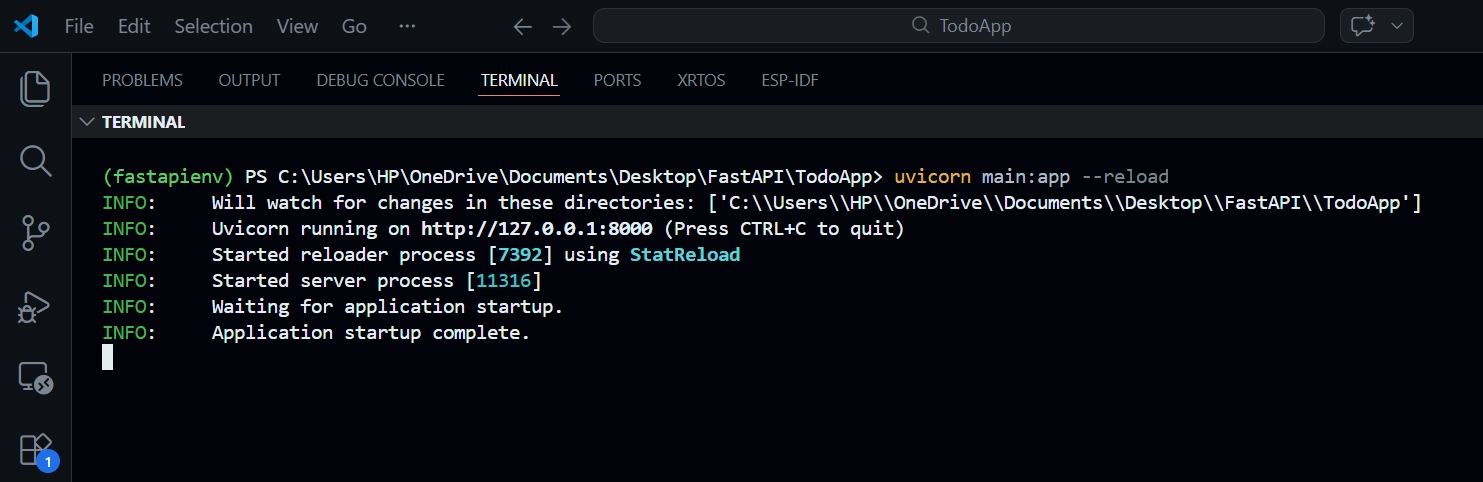
uvicorn main:app --reloadMake sure virtual environment is active
You are inside TodoApp
If no errors appear:
✅ Connection successful.
👤 Step 5 — Create New Users
Remember:
Your PostgreSQL database currently has:
Tables
No records
So we need to create new users.
Go to:
/auth/create-userCreate two user.
{
"username": "codeveda",
"email": "codeveda@gmail.com",
"first_name": "code",
"last_name": "veda",
"password": "test123",
"role": ""
}
{
"username": "testuser",
"email": "testuser@gmail.com",
"first_name": "test",
"last_name": "user",
"password": "test123",
"role": ""
}
You now have two records inside:
SELECT * FROM users;Inside pgAdmin.
📝 Step 6 — Create a Todo
Now:
Log in
Authorize
Go to Create Todo
Submit
🔎 Verify in PostgreSQL
Open pgAdmin.
Run:
SELECT * FROM todos;You should now see:
id
title
description
priority
complete
owner_id
Notice:
owner_id = 4This links back to:
users.idThis confirms:
Foreign key is working
Relationship is intact
PostgreSQL is fully integrated
🗑 Step 7 — Remove SQLite File (Optional)
You can delete the todosapp.db file from the project, as we are no longer using SQLite.
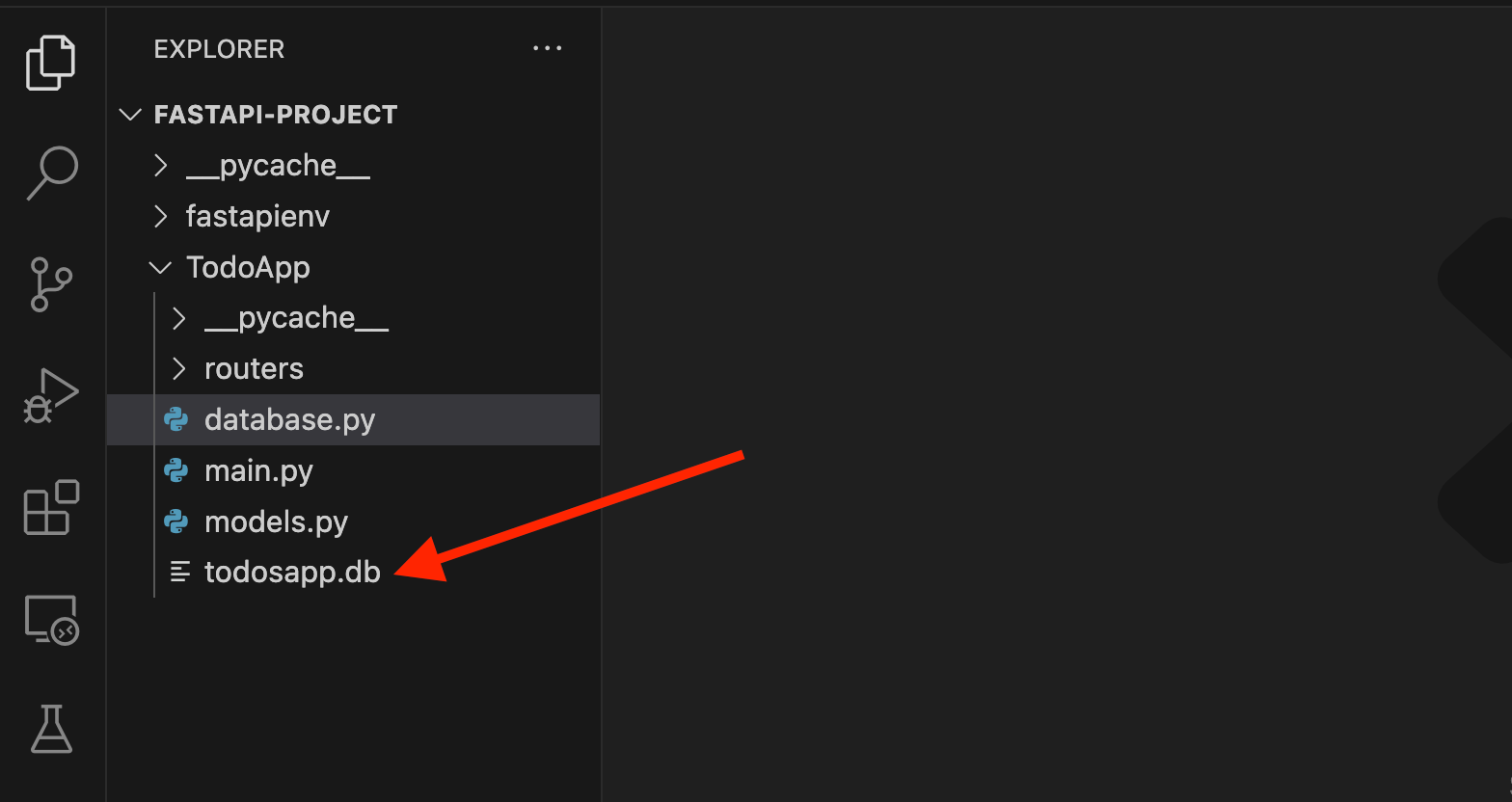
However, if you prefer to continue using it for development purposes, feel free to keep it.
This file was originally used for SQLite, and since we have migrated to PostgreSQL, it is no longer required.