🐬 MySQL Installation Guide
Windows 10 / 11 • MySQL Community Edition
1. Download MySQL
Download:
Web Installer (~5 MB) OR
Full Installer (~450 MB)
Click “No thanks, just start my download”
Save the
.msifile
2. Run Installer
Double-click the
.msifileClick Yes (if prompted)
Click Next
3. Choose Setup Type
👉 Select Full → Click Next
✔ This installs:
MySQL Server
MySQL Workbench
MySQL Shell
Connectors & extra tools
4. Install Dependencies
Click Execute to install missing requirements
Once all show ✔️ → Click Next
5. Install MySQL
Click Execute
Wait for installation to complete
Click Next
6. Configure MySQL Server
🔹 Server Type
Select Standalone MySQL Server → Next
🔹 Configuration
Config Type: Development Computer
Port: 3306 (default)
Keep TCP/IP enabled → Next
🔹 Authentication
Choose Strong Password Encryption → Next
🔹 Root Password
Set a strong password
Confirm it
🔹 Windows Service
Service Name: MySQL80
Keep default settings → Next
🔹 Apply Configuration
Click Execute
Wait for ✔️
Click Finish
7. Complete Setup
Click through remaining steps
(Optional) Launch:
MySQL Workbench
MySQL Shell
Click Finish
8. Verify Installation
Using Command Line:
mysql -u root -pThen run:
SHOW DATABASES;Using Workbench:
Open MySQL Workbench
Connect to Local instance MySQL
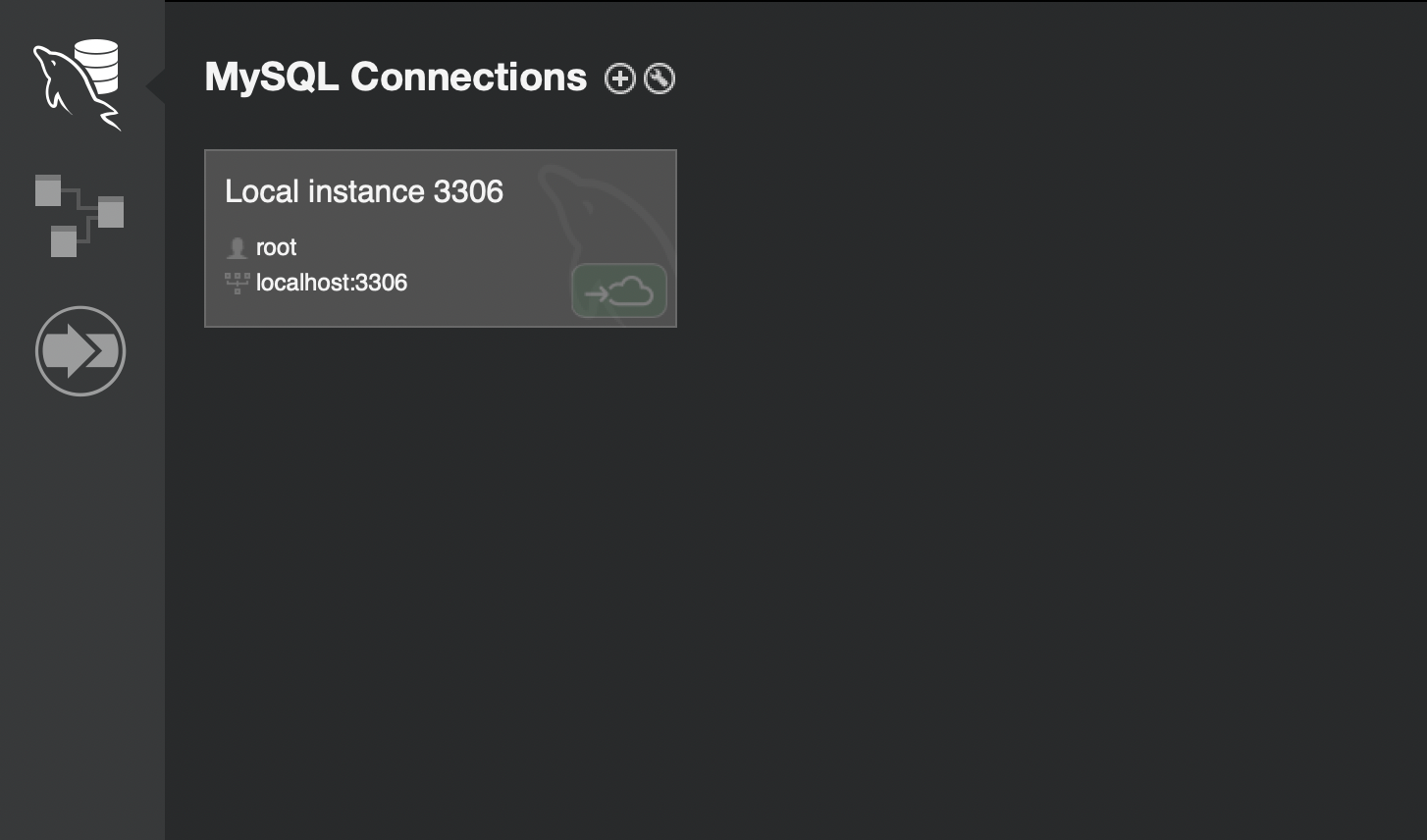
Enter password
9. (Optional) Add to PATH
Add:
C:\\Program Files\\MySQL\\MySQL Server 8.0\\binTest:
mysql --version