📥 Step 1: Reading a File with fs.readFileSync()
Use the fs module (already imported earlier with require('fs')) to read a file:
const fs = require("fs");

const textIn = fs.readFileSync("./txt/input.txt", "utf8");

console.log(textIn);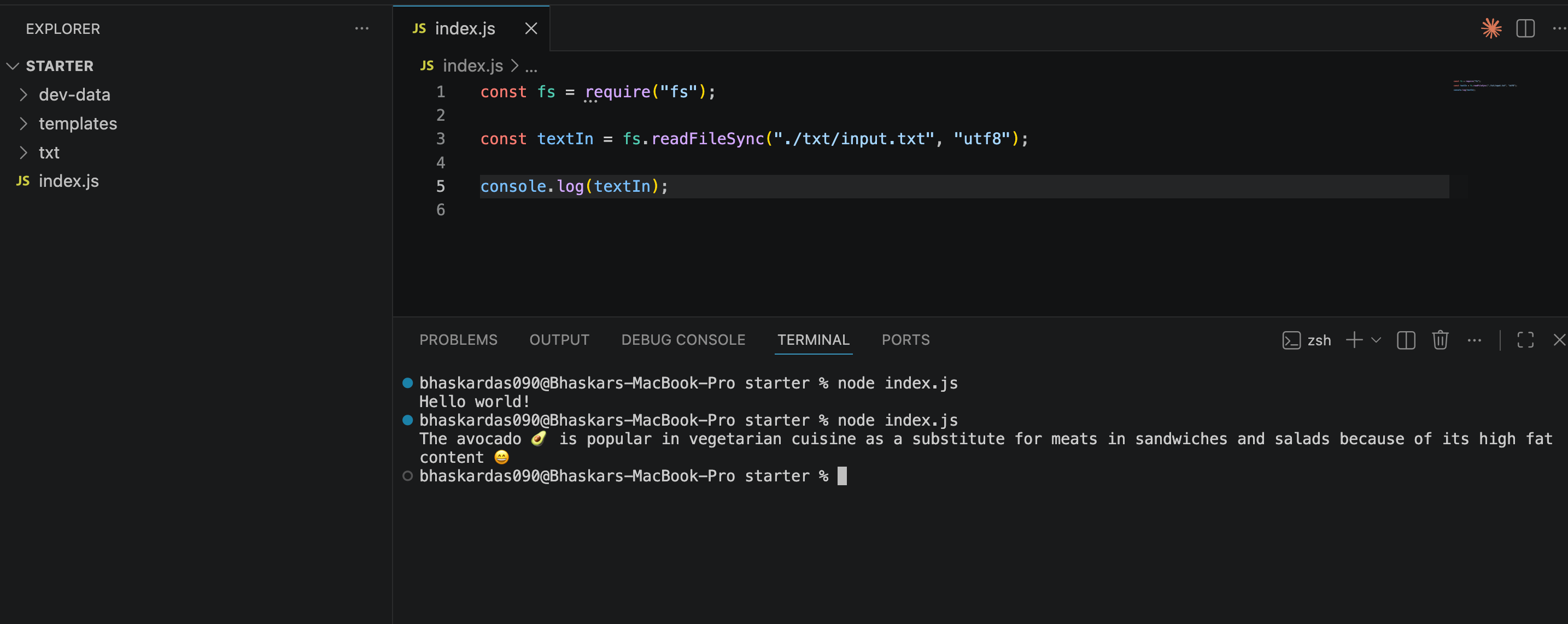
This function takes two arguments:
📁 File path
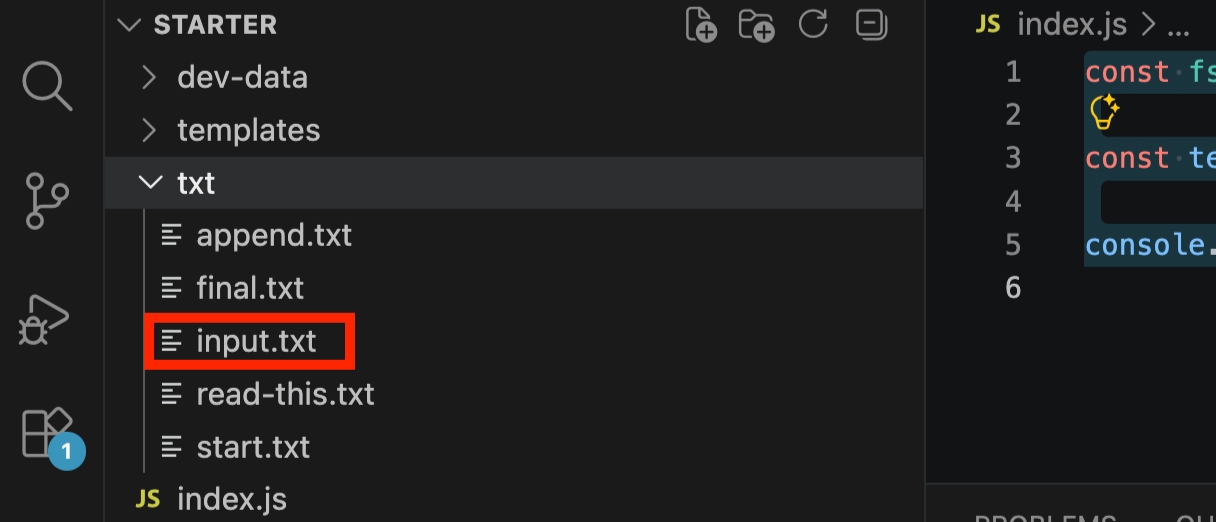
./txt/input.txtThe
.means the current folder (whereindex.jslives).From there, it goes into the
txtfolder to findinput.txt.
🔤 Character encoding
We use
'utf8', which works well for plain text.Skip this argument, and Node gives you a Buffer (raw data) instead of readable text — not what you want here.
▶️ Run It
In the terminal: node index.js
(Tip: press the ⬆️ Up Arrow to quickly pull up your last command.)
✅ You should see the contents of input.txt printed to the console.
✍️ Step 2: Writing to a File with fs.writeFileSync()
📝 Create the Content to Write
Use a template string (ES6 feature) to build the text you want to save:
const textOut=`This is what we know about the avocado:${textIn}. Created on${Date.now()}`;💾 Write the File
fs.writeFileSync('./txt/output.txt', textOut);
console.log('File written!');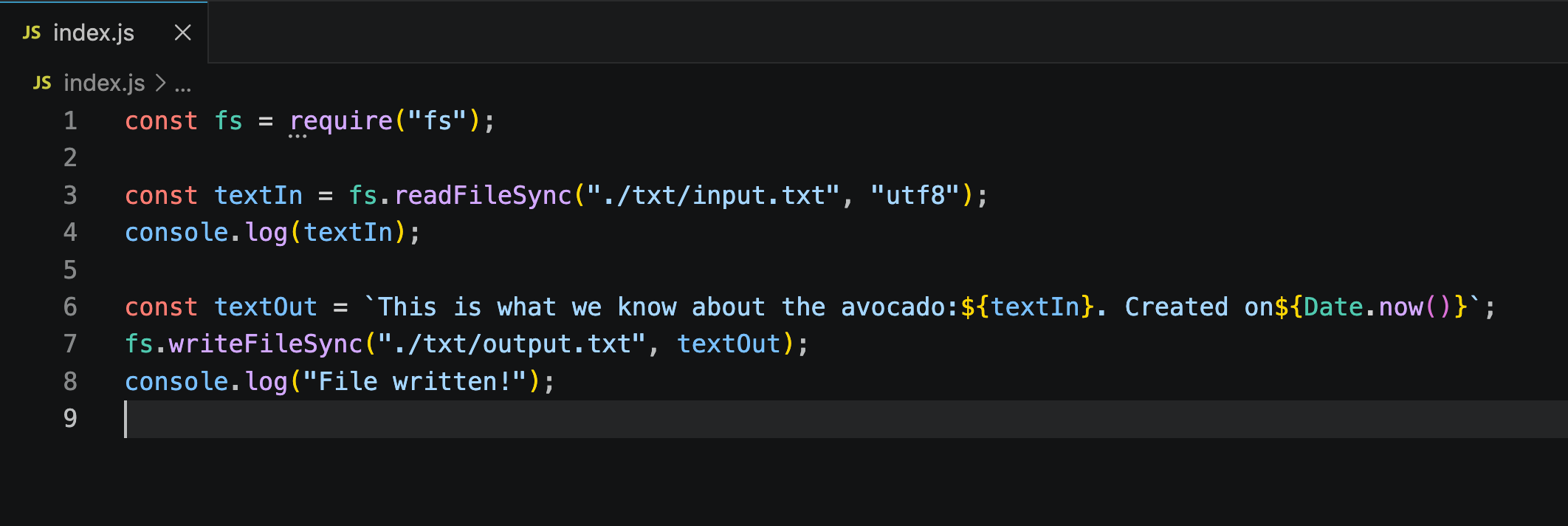
This function takes two arguments:
📁 Path to the file to create/write —
./txt/output.txt📝 The content to write into that file — the
textOutvariable
writeFileSync()doesn't return anything meaningful, so there's no need to store its result in a variable.✅ A
console.log()is added afterward just to confirm the file was written successfully.
💻 Full Code:
const fs = require("fs");

const textIn = fs.readFileSync("./txt/input.txt", "utf8");
console.log(textIn);

const textOut = `This is what we know about the avocado:${textIn}. Created on${Date.now()}`;
fs.writeFileSync("./txt/output.txt", textOut);
console.log("File written!");
▶️ Run and Verify
Clear the terminal:
Cmd/Ctrl + KorclearRun the file again:
node index.js(Or press ⬆️ Up Arrow then Enter.)
📄 A new file called
output.txtwill appear inside thetxtfolder.
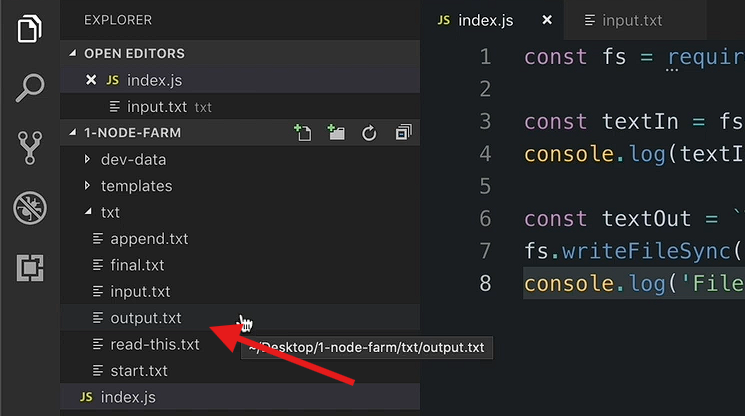
📄 Opening it will show:
📝 The custom text you wrote
📖 The original content read from
input.txt🕒 The current timestamp (from
Date.now())
