📖 Context
This isn't strictly an Express concept — it's a general Node.js concept — but it's essential for moving forward in the project. Node.js/Express apps run in different environments, most commonly:
🛠️ Development — while building the app.
🚀 Production — once deployed live.
Depending on the environment, an app might use different databases, turn logging on/off, turn debugging on/off, and so on. These environment-specific settings are controlled through environment variables.
🔹 Step 1: Express's Default Environment Variable
Express automatically sets an environment variable by default. Open server.js file. This can be checked with:
console.log(app.get('env'));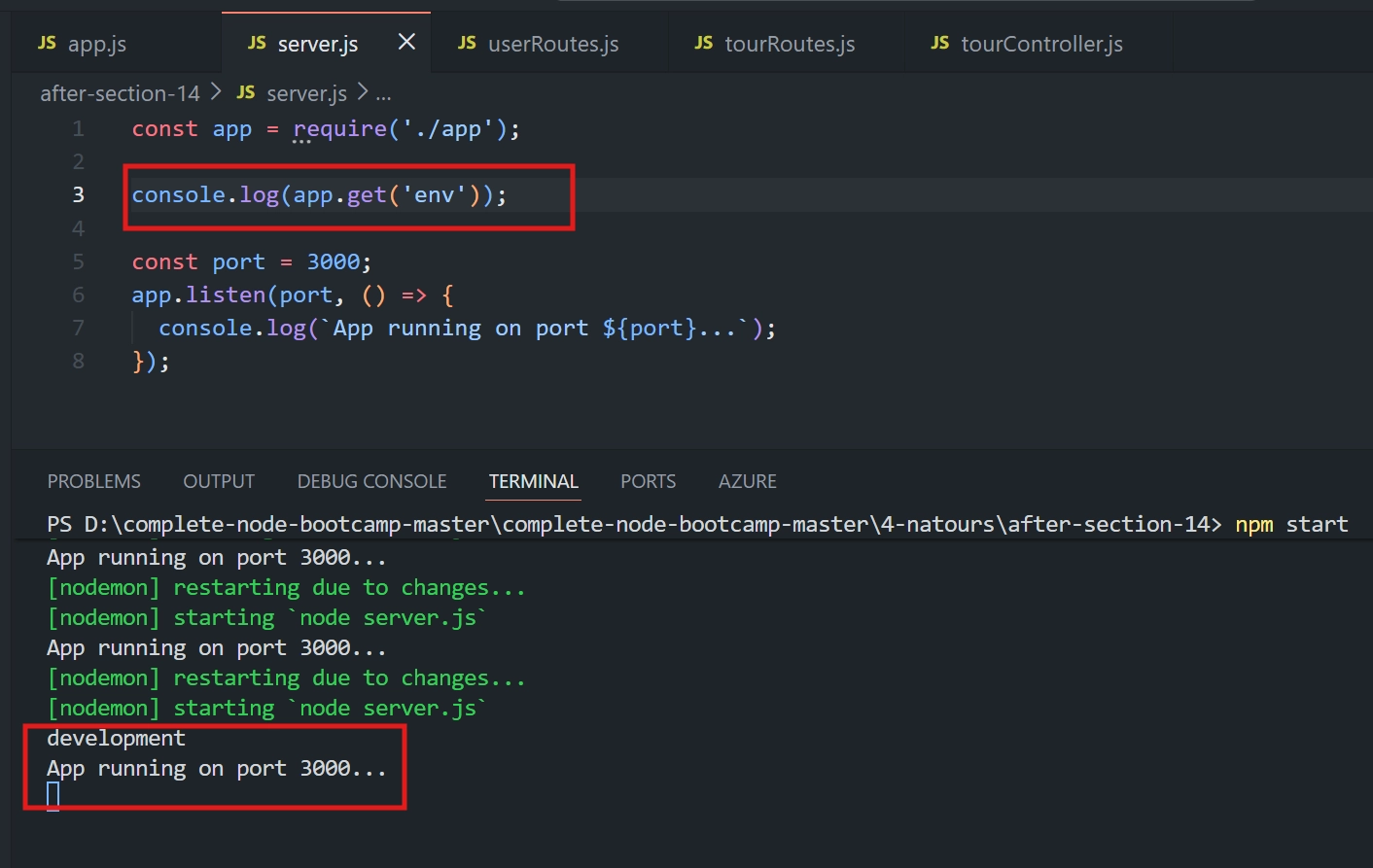
Running this logs:
developmentbecause Express defaults to development mode unless told otherwise.
💡 Important Placement Note
📄 Since this isn't really an Express-specific concern, it should be checked/used in
server.js, notapp.js.🏗️ This reinforces the earlier convention that
app.jsis reserved purely for Express configuration.
🔹 Step 2: Node.js's Own Environment Variables
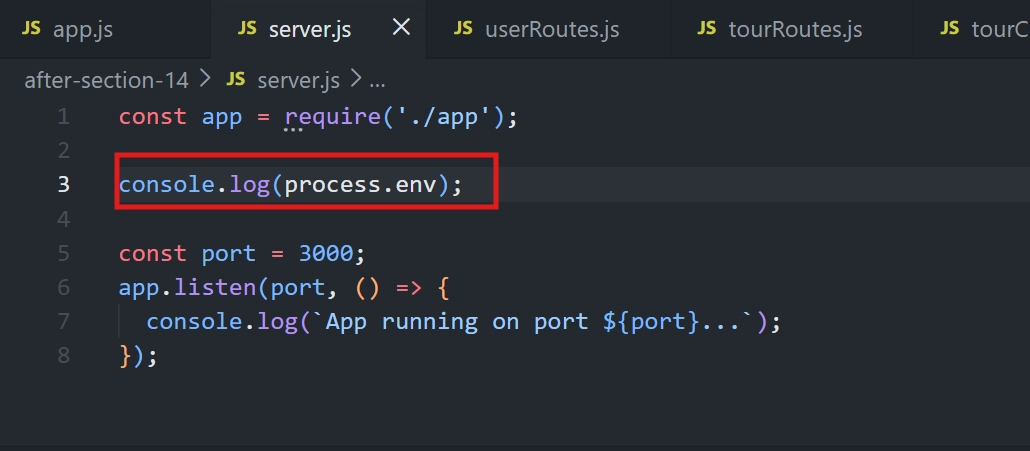
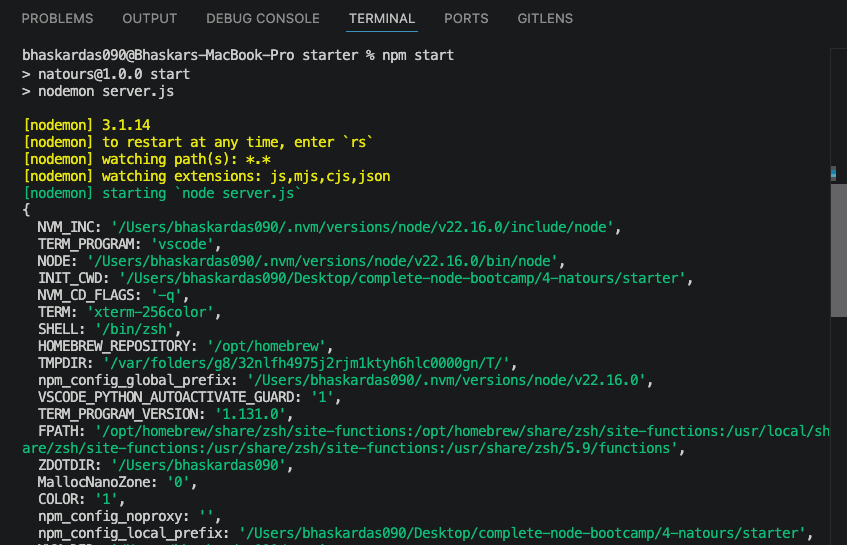
Separately from Express, Node.js itself sets a large number of environment variables, accessible via:
console.log(process.env);This returns many variables Node uses internally — e.g. the current working directory, home folder, login name, the script used to start the process, and more.
💡 How this works
⚙️ These come from Node's built-in process core module.
✅
processis automatically available everywhere — norequire()needed.
🔹 Step 3: The NODE_ENV Convention
Many npm packages used in Express development rely on a specific variable called NODE_ENV, which is meant to indicate whether the app is running in development or production.
⚠️ Express does not set this automatically — it must be defined manually.
🖥️ Setting It via the Terminal (Quick Method)
NODE_ENV=development npm startImportant—That syntax works on Linux/macOS, but not on Windows PowerShell.
Open PowerShell in your project folder and run:
$env:NODE_ENV="development"Then start the server:
npm start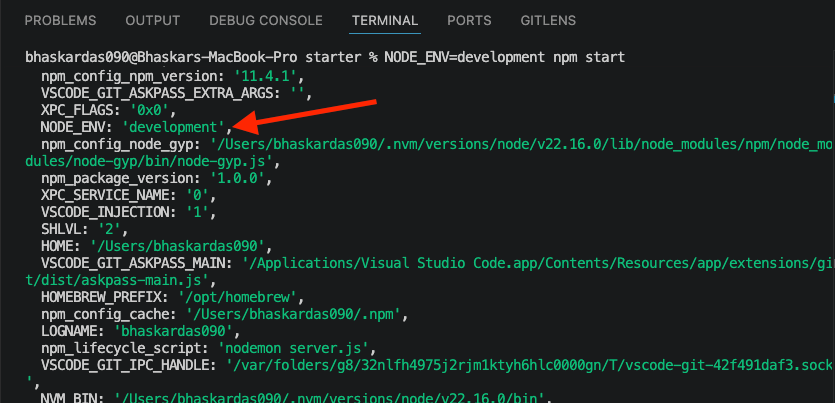
💡 How this works
➕ Prepending variables directly before the command sets them as environment variables for that process.
📝 Multiple variables can be set this way, e.g.:
For MAC use this:
X=23 NODE_ENV=development npm startFor windows use this:
$env:X="23"; $env:NODE_ENV="development"; npm startThen:
process.env.Xreturns:
"23"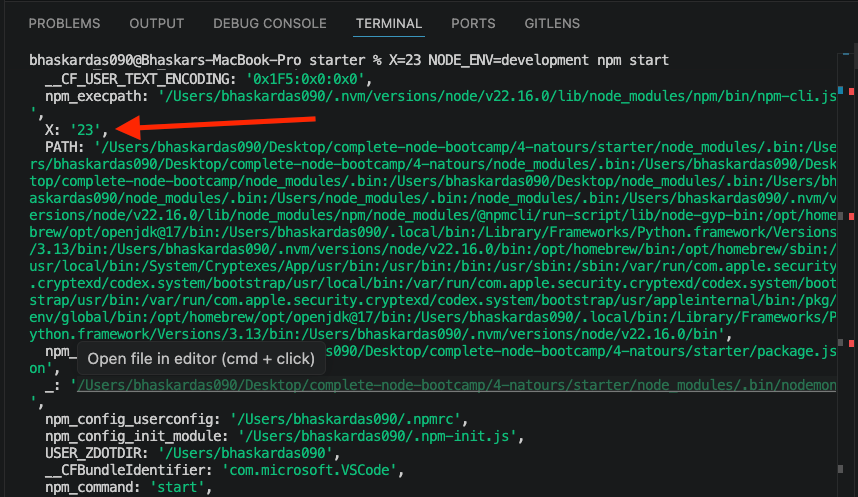
⚠️ This is useful for testing but doesn't scale well — imagine needing to set 10+ variables this way every time.
🔹 Step 4: Using a .env Configuration File (Scalable Method)
Create a file called:
config.env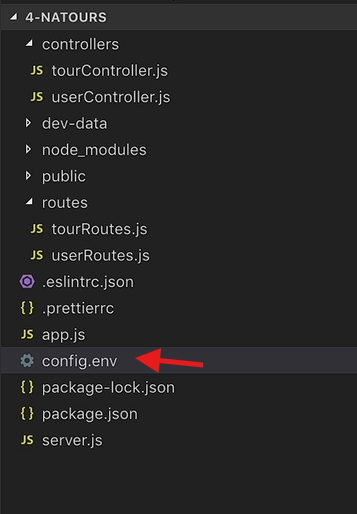
Contents:
NODE_ENV=development
PORT=3000
USERNAME=jonas
PASSWORD=123456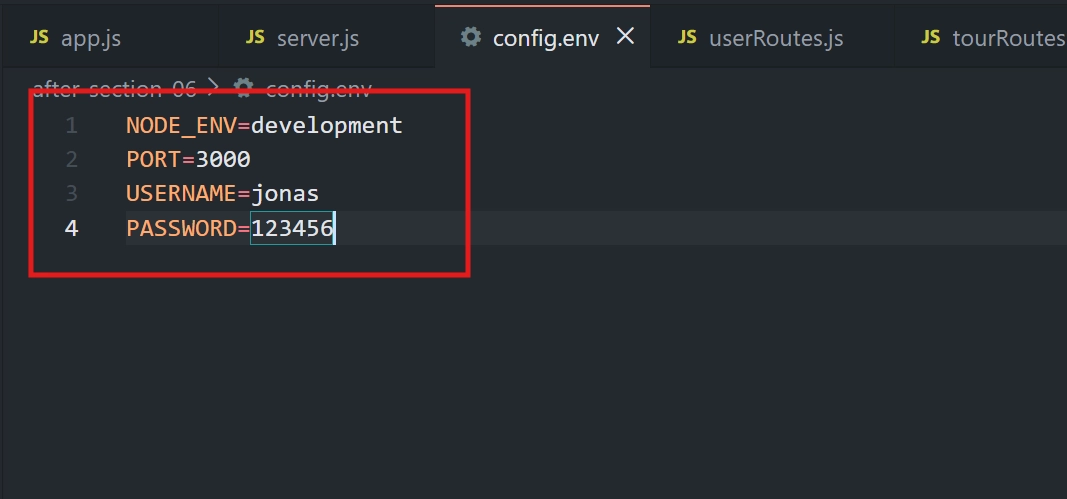
💡 Why this approach is better
✅ Avoids having to manually type many variables in the terminal every time.
📄
.envis the standard convention for this kind of configuration file.🎨 VS Code even recognizes it and shows a special configuration icon (installing a
.envsyntax highlighting extension makes it easier to read).🔠 Variable names are conventionally written in UPPERCASE.
🔹 Step 5: Loading .env Variables into the App Using dotenv
Install the package:
npm install dotenvThen in server.js:
const dotenv = require('dotenv');
dotenv.config({ path: './config.env' });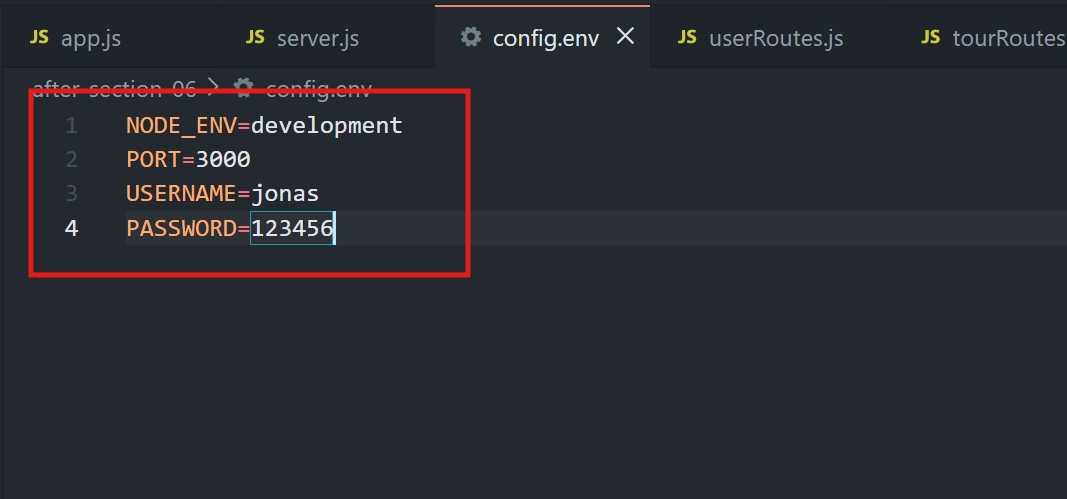
💡 How each part works
📦
dotenvis the standard npm package for reading.envfiles and loading their contents intoprocess.env.📄
dotenv.config({ path: ... })reads the specified file and attaches each variable to the Node process's environment variables.⚠️ Without this step, the
.envfile is just a plain text file — Node has no automatic awareness of its contents.
🚨 Critical Ordering Issue
Initially:
const app = require('./app');

const dotenv = require('dotenv');
dotenv.config({ path: './config.env' });
❌ This caused environment variables inside app.js to be undefined.
✅ Correct Order
const dotenv = require('dotenv');
dotenv.config({ path: './config.env' });

const app = require('./app');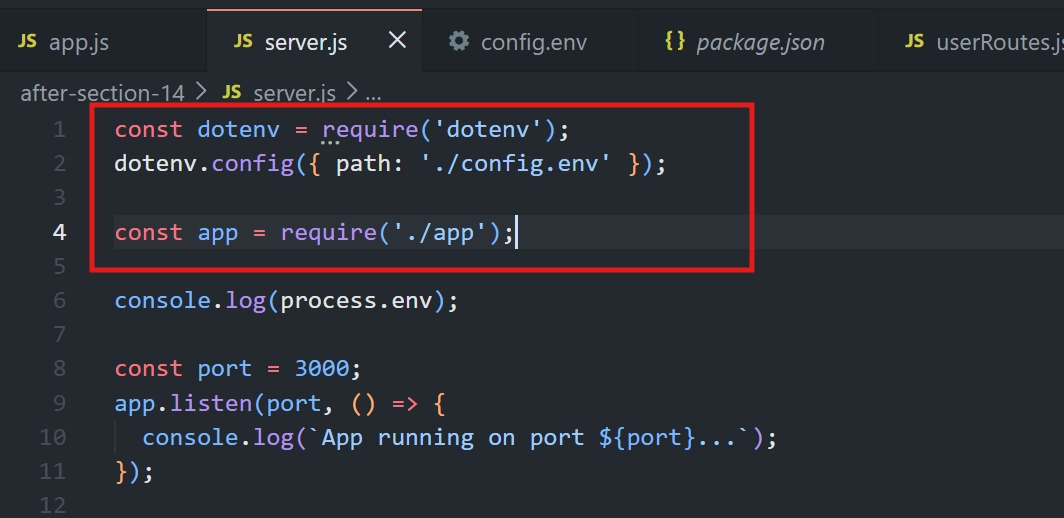
💡 Why Order Matters
🌍 Environment variables are attached to the Node process.
🔄 The whole app runs inside one process.
✅ Variables set before loading other files are available everywhere afterward.
❌ If a file is loaded (
require) before the variables are created, that file won't see them.
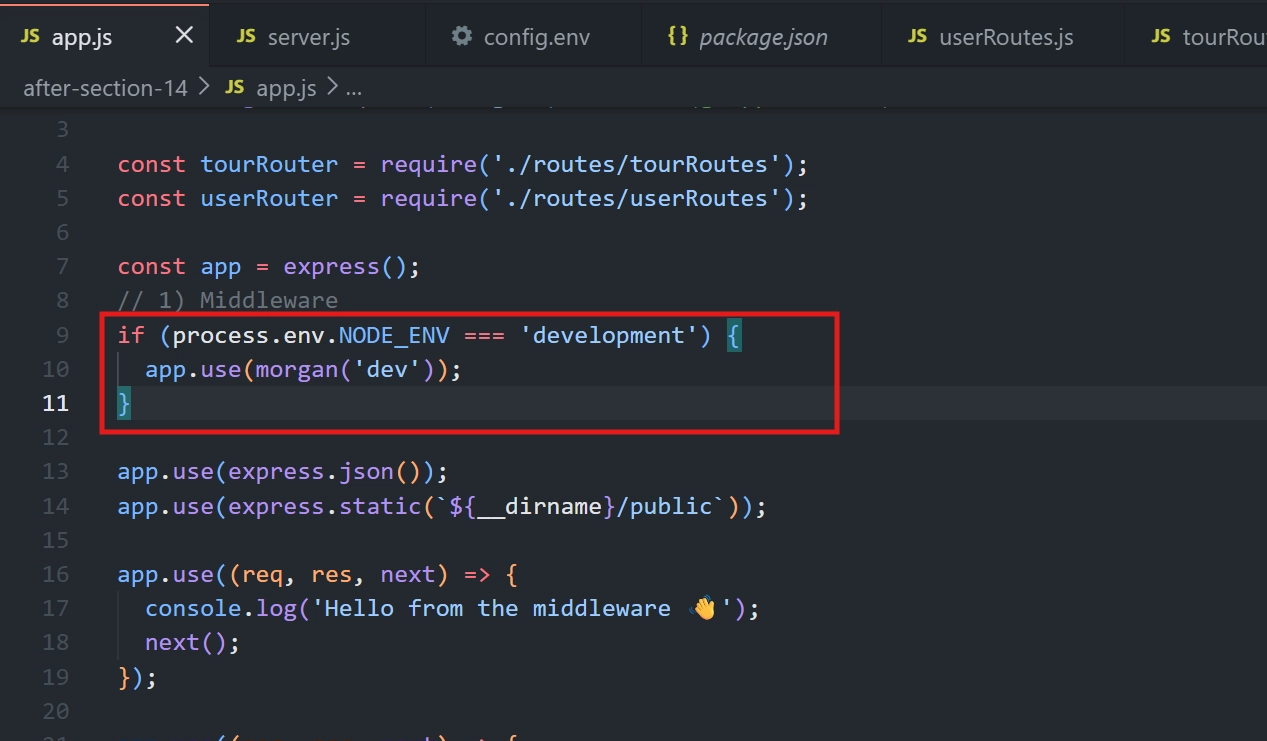
🔹 Step 6: Using Environment Variables in app.js
if (process.env.NODE_ENV === 'development') {
  app.use(morgan('dev'));
}
💡 How this works
📋 Restricts the Morgan logging middleware to development mode only.
🚫 Logging typically shouldn't happen in production.
🌍 Even though
dotenv.config()was called inserver.js,process.env.NODE_ENVis still accessible here inapp.jsbecause environment variables belong to the shared Node process, not individual files.
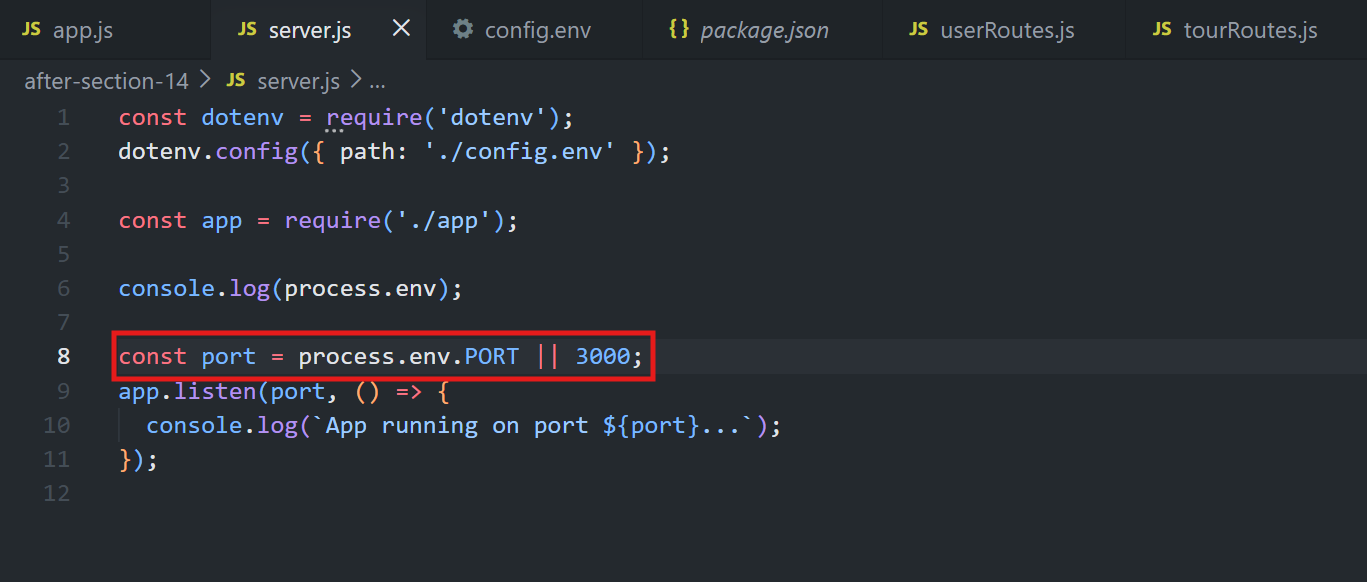
🔹 Step 7: Using the PORT Variable
const port = process.env.PORT || 3000;

app.listen(port, () => {
  console.log(`App running on port ${port}...`);
});
💡 Why this works
🛡️ Falls back to 3000 if
PORTisn't defined.✅ This is a very common defensive pattern when reading configuration values.
Add
console.log(process.env.NODE_ENV);in app.js file
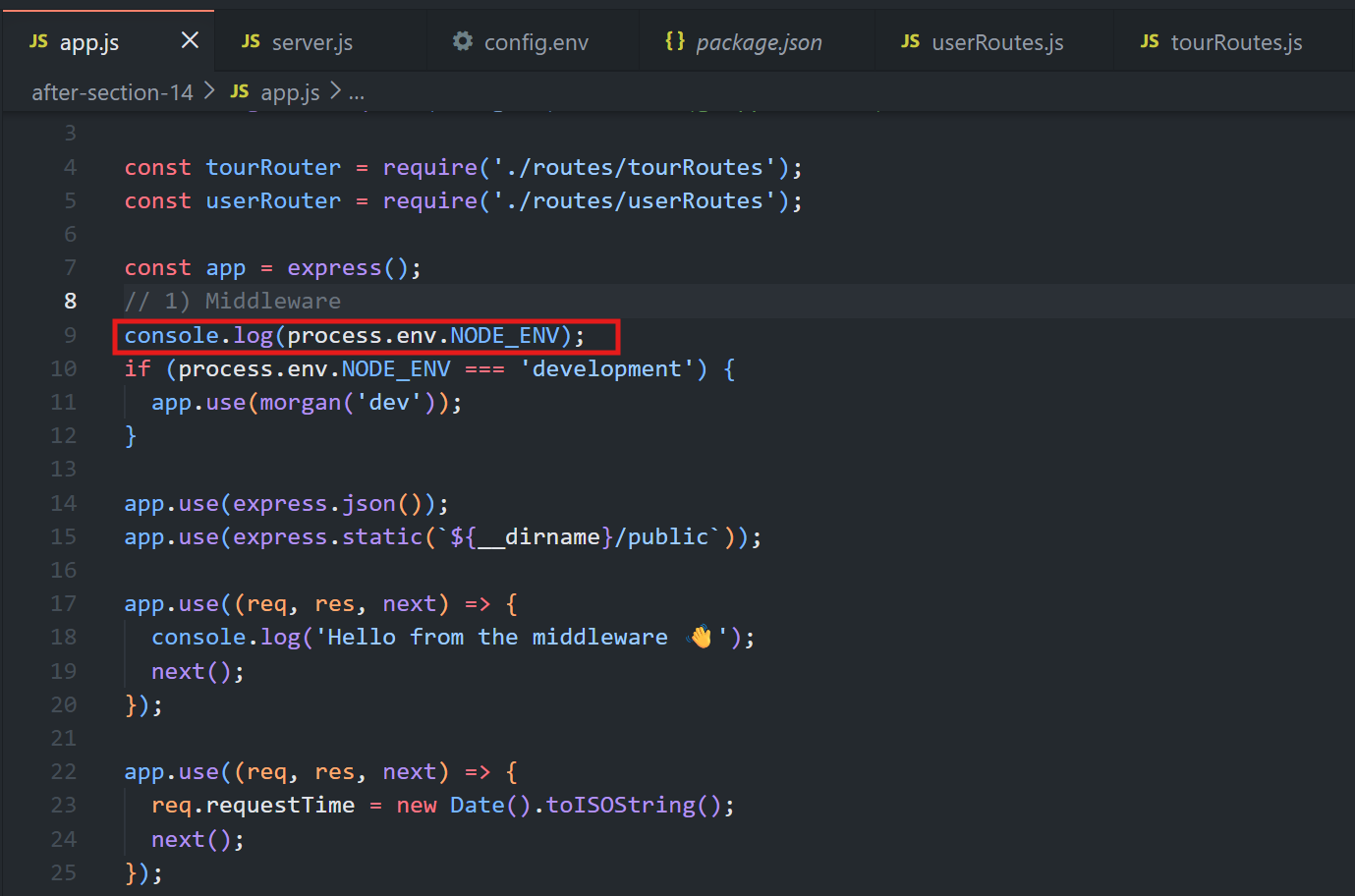
Remove this line we dont need this
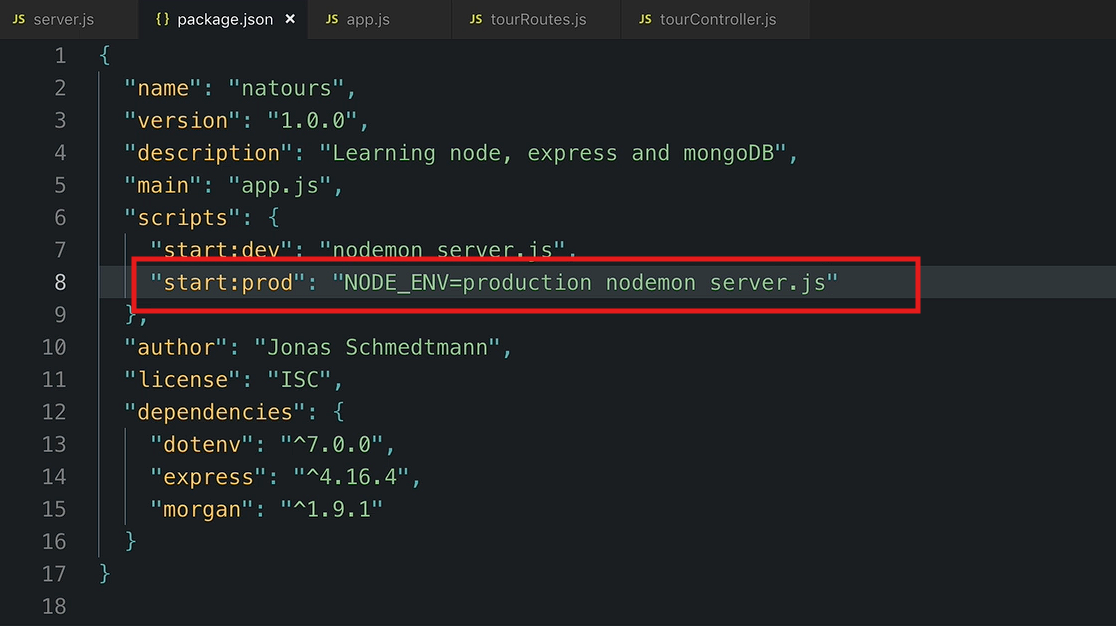
🔹 Step 8: Creating Separate npm Scripts for Development and Production
"scripts": {
  "start:dev": "nodemon server.js",
  "start:prod": "NODE_ENV=production nodemon server.js"
}
For Windows Use this:
"start:prod": "$env:NODE_ENV='production'; nodemon server.js"🚀 Testing Production
npm run start:prod✅ Results:
🌍
NODE_ENV=production🚫 Morgan logging is not active
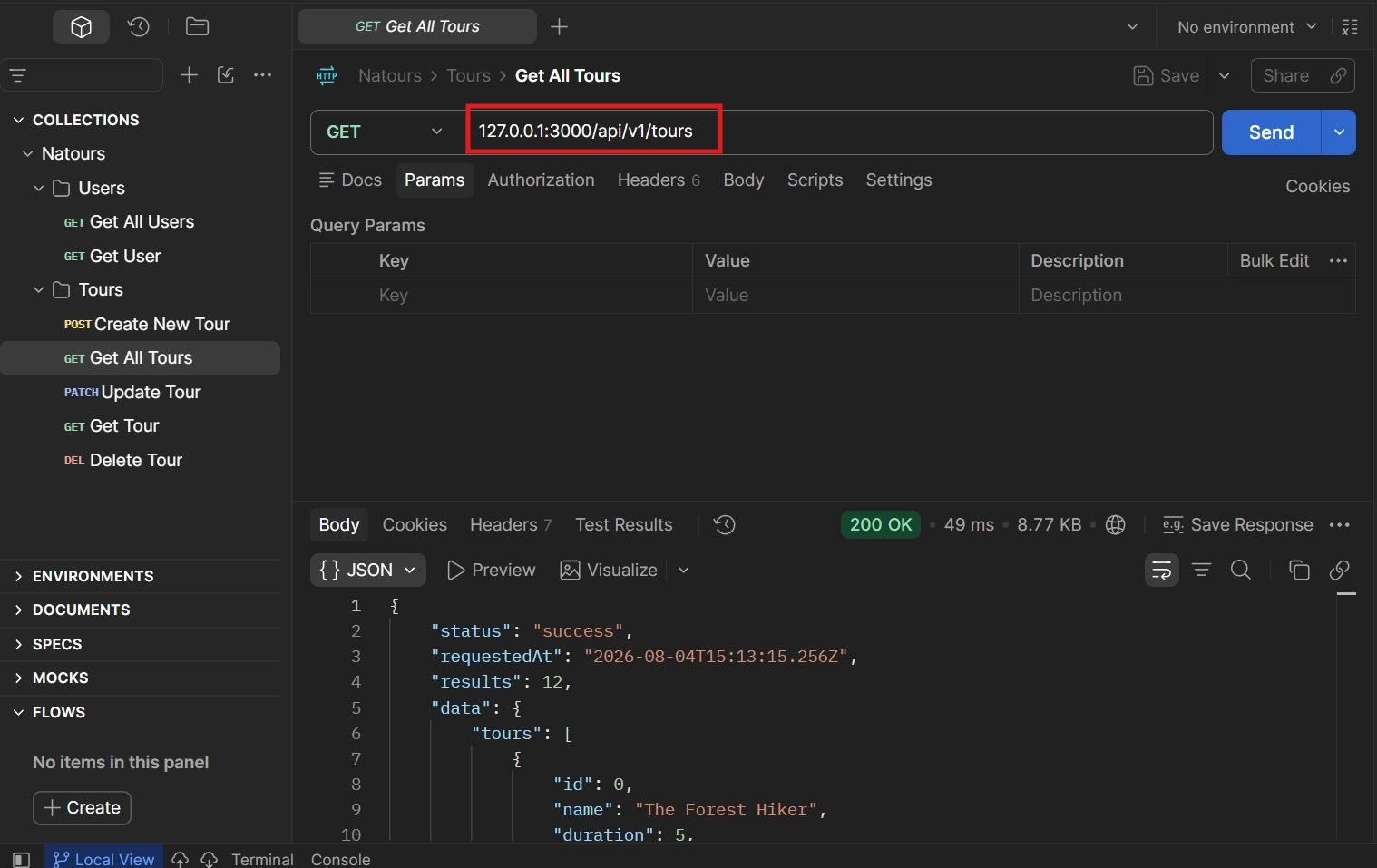
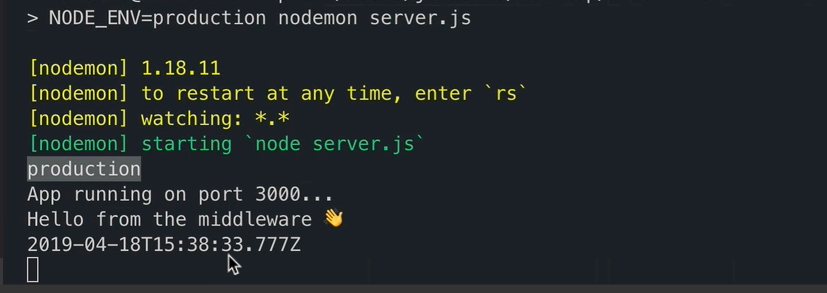
This confirms the conditional middleware setup works correctly.
Now remove
console.log(process.env.NODE_ENV);this line fromapp.jsfile:
🛠️ Development
npm run start:dev✅ Results:
🌍
NODE_ENV=development📋 Morgan logging is active
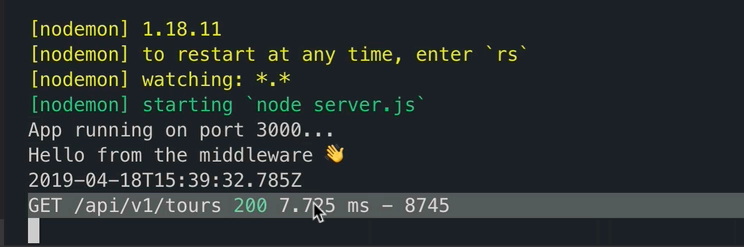
✅ Key Takeaway
🌍 Environment variables let your app behave differently in development and production.
⚙️
app.get('env')is Express's environment setting, whileprocess.env.NODE_ENVis set manually.🌐
process.envprovides access to environment variables in any file.📄 Use a
.envfile withdotenvto manage environment variables.⚠️ Call
dotenv.config()before accessingprocess.env.🔒 Store sensitive data (API keys, passwords, etc.) in
.envfiles.▶️ Use separate npm scripts (e.g.,
start:dev,start:prod) for different environments.
<div class="infographic-vscodeterm" id="vt">
<style>
.infographic-vscodeterm {
--ink: #1a1a1a;
--ink-soft: #5c5c5c;
--paper: #ffffff;
--paper-alt: #f0ece4;
--accent: #2563eb;
--accent-deep: #1942a8;
--accent-soft: #e3ebfd;
--line: #ddd6c9;
--radius: 8px;
--display-font: 'Fraunces', Georgia, serif;
--body-font: 'Inter', system-ui, sans-serif;
--mono-font: 'IBM Plex Mono', monospace;
max-width: 880px;
margin: 0 auto;
box-sizing: border-box;
background: transparent;
color: var(--ink);
font-family: var(--body-font);
}
.infographic-vscodeterm[data-theme="dark"] {
--ink: #e8e6e1;
--ink-soft: #9a968c;
--paper: #13171f;
--paper-alt: #1c212b;
--accent: #5b8def;
--accent-deep: #8fb4ff;
--accent-soft: #20293f;
--line: #2c313d;
}
.infographic-vscodeterm * { box-sizing: border-box; min-width: 0; }
.vt-eyebrow {
font-family: var(--mono-font); font-size: 0.72rem; letter-spacing: 0.1em;
text-transform: uppercase; color: var(--accent); margin: 0 0 0.45rem;
display: flex; align-items: center; justify-content: center; gap: 0.4rem;
}
.vt-eyebrow::before { content: ""; width: 14px; height: 2px; background: var(--accent); display: inline-block; }
.vt-title {
font-family: var(--display-font); font-size: clamp(1.5rem, 4vw, 2.3rem); text-align: center;
margin: 0 0 0.5rem; line-height: 1.14; letter-spacing: -0.01em;
}
.vt-sub { color: var(--ink-soft); font-size: 0.95rem; text-align: center; margin: 0 0 1.7rem; }
/* ===== VS Code window — fixed dark theme regardless of page mode ===== */
.vt-window { border-radius: 8px; overflow: hidden; box-shadow: 0 16px 40px -14px rgba(0,0,0,0.45); border: 1px solid #1e1e1e; font-family: var(--mono-font); }
.vt-titlebar { background: #323233; display: flex; align-items: center; padding: 0.5rem 0.8rem; position: relative; }
.vt-dots { display: flex; gap: 0.4rem; }
.vt-dots span { width: 10px; height: 10px; border-radius: 50%; display: block; }
.vt-dots span:nth-child(1) { background: #ff5f56; }
.vt-dots span:nth-child(2) { background: #ffbd2e; }
.vt-dots span:nth-child(3) { background: #27c93f; }
.vt-titlebar-text { position: absolute; left: 50%; transform: translateX(-50%); font-size: 0.72rem; color: #cccccc; }
.vt-body { display: flex; height: 416px; }
.vt-resize-h { width: 5px; cursor: col-resize; background: transparent; flex-shrink: 0; transition: background 0.15s; touch-action: none; }
.vt-resize-h:hover, .vt-resize-h.is-dragging { background: #0078d4; }
.vt-resize-v { height: 5px; cursor: row-resize; background: transparent; flex-shrink: 0; transition: background 0.15s; touch-action: none; }
.vt-resize-v:hover, .vt-resize-v.is-dragging { background: #0078d4; }
.vt-window-resize {
height: 9px; background: #252526; cursor: row-resize; display: flex; align-items: center;
justify-content: center; border-top: 1px solid #1e1e1e; touch-action: none;
}
.vt-window-resize span { width: 30px; height: 3px; border-radius: 2px; background: #4a4a52; }
.vt-window-resize:hover span, .vt-window-resize.is-dragging span { background: #0078d4; }
.vt-toggle-btn {
background: none; border: none; color: #9a9a9a; cursor: pointer; display: flex; align-items: center;
padding: 0.3rem; border-radius: 3px; flex-shrink: 0;
}
.vt-toggle-btn:hover { background: #2a2d2e; color: #fff; }
.vt-toggle-btn svg { width: 13px; height: 13px; }
.vt-sidebar.is-hidden { width: 0 !important; overflow: hidden; border-right: none; }
.vt-terminal.is-collapsed { height: auto !important; }
.vt-terminal.is-collapsed .vt-term-body { display: none; }
.vt-terminal.is-collapsed .vt-term-toggle svg { transform: rotate(-90deg); }
.vt-activitybar { width: 40px; background: #333333; display: flex; flex-direction: column; align-items: center; padding-top: 0.7rem; gap: 1.1rem; flex-shrink: 0; }
.vt-activitybar svg { width: 18px; height: 18px; opacity: 0.55; }
.vt-activitybar svg.is-on { opacity: 1; }
.vt-sidebar { width: 180px; background: #252526; flex-shrink: 0; overflow-y: auto; border-right: 1px solid #1e1e1e; }
.vt-sidebar-head { font-size: 0.65rem; font-weight: 700; letter-spacing: 0.06em; color: #bbbbbb; padding: 0.6rem 0.8rem 0.3rem; }
.vt-sidebar-root { font-size: 0.74rem; color: #cccccc; padding: 0.2rem 0.7rem; display: flex; align-items: center; gap: 0.3rem; }
.vt-sidebar-folder { font-size: 0.74rem; color: #cccccc; padding: 0.2rem 0.7rem 0.2rem 1.4rem; display: flex; align-items: center; gap: 0.3rem; }
.vt-sidebar-folder.lvl2 { padding-left: 2.6rem; }
.vt-sidebar-folder.is-highlighted { color: #ffffff; font-weight: 600; }
.vt-folder-toggle {
background: none; border: none; font: inherit; width: 100%; text-align: left; cursor: pointer;
font-size: 0.74rem; color: #cccccc; padding: 0.2rem 0.7rem 0.2rem 1.4rem; display: flex; align-items: center; gap: 0.3rem;
}
.vt-folder-toggle:hover { background: #2a2d2e; }
.vt-folder-toggle.is-highlighted { color: #ffffff; font-weight: 600; }
.vt-folder-children.is-collapsed { display: none; }
.vt-row {
display: flex; align-items: center; gap: 0.35rem; width: 100%; background: none; border: none;
color: #cccccc; font: inherit; font-size: 0.74rem; padding: 0.24rem 0.7rem 0.24rem 1.4rem;
cursor: pointer; text-align: left; border-left: 2px solid transparent;
}
.vt-row.lvl2 { padding-left: 3.4rem; }
.vt-row:hover { background: #2a2d2e; }
.vt-row.is-selected { background: #37373d; border-left-color: #0078d4; }
.vt-row-disabled { cursor: default; opacity: 0.78; }
.vt-row-disabled:hover { background: none; }
.vt-badge { width: 15px; height: 15px; border-radius: 3px; flex-shrink: 0; display: flex; align-items: center; justify-content: center; font-size: 0.44rem; font-weight: 700; color: #1a1a1a; background: #29b6f6; }
.vt-badge.json { background: #cbcb41; font-size: 0.5rem; }
.vt-badge.html { background: #e44d26; color: #fff; font-size: 0.4rem; }
.vt-badge.env { background: #8bc34a; color: #1a1a1a; font-size: 0.36rem; }
.vt-main { flex: 1; display: flex; flex-direction: column; min-width: 0; }
.vt-tabbar { display: flex; background: #252526; border-bottom: 1px solid #1e1e1e; overflow-x: auto; }
.vt-tab {
display: flex; align-items: center; gap: 0.35rem; background: #1e1e1e; color: #808080; font: inherit;
font-size: 0.72rem; padding: 0.45rem 0.8rem; border: none; border-right: 1px solid #1e1e1e;
border-top: 2px solid transparent; cursor: pointer; white-space: nowrap;
}
.vt-tab.is-active { color: #d4d4d4; border-top-color: #0078d4; background: #1e1e1e; }
.vt-tab .vt-badge { width: 13px; height: 13px; font-size: 0.4rem; }
.vt-tab-close {
display: flex; align-items: center; justify-content: center; width: 14px; height: 14px;
border-radius: 3px; font-size: 0.85rem; line-height: 1; color: #9a9a9a; margin-left: 0.1rem;
}
.vt-tab-close:hover { background: #4a4a52; color: #fff; }
.vt-code-wrap { flex: 1; background: #1e1e1e; overflow: auto; padding: 0.85rem 1rem; }
.vt-code-wrap pre { margin: 0; }
.vt-code-wrap code { font-family: var(--mono-font); font-size: 0.72rem; line-height: 1.7; color: #d4d4d8; white-space: pre; }
.tok-kw { color: #c678dd; }
.tok-tag { color: #e06c75; }
.tok-type { color: #61afef; }
.tok-attr { color: #d19a66; }
.tok-str { color: #98c379; }
.tok-expr { color: #56b6c2; }
.tok-punc { color: #6b7280; }
.vt-flash { background: rgba(220,38,38,0.22); }
/* ===== terminal ===== */
.vt-terminal { background: #181818; border-top: 1px solid #2c2c2c; display: flex; flex-direction: column; height: 150px; flex-shrink: 0; }
.vt-term-head { display: flex; align-items: center; gap: 0.4rem; font-size: 0.62rem; letter-spacing: 0.05em; color: #9a9a9a; padding: 0.35rem 0.8rem; border-bottom: 1px solid #262626; text-transform: uppercase; }
.vt-term-body { flex: 1; overflow-y: auto; padding: 0.5rem 0.9rem; font-size: 0.72rem; line-height: 1.65; }
.vt-term-line { color: #d4d4d4; white-space: pre; opacity: 0; transform: translateY(2px); animation: vt-line-in 0.25s ease forwards; }
@keyframes vt-line-in { to { opacity: 1; transform: none; } }
.vt-term-line.is-cmd { color: #7ee787; }
.vt-term-line.is-ok { color: #7ee787; font-weight: 600; }
.vt-term-line.is-warn { color: #e5c07b; font-weight: 600; }
.vt-term-line.is-error { color: #ff7b72; font-weight: 600; }
.vt-term-prompt { color: #7ee787; }
.vt-run-row { display: flex; align-items: center; gap: 0.5rem; margin-top: 0.2rem; }
.vt-run-btn {
font: inherit; font-size: 0.68rem; font-weight: 600; color: #1a1a1a; background: #7ee787;
border: none; border-radius: 4px; padding: 0.3rem 0.7rem; cursor: pointer; display: flex; align-items: center; gap: 0.3rem;
}
.vt-run-btn:disabled { opacity: 0.5; cursor: default; }
.vt-run-btn svg { width: 9px; height: 9px; }
.vt-run-hint { color: #6b7280; font-size: 0.68rem; }
@media (max-width: 620px) {
.vt-sidebar { width: 140px; }
.vt-body { height: 442px; }
}
@media (max-width: 480px) { .vt-activitybar { display: none; } }
/* ===== browser output ===== */
.vt-output-label {
font-family: var(--mono-font); font-size: 0.68rem; letter-spacing: 0.1em; text-transform: uppercase;
color: var(--ink-soft); text-align: center; margin: 1.5rem 0 0.7rem;
}
.vt-browser {
border: 1px solid var(--line); border-radius: var(--radius); overflow: hidden; max-width: 680px; margin: 0 auto;
box-shadow: 0 10px 24px -12px rgba(26,26,26,0.18);
opacity: 0; transform: translateY(8px); transition: opacity 0.4s ease, transform 0.4s ease; pointer-events: none;
}
.vt-browser.is-shown { opacity: 1; transform: none; pointer-events: auto; }
.vt-browser-bar { background: #e9e9e9; padding: 0.5rem 0.7rem; display: flex; align-items: center; gap: 0.5rem; flex-wrap: wrap; }
.vt-browser-bar .vt-dots span { width: 8px; height: 8px; }
.vt-method-group { display: flex; gap: 0.3rem; flex-shrink: 0; }
.vt-resource-group { display: flex; gap: 0.3rem; flex-shrink: 0; margin-right: 0.4rem; }
.vt-resource-btn {
font-family: var(--mono-font); font-size: 0.6rem; font-weight: 700; letter-spacing: 0.03em;
border: 1px solid transparent; border-radius: 4px; padding: 0.18rem 0.5rem; cursor: pointer;
background: #fff; color: #888;
}
.vt-resource-btn.is-active { background: #f3e8ff; color: #7e22ce; border-color: #e2b8ff; }
.vt-method-btn {
font-family: var(--mono-font); font-size: 0.6rem; font-weight: 700; letter-spacing: 0.03em;
border: 1px solid transparent; border-radius: 4px; padding: 0.18rem 0.4rem; cursor: pointer;
background: #fff; color: #888;
}
.vt-method-btn[data-method="get"].is-active { background: #e3ebfd; color: #1942a8; border-color: #b7cbfa; }
.vt-method-btn[data-method="post"].is-active { background: #ffe9d6; color: #b5540a; border-color: #f6c393; }
.vt-browser-url { font-family: var(--mono-font); font-size: 0.65rem; color: #555; background: #fff; border-radius: 4px; padding: 0.2rem 0.5rem; flex: 1; min-width: 180px; white-space: nowrap; overflow-x: auto; }
.vt-browser-page { background: #fff; padding: 1rem 1.1rem; text-align: left; font-family: var(--mono-font); }
.vt-resp { display: none; }
.vt-resp.is-active { display: block; }
.vt-post-label { font-size: 0.62rem; letter-spacing: 0.05em; text-transform: uppercase; color: #888; margin: 0 0 0.35rem; }
.vt-post-label-resp { margin-top: 0.85rem; color: #1a7f37; }
.vt-chip-group { display: flex; gap: 0.4rem; margin-bottom: 0.75rem; }
.vt-chip {
font-family: var(--mono-font); font-size: 0.62rem; border: 1px solid #ddd; border-radius: 12px;
padding: 0.16rem 0.6rem; cursor: pointer; background: #f4f4f4; color: #555;
}
.vt-chip.is-active { background: #1a1a1a; color: #fff; border-color: #1a1a1a; }
.vt-json-pre { margin: 0; font-size: 0.76rem; line-height: 1.65; white-space: pre-wrap; word-break: break-word; }
.vt-json-key { color: #881391; }
.vt-json-str { color: #c41a16; }
.vt-json-punc { color: #1a1a1a; }
.vt-json-null { color: #0000ff; }
.vt-highlight-field { border-radius: 3px; padding: 0 3px; margin: 0 -3px; }
.vt-output-placeholder { text-align: center; font-size: 0.82rem; color: var(--ink-soft); }
.vt-takeaway {
margin-top: 1.7rem; padding: 0.95rem 1.2rem; background: var(--accent-soft); border-left: 3px solid var(--accent);
border-radius: 4px; font-size: 0.9rem; color: var(--ink); line-height: 1.5; max-width: 660px; margin-left: auto; margin-right: auto;
}
.vt-takeaway b { color: var(--accent-deep); }
@media (prefers-reduced-motion: reduce) {
.infographic-vscodeterm *, .infographic-vscodeterm *::before, .infographic-vscodeterm *::after {
transition-duration: 0.001ms !important; animation-duration: 0.001ms !important;
}
}
</style>
<div class="vt-window">
<div class="vt-titlebar">
<div class="vt-dots"><span></span><span></span><span></span></div>
<div class="vt-titlebar-text">project — Visual Studio Code</div>
</div>
<div class="vt-body">
<div class="vt-activitybar">
<svg class="is-on" viewBox="0 0 24 24" fill="none" aria-hidden="true"><rect x="3" y="4" width="7" height="7" rx="1" stroke="#fff" stroke-width="1.6"/><rect x="14" y="4" width="7" height="7" rx="1" stroke="#fff" stroke-width="1.6"/><rect x="3" y="15" width="7" height="7" rx="1" stroke="#fff" stroke-width="1.6"/><rect x="14" y="15" width="7" height="7" rx="1" stroke="#fff" stroke-width="1.6"/></svg>
<svg viewBox="0 0 24 24" fill="none" aria-hidden="true"><circle cx="10" cy="10" r="6.5" stroke="#fff" stroke-width="1.6"/><line x1="15" y1="15" x2="20" y2="20" stroke="#fff" stroke-width="1.6" stroke-linecap="round"/></svg>
</div>
<div class="vt-sidebar">
<div class="vt-sidebar-head">EXPLORER</div>
<div class="vt-sidebar-root">▾ PROJECT</div>
<button class="vt-folder-toggle is-highlighted" id="vtControllersToggle" type="button"><span id="vtControllersChevron">▸</span> controllers</button>
<div class="vt-folder-children is-collapsed" id="vtControllersChildren">
<button class="vt-row lvl2" data-file="tourController" type="button"><span class="vt-badge">JS</span><span>tourController.js</span></button>
<button class="vt-row lvl2" data-file="userController" type="button"><span class="vt-badge">JS</span><span>userController.js</span></button>
</div>
<button class="vt-folder-toggle is-highlighted" id="vtRoutesToggle" type="button"><span id="vtRoutesChevron">▸</span> routes</button>
<div class="vt-folder-children is-collapsed" id="vtRoutesChildren">
<button class="vt-row lvl2" data-file="tourRoutes" type="button"><span class="vt-badge">JS</span><span>tourRoutes.js</span></button>
<button class="vt-row lvl2" data-file="userRoutes" type="button"><span class="vt-badge">JS</span><span>userRoutes.js</span></button>
</div>
<button class="vt-folder-toggle is-highlighted" id="vtDevDataToggle" type="button"><span id="vtDevDataChevron">▸</span> dev-data</button>
<div class="vt-folder-children is-collapsed" id="vtDevDataChildren">
<div class="vt-sidebar-folder lvl2 is-highlighted">▾ data</div>
<button class="vt-row lvl2" data-file="tours" type="button"><span class="vt-badge json">{}</span><span>tours-simple.json</span></button>
</div>
<button class="vt-folder-toggle is-highlighted" id="vtPublicToggle" type="button"><span id="vtPublicChevron">▸</span> public</button>
<div class="vt-folder-children is-collapsed" id="vtPublicChildren">
<div class="vt-sidebar-folder lvl2">▸ css</div>
<div class="vt-sidebar-folder lvl2">▸ img</div>
<div class="vt-sidebar-folder lvl2">▸ js</div>
<button class="vt-row lvl2" data-file="overview" type="button"><span class="vt-badge html"><></span><span>overview.html</span></button>
<button class="vt-row lvl2" data-file="tour" type="button"><span class="vt-badge html"><></span><span>tour.html</span></button>
</div>
<div class="vt-sidebar-folder">▸ node_modules</div>
<button class="vt-row is-selected" data-file="app" type="button"><span class="vt-badge">JS</span><span>app.js</span></button>
<button class="vt-row" data-file="configEnv" type="button"><span class="vt-badge env">ENV</span><span>config.env</span></button>
<button class="vt-row" data-file="server" type="button"><span class="vt-badge">JS</span><span>server.js</span></button>
<button class="vt-row vt-row-disabled" type="button"><span class="vt-badge json">{}</span><span>package-lock.json</span></button>
<button class="vt-row" data-file="packageJson" type="button"><span class="vt-badge json">{}</span><span>package.json</span></button>
</div>
<div class="vt-resize-h" id="vtSidebarHandle" title="Drag to resize sidebar"></div>
<div class="vt-main">
<div class="vt-tabbar" id="vtTabbar">
<button class="vt-toggle-btn" id="vtToggleSidebar" type="button" aria-label="Toggle sidebar" title="Toggle sidebar">
<svg viewBox="0 0 16 16" fill="none" aria-hidden="true"><rect x="1.5" y="2" width="13" height="12" rx="1.5" stroke="currentColor" stroke-width="1.3"/><line x1="6" y1="2" x2="6" y2="14" stroke="currentColor" stroke-width="1.3"/></svg>
</button>
<button class="vt-tab is-active" data-file="app" type="button"><span class="vt-badge">JS</span><span>app.js</span></button>
<button class="vt-tab" data-file="server" type="button"><span class="vt-badge">JS</span><span>server.js</span></button>
</div>
<div class="vt-code-wrap">
<pre><code id="vtCode"></code></pre>
</div>
<div class="vt-resize-v" id="vtTerminalHandle" title="Drag to resize terminal"></div>
<div class="vt-terminal">
<div class="vt-term-head">
<button class="vt-toggle-btn vt-term-toggle" id="vtToggleTerminal" type="button" aria-label="Toggle terminal" title="Toggle terminal">
<svg viewBox="0 0 16 16" fill="none" aria-hidden="true"><path d="M4 6l4 4 4-4" stroke="currentColor" stroke-width="1.6" stroke-linecap="round" stroke-linejoin="round"/></svg>
</button>
<span>Terminal</span>
</div>
<div class="vt-term-body">
<div id="vtTermLines"><div class="vt-term-line" style="animation-delay:0s;"><span class="vt-term-prompt">$</span> </div></div>
<div class="vt-run-row">
<button class="vt-run-btn" id="vtRunBtn" type="button">
<svg viewBox="0 0 12 12" aria-hidden="true"><path d="M2.5 1.5v9l7-4.5z" fill="currentColor"/></svg>
<span id="vtRunLabel">npm run start:dev</span>
</button>
<span class="vt-run-hint" id="vtRunHint">starts the API</span>
</div>
</div>
</div>
</div>
</div>
<div class="vt-window-resize" id="vtWindowHandle" title="Drag to resize window"><span></span></div>
</div>
<div class="vt-output-label">Output</div>
<div id="vtOutputArea">
<p class="vt-output-placeholder">Run <code style="font-family:var(--mono-font)">npm run start:dev</code> above, then try <code style="font-family:var(--mono-font)">GET</code> or <code style="font-family:var(--mono-font)">POST /api/v1/tours</code>.</p>
<div class="vt-browser" id="vtBrowser">
<div class="vt-browser-bar">
<div class="vt-resource-group" id="vtResourceGroup">
<button class="vt-resource-btn is-active" data-resource="tours" type="button">Tours</button>
<button class="vt-resource-btn" data-resource="users" type="button">Users</button>
</div>
<div class="vt-method-group">
<button class="vt-method-btn is-active" id="vtMethodGet" data-method="get" type="button">GET</button>
<button class="vt-method-btn" id="vtMethodId" data-method="id" type="button">GET /:id</button>
<button class="vt-method-btn" id="vtMethodPost" data-method="post" type="button">POST</button>
<button class="vt-method-btn" id="vtMethodPatch" data-method="patch" type="button">PATCH /:id</button>
<button class="vt-method-btn" id="vtMethodDelete" data-method="delete" type="button">DELETE /:id</button>
</div>
<div class="vt-browser-url" id="vtBrowserUrl">localhost:3000/api/v1/tours</div>
</div>
<div class="vt-browser-page">
<div class="vt-resp is-active" id="vtRespGet">
<pre class="vt-json-pre"><span class="vt-json-punc">{</span>
<span class="vt-json-key">"status"</span><span class="vt-json-punc">:</span> <span class="vt-json-str">"success"</span><span class="vt-json-punc">,</span>
<span class="vt-highlight-field" id="vtRequestedAtLine"><span class="vt-json-key">"requestedAt"</span><span class="vt-json-punc">:</span> <span class="vt-json-str" id="vtRequestedAtValue">"2026-08-20T10:12:03.114Z"</span></span><span class="vt-json-punc">,</span>
<span class="vt-json-key">"results"</span><span class="vt-json-punc">:</span> 9<span class="vt-json-punc">,</span>
<span class="vt-json-key">"data"</span><span class="vt-json-punc">:</span> <span class="vt-json-punc">{</span>
<span class="vt-json-key">"tours"</span><span class="vt-json-punc">:</span> <span class="vt-json-punc">[</span>
<span class="vt-json-punc">{</span> <span class="vt-json-key">"id"</span><span class="vt-json-punc">:</span> 0<span class="vt-json-punc">,</span> <span class="vt-json-key">"name"</span><span class="vt-json-punc">:</span> <span class="vt-json-str">"The Forest Hiker"</span><span class="vt-json-punc">, </span>…<span class="vt-json-punc"> },</span>
<span class="vt-json-punc">{</span> <span class="vt-json-key">"id"</span><span class="vt-json-punc">:</span> 1<span class="vt-json-punc">,</span> <span class="vt-json-key">"name"</span><span class="vt-json-punc">:</span> <span class="vt-json-str">"The Sea Explorer"</span><span class="vt-json-punc">, </span>…<span class="vt-json-punc"> },</span>
<span class="vt-json-punc" style="opacity:0.6">// 7 more tours</span>
<span class="vt-json-punc">]</span>
<span class="vt-json-punc">}</span>
<span class="vt-json-punc">}</span></pre>
</div>
<div class="vt-resp" id="vtRespId">
<div class="vt-chip-group" id="vtIdChips">
<button class="vt-chip is-active" data-id="valid" type="button">id: 2 (valid)</button>
<button class="vt-chip" data-id="invalid" type="button">id: 99 (invalid)</button>
</div>
<div class="vt-resp is-active" id="vtIdValid">
<pre class="vt-json-pre"><span class="vt-json-punc">{</span>
<span class="vt-json-key">"status"</span><span class="vt-json-punc">:</span> <span class="vt-json-str">"success"</span><span class="vt-json-punc">,</span>
<span class="vt-json-key">"data"</span><span class="vt-json-punc">:</span> <span class="vt-json-punc">{</span>
<span class="vt-json-key">"tour"</span><span class="vt-json-punc">:</span> <span class="vt-json-punc">{</span>
<span class="vt-json-key">"id"</span><span class="vt-json-punc">:</span> 2<span class="vt-json-punc">,</span>
<span class="vt-json-key">"name"</span><span class="vt-json-punc">:</span> <span class="vt-json-str">"The Snow Adventurer"</span><span class="vt-json-punc">,</span>
<span class="vt-json-key">"duration"</span><span class="vt-json-punc">:</span> 4<span class="vt-json-punc">,</span>
<span class="vt-json-key">"difficulty"</span><span class="vt-json-punc">:</span> <span class="vt-json-str">"difficult"</span><span class="vt-json-punc">, </span>…
<span class="vt-json-punc">}</span>
<span class="vt-json-punc">}</span>
<span class="vt-json-punc">}</span></pre>
</div>
<div class="vt-resp" id="vtIdInvalid">
<pre class="vt-json-pre"><span class="vt-json-punc">{</span>
<span class="vt-json-key">"status"</span><span class="vt-json-punc">:</span> <span class="vt-json-str">"fail"</span><span class="vt-json-punc">,</span>
<span class="vt-json-key">"message"</span><span class="vt-json-punc">:</span> <span class="vt-json-str">"Invalid ID"</span>
<span class="vt-json-punc">}</span></pre>
</div>
</div>
<div class="vt-resp" id="vtRespPost">
<div class="vt-chip-group" id="vtPostChips">
<button class="vt-chip is-active" data-id="valid" type="button">valid body</button>
<button class="vt-chip" data-id="invalid" type="button">missing price</button>
</div>
<div class="vt-resp is-active" id="vtPostValid">
<div class="vt-post-label">Request Body</div>
<pre class="vt-json-pre"><span class="vt-json-punc">{</span>
<span class="vt-json-key">"name"</span><span class="vt-json-punc">:</span> <span class="vt-json-str">"Test Tour"</span><span class="vt-json-punc">,</span>
<span class="vt-json-key">"price"</span><span class="vt-json-punc">:</span> 397<span class="vt-json-punc">,</span>
<span class="vt-json-key">"duration"</span><span class="vt-json-punc">:</span> 10<span class="vt-json-punc">,</span>
<span class="vt-json-key">"difficulty"</span><span class="vt-json-punc">:</span> <span class="vt-json-str">"easy"</span>
<span class="vt-json-punc">}</span></pre>
<div class="vt-post-label vt-post-label-resp">Response · 201 Created</div>
<pre class="vt-json-pre"><span class="vt-json-punc">{</span>
<span class="vt-json-key">"status"</span><span class="vt-json-punc">:</span> <span class="vt-json-str">"success"</span><span class="vt-json-punc">,</span>
<span class="vt-json-key">"data"</span><span class="vt-json-punc">:</span> <span class="vt-json-punc">{</span>
<span class="vt-json-key">"tour"</span><span class="vt-json-punc">:</span> <span class="vt-json-punc">{</span>
<span class="vt-json-key">"id"</span><span class="vt-json-punc">:</span> 9<span class="vt-json-punc">,</span>
<span class="vt-json-key">"name"</span><span class="vt-json-punc">:</span> <span class="vt-json-str">"Test Tour"</span><span class="vt-json-punc">,</span>
<span class="vt-json-key">"price"</span><span class="vt-json-punc">:</span> 397<span class="vt-json-punc">,</span>
<span class="vt-json-key">"duration"</span><span class="vt-json-punc">:</span> 10<span class="vt-json-punc">,</span>
<span class="vt-json-key">"difficulty"</span><span class="vt-json-punc">:</span> <span class="vt-json-str">"easy"</span>
<span class="vt-json-punc">}</span>
<span class="vt-json-punc">}</span>
<span class="vt-json-punc">}</span></pre>
</div>
<div class="vt-resp" id="vtPostInvalid">
<div class="vt-post-label">Request Body</div>
<pre class="vt-json-pre"><span class="vt-json-punc">{</span>
<span class="vt-json-key">"duration"</span><span class="vt-json-punc">:</span> 10<span class="vt-json-punc">,</span>
<span class="vt-json-key">"difficulty"</span><span class="vt-json-punc">:</span> <span class="vt-json-str">"easy"</span>
<span class="vt-json-punc">}</span></pre>
<div class="vt-post-label vt-post-label-resp" style="color:#b91c1c">Response · 400 Bad Request</div>
<pre class="vt-json-pre"><span class="vt-json-punc">{</span>
<span class="vt-json-key">"status"</span><span class="vt-json-punc">:</span> <span class="vt-json-str">"fail"</span><span class="vt-json-punc">,</span>
<span class="vt-json-key">"message"</span><span class="vt-json-punc">:</span> <span class="vt-json-str">"Missing name or price"</span>
<span class="vt-json-punc">}</span></pre>
</div>
</div>
<div class="vt-resp" id="vtRespPatch">
<div class="vt-chip-group" id="vtPatchChips">
<button class="vt-chip is-active" data-id="valid" type="button">id: 2 (valid)</button>
<button class="vt-chip" data-id="invalid" type="button">id: 99 (invalid)</button>
</div>
<div class="vt-resp is-active" id="vtPatchValid">
<pre class="vt-json-pre"><span class="vt-json-punc">{</span>
<span class="vt-json-key">"status"</span><span class="vt-json-punc">:</span> <span class="vt-json-str">"success"</span><span class="vt-json-punc">,</span>
<span class="vt-json-key">"data"</span><span class="vt-json-punc">:</span> <span class="vt-json-punc">{</span>
<span class="vt-json-key">"tour"</span><span class="vt-json-punc">:</span> <span class="vt-json-str">"<Updated tour here...>"</span>
<span class="vt-json-punc">}</span>
<span class="vt-json-punc">}</span></pre>
</div>
<div class="vt-resp" id="vtPatchInvalid">
<pre class="vt-json-pre"><span class="vt-json-punc">{</span>
<span class="vt-json-key">"status"</span><span class="vt-json-punc">:</span> <span class="vt-json-str">"fail"</span><span class="vt-json-punc">,</span>
<span class="vt-json-key">"message"</span><span class="vt-json-punc">:</span> <span class="vt-json-str">"Invalid ID"</span>
<span class="vt-json-punc">}</span></pre>
</div>
</div>
<div class="vt-resp" id="vtRespDelete">
<div class="vt-chip-group" id="vtDeleteChips">
<button class="vt-chip is-active" data-id="valid" type="button">id: 2 (valid)</button>
<button class="vt-chip" data-id="invalid" type="button">id: 99 (invalid)</button>
</div>
<div class="vt-resp is-active" id="vtDeleteValid">
<div class="vt-post-label">Response · 204 No Content</div>
<pre class="vt-json-pre"><span class="vt-json-punc">{</span>
<span class="vt-json-key">"status"</span><span class="vt-json-punc">:</span> <span class="vt-json-str">"success"</span><span class="vt-json-punc">,</span>
<span class="vt-json-key">"data"</span><span class="vt-json-punc">:</span> <span class="vt-json-null">null</span>
<span class="vt-json-punc">}</span></pre>
</div>
<div class="vt-resp" id="vtDeleteInvalid">
<pre class="vt-json-pre"><span class="vt-json-punc">{</span>
<span class="vt-json-key">"status"</span><span class="vt-json-punc">:</span> <span class="vt-json-str">"fail"</span><span class="vt-json-punc">,</span>
<span class="vt-json-key">"message"</span><span class="vt-json-punc">:</span> <span class="vt-json-str">"Invalid ID"</span>
<span class="vt-json-punc">}</span></pre>
</div>
</div>
<div class="vt-resp" id="vtRespUsers">
<pre class="vt-json-pre"><span class="vt-json-punc">{</span>
<span class="vt-json-key">"status"</span><span class="vt-json-punc">:</span> <span class="vt-json-str">"error"</span><span class="vt-json-punc">,</span>
<span class="vt-json-key">"message"</span><span class="vt-json-punc">:</span> <span class="vt-json-str">"This route is not yet defined"</span>
<span class="vt-json-punc">}</span></pre>
</div>
</div>
</div>
</div>
</div>
<link rel="preconnect" href="https://fonts.googleapis.com">
<link href="https://fonts.googleapis.com/css2?family=Fraunces:wght@500;600&family=Inter:wght@400;500;600;700&family=IBM+Plex+Mono:wght@400;500&display=swap" rel="stylesheet">
<script>
(function () {
var root = document.getElementById('vt');
if (!root) return;
/* --- dark mode detection: body attribute > cookie > postMessage > light --- */
function applyDark(dark) {
if (dark) root.setAttribute('data-theme', 'dark');
else root.removeAttribute('data-theme');
}
var bodyAttr = document.body.getAttribute('data-darkmode');
var dark;
if (bodyAttr === 'true') dark = true;
else if (bodyAttr === 'false') dark = false;
else {
var match = document.cookie.match(/(?:^|;\s*)darkMode=([^;]+)/);
dark = match ? match[1] === 'true' : false;
}
applyDark(dark);
window.addEventListener('message', function (e) {
if (e.data && e.data.type === 'darkMode') applyDark(!!e.data.value);
});
/* --- file switching --- */
var files = {
app:
'<span class="tok-kw">const</span> express <span class="tok-punc">=</span> require<span class="tok-punc">(</span><span class="tok-str">\'express\'</span><span class="tok-punc">);</span>\n' +
'<span class="tok-kw">const</span> morgan <span class="tok-punc">=</span> require<span class="tok-punc">(</span><span class="tok-str">\'morgan\'</span><span class="tok-punc">);</span>\n' +
'\n' +
'<span class="tok-kw">const</span> tourRouter <span class="tok-punc">=</span> require<span class="tok-punc">(</span><span class="tok-str">\'./routes/tourRoutes\'</span><span class="tok-punc">);</span>\n' +
'<span class="tok-kw">const</span> userRouter <span class="tok-punc">=</span> require<span class="tok-punc">(</span><span class="tok-str">\'./routes/userRoutes\'</span><span class="tok-punc">);</span>\n' +
'\n' +
'<span class="tok-kw">const</span> app <span class="tok-punc">=</span> express<span class="tok-punc">();</span>\n' +
'<span class="tok-punc">// 1) Middleware</span>\n' +
'<span class="tok-kw">if</span> <span class="tok-punc">(</span>process<span class="tok-punc">.</span>env<span class="tok-punc">.</span>NODE_ENV <span class="tok-punc">===</span> <span class="tok-str">\'development\'</span><span class="tok-punc">) {</span>\n' +
' app<span class="tok-punc">.</span><span class="tok-attr">use</span><span class="tok-punc">(</span>morgan<span class="tok-punc">(</span><span class="tok-str">\'dev\'</span><span class="tok-punc">));</span>\n' +
'<span class="tok-punc">}</span>\n' +
'\n' +
'app<span class="tok-punc">.</span><span class="tok-attr">use</span><span class="tok-punc">(</span>express<span class="tok-punc">.</span><span class="tok-attr">json</span><span class="tok-punc">());</span>\n' +
'app<span class="tok-punc">.</span><span class="tok-attr">use</span><span class="tok-punc">(</span>express<span class="tok-punc">.</span><span class="tok-attr">static</span><span class="tok-punc">(</span><span class="tok-expr">`${__dirname}/public`</span><span class="tok-punc">));</span>\n' +
'\n' +
'app<span class="tok-punc">.</span><span class="tok-attr">use</span><span class="tok-punc">((</span>req<span class="tok-punc">,</span> res<span class="tok-punc">,</span> next<span class="tok-punc">) => {</span>\n' +
' console<span class="tok-punc">.</span><span class="tok-attr">log</span><span class="tok-punc">(</span><span class="tok-str">\'Hello from the middleware 👋\'</span><span class="tok-punc">);</span>\n' +
' next<span class="tok-punc">();</span>\n' +
'<span class="tok-punc">});</span>\n' +
'\n' +
'app<span class="tok-punc">.</span><span class="tok-attr">use</span><span class="tok-punc">((</span>req<span class="tok-punc">,</span> res<span class="tok-punc">,</span> next<span class="tok-punc">) => {</span>\n' +
' req<span class="tok-punc">.</span>requestTime <span class="tok-punc">=</span> <span class="tok-kw">new</span> Date<span class="tok-punc">().</span><span class="tok-attr">toISOString</span><span class="tok-punc">();</span>\n' +
' next<span class="tok-punc">();</span>\n' +
'<span class="tok-punc">});</span>\n' +
'\n' +
'<span class="tok-punc">// 3) Routes</span>\n' +
'\n' +
'app<span class="tok-punc">.</span><span class="tok-attr">use</span><span class="tok-punc">(</span><span class="tok-str">\'/api/v1/tours\'</span><span class="tok-punc">,</span> tourRouter<span class="tok-punc">);</span>\n' +
'app<span class="tok-punc">.</span><span class="tok-attr">use</span><span class="tok-punc">(</span><span class="tok-str">\'/api/v1/users\'</span><span class="tok-punc">,</span> userRouter<span class="tok-punc">);</span>\n' +
'\n' +
'module<span class="tok-punc">.</span>exports <span class="tok-punc">=</span> app<span class="tok-punc">;</span>',
server:
'<span class="tok-kw">const</span> dotenv <span class="tok-punc">=</span> require<span class="tok-punc">(</span><span class="tok-str">\'dotenv\'</span><span class="tok-punc">);</span>\n' +
'dotenv<span class="tok-punc">.</span><span class="tok-attr">config</span><span class="tok-punc">({</span> path<span class="tok-punc">:</span> <span class="tok-str">\'./config.env\'</span> <span class="tok-punc">});</span>\n' +
'\n' +
'<span class="tok-kw">const</span> app <span class="tok-punc">=</span> require<span class="tok-punc">(</span><span class="tok-str">\'./app\'</span><span class="tok-punc">);</span>\n' +
'\n' +
'<span class="tok-kw">const</span> port <span class="tok-punc">=</span> process<span class="tok-punc">.</span>env<span class="tok-punc">.</span>PORT <span class="tok-punc">||</span> 3000<span class="tok-punc">;</span>\n' +
'app<span class="tok-punc">.</span><span class="tok-attr">listen</span><span class="tok-punc">(</span>port<span class="tok-punc">, () => {</span>\n' +
' console<span class="tok-punc">.</span><span class="tok-attr">log</span><span class="tok-punc">(</span><span class="tok-expr">`App running on port ${port}...`</span><span class="tok-punc">);</span>\n' +
'<span class="tok-punc">});</span>',
tourRoutes:
'<span class="tok-kw">const</span> express <span class="tok-punc">=</span> require<span class="tok-punc">(</span><span class="tok-str">\'express\'</span><span class="tok-punc">);</span>\n' +
'\n' +
'<span class="tok-kw">const</span> tourController <span class="tok-punc">=</span> require<span class="tok-punc">(</span><span class="tok-str">\'./../controllers/tourController\'</span><span class="tok-punc">);</span>\n' +
'\n' +
'<span class="tok-kw">const</span> router <span class="tok-punc">=</span> express<span class="tok-punc">.</span><span class="tok-attr">Router</span><span class="tok-punc">();</span>\n' +
'\n' +
'router<span class="tok-punc">.</span><span class="tok-attr">param</span><span class="tok-punc">(</span><span class="tok-str">\'id\'</span><span class="tok-punc">,</span> tourController<span class="tok-punc">.</span>checkID<span class="tok-punc">);</span>\n' +
'\n' +
'<span class="tok-punc">// Create a checkBody middleware</span>\n' +
'<span class="tok-punc">// Check if body contains the name and price property</span>\n' +
'<span class="tok-punc">// If not, send back 400 (bad request)</span>\n' +
'<span class="tok-punc">// Add it to the post handler stack</span>\n' +
'\n' +
'router\n' +
' <span class="tok-punc">.</span><span class="tok-attr">route</span><span class="tok-punc">(</span><span class="tok-str">\'/\'</span><span class="tok-punc">)</span>\n' +
' <span class="tok-punc">.</span><span class="tok-attr">get</span><span class="tok-punc">(</span>tourController<span class="tok-punc">.</span>getAllTours<span class="tok-punc">)</span>\n' +
' <span class="tok-punc">.</span><span class="tok-attr">post</span><span class="tok-punc">(</span>tourController<span class="tok-punc">.</span>checkBody<span class="tok-punc">,</span> tourController<span class="tok-punc">.</span>createTour<span class="tok-punc">);</span>\n' +
'\n' +
'router\n' +
' <span class="tok-punc">.</span><span class="tok-attr">route</span><span class="tok-punc">(</span><span class="tok-str">\'/:id\'</span><span class="tok-punc">)</span>\n' +
' <span class="tok-punc">.</span><span class="tok-attr">get</span><span class="tok-punc">(</span>tourController<span class="tok-punc">.</span>getTour<span class="tok-punc">)</span>\n' +
' <span class="tok-punc">.</span><span class="tok-attr">patch</span><span class="tok-punc">(</span>tourController<span class="tok-punc">.</span>updateTour<span class="tok-punc">)</span>\n' +
' <span class="tok-punc">.</span><span class="tok-attr">delete</span><span class="tok-punc">(</span>tourController<span class="tok-punc">.</span>deleteTour<span class="tok-punc">);</span>\n' +
'\n' +
'module<span class="tok-punc">.</span>exports <span class="tok-punc">=</span> router<span class="tok-punc">;</span>',
userRoutes:
'<span class="tok-kw">const</span> express <span class="tok-punc">=</span> require<span class="tok-punc">(</span><span class="tok-str">\'express\'</span><span class="tok-punc">);</span>\n' +
'\n' +
'<span class="tok-kw">const</span> userController <span class="tok-punc">=</span> require<span class="tok-punc">(</span><span class="tok-str">\'./../controllers/userController\'</span><span class="tok-punc">);</span>\n' +
'\n' +
'<span class="tok-kw">const</span> router <span class="tok-punc">=</span> express<span class="tok-punc">.</span><span class="tok-attr">Router</span><span class="tok-punc">();</span>\n' +
'\n' +
'router\n' +
' <span class="tok-punc">.</span><span class="tok-attr">route</span><span class="tok-punc">(</span><span class="tok-str">\'/\'</span><span class="tok-punc">)</span>\n' +
' <span class="tok-punc">.</span><span class="tok-attr">get</span><span class="tok-punc">(</span>userController<span class="tok-punc">.</span>getAllUsers<span class="tok-punc">)</span>\n' +
' <span class="tok-punc">.</span><span class="tok-attr">post</span><span class="tok-punc">(</span>userController<span class="tok-punc">.</span>createUser<span class="tok-punc">);</span>\n' +
'\n' +
'router\n' +
' <span class="tok-punc">.</span><span class="tok-attr">route</span><span class="tok-punc">(</span><span class="tok-str">\'/:id\'</span><span class="tok-punc">)</span>\n' +
' <span class="tok-punc">.</span><span class="tok-attr">get</span><span class="tok-punc">(</span>userController<span class="tok-punc">.</span>getUser<span class="tok-punc">)</span>\n' +
' <span class="tok-punc">.</span><span class="tok-attr">patch</span><span class="tok-punc">(</span>userController<span class="tok-punc">.</span>updateUser<span class="tok-punc">)</span>\n' +
' <span class="tok-punc">.</span><span class="tok-attr">delete</span><span class="tok-punc">(</span>userController<span class="tok-punc">.</span>deleteUser<span class="tok-punc">);</span>\n' +
'\n' +
'module<span class="tok-punc">.</span>exports <span class="tok-punc">=</span> router<span class="tok-punc">;</span>',
tourController:
'<span class="tok-kw">const</span> fs <span class="tok-punc">=</span> require<span class="tok-punc">(</span><span class="tok-str">\'fs\'</span><span class="tok-punc">);</span>\n' +
'\n' +
'<span class="tok-kw">const</span> tours <span class="tok-punc">=</span> JSON<span class="tok-punc">.</span><span class="tok-attr">parse</span><span class="tok-punc">(</span>\n' +
' fs<span class="tok-punc">.</span><span class="tok-attr">readFileSync</span><span class="tok-punc">(</span><span class="tok-expr">`${__dirname}/../dev-data/data/tours-simple.json`</span><span class="tok-punc">)</span>\n' +
'<span class="tok-punc">);</span>\n' +
'\n' +
'exports<span class="tok-punc">.</span>checkID <span class="tok-punc">=</span> <span class="tok-punc">(</span>req<span class="tok-punc">,</span> res<span class="tok-punc">,</span> next<span class="tok-punc">,</span> val<span class="tok-punc">) => {</span>\n' +
' console<span class="tok-punc">.</span><span class="tok-attr">log</span><span class="tok-punc">(</span><span class="tok-expr">`Tour id is ${val}`</span><span class="tok-punc">);</span>\n' +
' <span class="tok-kw">if</span> <span class="tok-punc">(</span>req<span class="tok-punc">.</span>params<span class="tok-punc">.</span>id <span class="tok-punc">*</span> 1 <span class="tok-punc">></span> tours<span class="tok-punc">.</span>length<span class="tok-punc">) {</span>\n' +
' <span class="tok-kw">return</span> res<span class="tok-punc">.</span><span class="tok-attr">status</span><span class="tok-punc">(</span>404<span class="tok-punc">)</span><span class="tok-punc">.</span><span class="tok-attr">json</span><span class="tok-punc">({</span>\n' +
' status<span class="tok-punc">:</span> <span class="tok-str">\'fail\'</span><span class="tok-punc">,</span>\n' +
' message<span class="tok-punc">:</span> <span class="tok-str">\'Invalid ID\'</span>\n' +
' <span class="tok-punc">});</span>\n' +
' <span class="tok-punc">}</span>\n' +
' next<span class="tok-punc">();</span>\n' +
'\n' +
'<span class="tok-punc">};</span>\n' +
'\n' +
'exports<span class="tok-punc">.</span>checkBody <span class="tok-punc">=</span> <span class="tok-punc">(</span>req<span class="tok-punc">,</span> res<span class="tok-punc">,</span> next<span class="tok-punc">) => {</span>\n' +
' <span class="tok-kw">if</span> <span class="tok-punc">(</span><span class="tok-punc">!</span>req<span class="tok-punc">.</span>body<span class="tok-punc">.</span>name <span class="tok-punc">||</span> <span class="tok-punc">!</span>req<span class="tok-punc">.</span>body<span class="tok-punc">.</span>price<span class="tok-punc">) {</span>\n' +
' <span class="tok-kw">return</span> res<span class="tok-punc">.</span><span class="tok-attr">status</span><span class="tok-punc">(</span>400<span class="tok-punc">)</span><span class="tok-punc">.</span><span class="tok-attr">json</span><span class="tok-punc">({</span>\n' +
' status<span class="tok-punc">:</span> <span class="tok-str">\'fail\'</span><span class="tok-punc">,</span>\n' +
' message<span class="tok-punc">:</span> <span class="tok-str">\'Missing name or price\'</span>\n' +
' <span class="tok-punc">});</span>\n' +
' <span class="tok-punc">}</span>\n' +
' next<span class="tok-punc">();</span>\n' +
'<span class="tok-punc">};</span>\n' +
'\n' +
'exports<span class="tok-punc">.</span>getAllTours <span class="tok-punc">=</span> <span class="tok-punc">(</span>req<span class="tok-punc">,</span> res<span class="tok-punc">) => {</span>\n' +
' console<span class="tok-punc">.</span><span class="tok-attr">log</span><span class="tok-punc">(</span>req<span class="tok-punc">.</span>requestTime<span class="tok-punc">);</span>\n' +
'\n' +
' res<span class="tok-punc">.</span><span class="tok-attr">status</span><span class="tok-punc">(</span>200<span class="tok-punc">)</span><span class="tok-punc">.</span><span class="tok-attr">json</span><span class="tok-punc">({</span>\n' +
' status<span class="tok-punc">:</span> <span class="tok-str">\'success\'</span><span class="tok-punc">,</span>\n' +
' requestedAt<span class="tok-punc">:</span> req<span class="tok-punc">.</span>requestTime<span class="tok-punc">,</span>\n' +
' results<span class="tok-punc">:</span> tours<span class="tok-punc">.</span>length<span class="tok-punc">,</span>\n' +
' data<span class="tok-punc">:</span> <span class="tok-punc">{</span>\n' +
' tours<span class="tok-punc">:</span> tours<span class="tok-punc">,</span>\n' +
' <span class="tok-punc">},</span>\n' +
' <span class="tok-punc">});</span>\n' +
'<span class="tok-punc">};</span>\n' +
'\n' +
'exports<span class="tok-punc">.</span>getTour <span class="tok-punc">=</span> <span class="tok-punc">(</span>req<span class="tok-punc">,</span> res<span class="tok-punc">) => {</span>\n' +
' console<span class="tok-punc">.</span><span class="tok-attr">log</span><span class="tok-punc">(</span>req<span class="tok-punc">.</span>params<span class="tok-punc">);</span>\n' +
'\n' +
' <span class="tok-kw">const</span> id <span class="tok-punc">=</span> req<span class="tok-punc">.</span>params<span class="tok-punc">.</span>id <span class="tok-punc">*</span> 1<span class="tok-punc">;</span> <span class="tok-punc">// string → number conversion trick</span>\n' +
'\n' +
' <span class="tok-kw">const</span> tour <span class="tok-punc">=</span> tours<span class="tok-punc">.</span><span class="tok-attr">find</span><span class="tok-punc">((</span>el<span class="tok-punc">) =></span> el<span class="tok-punc">.</span>id <span class="tok-punc">===</span> id<span class="tok-punc">);</span>\n' +
'\n' +
' res<span class="tok-punc">.</span><span class="tok-attr">status</span><span class="tok-punc">(</span>200<span class="tok-punc">)</span><span class="tok-punc">.</span><span class="tok-attr">json</span><span class="tok-punc">({</span>\n' +
' status<span class="tok-punc">:</span> <span class="tok-str">\'success\'</span><span class="tok-punc">,</span>\n' +
' data<span class="tok-punc">:</span> <span class="tok-punc">{</span>\n' +
' tour<span class="tok-punc">,</span>\n' +
' <span class="tok-punc">},</span>\n' +
' <span class="tok-punc">});</span>\n' +
'<span class="tok-punc">};</span>\n' +
'\n' +
'exports<span class="tok-punc">.</span>createTour <span class="tok-punc">=</span> <span class="tok-punc">(</span>req<span class="tok-punc">,</span> res<span class="tok-punc">) => {</span>\n' +
' <span class="tok-punc">// console.log(req.body);</span>\n' +
'\n' +
' <span class="tok-kw">const</span> newId <span class="tok-punc">=</span> tours<span class="tok-punc">[</span>tours<span class="tok-punc">.</span>length <span class="tok-punc">-</span> 1<span class="tok-punc">].</span>id <span class="tok-punc">+</span> 1<span class="tok-punc">;</span>\n' +
' <span class="tok-kw">const</span> newTour <span class="tok-punc">=</span> Object<span class="tok-punc">.</span><span class="tok-attr">assign</span><span class="tok-punc">({</span> id<span class="tok-punc">:</span> newId <span class="tok-punc">},</span> req<span class="tok-punc">.</span>body<span class="tok-punc">);</span>\n' +
'\n' +
' tours<span class="tok-punc">.</span><span class="tok-attr">push</span><span class="tok-punc">(</span>newTour<span class="tok-punc">);</span>\n' +
'\n' +
' fs<span class="tok-punc">.</span><span class="tok-attr">writeFile</span><span class="tok-punc">(</span>\n' +
' <span class="tok-expr">`${__dirname}/dev-data/data/tours-simple.json`</span><span class="tok-punc">,</span>\n' +
' JSON<span class="tok-punc">.</span><span class="tok-attr">stringify</span><span class="tok-punc">(</span>tours<span class="tok-punc">),</span>\n' +
' <span class="tok-punc">(</span>err<span class="tok-punc">) => {</span>\n' +
' res<span class="tok-punc">.</span><span class="tok-attr">status</span><span class="tok-punc">(</span>201<span class="tok-punc">)</span><span class="tok-punc">.</span><span class="tok-attr">json</span><span class="tok-punc">({</span>\n' +
' status<span class="tok-punc">:</span> <span class="tok-str">\'success\'</span><span class="tok-punc">,</span>\n' +
' data<span class="tok-punc">:</span> <span class="tok-punc">{</span>\n' +
' tour<span class="tok-punc">:</span> newTour<span class="tok-punc">,</span>\n' +
' <span class="tok-punc">},</span>\n' +
' <span class="tok-punc">});</span>\n' +
' <span class="tok-punc">}</span>\n' +
' <span class="tok-punc">);</span>\n' +
'<span class="tok-punc">};</span>\n' +
'\n' +
'exports<span class="tok-punc">.</span>updateTour <span class="tok-punc">=</span> <span class="tok-punc">(</span>req<span class="tok-punc">,</span> res<span class="tok-punc">) => {</span>\n' +
'\n' +
' res<span class="tok-punc">.</span><span class="tok-attr">status</span><span class="tok-punc">(</span>200<span class="tok-punc">)</span><span class="tok-punc">.</span><span class="tok-attr">json</span><span class="tok-punc">({</span>\n' +
' status<span class="tok-punc">:</span> <span class="tok-str">\'success\'</span><span class="tok-punc">,</span>\n' +
' data<span class="tok-punc">:</span> <span class="tok-punc">{</span>\n' +
' tour<span class="tok-punc">:</span> <span class="tok-str">\'<Updated tour here...>\'</span>\n' +
' <span class="tok-punc">}</span>\n' +
' <span class="tok-punc">});</span>\n' +
'<span class="tok-punc">};</span>\n' +
'\n' +
'exports<span class="tok-punc">.</span>deleteTour <span class="tok-punc">=</span> <span class="tok-punc">(</span>req<span class="tok-punc">,</span> res<span class="tok-punc">) => {</span>\n' +
'\n' +
' res<span class="tok-punc">.</span><span class="tok-attr">status</span><span class="tok-punc">(</span>204<span class="tok-punc">)</span><span class="tok-punc">.</span><span class="tok-attr">json</span><span class="tok-punc">({</span>\n' +
' status<span class="tok-punc">:</span> <span class="tok-str">\'success\'</span><span class="tok-punc">,</span>\n' +
' data<span class="tok-punc">:</span> <span class="tok-kw">null</span>\n' +
' <span class="tok-punc">});</span>\n' +
'<span class="tok-punc">};</span>',
userController:
'exports<span class="tok-punc">.</span>getAllUsers <span class="tok-punc">=</span> <span class="tok-punc">(</span>req<span class="tok-punc">,</span> res<span class="tok-punc">) => {</span>\n' +
' res<span class="tok-punc">.</span><span class="tok-attr">status</span><span class="tok-punc">(</span>500<span class="tok-punc">)</span><span class="tok-punc">.</span><span class="tok-attr">json</span><span class="tok-punc">({</span>\n' +
' status<span class="tok-punc">:</span> <span class="tok-str">\'error\'</span><span class="tok-punc">,</span>\n' +
' message<span class="tok-punc">:</span> <span class="tok-str">\'This route is not yet defined\'</span>\n' +
' <span class="tok-punc">});</span>\n' +
'<span class="tok-punc">};</span>\n' +
'\n' +
'exports<span class="tok-punc">.</span>getUser <span class="tok-punc">=</span> <span class="tok-punc">(</span>req<span class="tok-punc">,</span> res<span class="tok-punc">) => {</span>\n' +
' res<span class="tok-punc">.</span><span class="tok-attr">status</span><span class="tok-punc">(</span>500<span class="tok-punc">)</span><span class="tok-punc">.</span><span class="tok-attr">json</span><span class="tok-punc">({</span>\n' +
' status<span class="tok-punc">:</span> <span class="tok-str">\'error\'</span><span class="tok-punc">,</span>\n' +
' message<span class="tok-punc">:</span> <span class="tok-str">\'This route is not yet defined\'</span>\n' +
' <span class="tok-punc">});</span>\n' +
'<span class="tok-punc">};</span>\n' +
'\n' +
'exports<span class="tok-punc">.</span>createUser <span class="tok-punc">=</span> <span class="tok-punc">(</span>req<span class="tok-punc">,</span> res<span class="tok-punc">) => {</span>\n' +
' res<span class="tok-punc">.</span><span class="tok-attr">status</span><span class="tok-punc">(</span>500<span class="tok-punc">)</span><span class="tok-punc">.</span><span class="tok-attr">json</span><span class="tok-punc">({</span>\n' +
' status<span class="tok-punc">:</span> <span class="tok-str">\'error\'</span><span class="tok-punc">,</span>\n' +
' message<span class="tok-punc">:</span> <span class="tok-str">\'This route is not yet defined\'</span>\n' +
' <span class="tok-punc">});</span>\n' +
'<span class="tok-punc">};</span>\n' +
'\n' +
'exports<span class="tok-punc">.</span>updateUser <span class="tok-punc">=</span> <span class="tok-punc">(</span>req<span class="tok-punc">,</span> res<span class="tok-punc">) => {</span>\n' +
' res<span class="tok-punc">.</span><span class="tok-attr">status</span><span class="tok-punc">(</span>500<span class="tok-punc">)</span><span class="tok-punc">.</span><span class="tok-attr">json</span><span class="tok-punc">({</span>\n' +
' status<span class="tok-punc">:</span> <span class="tok-str">\'error\'</span><span class="tok-punc">,</span>\n' +
' message<span class="tok-punc">:</span> <span class="tok-str">\'This route is not yet defined\'</span>\n' +
' <span class="tok-punc">});</span>\n' +
'<span class="tok-punc">};</span>\n' +
'\n' +
'exports<span class="tok-punc">.</span>deleteUser <span class="tok-punc">=</span> <span class="tok-punc">(</span>req<span class="tok-punc">,</span> res<span class="tok-punc">) => {</span>\n' +
' res<span class="tok-punc">.</span><span class="tok-attr">status</span><span class="tok-punc">(</span>500<span class="tok-punc">)</span><span class="tok-punc">.</span><span class="tok-attr">json</span><span class="tok-punc">({</span>\n' +
' status<span class="tok-punc">:</span> <span class="tok-str">\'error\'</span><span class="tok-punc">,</span>\n' +
' message<span class="tok-punc">:</span> <span class="tok-str">\'This route is not yet defined\'</span>\n' +
' <span class="tok-punc">});</span>\n' +
'<span class="tok-punc">};</span>',
packageJson:
'<span class="tok-punc">{</span>\n' +
' <span class="tok-attr">"name"</span><span class="tok-punc">:</span> <span class="tok-str">"natours"</span><span class="tok-punc">,</span>\n' +
' <span class="tok-attr">"version"</span><span class="tok-punc">:</span> <span class="tok-str">"1.0.0"</span><span class="tok-punc">,</span>\n' +
' <span class="tok-attr">"description"</span><span class="tok-punc">:</span> <span class="tok-str">"Learning Node.js, Express, MongoDB"</span><span class="tok-punc">,</span>\n' +
' <span class="tok-attr">"main"</span><span class="tok-punc">:</span> <span class="tok-str">"server.js"</span><span class="tok-punc">,</span>\n' +
' <span class="tok-attr">"scripts"</span><span class="tok-punc">:</span> <span class="tok-punc">{</span>\n' +
' <span class="tok-attr">"start:dev"</span><span class="tok-punc">:</span> <span class="tok-str">"nodemon server.js"</span><span class="tok-punc">,</span>\n' +
' <span class="tok-attr">"start:prod"</span><span class="tok-punc">:</span> <span class="tok-str">"NODE_ENV=production nodemon server.js"</span>\n' +
' <span class="tok-punc">},</span>\n' +
' <span class="tok-attr">"author"</span><span class="tok-punc">:</span> <span class="tok-str">"Jonas Schmedtmann"</span><span class="tok-punc">,</span>\n' +
' <span class="tok-attr">"license"</span><span class="tok-punc">:</span> <span class="tok-str">"ISC"</span><span class="tok-punc">,</span>\n' +
' <span class="tok-attr">"dependencies"</span><span class="tok-punc">:</span> <span class="tok-punc">{</span>\n' +
' <span class="tok-attr">"dotenv"</span><span class="tok-punc">:</span> <span class="tok-str">"^16.0.3"</span><span class="tok-punc">,</span>\n' +
' <span class="tok-attr">"express"</span><span class="tok-punc">:</span> <span class="tok-str">"^4.18.2"</span><span class="tok-punc">,</span>\n' +
' <span class="tok-attr">"morgan"</span><span class="tok-punc">:</span> <span class="tok-str">"^1.10.0"</span>\n' +
' <span class="tok-punc">},</span>\n' +
' <span class="tok-attr">"devDependencies"</span><span class="tok-punc">:</span> <span class="tok-punc">{</span>\n' +
' <span class="tok-attr">"nodemon"</span><span class="tok-punc">:</span> <span class="tok-str">"^2.0.22"</span>\n' +
' <span class="tok-punc">}</span>\n' +
'<span class="tok-punc">}</span>',
tours:
`<span class="tok-punc">[</span>\n <span class="tok-punc">{</span>\n <span class="tok-attr">"id"</span><span class="tok-punc">:</span> 0<span class="tok-punc">,</span>\n <span class="tok-attr">"name"</span><span class="tok-punc">:</span> <span class="tok-str">"The Forest Hiker"</span><span class="tok-punc">,</span>\n <span class="tok-attr">"duration"</span><span class="tok-punc">:</span> 5<span class="tok-punc">,</span>\n <span class="tok-attr">"maxGroupSize"</span><span class="tok-punc">:</span> 25<span class="tok-punc">,</span>\n <span class="tok-attr">"difficulty"</span><span class="tok-punc">:</span> <span class="tok-str">"easy"</span><span class="tok-punc">,</span>\n <span class="tok-attr">"ratingsAverage"</span><span class="tok-punc">:</span> 4.7<span class="tok-punc">,</span>\n <span class="tok-attr">"ratingsQuantity"</span><span class="tok-punc">:</span> 37<span class="tok-punc">,</span>\n <span class="tok-attr">"price"</span><span class="tok-punc">:</span> 397<span class="tok-punc">,</span>\n <span class="tok-attr">"summary"</span><span class="tok-punc">:</span> <span class="tok-str">"Breathtaking hike through the Canadian Banff National Park"</span><span class="tok-punc">,</span>\n <span class="tok-attr">"imageCover"</span><span class="tok-punc">:</span> <span class="tok-str">"tour-1-cover.jpg"</span><span class="tok-punc">,</span>\n <span class="tok-attr">"images"</span><span class="tok-punc">:</span> <span class="tok-punc">[</span>\n <span class="tok-str">"tour-1-1.jpg"</span><span class="tok-punc">,</span>\n <span class="tok-str">"tour-1-2.jpg"</span><span class="tok-punc">,</span>\n <span class="tok-str">"tour-1-3.jpg"</span>\n <span class="tok-punc">]</span><span class="tok-punc">,</span>\n <span class="tok-attr">"startDates"</span><span class="tok-punc">:</span> <span class="tok-punc">[</span>\n <span class="tok-str">"2021-04-25,10:00"</span><span class="tok-punc">,</span>\n <span class="tok-str">"2021-07-20,10:00"</span><span class="tok-punc">,</span>\n <span class="tok-str">"2021-10-05,10:00"</span>\n <span class="tok-punc">]</span>\n <span class="tok-punc">}</span><span class="tok-punc">,</span>\n <span class="tok-punc">{</span>\n <span class="tok-attr">"id"</span><span class="tok-punc">:</span> 1<span class="tok-punc">,</span>\n <span class="tok-attr">"name"</span><span class="tok-punc">:</span> <span class="tok-str">"The Sea Explorer"</span><span class="tok-punc">,</span>\n <span class="tok-attr">"duration"</span><span class="tok-punc">:</span> 7<span class="tok-punc">,</span>\n <span class="tok-attr">"maxGroupSize"</span><span class="tok-punc">:</span> 15<span class="tok-punc">,</span>\n <span class="tok-attr">"difficulty"</span><span class="tok-punc">:</span> <span class="tok-str">"medium"</span><span class="tok-punc">,</span>\n <span class="tok-attr">"ratingsAverage"</span><span class="tok-punc">:</span> 4.8<span class="tok-punc">,</span>\n <span class="tok-attr">"ratingsQuantity"</span><span class="tok-punc">:</span> 23<span class="tok-punc">,</span>\n <span class="tok-attr">"price"</span><span class="tok-punc">:</span> 497<span class="tok-punc">,</span>\n <span class="tok-attr">"summary"</span><span class="tok-punc">:</span> <span class="tok-str">"Exploring the jaw-dropping US east coast by foot and by boat"</span><span class="tok-punc">,</span>\n <span class="tok-attr">"imageCover"</span><span class="tok-punc">:</span> <span class="tok-str">"tour-2-cover.jpg"</span><span class="tok-punc">,</span>\n <span class="tok-attr">"images"</span><span class="tok-punc">:</span> <span class="tok-punc">[</span>\n <span class="tok-str">"tour-2-1.jpg"</span><span class="tok-punc">,</span>\n <span class="tok-str">"tour-2-2.jpg"</span><span class="tok-punc">,</span>\n <span class="tok-str">"tour-2-3.jpg"</span>\n <span class="tok-punc">]</span><span class="tok-punc">,</span>\n <span class="tok-attr">"startDates"</span><span class="tok-punc">:</span> <span class="tok-punc">[</span>\n <span class="tok-str">"2021-06-19,10:00"</span><span class="tok-punc">,</span>\n <span class="tok-str">"2021-07-20,10:00"</span><span class="tok-punc">,</span>\n <span class="tok-str">"2021-08-18,10:00"</span>\n <span class="tok-punc">]</span>\n <span class="tok-punc">}</span><span class="tok-punc">,</span>\n <span class="tok-punc">{</span>\n <span class="tok-attr">"id"</span><span class="tok-punc">:</span> 2<span class="tok-punc">,</span>\n <span class="tok-attr">"name"</span><span class="tok-punc">:</span> <span class="tok-str">"The Snow Adventurer"</span><span class="tok-punc">,</span>\n <span class="tok-attr">"duration"</span><span class="tok-punc">:</span> 4<span class="tok-punc">,</span>\n <span class="tok-attr">"maxGroupSize"</span><span class="tok-punc">:</span> 10<span class="tok-punc">,</span>\n <span class="tok-attr">"difficulty"</span><span class="tok-punc">:</span> <span class="tok-str">"difficult"</span><span class="tok-punc">,</span>\n <span class="tok-attr">"ratingsAverage"</span><span class="tok-punc">:</span> 4.5<span class="tok-punc">,</span>\n <span class="tok-attr">"ratingsQuantity"</span><span class="tok-punc">:</span> 13<span class="tok-punc">,</span>\n <span class="tok-attr">"price"</span><span class="tok-punc">:</span> 997<span class="tok-punc">,</span>\n <span class="tok-attr">"summary"</span><span class="tok-punc">:</span> <span class="tok-str">"Exciting adventure in the snow with snowboarding and skiing"</span><span class="tok-punc">,</span>\n <span class="tok-attr">"imageCover"</span><span class="tok-punc">:</span> <span class="tok-str">"tour-3-cover.jpg"</span><span class="tok-punc">,</span>\n <span class="tok-attr">"images"</span><span class="tok-punc">:</span> <span class="tok-punc">[</span>\n <span class="tok-str">"tour-3-1.jpg"</span><span class="tok-punc">,</span>\n <span class="tok-str">"tour-3-2.jpg"</span><span class="tok-punc">,</span>\n <span class="tok-str">"tour-3-3.jpg"</span>\n <span class="tok-punc">]</span><span class="tok-punc">,</span>\n <span class="tok-attr">"startDates"</span><span class="tok-punc">:</span> <span class="tok-punc">[</span>\n <span class="tok-str">"2022-01-05,10:00"</span><span class="tok-punc">,</span>\n <span class="tok-str">"2022-02-12,10:00"</span><span class="tok-punc">,</span>\n <span class="tok-str">"2023-01-06,10:00"</span>\n <span class="tok-punc">]</span>\n <span class="tok-punc">}</span><span class="tok-punc">,</span>\n <span class="tok-punc">{</span>\n <span class="tok-attr">"id"</span><span class="tok-punc">:</span> 3<span class="tok-punc">,</span>\n <span class="tok-attr">"name"</span><span class="tok-punc">:</span> <span class="tok-str">"The City Wanderer"</span><span class="tok-punc">,</span>\n <span class="tok-attr">"duration"</span><span class="tok-punc">:</span> 9<span class="tok-punc">,</span>\n <span class="tok-attr">"maxGroupSize"</span><span class="tok-punc">:</span> 20<span class="tok-punc">,</span>\n <span class="tok-attr">"difficulty"</span><span class="tok-punc">:</span> <span class="tok-str">"easy"</span><span class="tok-punc">,</span>\n <span class="tok-attr">"ratingsAverage"</span><span class="tok-punc">:</span> 4.6<span class="tok-punc">,</span>\n <span class="tok-attr">"ratingsQuantity"</span><span class="tok-punc">:</span> 54<span class="tok-punc">,</span>\n <span class="tok-attr">"price"</span><span class="tok-punc">:</span> 1197<span class="tok-punc">,</span>\n <span class="tok-attr">"summary"</span><span class="tok-punc">:</span> <span class="tok-str">"Living the life of Wanderlust in the US' most beatiful cities"</span><span class="tok-punc">,</span>\n <span class="tok-attr">"imageCover"</span><span class="tok-punc">:</span> <span class="tok-str">"tour-4-cover.jpg"</span><span class="tok-punc">,</span>\n <span class="tok-attr">"images"</span><span class="tok-punc">:</span> <span class="tok-punc">[</span>\n <span class="tok-str">"tour-4-1.jpg"</span><span class="tok-punc">,</span>\n <span class="tok-str">"tour-4-2.jpg"</span><span class="tok-punc">,</span>\n <span class="tok-str">"tour-4-3.jpg"</span>\n <span class="tok-punc">]</span><span class="tok-punc">,</span>\n <span class="tok-attr">"startDates"</span><span class="tok-punc">:</span> <span class="tok-punc">[</span>\n <span class="tok-str">"2021-03-11,10:00"</span><span class="tok-punc">,</span>\n <span class="tok-str">"2021-05-02,10:00"</span><span class="tok-punc">,</span>\n <span class="tok-str">"2021-06-09,10:00"</span>\n <span class="tok-punc">]</span>\n <span class="tok-punc">}</span><span class="tok-punc">,</span>\n <span class="tok-punc">{</span>\n <span class="tok-attr">"id"</span><span class="tok-punc">:</span> 4<span class="tok-punc">,</span>\n <span class="tok-attr">"name"</span><span class="tok-punc">:</span> <span class="tok-str">"The Park Camper"</span><span class="tok-punc">,</span>\n <span class="tok-attr">"duration"</span><span class="tok-punc">:</span> 10<span class="tok-punc">,</span>\n <span class="tok-attr">"maxGroupSize"</span><span class="tok-punc">:</span> 15<span class="tok-punc">,</span>\n <span class="tok-attr">"difficulty"</span><span class="tok-punc">:</span> <span class="tok-str">"medium"</span><span class="tok-punc">,</span>\n <span class="tok-attr">"ratingsAverage"</span><span class="tok-punc">:</span> 4.9<span class="tok-punc">,</span>\n <span class="tok-attr">"ratingsQuantity"</span><span class="tok-punc">:</span> 19<span class="tok-punc">,</span>\n <span class="tok-attr">"price"</span><span class="tok-punc">:</span> 1497<span class="tok-punc">,</span>\n <span class="tok-attr">"summary"</span><span class="tok-punc">:</span> <span class="tok-str">"Breathing in Nature in America's most spectacular National Parks"</span><span class="tok-punc">,</span>\n <span class="tok-attr">"imageCover"</span><span class="tok-punc">:</span> <span class="tok-str">"tour-5-cover.jpg"</span><span class="tok-punc">,</span>\n <span class="tok-attr">"images"</span><span class="tok-punc">:</span> <span class="tok-punc">[</span>\n <span class="tok-str">"tour-5-1.jpg"</span><span class="tok-punc">,</span>\n <span class="tok-str">"tour-5-2.jpg"</span><span class="tok-punc">,</span>\n <span class="tok-str">"tour-5-3.jpg"</span>\n <span class="tok-punc">]</span><span class="tok-punc">,</span>\n <span class="tok-attr">"startDates"</span><span class="tok-punc">:</span> <span class="tok-punc">[</span>\n <span class="tok-str">"2021-08-05,10:00"</span><span class="tok-punc">,</span>\n <span class="tok-str">"2022-03-20,10:00"</span><span class="tok-punc">,</span>\n <span class="tok-str">"2022-08-12,10:00"</span>\n <span class="tok-punc">]</span>\n <span class="tok-punc">}</span><span class="tok-punc">,</span>\n <span class="tok-punc">{</span>\n <span class="tok-attr">"id"</span><span class="tok-punc">:</span> 5<span class="tok-punc">,</span>\n <span class="tok-attr">"name"</span><span class="tok-punc">:</span> <span class="tok-str">"The Sports Lover"</span><span class="tok-punc">,</span>\n <span class="tok-attr">"duration"</span><span class="tok-punc">:</span> 14<span class="tok-punc">,</span>\n <span class="tok-attr">"maxGroupSize"</span><span class="tok-punc">:</span> 8<span class="tok-punc">,</span>\n <span class="tok-attr">"difficulty"</span><span class="tok-punc">:</span> <span class="tok-str">"difficult"</span><span class="tok-punc">,</span>\n <span class="tok-attr">"ratingsAverage"</span><span class="tok-punc">:</span> 4.7<span class="tok-punc">,</span>\n <span class="tok-attr">"ratingsQuantity"</span><span class="tok-punc">:</span> 28<span class="tok-punc">,</span>\n <span class="tok-attr">"price"</span><span class="tok-punc">:</span> 2997<span class="tok-punc">,</span>\n <span class="tok-attr">"summary"</span><span class="tok-punc">:</span> <span class="tok-str">"Surfing, skating, parajumping, rock climbing and more, all in one tour"</span><span class="tok-punc">,</span>\n <span class="tok-attr">"imageCover"</span><span class="tok-punc">:</span> <span class="tok-str">"tour-6-cover.jpg"</span><span class="tok-punc">,</span>\n <span class="tok-attr">"images"</span><span class="tok-punc">:</span> <span class="tok-punc">[</span>\n <span class="tok-str">"tour-6-1.jpg"</span><span class="tok-punc">,</span>\n <span class="tok-str">"tour-6-2.jpg"</span><span class="tok-punc">,</span>\n <span class="tok-str">"tour-6-3.jpg"</span>\n <span class="tok-punc">]</span><span class="tok-punc">,</span>\n <span class="tok-attr">"startDates"</span><span class="tok-punc">:</span> <span class="tok-punc">[</span>\n <span class="tok-str">"2021-07-19,10:00"</span><span class="tok-punc">,</span>\n <span class="tok-str">"2021-09-06,10:00"</span><span class="tok-punc">,</span>\n <span class="tok-str">"2022-03-18,10:00"</span>\n <span class="tok-punc">]</span>\n <span class="tok-punc">}</span><span class="tok-punc">,</span>\n <span class="tok-punc">{</span>\n <span class="tok-attr">"id"</span><span class="tok-punc">:</span> 6<span class="tok-punc">,</span>\n <span class="tok-attr">"name"</span><span class="tok-punc">:</span> <span class="tok-str">"The Wine Taster"</span><span class="tok-punc">,</span>\n <span class="tok-attr">"duration"</span><span class="tok-punc">:</span> 5<span class="tok-punc">,</span>\n <span class="tok-attr">"maxGroupSize"</span><span class="tok-punc">:</span> 8<span class="tok-punc">,</span>\n <span class="tok-attr">"difficulty"</span><span class="tok-punc">:</span> <span class="tok-str">"easy"</span><span class="tok-punc">,</span>\n <span class="tok-attr">"ratingsAverage"</span><span class="tok-punc">:</span> 4.5<span class="tok-punc">,</span>\n <span class="tok-attr">"ratingsQuantity"</span><span class="tok-punc">:</span> 35<span class="tok-punc">,</span>\n <span class="tok-attr">"price"</span><span class="tok-punc">:</span> 1997<span class="tok-punc">,</span>\n <span class="tok-attr">"summary"</span><span class="tok-punc">:</span> <span class="tok-str">"Exquisite wines, scenic views, exclusive barrel tastings, and much more"</span><span class="tok-punc">,</span>\n <span class="tok-attr">"imageCover"</span><span class="tok-punc">:</span> <span class="tok-str">"tour-7-cover.jpg"</span><span class="tok-punc">,</span>\n <span class="tok-attr">"images"</span><span class="tok-punc">:</span> <span class="tok-punc">[</span>\n <span class="tok-str">"tour-7-1.jpg"</span><span class="tok-punc">,</span>\n <span class="tok-str">"tour-7-2.jpg"</span><span class="tok-punc">,</span>\n <span class="tok-str">"tour-7-3.jpg"</span>\n <span class="tok-punc">]</span><span class="tok-punc">,</span>\n <span class="tok-attr">"startDates"</span><span class="tok-punc">:</span> <span class="tok-punc">[</span>\n <span class="tok-str">"2021-02-12,10:00"</span><span class="tok-punc">,</span>\n <span class="tok-str">"2021-04-14,10:00"</span><span class="tok-punc">,</span>\n <span class="tok-str">"2021-09-01,10:00"</span>\n <span class="tok-punc">]</span>\n <span class="tok-punc">}</span><span class="tok-punc">,</span>\n <span class="tok-punc">{</span>\n <span class="tok-attr">"id"</span><span class="tok-punc">:</span> 7<span class="tok-punc">,</span>\n <span class="tok-attr">"name"</span><span class="tok-punc">:</span> <span class="tok-str">"The Star Gazer"</span><span class="tok-punc">,</span>\n <span class="tok-attr">"duration"</span><span class="tok-punc">:</span> 9<span class="tok-punc">,</span>\n <span class="tok-attr">"maxGroupSize"</span><span class="tok-punc">:</span> 8<span class="tok-punc">,</span>\n <span class="tok-attr">"difficulty"</span><span class="tok-punc">:</span> <span class="tok-str">"medium"</span><span class="tok-punc">,</span>\n <span class="tok-attr">"ratingsAverage"</span><span class="tok-punc">:</span> 4.7<span class="tok-punc">,</span>\n <span class="tok-attr">"ratingsQuantity"</span><span class="tok-punc">:</span> 28<span class="tok-punc">,</span>\n <span class="tok-attr">"price"</span><span class="tok-punc">:</span> 2997<span class="tok-punc">,</span>\n <span class="tok-attr">"summary"</span><span class="tok-punc">:</span> <span class="tok-str">"The most remote and stunningly beautiful places for seeing the night sky"</span><span class="tok-punc">,</span>\n <span class="tok-attr">"imageCover"</span><span class="tok-punc">:</span> <span class="tok-str">"tour-8-cover.jpg"</span><span class="tok-punc">,</span>\n <span class="tok-attr">"images"</span><span class="tok-punc">:</span> <span class="tok-punc">[</span>\n <span class="tok-str">"tour-8-1.jpg"</span><span class="tok-punc">,</span>\n <span class="tok-str">"tour-8-2.jpg"</span><span class="tok-punc">,</span>\n <span class="tok-str">"tour-8-3.jpg"</span>\n <span class="tok-punc">]</span><span class="tok-punc">,</span>\n <span class="tok-attr">"startDates"</span><span class="tok-punc">:</span> <span class="tok-punc">[</span>\n <span class="tok-str">"2021-03-23,10:00"</span><span class="tok-punc">,</span>\n <span class="tok-str">"2021-10-25,10:00"</span><span class="tok-punc">,</span>\n <span class="tok-str">"2022-01-30,10:00"</span>\n <span class="tok-punc">]</span>\n <span class="tok-punc">}</span><span class="tok-punc">,</span>\n <span class="tok-punc">{</span>\n <span class="tok-attr">"id"</span><span class="tok-punc">:</span> 8<span class="tok-punc">,</span>\n <span class="tok-attr">"name"</span><span class="tok-punc">:</span> <span class="tok-str">"The Northern Lights"</span><span class="tok-punc">,</span>\n <span class="tok-attr">"duration"</span><span class="tok-punc">:</span> 3<span class="tok-punc">,</span>\n <span class="tok-attr">"maxGroupSize"</span><span class="tok-punc">:</span> 12<span class="tok-punc">,</span>\n <span class="tok-attr">"difficulty"</span><span class="tok-punc">:</span> <span class="tok-str">"easy"</span><span class="tok-punc">,</span>\n <span class="tok-attr">"ratingsAverage"</span><span class="tok-punc">:</span> 4.9<span class="tok-punc">,</span>\n <span class="tok-attr">"ratingsQuantity"</span><span class="tok-punc">:</span> 33<span class="tok-punc">,</span>\n <span class="tok-attr">"price"</span><span class="tok-punc">:</span> 1497<span class="tok-punc">,</span>\n <span class="tok-attr">"summary"</span><span class="tok-punc">:</span> <span class="tok-str">"Enjoy the Northern Lights in one of the best places in the world"</span><span class="tok-punc">,</span>\n <span class="tok-attr">"imageCover"</span><span class="tok-punc">:</span> <span class="tok-str">"tour-9-cover.jpg"</span><span class="tok-punc">,</span>\n <span class="tok-attr">"images"</span><span class="tok-punc">:</span> <span class="tok-punc">[</span>\n <span class="tok-str">"tour-9-1.jpg"</span><span class="tok-punc">,</span>\n <span class="tok-str">"tour-9-2.jpg"</span><span class="tok-punc">,</span>\n <span class="tok-str">"tour-9-3.jpg"</span>\n <span class="tok-punc">]</span><span class="tok-punc">,</span>\n <span class="tok-attr">"startDates"</span><span class="tok-punc">:</span> <span class="tok-punc">[</span>\n <span class="tok-str">"2021-12-16,10:00"</span><span class="tok-punc">,</span>\n <span class="tok-str">"2022-01-16,10:00"</span><span class="tok-punc">,</span>\n <span class="tok-str">"2022-12-12,10:00"</span>\n <span class="tok-punc">]</span>\n <span class="tok-punc">}</span>\n<span class="tok-punc">]</span>`,
overview:
'<span class="tok-punc"><!DOCTYPE</span> <span class="tok-tag">html</span><span class="tok-punc">></span>\n' +
'<span class="tok-punc"><</span><span class="tok-tag">html</span> <span class="tok-attr">lang</span><span class="tok-punc">=</span><span class="tok-str">"en"</span><span class="tok-punc">></span>\n' +
'<span class="tok-punc"><</span><span class="tok-tag">head</span><span class="tok-punc">></span>\n' +
' <span class="tok-punc"><</span><span class="tok-tag">meta</span> <span class="tok-attr">charset</span><span class="tok-punc">=</span><span class="tok-str">"UTF-8"</span> <span class="tok-punc">/></span>\n' +
' <span class="tok-punc"><</span><span class="tok-tag">title</span><span class="tok-punc">></span>Natours | All Tours<span class="tok-punc"></</span><span class="tok-tag">title</span><span class="tok-punc">></span>\n' +
' <span class="tok-punc"><</span><span class="tok-tag">link</span> <span class="tok-attr">rel</span><span class="tok-punc">=</span><span class="tok-str">"stylesheet"</span> <span class="tok-attr">href</span><span class="tok-punc">=</span><span class="tok-str">"css/style.css"</span> <span class="tok-punc">/></span>\n' +
'<span class="tok-punc"></</span><span class="tok-tag">head</span><span class="tok-punc">></span>\n' +
'\n' +
'<span class="tok-punc"><</span><span class="tok-tag">body</span><span class="tok-punc">></span>\n' +
' <span class="tok-punc"><</span><span class="tok-tag">header</span> <span class="tok-attr">class</span><span class="tok-punc">=</span><span class="tok-str">"header"</span><span class="tok-punc">></span>\n' +
' <span class="tok-punc"><</span><span class="tok-tag">nav</span> <span class="tok-attr">class</span><span class="tok-punc">=</span><span class="tok-str">"nav nav--tours"</span><span class="tok-punc">></span>\n' +
' <span class="tok-punc"><</span><span class="tok-tag">a</span> <span class="tok-attr">href</span><span class="tok-punc">=</span><span class="tok-str">"#"</span> <span class="tok-attr">class</span><span class="tok-punc">=</span><span class="tok-str">"nav__el nav__el--active"</span><span class="tok-punc">></span>All tours<span class="tok-punc"></</span><span class="tok-tag">a</span><span class="tok-punc">></span>\n' +
' <span class="tok-punc"></</span><span class="tok-tag">nav</span><span class="tok-punc">></span>\n' +
' <span class="tok-punc"></</span><span class="tok-tag">header</span><span class="tok-punc">></span>\n' +
'\n' +
' <span class="tok-punc"><</span><span class="tok-tag">main</span> <span class="tok-attr">class</span><span class="tok-punc">=</span><span class="tok-str">"main"</span><span class="tok-punc">></span>\n' +
' <span class="tok-punc"><</span><span class="tok-tag">div</span> <span class="tok-attr">class</span><span class="tok-punc">=</span><span class="tok-str">"card-container"</span><span class="tok-punc">></span>\n' +
'\n' +
' <span class="tok-punc"><</span><span class="tok-tag">div</span> <span class="tok-attr">class</span><span class="tok-punc">=</span><span class="tok-str">"card"</span><span class="tok-punc">></span>\n' +
' <span class="tok-punc"><</span><span class="tok-tag">div</span> <span class="tok-attr">class</span><span class="tok-punc">=</span><span class="tok-str">"card__header"</span><span class="tok-punc">></span>\n' +
' <span class="tok-punc"><</span><span class="tok-tag">div</span> <span class="tok-attr">class</span><span class="tok-punc">=</span><span class="tok-str">"card__picture"</span><span class="tok-punc">></span>\n' +
' <span class="tok-punc"><</span><span class="tok-tag">img</span> <span class="tok-attr">src</span><span class="tok-punc">=</span><span class="tok-str">"img/tour-1-cover.jpg"</span> <span class="tok-attr">alt</span><span class="tok-punc">=</span><span class="tok-str">"The Forest Hiker"</span> <span class="tok-attr">class</span><span class="tok-punc">=</span><span class="tok-str">"card__picture-img"</span> <span class="tok-punc">/></span>\n' +
' <span class="tok-punc"></</span><span class="tok-tag">div</span><span class="tok-punc">></span>\n' +
' <span class="tok-punc"><</span><span class="tok-tag">h3</span> <span class="tok-attr">class</span><span class="tok-punc">=</span><span class="tok-str">"heading-tertirary"</span><span class="tok-punc">></span>\n' +
' <span class="tok-punc"><</span><span class="tok-tag">span</span><span class="tok-punc">></span>The Forest Hiker<span class="tok-punc"></</span><span class="tok-tag">span</span><span class="tok-punc">></span>\n' +
' <span class="tok-punc"></</span><span class="tok-tag">h3</span><span class="tok-punc">></span>\n' +
' <span class="tok-punc"></</span><span class="tok-tag">div</span><span class="tok-punc">></span>\n' +
' <span class="tok-punc"><</span><span class="tok-tag">div</span> <span class="tok-attr">class</span><span class="tok-punc">=</span><span class="tok-str">"card__details"</span><span class="tok-punc">></span>\n' +
' <span class="tok-punc"><</span><span class="tok-tag">h4</span> <span class="tok-attr">class</span><span class="tok-punc">=</span><span class="tok-str">"card__sub-heading"</span><span class="tok-punc">></span>5-day tour<span class="tok-punc"></</span><span class="tok-tag">h4</span><span class="tok-punc">></span>\n' +
' <span class="tok-punc"><</span><span class="tok-tag">p</span> <span class="tok-attr">class</span><span class="tok-punc">=</span><span class="tok-str">"card__text"</span><span class="tok-punc">></span>Breathtaking hike through Banff National Park<span class="tok-punc"></</span><span class="tok-tag">p</span><span class="tok-punc">></span>\n' +
' <span class="tok-punc"></</span><span class="tok-tag">div</span><span class="tok-punc">></span>\n' +
' <span class="tok-punc"></</span><span class="tok-tag">div</span><span class="tok-punc">></span>\n' +
'\n' +
' <span class="tok-punc"><</span><span class="tok-tag">div</span> <span class="tok-attr">class</span><span class="tok-punc">=</span><span class="tok-str">"card"</span><span class="tok-punc">></span>\n' +
' <span class="tok-punc"><</span><span class="tok-tag">div</span> <span class="tok-attr">class</span><span class="tok-punc">=</span><span class="tok-str">"card__header"</span><span class="tok-punc">></span>\n' +
' <span class="tok-punc"><</span><span class="tok-tag">div</span> <span class="tok-attr">class</span><span class="tok-punc">=</span><span class="tok-str">"card__picture"</span><span class="tok-punc">></span>\n' +
' <span class="tok-punc"><</span><span class="tok-tag">img</span> <span class="tok-attr">src</span><span class="tok-punc">=</span><span class="tok-str">"img/tour-2-cover.jpg"</span> <span class="tok-attr">alt</span><span class="tok-punc">=</span><span class="tok-str">"The Sea Explorer"</span> <span class="tok-attr">class</span><span class="tok-punc">=</span><span class="tok-str">"card__picture-img"</span> <span class="tok-punc">/></span>\n' +
' <span class="tok-punc"></</span><span class="tok-tag">div</span><span class="tok-punc">></span>\n' +
' <span class="tok-punc"><</span><span class="tok-tag">h3</span> <span class="tok-attr">class</span><span class="tok-punc">=</span><span class="tok-str">"heading-tertirary"</span><span class="tok-punc">></span>\n' +
' <span class="tok-punc"><</span><span class="tok-tag">span</span><span class="tok-punc">></span>The Sea Explorer<span class="tok-punc"></</span><span class="tok-tag">span</span><span class="tok-punc">></span>\n' +
' <span class="tok-punc"></</span><span class="tok-tag">h3</span><span class="tok-punc">></span>\n' +
' <span class="tok-punc"></</span><span class="tok-tag">div</span><span class="tok-punc">></span>\n' +
' <span class="tok-punc"><</span><span class="tok-tag">div</span> <span class="tok-attr">class</span><span class="tok-punc">=</span><span class="tok-str">"card__details"</span><span class="tok-punc">></span>\n' +
' <span class="tok-punc"><</span><span class="tok-tag">h4</span> <span class="tok-attr">class</span><span class="tok-punc">=</span><span class="tok-str">"card__sub-heading"</span><span class="tok-punc">></span>7-day tour<span class="tok-punc"></</span><span class="tok-tag">h4</span><span class="tok-punc">></span>\n' +
' <span class="tok-punc"><</span><span class="tok-tag">p</span> <span class="tok-attr">class</span><span class="tok-punc">=</span><span class="tok-str">"card__text"</span><span class="tok-punc">></span>Exploring the US east coast by foot and by boat<span class="tok-punc"></</span><span class="tok-tag">p</span><span class="tok-punc">></span>\n' +
' <span class="tok-punc"></</span><span class="tok-tag">div</span><span class="tok-punc">></span>\n' +
' <span class="tok-punc"></</span><span class="tok-tag">div</span><span class="tok-punc">></span>\n' +
'\n' +
' <span class="tok-punc"></</span><span class="tok-tag">div</span><span class="tok-punc">></span>\n' +
' <span class="tok-punc"></</span><span class="tok-tag">main</span><span class="tok-punc">></span>\n' +
'<span class="tok-punc"></</span><span class="tok-tag">body</span><span class="tok-punc">></span>\n' +
'<span class="tok-punc"></</span><span class="tok-tag">html</span><span class="tok-punc">></span>',
tour:
'<span class="tok-punc"><!DOCTYPE</span> <span class="tok-tag">html</span><span class="tok-punc">></span>\n' +
'<span class="tok-punc"><</span><span class="tok-tag">html</span> <span class="tok-attr">lang</span><span class="tok-punc">=</span><span class="tok-str">"en"</span><span class="tok-punc">></span>\n' +
'<span class="tok-punc"><</span><span class="tok-tag">head</span><span class="tok-punc">></span>\n' +
' <span class="tok-punc"><</span><span class="tok-tag">meta</span> <span class="tok-attr">charset</span><span class="tok-punc">=</span><span class="tok-str">"UTF-8"</span> <span class="tok-punc">/></span>\n' +
' <span class="tok-punc"><</span><span class="tok-tag">title</span><span class="tok-punc">></span>The Forest Hiker | Natours<span class="tok-punc"></</span><span class="tok-tag">title</span><span class="tok-punc">></span>\n' +
' <span class="tok-punc"><</span><span class="tok-tag">link</span> <span class="tok-attr">rel</span><span class="tok-punc">=</span><span class="tok-str">"stylesheet"</span> <span class="tok-attr">href</span><span class="tok-punc">=</span><span class="tok-str">"css/style.css"</span> <span class="tok-punc">/></span>\n' +
'<span class="tok-punc"></</span><span class="tok-tag">head</span><span class="tok-punc">></span>\n' +
'\n' +
'<span class="tok-punc"><</span><span class="tok-tag">body</span><span class="tok-punc">></span>\n' +
' <span class="tok-punc"><</span><span class="tok-tag">section</span> <span class="tok-attr">class</span><span class="tok-punc">=</span><span class="tok-str">"section-header"</span><span class="tok-punc">></span>\n' +
' <span class="tok-punc"><</span><span class="tok-tag">div</span> <span class="tok-attr">class</span><span class="tok-punc">=</span><span class="tok-str">"header__hero"</span><span class="tok-punc">></span>\n' +
' <span class="tok-punc"><</span><span class="tok-tag">img</span> <span class="tok-attr">src</span><span class="tok-punc">=</span><span class="tok-str">"img/tour-1-cover.jpg"</span> <span class="tok-attr">alt</span><span class="tok-punc">=</span><span class="tok-str">"The Forest Hiker"</span> <span class="tok-attr">class</span><span class="tok-punc">=</span><span class="tok-str">"header__hero-img"</span> <span class="tok-punc">/></span>\n' +
' <span class="tok-punc"></</span><span class="tok-tag">div</span><span class="tok-punc">></span>\n' +
'\n' +
' <span class="tok-punc"><</span><span class="tok-tag">div</span> <span class="tok-attr">class</span><span class="tok-punc">=</span><span class="tok-str">"heading-box"</span><span class="tok-punc">></span>\n' +
' <span class="tok-punc"><</span><span class="tok-tag">h1</span> <span class="tok-attr">class</span><span class="tok-punc">=</span><span class="tok-str">"heading-primary"</span><span class="tok-punc">></span>\n' +
' <span class="tok-punc"><</span><span class="tok-tag">span</span><span class="tok-punc">></span>The Forest Hiker<span class="tok-punc"></</span><span class="tok-tag">span</span><span class="tok-punc">></span>\n' +
' <span class="tok-punc"></</span><span class="tok-tag">h1</span><span class="tok-punc">></span>\n' +
' <span class="tok-punc"><</span><span class="tok-tag">div</span> <span class="tok-attr">class</span><span class="tok-punc">=</span><span class="tok-str">"heading-box__group"</span><span class="tok-punc">></span>\n' +
' <span class="tok-punc"><</span><span class="tok-tag">div</span> <span class="tok-attr">class</span><span class="tok-punc">=</span><span class="tok-str">"heading-box__detail"</span><span class="tok-punc">></span>\n' +
' <span class="tok-punc"><</span><span class="tok-tag">span</span><span class="tok-punc">></span>5 days<span class="tok-punc"></</span><span class="tok-tag">span</span><span class="tok-punc">></span>\n' +
' <span class="tok-punc"></</span><span class="tok-tag">div</span><span class="tok-punc">></span>\n' +
' <span class="tok-punc"><</span><span class="tok-tag">div</span> <span class="tok-attr">class</span><span class="tok-punc">=</span><span class="tok-str">"heading-box__detail"</span><span class="tok-punc">></span>\n' +
' <span class="tok-punc"><</span><span class="tok-tag">span</span><span class="tok-punc">></span>Banff, Canada<span class="tok-punc"></</span><span class="tok-tag">span</span><span class="tok-punc">></span>\n' +
' <span class="tok-punc"></</span><span class="tok-tag">div</span><span class="tok-punc">></span>\n' +
' <span class="tok-punc"></</span><span class="tok-tag">div</span><span class="tok-punc">></span>\n' +
' <span class="tok-punc"></</span><span class="tok-tag">div</span><span class="tok-punc">></span>\n' +
' <span class="tok-punc"></</span><span class="tok-tag">section</span><span class="tok-punc">></span>\n' +
'\n' +
' <span class="tok-punc"><</span><span class="tok-tag">section</span> <span class="tok-attr">class</span><span class="tok-punc">=</span><span class="tok-str">"section-description"</span><span class="tok-punc">></span>\n' +
' <span class="tok-punc"><</span><span class="tok-tag">div</span> <span class="tok-attr">class</span><span class="tok-punc">=</span><span class="tok-str">"overview-box"</span><span class="tok-punc">></span>\n' +
' <span class="tok-punc"><</span><span class="tok-tag">div</span> <span class="tok-attr">class</span><span class="tok-punc">=</span><span class="tok-str">"overview-box__group"</span><span class="tok-punc">></span>\n' +
' <span class="tok-punc"><</span><span class="tok-tag">h2</span> <span class="tok-attr">class</span><span class="tok-punc">=</span><span class="tok-str">"heading-secondary ma-bt-lg"</span><span class="tok-punc">></span>Quick facts<span class="tok-punc"></</span><span class="tok-tag">h2</span><span class="tok-punc">></span>\n' +
' <span class="tok-punc"><</span><span class="tok-tag">div</span> <span class="tok-attr">class</span><span class="tok-punc">=</span><span class="tok-str">"overview-box__detail"</span><span class="tok-punc">></span>\n' +
' <span class="tok-punc"><</span><span class="tok-tag">span</span><span class="tok-punc">></span>Difficulty<span class="tok-punc"></</span><span class="tok-tag">span</span><span class="tok-punc">></span>\n' +
' <span class="tok-punc"><</span><span class="tok-tag">span</span> <span class="tok-attr">class</span><span class="tok-punc">=</span><span class="tok-str">"overview-box__label"</span><span class="tok-punc">></span>easy<span class="tok-punc"></</span><span class="tok-tag">span</span><span class="tok-punc">></span>\n' +
' <span class="tok-punc"></</span><span class="tok-tag">div</span><span class="tok-punc">></span>\n' +
' <span class="tok-punc"></</span><span class="tok-tag">div</span><span class="tok-punc">></span>\n' +
' <span class="tok-punc"></</span><span class="tok-tag">div</span><span class="tok-punc">></span>\n' +
'\n' +
' <span class="tok-punc"><</span><span class="tok-tag">div</span> <span class="tok-attr">class</span><span class="tok-punc">=</span><span class="tok-str">"description-box"</span><span class="tok-punc">></span>\n' +
' <span class="tok-punc"><</span><span class="tok-tag">h2</span> <span class="tok-attr">class</span><span class="tok-punc">=</span><span class="tok-str">"heading-secondary ma-bt-lg"</span><span class="tok-punc">></span>About the park camper tour<span class="tok-punc"></</span><span class="tok-tag">h2</span><span class="tok-punc">></span>\n' +
' <span class="tok-punc"><</span><span class="tok-tag">p</span> <span class="tok-attr">class</span><span class="tok-punc">=</span><span class="tok-str">"description__text"</span><span class="tok-punc">></span>\n' +
' Breathtaking hike through the Canadian Banff National Park\n' +
' <span class="tok-punc"></</span><span class="tok-tag">p</span><span class="tok-punc">></span>\n' +
' <span class="tok-punc"></</span><span class="tok-tag">div</span><span class="tok-punc">></span>\n' +
' <span class="tok-punc"></</span><span class="tok-tag">section</span><span class="tok-punc">></span>\n' +
'\n' +
' <span class="tok-punc"><</span><span class="tok-tag">section</span> <span class="tok-attr">class</span><span class="tok-punc">=</span><span class="tok-str">"section-cta"</span><span class="tok-punc">></span>\n' +
' <span class="tok-punc"><</span><span class="tok-tag">div</span> <span class="tok-attr">class</span><span class="tok-punc">=</span><span class="tok-str">"cta"</span><span class="tok-punc">></span>\n' +
' <span class="tok-punc"><</span><span class="tok-tag">h2</span> <span class="tok-attr">class</span><span class="tok-punc">=</span><span class="tok-str">"heading-secondary"</span><span class="tok-punc">></span>What are you waiting for?<span class="tok-punc"></</span><span class="tok-tag">h2</span><span class="tok-punc">></span>\n' +
' <span class="tok-punc"><</span><span class="tok-tag">p</span> <span class="tok-attr">class</span><span class="tok-punc">=</span><span class="tok-str">"cta__text"</span><span class="tok-punc">></span>5 days. 1 adventure. Infinite memories. Make it yours today!<span class="tok-punc"></</span><span class="tok-tag">p</span><span class="tok-punc">></span>\n' +
' <span class="tok-punc"><</span><span class="tok-tag">button</span> <span class="tok-attr">class</span><span class="tok-punc">=</span><span class="tok-str">"btn btn--green span-all-rows"</span><span class="tok-punc">></span>Book tour now!<span class="tok-punc"></</span><span class="tok-tag">button</span><span class="tok-punc">></span>\n' +
' <span class="tok-punc"></</span><span class="tok-tag">div</span><span class="tok-punc">></span>\n' +
' <span class="tok-punc"></</span><span class="tok-tag">section</span><span class="tok-punc">></span>\n' +
'<span class="tok-punc"></</span><span class="tok-tag">body</span><span class="tok-punc">></span>\n' +
'<span class="tok-punc"></</span><span class="tok-tag">html</span><span class="tok-punc">></span>',
configEnv:
'<span class="tok-attr">NODE_ENV</span><span class="tok-punc">=</span>development\n' +
'<span class="tok-attr">PORT</span><span class="tok-punc">=</span>3000\n' +
'\n' +
'<span class="tok-attr">USERNAME</span><span class="tok-punc">=</span>jonas\n' +
'<span class="tok-attr">PASSWORD</span><span class="tok-punc">=</span>123456',
};
var codeEl = root.querySelector('#vtCode');
/* --- folder expand/collapse (controllers, routes, dev-data) --- */
function wireFolderToggle(toggleId, childrenId, chevronId) {
var toggle = root.querySelector('#' + toggleId);
var children = root.querySelector('#' + childrenId);
var chevron = root.querySelector('#' + chevronId);
if (!toggle || !children || !chevron) return;
toggle.addEventListener('click', function () {
var collapsed = children.classList.toggle('is-collapsed');
chevron.textContent = collapsed ? '\u25b8' : '\u25be';
});
}
wireFolderToggle('vtControllersToggle', 'vtControllersChildren', 'vtControllersChevron');
wireFolderToggle('vtRoutesToggle', 'vtRoutesChildren', 'vtRoutesChevron');
wireFolderToggle('vtDevDataToggle', 'vtDevDataChildren', 'vtDevDataChevron');
wireFolderToggle('vtPublicToggle', 'vtPublicChildren', 'vtPublicChevron');
var fileMeta = {
app: { label: 'app.js', badge: 'JS', badgeClass: '' },
server: { label: 'server.js', badge: 'JS', badgeClass: '' },
tourRoutes: { label: 'tourRoutes.js', badge: 'JS', badgeClass: '' },
userRoutes: { label: 'userRoutes.js', badge: 'JS', badgeClass: '' },
tourController: { label: 'tourController.js', badge: 'JS', badgeClass: '' },
userController: { label: 'userController.js', badge: 'JS', badgeClass: '' },
packageJson: { label: 'package.json', badge: '{}', badgeClass: 'json' },
tours: { label: 'tours-simple.json', badge: '{}', badgeClass: 'json' },
overview: { label: 'overview.html', badge: '<>', badgeClass: 'html' },
tour: { label: 'tour.html', badge: '<>', badgeClass: 'html' },
configEnv: { label: 'config.env', badge: 'ENV', badgeClass: 'env' }
};
var permanentTabs = { app: true, server: true };
var tabbar = root.querySelector('#vtTabbar');
var rows = root.querySelectorAll('.vt-row[data-file]');
function makeTab(id) {
var meta = fileMeta[id];
var closable = !permanentTabs[id];
var btn = document.createElement('button');
btn.className = 'vt-tab';
btn.type = 'button';
btn.setAttribute('data-file', id);
var badgeCls = meta.badgeClass ? ' ' + meta.badgeClass : '';
btn.innerHTML = '<span class="vt-badge' + badgeCls + '">' + meta.badge + '</span><span>' + meta.label + '</span>' +
(closable ? '<span class="vt-tab-close" data-close="' + id + '">\u00d7</span>' : '');
return btn;
}
function selectFile(id) {
codeEl.innerHTML = files[id];
root.querySelectorAll('.vt-row[data-file]').forEach(function (r) { r.classList.toggle('is-selected', r.getAttribute('data-file') === id); });
tabbar.querySelectorAll('.vt-tab[data-file]').forEach(function (t) { t.classList.toggle('is-active', t.getAttribute('data-file') === id); });
}
function openFile(id) {
var existing = tabbar.querySelector('.vt-tab[data-file="' + id + '"]');
if (!existing) {
tabbar.appendChild(makeTab(id));
}
selectFile(id);
}
function closeTab(id) {
var tab = tabbar.querySelector('.vt-tab[data-file="' + id + '"]');
if (!tab) return;
var wasActive = tab.classList.contains('is-active');
tab.remove();
if (wasActive) {
var remaining = tabbar.querySelectorAll('.vt-tab[data-file]');
var fallback = remaining.length ? remaining[remaining.length - 1].getAttribute('data-file') : 'app';
selectFile(fallback);
}
}
rows.forEach(function (r) { r.addEventListener('click', function () { openFile(r.getAttribute('data-file')); }); });
tabbar.addEventListener('click', function (e) {
var closeBtn = e.target.closest('.vt-tab-close');
if (closeBtn) {
e.stopPropagation();
closeTab(closeBtn.getAttribute('data-close'));
return;
}
var tab = e.target.closest('.vt-tab[data-file]');
if (tab) selectFile(tab.getAttribute('data-file'));
});
selectFile('app');
/* --- GET / GET :id / POST / PATCH :id response toggle --- */
var methodBtns = root.querySelectorAll('.vt-method-btn');
var respGet = root.querySelector('#vtRespGet');
var respId = root.querySelector('#vtRespId');
var respPost = root.querySelector('#vtRespPost');
var respPatch = root.querySelector('#vtRespPatch');
var respDelete = root.querySelector('#vtRespDelete');
var urlBar = root.querySelector('#vtBrowserUrl');
var idChips = root.querySelectorAll('#vtIdChips .vt-chip');
var idValid = root.querySelector('#vtIdValid');
var idInvalid = root.querySelector('#vtIdInvalid');
var currentIdState = 'valid';
var postChips = root.querySelectorAll('#vtPostChips .vt-chip');
var postValid = root.querySelector('#vtPostValid');
var postInvalid = root.querySelector('#vtPostInvalid');
var currentPostState = 'valid';
var patchChips = root.querySelectorAll('#vtPatchChips .vt-chip');
var patchValid = root.querySelector('#vtPatchValid');
var patchInvalid = root.querySelector('#vtPatchInvalid');
var currentPatchState = 'valid';
var deleteChips = root.querySelectorAll('#vtDeleteChips .vt-chip');
var deleteValid = root.querySelector('#vtDeleteValid');
var deleteInvalid = root.querySelector('#vtDeleteInvalid');
var currentDeleteState = 'valid';
var respUsers = root.querySelector('#vtRespUsers');
var resourceBtns = root.querySelectorAll('.vt-resource-btn');
var currentResource = 'tours';
function updateResponseDisplay() {
var active = root.querySelector('.vt-method-btn.is-active');
var method = active ? active.getAttribute('data-method') : 'get';
if (currentResource === 'users') {
respGet.classList.remove('is-active');
respId.classList.remove('is-active');
respPost.classList.remove('is-active');
respPatch.classList.remove('is-active');
respDelete.classList.remove('is-active');
respUsers.classList.add('is-active');
} else {
respUsers.classList.remove('is-active');
respGet.classList.toggle('is-active', method === 'get');
respId.classList.toggle('is-active', method === 'id');
respPost.classList.toggle('is-active', method === 'post');
respPatch.classList.toggle('is-active', method === 'patch');
respDelete.classList.toggle('is-active', method === 'delete');
}
}
function updateUrlBar() {
var active = root.querySelector('.vt-method-btn.is-active');
var method = active ? active.getAttribute('data-method') : 'get';
var base = 'localhost:3000/api/v1/' + currentResource;
if (currentResource === 'users') {
if (method === 'id' || method === 'patch' || method === 'delete') {
urlBar.textContent = base + '/5';
} else {
urlBar.textContent = base;
}
return;
}
if (method === 'id') {
urlBar.textContent = base + '/' + (currentIdState === 'valid' ? '2' : '99');
} else if (method === 'patch') {
urlBar.textContent = base + '/' + (currentPatchState === 'valid' ? '2' : '99');
} else if (method === 'delete') {
urlBar.textContent = base + '/' + (currentDeleteState === 'valid' ? '2' : '99');
} else {
urlBar.textContent = base;
}
}
var termLines = root.querySelector('#vtTermLines');
var termBody = root.querySelector('.vt-term-body');
function logToTerminal(lines) {
lines.forEach(function (line, i) {
setTimeout(function () {
var div = document.createElement('div');
div.className = 'vt-term-line' + (line.cls ? ' ' + line.cls : '');
div.style.animationDelay = '0s';
div.textContent = line.text;
termLines.appendChild(div);
termBody.scrollTop = termBody.scrollHeight;
}, i * 180);
});
}
function getRequestInfo(method) {
if (currentResource === 'users') {
var hasId = method === 'id' || method === 'patch' || method === 'delete';
var httpMethod = method === 'get' ? 'GET' : method === 'id' ? 'GET' : method === 'post' ? 'POST' : method === 'patch' ? 'PATCH' : 'DELETE';
var url = '/api/v1/users' + (hasId ? '/5' : '');
return { httpMethod: httpMethod, url: url, status: 500, size: '64' };
}
if (method === 'get') return { httpMethod: 'GET', url: '/api/v1/tours', status: 200, size: '4021' };
if (method === 'id') {
return currentIdState === 'valid'
? { httpMethod: 'GET', url: '/api/v1/tours/2', status: 200, size: '312' }
: { httpMethod: 'GET', url: '/api/v1/tours/99', status: 404, size: '40' };
}
if (method === 'post') {
return currentPostState === 'valid'
? { httpMethod: 'POST', url: '/api/v1/tours', status: 201, size: '110' }
: { httpMethod: 'POST', url: '/api/v1/tours', status: 400, size: '54' };
}
if (method === 'patch') {
return currentPatchState === 'valid'
? { httpMethod: 'PATCH', url: '/api/v1/tours/2', status: 200, size: '58' }
: { httpMethod: 'PATCH', url: '/api/v1/tours/99', status: 404, size: '40' };
}
if (method === 'delete') {
return currentDeleteState === 'valid'
? { httpMethod: 'DELETE', url: '/api/v1/tours/2', status: 204, size: '-' }
: { httpMethod: 'DELETE', url: '/api/v1/tours/99', status: 404, size: '40' };
}
}
function statusClass(status) {
if (status >= 500) return 'is-error';
if (status >= 400) return 'is-warn';
return 'is-ok';
}
function simulateRequest(method) {
if (!browser.classList.contains('is-shown')) return;
var lines = [{ text: 'Hello from the middleware 👋' }];
if (method === 'get' && currentResource === 'tours') {
var now = new Date().toISOString();
lines.push({ text: now, cls: 'is-ok' });
var reqAtValue = root.querySelector('#vtRequestedAtValue');
if (reqAtValue) reqAtValue.textContent = '"' + now + '"';
}
if (currentResource === 'tours' && (method === 'id' || method === 'patch' || method === 'delete')) {
var idState = method === 'id' ? currentIdState : method === 'patch' ? currentPatchState : currentDeleteState;
var idValue = idState === 'valid' ? '2' : '99';
lines.push({ text: 'Tour id is ' + idValue });
}
var info = getRequestInfo(method);
var responseTime = (Math.random() * 8 + 1).toFixed(3);
var morganText = info.httpMethod + ' ' + info.url + ' ' + info.status + ' ' + responseTime + ' ms - ' + info.size;
lines.push({ text: morganText, cls: statusClass(info.status) });
logToTerminal(lines);
}
methodBtns.forEach(function (btn) {
btn.addEventListener('click', function () {
var method = btn.getAttribute('data-method');
methodBtns.forEach(function (b) { b.classList.toggle('is-active', b === btn); });
updateResponseDisplay();
updateUrlBar();
simulateRequest(method);
});
});
resourceBtns.forEach(function (btn) {
btn.addEventListener('click', function () {
currentResource = btn.getAttribute('data-resource');
resourceBtns.forEach(function (b) { b.classList.toggle('is-active', b === btn); });
updateResponseDisplay();
updateUrlBar();
var active = root.querySelector('.vt-method-btn.is-active');
var method = active ? active.getAttribute('data-method') : 'get';
simulateRequest(method);
});
});
idChips.forEach(function (chip) {
chip.addEventListener('click', function () {
currentIdState = chip.getAttribute('data-id');
idChips.forEach(function (c) { c.classList.toggle('is-active', c === chip); });
idValid.classList.toggle('is-active', currentIdState === 'valid');
idInvalid.classList.toggle('is-active', currentIdState === 'invalid');
updateUrlBar();
simulateRequest('id');
});
});
postChips.forEach(function (chip) {
chip.addEventListener('click', function () {
currentPostState = chip.getAttribute('data-id');
postChips.forEach(function (c) { c.classList.toggle('is-active', c === chip); });
postValid.classList.toggle('is-active', currentPostState === 'valid');
postInvalid.classList.toggle('is-active', currentPostState === 'invalid');
simulateRequest('post');
});
});
patchChips.forEach(function (chip) {
chip.addEventListener('click', function () {
currentPatchState = chip.getAttribute('data-id');
patchChips.forEach(function (c) { c.classList.toggle('is-active', c === chip); });
patchValid.classList.toggle('is-active', currentPatchState === 'valid');
patchInvalid.classList.toggle('is-active', currentPatchState === 'invalid');
updateUrlBar();
simulateRequest('patch');
});
});
deleteChips.forEach(function (chip) {
chip.addEventListener('click', function () {
currentDeleteState = chip.getAttribute('data-id');
deleteChips.forEach(function (c) { c.classList.toggle('is-active', c === chip); });
deleteValid.classList.toggle('is-active', currentDeleteState === 'valid');
deleteInvalid.classList.toggle('is-active', currentDeleteState === 'invalid');
updateUrlBar();
simulateRequest('delete');
});
});
/* --- terminal run simulation --- */
var termLines = root.querySelector('#vtTermLines');
var runBtn = root.querySelector('#vtRunBtn');
var runLabel = root.querySelector('#vtRunLabel');
var runHint = root.querySelector('#vtRunHint');
var browser = root.querySelector('#vtBrowser');
var placeholder = root.querySelector('.vt-output-placeholder');
var running = false;
var lines = [
{ text: '$ npm run start:dev', cls: 'is-cmd', delay: 0 },
{ text: '> natours@1.0.0 start:dev', cls: '', delay: 400 },
{ text: '> nodemon server.js', cls: '', delay: 700 },
{ text: '[nodemon] starting `node server.js`', cls: '', delay: 1100 },
{ text: 'App running on port 3000...', cls: 'is-ok', delay: 1700 }
];
runBtn.addEventListener('click', function () {
if (running) return;
running = true;
runBtn.disabled = true;
runLabel.textContent = 'running\u2026';
browser.classList.remove('is-shown');
placeholder.style.display = 'block';
termLines.innerHTML = '';
methodBtns.forEach(function (b) { b.classList.toggle('is-active', b.getAttribute('data-method') === 'get'); });
respGet.classList.add('is-active');
respId.classList.remove('is-active');
respPost.classList.remove('is-active');
respPatch.classList.remove('is-active');
respDelete.classList.remove('is-active');
currentIdState = 'valid';
idChips.forEach(function (c) { c.classList.toggle('is-active', c.getAttribute('data-id') === 'valid'); });
idValid.classList.add('is-active');
idInvalid.classList.remove('is-active');
currentPostState = 'valid';
postChips.forEach(function (c) { c.classList.toggle('is-active', c.getAttribute('data-id') === 'valid'); });
postValid.classList.add('is-active');
postInvalid.classList.remove('is-active');
currentPatchState = 'valid';
patchChips.forEach(function (c) { c.classList.toggle('is-active', c.getAttribute('data-id') === 'valid'); });
patchValid.classList.add('is-active');
patchInvalid.classList.remove('is-active');
currentDeleteState = 'valid';
deleteChips.forEach(function (c) { c.classList.toggle('is-active', c.getAttribute('data-id') === 'valid'); });
deleteValid.classList.add('is-active');
deleteInvalid.classList.remove('is-active');
currentResource = 'tours';
resourceBtns.forEach(function (b) { b.classList.toggle('is-active', b.getAttribute('data-resource') === 'tours'); });
respUsers.classList.remove('is-active');
updateUrlBar();
lines.forEach(function (line) {
setTimeout(function () {
var div = document.createElement('div');
div.className = 'vt-term-line ' + line.cls;
div.textContent = line.text;
termLines.appendChild(div);
}, line.delay);
});
setTimeout(function () {
placeholder.style.display = 'none';
browser.classList.add('is-shown');
runBtn.disabled = false;
runLabel.textContent = 'npm run start:dev';
runHint.textContent = 'server running \u2014 rerun anytime';
running = false;
}, 2200);
});
/* --- resize handles (pointer-capture drag) --- */
function makeResizable(handle, opts) {
var dragging = false, startPos = 0, startSize = 0;
handle.addEventListener('pointerdown', function (e) {
dragging = true;
handle.classList.add('is-dragging');
startPos = opts.axis === 'x' ? e.clientX : e.clientY;
startSize = opts.target.getBoundingClientRect()[opts.axis === 'x' ? 'width' : 'height'];
handle.setPointerCapture(e.pointerId);
e.preventDefault();
});
handle.addEventListener('pointermove', function (e) {
if (!dragging) return;
var pos = opts.axis === 'x' ? e.clientX : e.clientY;
var delta = pos - startPos;
if (opts.invert) delta = -delta;
var size = Math.min(opts.max, Math.max(opts.min, startSize + delta));
opts.target.style[opts.prop] = size + 'px';
if (opts.onResize) opts.onResize(size);
});
function stop() { dragging = false; handle.classList.remove('is-dragging'); }
handle.addEventListener('pointerup', stop);
handle.addEventListener('pointercancel', stop);
}
var sidebar = root.querySelector('.vt-sidebar');
var sidebarHandle = root.querySelector('#vtSidebarHandle');
var lastSidebarWidth = sidebar.getBoundingClientRect().width || 180;
makeResizable(sidebarHandle, {
axis: 'x', target: sidebar, prop: 'width', min: 110, max: 300, invert: false,
onResize: function (s) { lastSidebarWidth = s; }
});
var terminal = root.querySelector('.vt-terminal');
var terminalHandle = root.querySelector('#vtTerminalHandle');
var lastTerminalHeight = terminal.getBoundingClientRect().height || 150;
makeResizable(terminalHandle, {
axis: 'y', target: terminal, prop: 'height', min: 60, max: 280, invert: true,
onResize: function (s) { lastTerminalHeight = s; }
});
var vtBody = root.querySelector('.vt-body');
var windowHandle = root.querySelector('#vtWindowHandle');
makeResizable(windowHandle, {
axis: 'y', target: vtBody, prop: 'height', min: 300, max: 620, invert: false
});
/* --- show/hide toggles --- */
var toggleSidebarBtn = root.querySelector('#vtToggleSidebar');
var sidebarHidden = false;
toggleSidebarBtn.addEventListener('click', function () {
sidebarHidden = !sidebarHidden;
if (sidebarHidden) {
var w = sidebar.getBoundingClientRect().width;
if (w > 0) lastSidebarWidth = w;
sidebar.classList.add('is-hidden');
sidebarHandle.style.display = 'none';
} else {
sidebar.classList.remove('is-hidden');
sidebar.style.width = lastSidebarWidth + 'px';
sidebarHandle.style.display = '';
}
});
var toggleTerminalBtn = root.querySelector('#vtToggleTerminal');
var terminalCollapsed = false;
toggleTerminalBtn.addEventListener('click', function () {
terminalCollapsed = !terminalCollapsed;
if (terminalCollapsed) {
var h = terminal.getBoundingClientRect().height;
if (h > 30) lastTerminalHeight = h;
terminal.classList.add('is-collapsed');
terminalHandle.style.display = 'none';
} else {
terminal.classList.remove('is-collapsed');
terminal.style.height = lastTerminalHeight + 'px';
terminalHandle.style.display = '';
}
});
})();
</script>