⚠️ Read Before Proceeding
This hands-on may create AWS resources that could incur charges depending on your AWS account and Free Tier eligibility.
Although AWS Lambda has a generous Free Tier, always remember to delete any resources you no longer need to avoid unexpected costs.
🔹Step 1: Open the AWS Lambda Console
Sign in to the AWS Management Console.
In the search bar, type Lambda.
Open the AWS Lambda service.
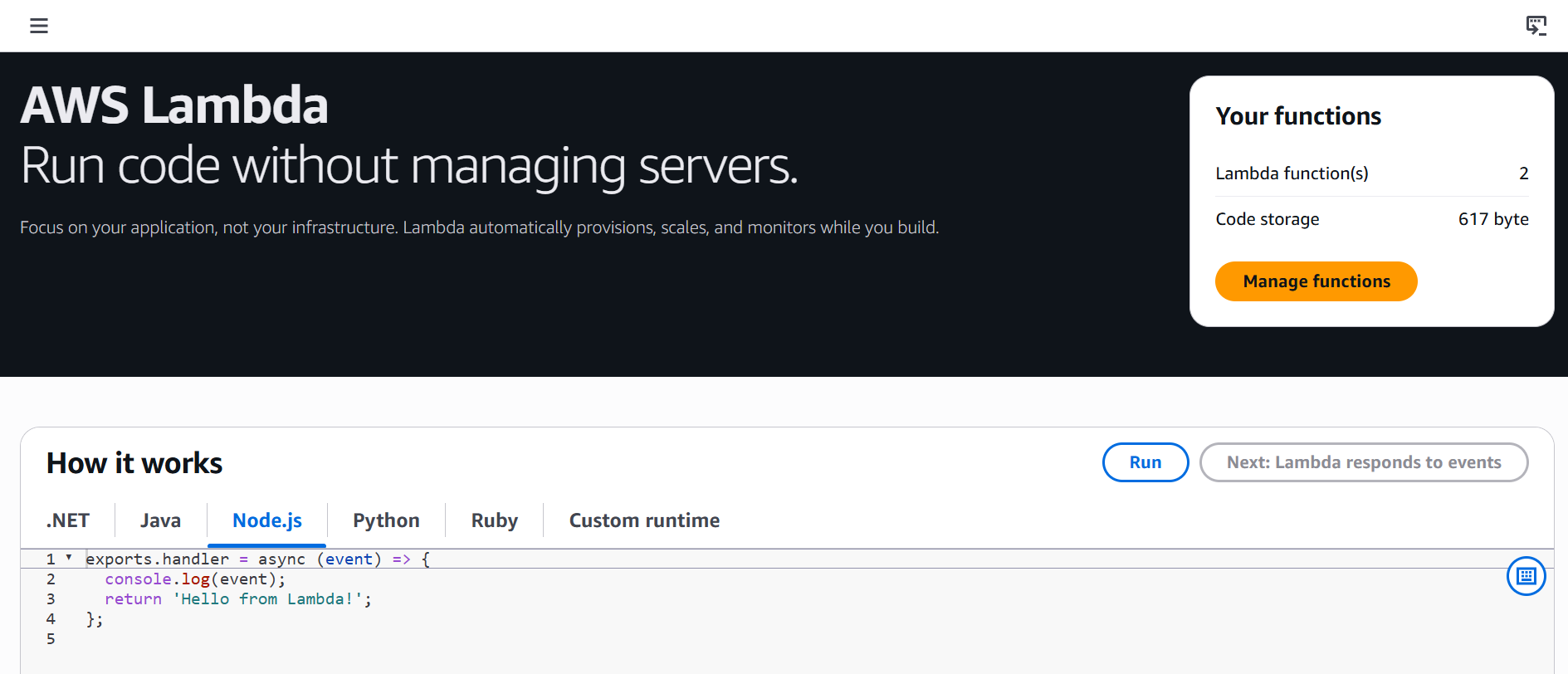
💡 Note
Depending on your AWS account, you may see a different landing page than the one shown in the course.
🔹Step 2: Explore the Interactive Demo
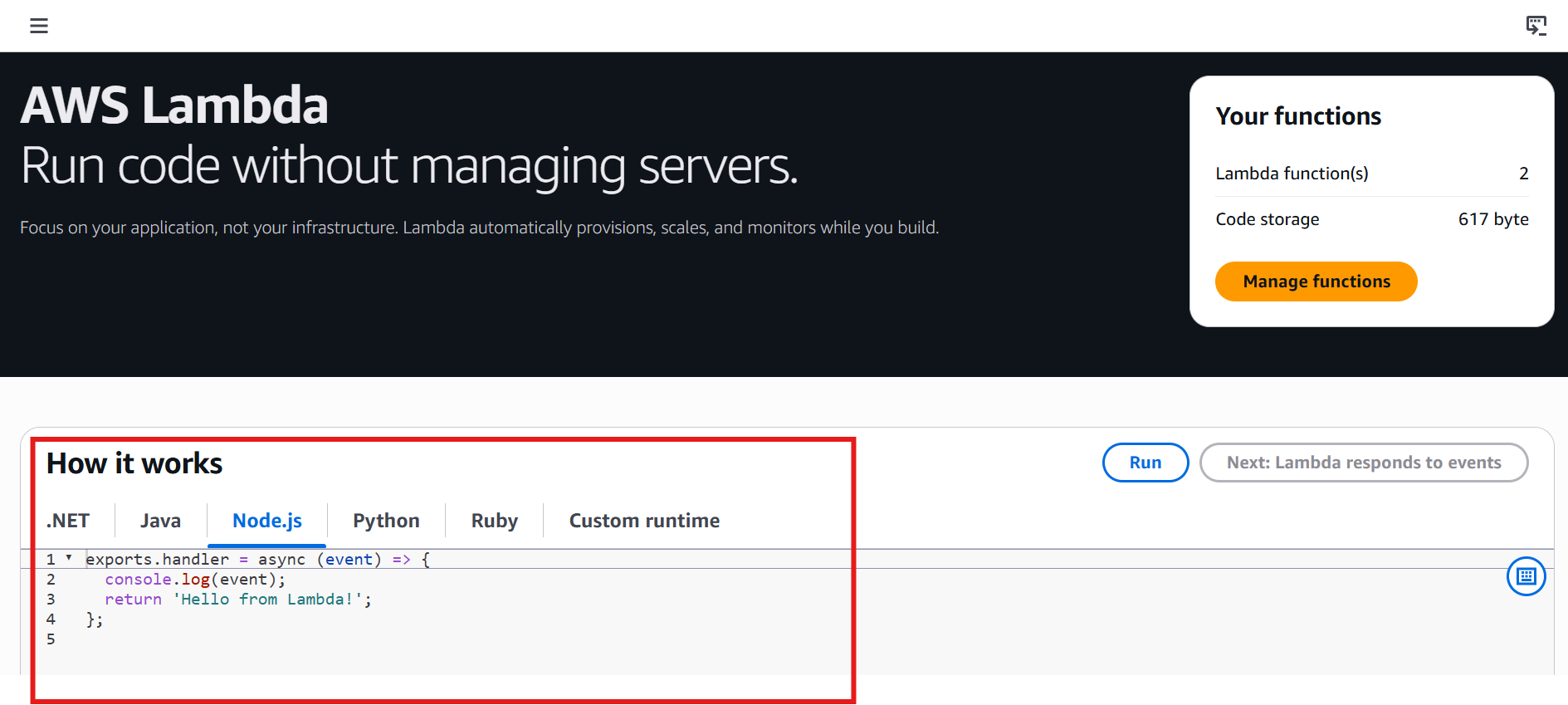
If you don't see the interactive introduction, add /begin to the end of the browser URL and press Enter — this opens AWS's interactive Lambda walkthrough.
The first screen introduces Lambda and its supported languages:
.NET
Java
Node.js
Python
Ruby
Custom Runtime
Click Run. The demo executes a simple Lambda function and returns:
Hello from Lambda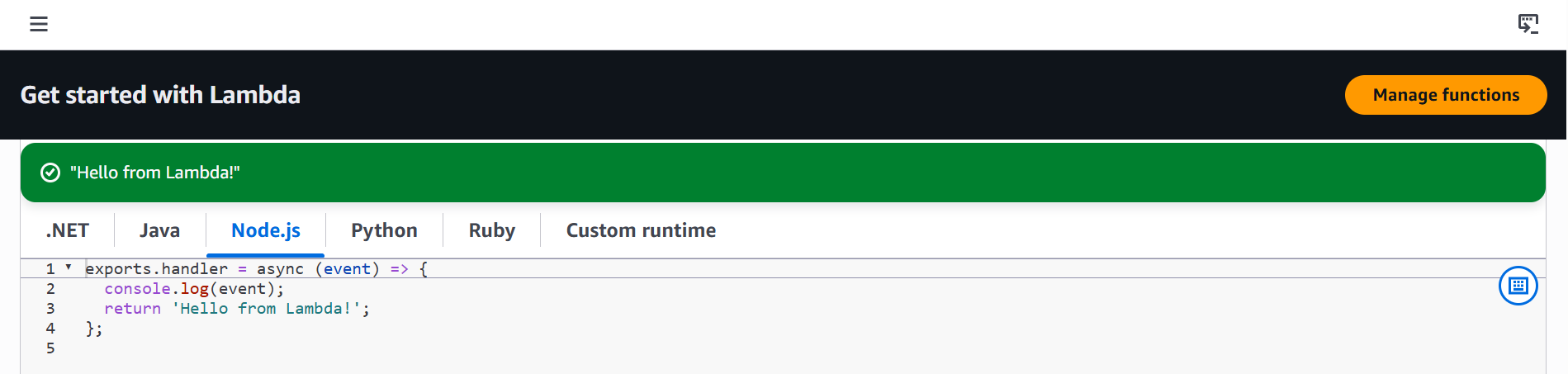
This shows Lambda running your function with zero servers to manage.
🔹Step 3: Observe Event-Driven Execution
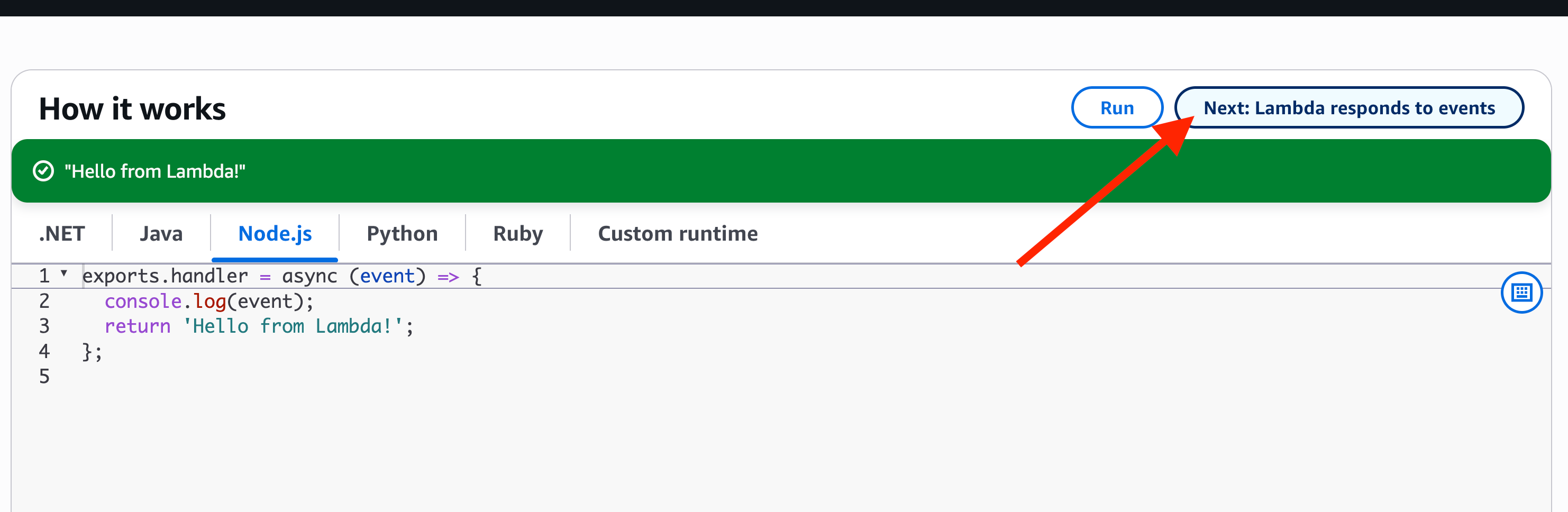
Click Lambda Responds to Events to see AWS services and devices (streaming analytics, mobile apps, IoT, cameras, S3) sending events that automatically trigger Lambda.
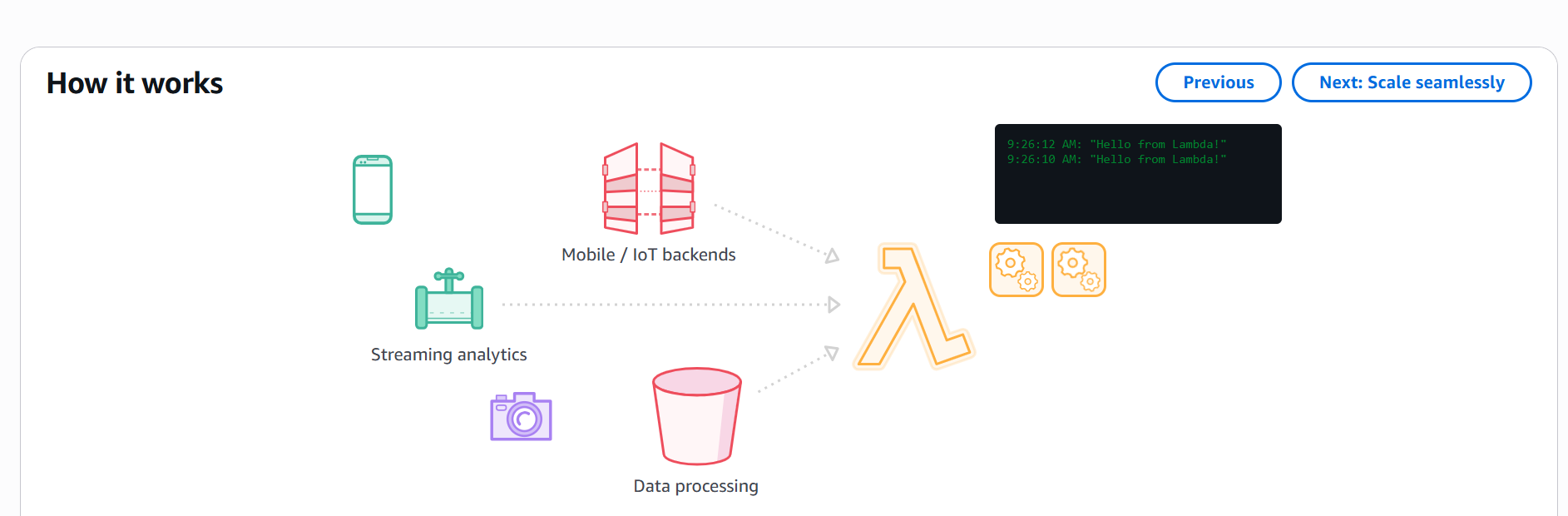
Click multiple event sources repeatedly and watch:
More Lambda execution icons appear as events increase — this is automatic scaling. Unlike EC2, you never provision servers yourself.
Usage starts in the Free Tier, then costs begin accumulating as invocations grow — this is Lambda's pay-as-you-go pricing.
🔹 Step 4: Create Your First Lambda Function
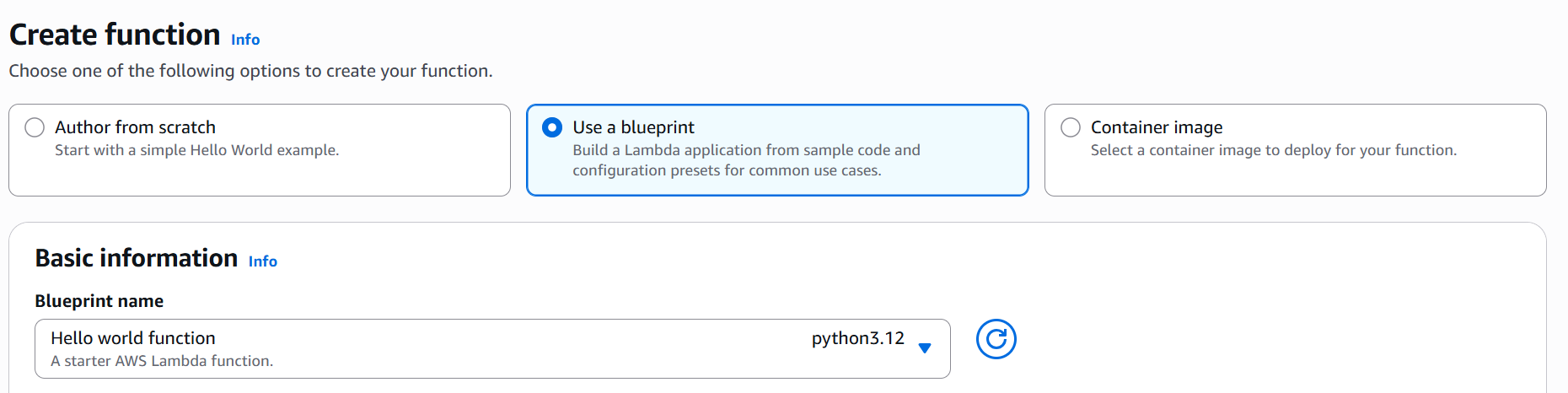
Click Create a Function → Use a Blueprint.
Search
hello worldand choose the Python Hello World blueprint.
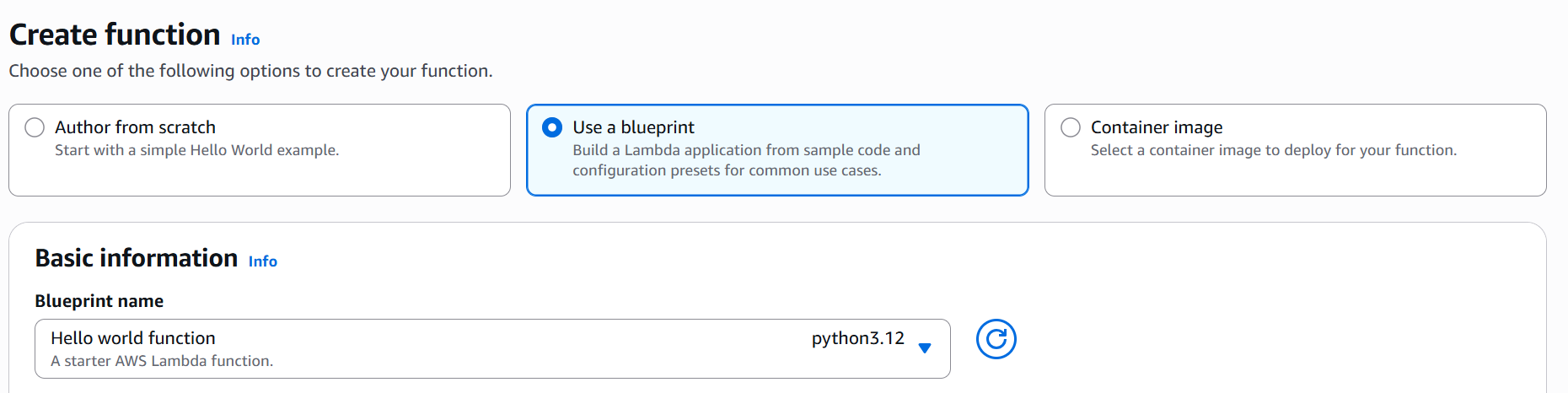
Set:
Function Name:
HelloWorldRuntime: Python (any supported version)

Under execution role, select Create default role.
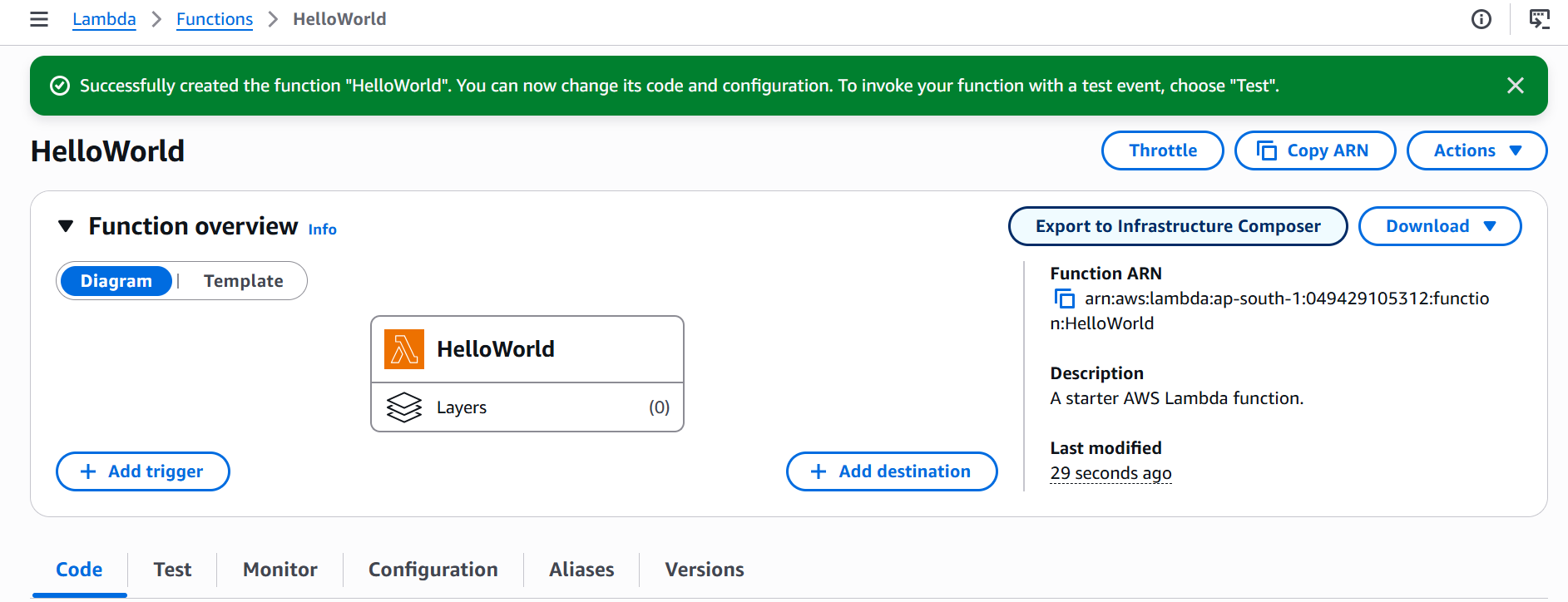
You can review your code and Click Create Function.
💡 The execution role works like an EC2 instance role — it defines what AWS resources your function can access.
AWS creates the function and opens the Lambda editor.
🔹 Step 5: Explore the Function Code
You'll now see the automatically generated Python code.
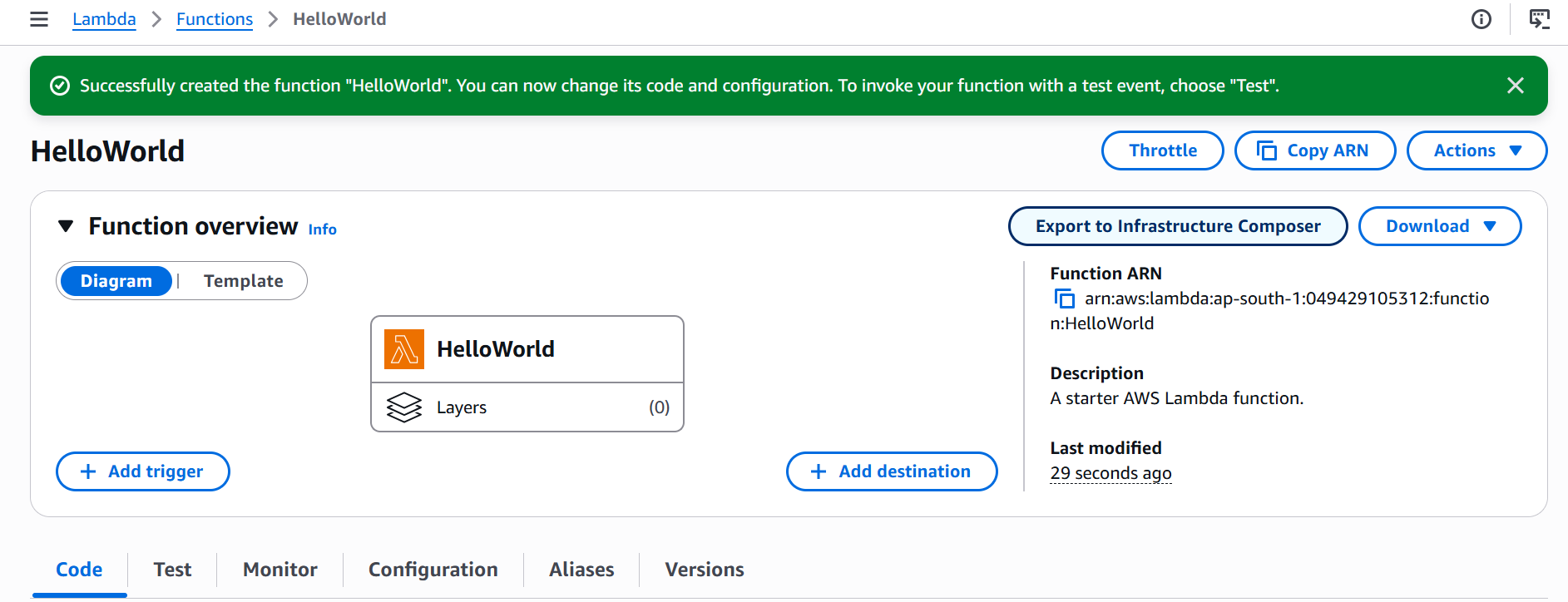
The lambda_handler function is the entry point — the code AWS runs whenever your function is invoked. You don't need to fully understand it for this intro.
import json

print('Loading function')

def lambda_handler(event, context):
    # print("Received event: " + json.dumps(event, indent=2))
    print("value1 = " + event['key1'])
    print("value2 = " + event['key2'])
    print("value3 = " + event['key3'])
    return event['key1']  # Echo back the first key value
    # raise Exception('Something went wrong')
🔹 Step 6: Test the Lambda Function
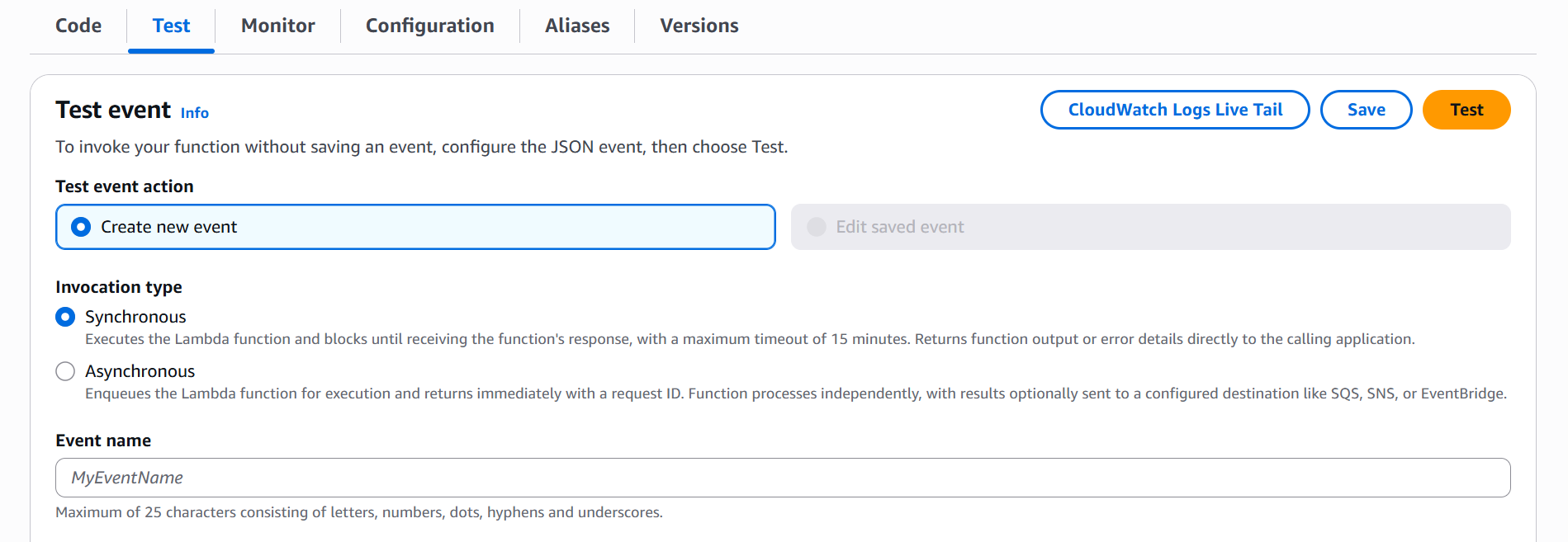
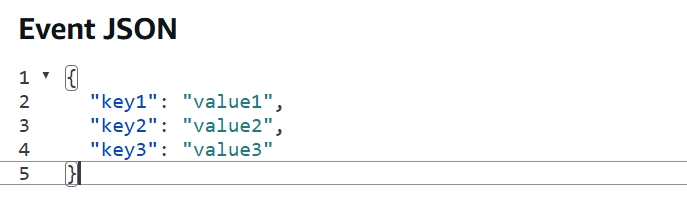
Open the Test tab. AWS provides a sample JSON event:
{
   "key1": "value1",
   "key2": "value2",
   "key3": "value3"
}
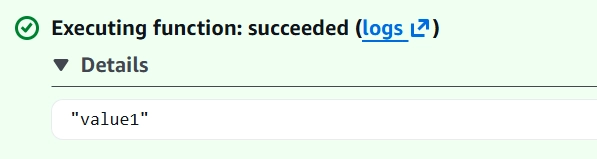
Click Test. The function returns
value1— this JSON is what gets passed into your function during execution.
If successful, you'll see a successful execution.

The function returns: value1
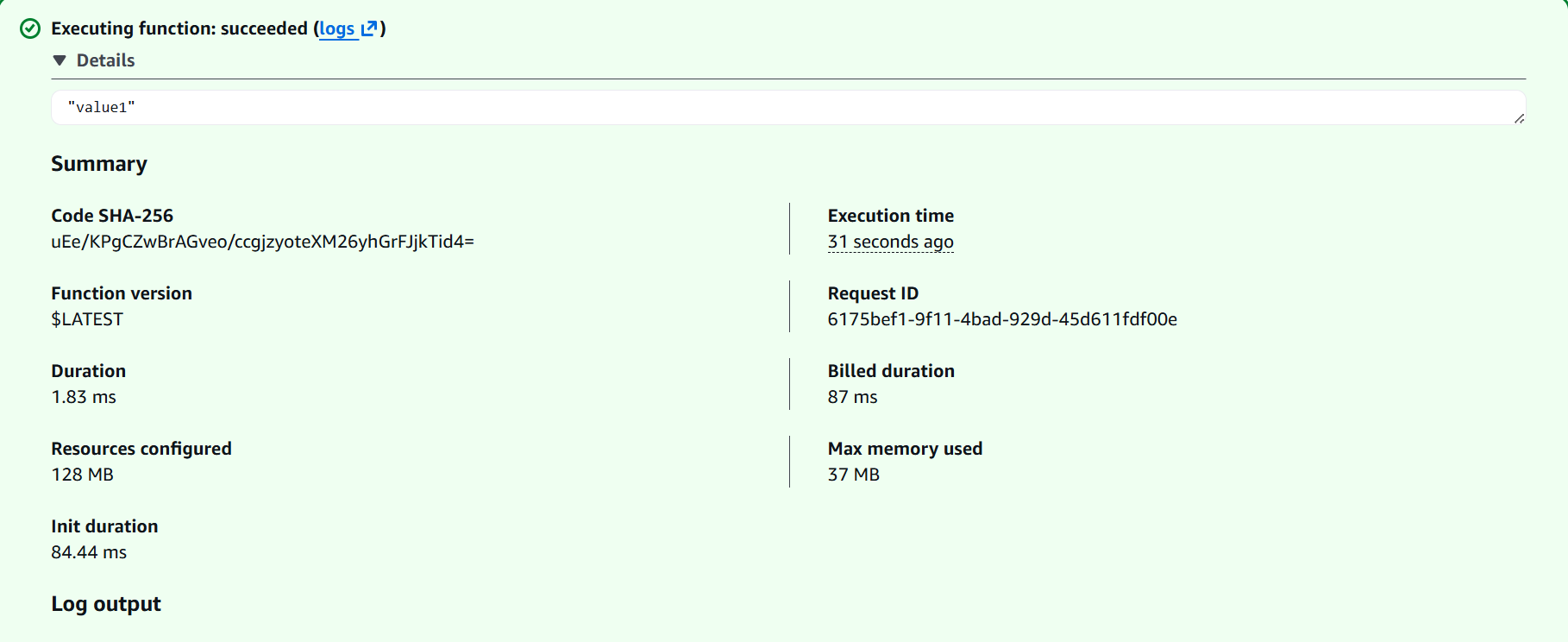
Scroll down to view the sample JSON event which is mentioned above

This JSON object is passed into your Lambda function during execution. The function reads the values and returns one of them as the output.
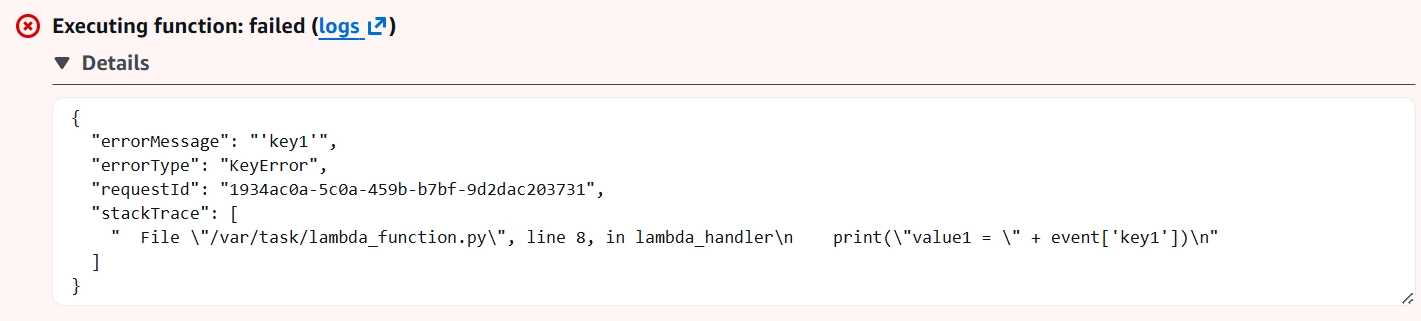
🔹 Step 7: Simulate a Failed Execution
To observe how Lambda handles errors
Remove one of the required keys from the JSON event.
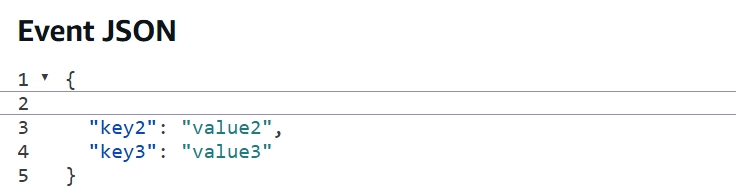
Click Test again.
This time, the function fails because the code expects that key to exist.

The function wasn't written to handle missing data.
When required input is missing, Lambda returns an error.
🔹 Step 8: Restore and Save Test Event
Revert it back to the default:
Add the missing key back into the JSON event.
Run the test again.
The function should execute successfully.
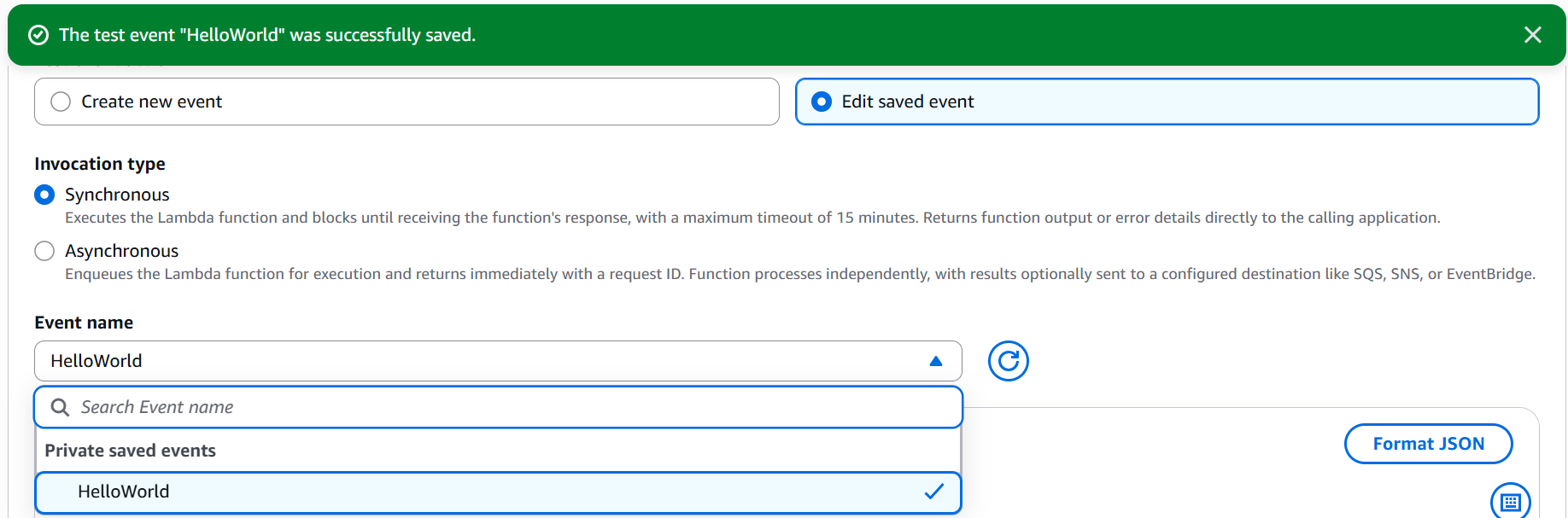
To avoid recreating the event each time:
Save the test event.
Name it:
HelloWorldClick Save.
You can now reuse this event whenever you test the function.
🔹 Step 9: Monitor the Lambda Function
Select the Monitor tab.
Here you'll find monitoring information collected by Amazon CloudWatch.
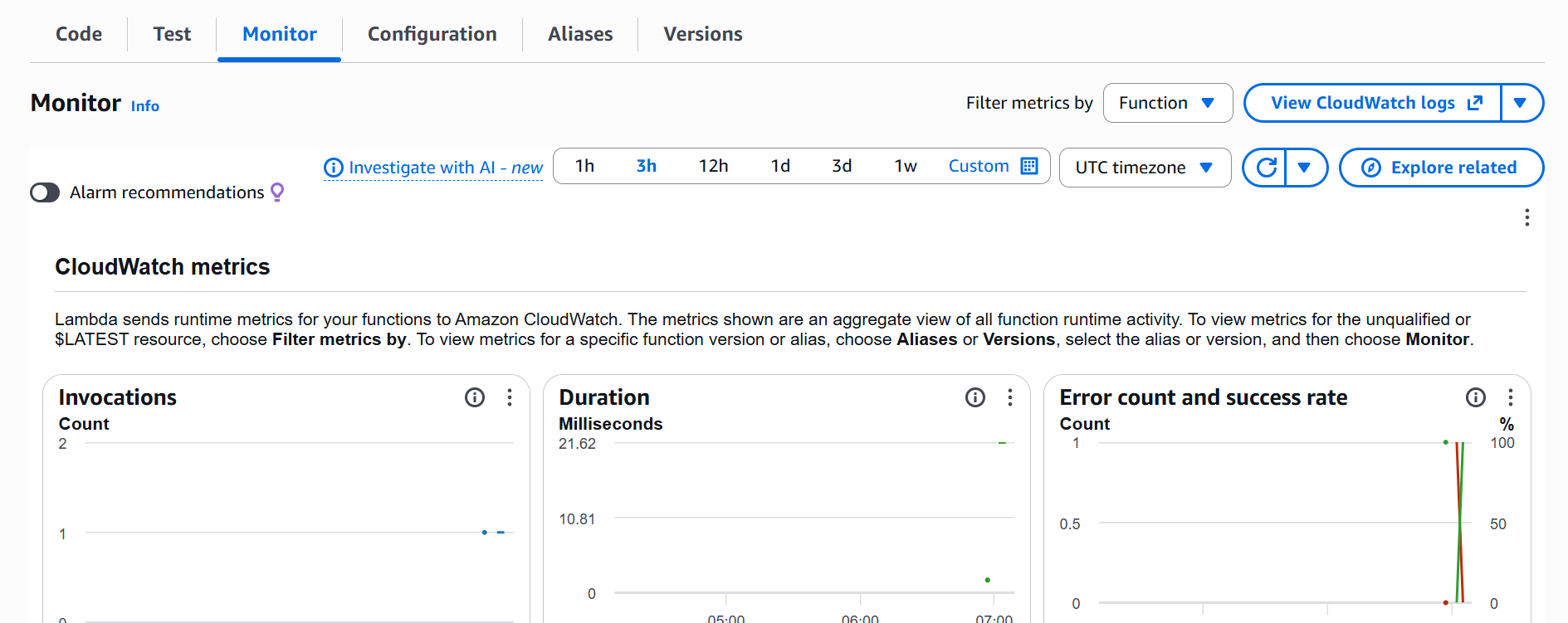
After running the function a few times, you'll begin seeing metrics such as:
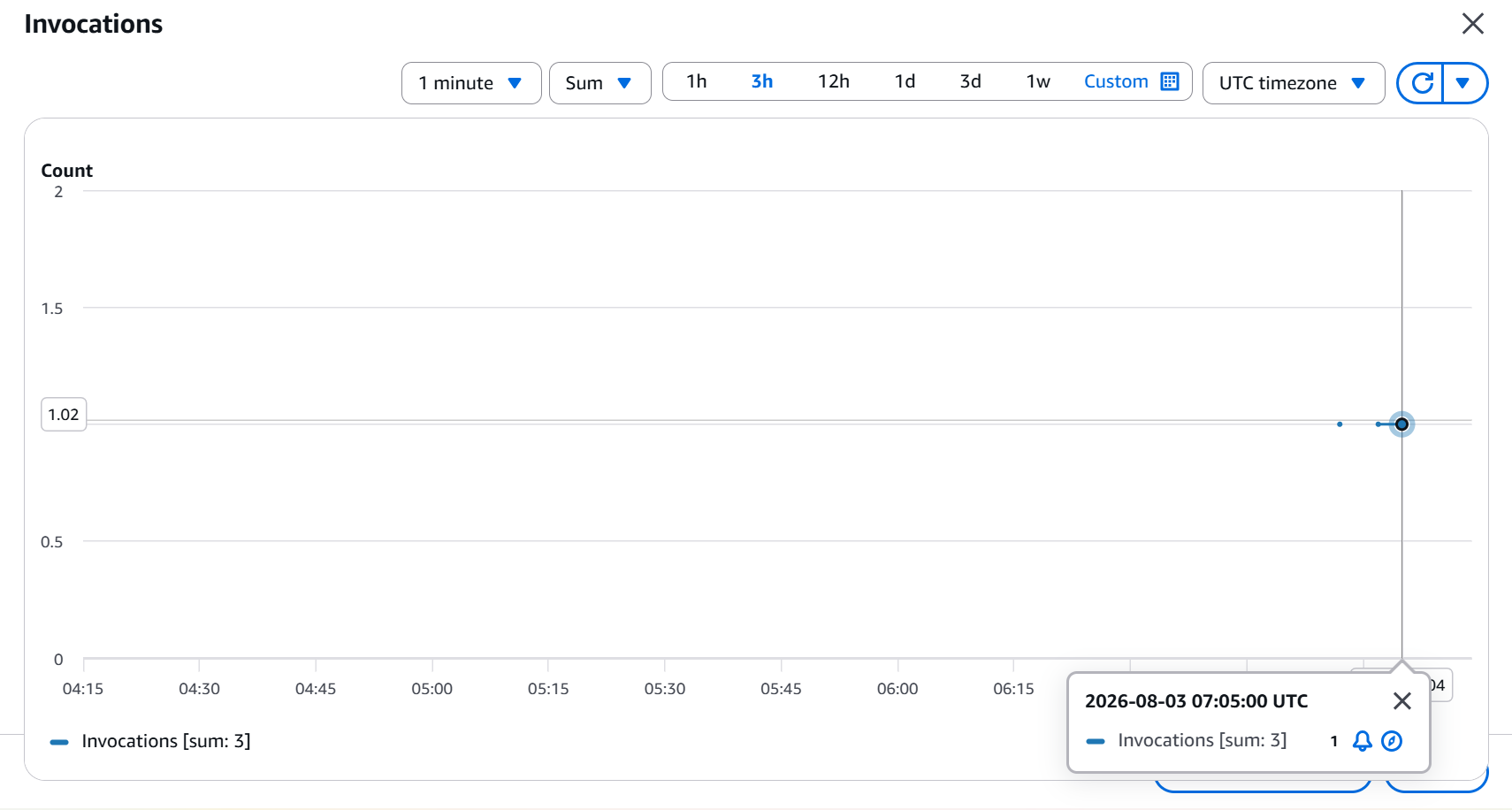
Invocations
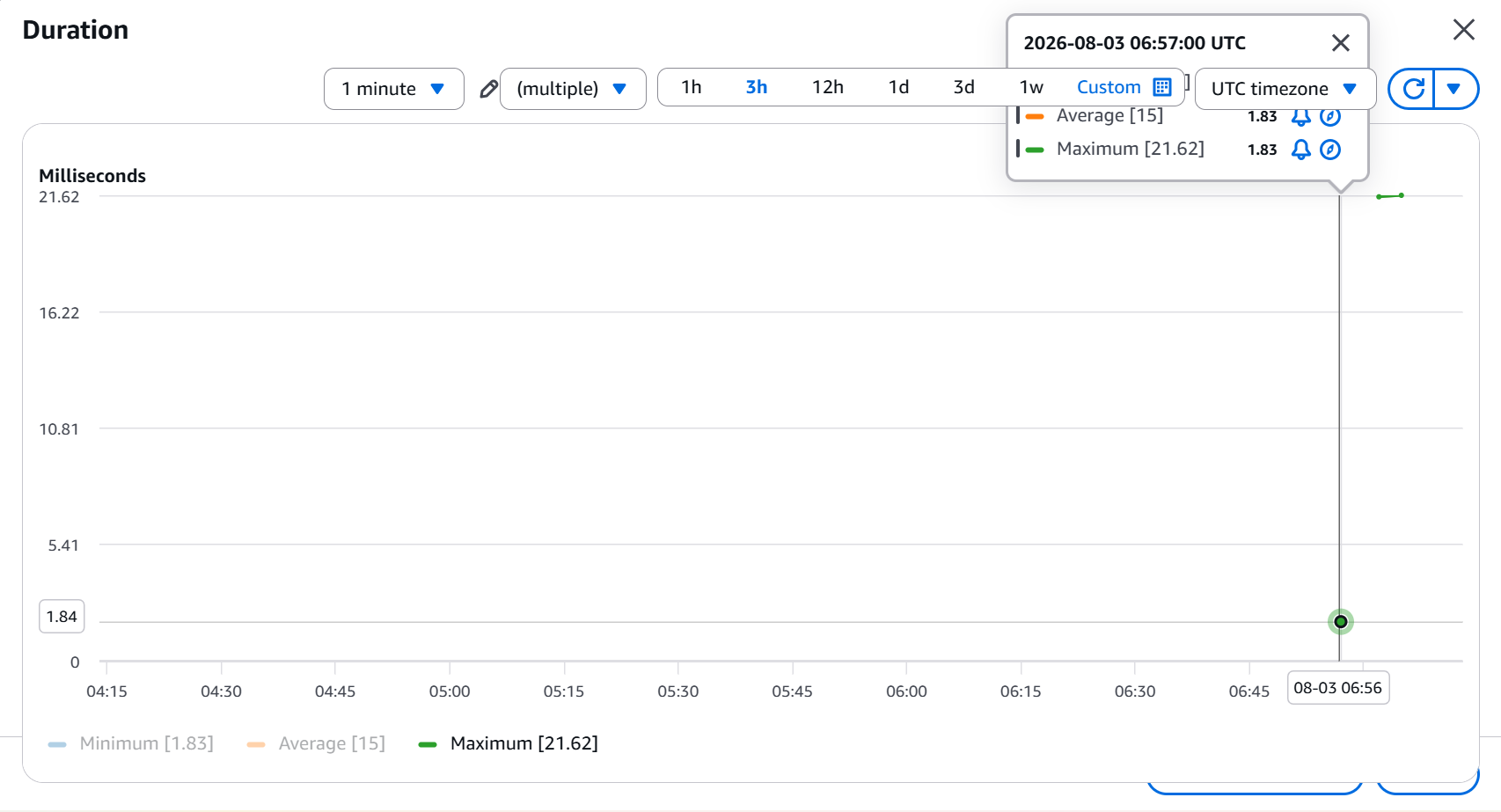
Duration
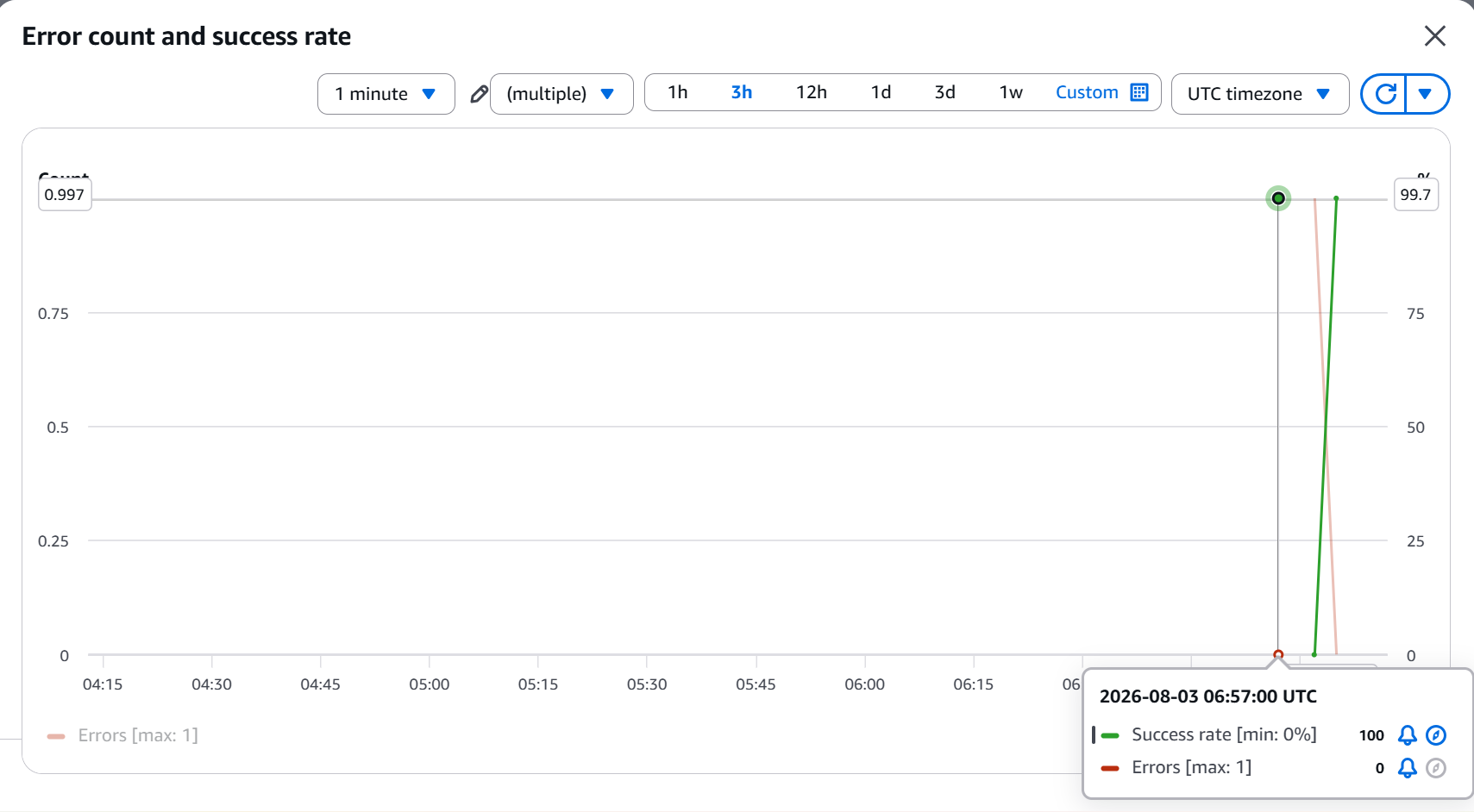
Errors
Other performance statistics
📝 Note
CloudWatch metrics may take a few minutes to appear after running the function.
🔹 Step 10: View CloudWatch Logs
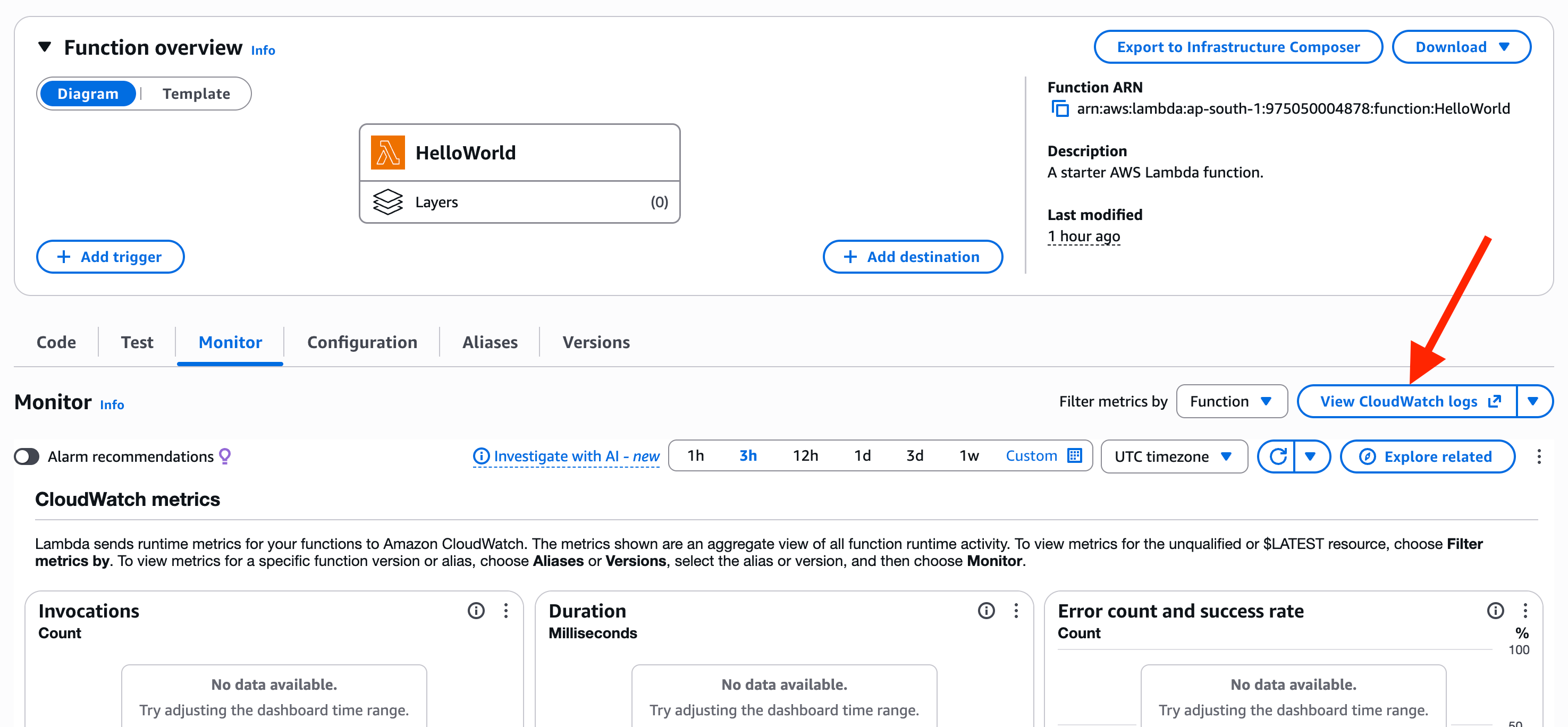
Click View CloudWatch Logs
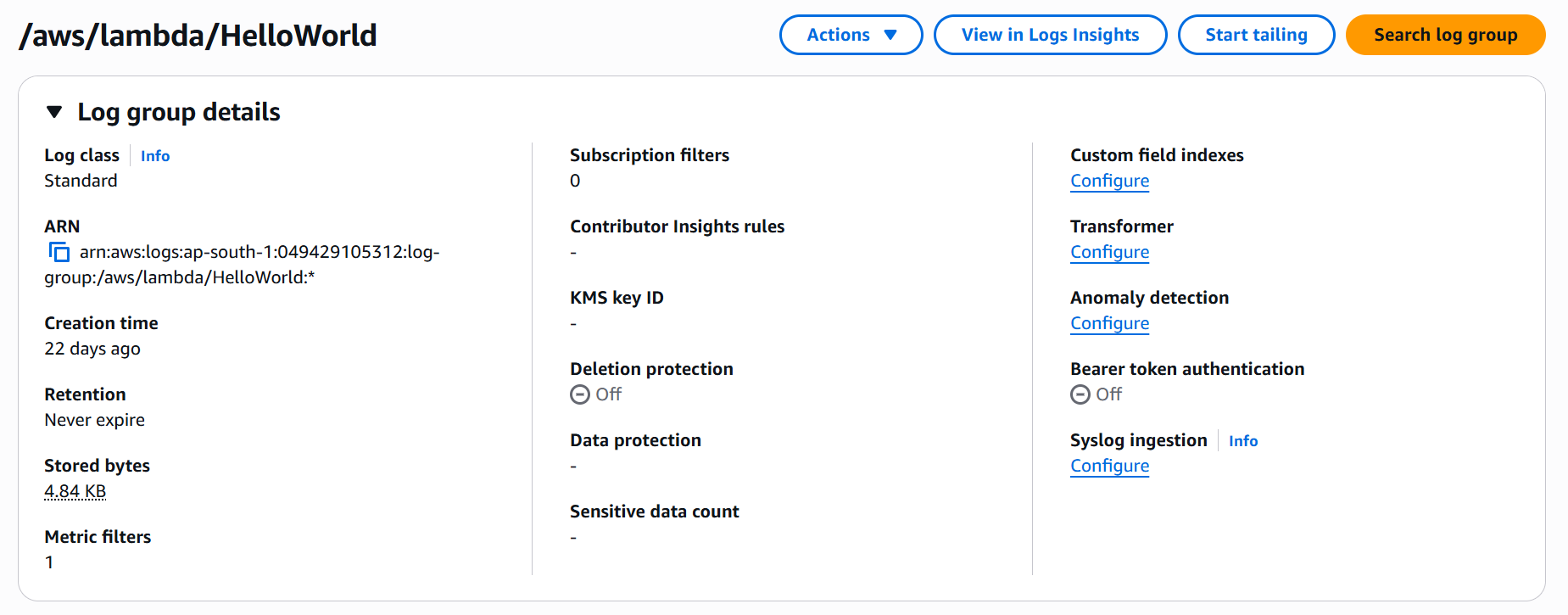
CloudWatch opens the log group associated with your Lambda function.
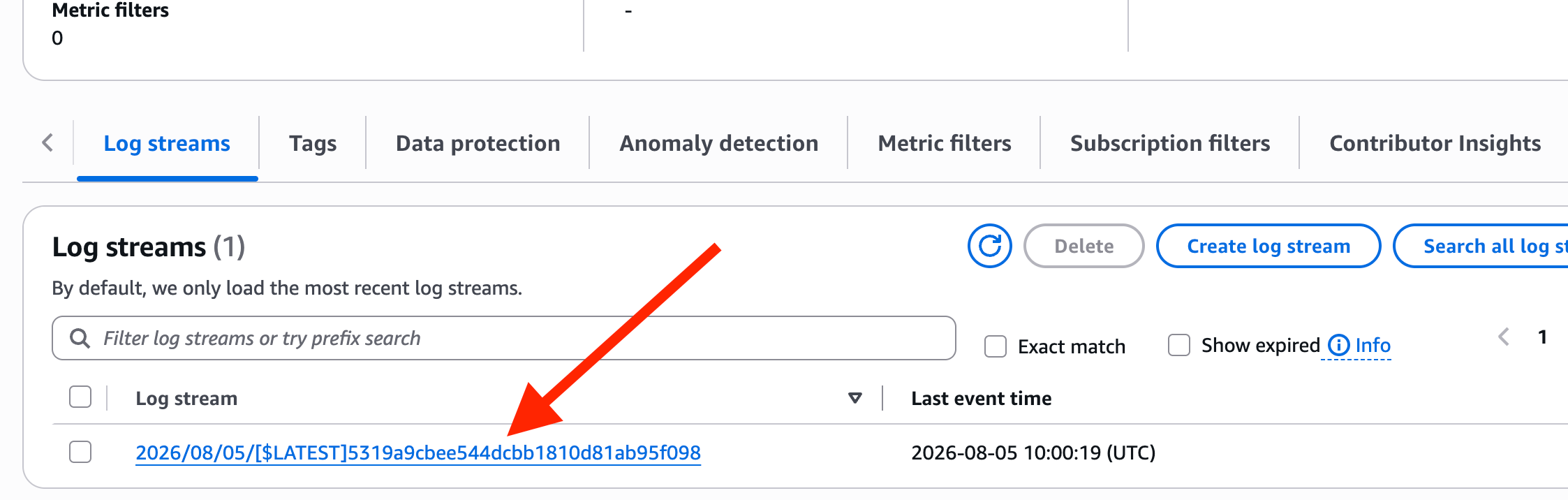
Select one of the available log streams.
You'll see:
Successful executions
Input values
Output values
Error messages
Execution details
CloudWatch Logs make it easy to troubleshoot and debug Lambda functions.
A Log Stream is a continuous sequence of log entries generated by a single AWS resource (such as an EC2 instance, Lambda function, or ECS task) within a Log Group.
🔹 Step 11: Explore Configuration & Permissions
Open the Configuration tab to see key settings: memory allocation, timeout, ephemeral storage, and execution role.
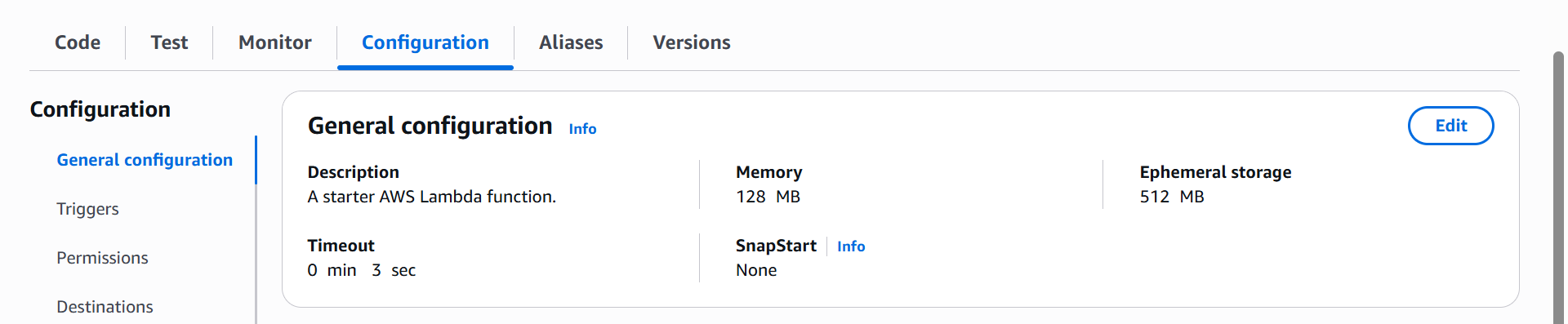
These settings determine how your Lambda function behaves during execution.
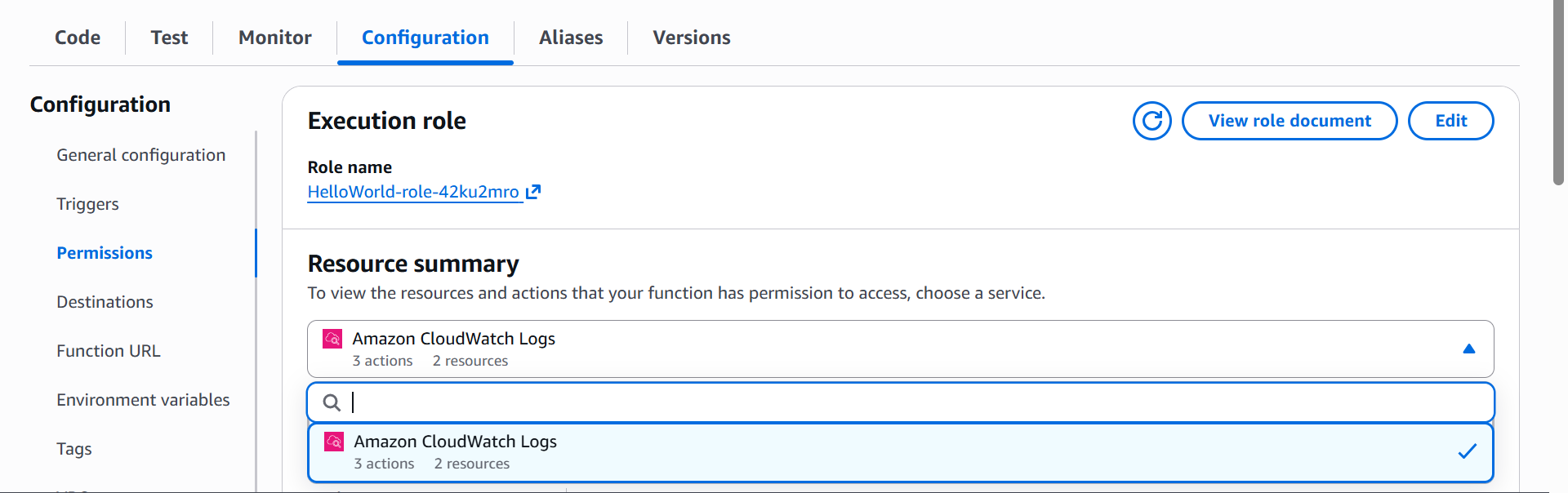
Under Permissions → Execution Role, AWS opens the IAM role tied to your function — you'll see it already grants permission to write logs to CloudWatch.
💡 Why Does Lambda Need This Role?
Without this role, Lambda couldn't interact with other AWS services. Need access to S3 or DynamoDB? Just add the permission to this role.
The Permissions tab also gives a quick summary of the role and what your function is allowed to access.
🔹 Step 12: Explore Lambda Triggers
Still within your Lambda function:
Click Add Trigger.
You'll see a long list of AWS services capable of invoking a Lambda function.
Examples include:
Amazon S3
Amazon EventBridge
API Gateway
Amazon SQS
Amazon SNS
DynamoDB
Many AWS partner integrations
If you select Amazon S3, for example, AWS will ask you to choose:
An S3 bucket.
The event type that should trigger the function.
💡 Lambda functions are event-driven — they only run when triggered by another AWS service or application.
🧹 Cleanup
To avoid unnecessary AWS charges:
Return to the AWS Lambda Console.
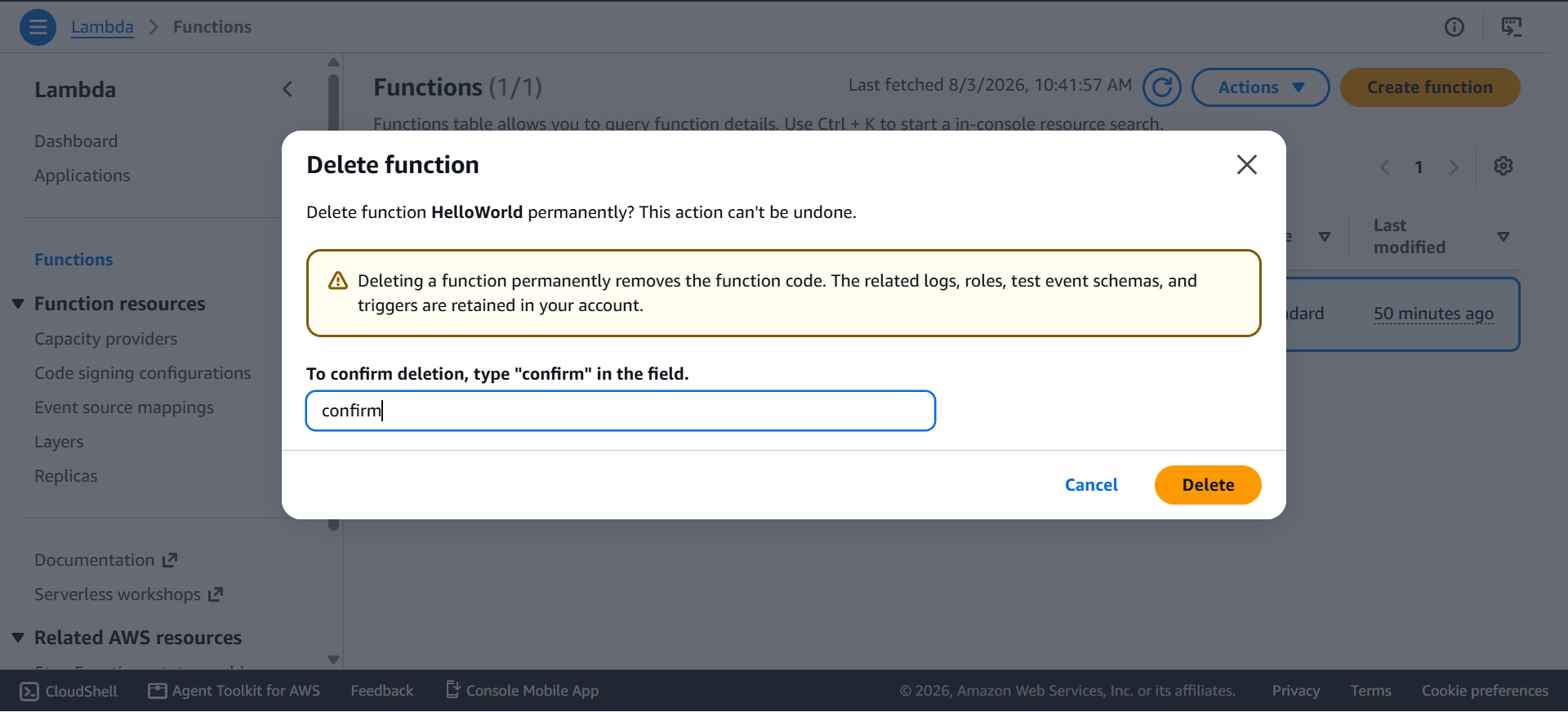
Select the HelloWorld Lambda function you created.
Click Delete.
Confirm the deletion when prompted.
If you created any additional resources during your own testing (such as S3 buckets or EventBridge rules), delete those resources as well if they are no longer needed.
✅ Hands-On Summary
You:
Explored the Lambda interactive demo — events, auto-scaling, and pricing
Created, tested, and debugged your first Lambda function
Saved a reusable test event
Viewed CloudWatch metrics and logs
Explored configuration, the execution role, and IAM permissions
Explored the services that can trigger Lambda functions
You now understand how Lambda functions are created, tested, monitored, and secured — and how they fit into AWS's serverless, event-driven architecture.