In this section, we’re going to talk about an alternative to using your local terminal to run commands against AWS.
And this alternative is called CloudShell.
📍 Locating CloudShell
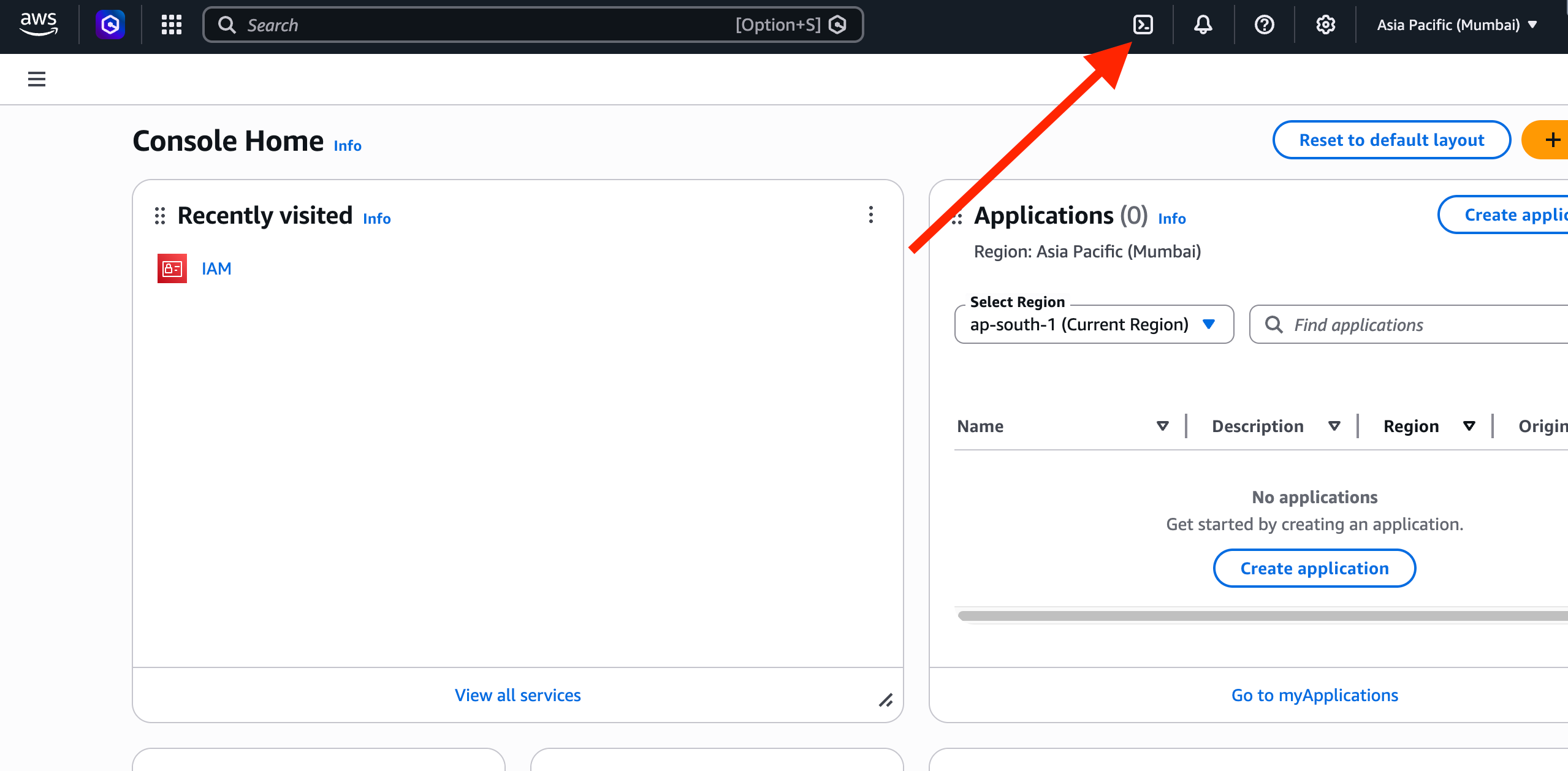
First, let’s locate CloudShell in the AWS console.
You’ll find it in the top-right corner of your screen
It appears as the CloudShell icon
⚠️ If you don’t see it:
❌ CloudShell isn't available in every region, so switch to one that supports it if you want to follow along that way — but using your local terminal instead works just as well.
🚀 Launching CloudShell
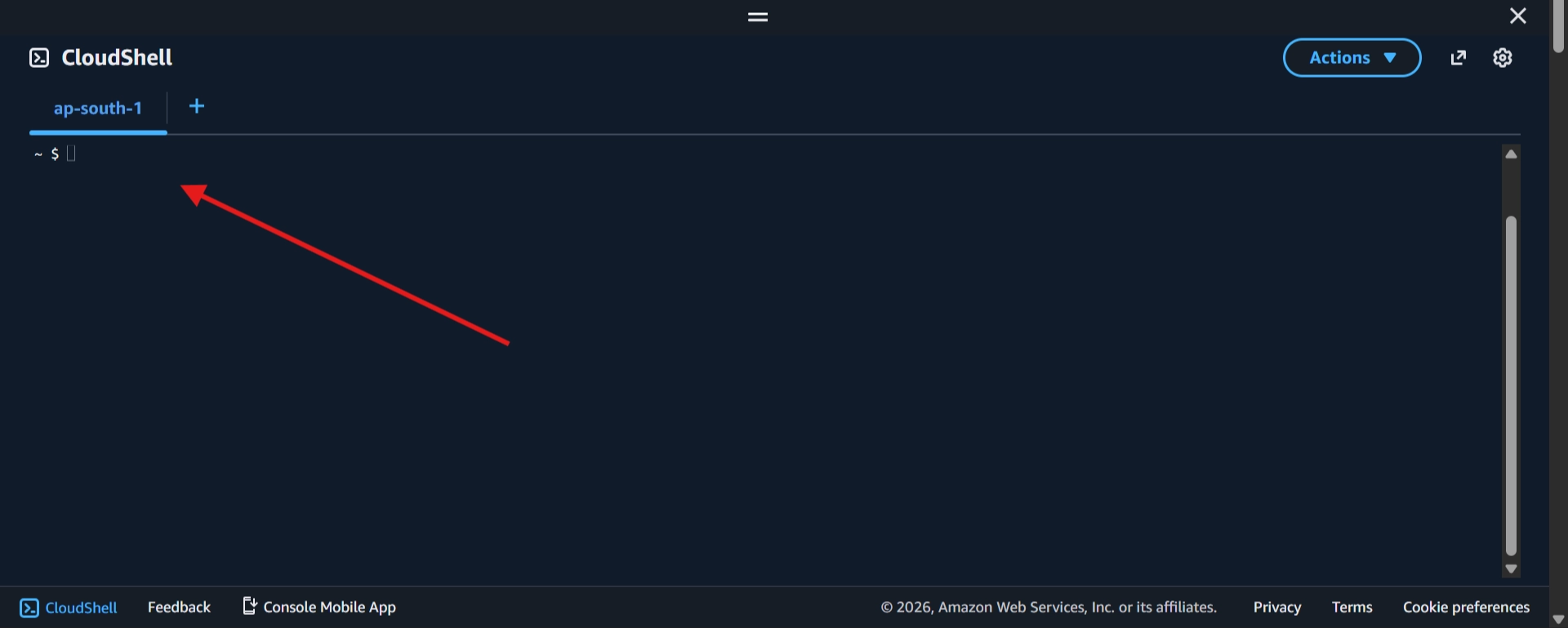
Now, go ahead and launch CloudShell.
It may take a few seconds to initialize your environment
Once ready, you’ll have a fully functional terminal in your browser.
⚙️ Running Commands in CloudShell
✅ Inside CloudShell, you can run AWS CLI commands directly.
🔹 Example: Check AWS CLI Version
aws --version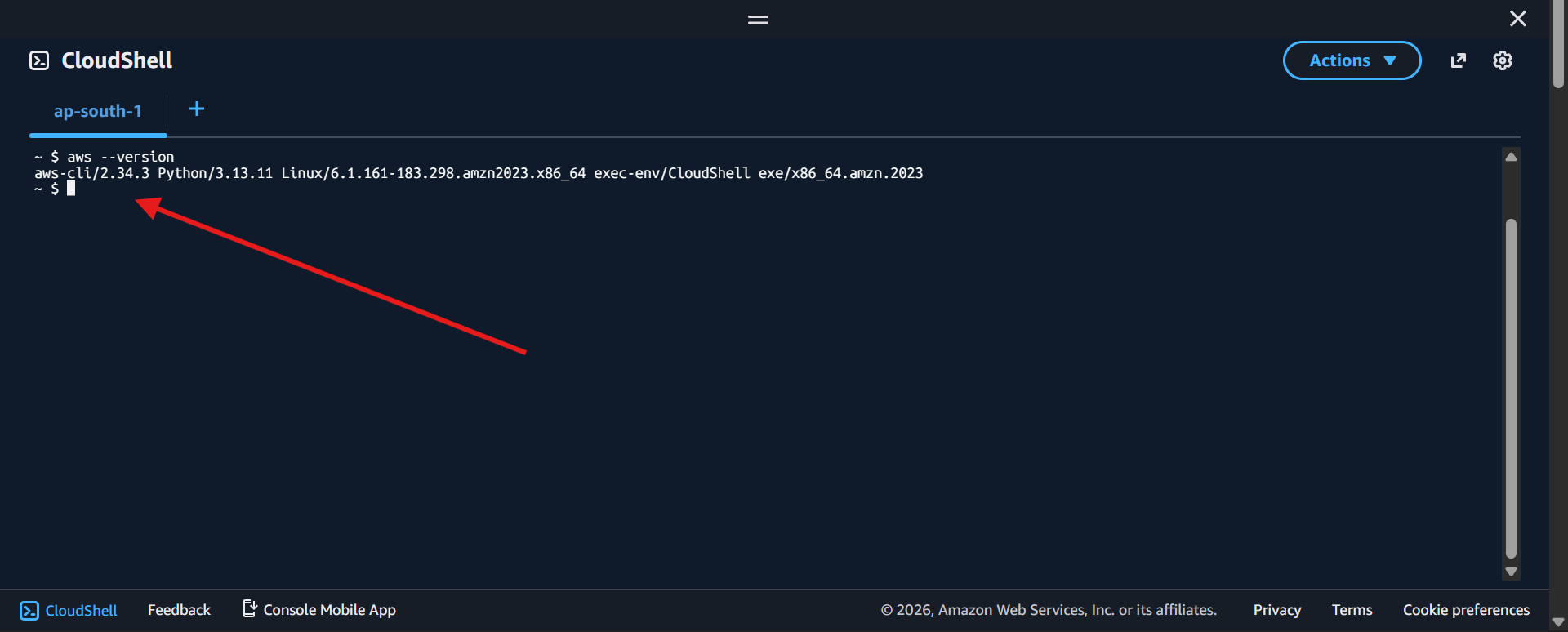
🔹 Example: Run an AWS Command
aws iam list-users✅ This works immediately because:
CloudShell automatically uses the credentials of your logged-in AWS account
No manual configuration is needed
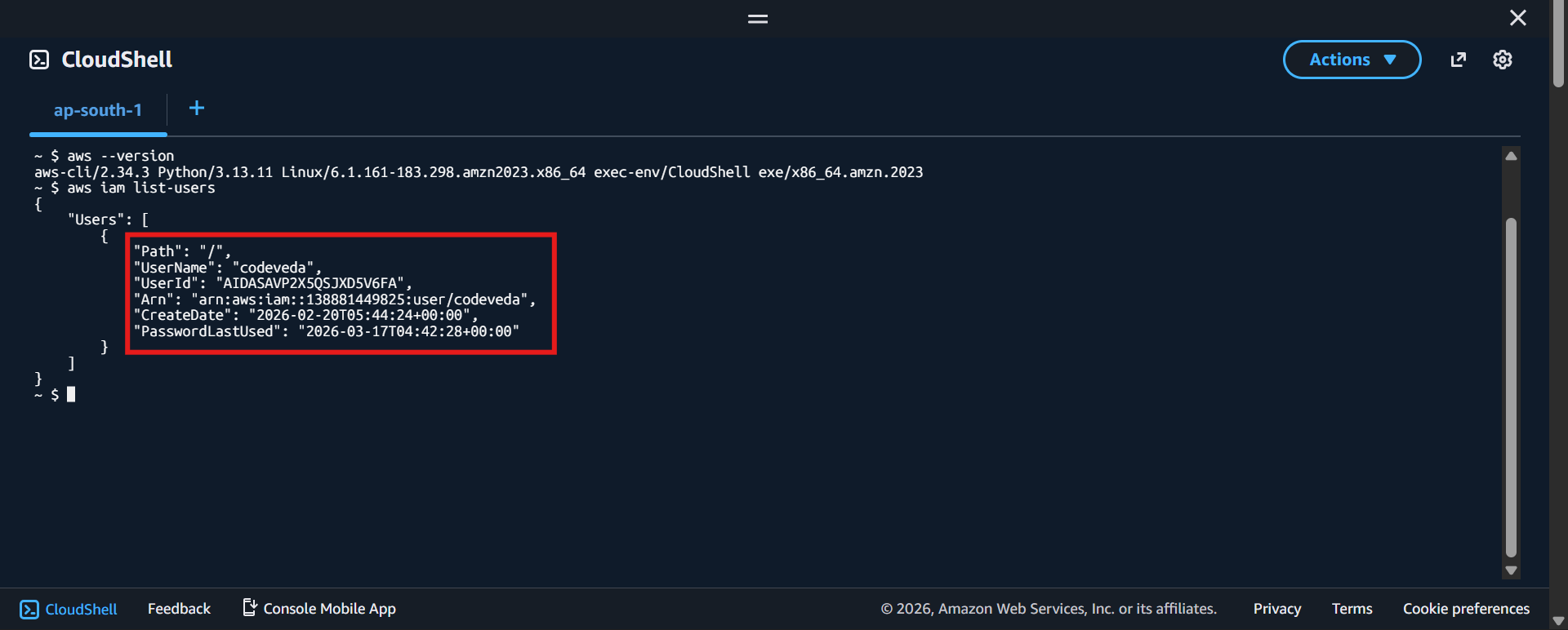
CloudShell runs commands using your current AWS account credentials automatically, so everything just works — no setup needed.
🌍 Default Region Behavior
By default:
CloudShell uses the region you are currently logged into
👉 This means:
All your commands will run in that region unless specified otherwise
📁 Working with Files (Persistence)
Now let’s create a simple file.
echo "test" > demo.txtThis will:
Create a file called
demo.txtStore the text
testinside it
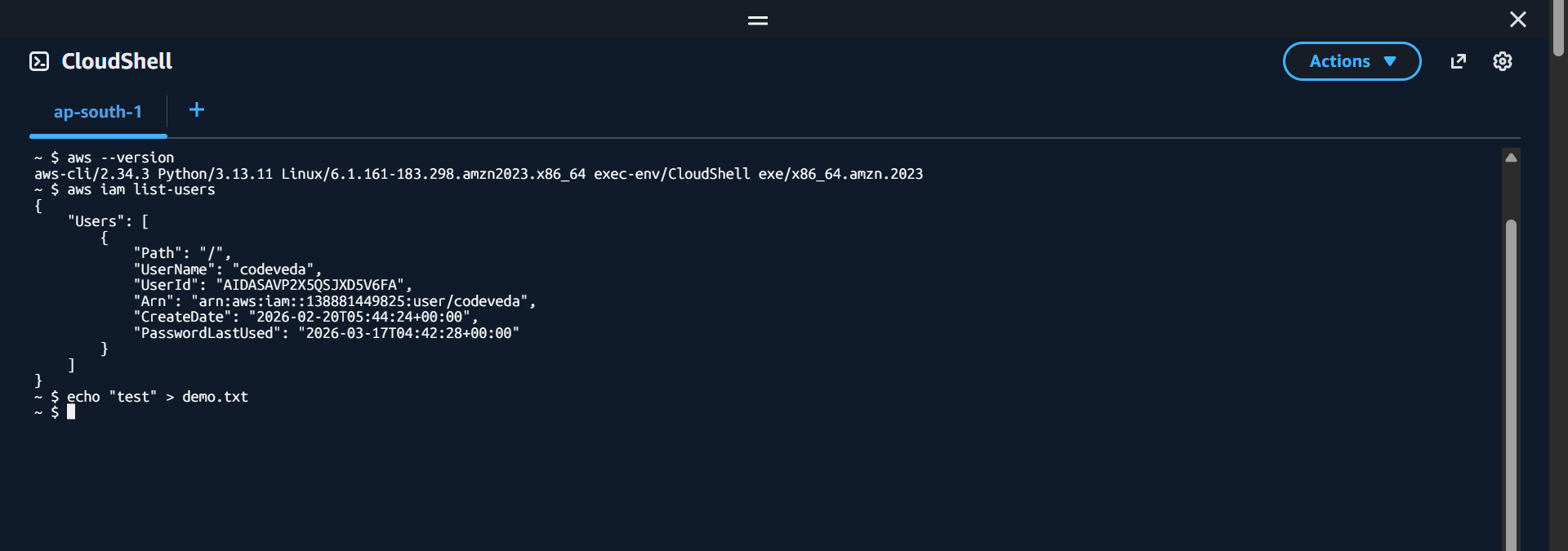
💡 Important:
Even if you restart CloudShell
The file will still be there
✅ CloudShell provides persistent storage
📥 Uploading & Downloading Files
CloudShell also allows you to manage files easily:
📥 Download files to your local machine
📤 Upload files into CloudShell
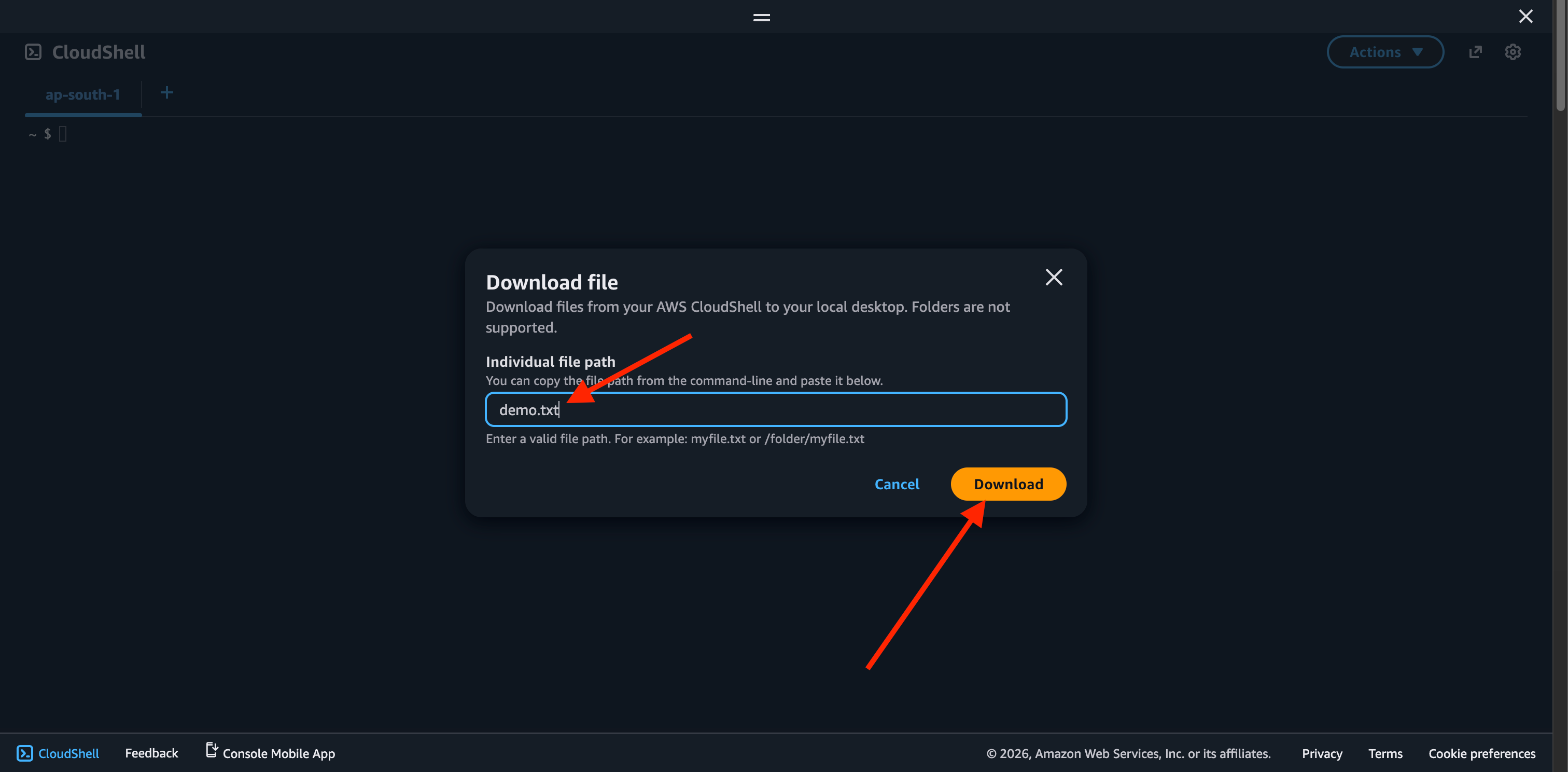
Download File
You can download
demo.txtdirectly from the interface
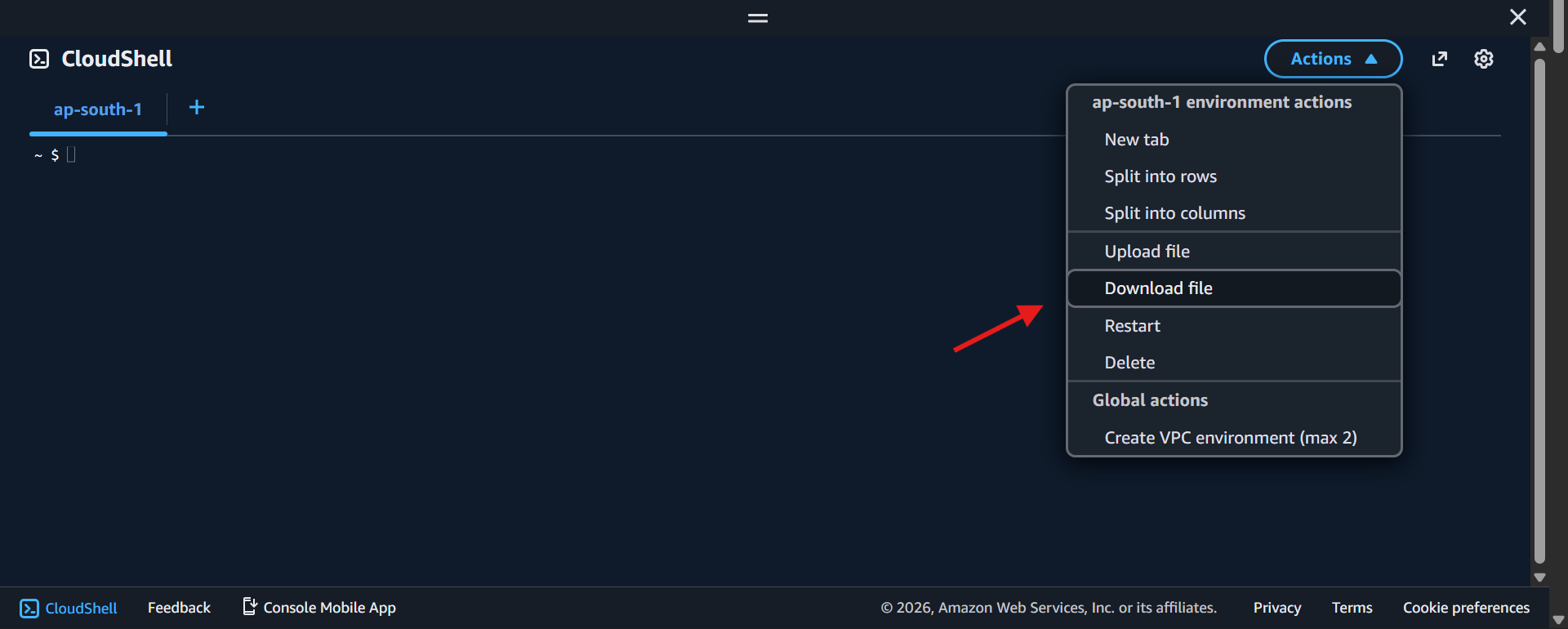
Download with Filepath
use
pwdto know the path
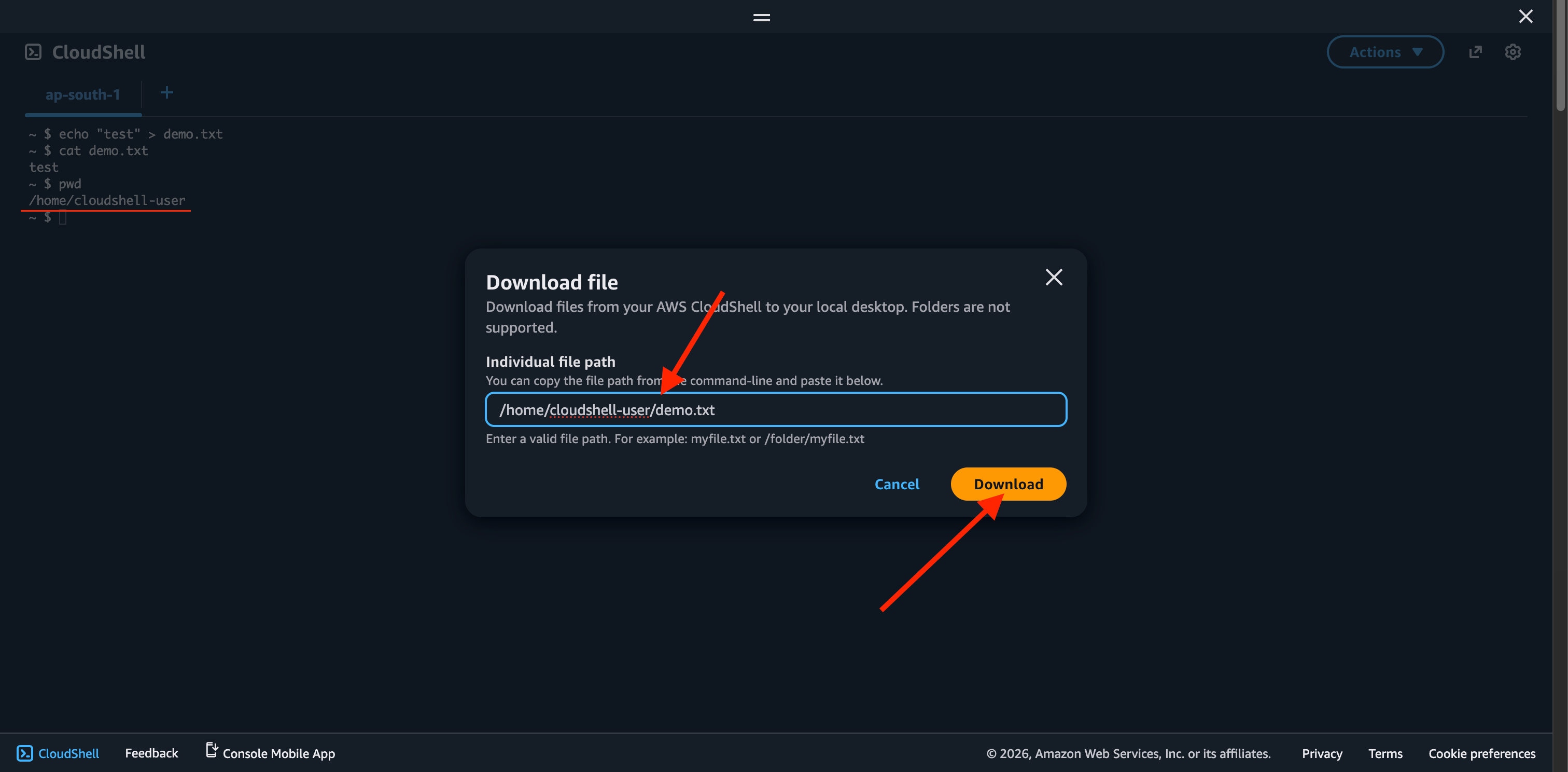
Download with filename only
🎨 Customizing CloudShell
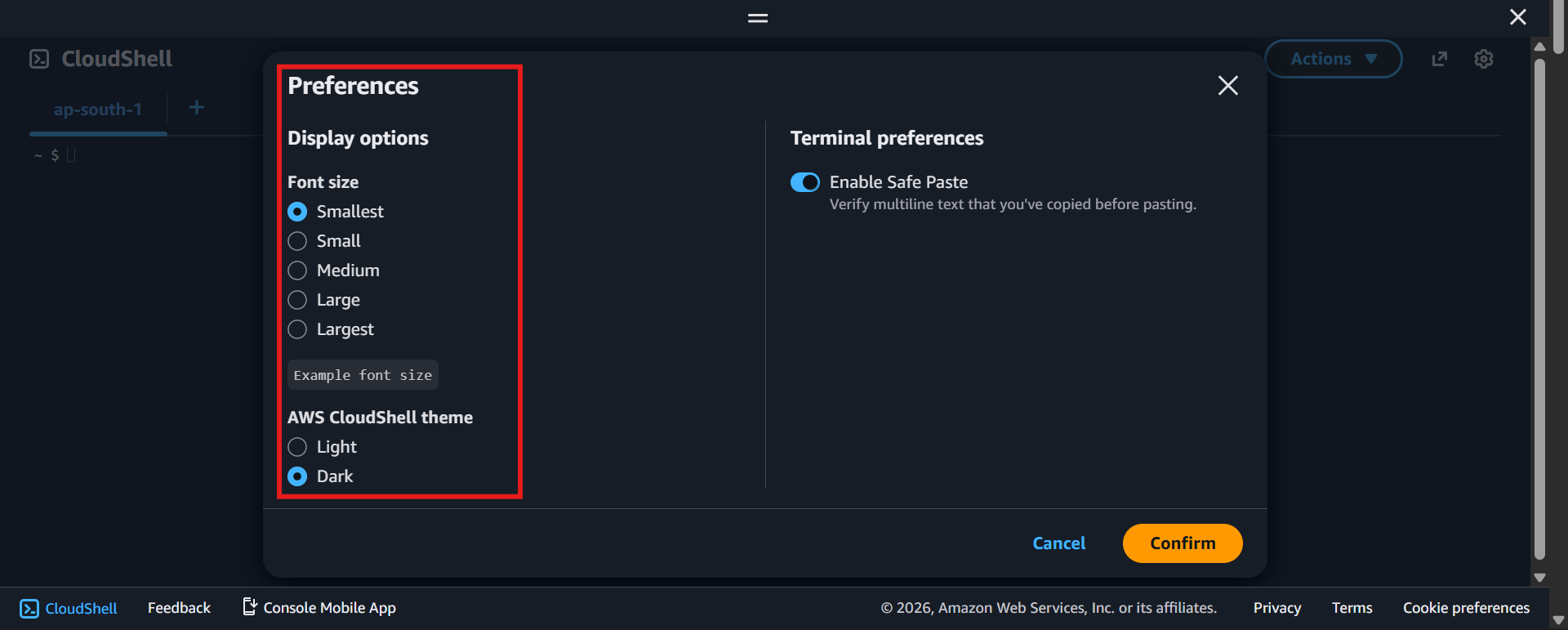
You can configure your environment based on your preferences:
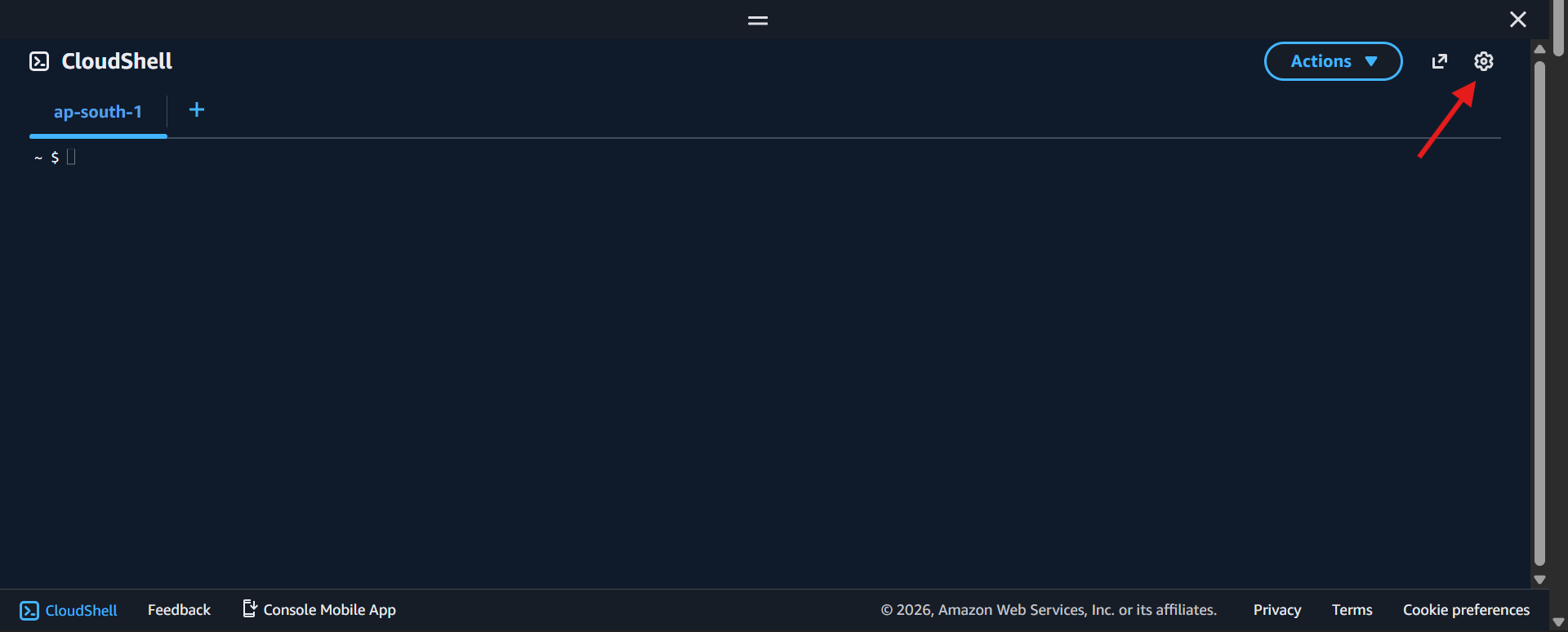
Change font size (small, medium, large)
Switch between light and dark themes
Resize the terminal
💡 This helps improve your workflow and readability
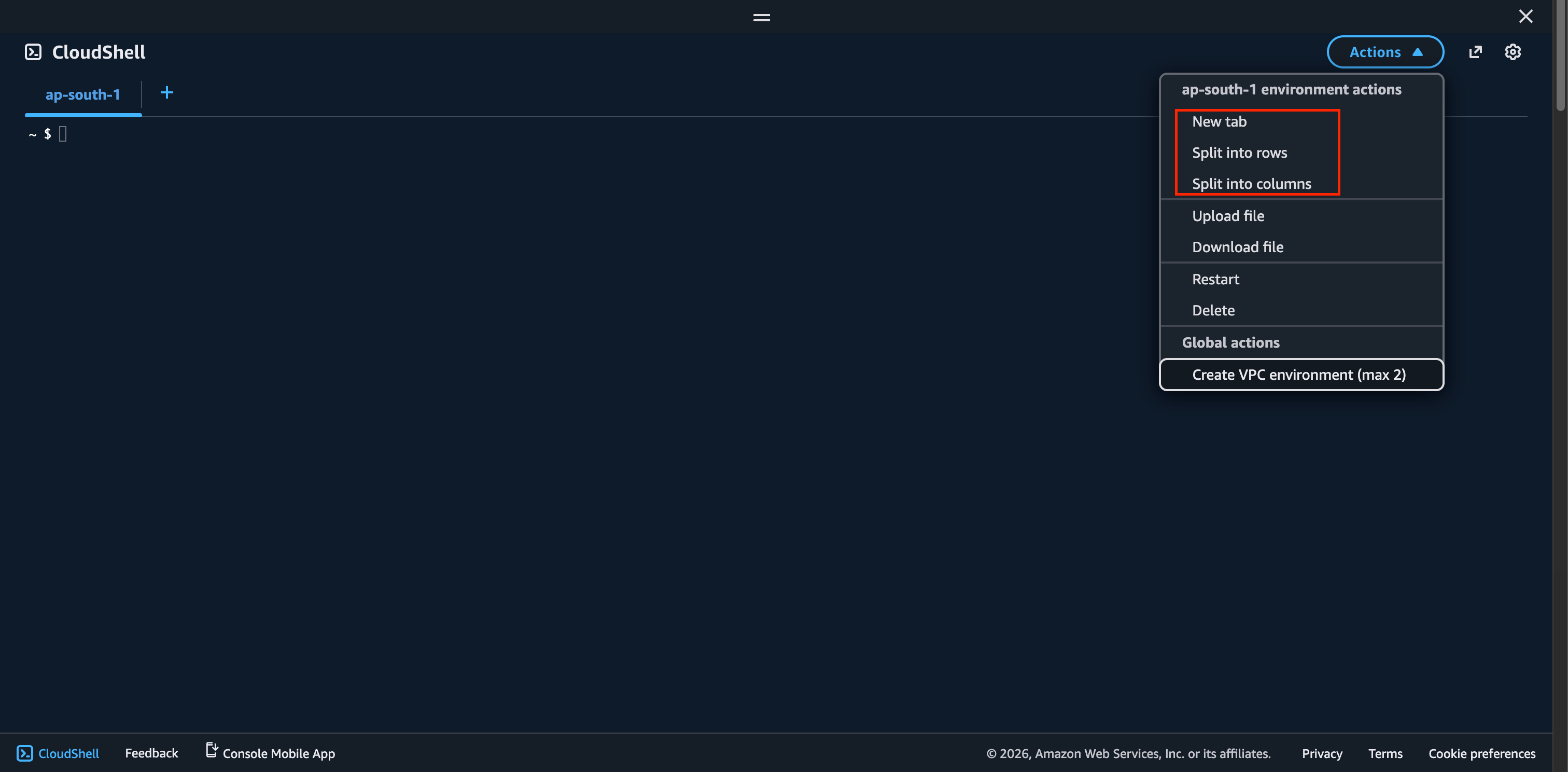
🖥️ Using Multiple Tabs & Split Views
CloudShell supports advanced usage:
Open multiple tabs
Split the terminal into columns
👉 This allows you to:
Run multiple commands at the same time
Work more efficiently