Using IAM Roles with EC2 Instances
IAM roles allow your EC2 instances to access AWS services securely without embedding credentials on the instance. This is the recommended method instead of using aws configure with Access Keys.
🤝 Connect to Your EC2 Instance
Options:
SSH from your terminal (Linux, macOS, Windows)
EC2 Instance Connect (browser-based, easier for this course)
Example: Using EC2 Instance Connect, you will see something like:
ec2-user@<private-ip>Note: Regardless of connection method, you are at the same stage and can run Linux commands like:
ping google.com
clear
🧐 Checking AWS CLI
Amazon Linux 2 comes with the AWS CLI pre-installed.

Example: Run a command to check IAM users:
aws iam list-usersProblem: You may see:
Unable to locate credentials
🤫 Why Not Use aws configure on EC2?
You could run aws configure and enter an Access Key ID, Secret Access Key, and Region.

But this is a bad practice:
Anyone with access to your EC2 instance (via SSH or EC2 Instance Connect) could retrieve these credentials.
This exposes your AWS account to security risks.
Rule of Thumb👍 : Never put IAM credentials directly on an EC2 instance.
✅ Using IAM Roles
Step 1:
Create an IAM role in the AWS Management Console (if not already done).
Example:
DemoRoleForEC2with the policy IAMReadOnlyAccess.
(which we created in earlier chapters IAM Role)
Step 2:
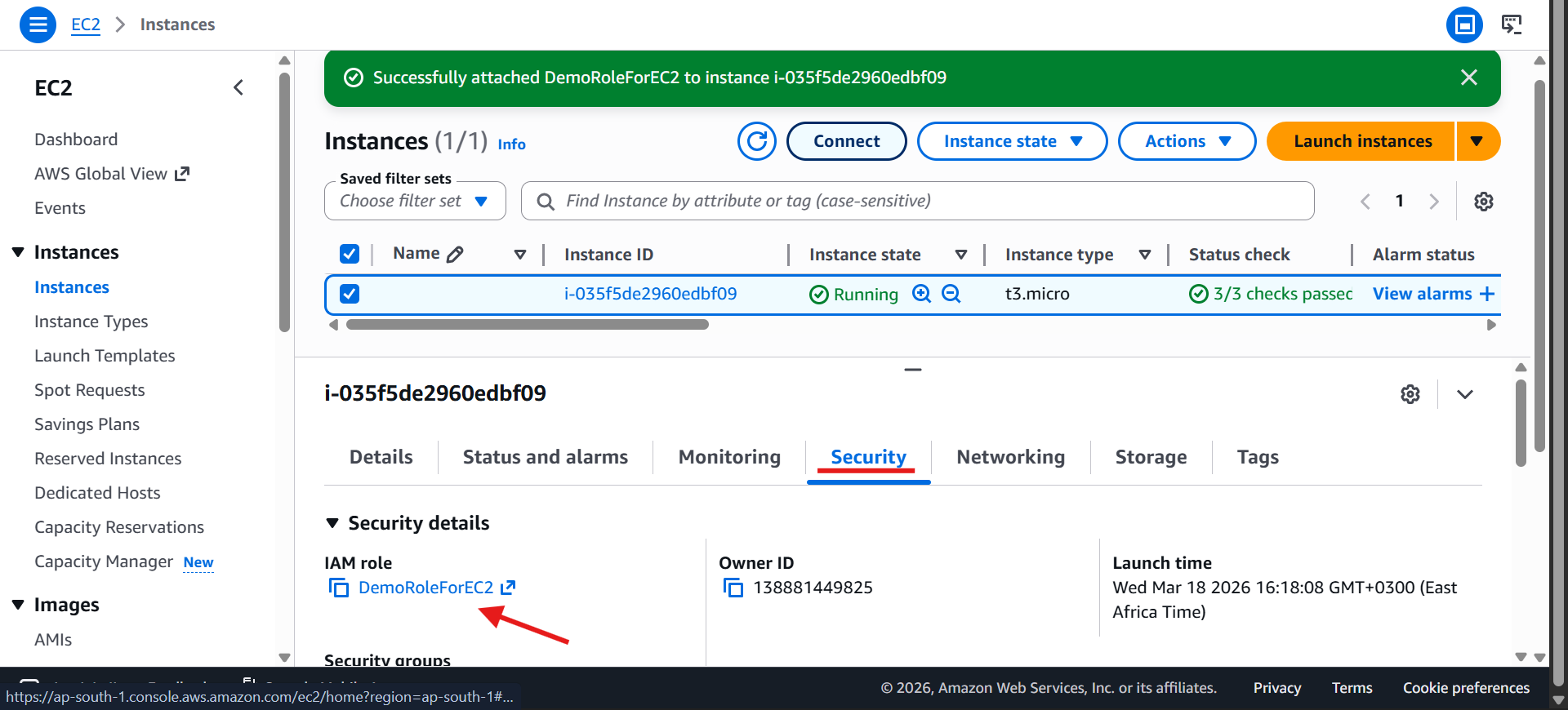
Attach the IAM role to your EC2 instance
Select your instance → Actions → Security → Modify IAM Role
Choose the role (
DemoRoleForEC2) → Save
Step 3:
Verify the role is attached in the Security tab of the instance.
🧨 Using IAM Role Credentials
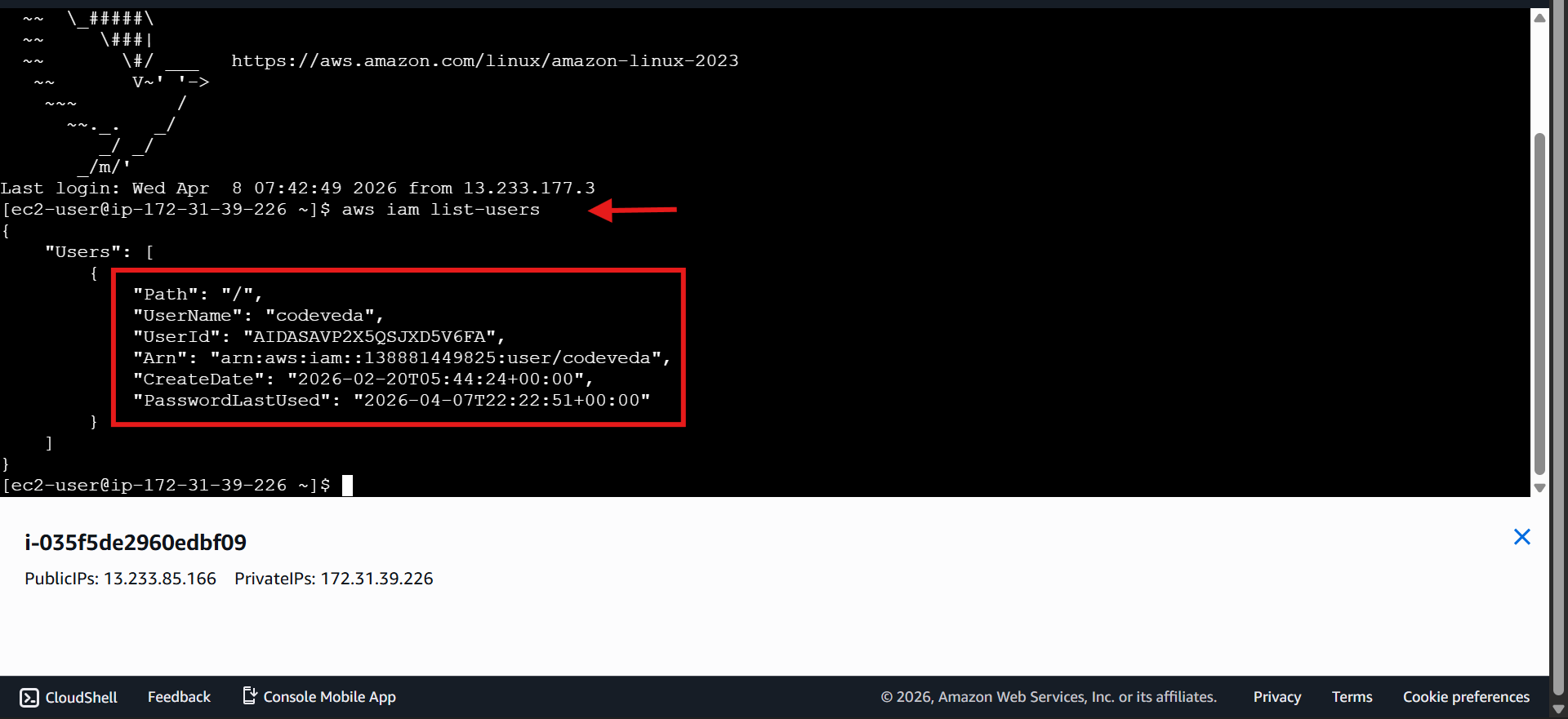
Once the role is attached, you can run AWS CLI commands without configuring credentials:
aws iam list-usersExpected Result: You will see the list of IAM users in your account.
🤝 Try Testing IAM Role Changes
Detach policy: remove the policy from the IAM role, running:
aws iam list-users
will return Access Denied.
Reattach policy: After reattaching, you may need to wait a few seconds for propagation. Running the command again will now succeed.