1️⃣ Connection Timeout
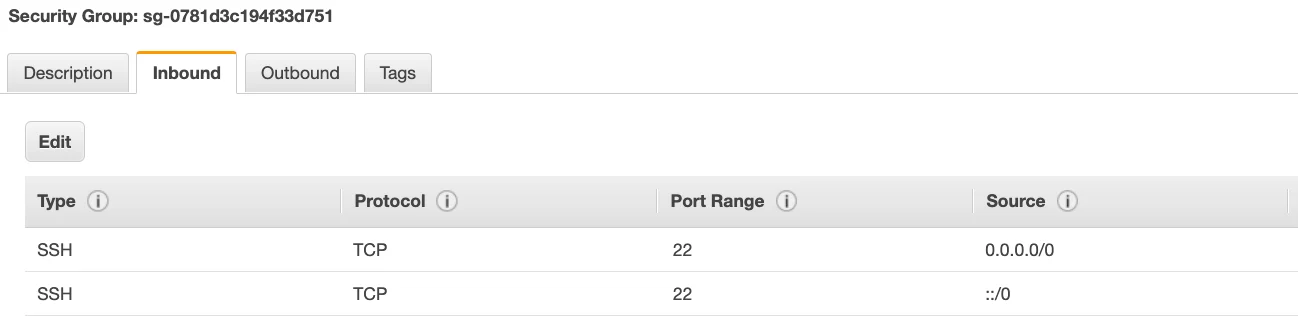
Symptom: SSH hangs and times out.
Cause: Almost always a security group / firewall issue.
Fix:
Allow inbound traffic on port 22 in the security group.
Confirm that security group is actually attached to your instance.
2️⃣ Still Timing Out (Security Group Is Correct)
Symptom: Same timeout, even after fixing the security group.
Cause: A corporate or personal firewall is blocking the connection.
Fix: Use EC2 Instance Connect instead (covered next lecture).
3️⃣ Windows: "ssh: command not found"
Symptom: Windows doesn't recognize the
sshcommand.Cause: No SSH client installed on your system.
Fix:
Use PuTTY to connect.
Still stuck? Fall back to EC2 Instance Connect.
4️⃣ Connection Refused
Symptom: Instance is reachable, but connection gets rejected.
Cause: SSH service isn't running on the instance.
Fix:
Restart the instance.
If that fails, terminate it and launch a new one.
Make sure it's Amazon Linux 2.
5️⃣ Permission Denied (publickey,gssapi-keyex,gssapi-with-mic)
Symptom: Access denied when trying to SSH in.
Cause: Wrong (or missing) key, or wrong username.
Fix:
Double-check you're using the correct key pair for that instance.
Use username
ec2-user— e.g.ec2-user@<public-ip>.In PuTTY, set the username field to
ec2-user.
6️⃣ Nothing Works
Symptom: Every method has failed.
Fix:
Don't panic.
Use EC2 Instance Connect.
Confirm the instance is Amazon Linux 2 so it matches the tutorial.
7️⃣ "It Worked Yesterday, Not Today"
Symptom: SSH suddenly stops working after previously connecting fine.
Cause: The instance's public IP changed after a stop/start.
Fix: Update your SSH command or PuTTY config with the new IP.