📝 Font Families
Learn how to use different fonts on websites to make your content look stylish and readable. We'll cover:
📚 Font families: types and usage
🌐 Google Fonts: what, why, and how
💡 Best practices
💻 Live example code
📚 Font Families in CSS (Adding fonts using Google Fonts)
Google Fonts are free, web-hosted fonts you can load via a <link> tag or @import. You can combine them with local fonts to create a font stack for optimal performance and appearance.
✅ Step-by-Step Example
We'll use the Google Font "Roboto", and fall back to local system fonts if needed.
🔗 Step 1: Include Google Font in HTML
<!-- Place this in the <head> section -->
<link
	href="<https://fonts.googleapis.com/css2?family=Roboto&display=swap>"
	rel="stylesheet"
>
🎨 Step 2: Apply Font in CSS
<!DOCTYPE html>
<html lang="en">
<head>
  <meta charset="UTF-8">
  <title>Google Font with Local Fallbacks</title>
  <link
  href="<https://fonts.googleapis.com/css2?family=Roboto&display=swap>"
  rel="stylesheet">
  <link rel="stylesheet" href="styles.css">
</head>
<body>
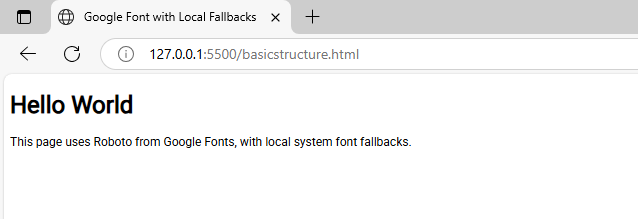
  <h1>Hello World</h1>
  <p>This page uses Roboto from Google Fonts, with local system font fallbacks.
  </p>
</body>
</html>
body {
font-family: "Roboto", "Segoe UI", "Helvetica Neue", Arial, sans-serif;
}
💡 Best Practices
Use 2-3 fonts max for better design
Combine contrast fonts (e.g., serif + sans-serif)
Always include a fallback font
Keep readability in mind (especially on mobile)