🎯 Purpose of This Note
A quick overview of a recommended VS Code extension setup, followed by a step-by-step guide to installing and configuring Prettier — a code formatter that will be used throughout the rest of the course.
🧩 VS Code Extensions Overview
📦 Below are the extensions mentioned, with brief explanations of what each does:
🧩 Extension | 🎯 Purpose |
|---|---|
| 🌱 Highlights environment variables inside |
ESLint | 🛡️ Detects bugs and enforces code-quality rules in JavaScript (will be set up with Node in a later section) |
Image Preview | 🖼️ Shows a small thumbnail preview of image files directly in the file explorer/sidebar |
Prettier | ✨ Automatically formats code (JavaScript, CSS, HTML, etc.) — covered in detail below |
Pug Beautify | 📄 Formats Pug template files (Pug is a templating language used later in the course) |
TabNine | 🤖 An AI-powered autocomplete tool that helps speed up coding |
TODO Highlight | 📌 Highlights special comment keywords in different colors for visibility |
Oceanic Next (Theme) | 🎨 The color theme used throughout the course (mentioned since it's a commonly asked question) |
🚦 TODO Highlight in Action
🌈 This extension colors specific keywords written in code comments:
✅
TODO→ highlighted in green.🐞
BUG→ highlighted in red.🔧
FIXME→ highlighted in another distinct color.
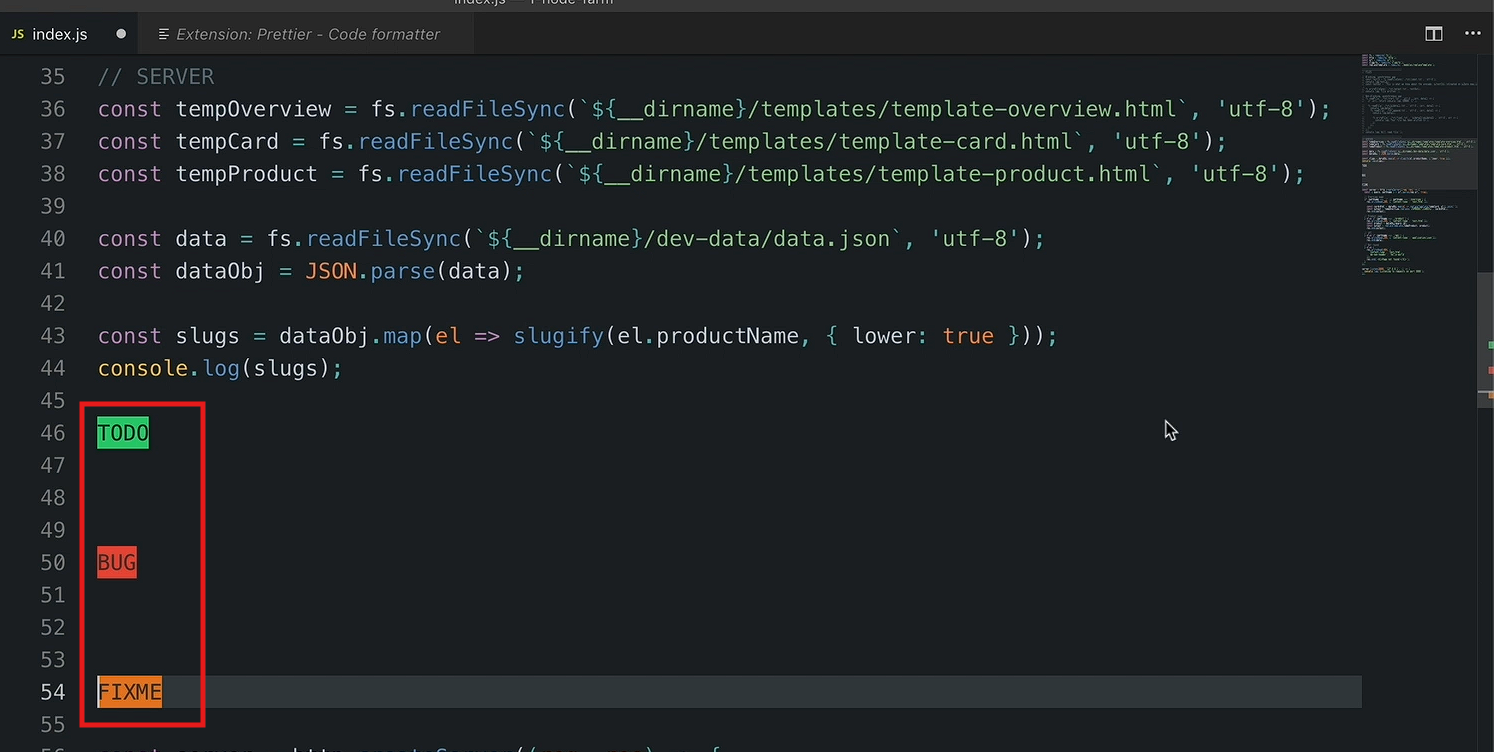
📍 These highlighted lines also show up as colored markers in the scrollbar, making it easy to spot important notes across a long file at a glance.
⚙️ Setting Up Prettier
🤔 What Prettier Does
✨ Automatically formats your code (JavaScript, CSS, HTML, etc.) to a consistent, opinionated style.
🧹 Handles indentation, quote style, line breaks, semicolons, etc. — no manual formatting needed.
🤝 Intentionally has few config options — a feature, not a limitation, since it keeps formatting consistent and out of debate, especially on teams.
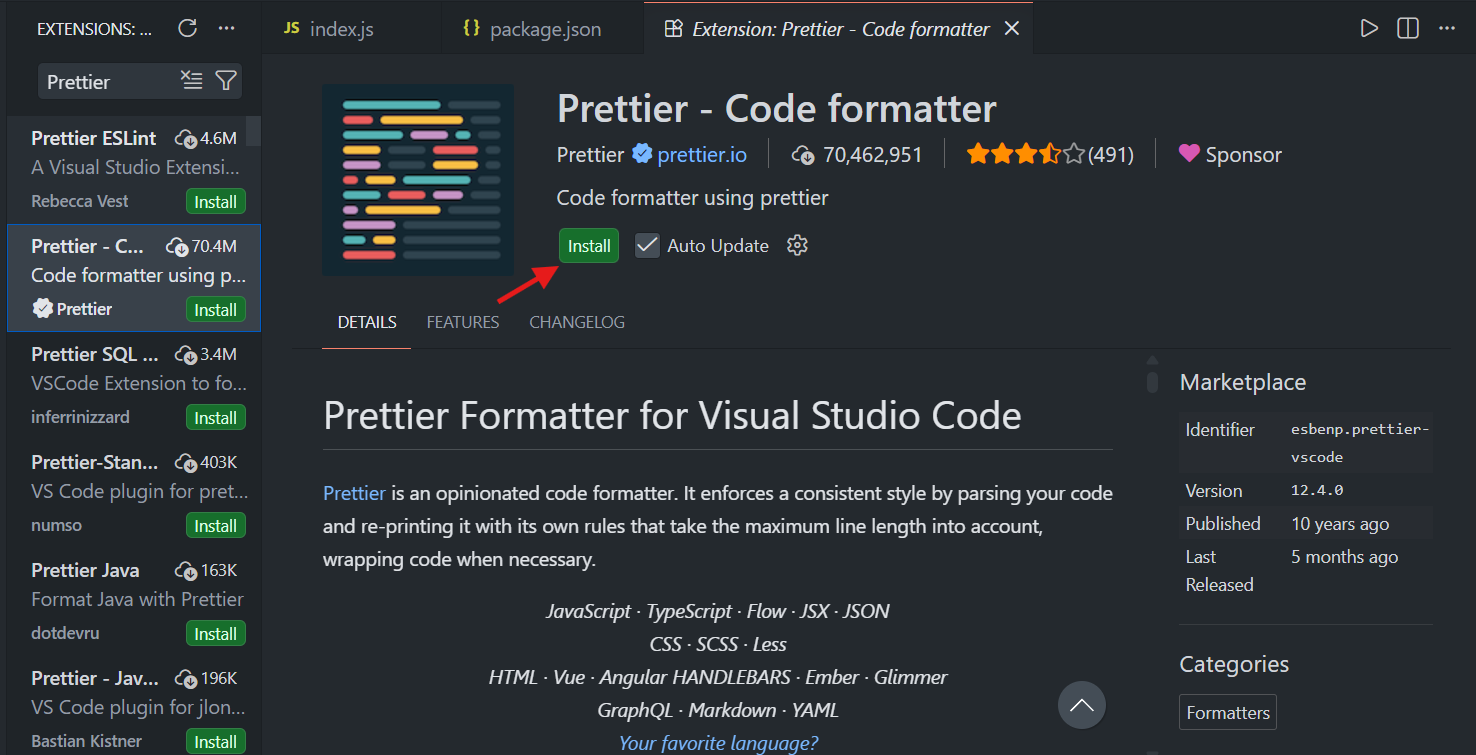
📥 Step 1: Install the Prettier Extension
🔍 Search for "Prettier" in the VS Code Extensions panel and click Install.
💾 Step 2: Enable "Format on Save"
⚙️ Open VS Code Settings.
🔎 Search for:
Format on Save.✅ Enable the checkbox.
💾 Now, every time you save a file, Prettier will automatically reformat it according to its rules.
📄 Step 3: Create a Prettier Configuration File
📂 Instead of configuring Prettier through VS Code's settings UI, create a dedicated config file in your project's root folder:
.prettierrc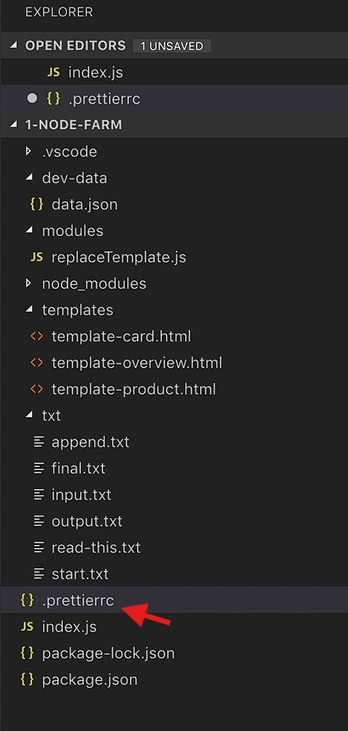
🤔 Why Use a Config File Instead of VS Code Settings?
Settings inside a
.prettierrcfile are project-specific and can travel with the codebase.This makes it easy to:
📁 Use different formatting rules across different projects.
👥 Ensure all developers on a team use the exact same formatting rules (very useful for collaborative projects).
📝 Example Configuration
{
  "singleQuote": true
}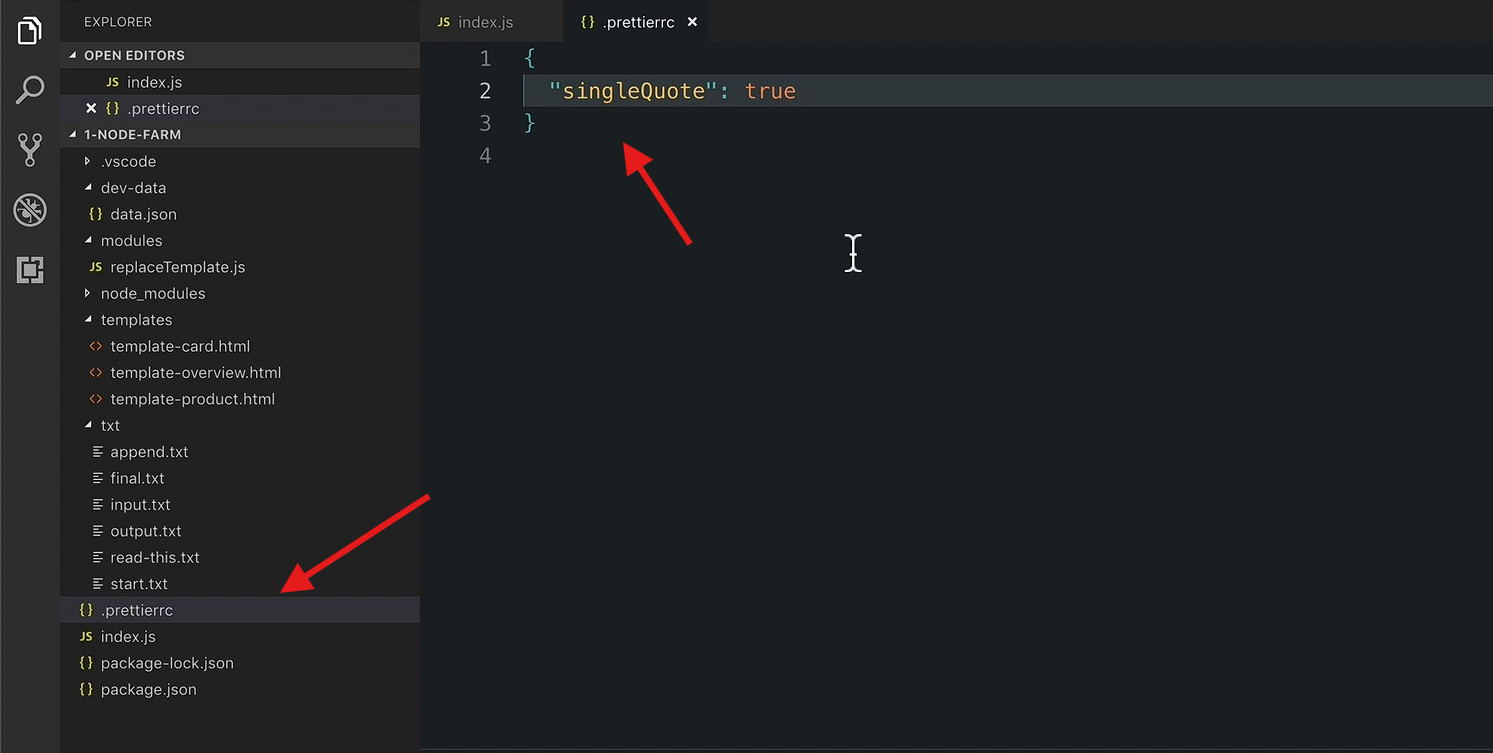
"singleQuote": truetells Prettier to convert all double quotes (") to single quotes (') throughout your code.The default value for
singleQuoteisfalse(meaning Prettier normally prefers double quotes unless told otherwise).
🧪 Step 4: Testing Prettier in Action
After saving .prettierrc, save any JavaScript file (e.g., index.js) and watch for:
🔤 Quotes converted — double quotes automatically switch to single.
🧹 Extra blank lines collapsed — Prettier allows only one blank line between code blocks.
⚠️ Not configurable — one of the few restrictive parts of an otherwise well-liked tool.
📏 Long lines wrapped — lines past a character limit get intelligently broken up.
📝 Semicolons added back — delete them and save, Prettier restores them.
⚙️ Step 5: More Prettier Options
Search "Prettier" to see its full option list on the official site (described as an "opinionated code formatter" with intentionally few settings), including:
⚙️ Option | 🎯 Controls |
|---|---|
| 📏 Max line length before wrapping (default: 80) |
| ↔️ Spaces per indentation level (default: 2) |
| 🔤 Single quotes vs. double quotes (default: false) |
🎯 Key Takeaways
📌 Concept | 💡 Detail |
|---|---|
✨ Prettier | An opinionated code formatter for JS, CSS, HTML, etc. |
💾 Format on Save | VS Code setting that triggers Prettier automatically every time you save a file |
📄 | Project-level configuration file for Prettier settings — better than VS Code UI settings for consistency across a team |
🔤 | Converts double quotes to single quotes throughout your code |
📏 | Controls the max line length before wrapping (default: 80) |
↔️ | Controls indentation spacing (default: 2) — not the same as |
🚫 Not fully configurable | Prettier intentionally limits customization (e.g., you can't allow multiple blank lines) to keep formatting consistent |
🎉 Wrap-Up
🎊 This Notes concludes the Node Farm project and the introductory Node.js section.
🚀 From this point forward in the course, all code will be automatically formatted using this Prettier +
.prettierrc(singleQuote: true) setup with Format on Save enabled.