🧹 Clean Start
❌ Terminate old EC2 instances
👉 ASG will create new ones automatically
🚀 Create Auto Scaling Group
📍 Navigate
EC2 Dashboard → Auto Scaling Groups
Click Create Auto Scaling Group
✏️ Name
DemoASG
📦 Create Launch Template
💡 What is this?
👉 Blueprint for EC2 instances
⚙️ Configuration
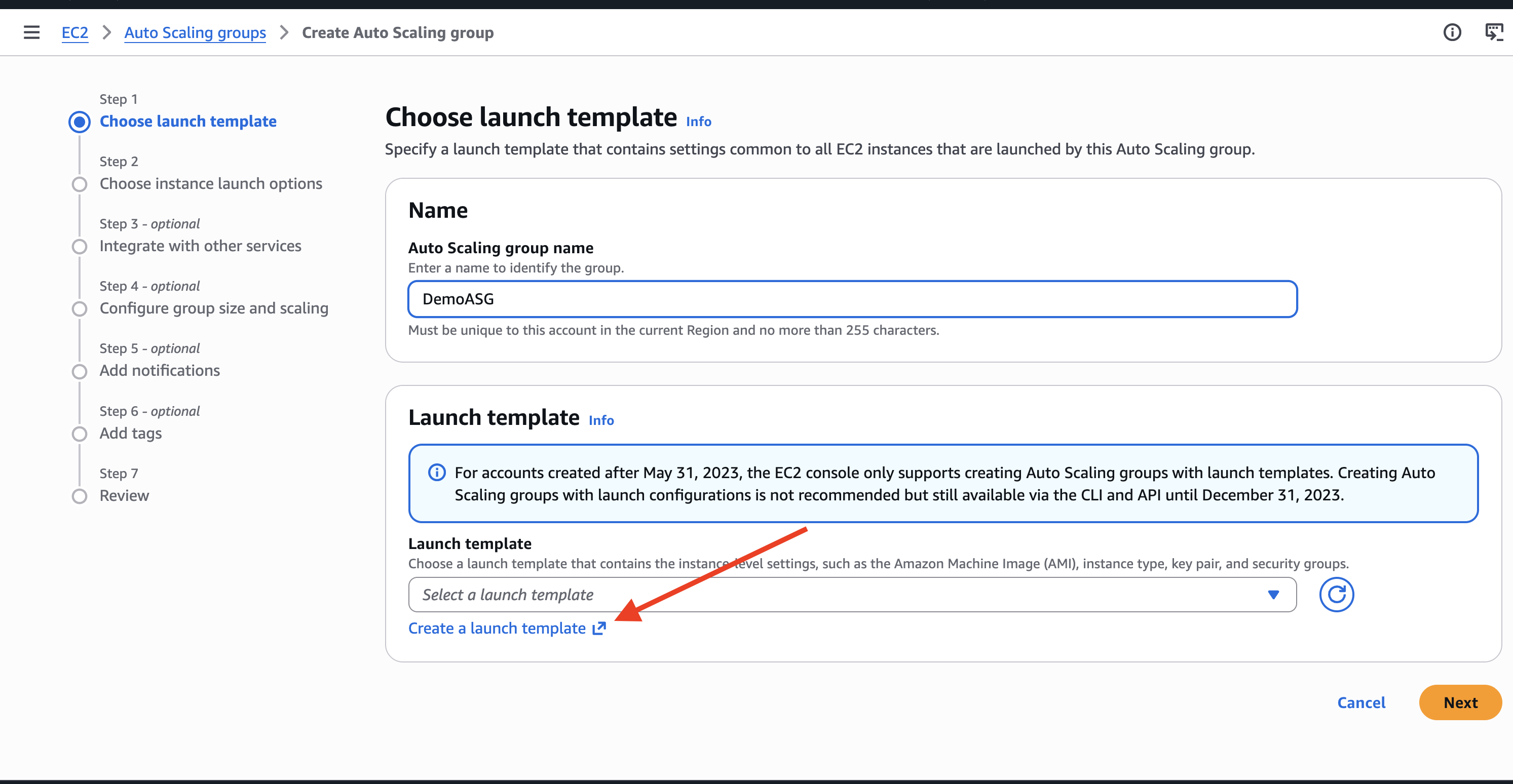
Click Create a launch template
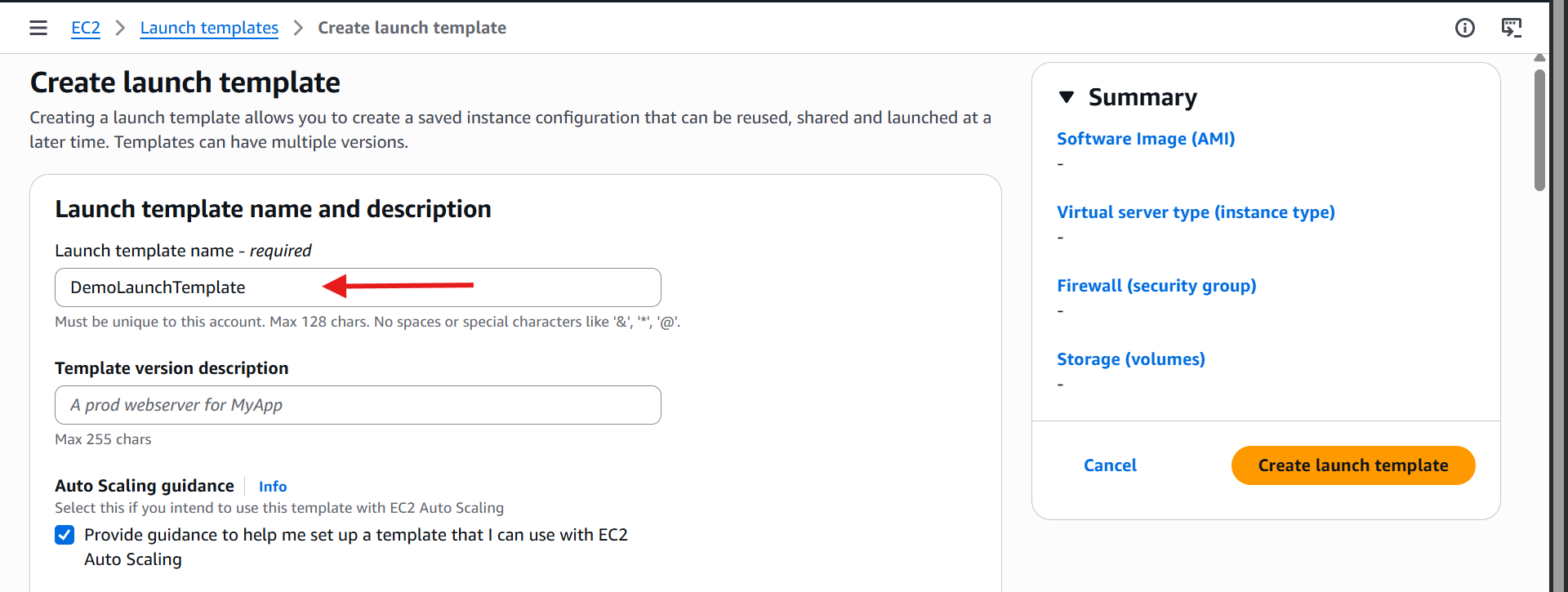
Name:
DemoLaunchTemplate
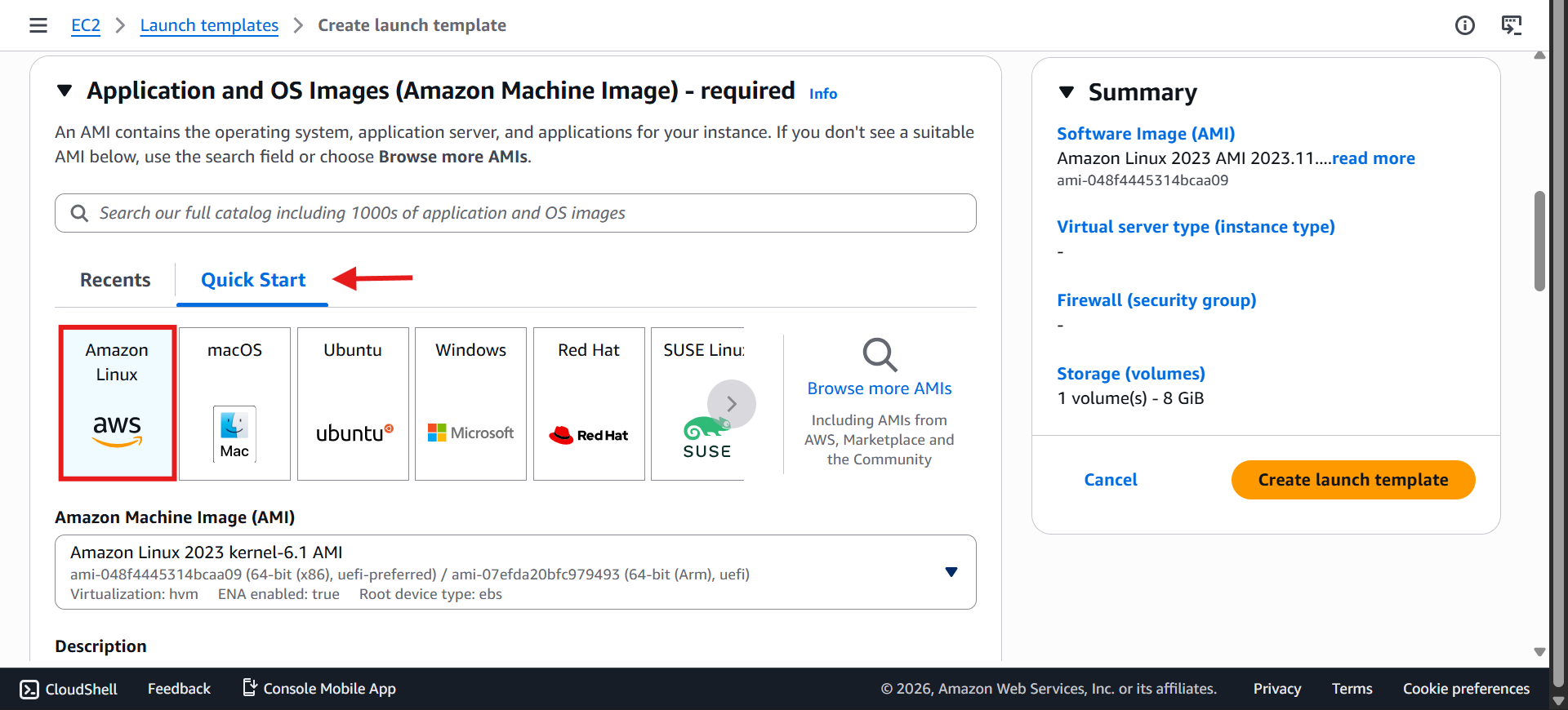
AMI: Amazon Linux 2 🐧
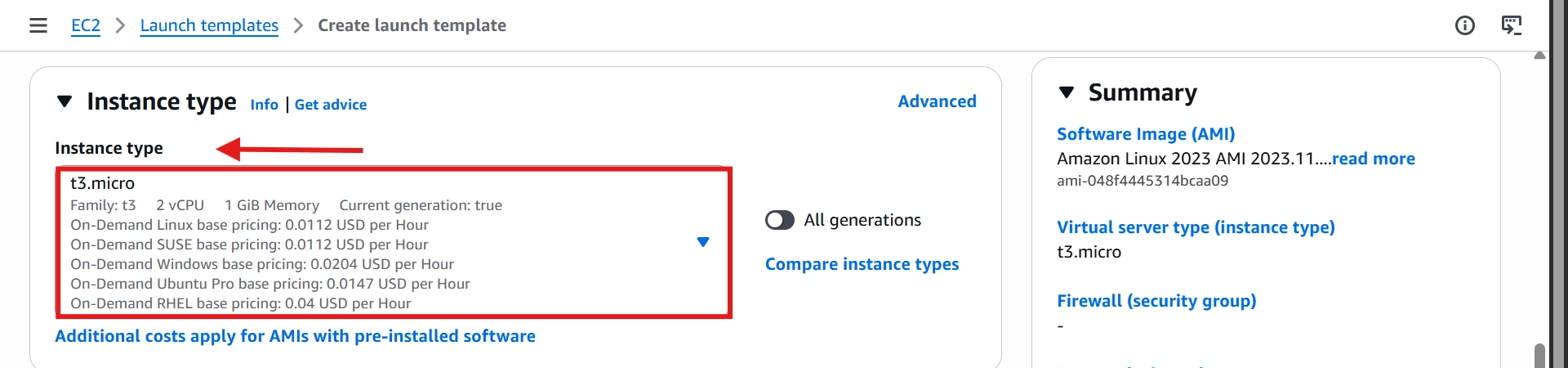
Instance Type: t3.micro or t2.micro 💸
Key Pair: ❌ None

Security Group: Existing One (
launch-wizard-1)
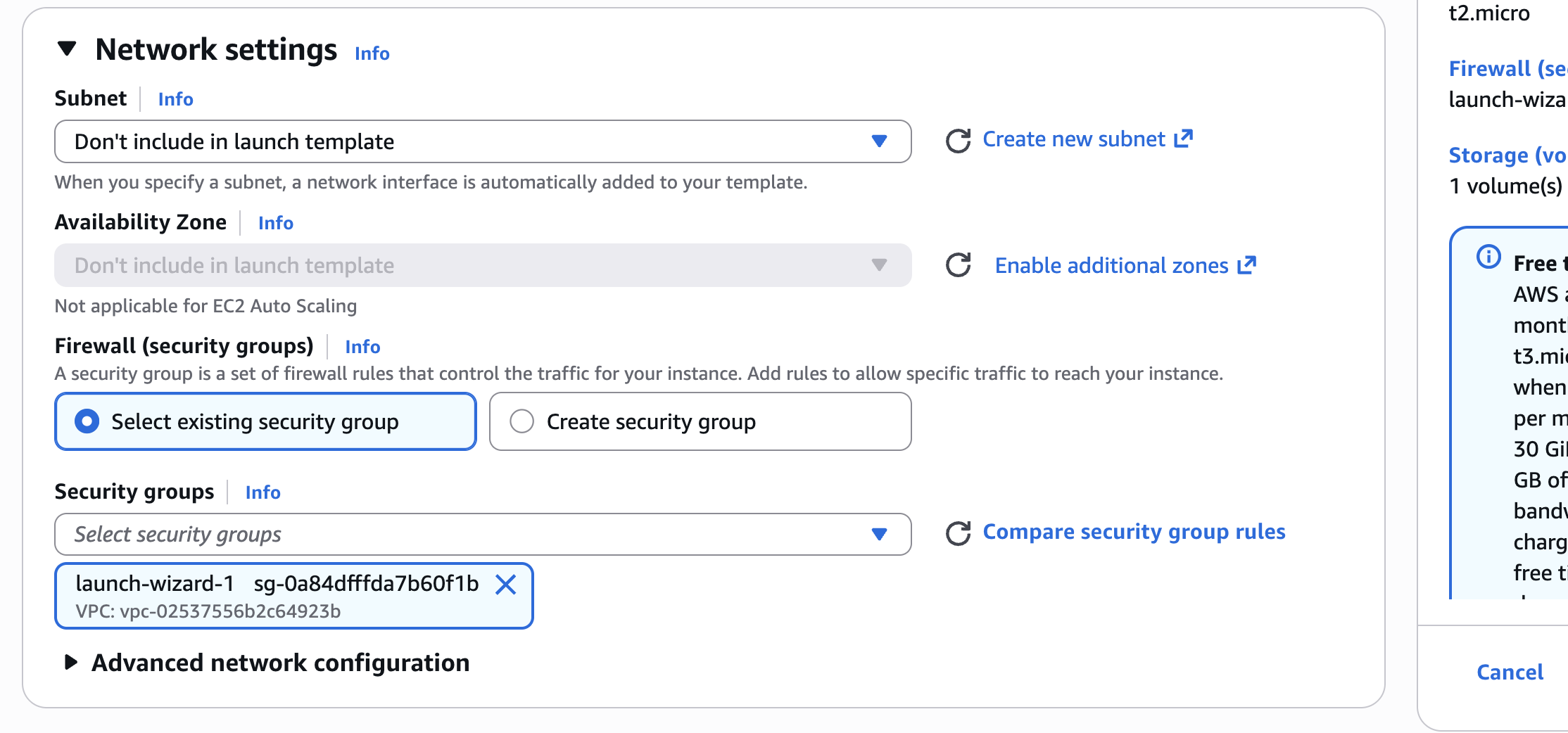
Keep EBS Volumes as default (no change)
Advanced details → User Data: ✅ (Hello World script)
#!/bin/bash
# Use this for your user data (script from top to bottom)
# install httpd (Linux 2 version)
yum update -y yum install -y httpd systemctl start httpd systemctl enable httpd
echo "< h1>Hello World from $(hostname -f)</h1>"> /var/www/html/index.html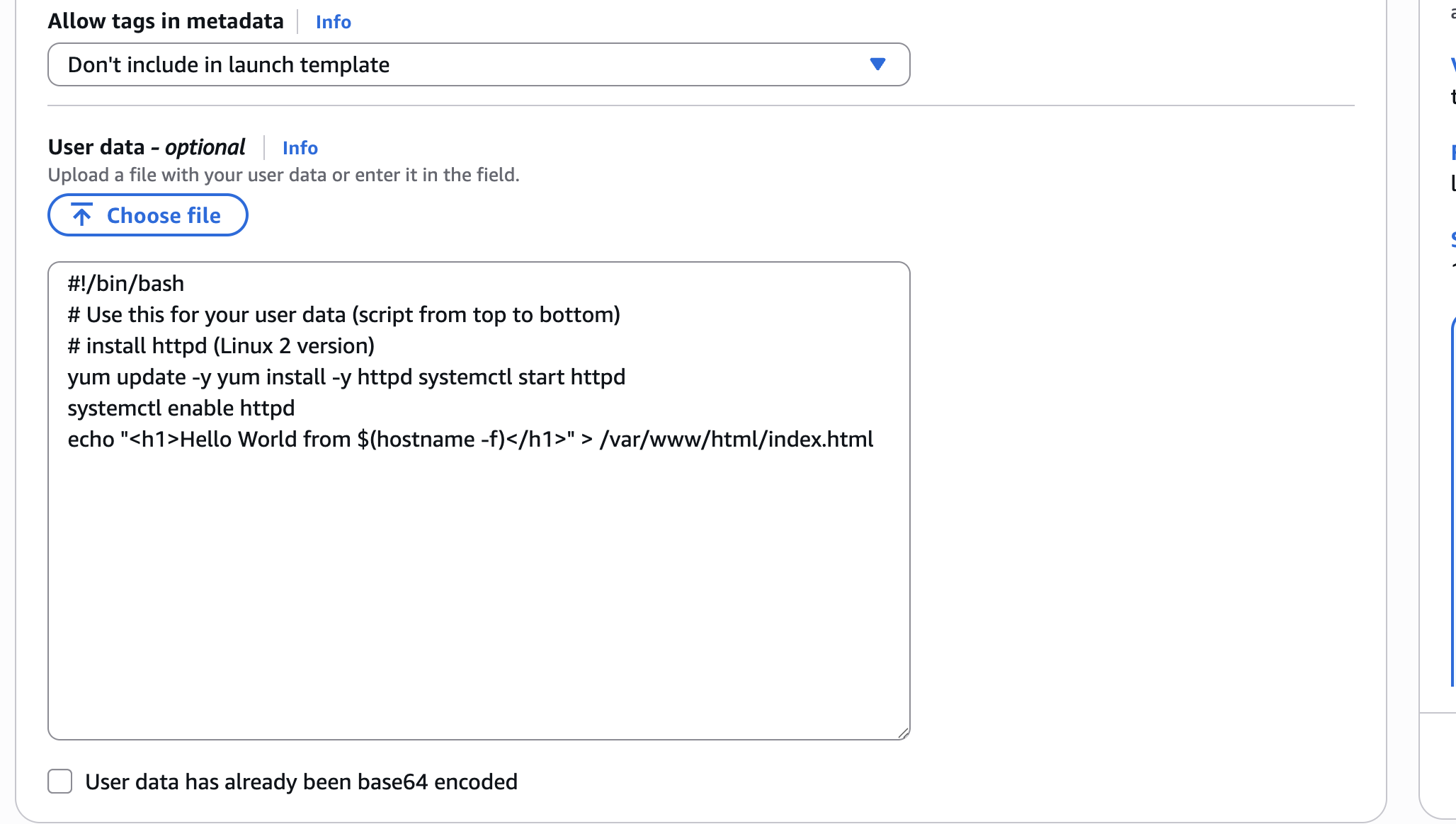
Click Create launch template
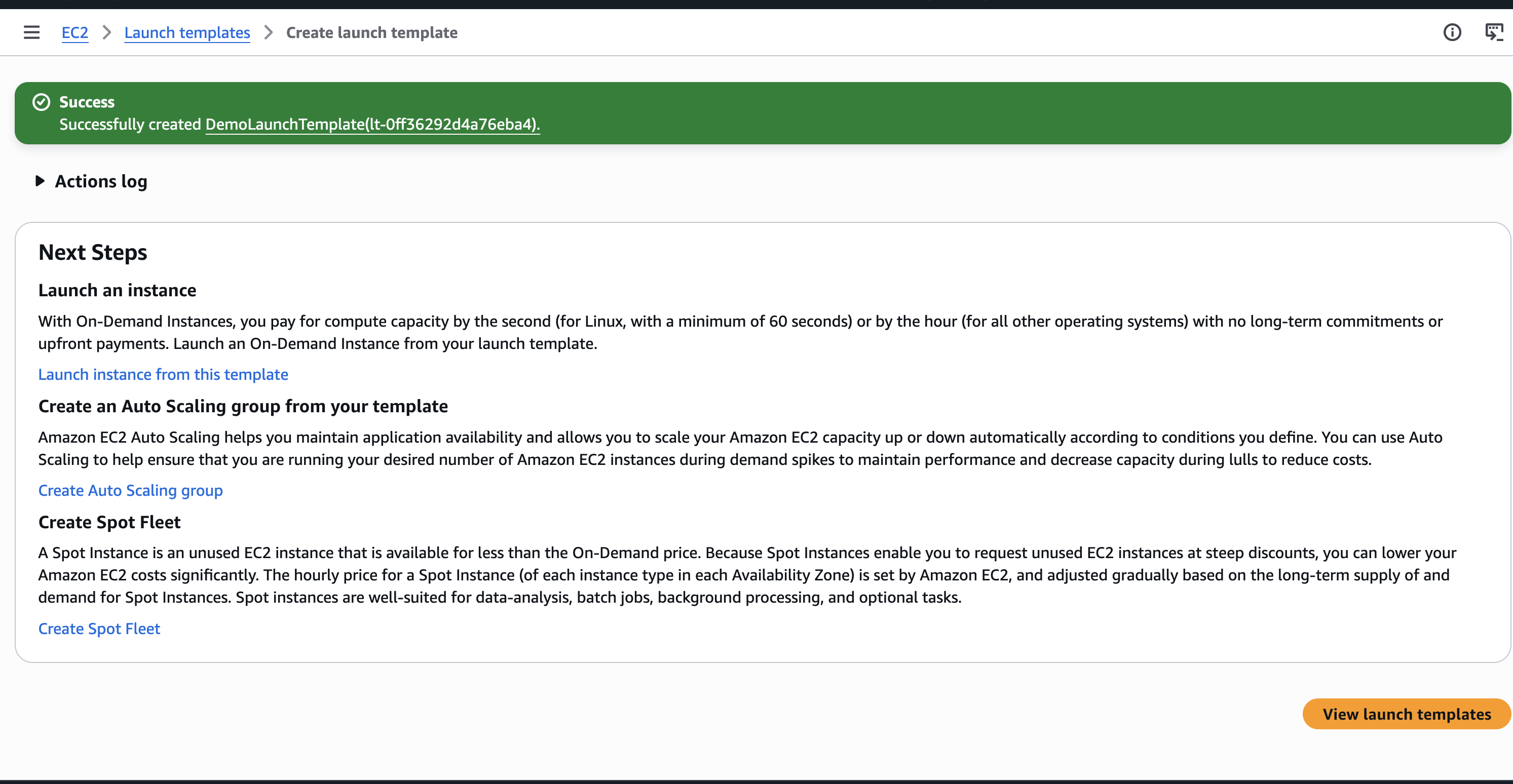
👉 Select Launch template
Go to Previous Tab (Create Auto Scaling group page)
Select Launch Instance (Refresh few times to reflect)
Then Click Next
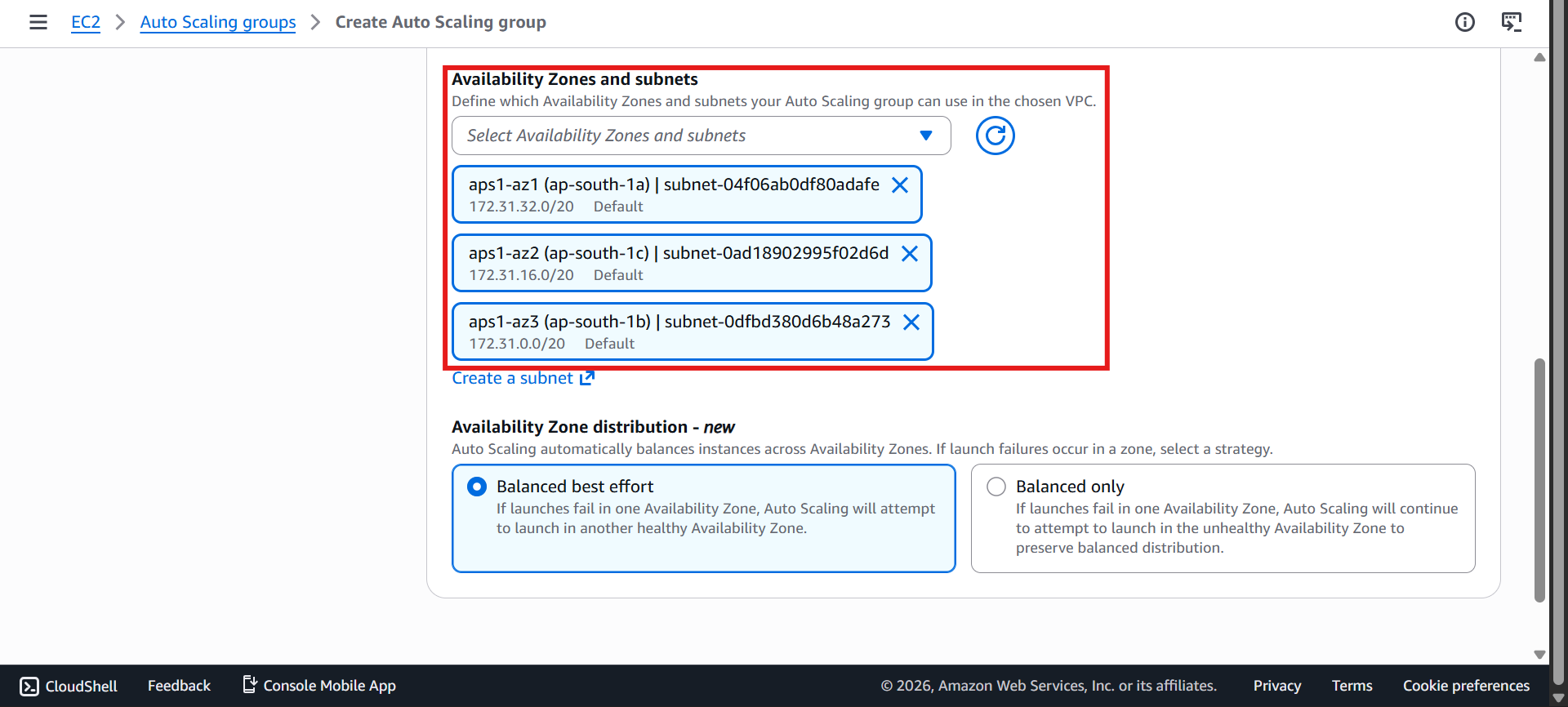
🌍 Network & Availability Zones
In Choose instance launch options
Select multiple AZs 🌍
Enables High Availability
Click Next
⚖️ Attach to Load Balancer
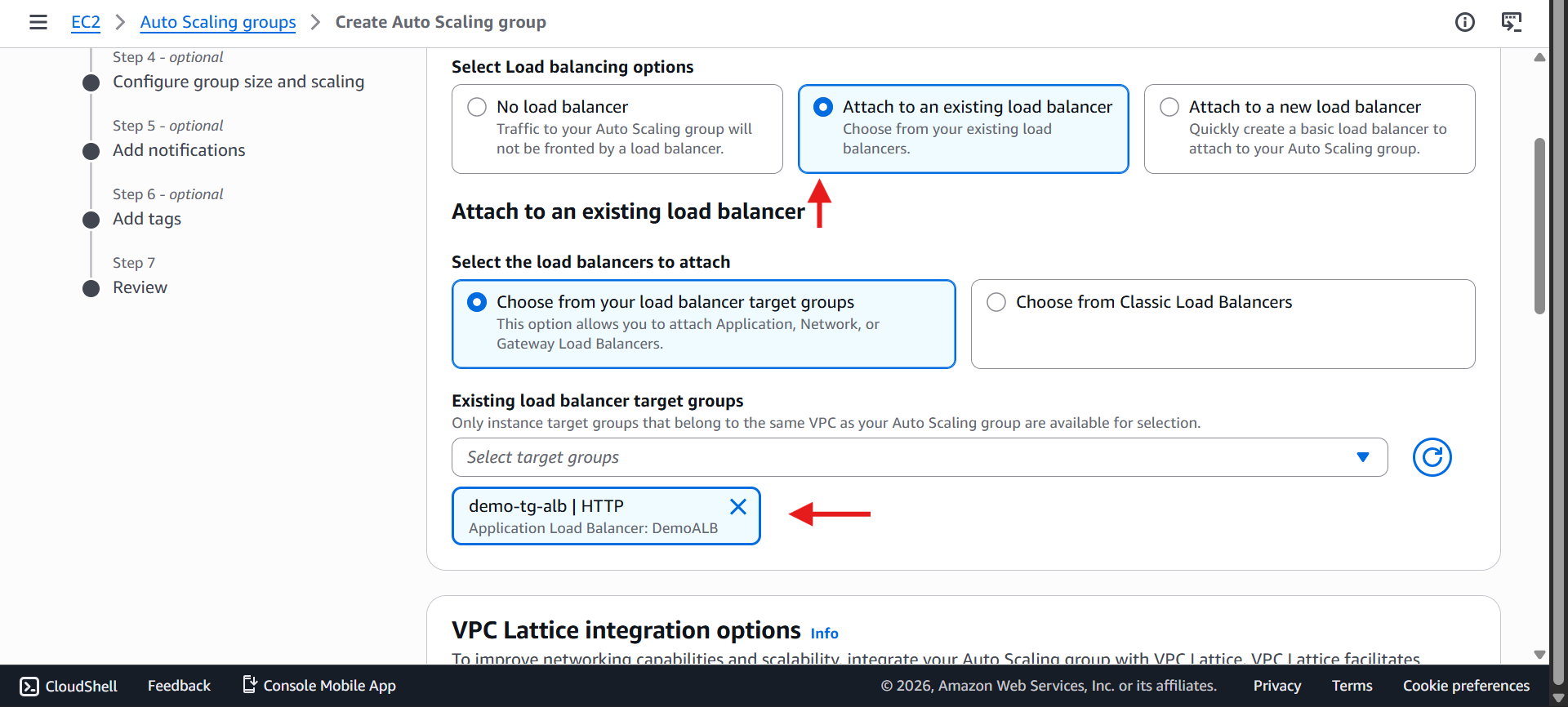
Select: Attach to existing load balancer
Choose:
demo-tg-alb
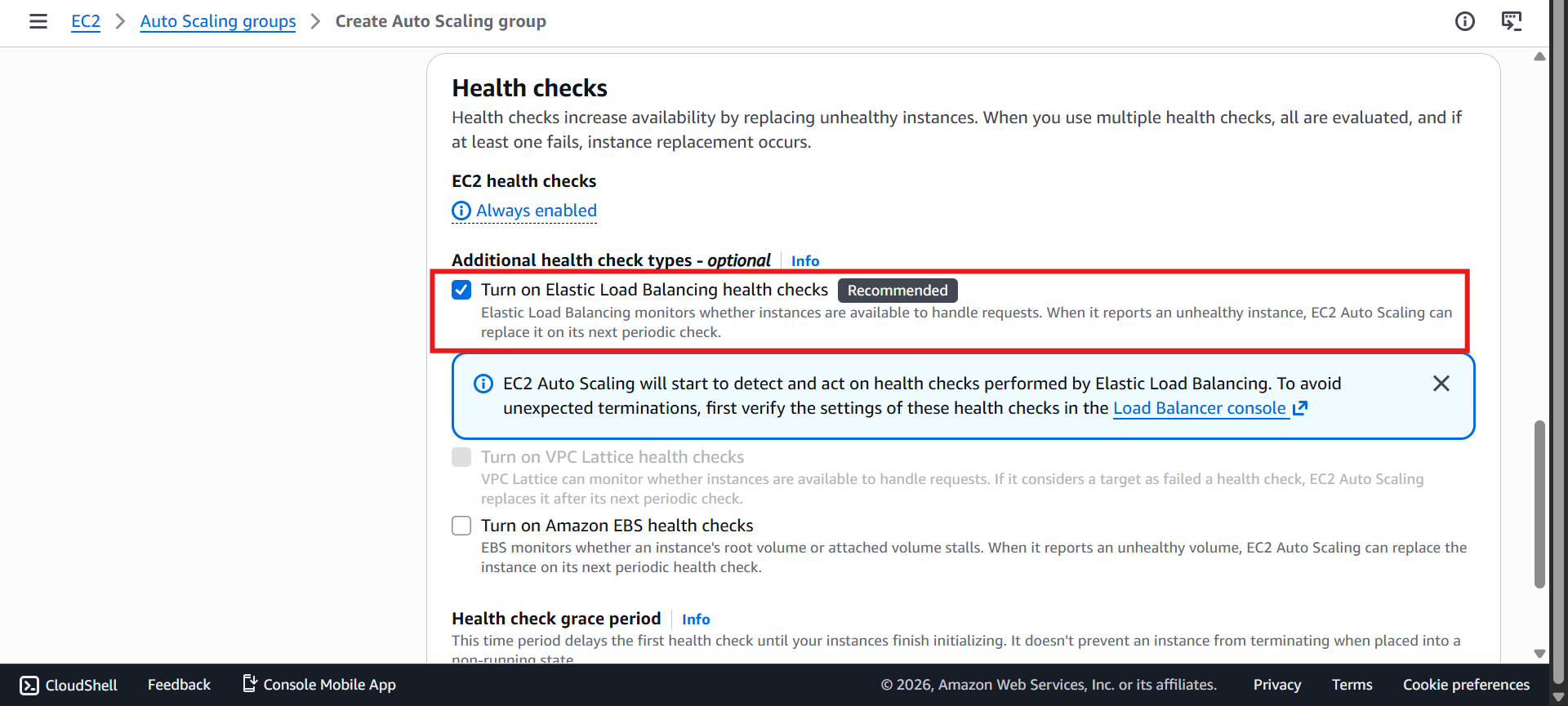
✅ EC2 Health Check
✅ ELB Health Check
👉 Ensures only healthy instances receive traffic
Click Next
📊 Configure Group Size
Min = 1
Desired = 2
Max = 4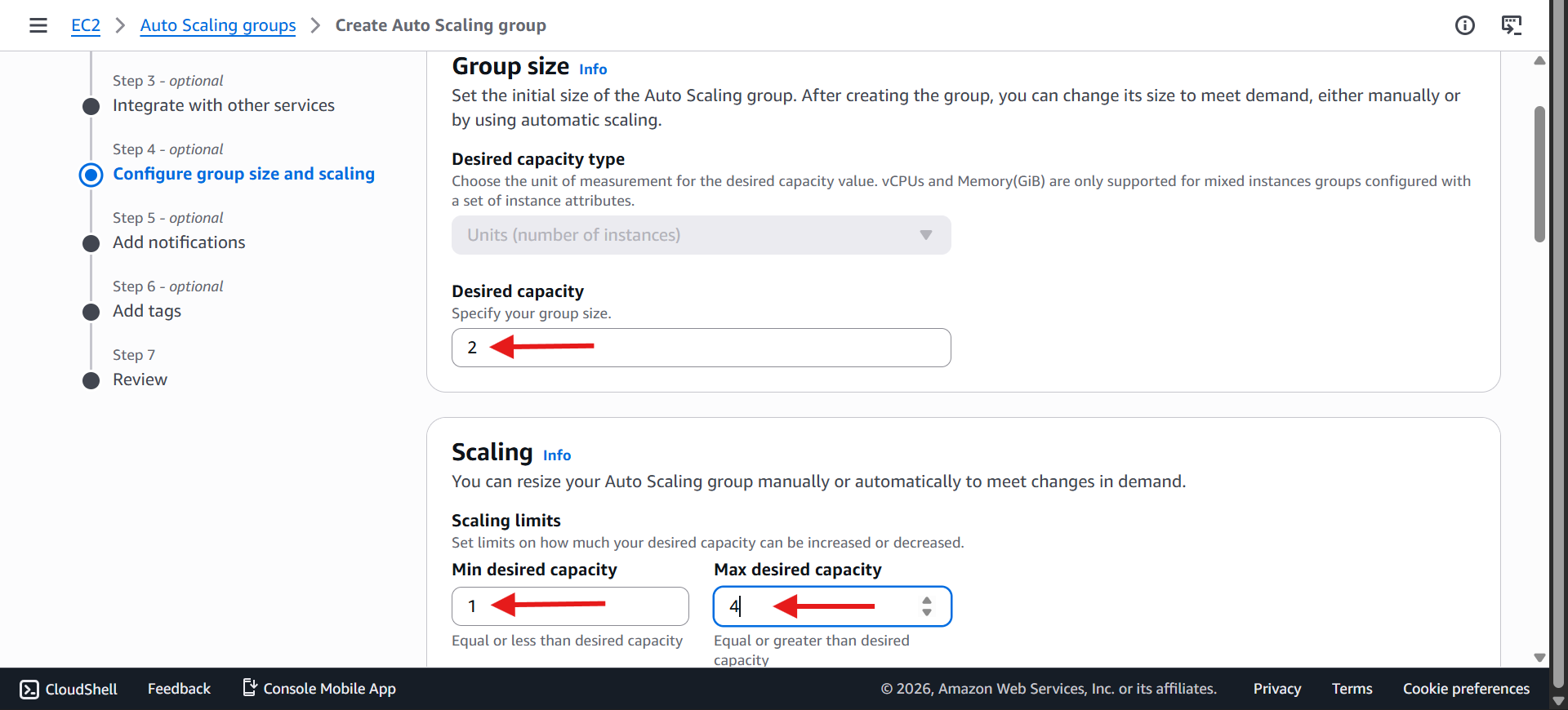
Keep Automatic Scaling - Optional as Default
Instance maintenance policy - No policy
And rest other as default values
More on these later
Click Next
Skip Add Notifications and Add Tags sections
🧐 Review and Create ASG
Review the details
Click Create auto scaling group
🧠 Checking our Auto Scaling Group
Navigate to:
Auto Scaling Group → Activity
Shows all scaling events such as:
Launching EC2 instances
Terminating EC2 instances
Replacing unhealthy instances
Example:
Desired capacity changed from 0 → 2
ASG launches 2 EC2 instances
Maybe other things also
Navigate to:
Auto Scaling Group → Instance Management
You can see instance states:
Pending
In Service
Terminating
Health :
Healthy
Unhealthy
🧪 Verify Setup
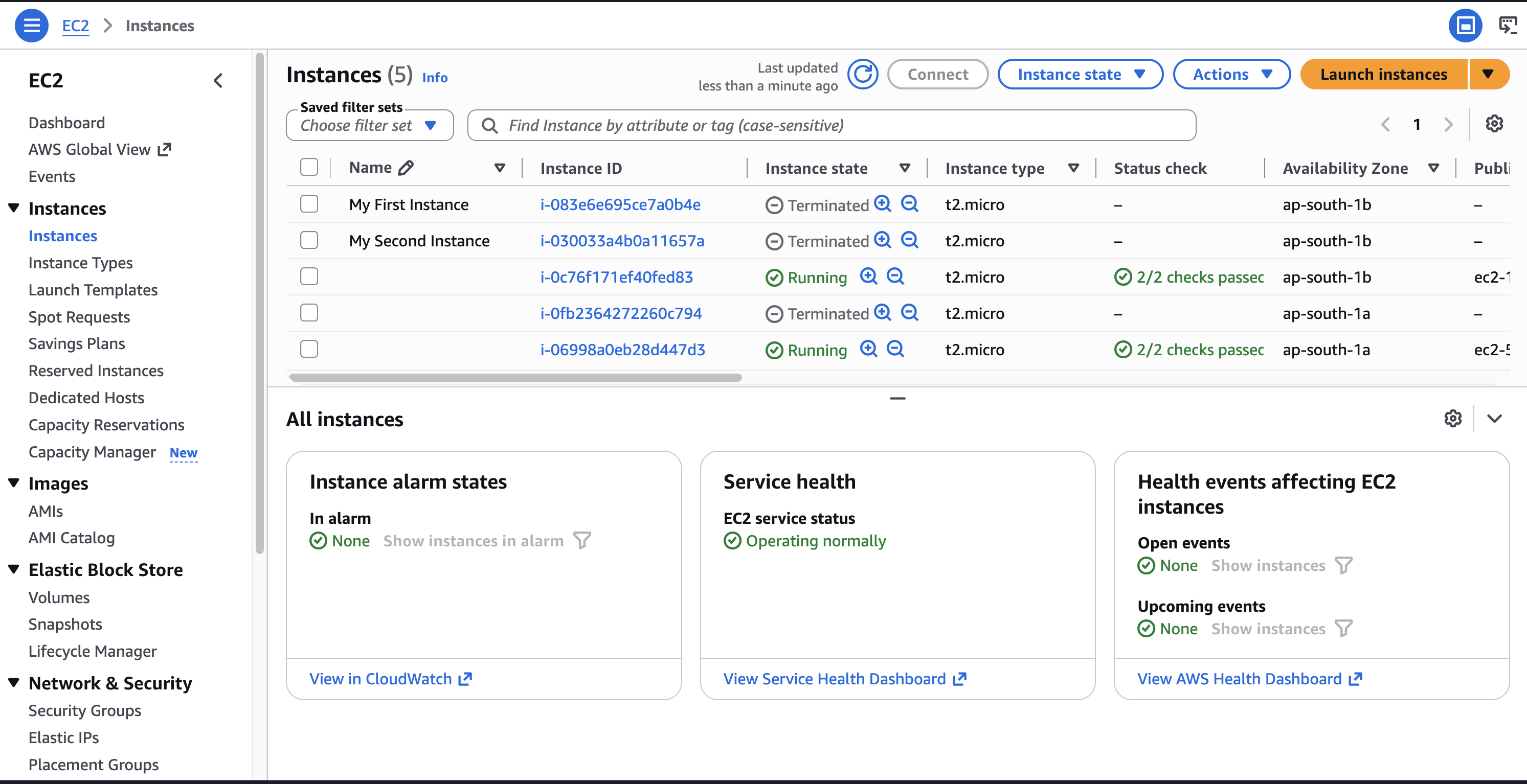
✅ Check EC2
You’ll see new instances created by ASG
✅ Check Target Group
Check instances healthy now its Unhealthy 😢 but give it some time it will be healthy ❤️
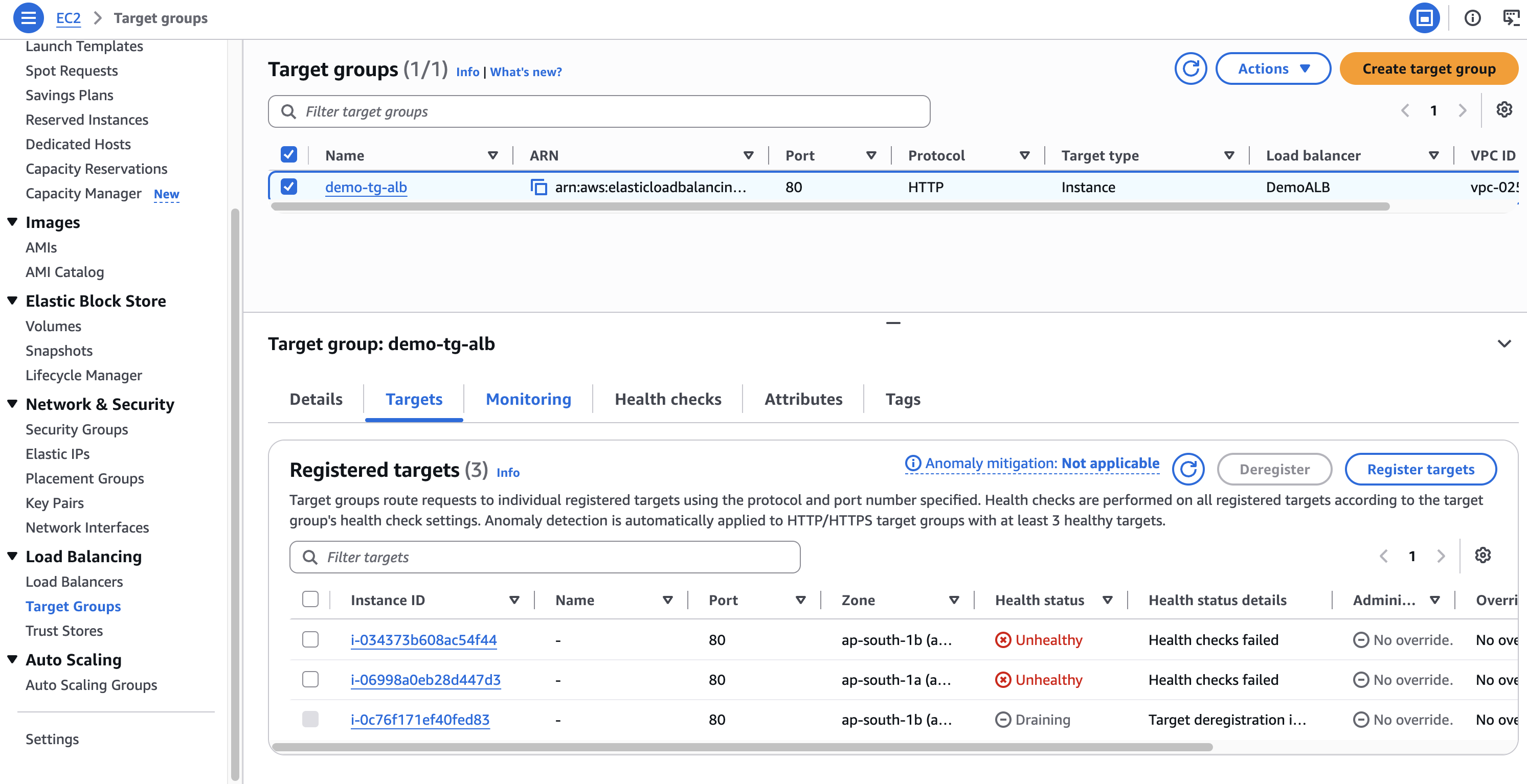
You can also change Health Check settings to change Health Status requirements
Go to Health Checks and Click Edit
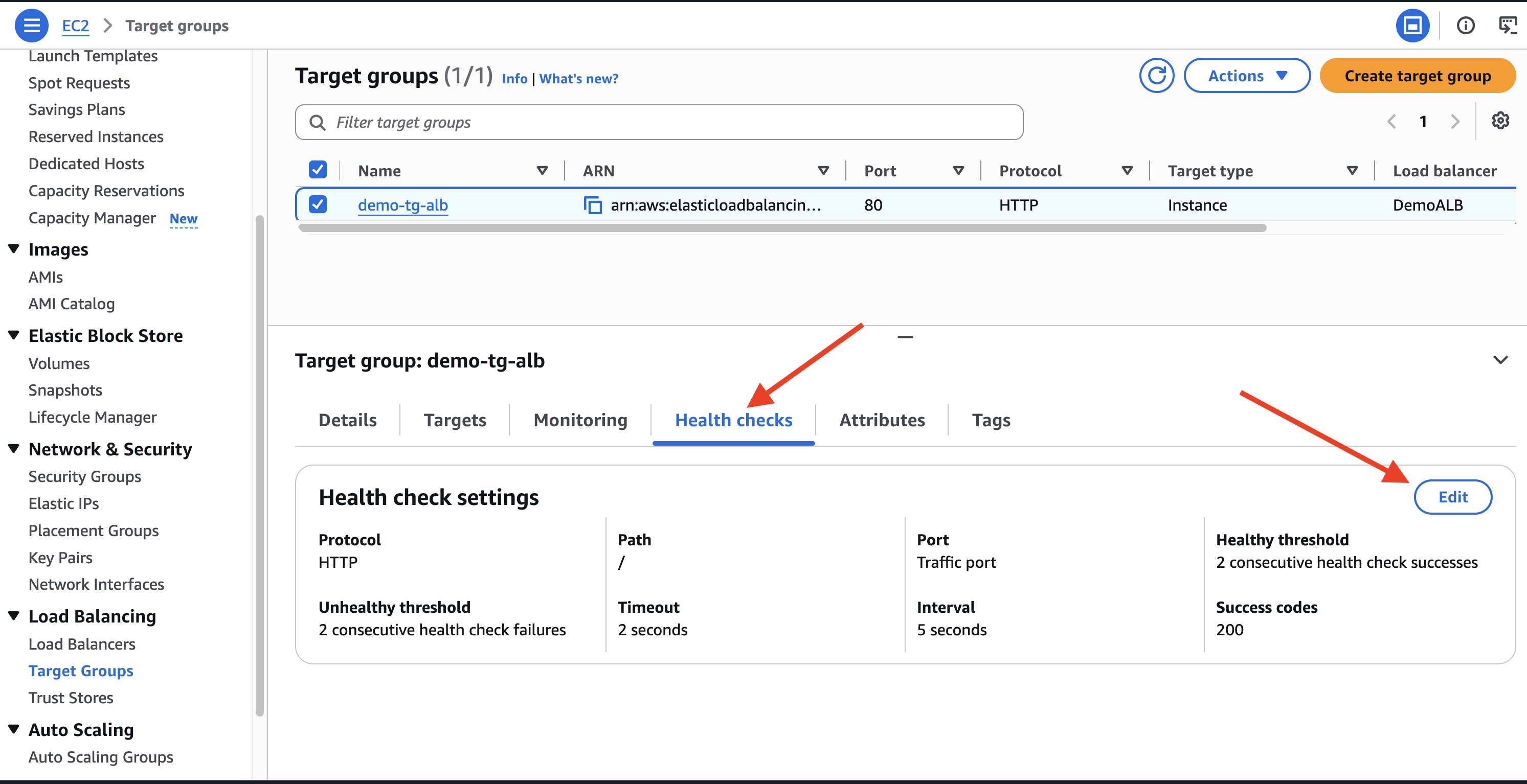
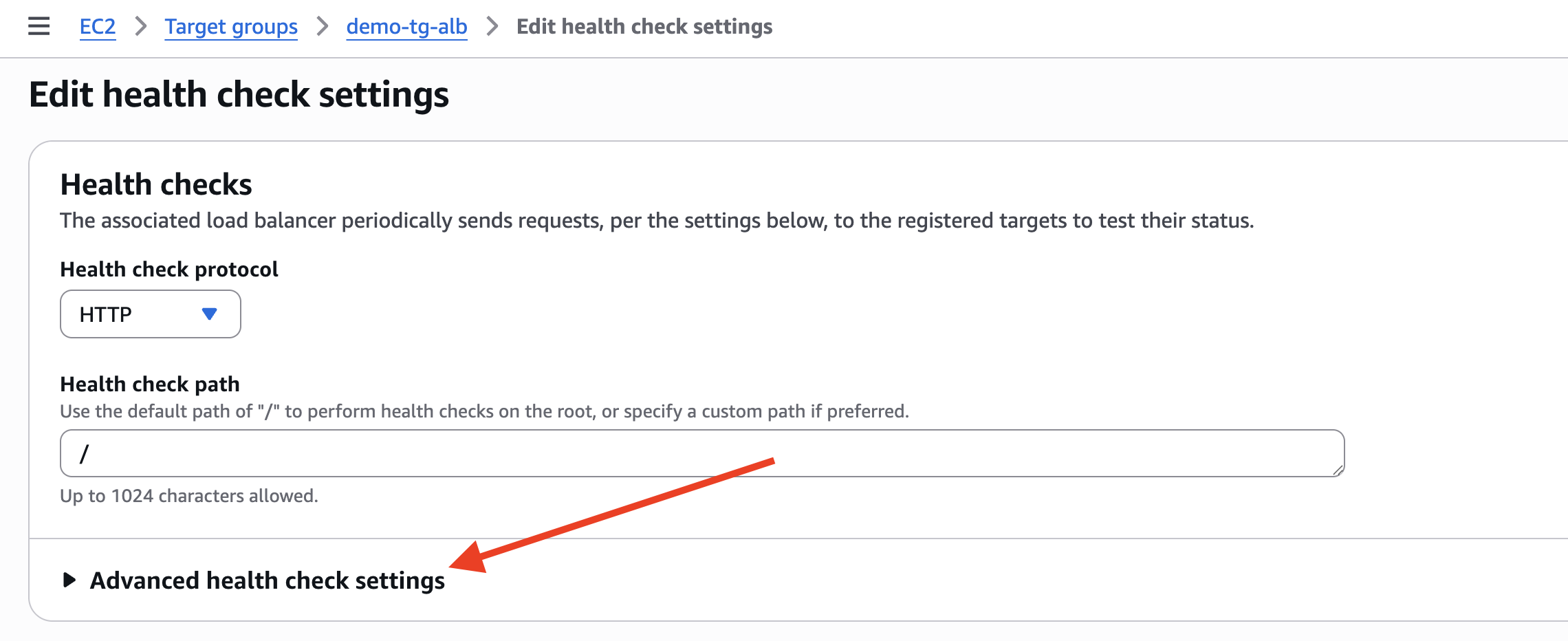
Click Advanced health check settings
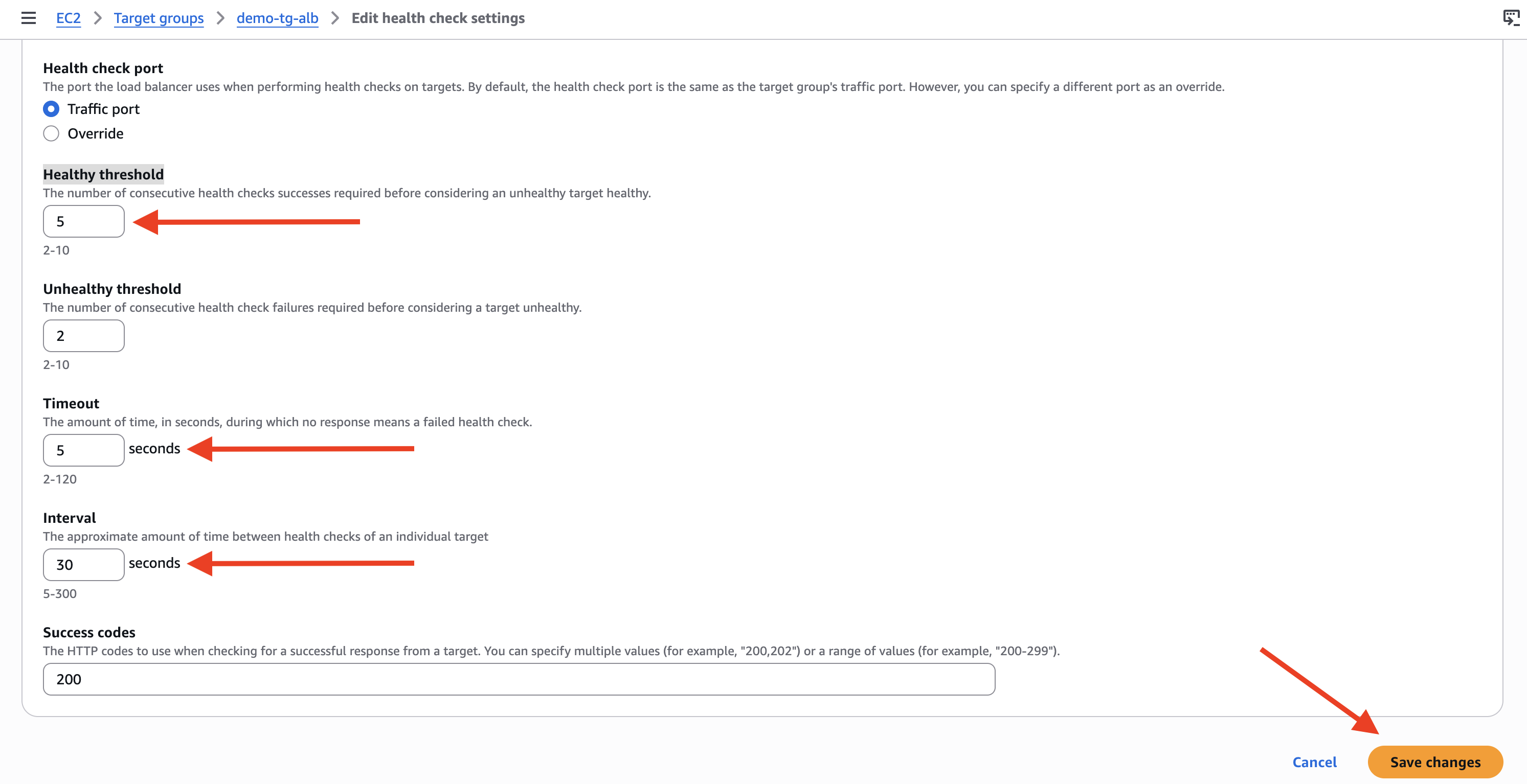
Change Healthy threshold to 2
Change Timeout to 2 seconds
Change Interval to 5 seconds
Click Save Change
Now go back to Targets and Refresh after some time you should see your Instances Healthy
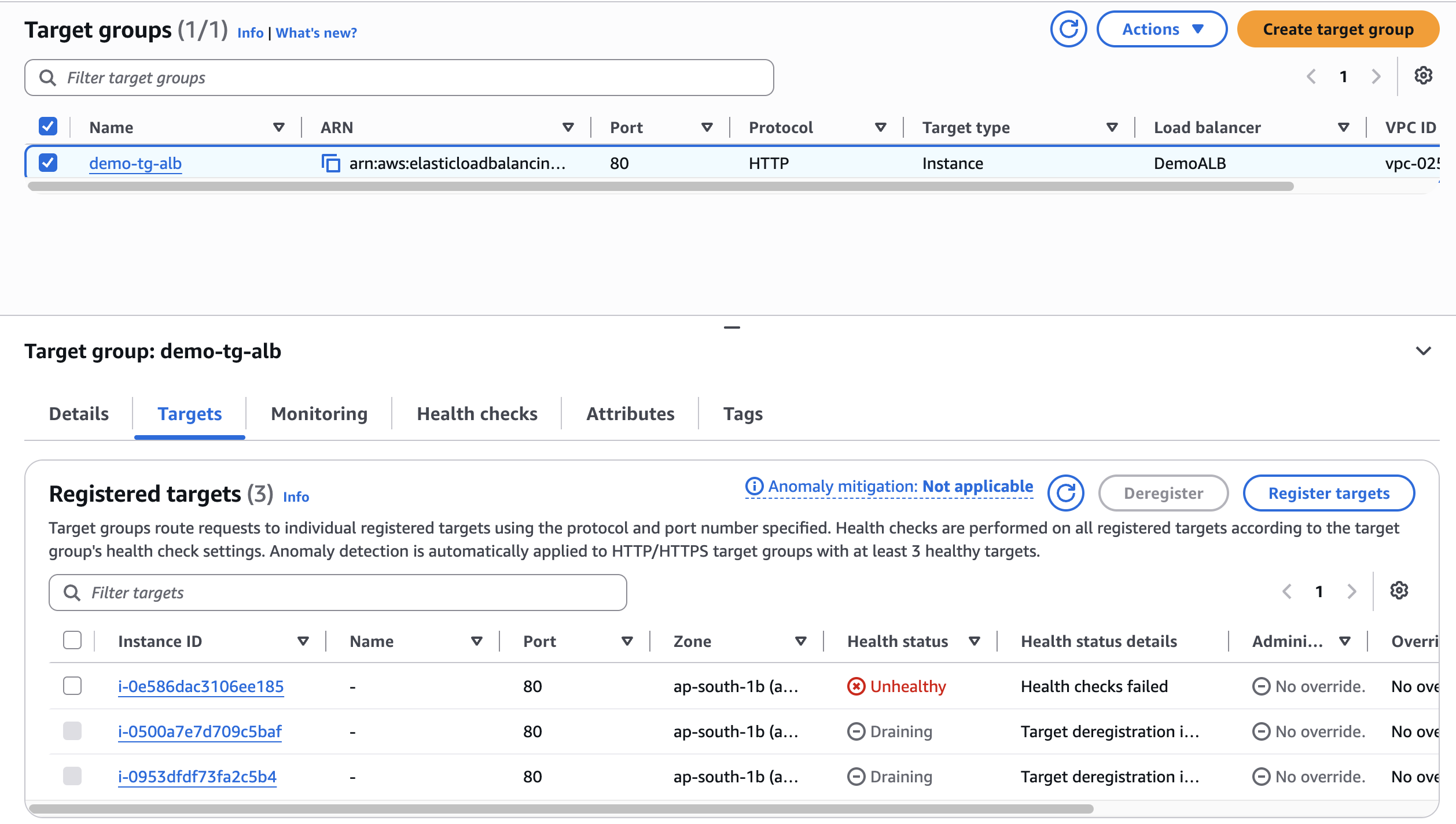
If the instance still isn't healthy 🚨, there's likely something wrong on the instance itself — worth digging in and troubleshooting from your end 🔧
💡 Tip: Amazon Q (the AWS chatbot) 🤖 is a great resource for working through issues like this.