🔹 Create a Snapshot
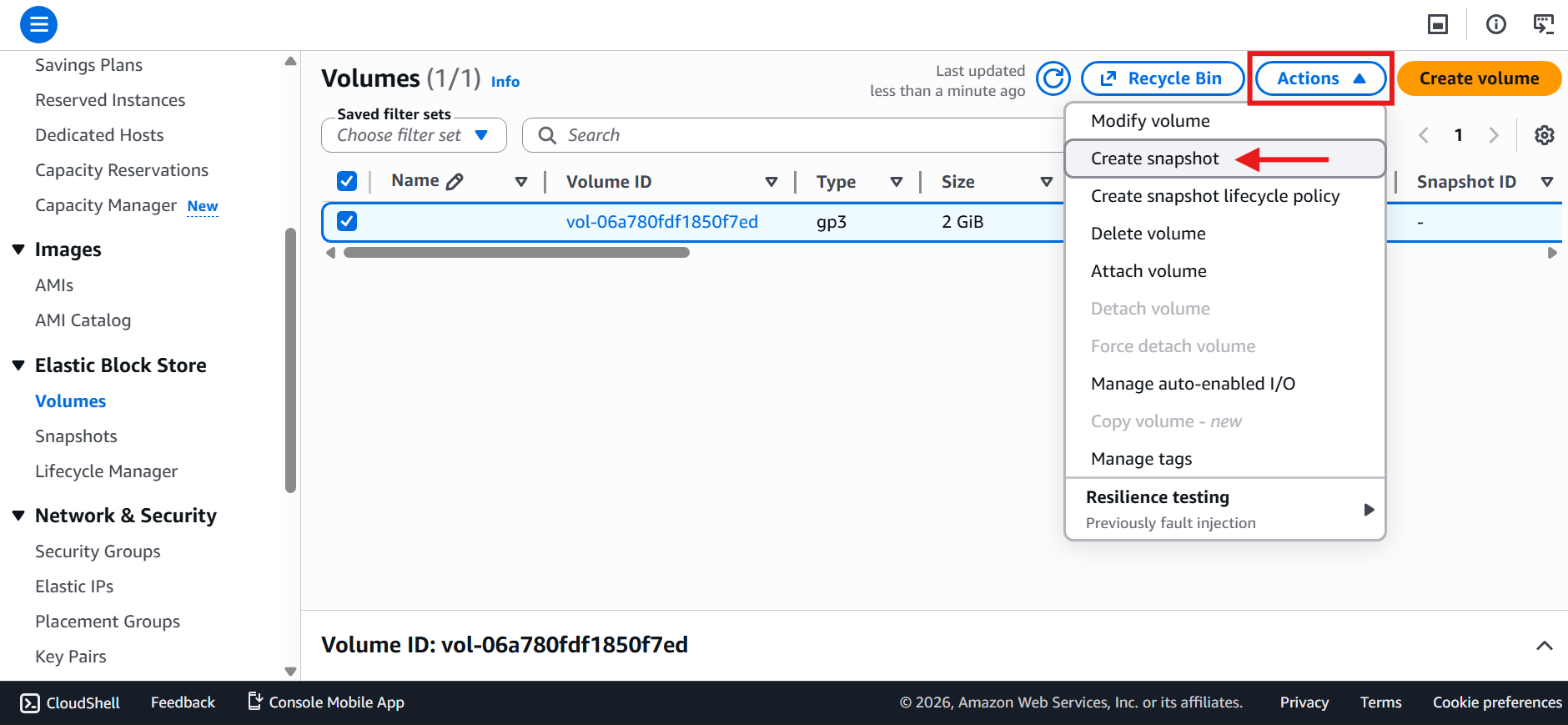
Start with a 2 GB GP3 EBS Volume
Go to Actions → Create Snapshot
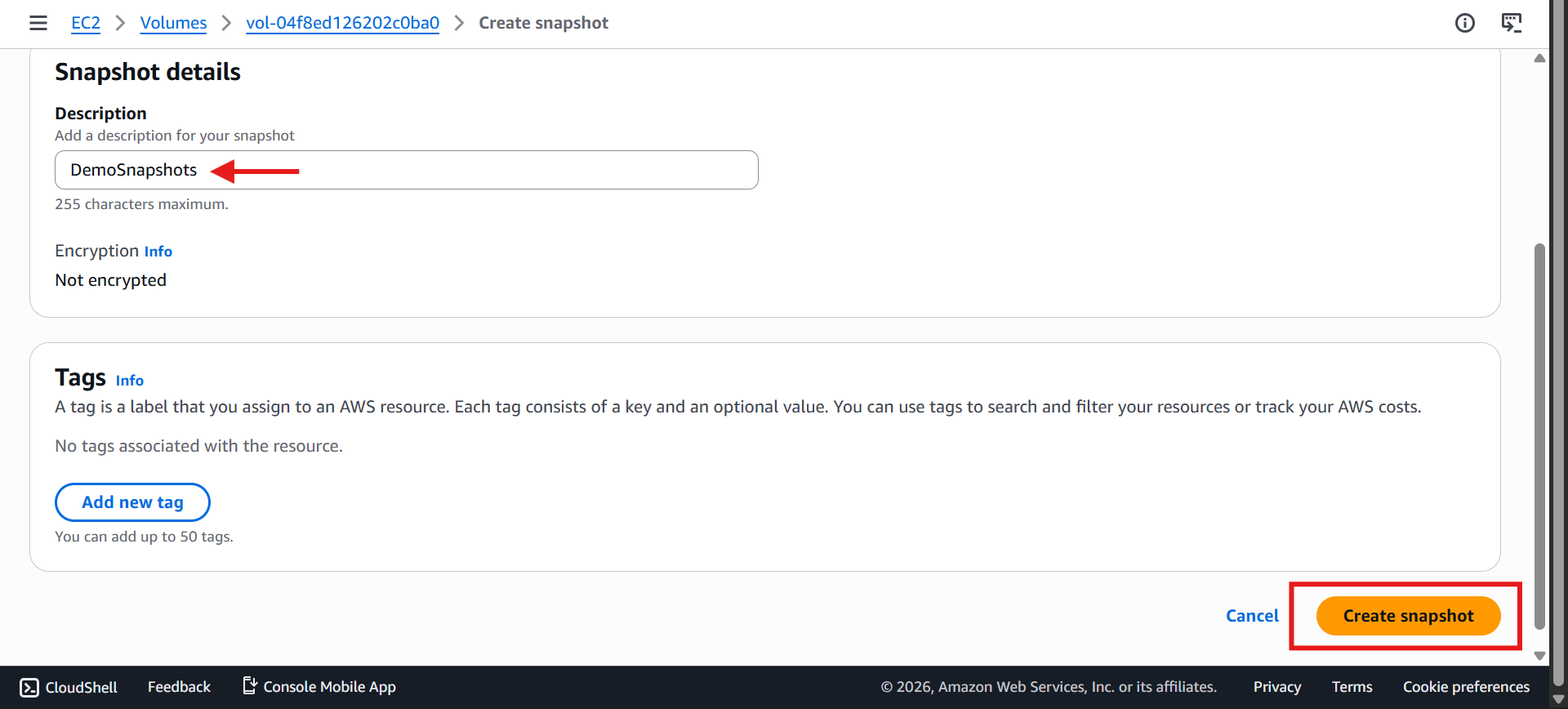
Add description (e.g., DemoSnapshots)
Click Create Snapshot
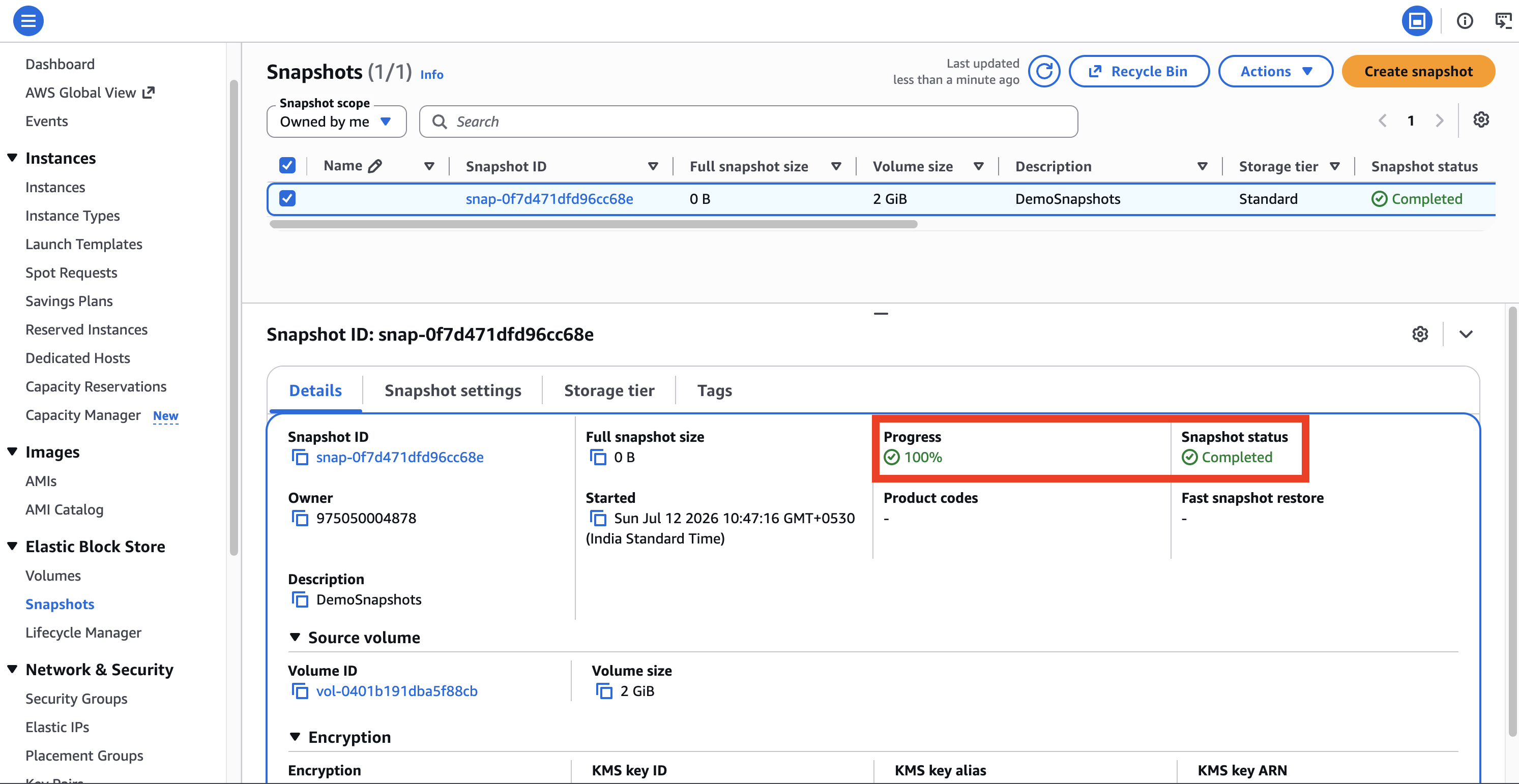
👉 Result: Snapshot is created and stored in Amazon S3 (behind the scenes)
🌍 Copy Snapshot to Another Region
Choose any destination region
Enables Disaster Recovery Strategy
Keeps backup in a different geographic location
🔁 You Can Create a Volume from a Snapshot
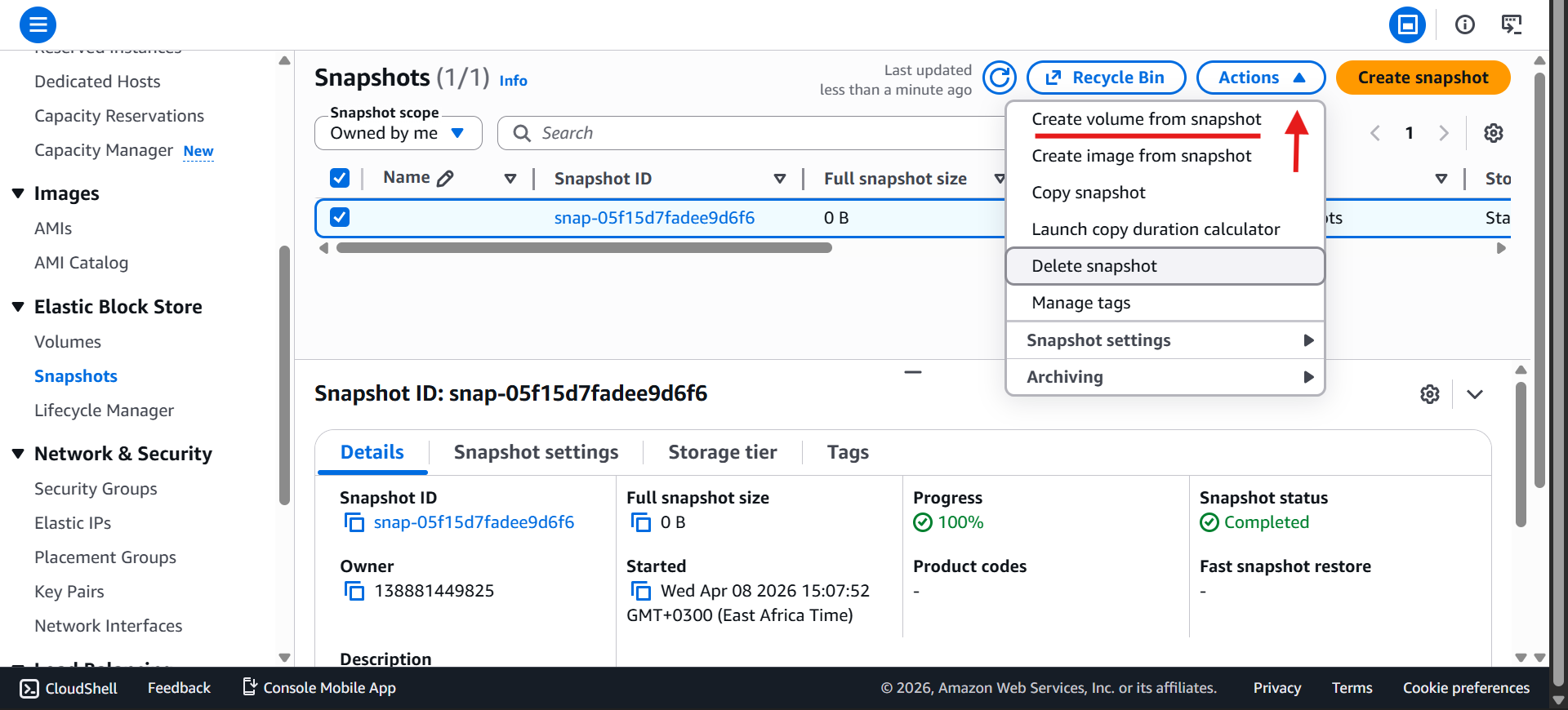
Configure:
Size: 2 GB (gp3)
Availability Zone: e.g.,
aps1-az2(ap-south-1c)(different from original - any region)Encryption (optional)
Tags (optional)
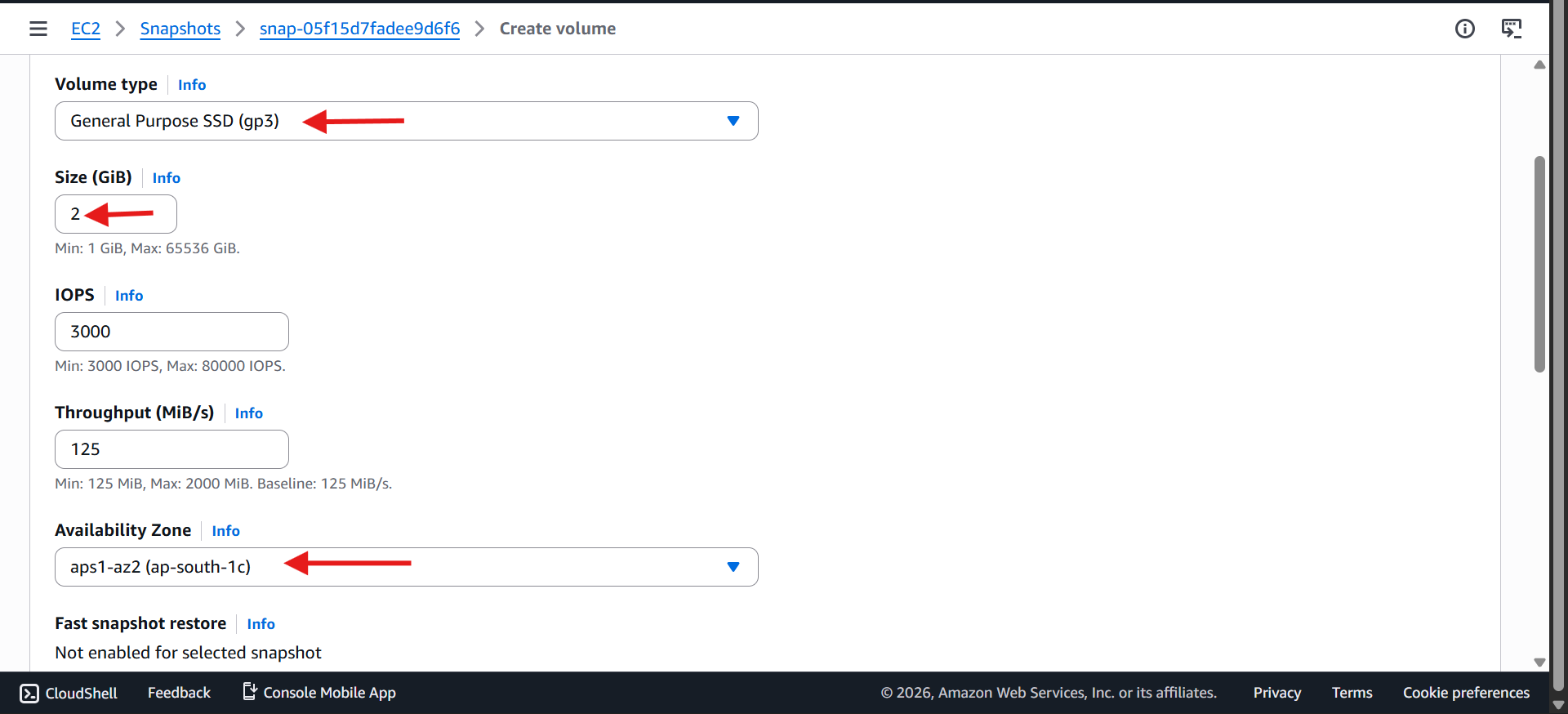
👉 Result: New volume is created from snapshot

You now have: Two Volumes in Different regions
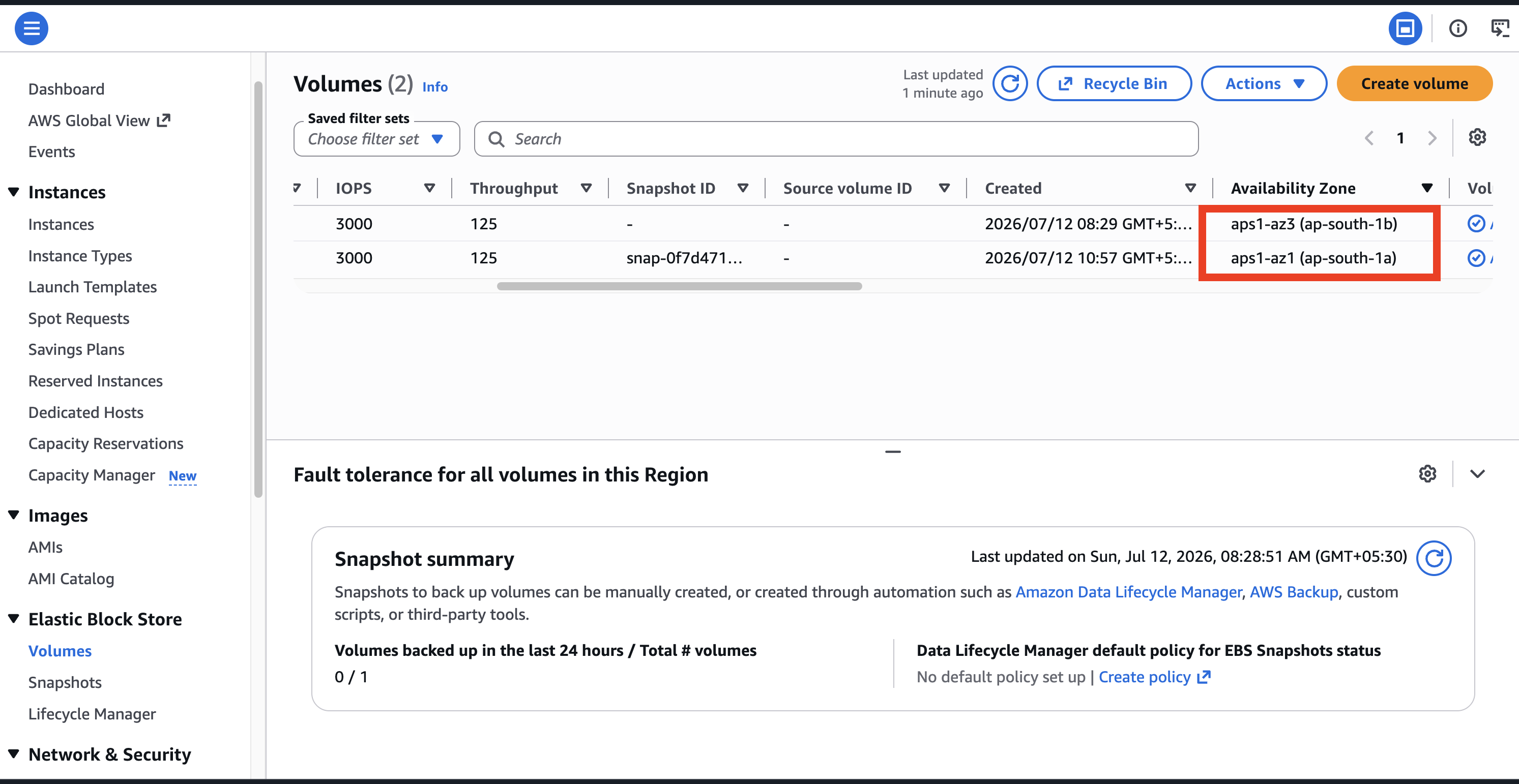
Snapshots allow you to replicate volumes across Availability Zones
♻️ Recycle Bin (Safety Feature)
Protects snapshots from accidental deletion.
In Volumes click Recycle Bin
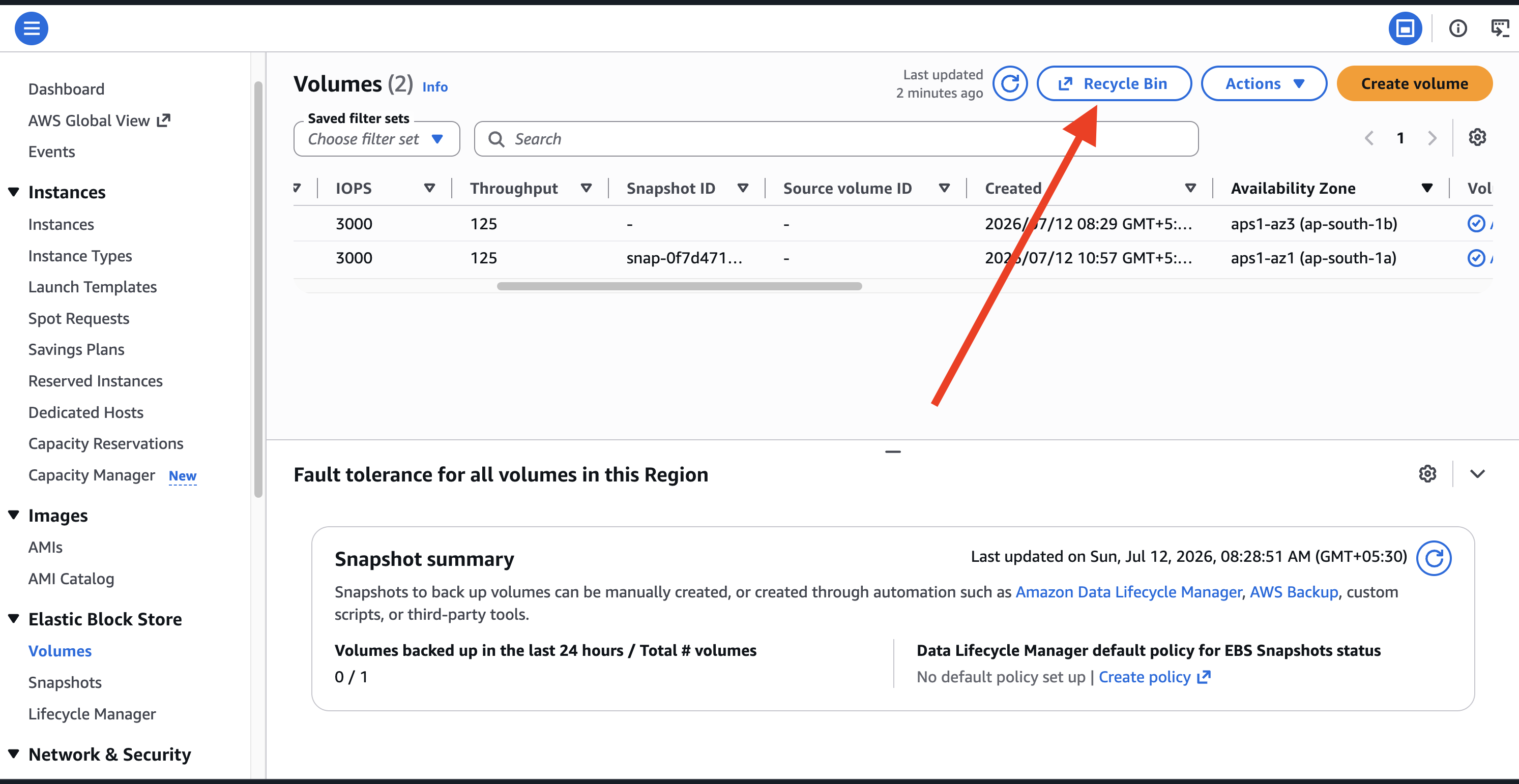
For the First time it will show something like this
Click Create retention rule
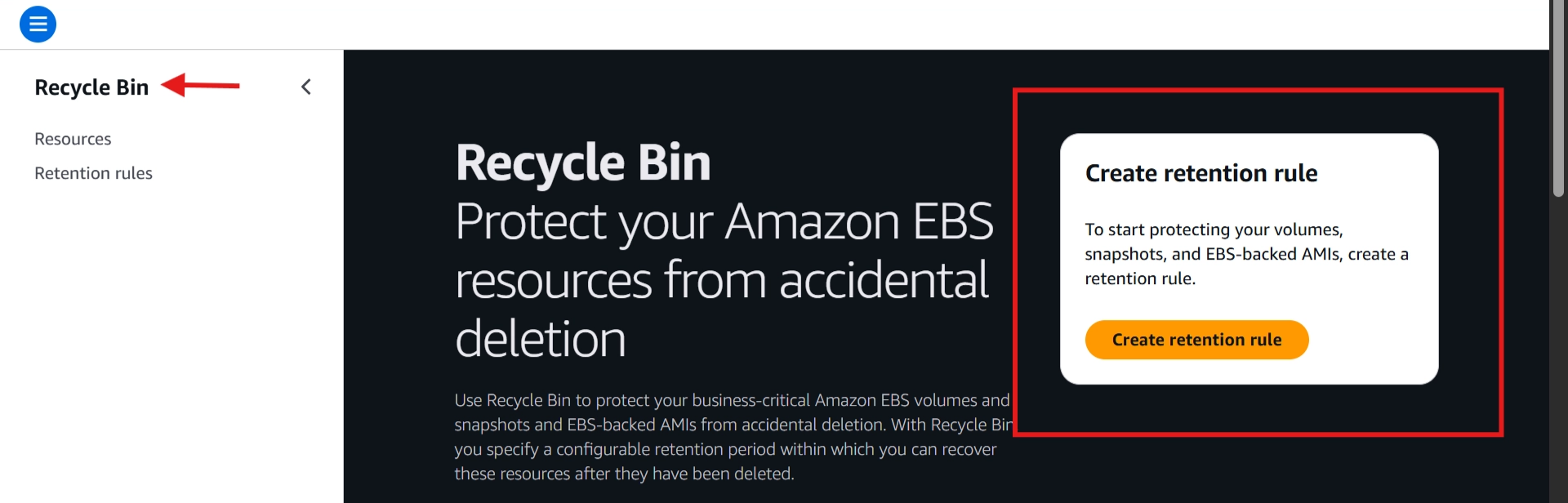
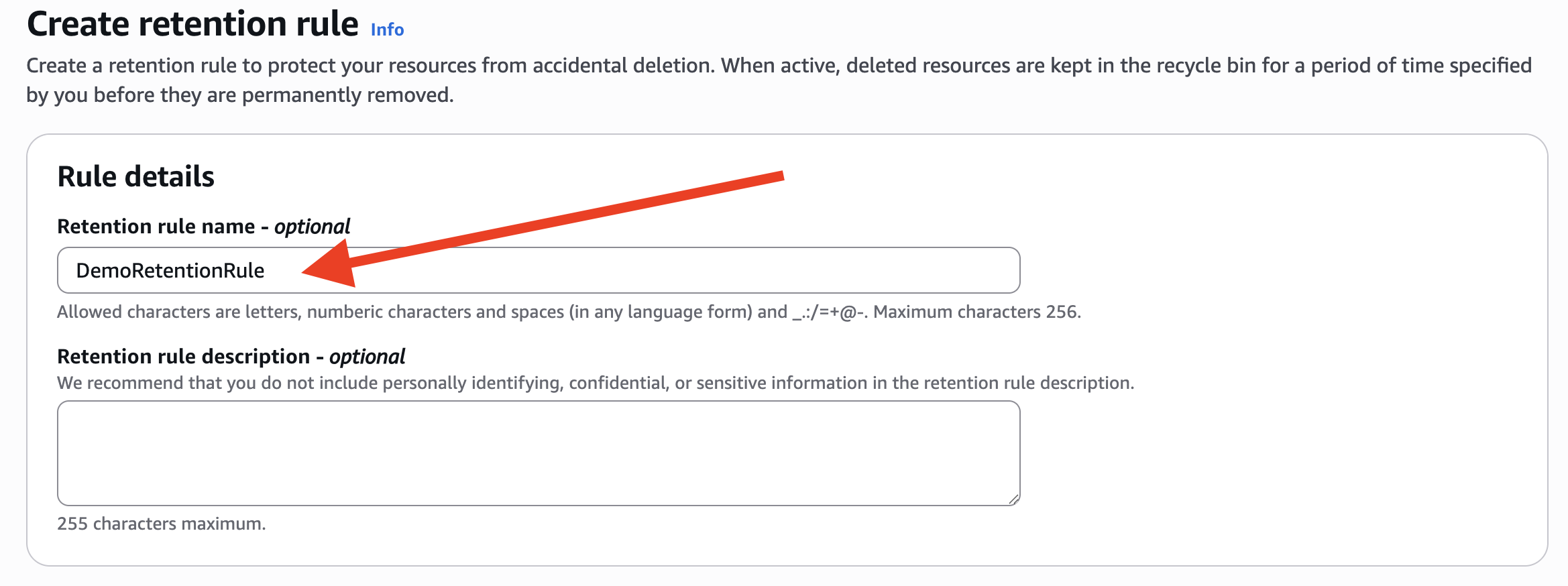
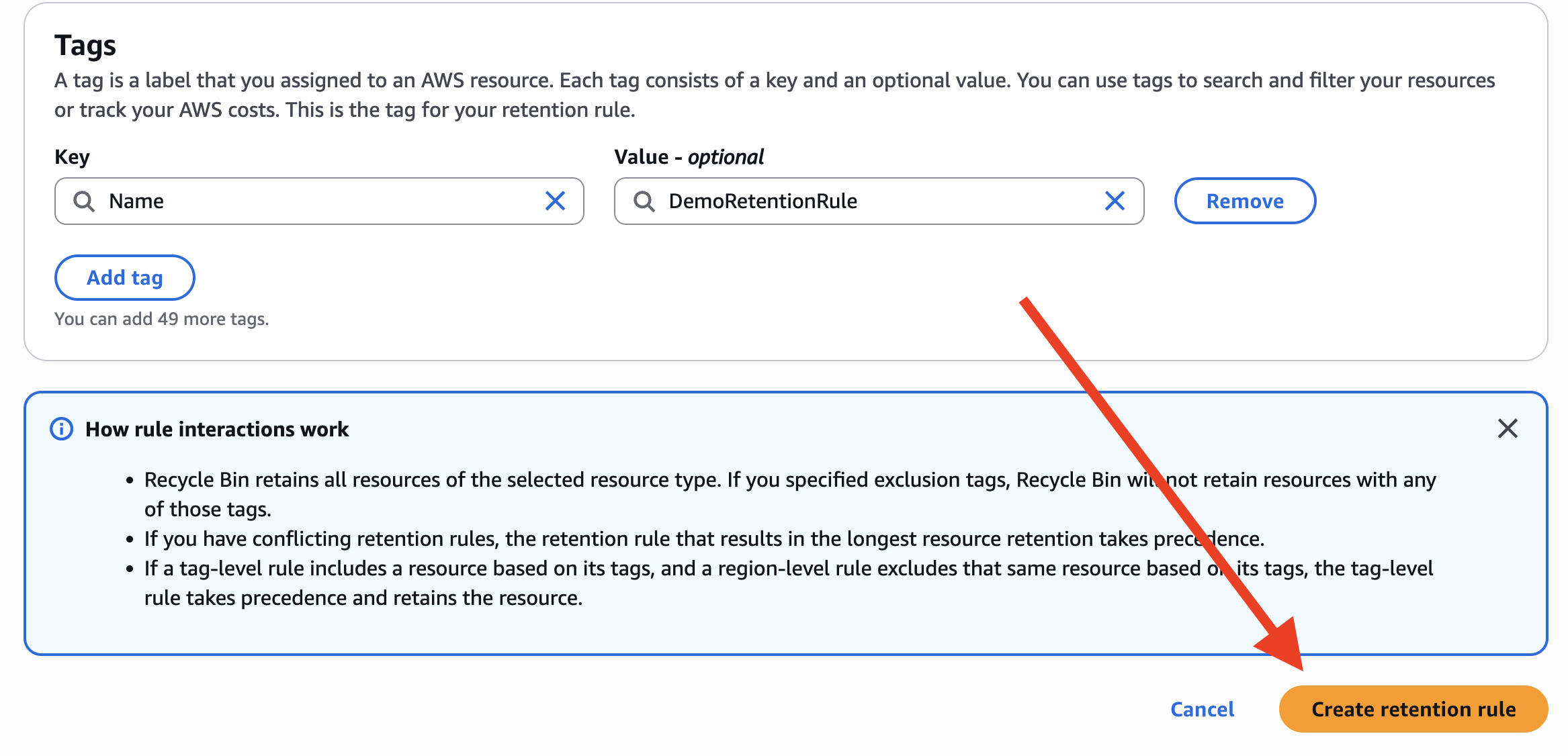
Setup - Create Retention Rule
Name it -
DemoRetentionRule
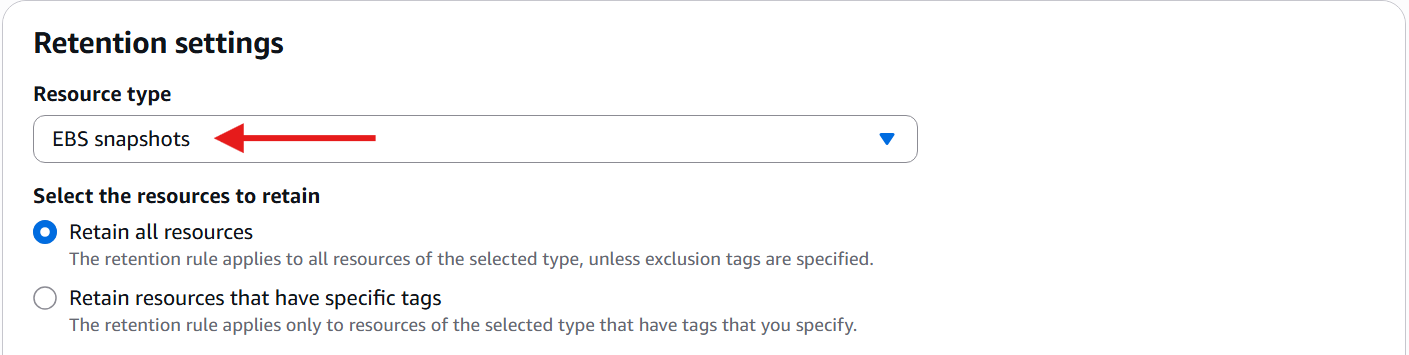
Resource Type → EBS Snapshots
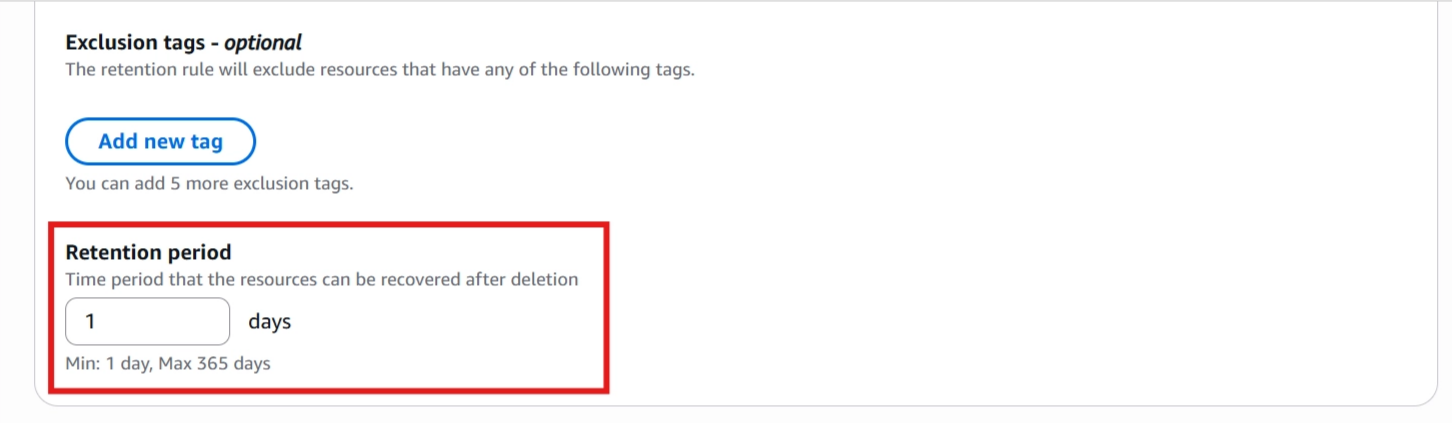
Retention Period → 1 day
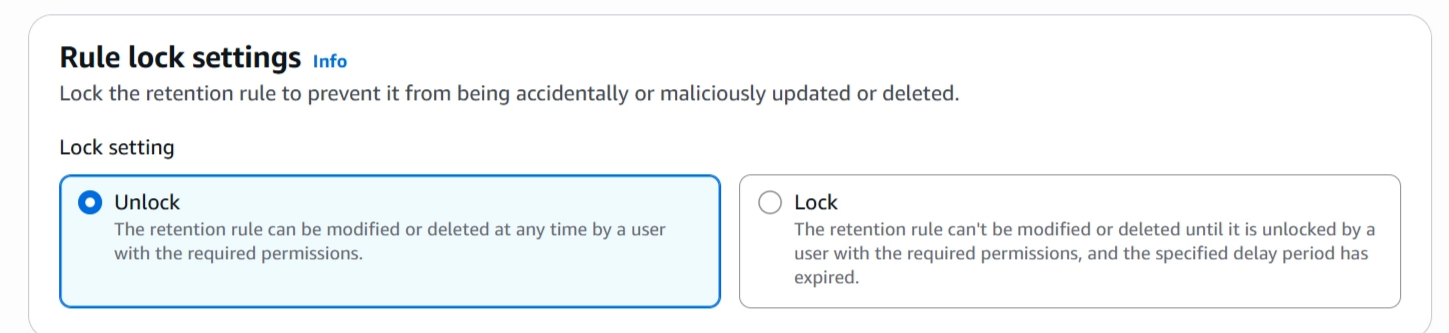
Rule Lock Settings → Unlock (so that you can delete this rule whenever you want to).
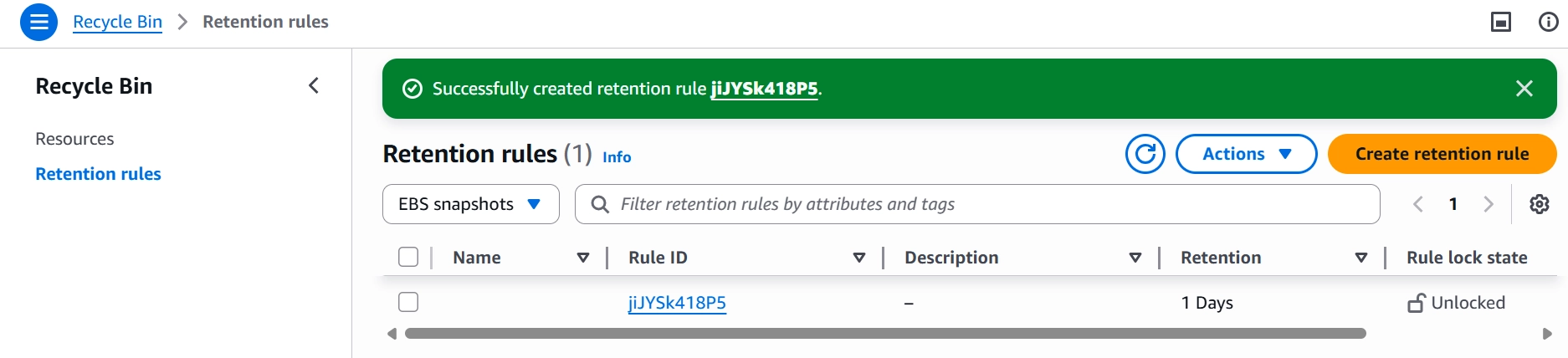
Click Create retention rule button
💾 Snapshot Storage Tiers
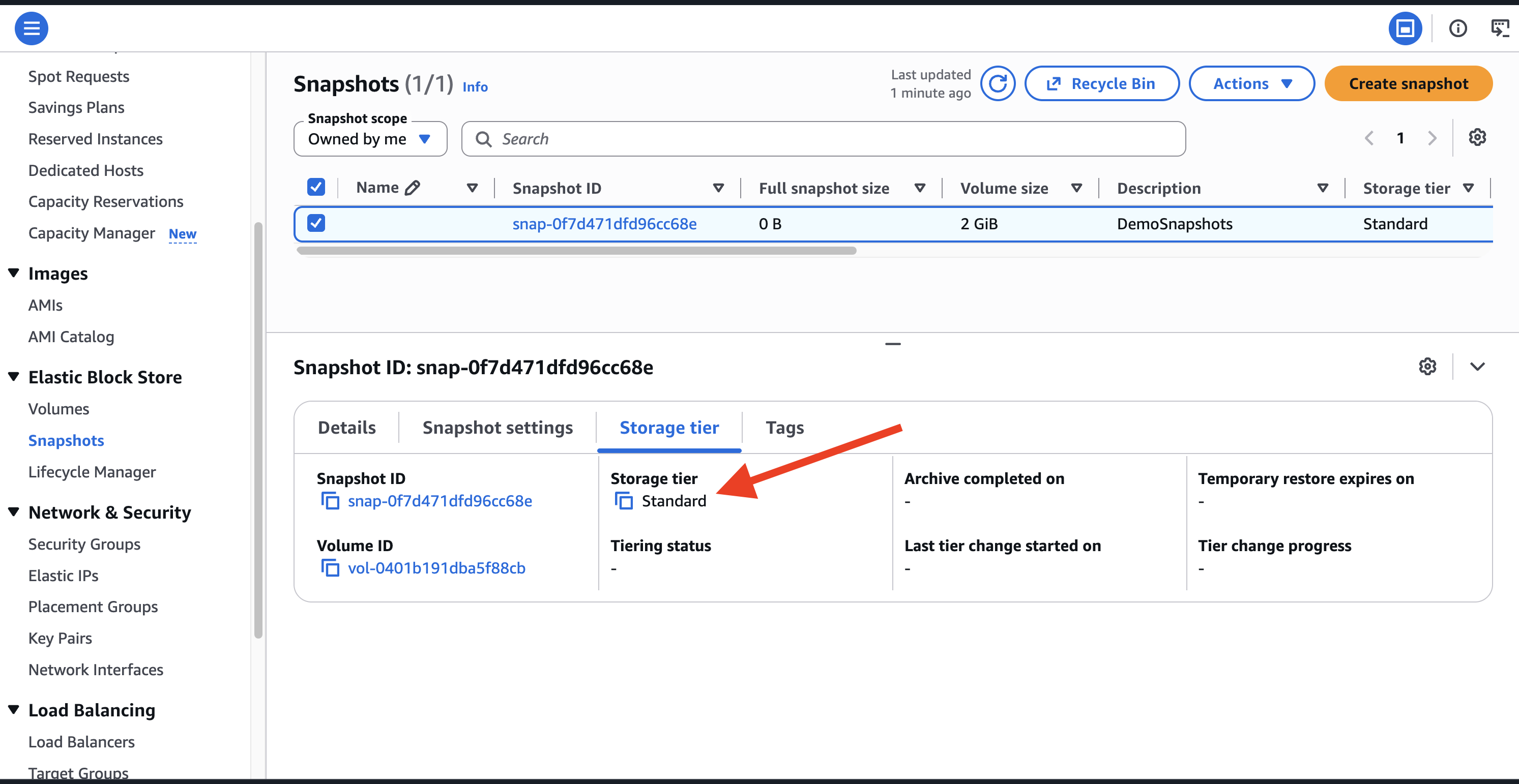
Default:
Snapshots are stored in the Standard Tier, providing immediate access when needed.
Optional:
Move snapshots to the Archive Tier to reduce storage costs.
💸 Ideal for snapshots you rarely access or want to keep for long-term backups.
📦 Archived snapshots cost less to store.
⏳ Restoring an archived snapshot typically takes 24–72 hours before it can be used again.
❌ Delete a snapshot
⚠️ Recycle Bin works only if a retention rule is configured.
Otherwise, deleted snapshots are permanently removed.
🗑️ When you delete a snapshot, it isn't permanently removed.
Instead, it's moved to the ♻️ Recycle Bin, where it can be 🔄 recovered during the configured retention period.
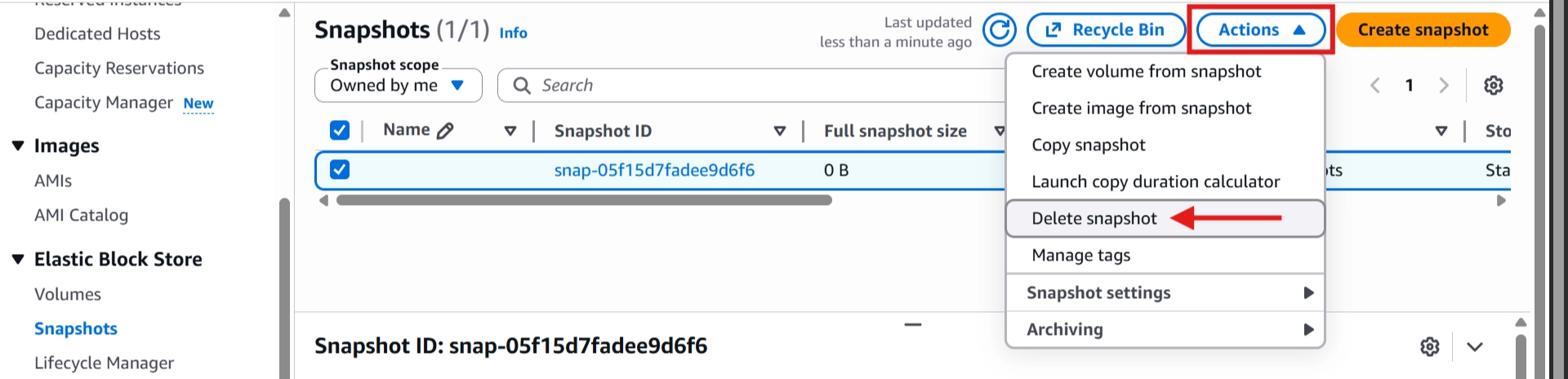
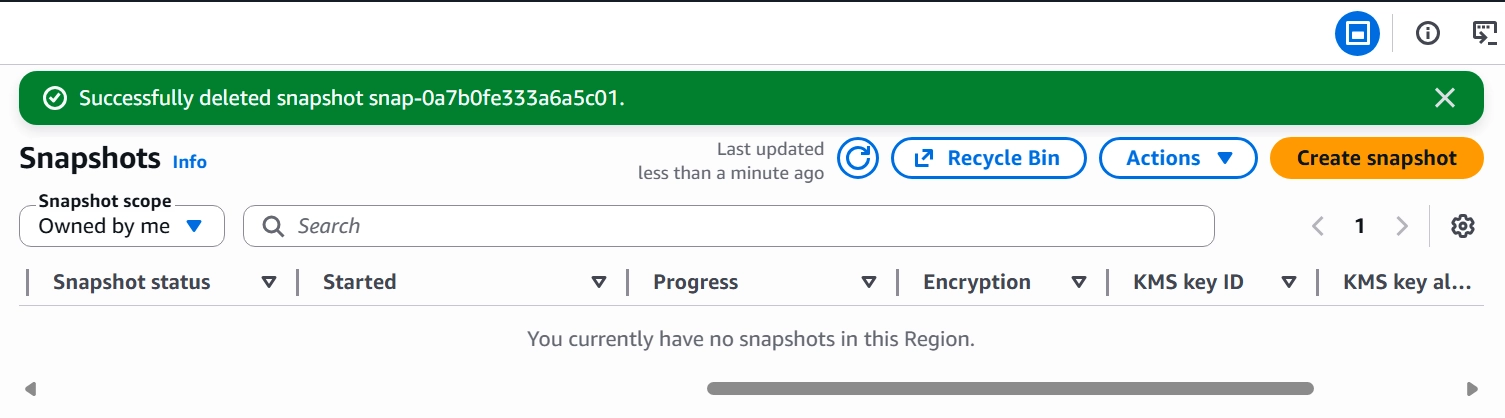
After Deletion it will move to Recycle Bin Resources

🔄 Recover Deleted Snapshot
Go to Recycle Bin → Resources
Select snapshot → Recover
👉 Result: Snapshot is restored back to EC2 console