🔹 Working with EBS Volumes on EC2
How EBS volumes attach to EC2 instances, and how they behave around AZs and termination.
👀 Viewing Attached Volumes
EC2 console → select instance → Storage tab
Shows root device name + attached block devices + volume monitoring
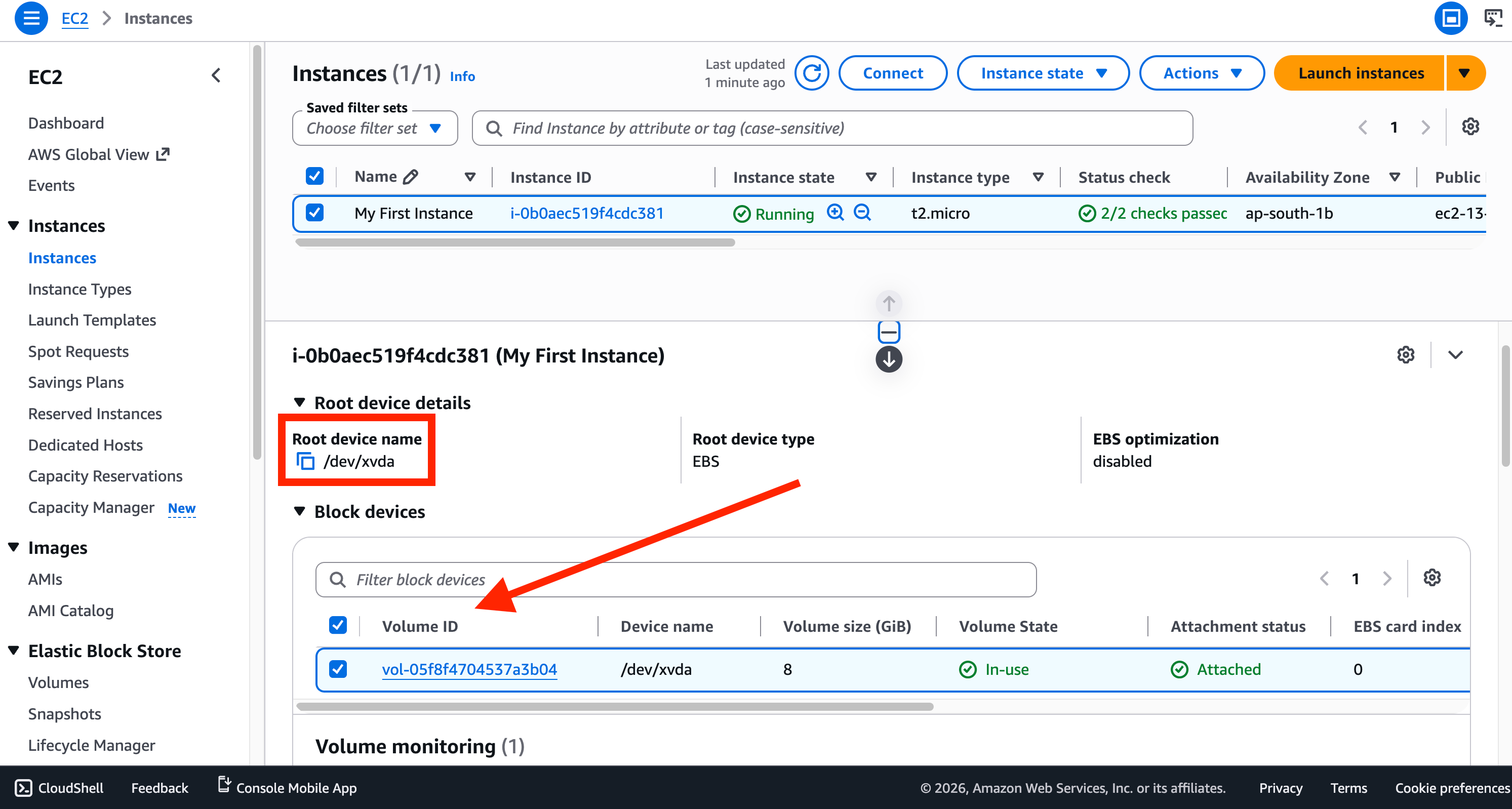
Click a volume (Block Devices) or Elastic Block Storage → Volumes to jump to the Volumes interface
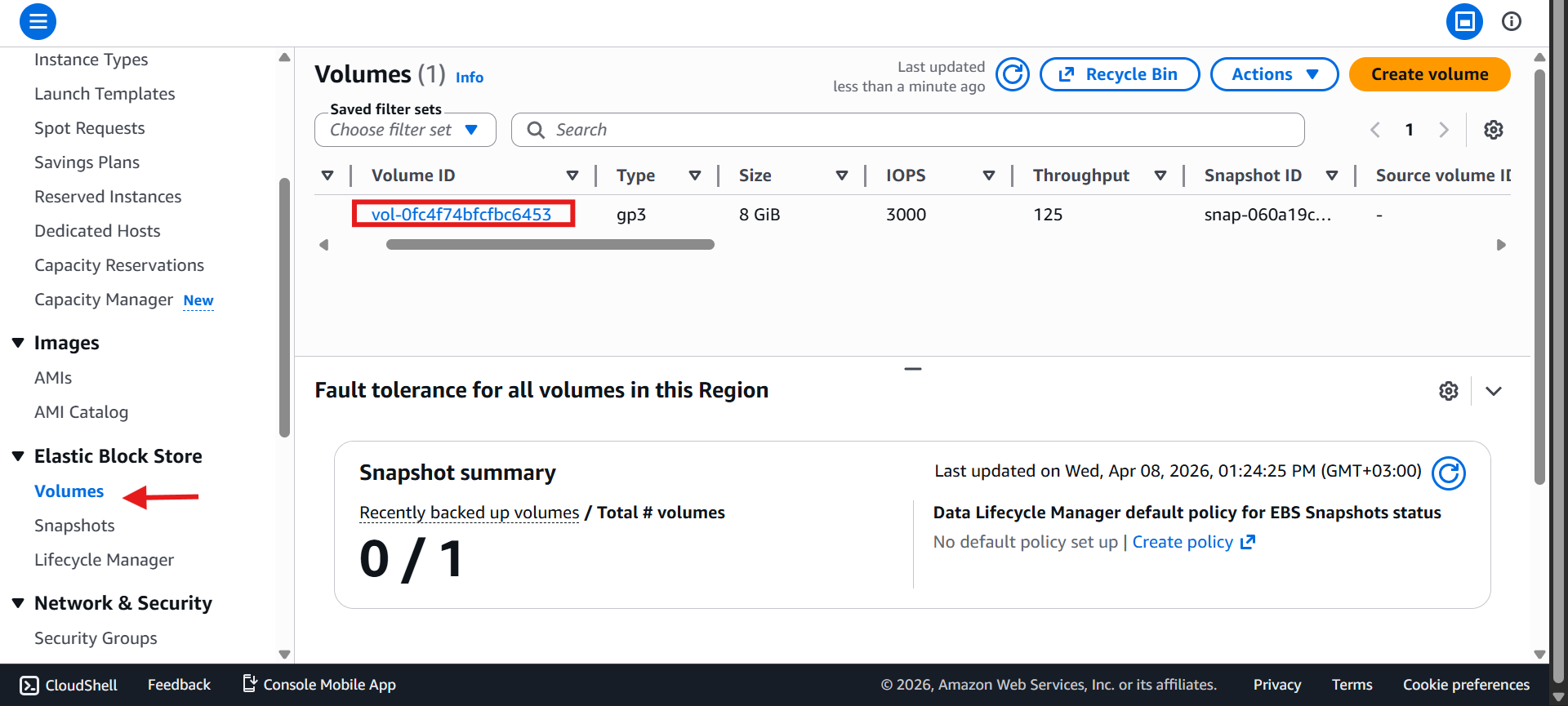
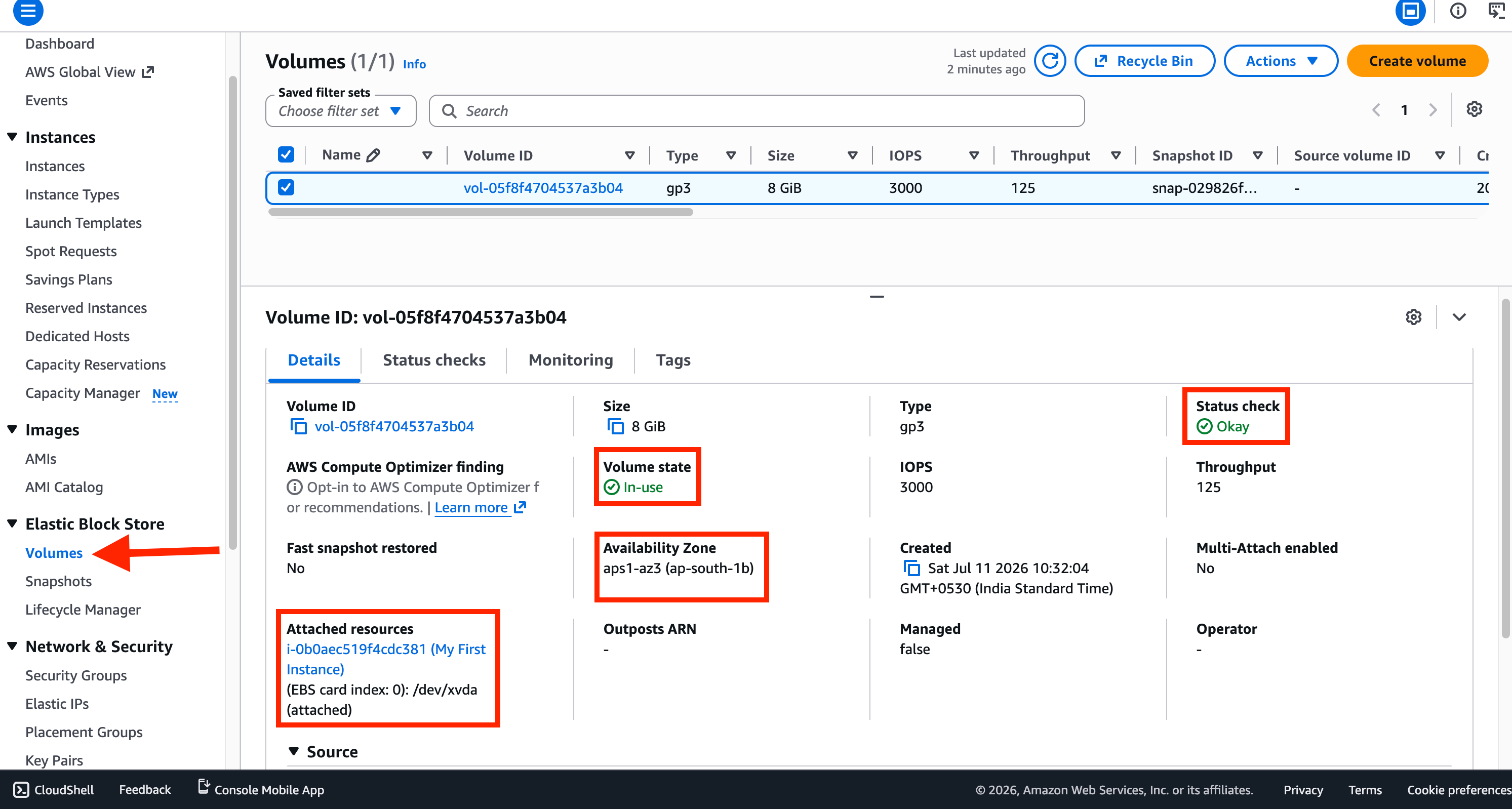
There you can see its status, AZ, and attachment info
2️⃣ Creating & Attaching a New Volume
Create:
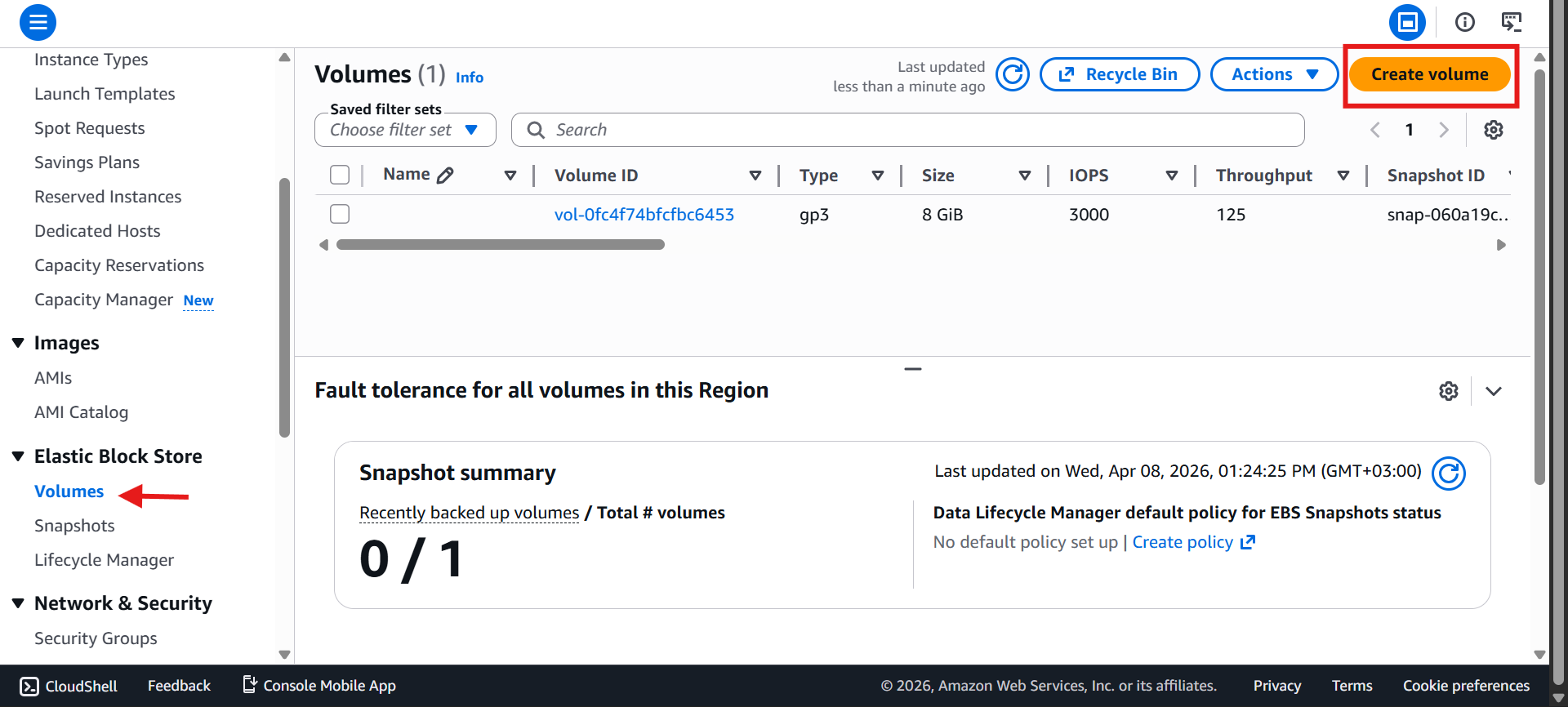
Volumes → Create Volume
Pick a type (e.g. gp3/gp2)
Set a size (e.g. 2 GB)
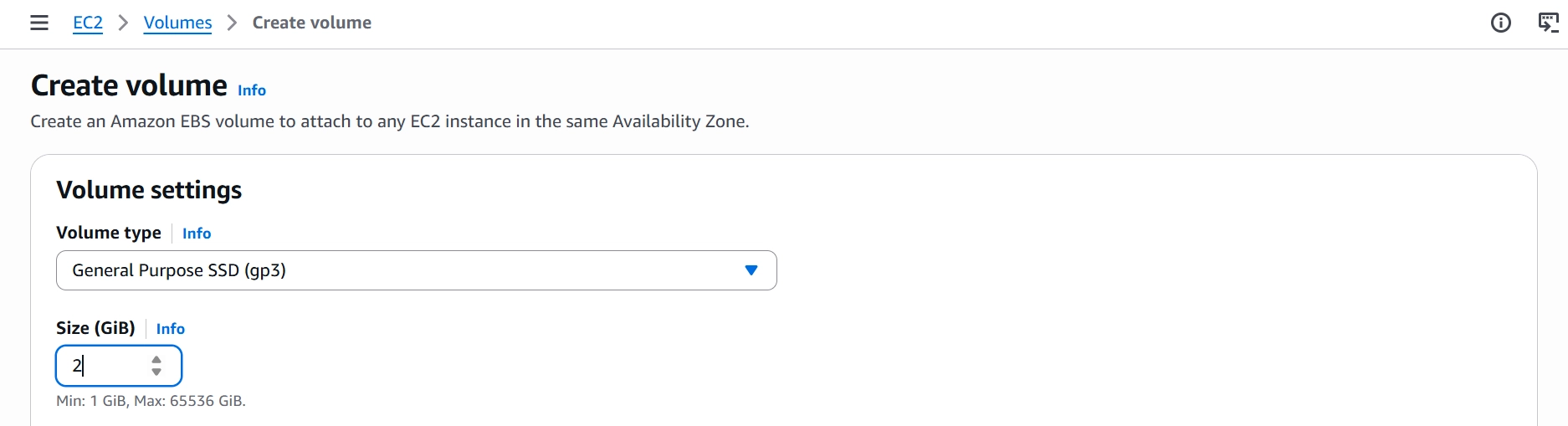
Match the AZ to your instance

Create Volume
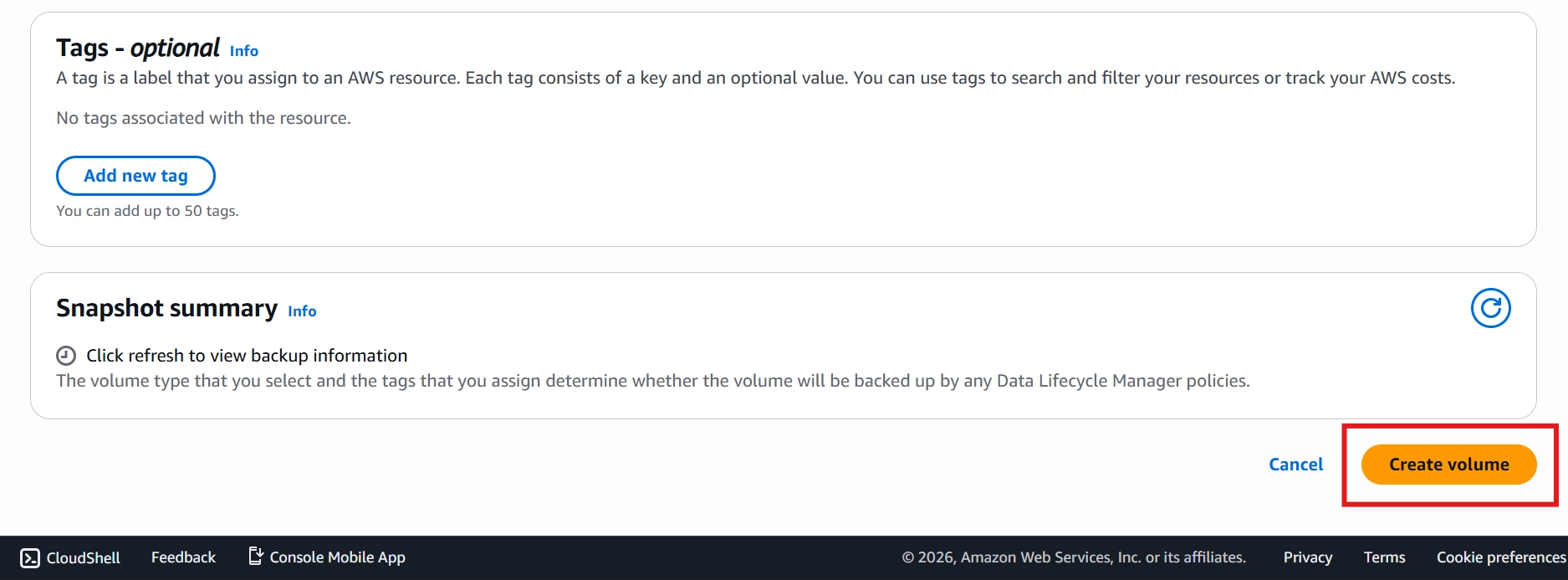
Attach:
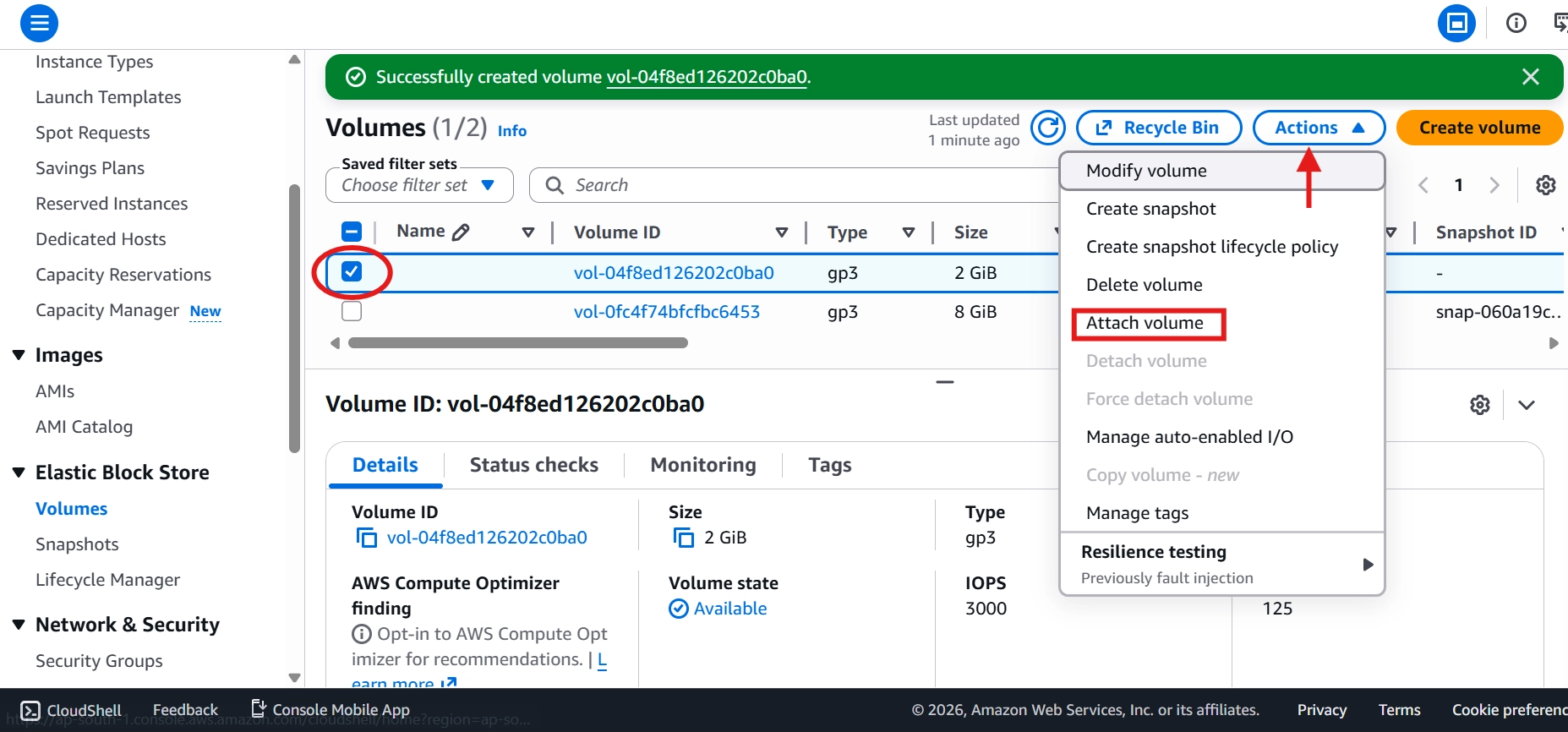
Select the new volume
Actions → Attach Volume
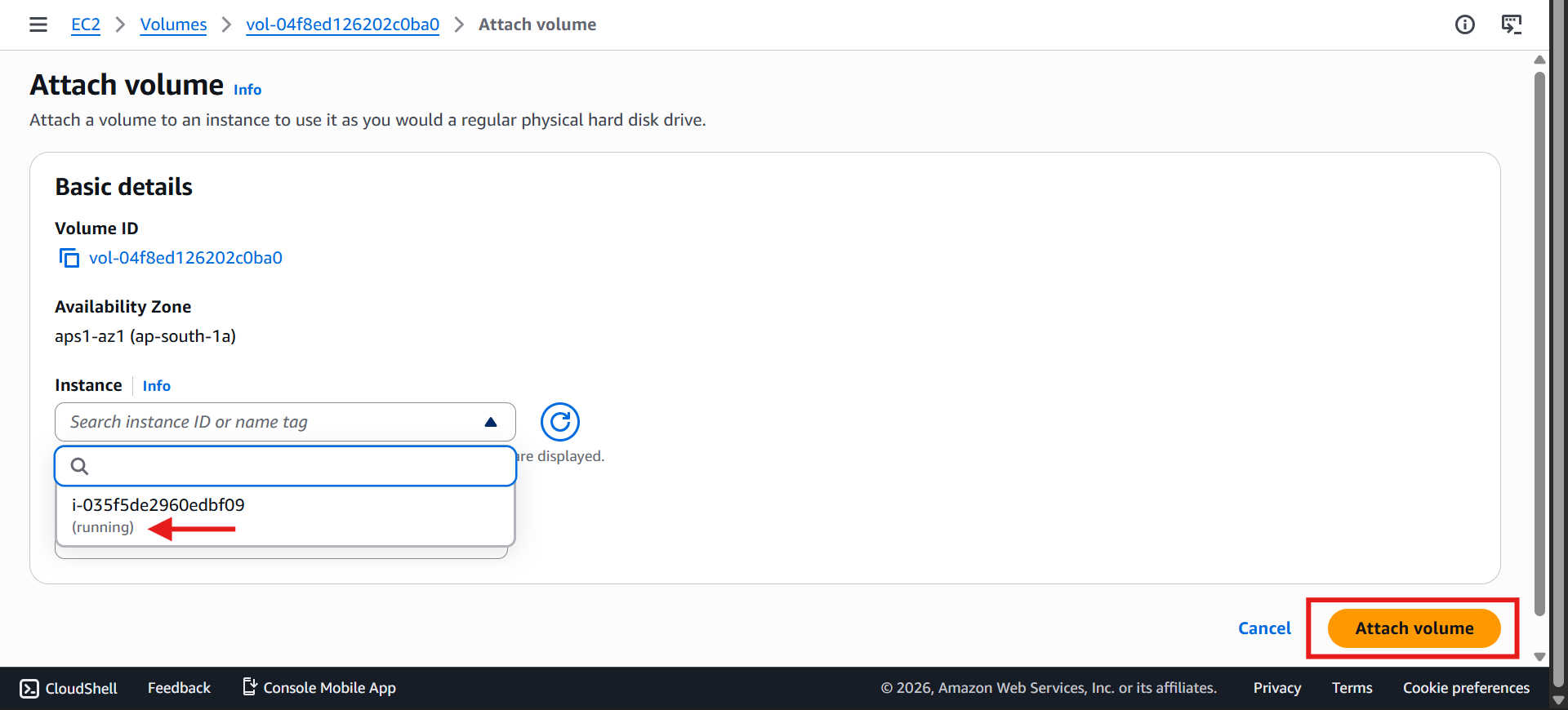
Choose the running instance → confirm
Instance now shows both volumes under Storage → Block Devices
💡 One instance can have multiple volumes. One volume can attach to only one instance at a time — unless you use EBS Multi-Attach (out of scope for Cloud Practitioner).
✅ Availability Zone Restriction
A volume is locked to the AZ it was created in
A volume in
ap-south-1awon't even appear as an option when attaching to an instance inap-south-1b
Cleanup: delete the test volume created above.
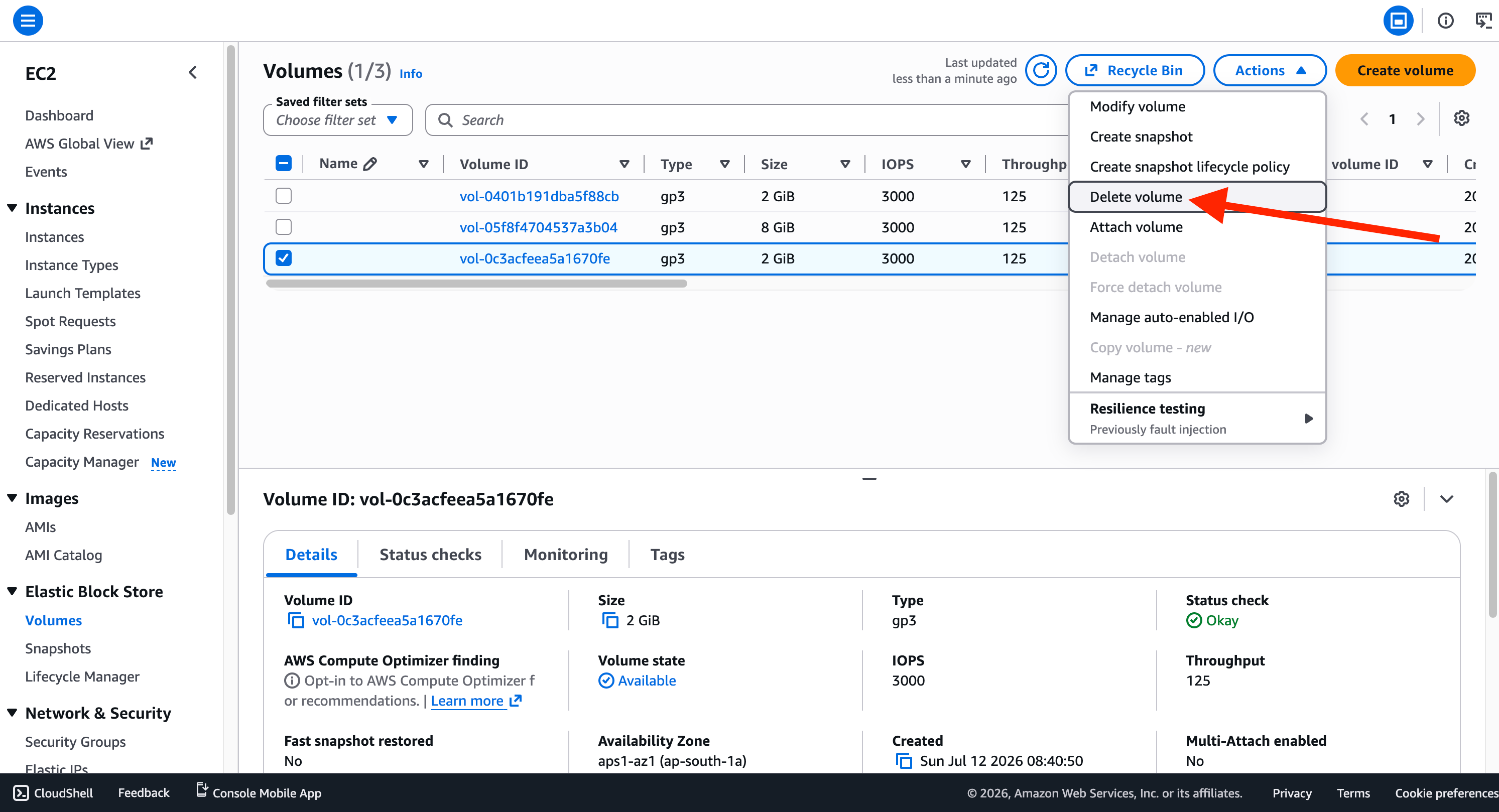
❌ Delete on Termination
🎥 In these videos, we check each attached volume's Delete on Termination setting — root defaults to yes, additional defaults to no. The same recording also shows setting the root volume's flag to no during instance creation.
Volume | Default | Behavior on termination |
|---|---|---|
Root | ✅ Yes | Deleted automatically |
Additional | ❌ No | Persists |
Editable at launch under Advanced → Storage
Useful when you want the root volume kept for backup/testing
🗑️ Terminating an Instance
In the video, deleting the instance removes the root volume — only the external volume (previously attached to it) remains.
Root (Delete on Termination = Yes) → gone
Additional (Delete on Termination = No) → stays available
Example: 8 GB root → deleted · 2 GB additional → persists 🎥 Untitled design (1).mp4