🖼️ How It Works (Conceptual Diagram)
<div class="infographic-sshflow">
<style>
.infographic-sshflow {
  --ink:        #1a1a1a;
  --ink-soft:   #5c5c5c;
  --paper:      #ffffff;
  --paper-alt:  #f0ece4;
  --accent:     #2563eb;
  --accent-soft:#e3ebfd;
  --line:       #ddd6c9;
  --good:       #1c7a3c;
  --body-font: 'Inter', -apple-system, sans-serif;
  --display-font: 'Newsreader', Georgia, serif;

  background: var(--paper);
  color: var(--ink);
  font-family: var(--body-font);
  max-width: 720px;
  margin: 0 auto;
  padding: clamp(1.25rem, 5vw, 2.5rem);
  box-sizing: border-box;
}
.infographic-sshflow[data-theme="dark"] {
  --ink:        #e8e6e1;
  --ink-soft:   #9a968c;
  --paper:      #121212;
  --paper-alt:  #1e1e26;
  --accent:     #5b8def;
  --accent-soft:#202942;
  --line:       #2c313d;
  --good:       #4fbf74;
}
.infographic-sshflow * { box-sizing: border-box; }

.sf-title {
  font-family: var(--display-font); font-size: clamp(1.3rem, 4vw, 1.8rem);
  margin: 0 0 1.5rem; text-align: center; font-weight: 600;
}

.sf-stage {
  position: relative;
  padding: 1rem 0.5rem 2.5rem;
}

.sf-scene {
  display: flex; align-items: center; justify-content: space-between;
  gap: 0.5rem;
}

.sf-node {
  flex: 0 0 auto; display: flex; flex-direction: column; align-items: center; gap: 0.5rem;
  cursor: pointer; background: none; border: none; font-family: var(--body-font);
  color: var(--ink); padding: 0.25rem;
}
.sf-node .icon-box {
  width: 78px; height: 78px; border-radius: 50%;
  background: var(--paper-alt); border: 1px solid var(--line);
  display: flex; align-items: center; justify-content: center;
  font-size: 2.1rem; transition: background 0.2s, border-color 0.2s, transform 0.2s;
}
.sf-node.is-active .icon-box {
  background: var(--accent-soft); border-color: var(--accent); transform: scale(1.08);
}
.sf-node .lbl { font-size: 0.78rem; font-weight: 600; color: var(--ink-soft); }
.sf-node.is-active .lbl { color: var(--accent); }

.sf-link {
  flex: 1 1 auto; position: relative; height: 3px;
  background: repeating-linear-gradient(to right, var(--line) 0 6px, transparent 6px 12px);
  min-width: 30px; align-self: center; margin-top: -1.6rem;
}
.sf-link .badge {
  position: absolute; top: -1.55rem; left: 50%; transform: translateX(-50%);
  background: var(--paper); border: 1px solid var(--line);
  font-size: 0.65rem; font-weight: 700; color: var(--ink-soft);
  padding: 0.15rem 0.45rem; white-space: nowrap;
}
.sf-link .arrow {
  position: absolute; right: -2px; top: 50%; transform: translateY(-50%);
  width: 0; height: 0; border-top: 5px solid transparent; border-bottom: 5px solid transparent;
  border-left: 7px solid var(--line);
}
.sf-link .packet {
  position: absolute; top: 50%; left: 0; width: 9px; height: 9px; border-radius: 50%;
  background: var(--accent); transform: translate(-50%, -50%); opacity: 0;
}
.sf-link.is-flowing .packet { animation: sf-travel 1.1s ease-in-out; }
@keyframes sf-travel {
  0% { left: 0%; opacity: 1; }
  95% { left: 100%; opacity: 1; }
  100% { left: 100%; opacity: 0; }
}
@media (prefers-reduced-motion: reduce) {
  .sf-link.is-flowing .packet { animation: none; opacity: 0; }
}

.sf-detail {
  margin-top: 1.5rem; min-height: 2.4rem; text-align: center;
  font-size: 0.85rem; color: var(--ink-soft); padding: 0 1rem;
}
.sf-detail strong { color: var(--ink); }

.sf-btn-wrap { display: flex; justify-content: center; margin-top: 0.75rem; }
.sf-btn {
  font-family: var(--body-font); font-size: 0.8rem; font-weight: 600;
  background: var(--accent); color: #fff; border: none; padding: 0.55rem 1.3rem;
  cursor: pointer; transition: opacity 0.15s;
}
.sf-btn:hover { opacity: 0.85; }
.sf-btn:disabled { opacity: 0.5; cursor: default; }

@media (max-width: 520px) {
  .sf-scene { flex-direction: column; }
  .sf-link { width: 3px; height: 34px; min-width: 0; align-self: center; margin: -0.2rem 0;
    background: repeating-linear-gradient(to bottom, var(--line) 0 6px, transparent 6px 12px); }
  .sf-link .badge { top: 50%; left: -0.4rem; transform: translate(-100%, -50%); }
  .sf-link .arrow { right: auto; bottom: -2px; top: auto; left: 50%; transform: translateX(-50%);
    border-top: 7px solid var(--line); border-left: 5px solid transparent; border-right: 5px solid transparent; border-bottom: none; }
  .sf-link .packet { top: 0; left: 50%; transform: translate(-50%, -50%); }
  .sf-link.is-flowing .packet { animation: sf-travel-v 1.1s ease-in-out; }
  @keyframes sf-travel-v {
    0% { top: 0%; opacity: 1; }
    95% { top: 100%; opacity: 1; }
    100% { top: 100%; opacity: 0; }
  }
}
</style>

<div class="sf-stage">
  <div class="sf-scene">
    <button class="sf-node" data-info="Your terminal — Mac or Linux, SSH built in." type="button">
      <span class="icon-box">💻</span>
      <span class="lbl">Terminal</span>
    </button>

    <div class="sf-link">
      <span class="badge">🔒 Port 22</span>
      <span class="arrow"></span>
      <span class="packet"></span>
    </div>

    <button class="sf-node" data-info="Travels over the internet, encrypted end to end." type="button">
      <span class="icon-box">🌐</span>
      <span class="lbl">Internet</span>
    </button>

    <div class="sf-link">
      <span class="arrow"></span>
      <span class="packet"></span>
    </div>

    <button class="sf-node" data-info="Lands on your EC2 instance — Amazon Linux 2." type="button">
      <span class="icon-box">🖥️</span>
      <span class="lbl">EC2</span>
    </button>
  </div>
</div>

<div class="sf-detail" id="sf-detail-text">Tap a step, or hit connect ↓</div>

<div class="sf-btn-wrap">
  <button class="sf-btn" id="sf-connect-btn" type="button">▶ Connect</button>
</div>

<script>
(function () {
  const wrapper = document.currentScript.closest('.infographic-sshflow')
    || document.querySelector('.infographic-sshflow');
  const bodyAttr = document.body.getAttribute('data-darkmode');
  let dark;
  if (bodyAttr === 'true') {
    dark = true;
  } else if (bodyAttr === 'false') {
    dark = false;
  } else {
    const match = document.cookie.match(/(?:^|;\s*)darkMode=([^;]+)/);
    dark = match ? match[1] === 'true' : false;
  }
  if (dark) wrapper.setAttribute('data-theme', 'dark');

  const nodes = wrapper.querySelectorAll('.sf-node');
  const detail = wrapper.querySelector('#sf-detail-text');
  const links = wrapper.querySelectorAll('.sf-link');
  const btn = wrapper.querySelector('#sf-connect-btn');

  nodes.forEach(node => {
    node.addEventListener('click', () => {
      const wasActive = node.classList.contains('is-active');
      nodes.forEach(n => n.classList.remove('is-active'));
      if (!wasActive) {
        node.classList.add('is-active');
        detail.innerHTML = node.dataset.info;
      } else {
        detail.textContent = 'Tap a step, or hit connect ↓';
      }
    });
  });

  btn.addEventListener('click', () => {
    btn.disabled = true;
    nodes.forEach(n => n.classList.remove('is-active'));
    detail.innerHTML = 'Encrypted handshake over <strong>port 22</strong>…';
    links.forEach((link, i) => {
      setTimeout(() => link.classList.add('is-flowing'), i * 500);
    });
    setTimeout(() => {
      nodes[nodes.length - 1].classList.add('is-active');
      detail.innerHTML = '<strong>Connected</strong> — you\'re inside the EC2 instance.';
      links.forEach(l => l.classList.remove('is-flowing'));
      btn.disabled = false;
    }, 1500);
  });
})();
</script>
</div>
.demo {
font-family: system-ui, sans-serif;
padding: 16px;
}
.demo h1 {
color: #2563eb;
margin: 0 0 8px;
}
.demo p {
color: #4b5563;
margin: 0;
}document.querySelector('.demo h1')?.addEventListener('click', () => {
alert('Hello from live preview!');
});Your Windows machine → connects via internet
Through port 22 (SSH)
Into your EC2 instance (Amazon Linux 2)
⚙️ Step 1: Install PuTTY
👉 PuTTY is a free SSH client for Windows
Download PuTTY (64-bit installer recommended)
https://the.earth.li/~sgtatham/putty/latest/w64/putty-64bit-0.83-installer.msiRun installer → Click:
Next → Next → Install → Finish
✅ After installation, you’ll have:
PuTTY (main app)
PuTTYgen (key converter)
🔑 Step 2: Convert .pem → .ppk
AWS gives you a
.pemfile (During ec2 cration), but PuTTY needs.ppk
Open PuTTYgen
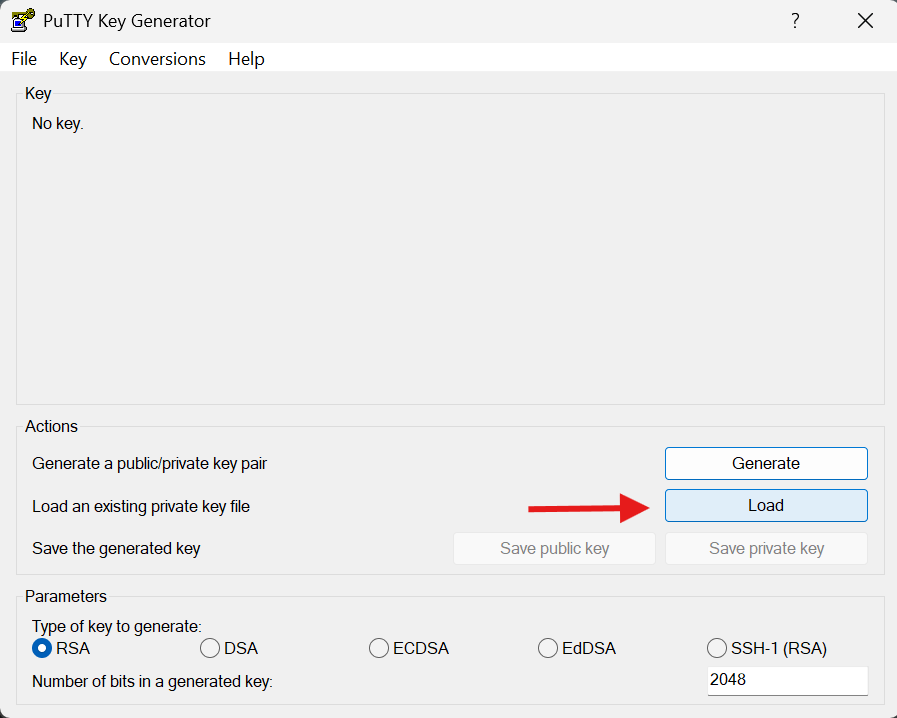
Click Load
Change file filter → All Files

Select your
.pemfile (e.g.,EC2Tutorial.pem) You should see or Rename it to this:
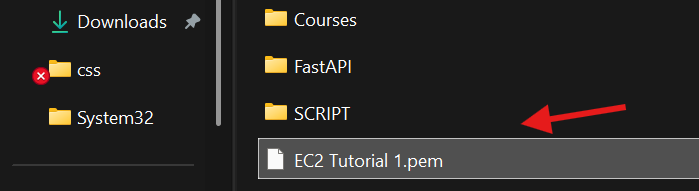
Click Open
👉 You’ll see: “Successfully imported key”
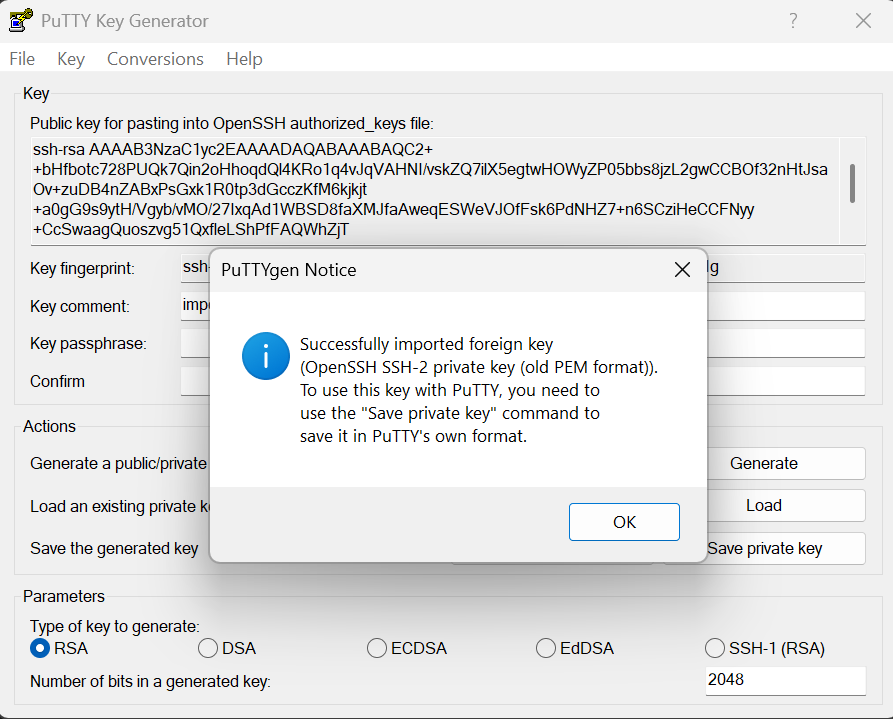
Click Save private key
Save as:
EC2Tutorial.ppk
⚠️ If prompted about passphrase: Click Yes (skip for now)
🌐 Step 3: Configure PuTTY Connection
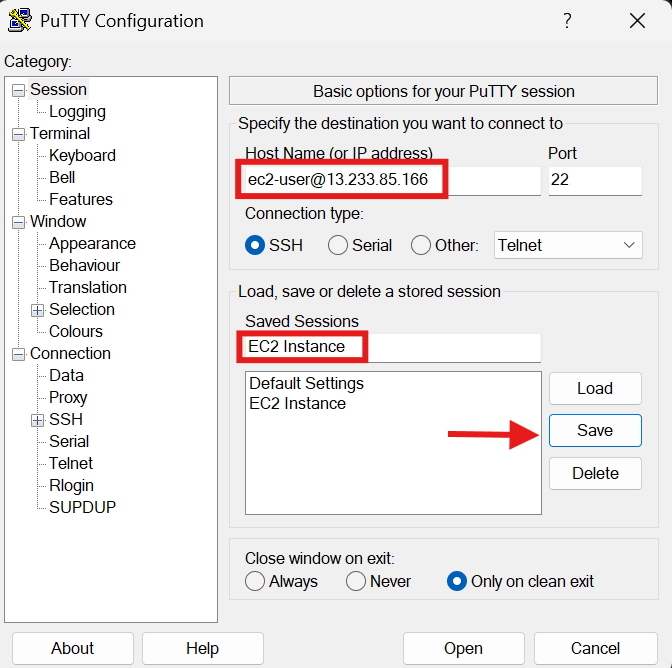
Open PuTTY and do the following:
Enter Host Name
ec2-user@<your-public-ip>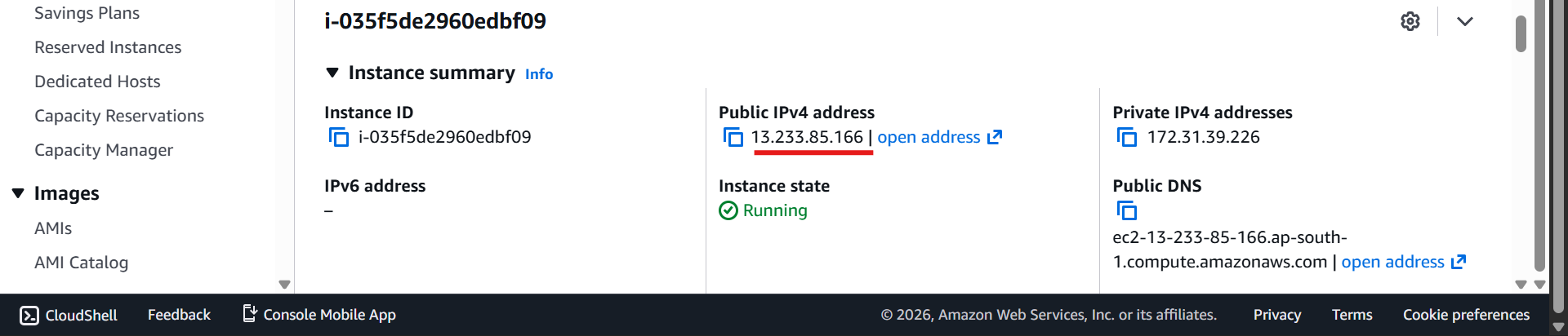
Example:
ec2-user@3.250.xxx.xxx
👉 Why
ec2-user: Default username for Amazon Linux 2
Save Session
Name it:
EC2 InstanceClick Save
🔐 Step 4: Attach Your Private Key
Navigate:
Go to:
SSH → AuthClick Credentials
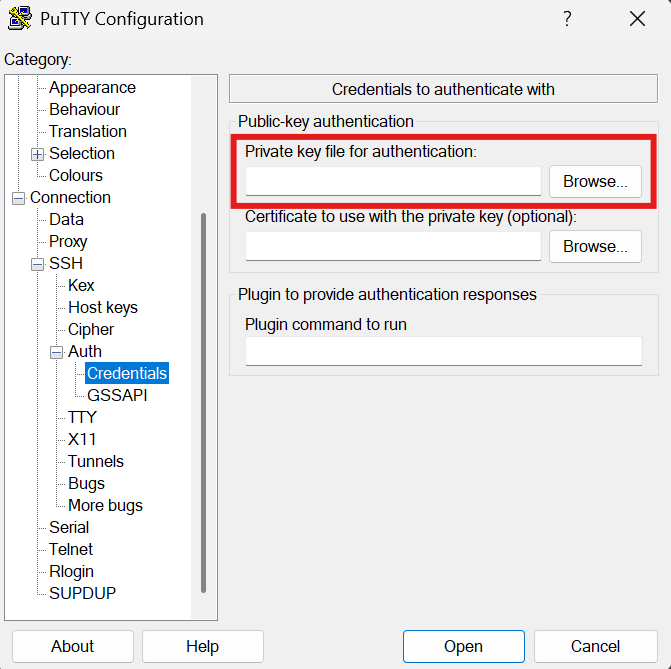
Select your
.ppkfile

⚠️ IMPORTANT
👉 Go back to:
Session → Save again✔️ This prevents redoing everything later
🚀 Step 5: Connect to Your EC2 Instance
Click Open
First time → Click Yes (trust host)
💻 You’re In! 🎉
You should now see something like:
ec2-user@ip-172-31-xx-xx:~$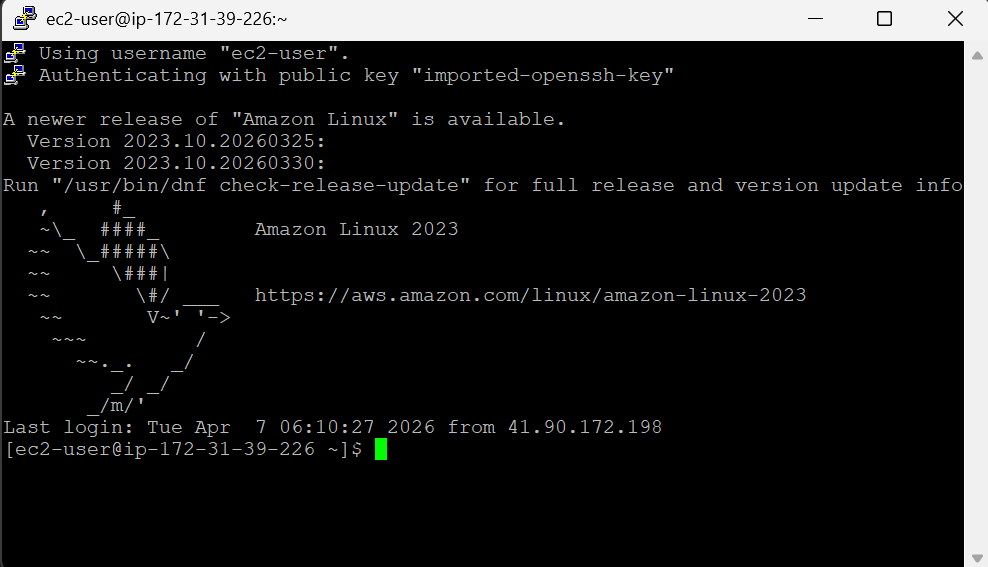
🧪 Try These Commands
whoami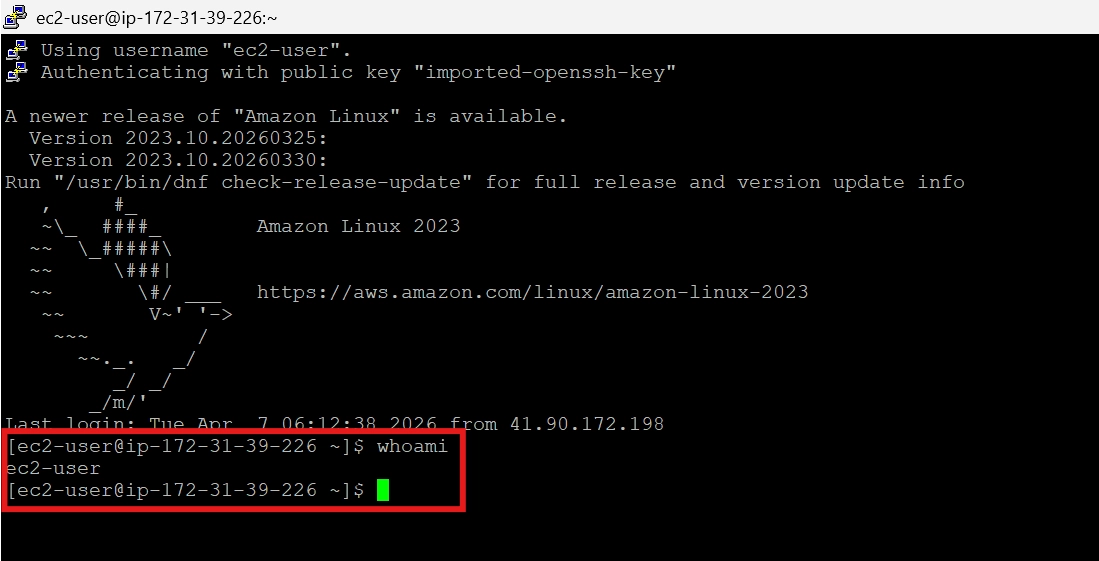
👉 Output:
ec2-user
ping google.com
👉 Stop with:
Ctrl + C
❌ Common Error
If you see:
Access denied / Authentication failedMake sure you:
Added
.ppkfile ✅Used
ec2-user@IP✅Saved session properly ✅
🔁 Reconnecting
Next time:
Open PuTTY
Select EC2 Instance
Click Load
Click Open
✅ Done — no reconfiguration needed