So we’ve launched our EC2 instance — great!
🚀 Now let’s actually explore security groups in action.
🔍 Step 1: Viewing Security Groups from EC2
From your EC2 instance page
Go to Security tab
You’ll see: Attached security groups, Inbound rules and Outbound rules
👉 This gives you a quick overview, but not the full picture.
🧭 Step 2: Open the Full Security Groups Page
For a deeper view:
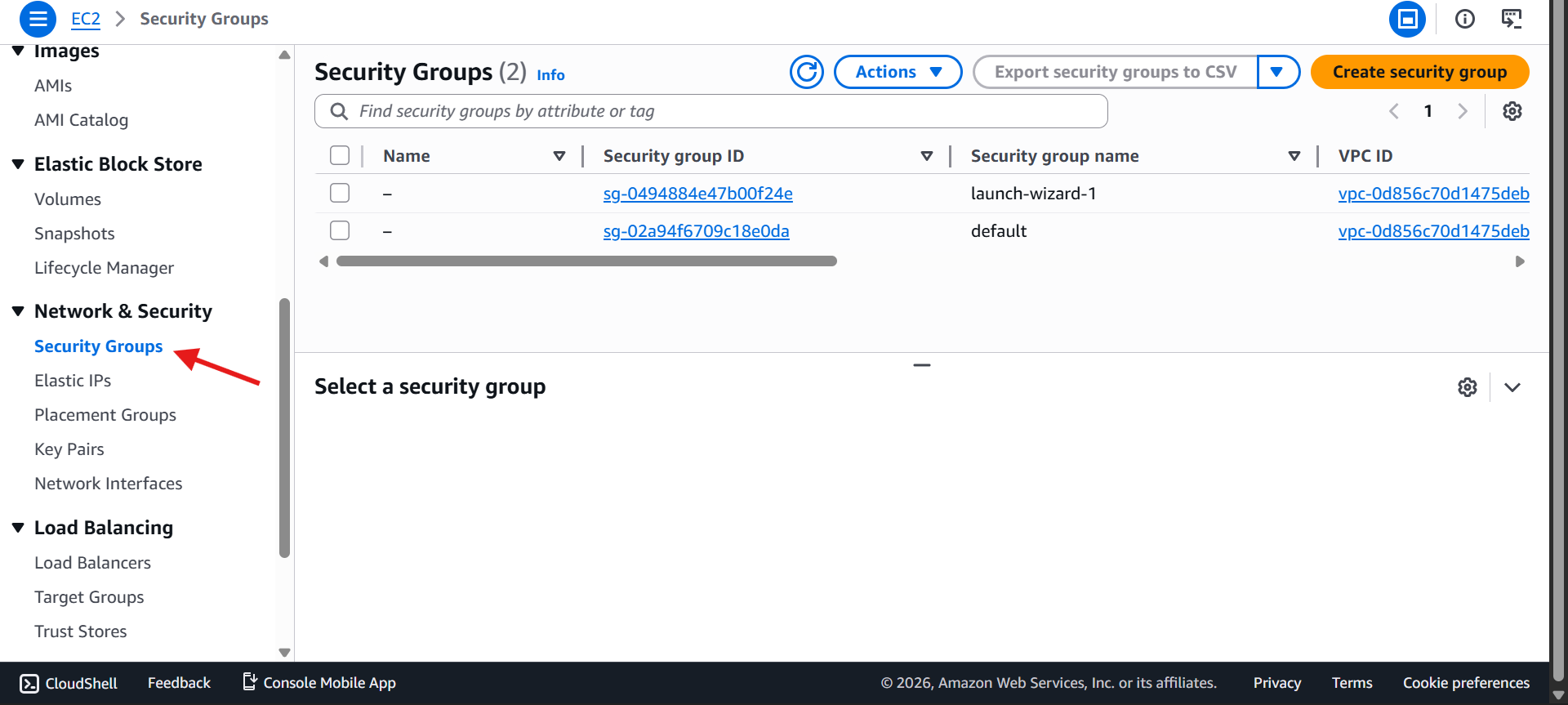
Go to the left-hand menu
Under Networking & Security
Click on Security Groups
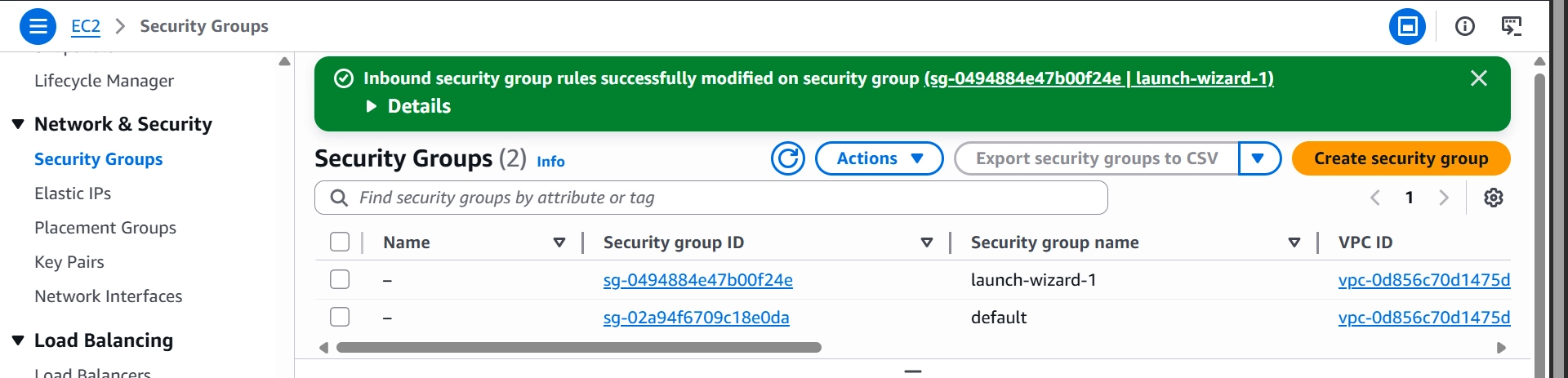
Now you’ll see all security groups in your account.
📦 Step 3: Understanding What You See
You’ll typically see:
Default Security Group
launch-wizard-1 (created when launching EC2)
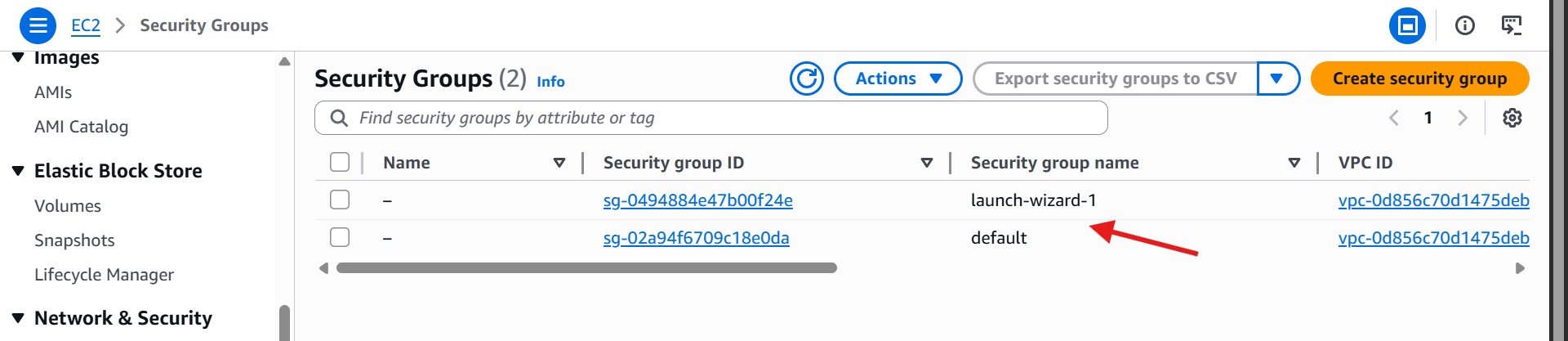
Each security group has: 🆔 A unique Security Group ID, 📥 Inbound rules and 📤 Outbound rules
📥 Step 4: Inspect Inbound Rules
Inbound rules control who's allowed to reach your EC2 instance.
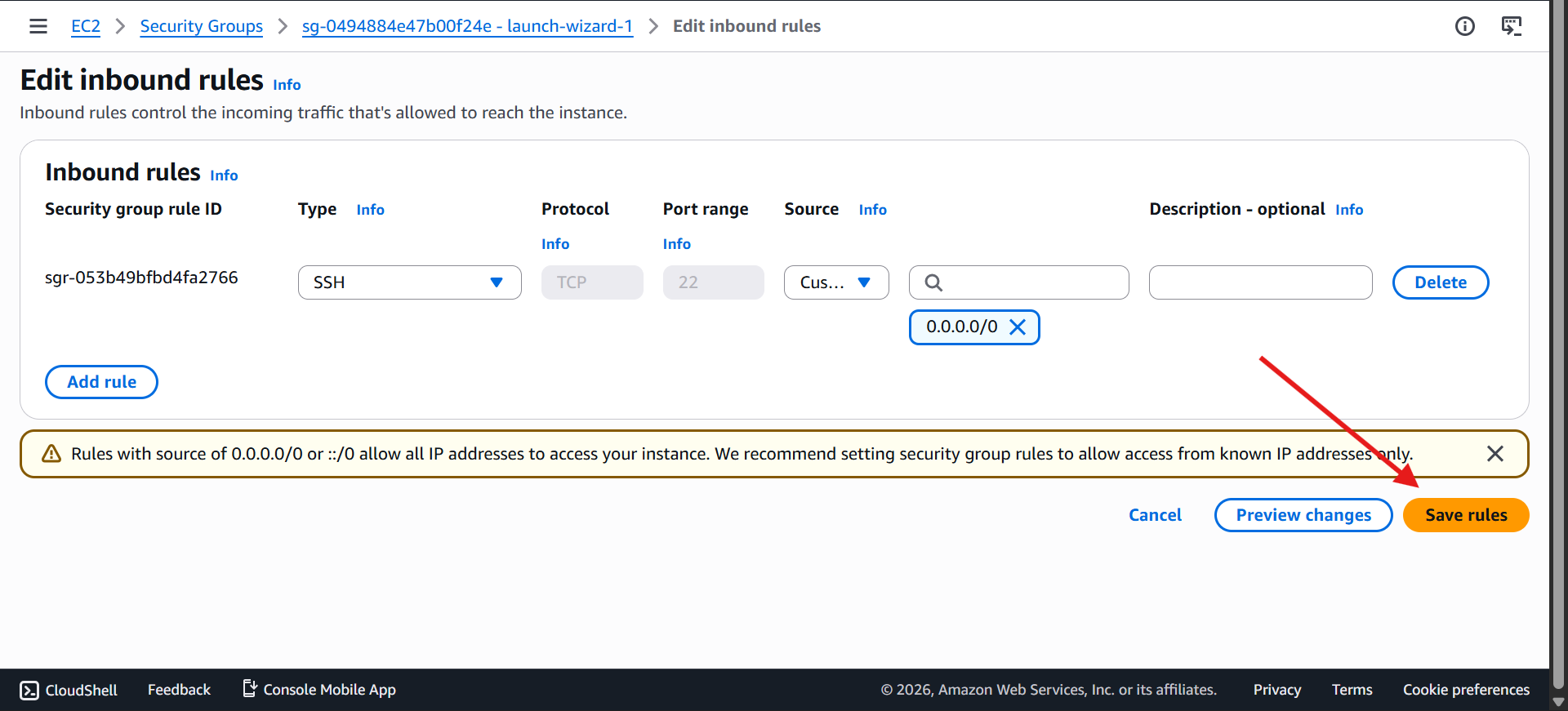
Click Edit Inbound Rules and you'll see something like:
SSH — port 22 — source
0.0.0.0/0(anywhere)HTTP — port 80 — source
0.0.0.0/0
🌐 Step 5: Why Your Website Worked
Earlier, you accessed your EC2 using its public IPv4 address
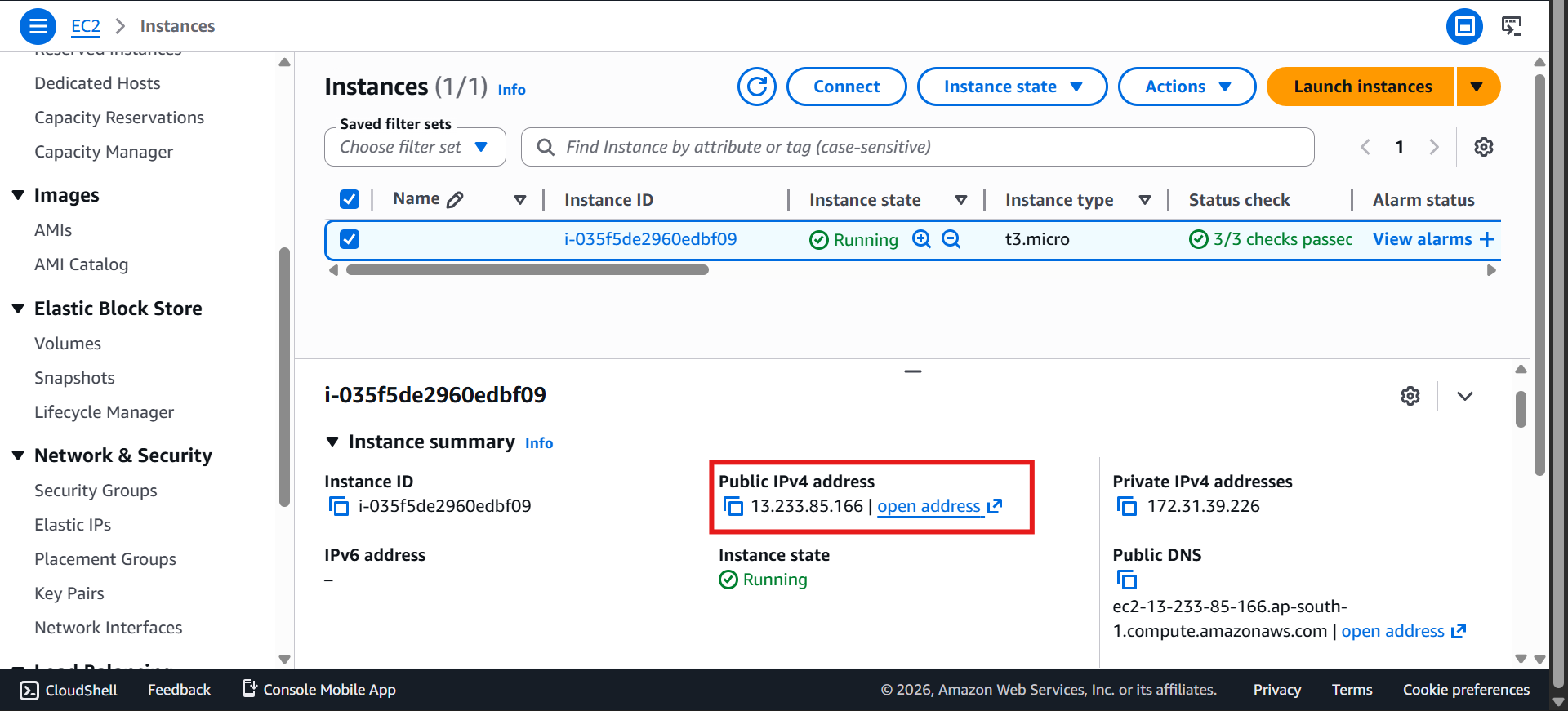
👉 That worked because of this rule:
HTTP (port 80) open to the internet
🚨 Step 6: Breaking It (Very Important Learning)
❌ Delete the HTTP (port 80) rule
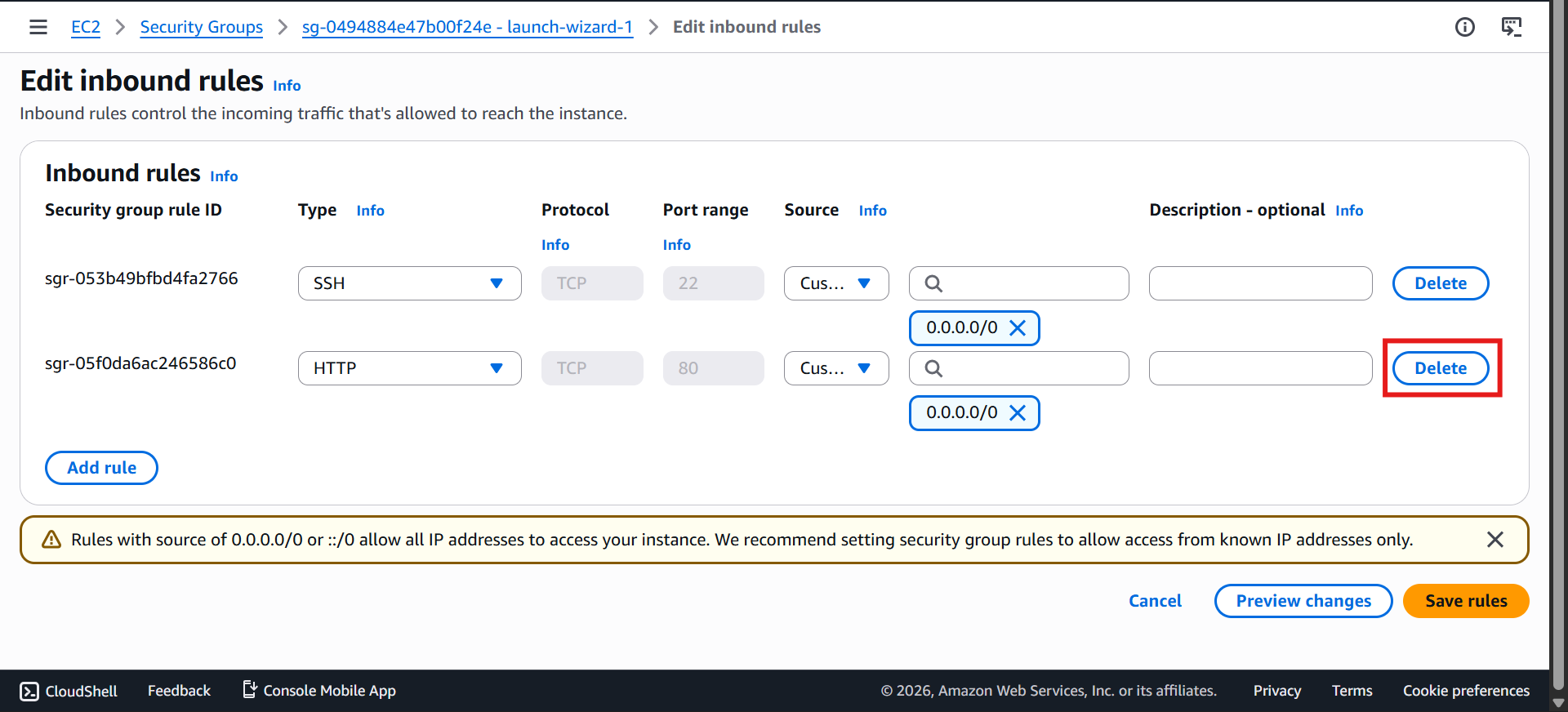
Save changes
Refresh your browser
👉 Result: You’ll see infinite loading / timeout
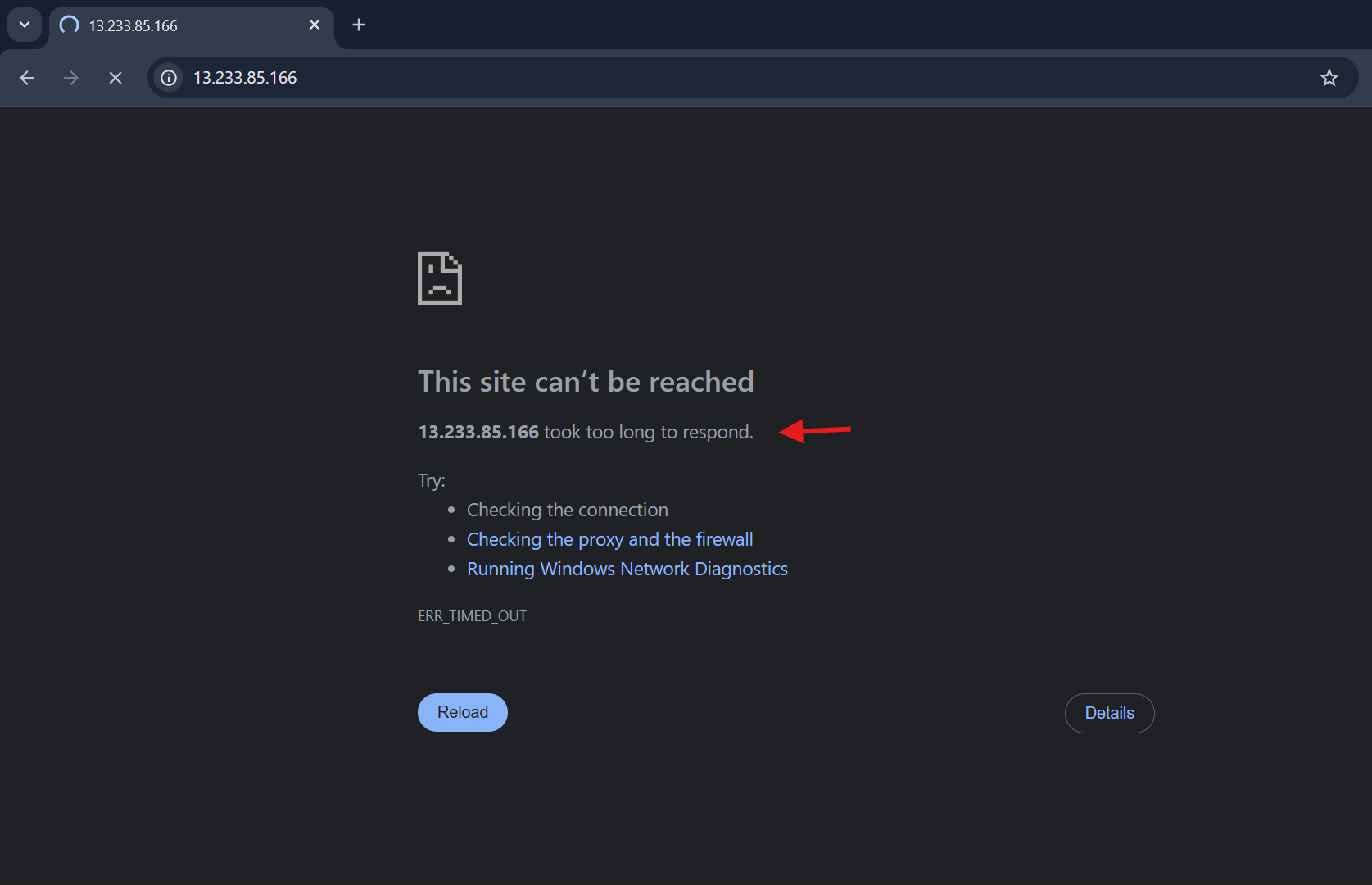
⚠️ Timeout = Security Group
Seeing a timeout — SSH, a website, an API, anything — check the security group first. It's almost always the cause.
Golden rule: Timeout = blocked by a security group.
✅ Step 7: Fixing the Issue
Add a new rule:
Type: HTTP
Port: 80
Source:
0.0.0.0/0ezgif-2578f0b6f2563620.mp4
Save rules
Refresh browser
✅ Your website works again!
⚙️ Step 8: Adding Other Rules
What you can configure
Ports: open whatever you need — HTTPS (443), a custom port like 8080, or a whole range.
Source: decide who that port is open to —
🌍 Anywhere (
0.0.0.0/0)🧑 Only your IP ("My IP")
⚠️ One catch with "My IP": it's a snapshot, not a live setting. If your IP changes later — new network, ISP reassigns it, whatever — that rule no longer matches you, and you're locked out with a timeout until you update it.
📤 Step 9: Outbound Rules
Now take a look at Outbound Rules.
By default: all traffic is allowed, going anywhere.
That's what lets your EC2 instance freely reach out — hitting the internet, installing packages, calling external APIs — without you having to configure anything extra.
🔗 Multiple Security Groups
Important concept:
✅ One EC2 can have Multiple security groups
✅ One security group can be attached to Multiple EC2 instances
👉 Rules are combined together