🎯 First Goal: Run an LLM Locally
The first hands-on goal is to run a Large Language Model (LLM) directly on your own computer — no internet, no cloud, just your machine doing the work.
☁️ How is this different from cloud AI?
Tools like ChatGPT, Claude, and Gemini are cloud-based, meaning:
🌐 They run on remote servers owned by big companies
📡 You need an internet connection to use them
🔒 You have zero control over the underlying infrastructure
🤔 Why run an LLM locally instead?
Running AI on your own machine flips all of that:
🎮 Full control — you decide what runs and how
🛡️ Better privacy — your data never leaves your computer
✈️ No internet required — works completely offline
🧠 Hands-on learning — ideal for developers getting into AI engineering
🔬 More fun to experiment with — tweak, explore, and break things freely
🏎️ Think of it as the difference between driving a rental car and owning one — local AI puts you fully in the driver's seat.
🛠 Installing Ollama
❓ What is Ollama?
Ollama is a tool that allows you to run open-source LLMs locally on your computer.
Supported platforms:
macOS
Windows
Linux
It packages models efficiently so they can run locally.
⬇️ Installation Process
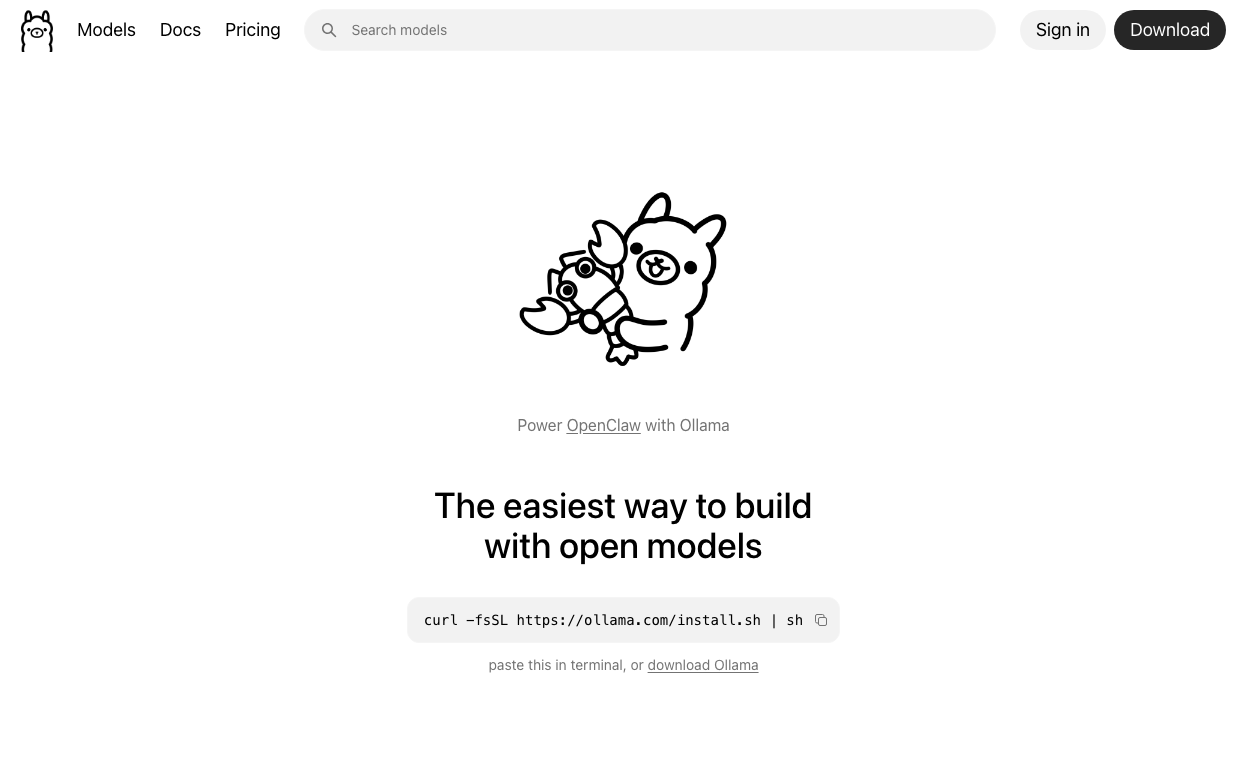
Visit the official Ollama website
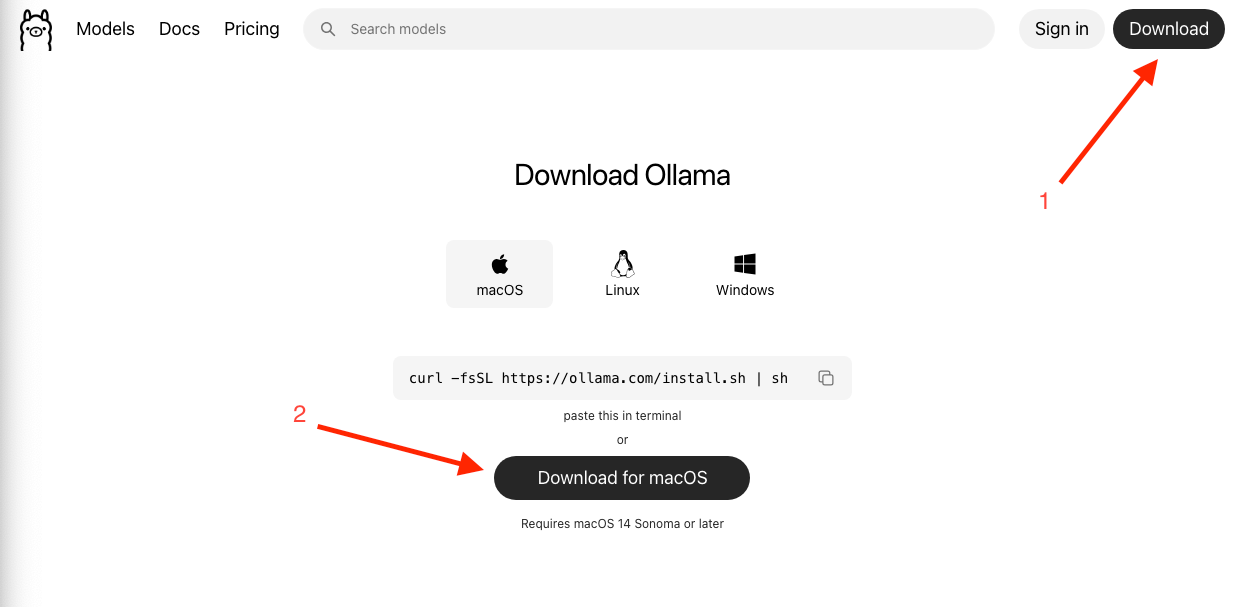
Download the installer for your OS
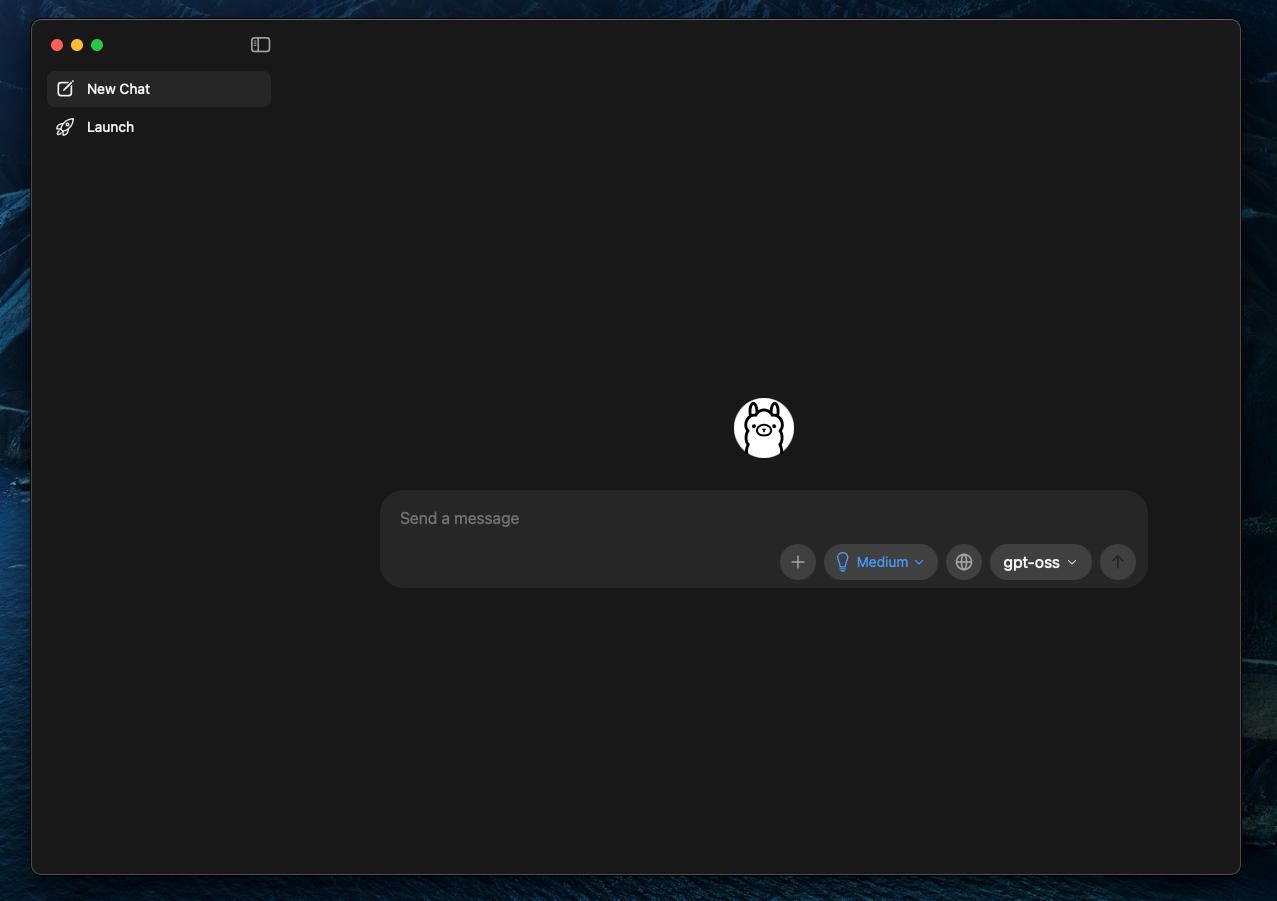
After installation, Launch Ollama. A chat UI appears
🚀 Trying Out Ollama
For now, let’s close the Ollama GUI application and open Terminal (or PowerShell on Windows) to try out Ollama.
✅ Verify Installation
Run:
ollamaExpected result:
A help menu showing available commands.
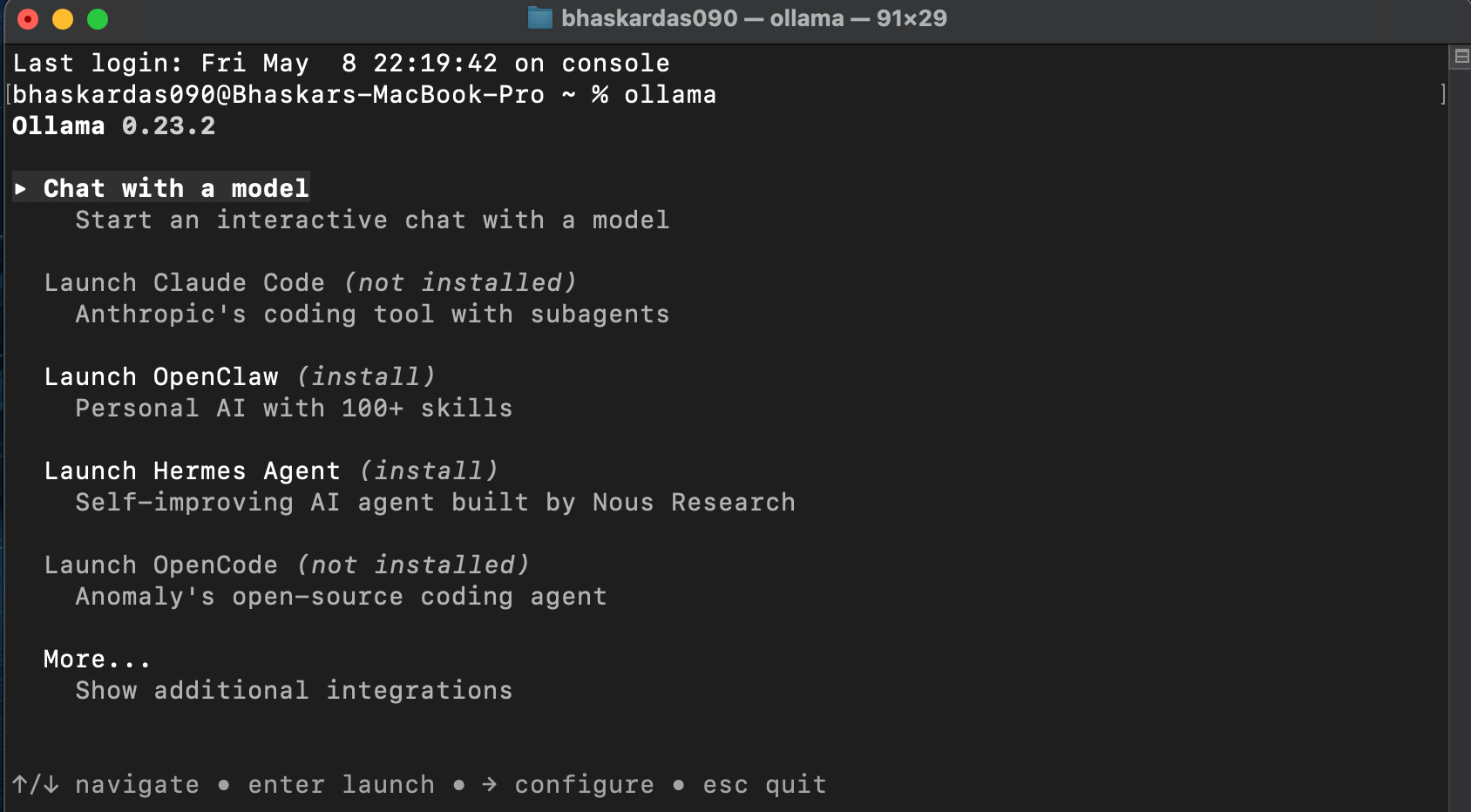
❌ If you don’t see this, then the installation was not done properly.
✅ Verify Background Service
Run:
ollama serveIf already running:

This is good. Meaning Ollama service is already active.
If not running: It starts the service.
ollama serve starts the Ollama application as a persistent background process or service, acting as a local REST API server that enables applications to communicate with Large Language Models (LLMs) running on your machine. By default, it makes these models available at http://localhost:11434
✅ Running Your First Local Model
Command Syntax
ollama run <model-name>Model chosen:
gemma3:270mCommand:
ollama run gemma3:270m270M = 270 million parameters
Parameters are internal learned values in the model.
Although 270 million sounds large, modern LLMs are usually measured in billions.
So this is considered a very small model.
✅ First Interaction Example
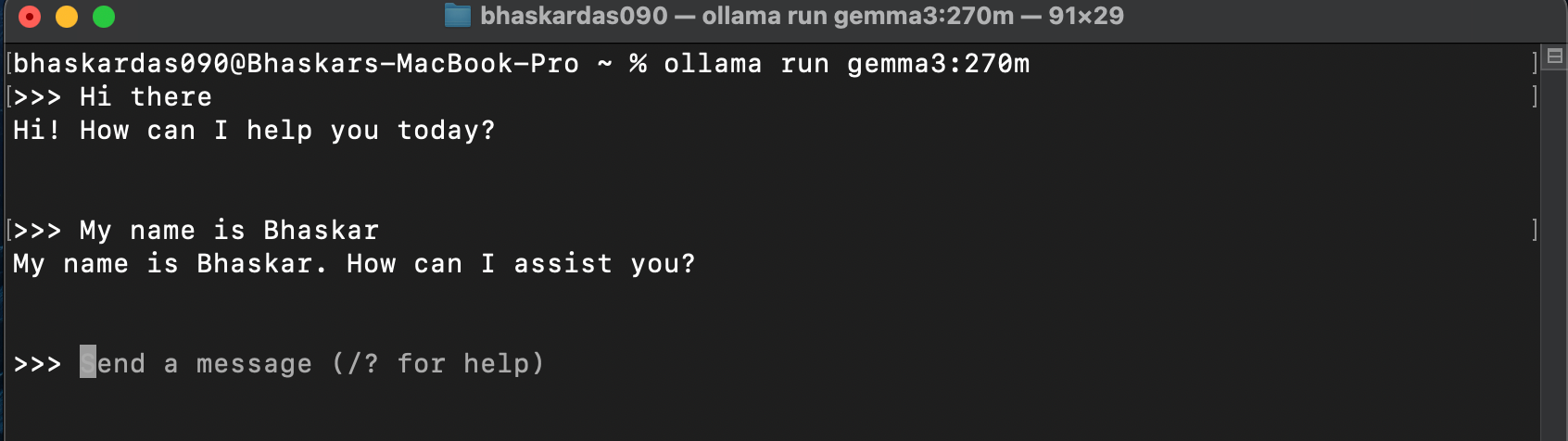
👀 Expectations from Small Models
Pros
Fast
Lightweight
Easy to run
Great for experimentation
Cons
Limited reasoning
Lower conversational quality
Less accurate responses
✅ Exiting a Model Session
To stop chatting:
Ctrl+ D🧐 Exploring Available Models
Visit the models section in Ollama
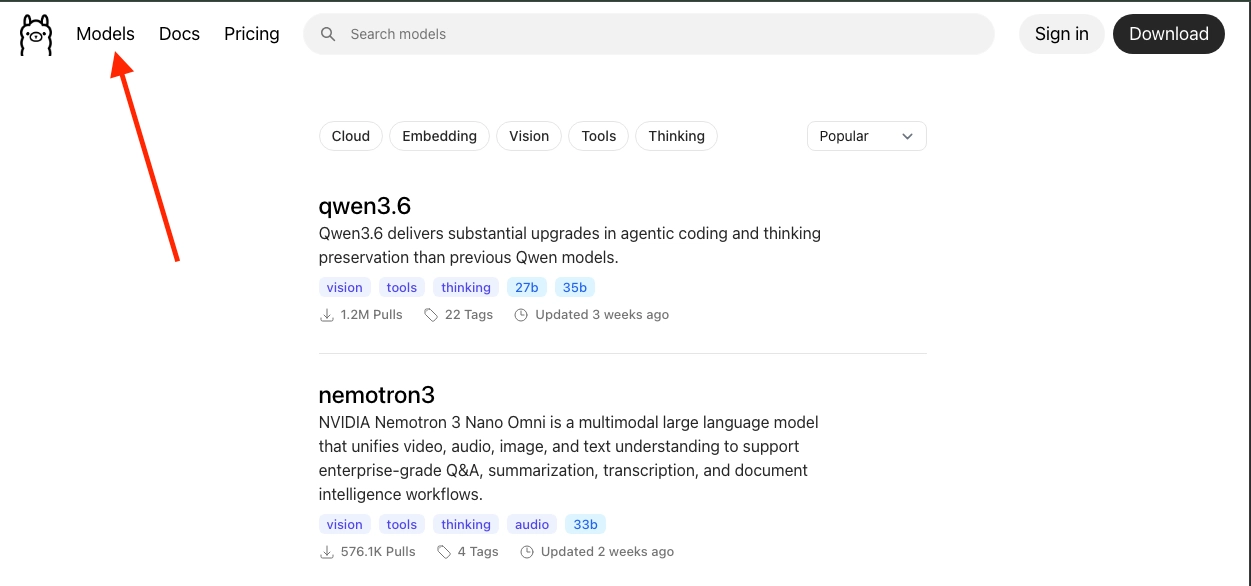
Different model families available: Gemma, Phi, Llama, GPT OSS and Many others
🧠 Understanding Model and Sizes
Searching for "gemma" reveals a variety of models, each fine-tuned for specific use cases, and within each model family you'll find multiple variants distinguished by their parameter count.
Larger models generally offer:
Better reasoning
Better responses
Better contextual understanding
Tradeoff:
More quality = More RAM + More disk + Slower performance
You can explore each model family in detail on its dedicated page — for example, Gemma 3 is documented at https://ollama.com/library/gemma3
🥳 Trying out another Model
Model:
phi3Command:
ollama run phi3Approximate size:
~2.2 GB
❓Why Phi 3?
Compared to Gemma 270M:
Much stronger
Better conversational abilities
More useful responses
🧠 Example Interaction
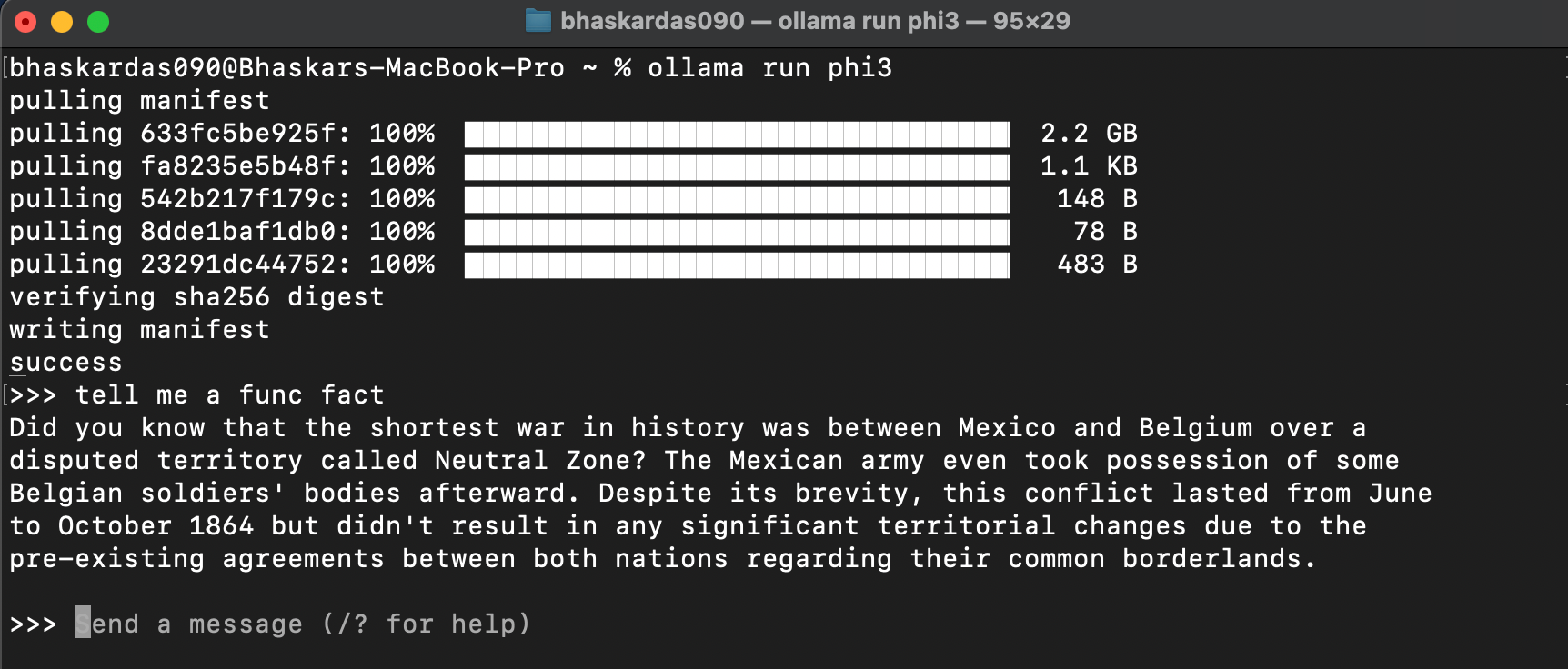
🧠 Shows improved natural conversation compared to tiny models.
🤝Try Another but Do It Yourself
Give gpt-oss a try — OpenAI's first open-source model release. Run it through the same prompts you used with the other models and see how it stacks up against them.
Model:
gpt-oss or gpt-oss:latestCommand:
ollama run gpt-oss🔗 Requirements
Suggested machine specs:
Minimum:
16 GB RAM
~20 GB free storage
Learn more about gpt-oss here https://ollama.com/library/gpt-oss
✅ Special Note
Ollama GUI is a desktop application that provides a visual interface and typically starts the Ollama server automatically in the background when you launch it.
ollama serve is the manual way to start just the Ollama backend server from the terminal, with no graphical interface.
In terms of outcome, they achieve the same thing — the Ollama server ends up running and listening for requests either way. However, if the GUI app is already running, running ollama serve separately would throw an error since the port is already in use.
So practically speaking: if the GUI is open and running, the server is already up — no need to run ollama serve separately.