⏲️ Session Storage
sessionStoragestores data only for the current browser session.Data stays while the tab/window is open and survives page refresh, but:
Deleted when the tab/window is closed
Not shared across tabs, even if they open the same website
Each tab gets its own separate sessionStorage.
Data is also protocol-specific (
httpvshttpsare treated differently).
📌 Important Notes
sessionStorageis not available when running an HTML file locally (without a server).It works the same way as
localStorage, but data lasts only for the session.
🔧 sessionStorage Methods
setItem(name, value)→ save datagetItem(name)→ read dataremoveItem(name)→ delete one itemclear()→ delete everythingkey(index)→ get the key name by index
<div class="infographic-sessionstorage">
<style>
.infographic-sessionstorage {
--ink: #1a1a1a;
--ink-soft: #5c5c5c;
--paper: #ffffff;
--paper-alt: #f0ece4;
--accent: #2563eb;
--accent-soft:#e3ebfd;
--line: #ddd6c9;
--good: #1a8a5f;
--good-soft: #e1f2ea;
--bad: #c23b3b;
--bad-soft: #fbe6e6;
--mono-font: 'IBM Plex Mono', monospace;
--display-font: 'Fraunces', Georgia, serif;
box-sizing: border-box;
max-width: 880px;
margin: 0 auto;
font-family: 'Inter', system-ui, sans-serif;
color: var(--ink);
background: var(--paper);
overflow-x: hidden;
}
.infographic-sessionstorage[data-theme="dark"] {
--ink: #e8e6e1;
--ink-soft: #9a968c;
--paper: #121212;
--paper-alt: #1e1e26;
--accent: #5b8def;
--accent-soft:#202942;
--line: #2c313d;
--good: #4fbf8f;
--good-soft: #16281f;
--bad: #e06b6b;
--bad-soft: #351c1c;
}
.infographic-sessionstorage * { box-sizing: border-box; }
.infographic-sessionstorage h1 { font-family: var(--display-font); font-weight: 600; margin: 0; }
.infographic-sessionstorage p { margin: 0; }
.infographic-sessionstorage button { font-family: inherit; }
.ss-icon { width: 1em; height: 1em; display: inline-block; vertical-align: -0.15em; }
.ss-icon svg { width: 100%; height: 100%; display: block; }
.ss-wrap { padding: clamp(1.25rem, 5vw, 2.5rem) clamp(1.1rem, 5vw, 3rem) 2rem; }
.ss-hero { text-align: center; margin-bottom: 0.6rem; }
.ss-hero h1 { font-size: clamp(1.35rem, 4.5vw, 1.85rem); }
.ss-hero p { color: var(--ink-soft); margin-top: 0.4rem; font-size: 0.86rem; }
.ss-badges { display: flex; gap: 0.4rem; justify-content: center; flex-wrap: wrap; margin-bottom: 1.3rem; }
.ss-badge { display: inline-flex; align-items: center; gap: 0.3rem; font-family: var(--mono-font); font-size: 0.62rem;
color: var(--ink-soft); border: 1px solid var(--line); border-radius: 20px; padding: 0.28rem 0.6rem; }
.ss-badge .ss-icon { width: 11px; height: 11px; }
/* --- tab strip --- */
.ss-tabstrip { display: flex; gap: 0.3rem; justify-content: center; margin: 0 auto -1px; max-width: 440px; }
.ss-tab-btn { display: flex; align-items: center; gap: 0.4rem; border: 1px solid var(--line); border-bottom: none;
background: var(--paper-alt); color: var(--ink-soft); padding: 0.5rem 1rem; font-size: 0.78rem; font-weight: 600;
border-radius: 8px 8px 0 0; cursor: pointer; }
.ss-tab-btn.is-active { background: var(--paper); color: var(--accent); border-color: var(--accent); position: relative; z-index: 1; }
.ss-tab-btn .ss-icon { width: 14px; height: 14px; }
.ss-tab-dot { width: 6px; height: 6px; border-radius: 50%; background: var(--ink-soft); opacity: 0.4; }
.ss-tab-btn.is-active .ss-tab-dot { background: var(--accent); opacity: 1; }
.ss-window { border: 1px solid var(--accent); border-radius: 0 8px 8px 8px; max-width: 440px; margin: 0 auto 1rem; padding: 0.7rem; }
.ss-window-inner { max-width: 100%; }
/* --- panels --- */
.ss-panels { display: grid; grid-template-columns: 1fr 1fr; gap: 1rem; margin-bottom: 1rem; }
@media (max-width: 640px) { .ss-panels { grid-template-columns: 1fr; } }
.ss-panel { border: 1px solid var(--line); border-radius: 8px; overflow: hidden; background: var(--paper); }
.ss-panel-head { display: flex; align-items: center; justify-content: space-between; padding: 0.5rem 0.75rem;
border-bottom: 1px solid var(--line); background: var(--paper-alt); }
.ss-panel-title { display: flex; align-items: center; gap: 0.4rem; font-family: var(--mono-font); font-size: 0.72rem; font-weight: 700; color: var(--ink-soft); }
.ss-panel-title .ss-icon { width: 14px; height: 14px; color: var(--accent); }
.ss-table-head { font-family: var(--mono-font); font-size: 0.72rem; color: var(--accent); font-weight: 700; padding: 0.55rem 0.75rem 0.3rem; }
.ss-table-body { min-height: 6.5rem; max-height: 9.5rem; overflow-y: auto; padding: 0 0.5rem 0.5rem; }
.ss-row { display: flex; align-items: center; gap: 0.5rem; font-family: var(--mono-font); font-size: 0.72rem;
padding: 0.35rem 0.5rem; border-radius: 4px; animation: ss-pop-in 0.25s ease; }
.ss-row:nth-child(odd) { background: var(--paper-alt); }
.ss-row .k { color: var(--accent); font-weight: 700; }
.ss-row .sep { color: var(--ink-soft); }
.ss-row .v { color: var(--ink); flex: 1; overflow: hidden; text-overflow: ellipsis; white-space: nowrap; }
.ss-empty { font-family: var(--mono-font); font-size: 0.68rem; color: var(--ink-soft); opacity: 0.7; padding: 0.5rem; }
@keyframes ss-pop-in { from { opacity: 0; transform: translateY(-3px); } to { opacity: 1; transform: translateY(0); } }
.ss-console { min-height: 6.5rem; max-height: 9.5rem; overflow-y: auto; background: #1e1e1e; padding: 0.5rem 0.7rem; }
.ss-console-line { font-family: var(--mono-font); font-size: 0.66rem; color: #d4d4d4; padding: 0.08rem 0; animation: ss-pop-in 0.2s ease; white-space: pre-wrap; }
.ss-console-line.is-echo { color: #7fb0ff; }
.ss-console-line.is-result { color: #9fd9a8; padding-left: 0.9rem; }
.ss-console-line.is-warn { color: #e0a95f; }
.ss-console-empty { font-family: var(--mono-font); font-size: 0.66rem; color: #6b6b6b; }
/* --- simulate row --- */
.ss-sim-row { display: flex; gap: 0.5rem; justify-content: center; margin-bottom: 1.3rem; }
.ss-sim-btn { display: flex; align-items: center; gap: 0.35rem; border: 1px solid var(--line); background: var(--paper);
border-radius: 6px; padding: 0.4rem 0.8rem; font-size: 0.72rem; font-weight: 600; cursor: pointer; color: var(--ink-soft); }
.ss-sim-btn.refresh:hover { border-color: var(--good); color: var(--good); }
.ss-sim-btn.close:hover { border-color: var(--bad); color: var(--bad); }
.ss-sim-btn .ss-icon { width: 13px; height: 13px; }
/* --- steps --- */
.ss-steps { display: flex; flex-direction: column; gap: 0.5rem; max-width: 560px; margin: 0 auto; }
.ss-step { display: flex; align-items: center; gap: 0.6rem; border: 1px solid var(--line); border-radius: 7px; padding: 0.45rem 0.6rem; }
.ss-step-icon { width: 24px; height: 24px; border-radius: 6px; background: var(--accent-soft); color: var(--accent);
display: flex; align-items: center; justify-content: center; flex-shrink: 0; }
.ss-step-icon .ss-icon { width: 13px; height: 13px; }
.ss-step-code { font-family: var(--mono-font); font-size: 0.66rem; color: var(--ink-soft); flex: 1; overflow: hidden; text-overflow: ellipsis; white-space: nowrap; }
.ss-run-btn { flex-shrink: 0; background: var(--accent); color: #fff; border: none; border-radius: 5px; padding: 0.32rem 0.7rem;
font-size: 0.68rem; font-weight: 700; cursor: pointer; font-family: var(--mono-font); }
.ss-run-btn:hover { opacity: 0.88; }
.ss-run-btn:active { transform: scale(0.96); }
@media (prefers-reduced-motion: reduce) {
.infographic-sessionstorage *, .infographic-sessionstorage *::before, .infographic-sessionstorage *::after {
animation-duration: 0.001ms !important; transition-duration: 0.001ms !important;
}
}
</style>
<div class="ss-wrap">
<div class="ss-badges">
<span class="ss-badge"><span class="ss-icon" id="ssBadgeIcon1"></span>survives refresh</span>
<span class="ss-badge"><span class="ss-icon" id="ssBadgeIcon2"></span>not shared across tabs</span>
<span class="ss-badge"><span class="ss-icon" id="ssBadgeIcon3"></span>http ≠ https</span>
<span class="ss-badge"><span class="ss-icon" id="ssBadgeIcon4"></span>no file:// support</span>
</div>
<div class="ss-tabstrip">
<button class="ss-tab-btn is-active" data-tab="1" type="button">
<span class="ss-icon" id="ssTabIcon1"></span>Tab 1<span class="ss-tab-dot"></span>
</button>
<button class="ss-tab-btn" data-tab="2" type="button">
<span class="ss-icon" id="ssTabIcon2"></span>Tab 2<span class="ss-tab-dot"></span>
</button>
</div>
<div class="ss-window">
<div class="ss-window-inner">
<div class="ss-panels">
<div class="ss-panel">
<div class="ss-panel-head">
<span class="ss-panel-title"><span class="ss-icon" id="ssStorageIcon"></span>sessionStorage</span>
</div>
<div class="ss-table-head" id="ssTableHead">Storage {length: 0}</div>
<div class="ss-table-body" id="ssTableBody">
<div class="ss-empty">empty — run a step below</div>
</div>
</div>
<div class="ss-panel">
<div class="ss-panel-head">
<span class="ss-panel-title" style="color:#d4d4d4">>_ Console</span>
</div>
<div class="ss-console" id="ssConsole">
<div class="ss-console-empty">// output appears here</div>
</div>
</div>
</div>
<div class="ss-sim-row">
<button class="ss-sim-btn refresh" id="ssRefreshBtn" type="button">
<span class="ss-icon" id="ssRefreshIcon"></span>Refresh this tab
</button>
<button class="ss-sim-btn close" id="ssCloseBtn" type="button">
<span class="ss-icon" id="ssCloseIcon"></span>Close this tab
</button>
</div>
</div>
</div>
<div class="ss-steps" id="ssSteps">
<div class="ss-step" data-step="0">
<span class="ss-step-icon"><span class="ss-icon" id="ssStepIcon0"></span></span>
<span class="ss-step-code">sessionStorage.setItem('user', 'Alice')</span>
<button class="ss-run-btn" data-run="0" type="button">Run</button>
</div>
<div class="ss-step" data-step="1">
<span class="ss-step-icon"><span class="ss-icon" id="ssStepIcon1"></span></span>
<span class="ss-step-code">sessionStorage.getItem('user')</span>
<button class="ss-run-btn" data-run="1" type="button">Run</button>
</div>
<div class="ss-step" data-step="2">
<span class="ss-step-icon"><span class="ss-icon" id="ssStepIcon2"></span></span>
<span class="ss-step-code">sessionStorage.removeItem('user')</span>
<button class="ss-run-btn" data-run="2" type="button">Run</button>
</div>
<div class="ss-step" data-step="3">
<span class="ss-step-icon"><span class="ss-icon" id="ssStepIcon3"></span></span>
<span class="ss-step-code">sessionStorage.clear()</span>
<button class="ss-run-btn" data-run="3" type="button">Run</button>
</div>
<div class="ss-step" data-step="4">
<span class="ss-step-icon"><span class="ss-icon" id="ssStepIcon4"></span></span>
<span class="ss-step-code">sessionStorage.key(0)</span>
<button class="ss-run-btn" data-run="4" type="button">Run</button>
</div>
</div>
</div>
</div>
<script>
(function () {
const wrapper = document.currentScript.closest('.infographic-sessionstorage')
|| document.querySelector('.infographic-sessionstorage');
const bodyAttr = document.body.getAttribute('data-darkmode');
let dark;
if (bodyAttr === 'true') {
dark = true;
} else if (bodyAttr === 'false') {
dark = false;
} else {
const match = document.cookie.match(/(?:^|;\s*)darkMode=([^;]+)/);
dark = match ? match[1] === 'true' : false;
}
if (dark) wrapper.setAttribute('data-theme', 'dark');
const ICONS = {
hourglass: '<svg xmlns="http://www.w3.org/2000/svg" viewBox="0 0 24 24" fill="none" stroke="currentColor" stroke-width="2" stroke-linecap="round" stroke-linejoin="round"><path d="M5 22h14"/><path d="M5 2h14"/><path d="M17 22v-4.172a2 2 0 0 0-.586-1.414L12 12l-4.414 4.414A2 2 0 0 0 7 17.828V22"/><path d="M7 2v4.172a2 2 0 0 0 .586 1.414L12 12l4.414-4.414A2 2 0 0 0 17 6.172V2"/></svg>',
ban: '<svg xmlns="http://www.w3.org/2000/svg" viewBox="0 0 24 24" fill="none" stroke="currentColor" stroke-width="2" stroke-linecap="round" stroke-linejoin="round"><circle cx="12" cy="12" r="10"/><path d="M4.929 4.929 19.07 19.071"/></svg>',
lock: '<svg xmlns="http://www.w3.org/2000/svg" viewBox="0 0 24 24" fill="none" stroke="currentColor" stroke-width="2" stroke-linecap="round" stroke-linejoin="round"><rect width="18" height="11" x="3" y="11" rx="2" ry="2"/><path d="M7 11V7a5 5 0 0 1 10 0v4"/></svg>',
filewarn: '<svg xmlns="http://www.w3.org/2000/svg" viewBox="0 0 24 24" fill="none" stroke="currentColor" stroke-width="2" stroke-linecap="round" stroke-linejoin="round"><path d="M6 22a2 2 0 0 1-2-2V4a2 2 0 0 1 2-2h8a2.4 2.4 0 0 1 1.704.706l3.588 3.588A2.4 2.4 0 0 1 20 8v12a2 2 0 0 1-2 2z"/><path d="M12 9v4"/><path d="M12 17h.01"/></svg>',
tab: '<svg xmlns="http://www.w3.org/2000/svg" viewBox="0 0 24 24" fill="none" stroke="currentColor" stroke-width="2" stroke-linecap="round" stroke-linejoin="round"><rect width="20" height="16" x="2" y="4" rx="2"/><path d="M6 8h.01"/><path d="M10 8h.01"/><path d="M14 8h.01"/></svg>',
database: '<svg xmlns="http://www.w3.org/2000/svg" viewBox="0 0 24 24" fill="none" stroke="currentColor" stroke-width="2" stroke-linecap="round" stroke-linejoin="round"><ellipse cx="12" cy="5" rx="9" ry="3"/><path d="M3 5V19A9 3 0 0 0 21 19V5"/><path d="M3 12A9 3 0 0 0 21 12"/></svg>',
refresh: '<svg xmlns="http://www.w3.org/2000/svg" viewBox="0 0 24 24" fill="none" stroke="currentColor" stroke-width="2" stroke-linecap="round" stroke-linejoin="round"><path d="M21 12a9 9 0 1 1-3-6.7"/><path d="M21 3v6h-6"/></svg>',
xcircle: '<svg xmlns="http://www.w3.org/2000/svg" viewBox="0 0 24 24" fill="none" stroke="currentColor" stroke-width="2" stroke-linecap="round" stroke-linejoin="round"><circle cx="12" cy="12" r="10"/><path d="m15 9-6 6"/><path d="m9 9 6 6"/></svg>',
plus: '<svg xmlns="http://www.w3.org/2000/svg" viewBox="0 0 24 24" fill="none" stroke="currentColor" stroke-width="2" stroke-linecap="round" stroke-linejoin="round"><circle cx="12" cy="12" r="10"/><path d="M8 12h8"/><path d="M12 8v8"/></svg>',
search: '<svg xmlns="http://www.w3.org/2000/svg" viewBox="0 0 24 24" fill="none" stroke="currentColor" stroke-width="2" stroke-linecap="round" stroke-linejoin="round"><path d="m21 21-4.34-4.34"/><circle cx="11" cy="11" r="8"/></svg>',
trash: '<svg xmlns="http://www.w3.org/2000/svg" viewBox="0 0 24 24" fill="none" stroke="currentColor" stroke-width="2" stroke-linecap="round" stroke-linejoin="round"><path d="M3 6h18"/><path d="M19 6v14a2 2 0 0 1-2 2H7a2 2 0 0 1-2-2V6m3 0V4a2 2 0 0 1 2-2h4a2 2 0 0 1 2 2v2"/><line x1="10" x2="10" y1="11" y2="17"/><line x1="14" x2="14" y1="11" y2="17"/></svg>',
eraser: '<svg xmlns="http://www.w3.org/2000/svg" viewBox="0 0 24 24" fill="none" stroke="currentColor" stroke-width="2" stroke-linecap="round" stroke-linejoin="round"><path d="M21 21H8a2 2 0 0 1-1.42-.587l-3.994-3.999a2 2 0 0 1 0-2.828l10-10a2 2 0 0 1 2.829 0l5.999 6a2 2 0 0 1 0 2.828L12.834 21"/><path d="m5.082 11.09 8.828 8.828"/></svg>',
listord: '<svg xmlns="http://www.w3.org/2000/svg" viewBox="0 0 24 24" fill="none" stroke="currentColor" stroke-width="2" stroke-linecap="round" stroke-linejoin="round"><path d="M11 5h10"/><path d="M11 12h10"/><path d="M11 19h10"/><path d="M4 4h1v5"/><path d="M4 9h2"/><path d="M6.5 20H3.4c0-1 2.6-1.925 2.6-3.5a1.5 1.5 0 0 0-2.6-1.02"/></svg>'
};
wrapper.querySelector('#ssBadgeIcon1').innerHTML = ICONS.hourglass;
wrapper.querySelector('#ssBadgeIcon2').innerHTML = ICONS.ban;
wrapper.querySelector('#ssBadgeIcon3').innerHTML = ICONS.lock;
wrapper.querySelector('#ssBadgeIcon4').innerHTML = ICONS.filewarn;
wrapper.querySelector('#ssTabIcon1').innerHTML = ICONS.tab;
wrapper.querySelector('#ssTabIcon2').innerHTML = ICONS.tab;
wrapper.querySelector('#ssStorageIcon').innerHTML = ICONS.database;
wrapper.querySelector('#ssRefreshIcon').innerHTML = ICONS.refresh;
wrapper.querySelector('#ssCloseIcon').innerHTML = ICONS.xcircle;
wrapper.querySelector('#ssStepIcon0').innerHTML = ICONS.plus;
wrapper.querySelector('#ssStepIcon1').innerHTML = ICONS.search;
wrapper.querySelector('#ssStepIcon2').innerHTML = ICONS.trash;
wrapper.querySelector('#ssStepIcon3').innerHTML = ICONS.eraser;
wrapper.querySelector('#ssStepIcon4').innerHTML = ICONS.listord;
const tabBtns = wrapper.querySelectorAll('.ss-tab-btn');
const tableHead = wrapper.querySelector('#ssTableHead');
const tableBody = wrapper.querySelector('#ssTableBody');
const consoleEl = wrapper.querySelector('#ssConsole');
const refreshBtn = wrapper.querySelector('#ssRefreshBtn');
const closeBtn = wrapper.querySelector('#ssCloseBtn');
const runBtns = wrapper.querySelectorAll('[data-run]');
const tabs = {
1: { store: {}, order: [] },
2: { store: {}, order: [] }
};
let activeTab = 1;
function currentTab() { return tabs[activeTab]; }
function renderTable() {
const t = currentTab();
tableHead.textContent = 'Storage {length: ' + t.order.length + '}';
if (t.order.length === 0) {
tableBody.innerHTML = '<div class="ss-empty">empty \u2014 run a step below</div>';
return;
}
tableBody.innerHTML = '';
t.order.forEach(key => {
const row = document.createElement('div');
row.className = 'ss-row';
row.innerHTML = '<span class="k">' + key + '</span><span class="sep">:</span><span class="v">' + t.store[key] + '</span>';
tableBody.appendChild(row);
});
}
function logLine(text, cls) {
if (consoleEl.querySelector('.ss-console-empty')) consoleEl.innerHTML = '';
const line = document.createElement('div');
line.className = 'ss-console-line ' + (cls || '');
line.textContent = text;
consoleEl.appendChild(line);
consoleEl.scrollTop = consoleEl.scrollHeight;
}
function setKey(key, value) {
const t = currentTab();
if (!(key in t.store)) t.order.push(key);
t.store[key] = value;
renderTable();
}
function removeKey(key) {
const t = currentTab();
if (!(key in t.store)) return;
delete t.store[key];
t.order = t.order.filter(k => k !== key);
renderTable();
}
function switchTab(n) {
activeTab = n;
tabBtns.forEach(b => b.classList.toggle('is-active', Number(b.dataset.tab) === n));
renderTable();
consoleEl.innerHTML = '<div class="ss-console-empty">// output appears here</div>';
}
tabBtns.forEach(btn => {
btn.addEventListener('click', () => switchTab(Number(btn.dataset.tab)));
});
refreshBtn.addEventListener('click', () => {
logLine('// tab refreshed', 'is-warn');
logLine('sessionStorage kept: ' + currentTab().order.length + ' item(s)', 'is-result');
});
closeBtn.addEventListener('click', () => {
const t = currentTab();
logLine('// tab closed', 'is-warn');
logLine('sessionStorage cleared for Tab ' + activeTab, 'is-result');
t.store = {};
t.order = [];
renderTable();
});
const RUNS = [
() => {
logLine("> sessionStorage.setItem('user', 'Alice');", 'is-echo');
setKey('user', 'Alice');
logLine('undefined', 'is-result');
},
() => {
logLine("> sessionStorage.getItem('user');", 'is-echo');
const val = currentTab().store.user;
logLine(val === undefined ? 'null' : "'" + val + "'", 'is-result');
},
() => {
logLine("> sessionStorage.removeItem('user');", 'is-echo');
removeKey('user');
logLine('undefined', 'is-result');
},
() => {
logLine('> sessionStorage.clear();', 'is-echo');
const t = currentTab();
t.store = {};
t.order = [];
renderTable();
logLine('undefined', 'is-result');
},
() => {
logLine("> sessionStorage.setItem('a', '1');", 'is-echo');
setKey('a', '1');
logLine("> sessionStorage.setItem('b', '2');", 'is-echo');
setKey('b', '2');
logLine('> sessionStorage.key(0);', 'is-echo');
logLine("'" + currentTab().order[0] + "'", 'is-result');
logLine('> sessionStorage.key(1);', 'is-echo');
logLine("'" + currentTab().order[1] + "'", 'is-result');
}
];
runBtns.forEach(btn => {
btn.addEventListener('click', () => {
RUNS[Number(btn.dataset.run)]();
});
});
renderTable();
})();
</script>⚡Managing data in the JavaScript sessionStorage
🧪 Accessing the sessionStorage
To access the
sessionStorage, you use thesessionStorageproperty of thewindowobject :
window.sessionStorageSince the
windowis the global object, you can simply access thesessionStoragelike this :
sessionStorage👍 Storing data in the sessionStorage
The following stores a name-value pair in the
sessionStorage:
sessionStorage.setItem('mode','dark');If the
sessionStoragehas an item with the name ofmode, thesetItem()method will update the value for the existing item todark. Otherwise, it’ll insert a new item.
🪢 Getting data from the sessionStorage
To get the value of an item by name, you use the
getItem()method. The following example gets the value of the item ‘mode‘ :
const mode = sessionStorage.getItem('mode');
console.log(mode);// 'dark'
If there is no item with the name
mode, thegetItem()method will returnnull.
❌ Removing an item by a name
To remove an item by the name, you use the
removeItem()method. The following removes the item with the name of'mode':
sessionStorage.removeItem('mode');🔁 Iterating over all items
To iterate over all items stored in the
sessionStorage, you follow these steps:Use
Object.keys()to get all keys of thesessionStorageobject.Use
for...ofto iterate over the keys and get the items by keys.
The following code illustrates the steps :
let keys = Object.keys(sessionStorage);
for(let key of keys) {
  console.log(`${key}: ${sessionStorage.getItem(key)}`);
}
⛔ Deleting all items in the sessionStorage
The data stored in the
sessionStorageare automatically deleted when the web browser tab/window is closed.In addition, you can use the
clear()method to programmatically delete all data stored in thesessionStorage.
sessionStorage.clear();❓Why JavaScript sessionStorage
The sessionStorage has many practical applications. And the following are the notable ones:
The
sessionStoragecan be used to store the state of the user interface of the web application. Later, when the user comes back to the page, you can restore the user interface stored in thesessionStorage.The
sessionStoragecan also be used to pass data between pages instead of using the hidden input fields or URL parameters.
📊 localStorage vs Cookies vs sessionStorage
🔢 No. | 🧠 Feature | 📦 | 🍪 Cookies | 🗂️ |
|---|---|---|---|---|
1. | Storage Limit | ⭐ ~ 5MB | ⚠️ ~4KB | ⭐ ~ 5MB |
2. | Data Sent with Requests | ❌ No | ✅ Yes (automatically sent to server) | ❌ No |
3. | Access Control | Client-side JavaScript only | Client-side + Server | Client-side JavaScript only |
4. | Expiration | Never expires (unless removed) | Can set expiry date | Expires when tab/window closes |
5. | Per Tab or Shared? | Shared across all tabs of same origin | Shared across all tabs | ❗ Unique per tab/window |
6. | Availability Offline | Yes | Yes | Yes (but session ends when tab closes) |
7. | Use Case | Long-term storage (themes, preferences, app data) | Authentication, sessions, tracking, server-related data | Temporary data for a single session/tab (forms, state, steps) |
🧩Session Storage application
You’ll build a simple web application that allows users to select the mode, either dark or light mode. By default, it has a light mode. And you’ll use the
sessionStorageto remember the mode when the page refreshes.If you refresh the page, the mode that you selected will restore since it’s stored in the
sessionStorage.However, if you close the tab or window, the page will reset to the
darkmode, which is the default mode.
<!DOCTYPE html>
<html lang="en">
<head>
    <meta charset="UTF-8">
    <meta name="viewport" content="width=device-width, initial-scale=1.0">
    <title>JavaScript sessionStorage Demo</title>
    <link rel="stylesheet" href="css/style.css">
</head>
<body>
    <div class="container">
        <h1>JavaScript sessionStorage Demo</h1>
        <p>Click the button to switch to the dark/light mode.</p>
        <p>Refresh the page to check if the mode is saved.</p>
        <a id="theme-switcher" class="btn"></a>
    </div>
    <script src="js/app.js"></script>
</body>

</html>
* {
margin: 0;
padding: 0;
box-sizing: border-box;
}
/* Default light mode styles */
body {
font-family: 'Segoe UI', Tahoma, Geneva, Verdana, sans-serif;
background-color: #fff;
color: #333;
transition: all 0.3s ease-in-out;
display: flex;
justify-content: center;
align-items: center;
height: 100vh;
text-align: center;
}
/* Dark mode styles */
body.dark {
background-color: #111;
color: #f9f9f9;
}
/* Container for content */
.container {
max-width: 600px;
}
/* Heading style */
.container h1 {
margin-bottom: 10px;
font-size: 2rem;
}
/* Paragraph style */
.container p {
font-size: 1rem;
line-height: 1.5;
color: inherit;
}
/* Button style */
.btn {
display: inline-block;
margin-top: 20px;
font-size: 2rem;
cursor: pointer;
user-select: none;
transition: transform 0.2s ease;
}
/* Optional animation on click */
.btn:active {
transform: scale(1.2);
}//First, declare two constants that will be used as the butotn’s label
const MOON = '🌙';
const SUN = '☀️';
//Second, declare three constants for the dark, light, and default modes
const DARK_MODE = 'dark';
const LIGHT_MODE = 'light';
const DEFAULT_MODE = DARK_MODE;
//Third, select the button theme-switcher by using the querySelector()
const btn = document.querySelector('#theme-switcher');
init();
//Fifth, define the init() function that will run when the page loads
//use the getItem() method to retrieve the mode stored in the sessionStorage
function init() {
let storedMode = sessionStorage.getItem('mode');
if (!storedMode) {
storedMode = DEFAULT_MODE;
sessionStorage.setItem('mode', DEFAULT_MODE);
}
setMode(storedMode);
}
//Fourth, define a new function setMode() to change the mode
function setMode(mode = DEFAULT_MODE) {
if (mode === DARK_MODE) {
btn.textContent = SUN;
document.body.classList.add(DARK_MODE);
} else if (mode === LIGHT_MODE) {
btn.textContent = MOON;
document.body.classList.remove(DARK_MODE);
}
}
//Sixth, attach a click event handler to the theme-switcher button
btn.addEventListener('click', function () {
let mode = sessionStorage.getItem('mode');
if (mode) {
let newMode = mode == DARK_MODE ? LIGHT_MODE : DARK_MODE;
setMode(newMode);
sessionStorage.setItem('mode', newMode);
}
});If the
sessionStoragedoesn’t have themodeitem, theinit()function will switch the page to the default mode, which is the dark mode. Otherwise, it sets to the mode stored in thesessionStorage.The click event handler gets the mode stored in the sessionStorage.
If the mode item exists, it toggles the mode. In other words, the light mode becomes the dark mode and vice versa.
It then uses the
setItem()method to update the mode item in thesessionStorageto the new one.
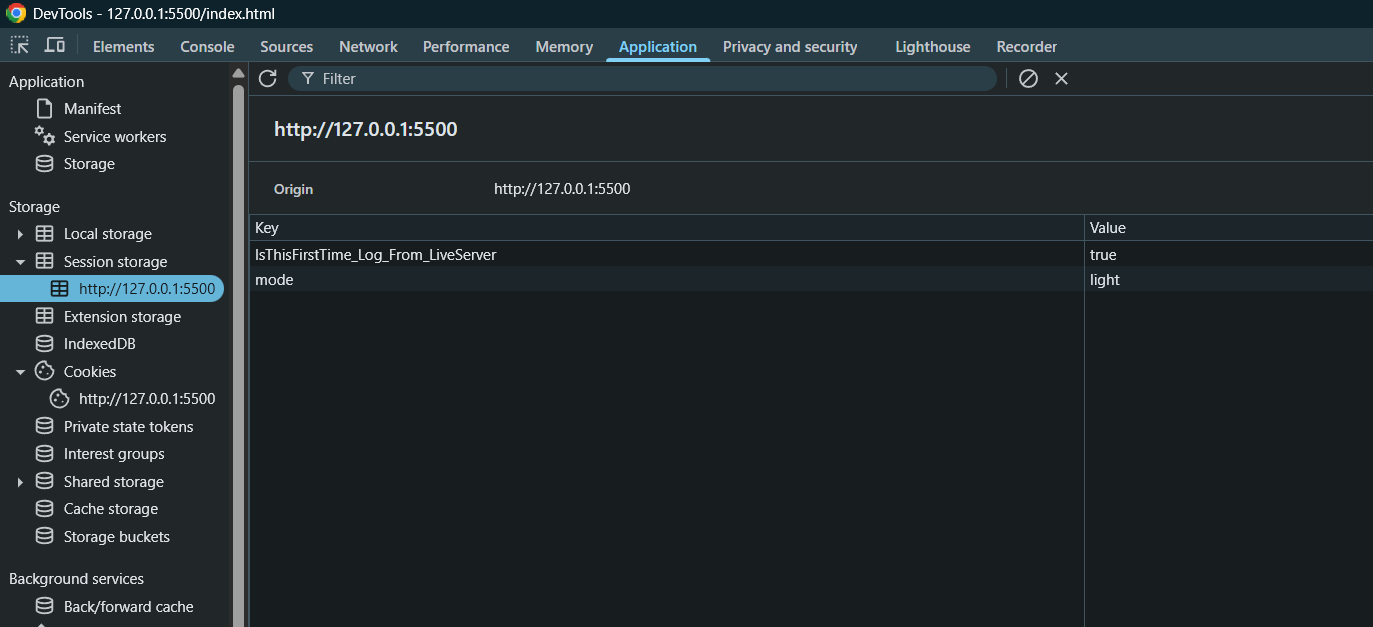
To view the data stored in the session storage in the web browser, you click the Application tab and select the Session Storage :